Most home office setups fail the same way: money goes to the flashy item (a big monitor, a fancy mic) while the boring stuff that causes daily friction gets ignored. A flaky router, a desk that is the wrong height, and a tangle of cables under the desk cost you more over a year than a mid-range monitor ever will.
This checklist is ordered by what causes the most daily pain when it is wrong. Work through it top to bottom, skip anything you already have sorted, and follow the links to our full roundups when you need specific product picks. Everything here is based on spec sheets, owner reports, and our own comparison research.
1. Desk and Chair (Fix This First)
- Desk surface at least 48 inches wide if you run one monitor, 55 to 60 inches for two monitors or a laptop plus monitor
- Desk height that puts your elbows at roughly 90 degrees with your wrists straight
- A chair with adjustable lumbar support and seat depth
- Feet flat on the floor, or on a footrest
If you sit more than six hours a day, a height-adjustable desk is the single most useful upgrade. See our standing desk roundup for options. If budget is tight, our budget remote work setup under $500 shows where to cut and where not to.
2. Monitor and Mounting
- Top of the screen at or slightly below eye level, about an arm’s length away
- One monitor sized for your workload: 27-inch 1440p is the practical floor for spreadsheet and multi-window work
- USB-C input with power delivery if you use a laptop, so one cable handles video, data, and charging
- A VESA arm or stand if your desk is shallow
Not sure how many screens you need? Read single vs dual monitor setups, then our guide on choosing a monitor for remote work. For arms, see the VESA monitor mount roundup.
3. Keyboard and Mouse
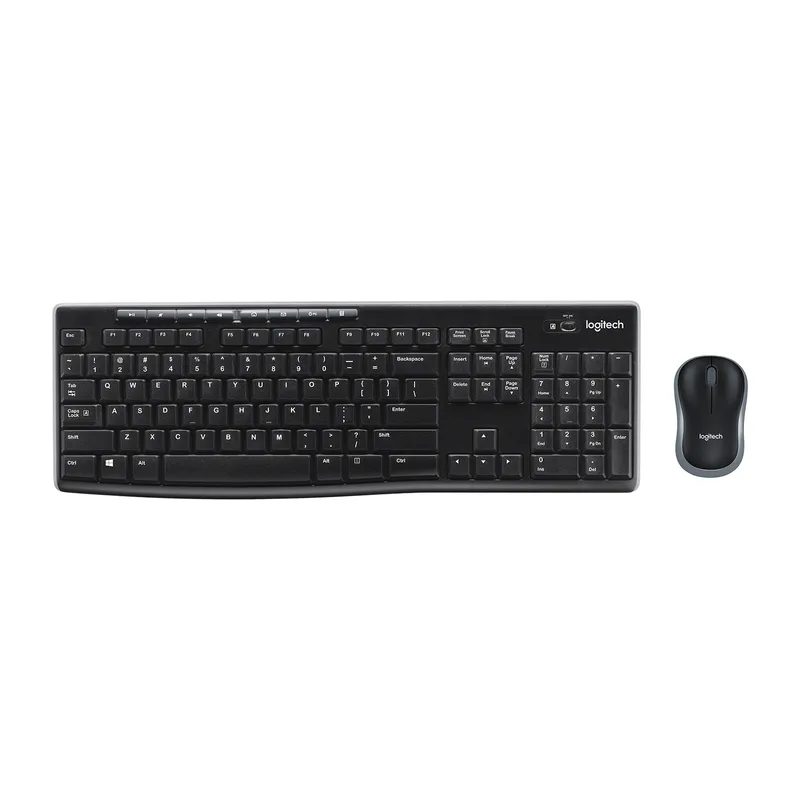
- A keyboard you can type on for hours without wrist extension
- A mouse that fits your hand size, ergonomic or vertical if you already feel wrist strain
- A wrist-friendly layout: keyboard and mouse close enough that your shoulders stay relaxed
Our ergonomic keyboard and ergonomic mouse roundups cover the main options.
4. Network (The Silent Productivity Killer)
- Router placed in the open, off the floor, ideally in the same room or one wall away
- Wired Ethernet from your main work machine to the router or a switch whenever possible
- Mesh nodes or a better router if you have dead zones where you take calls
- A UPS so a brief power blip does not drop your meeting
Wired connections are more consistent for video calls than WiFi, which we cover in wired vs WiFi for video calls. For the full process, see how to set up a fast, reliable home office network, and for hardware, the router roundup and UPS roundup.
5. Video and Audio
- Webcam at eye level, not looking up at you from a laptop on the desk
- Light source in front of you or to the side, never only behind you
- A headset or microphone that isolates your voice from room noise
- A way to cut echo if your room is bare
Start with the video call setup guide. Then pick hardware from the webcam roundup and headset roundup. If people say you sound hollow, read how to reduce echo on video calls.
6. Docking, Ports, and Power
- One dock or hub that connects your laptop to monitor, network, and peripherals with a single cable
- Enough ports for your actual devices, plus one spare
- A surge-protected power strip within reach, mounted under or behind the desk
Our USB-C docking station roundup covers the main choices, and the Thunderbolt 4 dock roundup is the pick if you need multiple high-resolution displays.
7. Cable Management
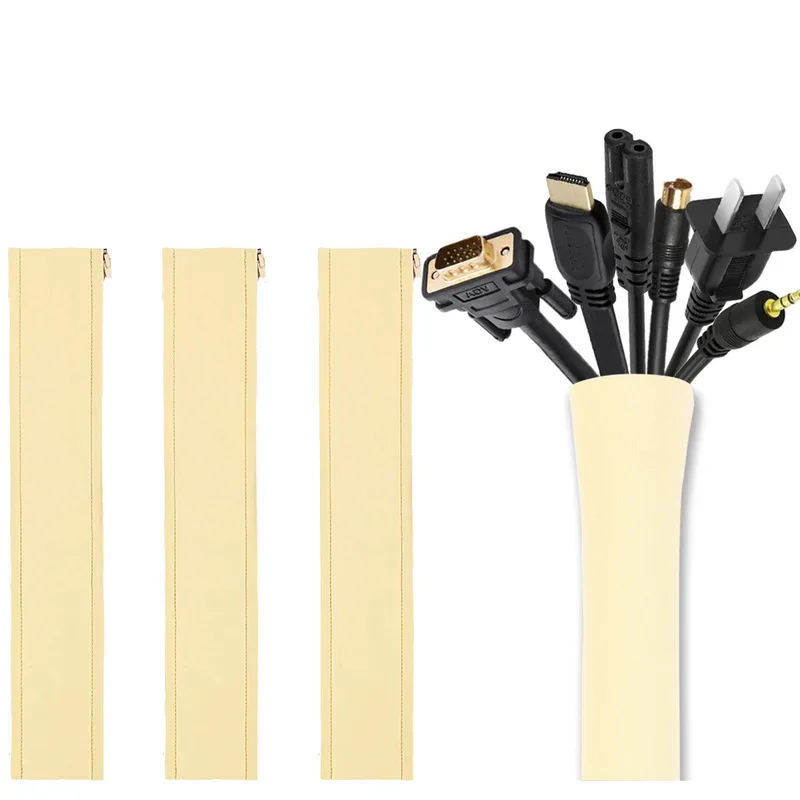
- Power strip and dock mounted off the floor
- A cable tray or channel under the desk to hold slack
- Labels or color-coded ties on anything you may need to unplug later
See our desk cable tray picks and the cable management desk roundup.
8. Backup and Storage
- A local backup of your work files, separate from your laptop
- A second copy off-site or in cloud storage
- Enough fast storage for your daily projects
A portable SSD handles quick backups, and a NAS is worth it once you have several devices and a lot of files.
9. Security Basics
- Router firmware updated and default admin password changed
- A password manager and multi-factor authentication on work accounts
- A VPN if your employer requires one
Our remote work cybersecurity guide and VPN setup guide walk through each step.
What to Buy First: A Priority Order
If you cannot do everything at once, this is the order that gives the most relief per dollar:
- Chair and desk height. Pain here affects everything else.
- Network. Fix dropped calls before upgrading anything visible.
- Monitor. A bigger or better screen speeds up daily work.
- Audio and camera. These matter most if you are on calls for hours.
- Dock and cable management. A one-cable setup makes the desk usable every day.
- Backup and security. Cheap, easy, and painful to skip.
Our home office upgrade priority guide goes deeper on this ordering, and the complete remote work setup guide covers the full build in one place.
Frequently Asked Questions
How much should a remote work desk setup cost?
It depends on what you already own. Our setup guide under $300 shows a workable minimum, and the under $1,000 build shows what a comfortable full setup looks like.
What is the most overlooked item on a home office checklist?
Network reliability. Most people upgrade the monitor first, but dropped calls and slow uploads are what people actually notice in meetings.
Do I need a dock?
If you use a laptop with more than one external device, yes. One cable that handles display, power, and peripherals means less plugging and unplugging every day.
Should I buy a standing desk?
If you can afford one, it is a worthwhile upgrade, because it lets you change position during the day. A fixed desk at the right height with a good chair is still better than a poorly set-up standing desk.
Can I deduct home office gear?
Self-employed workers may be able to. See our home office tax deductions guide and check with a tax professional.
Conclusion
A good remote work desk setup is not about owning the most expensive gear. It is about fixing the things that cause friction every day: posture, network, screen placement, audio, and cable clutter. Start at the top of this checklist, tick off what you already have, and use the linked roundups when you are ready to buy. If you can only do one thing this week, adjust your desk and chair height. It costs nothing and it is the change you will feel first.