Affiliate disclosure: SetupRanked earns a commission on purchases made through links on this page, at no extra cost to you.
Most home offices in 2026 are still running on the same basic setup: laptop on desk, built-in camera, built-in mic, and a dining room chair pulled up to the work table. The hybrid work expansion pushed millions of people into remote setups over the past few years, but the follow-through on actual equipment has been inconsistent. The gap between “I work from home” and “I have a proper workspace” is where most people are still sitting.
The real question isn’t whether to upgrade. It’s what to buy first — because the impact of each upgrade is wildly unequal. Spending $300 on a mechanical keyboard before you have a proper monitor is the wrong order. So is buying a standing desk before you have an ergonomic chair.
Quick picks: Laptop stand first ($49–$59), external monitor second (Dell S2725QC, $299–$312), ergonomic chair third (HON Ignition 2.0, $379–$420). That three-step sequence covers the majority of available productivity and health gain before diminishing returns set in.
This guide gives you the priority framework — sorted by impact — with specific product recommendations at each budget level.
The Priority Framework
The correct order of home office upgrades, ranked by impact on productivity and health:
- Monitor — The biggest single boost to output. More screen real estate means fewer context switches, less scrolling, and sharper text that reduces eye strain.
- Chair — The upgrade with the longest payoff period. Eight hours a day in a bad chair creates compounding physical problems. Eight hours in a good one does not.
- Audio — Your microphone quality shapes how others perceive you on calls. A bad mic is more career-affecting than a bad camera.
- Camera — Important for presence and professionalism, but lower impact than the three above.
- Peripherals — Keyboard, mouse, and desk accessories. High personal preference, lower universal impact.
Notice what isn’t at the top: cable management, desk mats, monitor lighting, and decorative items. Those come last.
Quick Comparison
| Spec | Dell S2725QC 27" 4K USB-C Monitor | HON Ignition 2.0 Mesh Chair | Shure MV7 USB Microphone | Logitech Brio 500 Webcam | Lamicall Adjustable Laptop Stand |
|---|---|---|---|---|---|
| Rating | 9.0/10 | 8.7/10 | 9.1/10 | 8.8/10 | 8.5/10 |
| Price | $310.60-$342.69as of Oct 18, 2026 | $404.89-$453.44as of Oct 18, 2026 | $288.00-$299.00as of Oct 18, 2026 | Unavailable | $29.99as of Oct 18, 2026 |
| Size | 27 inches | — | — | — | — |
| Resolution | 3840x2160 (4K UHD) | — | — | 1080p Full HD | — |
| Panel | IPS | — | — | — | — |
| Refresh Rate | 120Hz | — | — | — | — |
| USB-C Power Delivery | 65W | — | — | — | — |
| Built-in Speakers | 2x 3W | — | — | — | — |
| Color Gamut | 99% sRGB | — | — | — | — |
| Adjustment | Height / Tilt / Swivel / Pivot | — | — | — | — |
| Back | — | Mid-back mesh | — | — | — |
| Lumbar Support | — | Adjustable height and depth | — | — | — |
| Armrests | — | 4D (height, width, depth, pivot) | — | — | — |
| Seat Depth | — | Adjustable | — | — | — |
| Weight Capacity | — | 300 lbs | — | — | 22 lbs |
| Recline | — | Synchro-tilt with multiple lock positions | — | — | — |
| Warranty | — | Limited lifetime | — | — | — |
| Type | — | — | Dynamic cardioid | — | — |
| Connection | — | — | USB-A / XLR | USB-C | — |
| Frequency Response | — | — | 50Hz–16kHz | — | — |
| Sample Rate | — | — | 24-bit | — | — |
| Headphone Output | — | — | 3.5mm zero-latency | — | — |
| Mute | — | — | Touch panel with LED indicator | — | — |
| Body | — | — | All-metal | — | — |
| Frame Rate | — | — | — | 30fps | — |
| Field of View | — | — | — | 90° (adjustable) | — |
| Auto-Framing | — | — | — | Yes | — |
| Light Correction | — | — | — | RightLight 4 with HDR | — |
| Microphone | — | — | — | Dual noise-reducing | — |
| Privacy Cover | — | — | — | Built-in | — |
| Material | — | — | — | — | Aluminum alloy |
| Height Adjustment | — | — | — | — | 6 angles |
| Compatibility | — | — | — | — | 10–17.3-inch laptops |
| Foldable | — | — | — | — | Yes |
| Pad Protection | — | — | — | — | Anti-skid silicone |
| Weight | — | — | — | — | 2.3 lbs |
| Check Price → | Check Price → | Check Price → | Check Price → | Check Price → |
Prices change daily — tap Check Price for the current Amazon price.
Tier 1: The Free Upgrades (Do These First)
Before buying anything, squeeze everything possible from what you already have.
Raise your laptop screen. Working on a laptop sitting flat on a desk means your neck is bent forward all day. Move the laptop to a stack of books to get the screen roughly at eye level. Free. Do it now.
Find better light. Natural light from a window placed in front of you (not behind or to the side) dramatically improves how you look on camera. No ring light needed if you move the desk.
Close background apps. Video calls consume significant CPU and network bandwidth. Closing unused browser tabs and background applications before meetings reduces dropped frames and audio glitches without buying anything.
Use a wired connection for calls. If your router is accessible, an Ethernet cable costs under $10 and eliminates the packet loss and jitter that WiFi introduces.
These four free changes will outperform most $50 accessories.
Tier 2: Under $100 — Biggest Impact Per Dollar
Once you’ve exhausted the free upgrades, two purchases cover the most ground at the lowest cost: a proper laptop stand and a webcam upgrade.
The Laptop Stand — Start Here
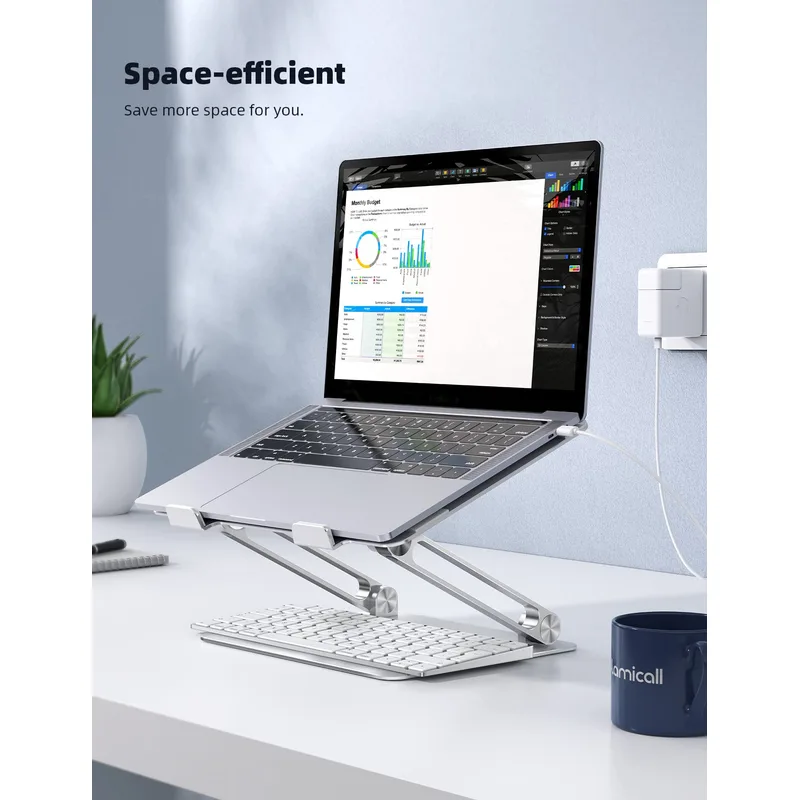
Lamicall Adjustable Laptop Stand
Pros
- Raises the screen to near eye level — eliminates the forward-head posture that causes neck and shoulder pain
- Aluminum construction dissipates laptop heat rather than trapping it underneath
- Folds completely flat for storage or travel
- Universal compatibility covers every laptop from 10 to 17.3 inches
- Anti-skid silicone pads protect both the laptop base and desk surface from scratches
Cons
- Requires an external keyboard and mouse once the laptop screen is elevated
- Fixed angle increments — cannot achieve arbitrary heights like telescoping stands
- No built-in cable management channel
A laptop stand is the foundation of any ergonomic upgrade. Raising the screen to eye level is the single most impactful postural change you can make, and the Lamicall stand at $49–$59 does it reliably.
The aluminum alloy construction matters for two reasons: it feels solid enough that the laptop doesn’t wobble on calls, and it actively dissipates heat from the laptop base rather than insulating it. Six height angles cover most monitor-height configurations without the complexity of telescoping adjustments.
The mandatory pairing: once your laptop is raised, you need an external keyboard and mouse. A basic Bluetooth keyboard and mouse combo adds $30–$50 and completes the ergonomic trifecta. Without them, the raised laptop defeats the purpose.
Who should buy this: Anyone working primarily on a laptop without a secondary monitor. This is the first purchase.
Who can skip it: If you already have an external monitor and work primarily at a proper height, the stand matters less.
The Webcam — If Calls Are Your Job
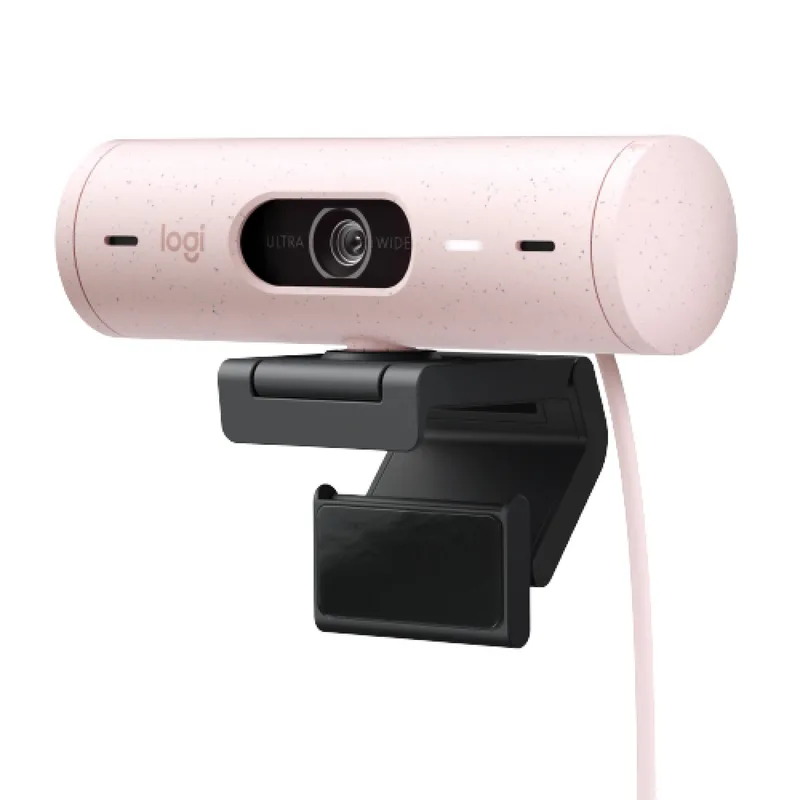
Logitech Brio 500 Webcam
Pros
- RightLight 4 auto-exposure correction fixes the blown-out or dark-face problem without manual camera tweaking
- Auto-framing keeps you centered in frame even as you shift position
- Dual noise-reducing mics provide passable call audio when a dedicated microphone is not in the budget
- USB-C cable and built-in privacy shutter match modern laptop standards
- Works with Zoom, Teams, and Google Meet out of the box — no driver installation required
Cons
- Auto-framing can over-crop in tight spaces — works best with a few feet of room behind you
- Full adjustments require the Logitech Tune app installed and running
- 1080p only — no 4K option in this model
The Logitech Brio 500 sits between budget cams and the 4K premium tier at $119–$129, and the features it carries are exactly the ones that matter for calls.
RightLight 4 solves the single most common webcam problem: the face that appears dark or blown out depending on room lighting. Rather than requiring you to adjust your environment, the camera adapts to whatever light is available. For people who work in inconsistently lit spaces — different rooms throughout the day, variable natural light — this is practically useful rather than a marketing spec.
Auto-framing keeps you in the center of the shot without manual adjustments. The dual noise-reducing microphones handle occasional calls reasonably well. If your call schedule is light, you may not need a dedicated microphone at all.
Skip the webcam upgrade if: You already have a recent MacBook with Apple’s Center Stage feature, or you’re rarely on video calls. A better microphone will have more visible impact than a better camera for most people.
Tier 3: $200–$500 — The Productivity Leap
This is the tier where the biggest single upgrade lives: the external monitor.
The Monitor — Your Highest-ROI Purchase
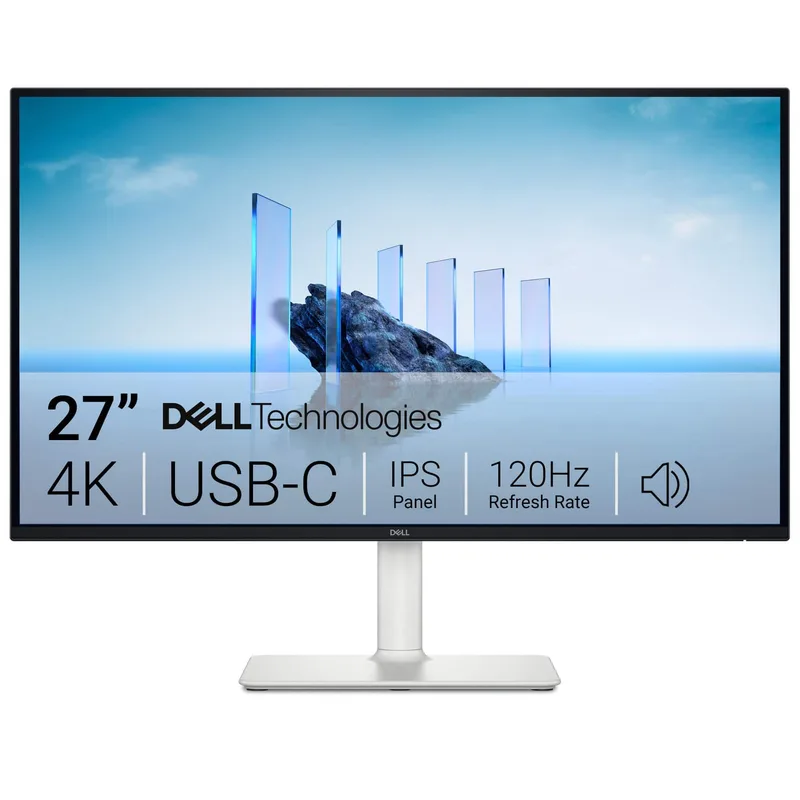
Dell S2725QC 27" 4K USB-C Monitor
Pros
- 65W USB-C power delivery charges most 13–15-inch laptops over a single cable — one plug replaces your power adapter
- 4K at 27 inches makes text sharper and easier to read during long work sessions than any 1080p display
- 120Hz refresh rate is a meaningful upgrade over the 60Hz norm at this price — scrolling and window dragging are noticeably smoother
- Built-in dual 3W speakers handle calls without needing separate desktop speakers
- 99% sRGB coverage means accurate colors for creative work and comfortable extended viewing
- Full ergonomic stand covers height, tilt, swivel, and pivot at this price point
Cons
- USB-C handles power delivery only, not Thunderbolt bandwidth — not a replacement for a full dock
- 8ms response time is fine for office work but shows ghosting in fast competitive games
An external monitor isn’t a luxury upgrade. It’s a productivity infrastructure decision. Comparing work across two documents, keeping a browser reference alongside a coding window, monitoring a dashboard while writing — all of these require screen real estate that a laptop display doesn’t have.
The Dell S2725QC is the recommendation in this tier. At $299–$312, it delivers 4K UHD resolution on a 27-inch IPS panel, 120Hz refresh rate, 65W USB-C power delivery, and a full-adjustment ergonomic stand. That combination at this price is genuinely hard to beat.
The 65W USB-C charges most 13–15-inch laptops while driving the display from a single cable. For laptop-based workflows, this means the monitor becomes a one-cable dock: plug in, and everything connects at once.
4K at 27 inches means text is sharp enough that most users notice the difference from 1080p immediately. The 120Hz refresh makes scrolling, window dragging, and browser navigation feel noticeably smoother — it’s not just for gaming. The 99% sRGB coverage handles color-accurate creative work without a specialized display.
What to pass on: Ultrawide monitors in this budget tier frequently sacrifice brightness, color accuracy, or resolution. At $300–$400, a 27-inch 4K IPS panel typically outperforms a similarly priced ultrawide on every metric that matters for office work.
The Microphone — If Calls Are a Large Part of Your Day
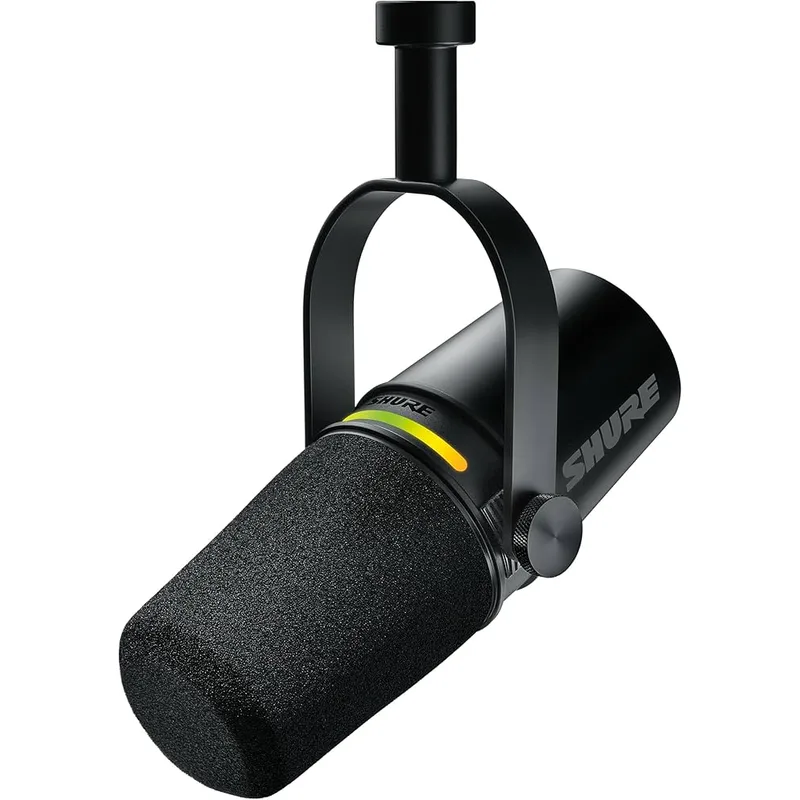
Shure MV7 USB Microphone
Pros
- Dynamic cardioid capsule rejects background noise — keyboard clicks and HVAC disappear from call audio
- Dual USB/XLR output works for calls now and connects to an audio interface later without buying a new mic
- Zero-latency headphone monitoring lets you hear your own voice in real time during calls
- All-metal construction is noticeably more durable than plastic condenser alternatives
- Touch-sensitive mute panel with LED status indicator is faster in calls than software muting
Cons
- Frequency response tops out at 16kHz — slightly less airy than condenser microphones
- No onboard gain control dial — adjustments go through system settings or the ShurePlus MOTIV app
- USB-A connector uses an older standard that requires an adapter on USB-C-only laptops
On video calls more than two hours per day? Your microphone quality gets noticed. People don’t consciously rate audio quality, but they do find voices easier or harder to focus on — and that judgment shapes how they perceive you in meetings.
The Shure MV7 sits at the right point in the upgrade curve. Below $100, condenser microphones pick up room reverb and make untreated home offices sound hollow. Above $300, you’re paying for features that matter for podcasting and recording, not for calls.
The MV7’s dynamic cardioid capsule rejects room noise more aggressively than a condenser. It focuses on sound directly in front of it and dismisses sounds from the sides and rear — keyboard noise, HVAC, pets, ambient room sound. The practical result: you sound clear without needing acoustic treatment or a dead-silent room.
The USB/XLR dual output means this microphone works immediately via USB and grows with you if you later add an audio interface. You won’t need to replace it.
Prioritize monitor first if you haven’t made that upgrade yet. The monitor impacts output every waking hour. The microphone impacts output only during calls.
Who should skip it: Fewer than 3–4 calls per week? The laptop mic is probably fine. Put that $199–$249 toward the monitor instead.
Tier 4: $400–$800 — The Long-Term Investment
By this budget level, the ergonomic chair is the right move.
The Chair — The Upgrade You Feel for Years
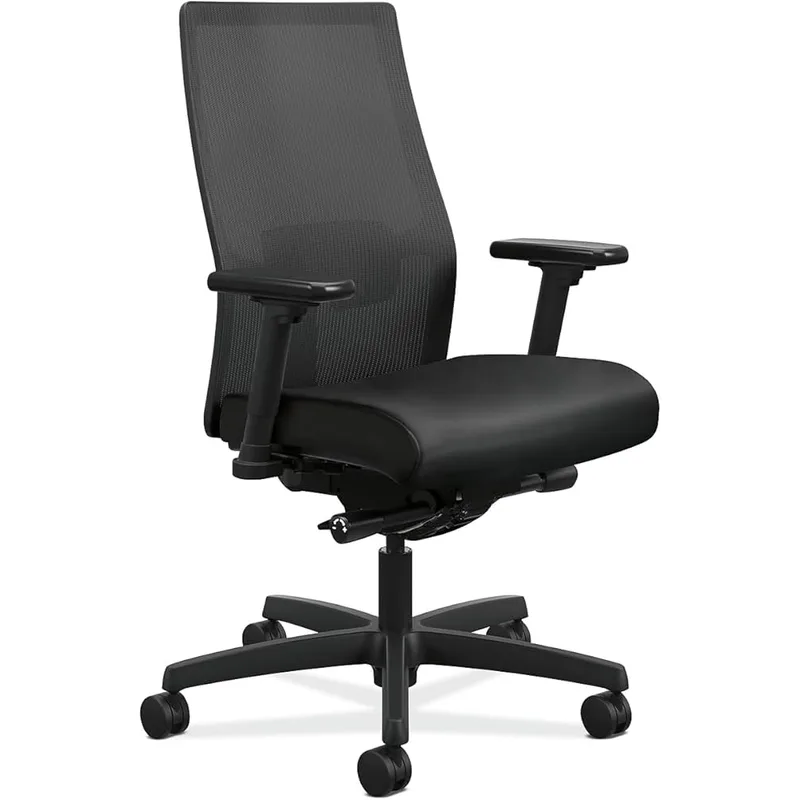
HON Ignition 2.0 Mesh Chair
Pros
- Commercial-grade construction built for 8-hour daily use — not designed around occasional use
- Adjustable lumbar depth and height offers more control than most chairs in this price range
- Breathable mesh back prevents heat buildup during long sessions
- 4D armrests adjust in all four directions for proper shoulder and neck alignment
- Limited lifetime warranty covers significantly more than the typical 2–5-year office chair guarantee
Cons
- Bulkier profile than minimalist home office chairs — takes up more visual and floor space
- Seat cushion is firmer than premium chairs like the Herman Miller Aeron
- Heavier to reposition than foam-back alternatives
A good chair is infrastructure. A bad one is a daily tax on your body that compounds across months and years. Chronic back and shoulder pain traced to poor seating is common among remote workers who upgraded everything else before the chair.
The HON Ignition 2.0 sits at $379–$420 and is where commercial furniture quality meets home office pricing. HON builds chairs for corporate office environments — designed to handle the load of someone sitting 8+ hours daily for years, not the occasional home use that most consumer-grade chairs are built for.
The key differentiator at this price: adjustable lumbar with both height and depth control. Most chairs under $200 have a fixed lumbar bump that either fits your spine or doesn’t. The Ignition 2.0’s adjustable lumbar positions the support at the right curve for your body. Add 4D armrests — adjusting in four dimensions rather than just up and down — and you have a chair that can be properly fitted to a range of body sizes and work postures.
The breathable mesh back is meaningful for long sessions. Foam-padded backs trap body heat. Mesh ventilates.
The honest comparison: The Herman Miller Aeron ($1,400+) and Steelcase Leap ($1,500+) are objectively better chairs. If you can afford them, they’re worth it. The HON Ignition 2.0 is the best available below the premium tier.
Who should wait: Not working full-time from home, or already have a chair with solid lumbar support and adjustable arms? Hold off. The chair upgrade matters most when you’re logging 30+ hours per week in it.
Tier 5: $1,000+ — The Full Build
At this budget, you’re building a complete long-term setup. The priorities:
- Standing desk — A motorized height-adjustable desk (FlexiSpot E7, Uplift V2) adds movement to your day and allows posture variety. Budget $500–$700 for a quality unit.
- Premium chair upgrade — Herman Miller Aeron or Steelcase Leap replaces the HON at this budget.
- 4K monitor second screen — A second display multiplies workflow flexibility beyond what a single screen provides.
- Better microphone or audio interface — If you record podcasts, video content, or need broadcast-quality audio for client calls.
The order still matters: desk, chair, second monitor, audio. Spend in that sequence and you won’t regret it.
What Not to Buy First
These items appear frequently in “home office setup” content and deliver consistently lower ROI than the upgrades above:
Standing desk converters: The ergonomic benefit of a converter is lower than a proper sit-stand desk and they add clutter. If you’re spending $150 on a converter, the same money goes further toward a better monitor or chair.
Ring lights: Useful for video creators and streamers. For standard video calls, repositioning your desk to face a window or using a small fill light ($25–$40) solves the lighting problem for a fraction of the cost.
Mechanical keyboards: High personal preference item. They improve typing feel, not output. Buy one after everything else on this list.
Desk mats: Category that generates significant online discussion and delivers minimal productivity impact. Buy after your chair is sorted.
Buying Guide: How to Sequence Your Upgrades
$0: Move the desk to face natural light. Elevate the laptop on books. Plug in Ethernet.
$49–$100: Laptop stand + a basic external keyboard/mouse combo. This is the ergonomic foundation.
$200–$350: External monitor. This is the single biggest productivity unlock. Every dollar in this range pays back in reduced context switching.
$350–$650: Ergonomic chair. The investment that protects your physical health across years of daily use.
$650–$800: Webcam upgrade + dedicated microphone. These improve how you present in calls, which affects perception and relationships.
$800–$1,500+: Standing desk, premium chair, second monitor, full audio chain.
Follow this sequence and each purchase builds on the previous one. Skip it and you end up with a $200 keyboard, a $150 ring light, and a dining chair giving you back pain.
FAQ
What is the single most impactful home office upgrade?
An external monitor for workers who don’t have one. The productivity difference between a laptop screen and a 27-inch 4K display is significant for almost any knowledge work task. More screen real estate reduces cognitive load by keeping more information visible simultaneously.
Should I buy a monitor or a standing desk first?
Monitor first. A standing desk without a proper chair isn’t ergonomically complete, and a good monitor benefits every hour of work regardless of posture. A standing desk is a meaningful upgrade, but it comes after the monitor and chair in terms of sequencing.
Do I need an ergonomic chair if I already have a decent one?
Depends on what “decent” means. Most people’s definition of decent is a consumer office chair costing $100–$200. These are typically built for occasional use, not 8-hour daily sessions. If your current chair has no lumbar adjustment and fixed or limited armrests, it’s not adequate for full-time remote work regardless of how comfortable it feels initially.
Is a 4K monitor worth it for office work, or is 1440p good enough?
At 27 inches, 4K delivers noticeably sharper text than 1440p. The difference is most visible in small fonts, dense spreadsheets, and code. If your primary use is video editing or content review, 4K is clearly worth it. For pure office work, both are significantly better than 1080p, and the price gap between 4K and 1440p has narrowed enough that 4K is now the sensible default.
Can I skip the webcam upgrade if I have a good microphone?
Yes. Audio quality consistently has more impact on call perception than video quality. A clear voice on a mediocre camera looks more professional than a great camera with bad audio. Prioritize the microphone, then the webcam.
How much should I spend on a home office overall?
For a setup that covers 90% of what matters: $800–$1,200. That gets you a 4K monitor ($299–$312), a proper ergonomic chair ($379–$420), a stand and keyboard/mouse ($80–$150), and a webcam ($119–$129). The microphone ($199–$249) and standing desk ($500–$700) extend the budget but deliver real returns if you’re on calls frequently or working 8+ hours daily.
Conclusion
The priority order matters more than the individual products. An external monitor delivers more impact than any peripheral upgrade. An ergonomic chair protects more than any desk accessory. Your microphone shapes how colleagues perceive you more than your camera does.
For most remote workers still on a laptop-only setup, the path is clear: laptop stand and keyboard/mouse first ($49–$100), external monitor second ($299–$312), ergonomic chair third ($379–$420). Those three purchases cover the bulk of what’s achievable before the law of diminishing returns kicks in hard.
The Dell S2725QC is the monitor to start with — 4K, 120Hz, 65W USB-C, under $315. The HON Ignition 2.0 is the chair. Build from there.
Detailed Reviews
Dell S2725QC 27" 4K USB-C Monitor
Pros
- 65W USB-C power delivery charges most 13–15-inch laptops over a single cable — one plug replaces your power adapter
- 4K at 27 inches makes text sharper and easier to read during long work sessions than any 1080p display
- 120Hz refresh rate is a meaningful upgrade over the 60Hz norm at this price — scrolling and window dragging are noticeably smoother
- Built-in dual 3W speakers handle calls without needing separate desktop speakers
- 99% sRGB coverage means accurate colors for creative work and comfortable extended viewing
- Full ergonomic stand covers height, tilt, swivel, and pivot at this price point
Cons
- USB-C handles power delivery only, not Thunderbolt bandwidth — not a replacement for a full dock
- 8ms response time is fine for office work but shows ghosting in fast competitive games
HON Ignition 2.0 Mesh Chair
Pros
- Commercial-grade construction built for 8-hour daily use — not designed around occasional use
- Adjustable lumbar depth and height offers more control than most chairs in this price range
- Breathable mesh back prevents heat buildup during long sessions
- 4D armrests adjust in all four directions for proper shoulder and neck alignment
- Limited lifetime warranty covers significantly more than the typical 2–5-year office chair guarantee
Cons
- Bulkier profile than minimalist home office chairs — takes up more visual and floor space
- Seat cushion is firmer than premium chairs like the Herman Miller Aeron
- Heavier to reposition than foam-back alternatives
Shure MV7 USB Microphone
Pros
- Dynamic cardioid capsule rejects background noise — keyboard clicks and HVAC disappear from call audio
- Dual USB/XLR output works for calls now and connects to an audio interface later without buying a new mic
- Zero-latency headphone monitoring lets you hear your own voice in real time during calls
- All-metal construction is noticeably more durable than plastic condenser alternatives
- Touch-sensitive mute panel with LED status indicator is faster in calls than software muting
Cons
- Frequency response tops out at 16kHz — slightly less airy than condenser microphones
- No onboard gain control dial — adjustments go through system settings or the ShurePlus MOTIV app
- USB-A connector uses an older standard that requires an adapter on USB-C-only laptops
Logitech Brio 500 Webcam
Pros
- RightLight 4 auto-exposure correction fixes the blown-out or dark-face problem without manual camera tweaking
- Auto-framing keeps you centered in frame even as you shift position
- Dual noise-reducing mics provide passable call audio when a dedicated microphone is not in the budget
- USB-C cable and built-in privacy shutter match modern laptop standards
- Works with Zoom, Teams, and Google Meet out of the box — no driver installation required
Cons
- Auto-framing can over-crop in tight spaces — works best with a few feet of room behind you
- Full adjustments require the Logitech Tune app installed and running
- 1080p only — no 4K option in this model
Lamicall Adjustable Laptop Stand
Pros
- Raises the screen to near eye level — eliminates the forward-head posture that causes neck and shoulder pain
- Aluminum construction dissipates laptop heat rather than trapping it underneath
- Folds completely flat for storage or travel
- Universal compatibility covers every laptop from 10 to 17.3 inches
- Anti-skid silicone pads protect both the laptop base and desk surface from scratches
Cons
- Requires an external keyboard and mouse once the laptop screen is elevated
- Fixed angle increments — cannot achieve arbitrary heights like telescoping stands
- No built-in cable management channel