Disclosure: SetupRanked earns a commission on purchases made through links on this page at no extra cost to you.
You’ve seen the dual-monitor battlestations on Reddit. You’ve also seen minimalist desks with a single 34-inch ultrawide. Both setups have devoted advocates. The real question is which one matches your actual workflow — not someone else’s.
Quick take: If you’re on video calls more than two hours a day or primarily work in one application, a single large monitor (34” ultrawide) is the better call. If you actively reference one source while working in another — developer, analyst, support agent — two monitors will save you real time every day.
The Productivity Research
The most-cited data on dual monitors comes from a 2002 University of Utah study that found 20–30% productivity gains for reference-and-work tasks — reading from one source while writing or acting on another. Later independent research painted a more specific picture. A 2016 study in the International Journal of Human-Computer Studies found dual monitors improved performance for simultaneous multi-source tasks but produced no meaningful gains for sequential work. A 2020 Jon Peddie Research survey found 91% of dual-monitor users self-reported productivity gains — but self-reported surveys consistently overestimate objective output.
The honest takeaway: dual monitors help when your workflow demands constant simultaneous access to multiple applications. For focused, single-application work, the second screen mostly creates distraction.
The Case for Dual Monitors
More Raw Screen Space
Two 27-inch displays give you roughly 54 inches of total width — more than any practical single monitor below the 49-inch superultrawide category. Full-width code editor on one screen, browser and terminal on the other. Full dataset on the left, pivot table on the right. For spreadsheet-heavy jobs, this is genuinely useful.
Dedicated Communication Window
Remote workers specifically benefit from keeping Slack, Teams, or email visible without surrendering application screen space. Two monitors let you park communication tools permanently on a secondary display. It stays visible; it doesn’t compete for space. For anyone whose job requires rapid response to async messages, this is a meaningful workflow change.
Reference + Work Split
Many professional workflows involve actively referencing one thing while working in another. Customer support agents reference case histories while writing responses. Developers keep documentation open while writing code. Financial analysts watch live data while building models. For these patterns, two separate screens is genuinely the most efficient configuration.
Modularity Over Time
Two displays of the same model can be repositioned, replaced individually, or sold separately. If one fails, you still have one monitor. If your workflow changes, you can reconfigure. For a setup you’ll use for five or more years, modularity matters.
The Case for a Single or Ultrawide Monitor
No Center Bezel Gap
A single ultrawide eliminates the physical gap between two monitors that sits exactly where most people look most often — the center of the workspace. That gap forces awkward window-positioning decisions. A single 34-inch or 38-inch ultrawide is continuous. No gap, no compromise.
Simpler Everything
Two monitors need two power cables, two video cables (or a dock), and more cable routing. One monitor is one power cable, one video cable. For remote workers who value a clean desk, this matters more than it sounds.
Better for Video Calls
Camera placement is the real issue here. Your webcam clips to the top center of your monitor. On a single display, the camera is approximately where you look during a call — easy to maintain natural eye contact proximity. On a dual setup with the primary monitor off to one side, the camera ends up at the edge of your display cluster. Participants notice you’re turned away.
Position your call window near the top center of a single monitor, and you can look near the camera naturally while staying engaged with screen content. That’s a real difference for people who live in video calls.
Reduced Neck Movement
Two monitors side by side require head rotation to access the secondary screen. For reference-and-work patterns where you look back and forth frequently, that neck movement accumulates. A single display keeps all content within a narrower horizontal arc. Ergonomic guidelines from Cornell’s Human Factors and Ergonomics Research Group recommend keeping most visual work within a 30-degree arc from your center gaze — dual monitors often require turning outside that range.
Who Benefits Most from Each Setup
Software developers and engineers who work in multiple tools simultaneously — IDE, terminal, browser, debugging tools — benefit strongly from two monitors. Having the full IDE on one screen and documentation or CI/CD output on the other reduces cognitive overhead from constant window switching.
Spreadsheet-heavy workers — financial analysts, operations managers, data analysts — often work with large datasets that benefit from more horizontal and vertical resolution. Two 27-inch 4K displays provide more total pixels than any single display outside the expensive 49-inch superultrawide category.
Customer support and account managers who need CRM, email, and knowledge base visible at the same time. Three sources of information simultaneously visible is the natural advantage of dual monitors over any single-screen alternative.
Video editors and colorists benefit most from a wide single display. A 34-inch or 38-inch ultrawide provides a continuous canvas that matches the horizontal nature of editing timelines — no bezel interruption through the middle of the timeline.
Graphic designers working in Figma, Illustrator, or Photoshop need an uninterrupted creative canvas. A single large display delivers that. Color accuracy is also easier to control on one calibrated display.
Frequent video callers — as detailed above, camera angle management is cleaner with a single display.
Setup Comparison
| Feature | Single 27” | Single 34” Ultrawide | Dual 27” |
|---|---|---|---|
| Total display width | ~24” | ~32–33” | ~54” |
| Center bezel gap | None | None | Yes |
| Video call camera position | Centered | Centered | Off-center |
| Cable complexity | Minimal | Minimal | Higher |
| Desk footprint needed | 26–28” | 34–36” | 54–58” |
| Sequential work productivity | Good | Good | No improvement |
| Simultaneous multi-app work | Fair | Good | Best |
| Neck movement | Low | Low | Moderate-high |
| Best for | Focused work, calls | Balanced use | Multi-tasking roles |
Video Call Considerations in Detail
How you appear on video calls is a real professional concern, and monitor setup affects it directly.
Camera placement: With a single monitor, the camera sits at the top center — naturally close to where you look during calls. With a dual setup and the primary monitor to one side, the camera moves to one edge of your display cluster. Participants see your head turned away.
Background: A single monitor in front of you with a chair behind reads as a clean, professional background. A wide dual-monitor array visible behind you on a call looks cluttered to participants.
Lighting: Some remote workers use monitor backlight as a soft face light. A single centered monitor provides more even facial illumination than a dual setup where one screen is to your side.
Desk Space and Ergonomics
Two 27-inch monitors placed side by side in standard horizontal orientation require approximately 54 inches (137cm) of desk width plus clearance for stands. Smaller desks (48–54 inches wide) can technically fit dual monitors but leave little room for peripherals.
A 34-inch ultrawide needs 32–33 inches (81–84cm) of horizontal footprint — roughly 60% of the dual 27-inch footprint. A 38-inch ultrawide is approximately 36 inches (91cm) wide. Both fit a standard 48-inch desk with room to spare.
For ergonomics: the top of your primary display should sit at or slightly below eye level, at roughly arm’s length (20–28 inches). With dual monitors, position them symmetrically if you use both equally, or angle the secondary inward at 30–45 degrees if it’s reference-only.
A quality dual monitor arm from Ergotron or Fully ($80–$150) is strongly recommended for dual setups — it holds both displays on a single pole, frees up the desk surface entirely, and enables precise height adjustment. It also pairs well with a standing desk since the arm maintains consistent monitor height as the desk moves up and down.
The Ultrawide Middle Ground: 34” vs. 49”
34-inch ultrawides (3440×1440) are the most practical middle ground for most remote workers. They give you roughly the equivalent of 1.5 standard 27-inch monitors in working width — enough for code + browser, spreadsheet + reference, or document + research side by side without requiring an extra-large desk. Prices run $250–$750 depending on panel quality.
49-inch superultrawides (5120×1440) are essentially two 27-inch monitors in one panel with no gap. They require at minimum a 48-inch desk and produce significant neck movement at the edges — most users work in the center two-thirds of the screen. At $600–$1,200, they’re expensive and generally excessive for pure remote work needs. They’re best suited for developers or analysts with very specific multi-window workflows that justify the size and cost.
For most remote workers considering an ultrawide, the 34-inch format is the practical choice.
Our Top Picks
For the single ultrawide approach: The Dell UltraSharp U3423WE is the benchmark at $736. The IPS Black panel produces noticeably richer contrast than standard IPS, the built-in USB-C hub handles power delivery and Ethernet in one cable, and the KVM switch lets you flip between two computers from one display. It’s the last monitor most remote workers will need to buy.
Best budget ultrawide: The LG 34WP65C-B at $299 delivers 3440×1440, sRGB 99% color accuracy, and 160Hz — more than enough for productivity. No USB-C, but at this price that’s the expected trade-off.
For the dual-monitor approach: Two Dell S2725QC units at $349 each make a clean, matched 4K pair. Buy two identical monitors rather than mixing models — mismatched brightness and color calibration makes the setup visibly inconsistent and undermines the reason for going dual in the first place.
Decision Framework
Choose dual monitors if:
- Your work requires frequent simultaneous access to two or more applications
- You use dedicated communication tools you want permanently visible
- You’re a developer, data analyst, financial professional, or customer support agent
- Desk space is not a constraint (48 inches or wider)
- Video calls are moderate relative to your total work time
Choose a single large monitor or ultrawide if:
- Video calls are a major part of your day
- You value a clean, minimal desk aesthetic
- You work in design or video tools that benefit from a continuous canvas
- Your desk is 48 inches or narrower
- You work in a hybrid setup and move between home and other environments
Choose a 34-inch ultrawide specifically if:
- You want dual-monitor equivalent screen space without the bezel gap
- Desk space is limited
- You want the simplest possible cable setup without giving up screen real estate
FAQ
Does a dual monitor setup hurt productivity?
For some workflows, yes. If your work doesn’t require constant simultaneous access to multiple applications, a second screen creates distraction rather than utility. The research supports dual monitors specifically for reference-and-work patterns. For focused, sequential work — writing, deep reading, single-application tasks — the second screen competes for attention without adding value.
Which setup is better for Zoom calls?
A single monitor is generally better. With one display, the webcam sits at the top center of your screen — naturally close to where you look during calls. With a dual setup where the primary monitor is to one side, the camera ends up off-center from your gaze. Participants see you turned slightly away. For anyone on more than two hours of video calls per day, this is a meaningful difference.
Can I use mismatched monitors in a dual setup?
Technically, but it creates real problems. Mismatched resolution, brightness, and color calibration make content look different between the two screens — text renders at different apparent sizes, colors look inconsistent, and anything spanning both displays looks wrong at the seam. If you’re adding a second monitor, match the model or at minimum match the resolution and color gamut.
Do I need a monitor arm for a dual setup?
Strongly recommended. Standard monitor stands take up significant desk footprint when used in pairs. A dual monitor arm holds both displays on one pole, lifts them entirely off the desk surface, and allows precise height and angle adjustment for ergonomic positioning. Quality dual arms run $80–$150 — the recovered desk space and ergonomic improvement make that a fast payoff.
What cables do I need for two external monitors from a laptop?
For a laptop-based remote setup with two external displays, you typically need one USB-C cable (primary display, handles power + video) and one additional HDMI or DisplayPort cable for the secondary. Some laptops support two external displays natively via USB-C; others require a dock. Check your laptop’s display output spec before buying. MacBook Pro M-series supports two external displays via Thunderbolt. Windows laptops vary widely — some handle dual displays from a single USB-C port, others need a docking station.
Is a 34-inch ultrawide equivalent to two monitors?
Functionally close for most work, not identical. A 34-inch ultrawide (3440×1440) gives you roughly the horizontal width of 1.5 standard 27-inch monitors, with no bezel gap. Two 27-inch 4K displays provide more total pixels and more vertical resolution. For most remote workers, the ultrawide is the better choice. For developers and analysts who need maximum screen real estate and don’t mind the bezel, dual monitors still win on raw space.
Conclusion
The answer most people are looking for: if video calls are a major part of your workday, get a single large monitor — specifically a 34-inch ultrawide. Camera proximity, background appearance, and reduced desk complexity all favor it.
If you’re primarily a developer, analyst, or someone whose job means constantly referencing one source while working in another, two monitors will genuinely save time daily.
Dual monitors win for multi-source workflows. Single ultrawides win for video-heavy roles, clean setups, and space-constrained desks. Neither is universally better — the right choice is the one that matches your actual workday, not an aesthetic preference.
For specific hardware, see our roundups on best ultrawide monitors for remote workers, best monitors for remote work, and the LG vs Dell monitor comparison. If you’ve already decided on dual monitors, the dual monitor setup guide covers cable management, ergonomic positioning, and display settings.
Detailed Reviews
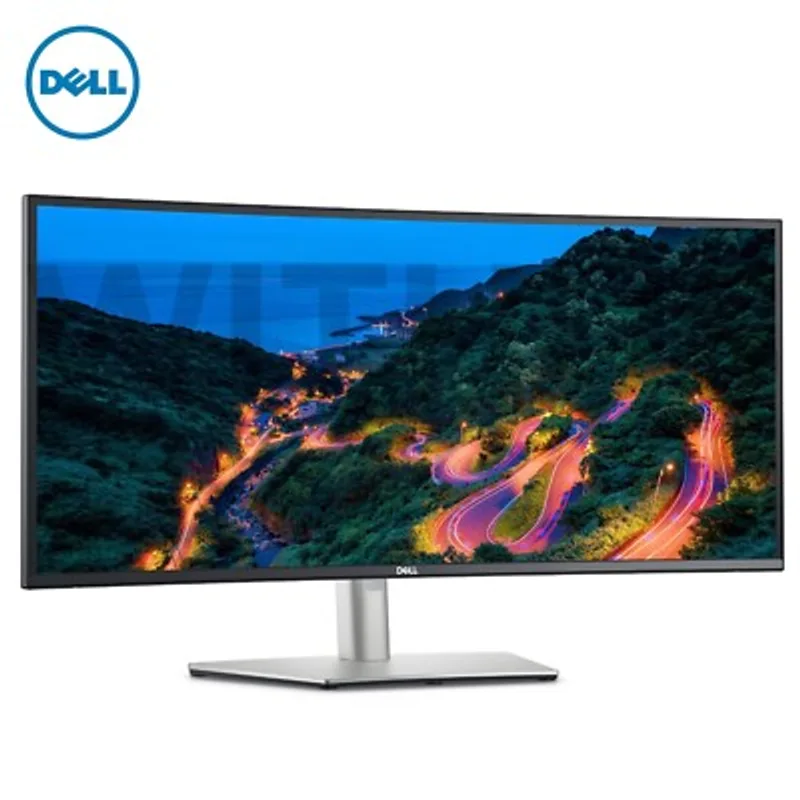
Dell UltraSharp U3423WE
Pros
- IPS Black panel delivers noticeably deeper blacks than standard IPS
- Built-in USB-C hub with 90W power delivery and Ethernet
- KVM switch handles two computers on one monitor
- Exceptional color accuracy for design and photo work
- Eliminates the center bezel gap of dual-monitor setups
Cons
- $736 is a premium price for a 60Hz panel
- No high refresh rate — not ideal for gaming
- Overkill if you only use one or two applications
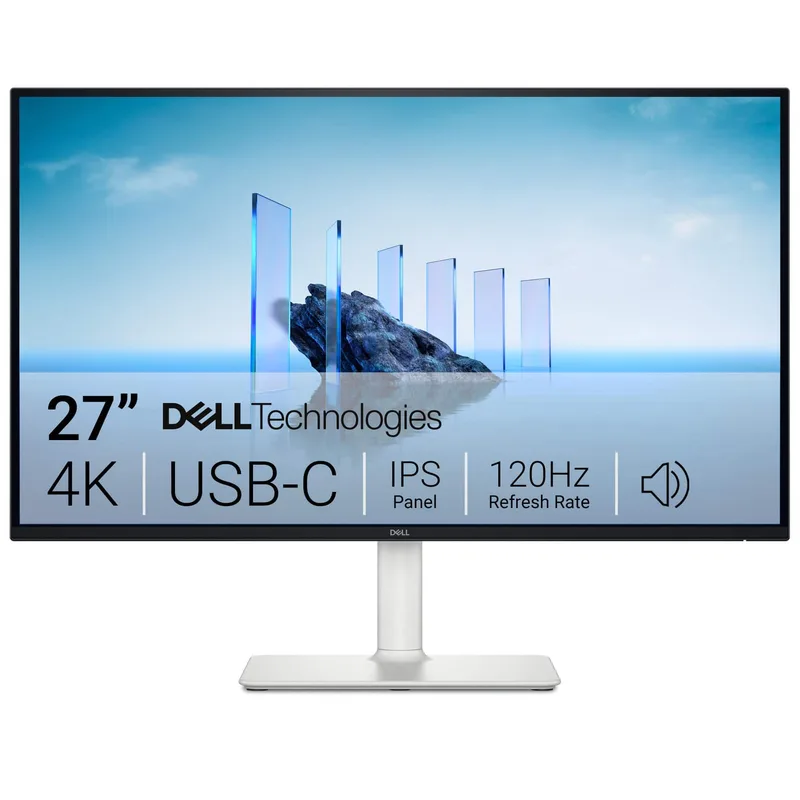
Dell S2725QC
Pros
- 4K at 27 inches means sharp, dense text for all-day reading
- USB-C with 65W charges most laptops while displaying
- 120Hz makes scrolling and window transitions noticeably smoother
- Pairs well with an identical unit for a matched dual setup
- Solid color accuracy for general productivity and photo editing
Cons
- 8ms response time produces visible ghosting in fast-paced games
- USB hub limited to two downstream USB-A ports
- No built-in KVM for switching between computers
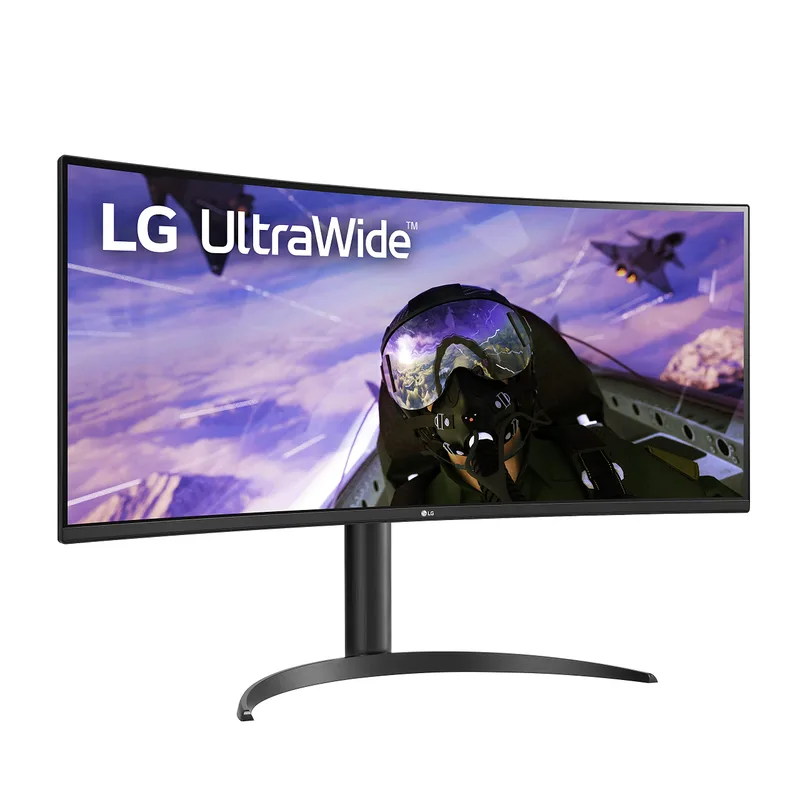
LG 34WP65C-B
Pros
- 160Hz ultrawide at $299 is exceptional value
- sRGB 99% color accuracy at this price is impressive
- Built-in speakers save desk space
- Height and tilt adjustable stand included
- Large VA panel with strong contrast for dark content
Cons
- No USB-C connectivity — requires HDMI or DisplayPort
- VA panel shows some ghosting at edges under fast motion
- No Ethernet or USB hub passthrough