The ergonomic mouse market got a significant new entry in late 2025: Logitech launched the MX Master 4 at $119.99 with haptic feedback, replacing the MX Master 3S as the flagship. The 3S is still available and worth buying — it dropped to $79.99 multiple times in early 2026 per 9to5toys — but the lineup has shifted, and this roundup reflects that.
The problem with most mice is not what they are missing — it’s what they force your hand to do. A standard horizontal mouse holds your palm face-down against the desk, rotating the forearm into a pronated position that builds tension in the wrist tendons, forearm muscles, and eventually the elbow. Six to eight hours a day builds cumulative fatigue. Months or years of that builds real injury risk.
Ergonomic mice address this in two ways: vertical mice rotate the grip 57° to a near-handshake position, eliminating pronation entirely. Horizontal ergonomic mice (like the MX Master 4 and 3S) sculpt the body to elevate the wrist and reduce ulnar deviation without requiring a full posture change. Trackballs take a third approach — eliminating mouse movement entirely so there’s no wrist travel at all.
This roundup covers six mice across all three approaches, five price points, and hands of every size.
Quick picks: For most remote workers, start with the MX Master 4 ($109-$120) if you use creative apps, or the MX Master 3S ($80-$100) for pure value. For a true vertical mouse, the MX Vertical handles medium-large hands and the Lift Vertical handles small-medium. Eliminate all mouse movement with the Kensington Orbit Fusion trackball. Test vertical ergonomics before committing with the Anker at $25.
Quick Comparison
| Mouse | Type | Connection | DPI | Battery | Price |
|---|---|---|---|---|---|
| Logitech MX Master 4 | Horizontal ergonomic | BT 5.1 + Logi Bolt | 200-8,000 | Rechargeable (USB-C) | $102.53-$118.00 as of Oct 18, 2026 |
| Logitech MX Master 3S | Horizontal ergonomic | BT 5 + Logi Bolt | 200-8,000 | Rechargeable (USB-C) | $199.81 as of Oct 18, 2026 |
| Logitech MX Vertical | Vertical 57° | BT + Unifying | 400-4,000 | Rechargeable (Micro-USB) | $59.39 as of Oct 18, 2026 |
| Logitech Lift Vertical | Vertical 57° | BT + Logi Bolt | 400-4,000 | AA battery | $45.49-$64.99 as of Oct 18, 2026 |
| Kensington Orbit Fusion | Trackball | 2.4GHz USB | Adjustable | AA battery | Unavailable |
| Anker Wireless Vertical | Vertical | 2.4GHz USB | 800-1,600 | AA battery | $19.98 as of Oct 18, 2026 |
1. Logitech MX Master 4 — Editor’s Pick
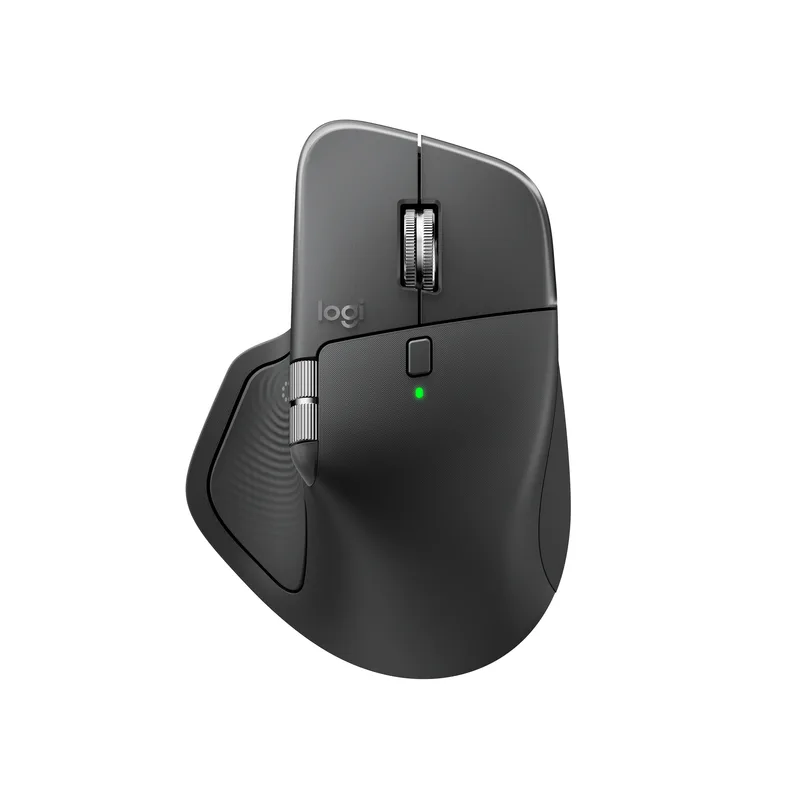
Logitech MX Master 4
Pros
- Haptic feedback in the thumb rest delivers tactile confirmation for scroll actions, shortcut triggers, and app-specific signals — native support in Photoshop, Lightroom, Zoom, and Premiere Pro at launch, with more apps confirmed for 2026
- Actions Ring feature creates a radial overlay in supported apps via Logi Options+, clustering frequent actions around the cursor and reducing repetitive mouse travel by up to 63% in documented workflows
- 2x stronger wireless connectivity versus the MX Master 3S — the redesigned antenna and chip provide noticeably more stable connections in dense RF environments like apartment buildings and shared coworking spaces
- 8K DPI any-surface sensor tracks reliably on glass desks and improvised work surfaces without a mousepad
- MagSpeed scroll wheel with haptic click points provides tactile feedback at the scroll wheel in addition to the thumb rest — more precise than the 3S scroll for line-by-line navigation in supported apps
- USB-C charging with ~70-day battery life and multi-device Easy-Switch pairing across three machines
Cons
- At $119.99 regular, it costs $20-$30 more than the MX Master 3S on a sale day — haptic features add real value in creative workflows but most document/spreadsheet users will not notice the difference
- Haptic app support is limited at launch — outside Photoshop, Lightroom, Zoom, and Premiere Pro, the haptic thumb rest functions as a standard button; broad app support may take 12-18 months to materialize
- Right-hand only — no left-handed version, same limitation as the MX Master 3S
- Lightly textured plastic coating replaces the 3S's rubberized grip — some users find it slightly less secure during extended sessions, though the shape and palm shelf remain identical
The MX Master 4 is the current Logitech flagship and the most significant update to the MX Master line since the 3S. The ergonomic foundation is unchanged — right-hand sculpted grip, elevated palm shelf, thumb rest, MagSpeed scroll wheel — but three things changed meaningfully.
Haptic feedback. A small motor in the thumb rest provides tactile signals when you scroll, trigger shortcuts, or interact with supported app features. Photoshop, Lightroom, Zoom, and Premiere Pro have native implementations at launch — you feel a subtle pulse when adjusting sliders, scrubbing timelines, or toggling noise cancellation on a call. The intensity is configurable in Logi Options+. For creative professionals who live in Adobe software, this is not a gimmick. You notice it immediately, and you miss it when switching back to a standard mouse.
Actions Ring. A digital radial overlay accessible via Logi Options+ clusters common actions around your cursor position. Logitech claims a 63% reduction in repetitive mouse travel in supported apps. Whether you hit that number depends entirely on your workflow, but the concept is sound — less arm movement for frequently repeated tasks.
2x stronger wireless. The redesigned chip and antenna provide a more stable connection in dense RF environments. Apartments above coworking spaces, shared offices with dozens of competing Bluetooth devices — the MX Master 4 handles congested airspace more reliably than the 3S did.
At $119.99 regular (with sale prices down to $107 in early 2026), it costs about $20-$30 more than the MX Master 3S. If your daily work centers on spreadsheets, email, and documents, the 3S at $80-$100 delivers the same ergonomic improvement for less. If you work in Photoshop, Lightroom, or Premiere Pro — or want the current flagship — the MX Master 4 is the right choice.
Best for: Creative professionals working in Adobe apps, developers who want tactile feedback, and remote workers who want Logitech’s current flagship without compromise.
2. Logitech MX Master 3S — Best Value
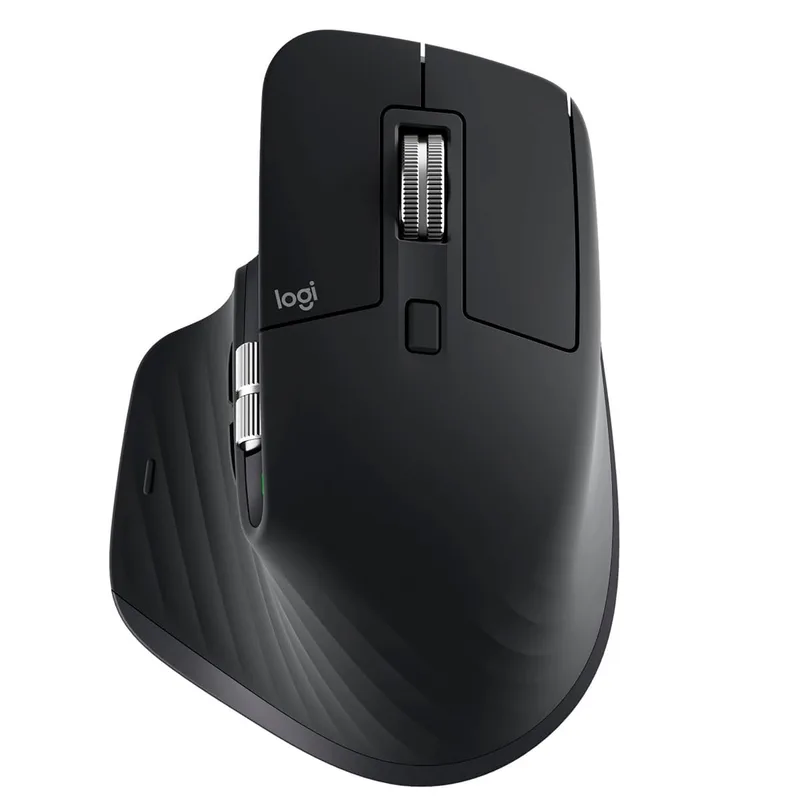
Logitech MX Master 3S
Pros
- MagSpeed electromagnetic scroll wheel switches between free-spin and ratchet modes — free-spin blasts through long documents in under a second, ratchet mode locks into precise line-by-line control for spreadsheets and code review
- Contoured right-hand sculpt with elevated palm shelf and thumb rest reduces both ulnar deviation and wrist extension compared to a flat mouse without the full adjustment period vertical mice require
- 8K DPI sensor tracks on any surface including glass — no mousepad required for remote workers using glass desks or improvised surfaces
- USB-C quick charge — one minute provides 3 hours of use, meaning a dead battery mid-call is not a realistic risk
- Logi Options+ software enables per-app button configurations — the same button opens the emoji picker in Slack, triggers undo in Figma, and activates voice-to-text in Notion without manual switching
Cons
- Right-hand only — no left-handed version has ever been produced
- No vertical tilt angle — users with diagnosed forearm pronation issues may need the MX Vertical instead
- No haptic feedback — the MX Master 4 adds this at $20-$30 more; Adobe suite users should evaluate the upgrade
The MX Master 3S dropped to $79.99 multiple times in early 2026, making it the best-value ergonomic mouse in this category. The MX Master 4 is the new flagship, but the 3S lost nothing — it still has the same 8K DPI glass-tracking sensor, MagSpeed scroll wheel, 70-day USB-C rechargeable battery, and the sculpted right-hand grip that makes it the most immediate ergonomic improvement most remote workers will ever make to their desk setup.
The palm shelf elevates the wrist. The thumb rest prevents the arm from sliding inward. The contoured shape distributes grip pressure across the full hand rather than concentrating it at the fingers. Together, these three elements reduce wrist extension and ulnar deviation — the two most common mouse posture problems — without requiring a new grip angle or adjustment period.
The MagSpeed scroll wheel remains the best scroll wheel on any mouse in this roundup. Free-spin mode runs at 1,000 lines per second — useful for long Slack threads, PDFs, and code files. Ratchet mode gives exact line-by-line control for precise spreadsheet navigation. It switches automatically based on scroll speed, or press the wheel to toggle. No other mouse here matches this combination of speed and precision.
The 8K DPI tracking on glass is a practical spec for remote workers who use glass desks or regularly work without a mousepad. It works reliably in both situations.
If you work in creative apps and want haptics, step up to the MX Master 4. For productivity-focused work — documents, spreadsheets, code, communication — the 3S at $80-$100 is the better purchase.
Best for: Remote workers who want ergonomic improvement from a sculpted horizontal mouse at a strong value price, particularly those switching from a flat mouse for the first time.
3. Logitech MX Vertical — Best Vertical Mouse
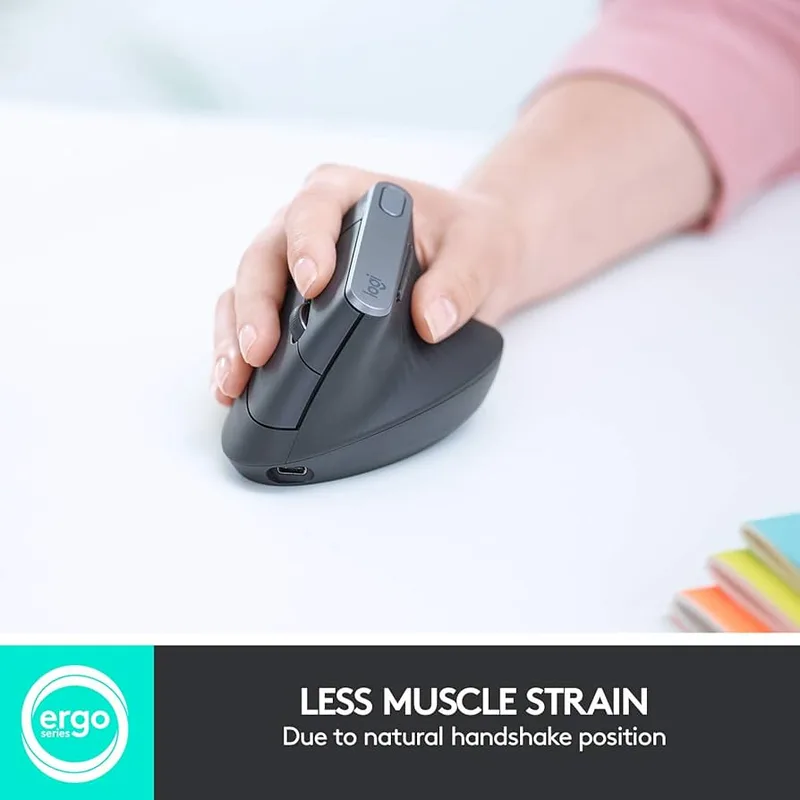
Logitech MX Vertical
Pros
- 57° vertical grip positions the forearm in a near-handshake orientation — eliminates the forearm pronation that is the root cause of most mouse-related wrist and forearm fatigue after 6-8 hour work days
- Four-month battery life from a single charge — charge it once, forget about it for the rest of the quarter
- Multi-device Easy-Switch pairing works across three computers — practical for the common two-machine home office with a work laptop and personal machine on the same desk
- Compatible with Logi Options+ software for per-app button programming, sharing the same ecosystem as the MX Master 4 and 3S
- Textured matte rubber grip provides secure hold even after extended use — polished plastic vertical mice become slippery; the MX Vertical's texture holds through a full workday
Cons
- Charges via Micro-USB — an outdated connector in a 2026 market where USB-C is universal; requires a separate cable from the rest of most home office setups
- Designed for medium-to-large hands — small-handed users will find the grip too wide and button positions too far forward for a comfortable reach; use the Lift Vertical instead
- Initial adjustment period of 1-2 weeks is real — cursor control precision drops temporarily after switching from a horizontal mouse; plan this transition during a lower-demand work period
The MX Vertical is the direct answer to forearm pronation. A 57° vertical angle rotates the grip from palm-down to palm-side — as if you are shaking hands with the mouse. That angle removes the pronation stress entirely. Logitech published data showing up to 10% reduction in forearm muscle activity compared to a conventional horizontal mouse. Independent occupational therapist reviews are consistent: vertical mice reduce forearm strain, and the MX Vertical is the best-executed vertical mouse at its price point.
The four-month battery life is a genuine convenience advantage. Compared to mice that need weekly charging, the MX Vertical’s charge cycle fits a “charge it once before a vacation and forget it” approach. For remote workers who dislike managing peripheral battery levels, this is a meaningful day-to-day difference.
Multi-device Easy-Switch pairing moves between three computers with one button click. The device maintains memory across power cycles. For the two-machine home office — work MacBook and personal Windows desktop, or laptop and iPad — the MX Vertical handles the switch without re-pairing.
The Micro-USB charging port is the one design decision that dates this mouse in 2026. It requires a separate cable from the USB-C accessories on most home office desks. An inconvenience, not a dealbreaker — but worth knowing before you buy.
If you have small hands, skip this one. The MX Vertical is sized for medium-to-large hands. The Lift Vertical (below) exists specifically for smaller hand sizes.
Best for: Remote workers with medium-to-large hands who want maximum forearm pronation relief, four-month battery life, and multi-device pairing in a vertical mouse.
4. Logitech Lift Vertical — Best for Small Hands
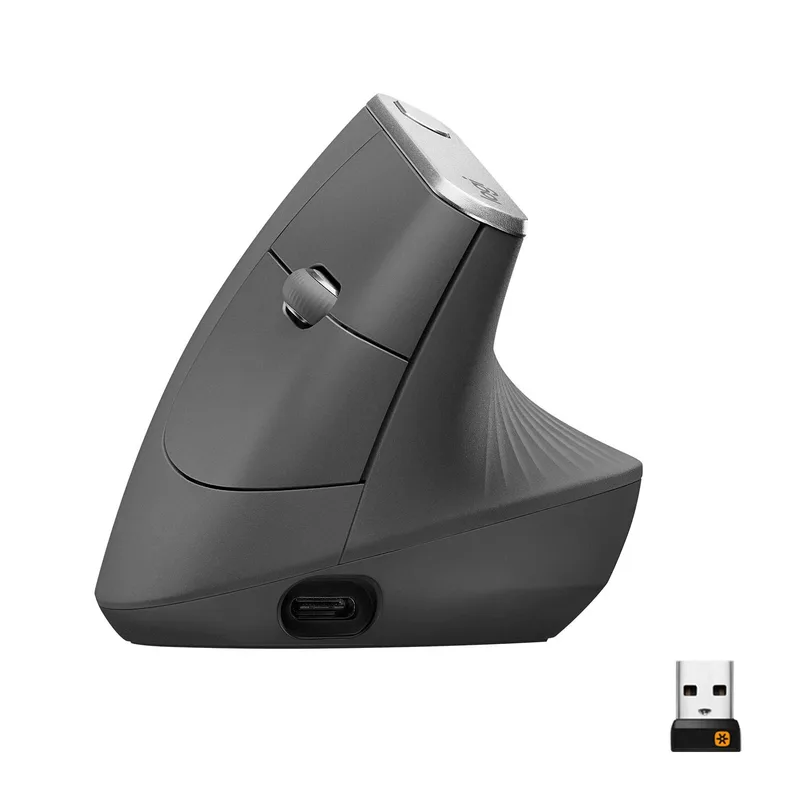
Logitech Lift Vertical
Pros
- Scaled-down 57° vertical grip built for small to medium hands — fills the gap where the MX Vertical's larger chassis is too wide for comfortable use
- Quiet click buttons produce 90% less noise than standard mouse switches — clicks don't register on room microphones during calls
- iPadOS Bluetooth support extends to tablet setups — pairs directly to an iPad Pro without driver installation
- AA battery running ~1.5 years means zero charging management — replace it once or twice across the mouse's lifespan
- Logi Bolt receiver provides more stable wireless than Bluetooth in WiFi-dense apartment buildings and coworking spaces
Cons
- 4,000 DPI ceiling is limiting for pixel-precise design work on 4K displays, where higher DPI delivers smoother pointer movement across large screen real estate
- Fixed 4-button layout without customizable thumb buttons — limits users who rely on programmable side buttons for application switching or browser tab management
- Single AA battery is less environmentally friendly than rechargeable alternatives, though the long battery life reduces replacement frequency
The Lift Vertical is the MX Vertical for smaller hands. It runs the same 57° vertical grip angle, the same 400-4,000 DPI optical sensor, and the same multi-device Easy-Switch pairing. The chassis is narrower and shorter, placing the main buttons, side buttons, and scroll wheel within comfortable reach for hands the MX Vertical leaves overextended.
The quiet click buttons are better than they sound as a spec. Standard mouse switches click at around 40-50 dB. The Lift Vertical’s dampened switches drop that below 20 dB. In a quiet home office, that’s the difference between a mouse audible across a room and one that produces no sound a microphone picks up during a call. Remote workers who spend three or more hours daily in video meetings notice this.
The AA battery model trades charging convenience for runtime longevity. A standard alkaline AA gives approximately 1.5 years before replacement. Keep spare AAs in a desk drawer and battery management for this mouse effectively disappears. Prefer rechargeable mice with USB-C? The MX Vertical or either MX Master are better fits.
iPadOS support via Bluetooth makes the Lift Vertical useful in setups that blend a laptop with an iPad Pro. It pairs directly without adapters, working at the system pointer level — useful for annotation-heavy workflows where you alternate between keyboard input and precise cursor control.
Best for: Remote workers with small to medium hands who want a vertical ergonomic mouse with quiet clicks, long battery life, and Bluetooth compatibility with iPadOS.
5. Kensington Orbit Fusion Wireless Trackball — Best Trackball
Kensington Orbit Fusion Wireless Trackball
Pros
- Finger-operated trackball eliminates all physical mouse movement — ideal for users with shoulder impingement, limited desk space, or who cannot comfortably move a mouse across a surface for 6+ hours daily
- Patented scroll ring encircles the 40mm trackball, providing continuous vertical scrolling with a single finger sweep around the ball — more intuitive than a side-positioned scroll wheel for users with thumb extension issues
- Included detachable wrist rest positions the forearm in a supported neutral position — notably better quality than most generic mouse pads provide
- Familiar mouse-like sculpted body makes it one of the most approachable trackballs for first-time users — the recognizable form factor reduces the barrier to trying trackball ergonomics
- Chrome OS certified — compatible with Chromebook setups common in budget-focused and education-oriented remote work environments
Cons
- 2.4GHz USB dongle only — no Bluetooth permanently occupies a USB-A port, a real constraint on thin laptops like the MacBook Air or Dell XPS 13 without an adapter
- Finger-operated trackball requires a grip and pointer-control adjustment period of 1-2 weeks — users accustomed to conventional mice will need time to regain cursor precision
- No wired option for users in congested wireless environments where 2.4GHz interference affects cursor smoothness
Trackball mice solve a different ergonomic problem than vertical mice. The issue they address is not wrist angle — it is the physical act of moving a mouse across a surface for hours. Shoulder abduction, elbow extension, and repeated small wrist movements across a mousepad accumulate into fatigue and repetitive strain in ways that posture corrections alone cannot fix. A trackball eliminates all of that. The mouse stays stationary; only your fingers move to control the pointer.
The Orbit Fusion uses a 40mm finger-operated ball — the index and middle fingers roll the ball to move the cursor. This is different from thumb trackballs (Logitech ERGO M575), which use the thumb for ball control. Finger-operated trackballs offer more precision for people with thumb mobility issues but require learning a new pointer control technique.
The scroll ring deserves its patent. A ring encircling the trackball lets you scroll vertically by sweeping a finger around the ball’s circumference — smooth, continuous, and accessible from the same grip position as pointer control. It removes the separate wrist movement required to reach a standard side-mounted scroll wheel.
The included detachable wrist rest is better quality than generic aftermarket options — it keeps the forearm elevated in a neutral posture during long sessions where the arm would otherwise rest on a hard desk edge.
The USB-A dongle requirement is the practical limitation. There is no Bluetooth option on the Orbit Fusion. USB-C laptop users need a hub or adapter. At this price tier, Bluetooth would be a significant usability upgrade.
Best for: Remote workers with shoulder or arm mobility issues, those in very tight desk spaces, and users who want to eliminate mouse movement entirely while retaining precise cursor control.
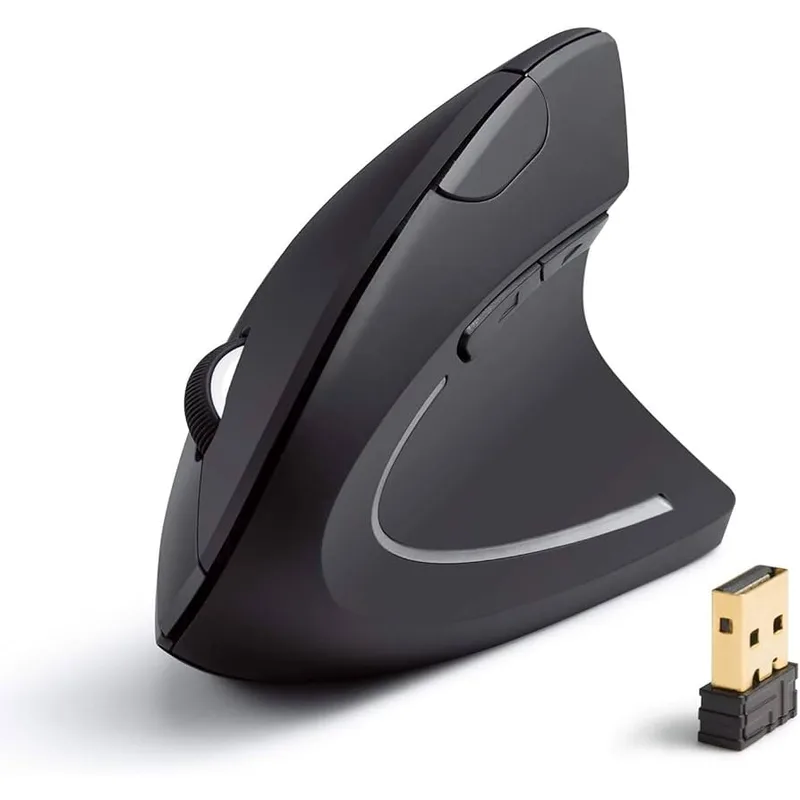
6. Anker 2.4G Wireless Vertical Mouse — Best Budget
Anker 2.4G Wireless Vertical Mouse
Pros
- At $20-$30, it is the most affordable way to evaluate vertical mouse ergonomics before committing to the $65-$90 entry cost of Logitech's vertical lineup — the right first step for workers who are skeptical about vertical mice
- Physical DPI toggle button cycles between 800, 1200, and 1600 DPI without any software — important for workers on corporate-issued machines where installing peripheral drivers requires IT approval
- Plug-and-play USB receiver works immediately on any operating system — the OS recognizes it as a standard HID mouse and works at native pointer settings with no driver installation
- Two AA batteries with approximately 6-month life provide reliable runtime without charging infrastructure
Cons
- 1600 DPI maximum is the lowest ceiling in this roundup — adequate for 1080p monitors but imprecise on 4K displays where lower DPI produces uncomfortably slow pointer travel
- USB-A receiver only, no Bluetooth — permanently occupies a port on laptops with limited USB-A slots, requires a USB-A adapter on MacBooks and USB-C-only Windows laptops
- No software customization — the 5-button layout is fixed with no per-app profiles, no programmable macro support, and no adjustable scroll speed
- Polished plastic grip surfaces feel less secure than the rubberized coatings on Logitech mice — grip security decreases over long sessions with warm hands
The Anker wireless vertical mouse exists to answer one specific question: does a vertical grip actually help your wrist? At $20-$30, you can find out without spending $65-$90 on a Logitech. If the 57° angle immediately relieves the wrist and forearm tension you get from a flat mouse, the experiment costs less than a dinner. If it doesn’t, you’re out $25 rather than $80.
Beyond its value as an ergonomic trial, the Anker has practical advantages for corporate environments. The DPI toggle requires no software — press the button on top to cycle between 800, 1200, and 1600 DPI. This matters specifically for corporate laptops where peripheral software installation requires IT approval. Plug in the USB receiver, it registers as a standard HID mouse, and it works at the OS pointer settings immediately.
The ceiling is what it is. 1600 DPI maximum is insufficient for 4K displays where you need 2400-3200 DPI for comfortable pointer speed across a 27-32 inch screen. On 1080p or 1440p monitors it works fine. Build quality is plastic and light — 3.36 oz — which feels budget-tier against the rubberized grip of Logitech mice. Battery runtime (6 months on 2x AA) and plug-and-play simplicity are its strongest practical attributes.
Use this mouse as an ergonomic evaluation tool or travel backup. For a primary work mouse used 40+ hours per week, the Logitech Lift Vertical at $65-$80 is worth the price difference.
Best for: Remote workers who want to try vertical mouse ergonomics at minimum cost before committing to a premium vertical mouse, or as a secondary travel mouse.
Buying Guide: Ergonomic Mice for Remote Work
Vertical vs. Horizontal Ergonomic: Which Do You Need?
This depends on your primary complaint. Wrist extension and ulnar deviation (bending the wrist sideways toward the pinky) are best addressed by a sculpted horizontal ergonomic mouse like the MX Master 4 or 3S — the contoured grip corrects angle without requiring a posture change.
Forearm pronation (the palm-face-down rotation that happens with every conventional mouse) is best addressed by a vertical mouse. If your forearm and upper wrist — not just the wrist joint — are fatigued after long mouse sessions, a vertical mouse is the intervention worth trying.
If you are unsure which problem you have, start with the MX Master 3S. Its ergonomic benefit is immediate and requires no adjustment period. Move to a vertical mouse if the horizontal correction is not enough.
Trackball: For Whom?
Trackballs are for users who have addressed wrist angle and still have fatigue from mouse movement itself. Also the default recommendation for anyone with shoulder or elbow issues that make moving a mouse across a surface painful.
First-time trackball users consistently underestimate the adjustment period — plan for 2-4 weeks before cursor precision returns to baseline.
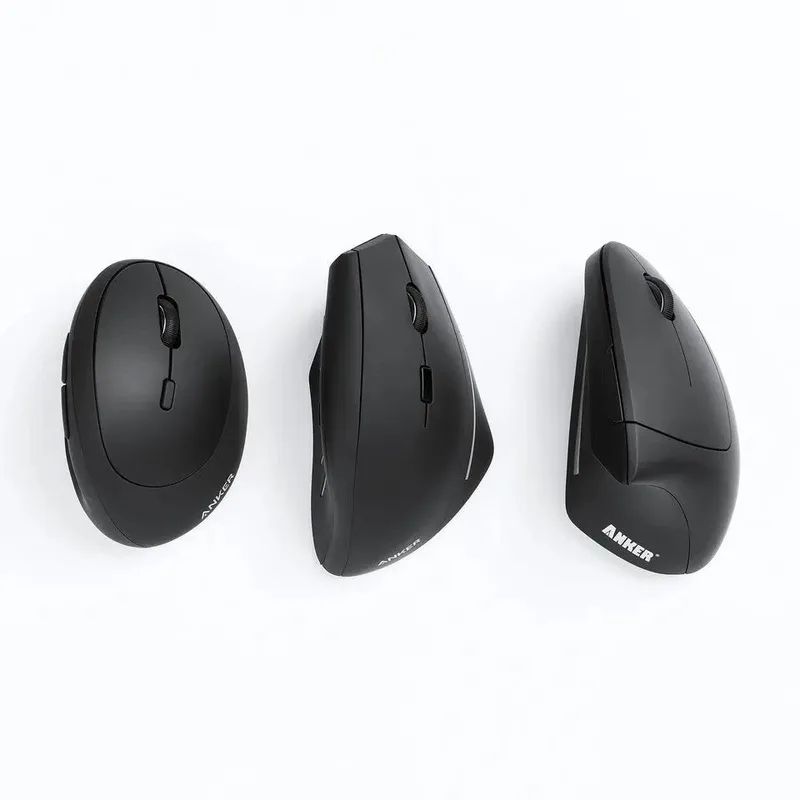
Vertical Mouse Hand Size Matching
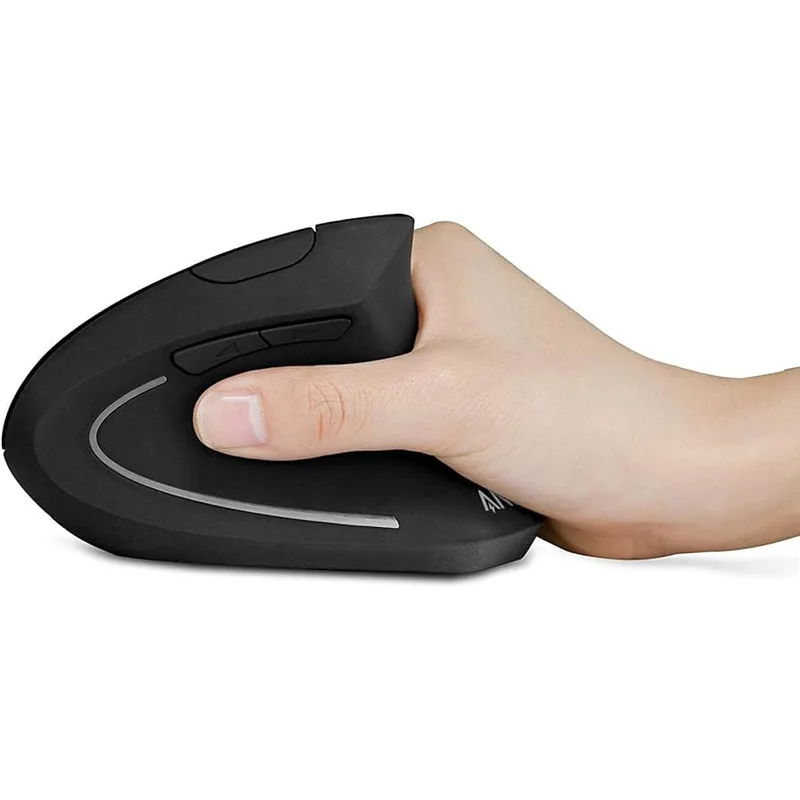
The most common mistake in vertical mouse selection is ignoring hand size:
- Small to medium hands: Logitech Lift Vertical
- Medium to large hands: Logitech MX Vertical
- Testing vertical ergonomics first: Anker Wireless Vertical
A vertical mouse sized wrong for your hand produces button reach problems and an insecure grip — undermining the ergonomic benefit. When in doubt between sizes, go smaller.
Should You Upgrade to MX Master 4 Over the 3S?
The MX Master 4 ($109-$120) adds haptic feedback, the Actions Ring feature, and improved wireless. The MX Master 3S ($80-$100) covers the same core ergonomic design without those features.
The upgrade is worth it if:
- You work daily in Photoshop, Lightroom, Premiere Pro, or Zoom
- You want Logitech’s current flagship at launch pricing
Skip the upgrade if:
- Your work is primarily documents, spreadsheets, email, and communication tools
- You bought the 3S recently and it’s working well — the ergonomic core is identical
Software Ecosystem
If you already use a Logitech keyboard (ERGO K860, MX Keys S, Wave Keys), all Logitech mice in this roundup use Logi Options+ — one app for programming every button across your entire Logitech desk setup. Per-app configurations, Easy-Switch pairing, and scroll wheel behavior all managed in one place. A meaningful advantage for remote workers with complex multi-device setups.
FAQ
Can an ergonomic mouse prevent carpal tunnel syndrome?
An ergonomic mouse reduces the postural stresses — pronation, ulnar deviation, sustained wrist extension — that contribute to repetitive strain and carpal tunnel development over time. It is a preventive tool, not a medical treatment. If you have existing symptoms, consult a physician or occupational therapist before assuming a peripheral change will resolve them.
How long does it take to adjust to a vertical mouse?
Most users need 1-2 weeks before cursor precision returns to their previous baseline. Some adapt in 3-4 days; others take 3-4 weeks. Using the vertical mouse exclusively — rather than alternating with a flat mouse — speeds adaptation significantly.
Do ergonomic mice work for left-handed users?
The Logitech MX Master 4, MX Master 3S, and all vertical mice in this roundup are right-hand only. Left-handed ergonomic options are limited at mainstream price points. Ambidextrous options exist (Logitech MX Anywhere 3, Evoluent models) but are a separate category with different ergonomic trade-offs. Trackballs like the Kensington Orbit Fusion are typically ambidextrous by design.
What is the difference between the MX Vertical and the Logitech Lift?
They share the same 57° vertical angle and DPI sensor range but differ in size, battery, and connectivity. The MX Vertical is larger (medium-large hands), charges via Micro-USB, and uses Bluetooth 3 with a Unifying receiver. The Lift is smaller (small-medium hands), runs on an AA battery, and uses Bluetooth 5.1 with the newer Logi Bolt receiver. Both pair across 3 devices. Choose based on hand size first, then battery preference.
Is the Logitech MX Master 4’s haptic feedback actually useful?
For Adobe suite users — Photoshop, Lightroom, Premiere Pro — the native haptic integration is genuinely useful. You feel slider adjustments and scroll positions, which adds tactile confirmation that reduces reliance on visual feedback. For most document and productivity workflows, the haptics are present but not transformative. Broad app support beyond Adobe and Zoom may take another 12-18 months to materialize.
Is the MX Master 4 worth the extra $20-$30 over the MX Master 3S?
For creative professionals who use supported Adobe apps daily: yes. For productivity-focused remote workers working primarily in email, docs, code, and communication tools: no. The MX Master 3S delivers the same ergonomic foundation for less money. If you’re on the fence, buy the 3S now and upgrade later if haptic support expands to your apps.
Conclusion
For most remote workers, the Logitech MX Master 4 is the right starting point if you work in creative applications or want Logitech’s current flagship. Haptic feedback in Photoshop, Lightroom, and Zoom is genuinely useful, and the improved wireless adds reliability in congested environments.
If the haptic features don’t match your workflow, the Logitech MX Master 3S at $80-$100 is the best-value ergonomic mouse in this roundup. Same core ergonomics, same MagSpeed scroll wheel, same multi-device pairing — for $20-$30 less.
For forearm pronation that horizontal mice don’t fully address, the Logitech MX Vertical (medium-large hands) or Logitech Lift Vertical (small-medium hands) are the correct vertical mouse options at their price points.
The Kensington Orbit Fusion is the right choice for users who need to eliminate mouse movement entirely — shoulder, elbow, or desk space constraints make it the best ergonomic solution for those cases regardless of price.
Test vertical ergonomics for $25 with the Anker before committing $65-$90 to a Logitech vertical. The test is cheap; the information is valuable.
Sources:
- Logitech MX Master 4 Review — RTINGS.com
- Logitech MX Master 4 — PC Gamer Review
- MX Master 4 Launches at $120 — ResetEra
- Logitech MX Master 3S — 9to5toys Deal Coverage
- Logitech MX Vertical — RTINGS Review
- Best Ergonomic Mouse 2026 — RTINGS
- Kensington Orbit Fusion Review — Windows Central
Detailed Reviews
Logitech MX Master 4
Pros
- Haptic feedback in the thumb rest delivers tactile confirmation for scroll actions, shortcut triggers, and app-specific signals — native support in Photoshop, Lightroom, Zoom, and Premiere Pro at launch, with more apps confirmed for 2026
- Actions Ring feature creates a radial overlay in supported apps via Logi Options+, clustering frequent actions around the cursor and reducing repetitive mouse travel by up to 63% in documented workflows
- 2x stronger wireless connectivity versus the MX Master 3S — the redesigned antenna and chip provide noticeably more stable connections in dense RF environments like apartment buildings and shared coworking spaces
- 8K DPI any-surface sensor tracks reliably on glass desks and improvised work surfaces without a mousepad
- MagSpeed scroll wheel with haptic click points provides tactile feedback at the scroll wheel in addition to the thumb rest — more precise than the 3S scroll for line-by-line navigation in supported apps
- USB-C charging with ~70-day battery life and multi-device Easy-Switch pairing across three machines
Cons
- At $119.99 regular, it costs $20-$30 more than the MX Master 3S on a sale day — haptic features add real value in creative workflows but most document/spreadsheet users will not notice the difference
- Haptic app support is limited at launch — outside Photoshop, Lightroom, Zoom, and Premiere Pro, the haptic thumb rest functions as a standard button; broad app support may take 12-18 months to materialize
- Right-hand only — no left-handed version, same limitation as the MX Master 3S
- Lightly textured plastic coating replaces the 3S's rubberized grip — some users find it slightly less secure during extended sessions, though the shape and palm shelf remain identical
Logitech MX Master 3S
Pros
- MagSpeed electromagnetic scroll wheel switches between free-spin and ratchet modes — free-spin blasts through long documents in under a second, ratchet mode locks into precise line-by-line control for spreadsheets and code review
- Contoured right-hand sculpt with elevated palm shelf and thumb rest reduces both ulnar deviation and wrist extension compared to a flat mouse without the full adjustment period vertical mice require
- 8K DPI sensor tracks on any surface including glass — no mousepad required for remote workers using glass desks or improvised surfaces
- USB-C quick charge — one minute provides 3 hours of use, meaning a dead battery mid-call is not a realistic risk
- Logi Options+ software enables per-app button configurations — the same button opens the emoji picker in Slack, triggers undo in Figma, and activates voice-to-text in Notion without manual switching
Cons
- Right-hand only — no left-handed version has ever been produced
- No vertical tilt angle — users with diagnosed forearm pronation issues may need the MX Vertical instead
- No haptic feedback — the MX Master 4 adds this at $20-$30 more; Adobe suite users should evaluate the upgrade
Logitech MX Vertical
Pros
- 57° vertical grip positions the forearm in a near-handshake orientation — eliminates the forearm pronation that is the root cause of most mouse-related wrist and forearm fatigue after 6-8 hour work days
- Four-month battery life from a single charge — charge it once, forget about it for the rest of the quarter
- Multi-device Easy-Switch pairing works across three computers — practical for the common two-machine home office with a work laptop and personal machine on the same desk
- Compatible with Logi Options+ software for per-app button programming, sharing the same ecosystem as the MX Master 4 and 3S
- Textured matte rubber grip provides secure hold even after extended use — polished plastic vertical mice become slippery; the MX Vertical's texture holds through a full workday
Cons
- Charges via Micro-USB — an outdated connector in a 2026 market where USB-C is universal; requires a separate cable from the rest of most home office setups
- Designed for medium-to-large hands — small-handed users will find the grip too wide and button positions too far forward for a comfortable reach; use the Lift Vertical instead
- Initial adjustment period of 1-2 weeks is real — cursor control precision drops temporarily after switching from a horizontal mouse; plan this transition during a lower-demand work period
Logitech Lift Vertical
Pros
- Scaled-down 57° vertical grip built for small to medium hands — fills the gap where the MX Vertical's larger chassis is too wide for comfortable use
- Quiet click buttons produce 90% less noise than standard mouse switches — clicks don't register on room microphones during calls
- iPadOS Bluetooth support extends to tablet setups — pairs directly to an iPad Pro without driver installation
- AA battery running ~1.5 years means zero charging management — replace it once or twice across the mouse's lifespan
- Logi Bolt receiver provides more stable wireless than Bluetooth in WiFi-dense apartment buildings and coworking spaces
Cons
- 4,000 DPI ceiling is limiting for pixel-precise design work on 4K displays, where higher DPI delivers smoother pointer movement across large screen real estate
- Fixed 4-button layout without customizable thumb buttons — limits users who rely on programmable side buttons for application switching or browser tab management
- Single AA battery is less environmentally friendly than rechargeable alternatives, though the long battery life reduces replacement frequency
Kensington Orbit Fusion Wireless Trackball
Pros
- Finger-operated trackball eliminates all physical mouse movement — ideal for users with shoulder impingement, limited desk space, or who cannot comfortably move a mouse across a surface for 6+ hours daily
- Patented scroll ring encircles the 40mm trackball, providing continuous vertical scrolling with a single finger sweep around the ball — more intuitive than a side-positioned scroll wheel for users with thumb extension issues
- Included detachable wrist rest positions the forearm in a supported neutral position — notably better quality than most generic mouse pads provide
- Familiar mouse-like sculpted body makes it one of the most approachable trackballs for first-time users — the recognizable form factor reduces the barrier to trying trackball ergonomics
- Chrome OS certified — compatible with Chromebook setups common in budget-focused and education-oriented remote work environments
Cons
- 2.4GHz USB dongle only — no Bluetooth permanently occupies a USB-A port, a real constraint on thin laptops like the MacBook Air or Dell XPS 13 without an adapter
- Finger-operated trackball requires a grip and pointer-control adjustment period of 1-2 weeks — users accustomed to conventional mice will need time to regain cursor precision
- No wired option for users in congested wireless environments where 2.4GHz interference affects cursor smoothness
Anker 2.4G Wireless Vertical Mouse
Pros
- At $20-$30, it is the most affordable way to evaluate vertical mouse ergonomics before committing to the $65-$90 entry cost of Logitech's vertical lineup — the right first step for workers who are skeptical about vertical mice
- Physical DPI toggle button cycles between 800, 1200, and 1600 DPI without any software — important for workers on corporate-issued machines where installing peripheral drivers requires IT approval
- Plug-and-play USB receiver works immediately on any operating system — the OS recognizes it as a standard HID mouse and works at native pointer settings with no driver installation
- Two AA batteries with approximately 6-month life provide reliable runtime without charging infrastructure
Cons
- 1600 DPI maximum is the lowest ceiling in this roundup — adequate for 1080p monitors but imprecise on 4K displays where lower DPI produces uncomfortably slow pointer travel
- USB-A receiver only, no Bluetooth — permanently occupies a port on laptops with limited USB-A slots, requires a USB-A adapter on MacBooks and USB-C-only Windows laptops
- No software customization — the 5-button layout is fixed with no per-app profiles, no programmable macro support, and no adjustable scroll speed
- Polished plastic grip surfaces feel less secure than the rubberized coatings on Logitech mice — grip security decreases over long sessions with warm hands