The monitor buying decision got meaningfully more complicated in 2026. Dual-mode QD-OLED panels — which switch between 4K at 240Hz and 1080p at 480Hz on the same display — arrived at the high end, while 4K IPS monitors with 120Hz refresh rates finally broke below $300. The result: more choices at more price points, but also more ways to overspend on specs that don’t matter for your actual workload.
This guide walks through every decision — resolution, screen size, panel type, and key features — so you can pick the right monitor without paying for things you won’t use.
Step 1: Choose Your Resolution
Resolution is the most consequential decision. It affects text sharpness, screen real estate, and price more than any other spec.
1080p (Full HD, 1920×1080)
A 24-inch 1080p monitor delivers 92 PPI — sharp enough for focused single-app work like writing and email. At 27 inches, the same resolution drops to 82 PPI, where text noticeably softens.
Bottom line: Only buy 1080p if you’re budget-constrained to under $120 or your monitor is 24 inches or smaller. At 27 inches in 2026, 1440p models are available in the same price range and are always the better pick.
1440p (QHD, 2560×1440)
At 27 inches, 1440p delivers 109 PPI — sharp, comfortable text at 100% scaling without the GPU load or Windows scaling friction of 4K. Side-by-side windows (doc + browser, code + docs, email + Slack) sit comfortably without resizing.
Bottom line: 1440p at 27 inches is the right call for most remote workers. It’s the clearest upgrade from 1080p within a reasonable budget and doesn’t require scaling workarounds on Windows.
4K (UHD, 3840×2160)
At 27 inches, 4K delivers 163 PPI — text renders sharper than 1440p, which is a genuine improvement for long reading and writing sessions. At 32 inches, the extra pixels fill the larger panel without looking soft. Mac users get the best deal: macOS Retina scaling makes 4K look perfect out of the box.
Bottom line: Buy 4K if your monitor is 32 inches or larger, you’re on macOS, or you work with fine detail in spreadsheets, photos, or code. On Windows at 27 inches, 4K requires scaling to 125-150%, which works well in most apps but still causes blurry text in older software.
Step 2: Choose Your Screen Size
24 Inches
Fits on any desk, even shallow 18-inch surfaces. The right size for focused single-window work. At 1080p: fine. At 1440p: very sharp. At 4K: overkill — icons become tiny without aggressive scaling.
Best for: Compact desks, focused writing and email, secondary travel monitors.
27 Inches
The productivity sweet spot. At 1440p or 4K, a 27-inch monitor holds a document and browser window side by side without either feeling cramped. Requires about 60-80cm of desk depth to sit at comfortable reading distance.
Best for: Most home office workers. The largest practical choice for desks under 75cm deep.
32 Inches
Equivalent to two 24-inch monitors in a single panel — 41% more screen area than a 27-inch display. At 4K, the extra pixels fill the larger panel with sharp text. At 1440p, 93 PPI is still comfortable at 100% scaling. Requires 75-100cm of desk depth to avoid neck strain.
Best for: Heavy spreadsheet work, multi-pane coding, CAD and design, any workflow where you previously ran dual 24-inch monitors.
Step 3: Choose Your Panel Type
IPS — The Safe Default
IPS panels offer wide 178° viewing angles, accurate color, and consistent brightness. Standard IPS contrast runs around 1000:1, which means blacks appear slightly gray in dim rooms — the main limitation. IPS Black (found in monitors like the Dell U2723QE) doubles that to ~2000:1 without the smearing issues of VA.
Choose IPS if: Color accuracy matters, you share your screen over a shoulder, you work in a well-lit room, or you want the most reliable everyday work experience.
For a full panel-type breakdown, see our IPS vs VA vs OLED guide.
VA — Best Contrast for Dark Rooms
VA panels deliver 3000:1 or higher contrast natively — blacks are genuinely dark, which benefits dark-mode workflows and dimly lit offices. The trade-off: VA pixels respond slower in dark-to-dark transitions, producing visible smearing when scrolling text or moving windows quickly.
Choose VA if: You work primarily in dark mode, your office is dim, and you can tolerate slight text softness on fast scrolls.
OLED — Best Image Quality, Extra Maintenance
OLED produces infinite contrast (per-pixel black), wide color volume, and fast response times. The concern for office use is burn-in from static elements like taskbars and persistent app chrome. Modern QD-OLED panels (like the Samsung G61SD) come with 3-year burn-in warranties and automatic protection modes. Managed correctly, OLED is practical for a home office — but it requires habits (auto-hiding taskbar, display sleep after 10 minutes) that IPS does not.
Choose OLED if: You split the display between knowledge work and creative or gaming use, image quality is a priority, and you’re willing to manage the static-element habits.
Step 4: Key Features Checklist
USB-C Power Delivery: If your laptop uses USB-C, a monitor with 65W+ PD replaces your charger and eliminates a cable. 90W covers 15–16-inch MacBook Pro and high-wattage Windows laptops. 65W covers most 13–14-inch laptops.
Refresh Rate: For pure productivity, 60Hz is sufficient. If you use the same monitor for video, presentations, or light gaming, 100Hz+ is noticeably smoother for cursor and scroll response.
Ergonomic Stand: A full stand (height, tilt, swivel, pivot) places the monitor at eye level without a separate arm. Tilt-only stands require you to add an arm (~$25-$50) to set correct positioning.
Eye Care Certification: Flicker-free backlight and low-blue-light modes reduce eye strain during long sessions. TÜV Rheinland Eye Comfort certification is the most reliable independent validation.
KVM Switch: If you run two computers (work laptop + personal desktop, for example), a built-in KVM switch lets one monitor, keyboard, and mouse serve both machines. Rarely available under $400, but the Dell U2723QE includes it.
Recommended Picks by Use Case
Best Overall: Dell UltraSharp U2723QE
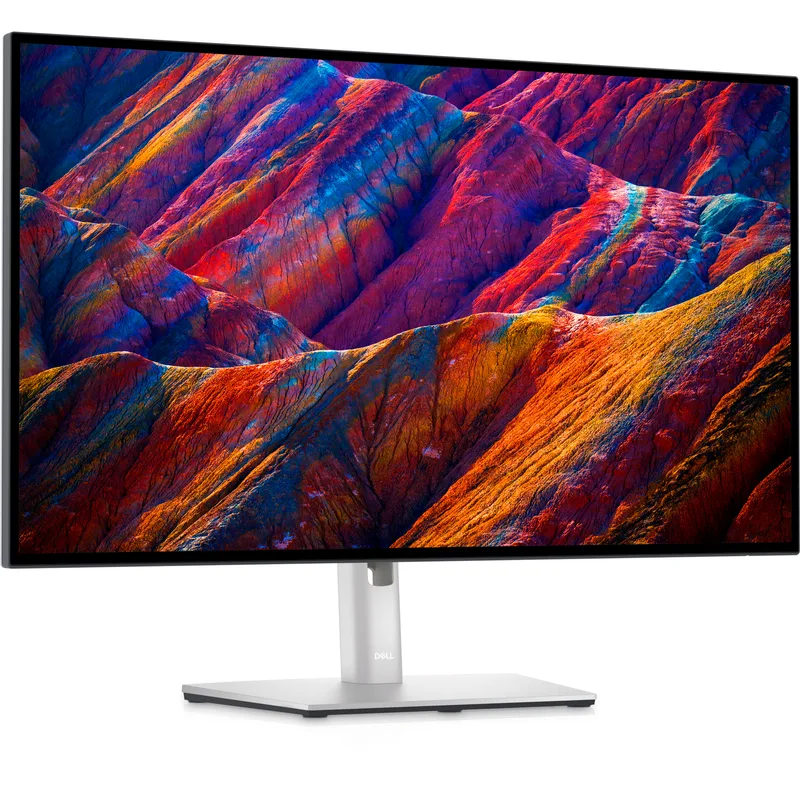
Dell UltraSharp U2723QE
Pros
- IPS Black technology doubles the contrast of standard IPS panels — dark backgrounds in code editors and slide decks look genuinely dark instead of washed-out gray, a real difference for all-day screen time
- Built-in KVM switch and RJ-45 Ethernet passthrough make this a single-cable docking solution for most laptops — one USB-C handles video, 90W charging, USB hub, and wired network simultaneously
- 99% sRGB and 98% DCI-P3 color coverage with factory calibration — accurate enough for design review, photography editing, and video work without spending more on a dedicated professional display
- ComfortView Plus reduces blue light output at the hardware level across all content — no software toggle required, no blue tint on whites, and TÜV Rheinland Eye Comfort certification backs it up
- Full ergonomic stand (height, tilt, swivel, pivot) plus 100×100 VESA mount — works as a standalone monitor or adapts to any third-party arm
Cons
- 60Hz refresh rate — sufficient for all productivity and video call work but noticeable if you switch between this and a 120Hz+ laptop screen; not designed for gaming use
- At $499-$549, the IPS Black contrast and KVM features cost real money — remote workers who need only basic 4K accuracy can get 80% of the visual quality from the LG 27UP850K-W for $150 less
- No USB-A hub passthrough on the base — the USB-C hub covers connectivity, but heavy USB-A accessory users may need a separate hub
The U2723QE is the monitor most remote workers should buy if they can stretch to $500. IPS Black contrast doubles the visual quality of standard IPS in real use, the built-in KVM switch handles two computers cleanly, and the RJ-45 Ethernet passthrough eliminates a separate adapter. One USB-C cable from your laptop handles everything.
Best Mid-Range: ASUS ProArt PA279CV
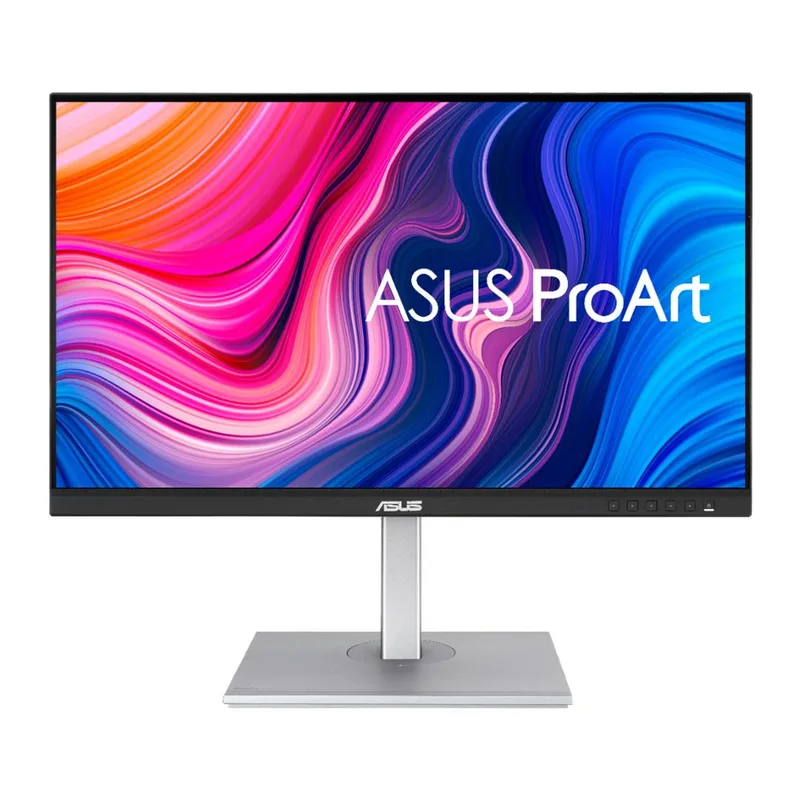
ASUS ProArt PA279CV
Pros
- Factory-calibrated to ΔE < 2 at under $280 — color accuracy at this price is genuinely uncommon; the calibration report ships in the box and holds up in third-party testing
- 100% sRGB and 100% Rec.709 coverage matches broadcast and web content standards — photos, videos, and presentations display exactly as intended without a separate colorimeter
- USB-C 65W power delivery handles most 13–14-inch laptops at full speed over one cable — video, data, and charging simultaneously
- Full ergonomic stand included — height, tilt, swivel, and pivot adjustment without paying extra for a monitor arm
- ProArt Preset modes for sRGB, DCI-P3, Rec.709, and HDR video are hardware-level — color profiles switch via the OSD without OS-level calibration tools
Cons
- USB-C PD tops out at 65W — charges 13–14-inch laptops well but won't keep pace with 15–16-inch MacBook Pro or high-wattage Windows laptops under sustained load
- Standard IPS contrast around 1000:1 — blacks look gray in dim offices; buyers who work in dark rooms will see a visible limitation compared to VA or OLED panels
- 60Hz refresh rate — fine for productivity, but noticeably slower than 120Hz+ panels if gaming or fast-scrolling matters
The PA279CV is the best $280-$330 monitor for remote workers who care about color. Factory-calibrated to ΔE < 2 with a calibration report in the box, 100% sRGB and Rec.709 coverage, and USB-C 65W PD — all in a package with a full ergonomic stand. Strong pick for anyone in design-adjacent work or photo editing alongside regular productivity.
Best Value 4K: LG 27UP850K-W
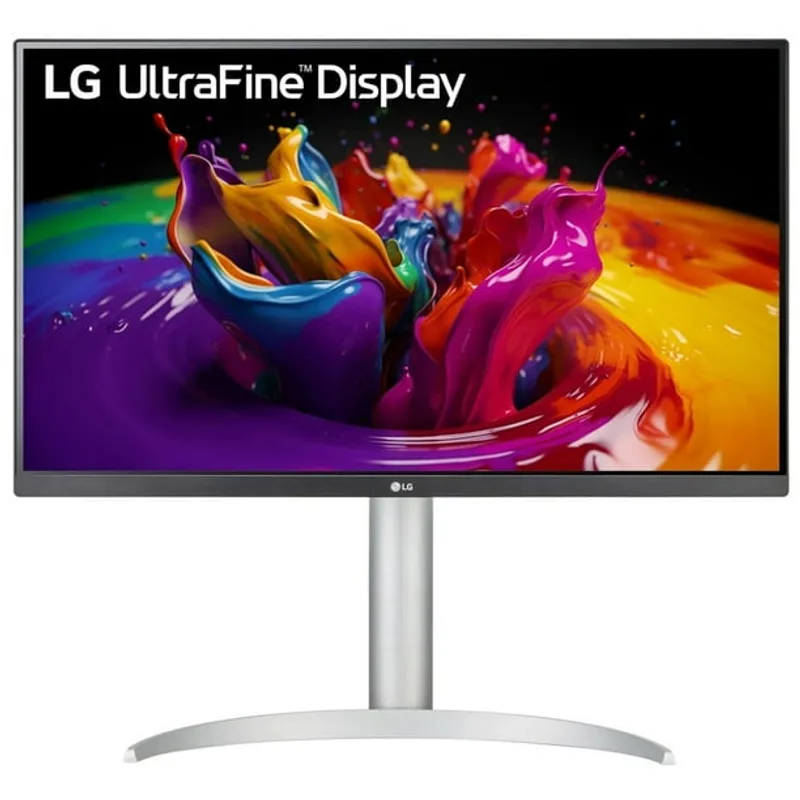
LG 27UP850K-W
Pros
- USB-C 90W power delivery charges a MacBook Pro, Dell XPS 15, or any 90W laptop at full speed — the highest PD wattage in this price tier, making it genuinely dock-like for single-cable setups
- 95% DCI-P3 coverage significantly outperforms the typical 70-80% DCI-P3 found in monitors at this price — color in photos, video calls, and creative work looks full and accurate
- DisplayHDR 400 certification adds meaningful highlight brightness — cloud detail in photography and bright areas in video content look more dimensional than non-HDR IPS panels at the same price
- Built-in 7W stereo speakers remove the need for external speakers in basic video-call setups — practical for remote workers who don't need audiophile sound
- Wide 178°/178° viewing angles hold color consistency at off-axis positions — relevant for pivot use or shoulder-viewing during collaborative calls
Cons
- 60Hz refresh rate is the standard for work monitors — perceptible step down for users who run 120Hz+ displays day-to-day
- No USB-A hub — the USB-C connection handles power and video only; peripheral connectivity requires a separate hub or dock
- IPS contrast of approximately 1000:1 shows the typical IPS black-level limitation in dark rooms or dark-mode workflows
The LG 27UP850K-W hits the sweet spot for remote workers who want 4K without paying Dell UltraSharp prices. USB-C 90W PD (the highest in its price range), 95% DCI-P3 color, and DisplayHDR 400 deliver solid image quality for $329-$379. The built-in speakers handle video call audio without a separate purchase. More about it in our best 4K monitors under $500 guide.
Best Budget: MSI PRO MP275Q
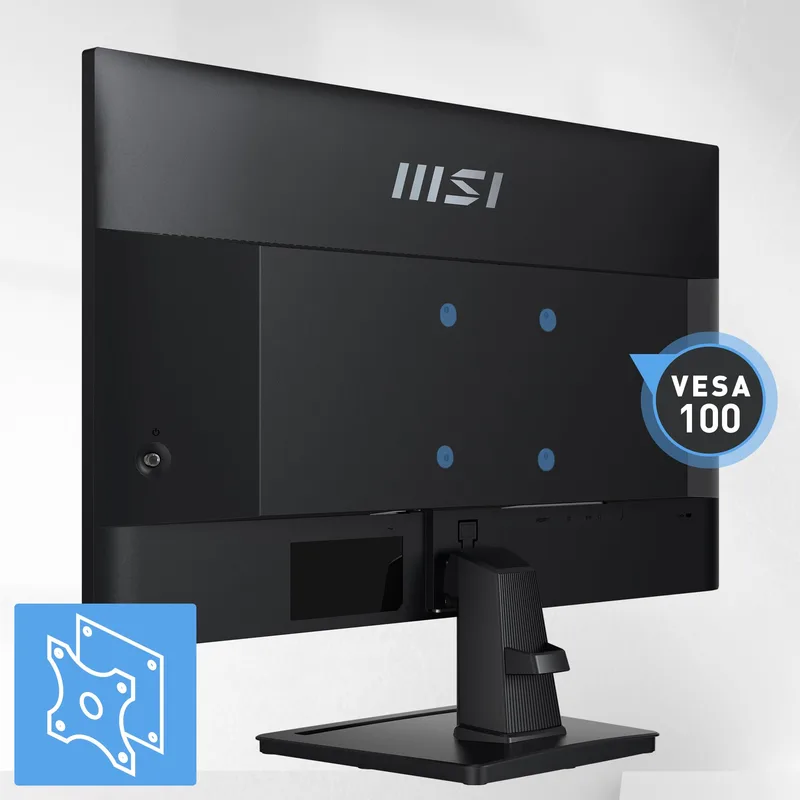
MSI PRO MP275Q
Pros
- 1440p at 27 inches delivers 109 PPI — text is noticeably sharper than 1080p at the same size; side-by-side document and browser windows are genuinely comfortable at 100% scaling
- 99% sRGB color coverage at under $150 is exceptional value — color accuracy for everyday work, video calls, and content consumption matches monitors at twice the price
- 100Hz refresh rate (above the standard 75Hz at this price) provides slightly smoother cursor movement and scrolling — a small but real improvement for all-day productivity
- Anti-flicker and low-blue-light certification — eye care features that matter for multi-hour screen sessions without paying for a premium panel
Cons
- No USB-C connectivity — requires HDMI or DisplayPort; USB-C laptop users need an adapter or dock
- Tilt-only stand — height, swivel, and pivot adjustments require a VESA monitor arm (75×75mm mounting); this adds cost if ergonomic positioning matters
- No HDR, no factory calibration, no USB hub — a stripped-down spec sheet that keeps the price low but limits the monitor to pure productivity use
The MSI PRO MP275Q is the right choice if your budget stops at $150. 1440p at 27 inches with 99% sRGB and 100Hz refresh rate — all of the display quality that matters for remote work, with none of the premium features that inflate the price. The tilt-only stand is the main concession; a VESA arm fixes it for $25. See our best 27-inch 1440p monitor roundup for alternatives at this price.
Best OLED: Samsung Odyssey OLED G6 (G61SD)
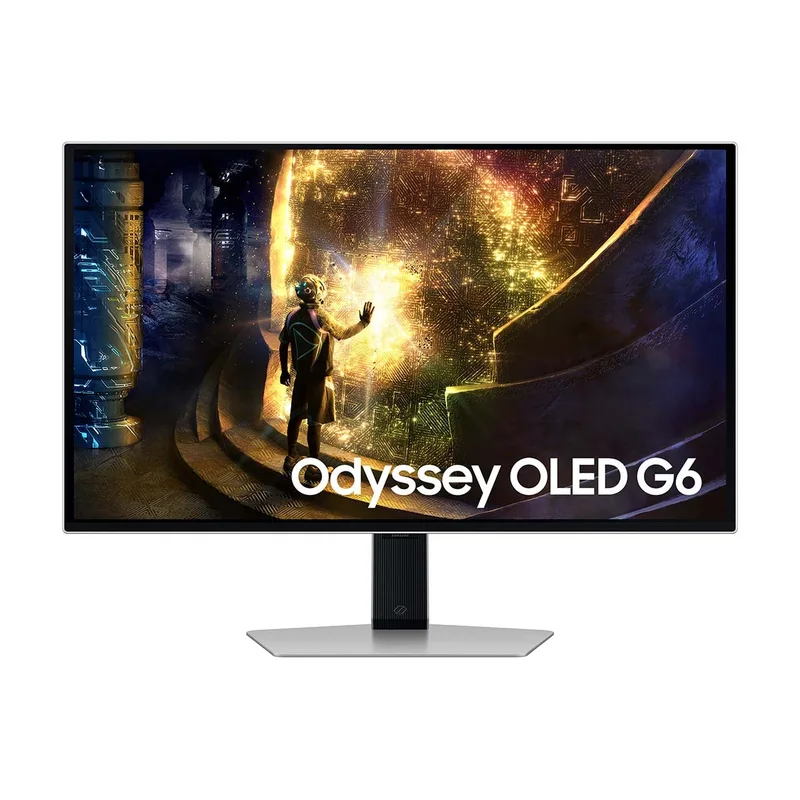
Samsung Odyssey OLED G6 (G61SD)
Pros
- Per-pixel OLED contrast delivers true black levels — dark office themes, terminal windows on black, and dark-mode productivity apps display with a depth that no LCD technology can achieve regardless of price
- 99% DCI-P3 color volume with quantum dot phosphors — color is both accurate and saturated simultaneously; useful for design review, photo work, and video content alongside everyday productivity
- 240Hz at 0.03ms response makes cursor movement and scrolling visibly smoother than any IPS or VA alternative — perceptible in normal work use, not just gaming
- Samsung's 3-year burn-in warranty removes the primary financial risk of OLED for office use — automatic pixel-shift, screen dimming, and sleep protections run in the background
- Anti-glare coating handles typical home office lighting without the mirror-like reflections that affected earlier QD-OLED panels
Cons
- 1440p at 27 inches (109 PPI) is noticeably less sharp than 4K at the same size — text at 100% scaling is acceptable but not as crisp as 4K IPS monitors; some owners scale to 125% which reduces effective screen space
- Burn-in risk is real for static-heavy workflows — auto-hiding taskbar, using dark mode, and setting display sleep after 10 minutes are maintenance habits OLED requires that LCD does not
- No USB-C connectivity — video only via HDMI 2.1 or DisplayPort 1.4; single-cable laptop setups require a separate dock
- At $499-$599, the OLED premium over comparable IPS costs $150-$200 more — meaningful for mixed work-and-gaming use; harder to justify for pure spreadsheet and document workers
The G61SD is the right pick if you split your screen between knowledge work and creative or gaming use, and you want the best possible image quality in one monitor. The QD-OLED panel’s contrast and color volume are genuinely different from any IPS alternative. The 3-year burn-in warranty and automatic protection modes make it practical for office use with correct habits. Full comparison of OLED options in our best OLED monitors for remote work guide.
Quick Comparison
| Spec | Dell UltraSharp U2723QE | ASUS ProArt PA279CV | LG 27UP850K-W | MSI PRO MP275Q | Samsung Odyssey OLED G6 (G61SD) |
|---|---|---|---|---|---|
| Rating | 9.2/10 | 9.0/10 | 8.8/10 | 8.5/10 | 9.3/10 |
| Price | $512.34-$689.00as of Oct 18, 2026 | $289.41-$307.72as of Oct 18, 2026 | $267.80-$349.99as of Oct 18, 2026 | $138.92-$179.99as of Oct 18, 2026 | $394.50-$760.00as of Oct 18, 2026 |
| Panel | IPS Black, 27-inch | IPS, 27-inch | IPS, 27-inch | IPS, 27-inch | QD-OLED, 27-inch |
| Resolution | 3840×2160 (4K UHD) | 3840×2160 (4K UHD) | 3840×2160 (4K UHD) | 2560×1440 (QHD) | 2560×1440 (QHD) |
| Refresh Rate | 60Hz | 60Hz | 60Hz | 100Hz | 240Hz |
| USB-C PD | 90W | 65W | 90W | — | — |
| Color Coverage | 99% sRGB, 98% DCI-P3 | 100% sRGB, 100% Rec.709 | 95% DCI-P3 | 99% sRGB | 99% DCI-P3 |
| Contrast | ~2000:1 (IPS Black) | — | — | — | Infinite (per-pixel) |
| Connectivity | USB-C, Thunderbolt, HDMI, DP, RJ-45 | USB-C, HDMI, DisplayPort | USB-C, HDMI ×2, DisplayPort | HDMI, DisplayPort | HDMI 2.1, DisplayPort 1.4 |
| KVM Switch | Built-in | — | — | — | — |
| Eye Care | ComfortView Plus (hardware blue light) | — | — | Anti-flicker, low blue light | — |
| Factory Calibration | — | ΔE < 2 | — | — | — |
| Stand | — | Height/Tilt/Swivel/Pivot | — | Tilt adjust only | — |
| Certification | — | Calman Ready | — | — | — |
| HDR | — | — | VESA DisplayHDR 400 | — | — |
| Speaker | — | — | Built-in (7W stereo) | — | — |
| Response Time | — | — | — | 1ms (MPRT) | 0.03ms |
| Burn-In Warranty | — | — | — | — | 3 years |
| Check Price → | Check Price → | Check Price → | Check Price → | Check Price → |
Prices change daily — tap Check Price for the current Amazon price.
Buying Guide: How to Match Your Budget to the Right Monitor
Under $150: Buy 1440p at 27 inches. The MSI PRO MP275Q is the correct pick — 1080p at 27 inches is a visible downgrade and costs nearly the same. Add a VESA arm if ergonomics matter.
$150-$300: 4K IPS at 27 inches becomes available. The ASUS ProArt PA279CV gets you factory-calibrated 4K with USB-C at the top of this range. For pure productivity without color needs, look at our best affordable 4K monitors under $300 guide.
$300-$400: 4K with 90W USB-C PD (LG 27UP850K-W) or 4K at 120Hz. This range eliminates the tilt-only stand compromise and adds meaningful connectivity. USB-C single-cable setups are now practical.
$400-$600: IPS Black (Dell U2723QE) or QD-OLED (Samsung G61SD). Both deliver a genuine visual upgrade over standard IPS. IPS Black is better for pure productivity; OLED is better for mixed use and image quality. Check our monitors for spreadsheets and data roundup for IPS Black options in this range.
Over $600: Ultrawide 34-inch or 38-inch panels, 4K OLED, or high-refresh 4K IPS. At this range, the right choice depends entirely on your specific workflow. See our ultrawide monitor guide if screen width matters more than pixel density.
FAQ
Do I actually need 4K for remote work?
For most remote workers on a 27-inch monitor, 1440p is sufficient. 4K adds noticeably sharper text that genuinely matters for long reading and writing sessions, but the real advantage is at 32 inches or larger — where the extra pixels fill the larger panel without looking soft. Mac users benefit more from 4K than Windows users because macOS handles Retina scaling cleanly across all apps. On Windows, 4K at 27 inches requires 125% scaling, which works well in most modern software but still causes blurry text in some older applications.
Is OLED safe for all-day office use?
Yes, with the right habits. Auto-hide your taskbar, use dark mode where available, and set your display to sleep after 10 minutes of inactivity. Modern QD-OLED monitors come with pixel-shift, pixel-cleaning routines, and automatic brightness reduction for static areas. Samsung backs the G61SD with a 3-year burn-in warranty — meaningful coverage for the period when static retention would most likely appear. Buyers who leave a static desktop running all day without sleep timers will accumulate retention faster.
What’s the best monitor size for a small desk?
A 27-inch monitor at 1440p is the largest practical choice for desks under 75cm deep. At 80cm or less, a 32-inch monitor may cause neck strain because the viewing distance isn’t sufficient to take in the full panel without head movement. Measure your desk depth and add 60-80cm for a 27-inch display, or 80-100cm for a 32-inch display, to determine the right fit.
Does refresh rate matter for video calls and productivity?
For video calls and document work, 60Hz is sufficient. The motion in a video call renders at the codec’s frame rate (typically 30fps), so monitor refresh rate above 60Hz doesn’t change how the call looks. Where you’ll notice the difference is in cursor movement and scrolling — at 100Hz or higher, both feel perceptibly smoother during all-day use. If you also use the display for gaming or video editing after hours, 100Hz+ is worth the upgrade.
Should I get USB-C on my monitor?
If your laptop charges via USB-C, yes. A monitor with 65W+ USB-C PD replaces your laptop charger and consolidates video and power into one cable. This removes at least two cables from your desk permanently. At 90W, monitors like the Dell U2723QE and LG 27UP850K-W charge 15–16-inch laptops at full speed under load. At 65W, the ASUS ProArt PA279CV covers most 13–14-inch machines. If your laptop uses a proprietary charging connector (older ThinkPads, older Dell models), USB-C PD on the monitor is less useful.
Conclusion
For most remote workers in 2026, the right monitor is a 27-inch 1440p IPS for under $200, or a 27-inch 4K IPS with USB-C PD for $300-$550. The resolution upgrade from 1080p to 1440p is the biggest single improvement in text quality per dollar spent. The upgrade from 1440p to 4K is meaningful but narrower — most impactful at 32 inches or on macOS.
Panel type matters less than resolution and size for everyday work. IPS is the default for a reason. OLED is worth the premium if you split the display between creative work and productivity, and you’re willing to manage the burn-in habits. VA makes sense primarily for dark-room workers who want deep contrast without the OLED cost.
Start with the MSI PRO MP275Q if your budget is under $150. Step up to the ASUS ProArt PA279CV for 4K around $299. Choose the Dell U2723QE for the best all-in-one IPS work monitor at $500.
Detailed Reviews
Dell UltraSharp U2723QE
Pros
- IPS Black technology doubles the contrast of standard IPS panels — dark backgrounds in code editors and slide decks look genuinely dark instead of washed-out gray, a real difference for all-day screen time
- Built-in KVM switch and RJ-45 Ethernet passthrough make this a single-cable docking solution for most laptops — one USB-C handles video, 90W charging, USB hub, and wired network simultaneously
- 99% sRGB and 98% DCI-P3 color coverage with factory calibration — accurate enough for design review, photography editing, and video work without spending more on a dedicated professional display
- ComfortView Plus reduces blue light output at the hardware level across all content — no software toggle required, no blue tint on whites, and TÜV Rheinland Eye Comfort certification backs it up
- Full ergonomic stand (height, tilt, swivel, pivot) plus 100×100 VESA mount — works as a standalone monitor or adapts to any third-party arm
Cons
- 60Hz refresh rate — sufficient for all productivity and video call work but noticeable if you switch between this and a 120Hz+ laptop screen; not designed for gaming use
- At $499-$549, the IPS Black contrast and KVM features cost real money — remote workers who need only basic 4K accuracy can get 80% of the visual quality from the LG 27UP850K-W for $150 less
- No USB-A hub passthrough on the base — the USB-C hub covers connectivity, but heavy USB-A accessory users may need a separate hub
ASUS ProArt PA279CV
Pros
- Factory-calibrated to ΔE < 2 at under $280 — color accuracy at this price is genuinely uncommon; the calibration report ships in the box and holds up in third-party testing
- 100% sRGB and 100% Rec.709 coverage matches broadcast and web content standards — photos, videos, and presentations display exactly as intended without a separate colorimeter
- USB-C 65W power delivery handles most 13–14-inch laptops at full speed over one cable — video, data, and charging simultaneously
- Full ergonomic stand included — height, tilt, swivel, and pivot adjustment without paying extra for a monitor arm
- ProArt Preset modes for sRGB, DCI-P3, Rec.709, and HDR video are hardware-level — color profiles switch via the OSD without OS-level calibration tools
Cons
- USB-C PD tops out at 65W — charges 13–14-inch laptops well but won't keep pace with 15–16-inch MacBook Pro or high-wattage Windows laptops under sustained load
- Standard IPS contrast around 1000:1 — blacks look gray in dim offices; buyers who work in dark rooms will see a visible limitation compared to VA or OLED panels
- 60Hz refresh rate — fine for productivity, but noticeably slower than 120Hz+ panels if gaming or fast-scrolling matters
LG 27UP850K-W
Pros
- USB-C 90W power delivery charges a MacBook Pro, Dell XPS 15, or any 90W laptop at full speed — the highest PD wattage in this price tier, making it genuinely dock-like for single-cable setups
- 95% DCI-P3 coverage significantly outperforms the typical 70-80% DCI-P3 found in monitors at this price — color in photos, video calls, and creative work looks full and accurate
- DisplayHDR 400 certification adds meaningful highlight brightness — cloud detail in photography and bright areas in video content look more dimensional than non-HDR IPS panels at the same price
- Built-in 7W stereo speakers remove the need for external speakers in basic video-call setups — practical for remote workers who don't need audiophile sound
- Wide 178°/178° viewing angles hold color consistency at off-axis positions — relevant for pivot use or shoulder-viewing during collaborative calls
Cons
- 60Hz refresh rate is the standard for work monitors — perceptible step down for users who run 120Hz+ displays day-to-day
- No USB-A hub — the USB-C connection handles power and video only; peripheral connectivity requires a separate hub or dock
- IPS contrast of approximately 1000:1 shows the typical IPS black-level limitation in dark rooms or dark-mode workflows
MSI PRO MP275Q
Pros
- 1440p at 27 inches delivers 109 PPI — text is noticeably sharper than 1080p at the same size; side-by-side document and browser windows are genuinely comfortable at 100% scaling
- 99% sRGB color coverage at under $150 is exceptional value — color accuracy for everyday work, video calls, and content consumption matches monitors at twice the price
- 100Hz refresh rate (above the standard 75Hz at this price) provides slightly smoother cursor movement and scrolling — a small but real improvement for all-day productivity
- Anti-flicker and low-blue-light certification — eye care features that matter for multi-hour screen sessions without paying for a premium panel
Cons
- No USB-C connectivity — requires HDMI or DisplayPort; USB-C laptop users need an adapter or dock
- Tilt-only stand — height, swivel, and pivot adjustments require a VESA monitor arm (75×75mm mounting); this adds cost if ergonomic positioning matters
- No HDR, no factory calibration, no USB hub — a stripped-down spec sheet that keeps the price low but limits the monitor to pure productivity use
Samsung Odyssey OLED G6 (G61SD)
Pros
- Per-pixel OLED contrast delivers true black levels — dark office themes, terminal windows on black, and dark-mode productivity apps display with a depth that no LCD technology can achieve regardless of price
- 99% DCI-P3 color volume with quantum dot phosphors — color is both accurate and saturated simultaneously; useful for design review, photo work, and video content alongside everyday productivity
- 240Hz at 0.03ms response makes cursor movement and scrolling visibly smoother than any IPS or VA alternative — perceptible in normal work use, not just gaming
- Samsung's 3-year burn-in warranty removes the primary financial risk of OLED for office use — automatic pixel-shift, screen dimming, and sleep protections run in the background
- Anti-glare coating handles typical home office lighting without the mirror-like reflections that affected earlier QD-OLED panels
Cons
- 1440p at 27 inches (109 PPI) is noticeably less sharp than 4K at the same size — text at 100% scaling is acceptable but not as crisp as 4K IPS monitors; some owners scale to 125% which reduces effective screen space
- Burn-in risk is real for static-heavy workflows — auto-hiding taskbar, using dark mode, and setting display sleep after 10 minutes are maintenance habits OLED requires that LCD does not
- No USB-C connectivity — video only via HDMI 2.1 or DisplayPort 1.4; single-cable laptop setups require a separate dock
- At $499-$599, the OLED premium over comparable IPS costs $150-$200 more — meaningful for mixed work-and-gaming use; harder to justify for pure spreadsheet and document workers