Your internet connection is the one piece of infrastructure that touches every remote work tool you own. A slow router degrades video calls, file transfers, and cloud sync regardless of how good your monitor or keyboard is. A dropped connection mid-presentation costs you credibility that no amount of better gear recovers.
In early 2026, WiFi 7 routers crossed under $200 for the first time — the TP-Link Archer BE550 hit shelves at $177 and immediately became the default recommendation for home office setups. That’s the headline shift this year: you no longer have to spend $400+ for a router with meaningful throughput improvements over WiFi 5.
This guide walks through the five decisions that determine whether your home network is an asset or a liability for remote work.
Step 1: Know What Your Setup Actually Needs
Before buying any networking hardware, answer these four questions:
What internet speed do you pay for? Check your ISP bill or run a speed test at fast.com. A 300 Mbps plan doesn’t need a WiFi 7 router — but it does need a router that delivers 300 Mbps reliably to every room, every hour.
How big is your home? A single router covers ~1,500–2,500 sq ft in typical conditions. If your office is more than 50 feet from the router, through multiple walls, consider mesh.
How many devices share the network? Count everything: laptops, phones, tablets, smart TVs, smart home devices. A household with 20+ devices on the same radio competes for airtime. WiFi 6 and 6E handle congestion far better than WiFi 5.
Do you have ethernet access? Running a cable from your router to your desk takes 30 minutes and permanently solves latency problems. If physical cable runs are impossible, powerline adapters or MoCA adapters are the next best alternative to raw WiFi.
Step 2: Choose Your Router Setup
Single router (most home offices): A good WiFi 6E or WiFi 7 router placed centrally solves most problems. The TP-Link Archer BE550 covers ~2,500 sq ft and costs under $200. For a studio, one-bedroom, or two-bedroom apartment where the office is in the same zone as the router, this is the right answer.
Mesh system (larger homes or dead zones): If your router is at one end of the house and your office is at the other — or if you’ve already tried repositioning your router and still get weak signal — mesh is the solution. Three eero Pro 6E nodes cover 6,000 sq ft with seamless handoff between nodes.
Router + access point (wiring available): The highest-performance option. Run ethernet to your office and use a wired access point for that room’s WiFi. More setup work, but you get wired-quality reliability with wireless flexibility.
What not to do: Don’t add a second router to extend range. Cascaded routers with different SSIDs create roaming problems and double NAT issues that degrade video call performance. Use a mesh system or access points instead.
Step 3: Run Ethernet Where It Matters
Ethernet to your desk eliminates three problems in one cable: latency spikes, packet loss during congestion, and interference from neighboring networks.
For a desktop PC or a Mac mini setup: Run a Cat6 cable from your router or switch to the machine. Done. You’ll notice the improvement on first use.
For laptops: Most modern business laptops dropped the RJ45 port. Use a USB-C to Gigabit Ethernet adapter (TP-Link UE306, ~$15) plugged into a dock or directly into the laptop. This gets you wired speeds without a native port.
For multiple wired devices at your desk: Connect a gigabit switch to the single ethernet port at your desk location, then plug your desktop, dock, NAS, or any other wired devices into the switch. The TP-Link TL-SG108 does this for under $20 with 8 ports.
When you can’t run cables: Powerline adapters (TP-Link AV2000, ~$60/pair) use your home’s electrical wiring to carry ethernet signal. Real-world throughput is typically 150–400 Mbps depending on wiring quality — slower than direct ethernet but far more stable than WiFi from two rooms away.
Step 4: Configure QoS for Video Calls
Quality of Service (QoS) prioritizes traffic from specific applications or devices when bandwidth is contended. For remote work, this means Zoom, Teams, and Meet packets get processed before your kids’ Netflix stream saturates the uplink.
Most modern routers (including the Archer BE550) have QoS built in. Access it through the router admin panel:
- Log into your router (typically 192.168.0.1 or 192.168.1.1)
- Find the QoS or Traffic Priority section
- Add your primary work computer by MAC address or IP
- Set it to “High Priority” or equivalent
- Save and apply
For eero users: eero doesn’t offer granular QoS controls. The tradeoff for eero’s simplicity is less configuration. If QoS is a priority, use a router-based setup (Archer BE550, Asus RT-BE96U) rather than a mesh system.
Upstream bandwidth is the constraint: Most video call problems are upload-limited, not download-limited. If your ISP plan is asymmetric (e.g., 500 Mbps down / 20 Mbps up), upgrading to a faster download tier won’t help calls. Consider a plan with symmetric speeds or fiber if upload is consistently saturated.
Step 5: Secure Your Connection
A home office network that handles work data should meet basic security standards:
Enable WPA3: Most WiFi 6 and 6E routers default to WPA2/WPA3 mixed mode. Set it to WPA3-only if all your devices support it. WPA3 is significantly harder to brute-force than WPA2.
Separate IoT devices: Put smart bulbs, thermostats, and security cameras on a guest network or IoT VLAN. These devices often have poor firmware update records and shouldn’t share a network segment with work machines.
Use a VPN for sensitive work: A VPN encrypts traffic between your device and the VPN endpoint. This matters on hotel WiFi or any network you don’t control. For home office use, a VPN is optional if you trust your ISP and your router security — but most remote workers dealing with client data or accessing corporate resources should run one. NordVPN and ExpressVPN are the standard consumer picks; Mullvad is the privacy-focused option.
Update router firmware: Router firmware updates patch security vulnerabilities. Check your router admin panel quarterly and apply updates. Both TP-Link and eero push updates automatically if you enable the option.
Step 6: Plan a Backup Connection
Your internet goes down. The question is whether it happens during a client call or on a Sunday afternoon.
Mobile hotspot: Every smartphone can share its LTE/5G connection. Know how to enable it before you need it. Bookmark the steps for your carrier plan.
Dedicated LTE backup: If you’re in a 5G area and your work truly can’t absorb outages, a dedicated 5G home internet device (T-Mobile Home Internet, Verizon 5G Home) serves as a backup service. Some businesses expense this.
Two ISPs: A wired ISP (fiber or cable) as primary and LTE as backup covers 99%+ of scenarios. Dual-WAN routers can automatically failover — the Archer BE550 does not support dual-WAN, but the Asus RT-BE96U does.
Recommended Gear
Best Single Router: TP-Link Archer BE550
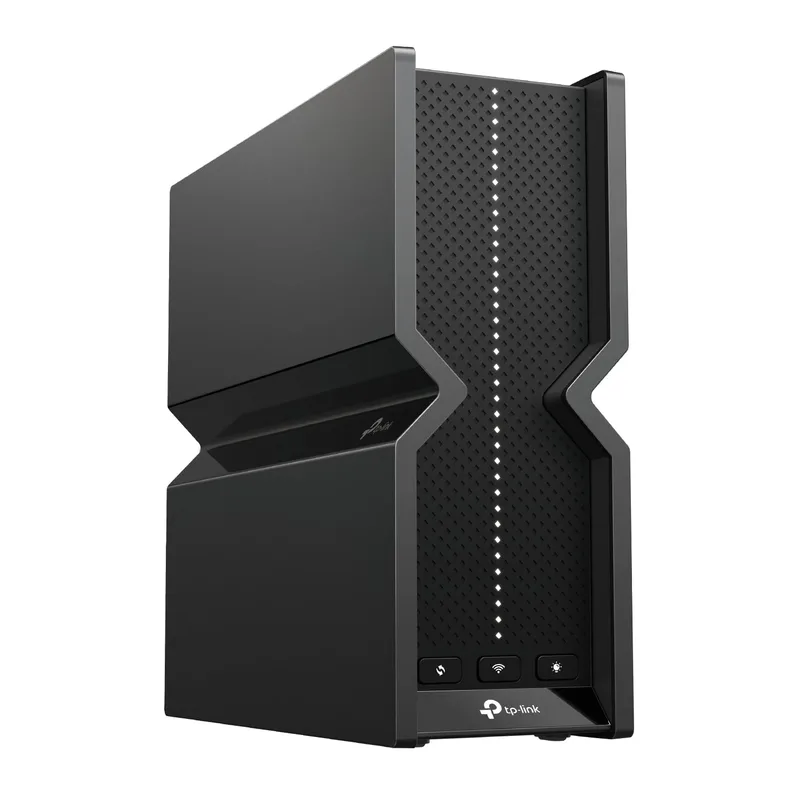
TP-Link Archer BE550 WiFi 7 Router
Pros
- WiFi 7 under $190 — best value on the market right now; no other WiFi 7 router comes close at this price
- 2.5G WAN port means it's ready for multi-gig internet plans that ISPs are rolling out in 2026
- Multi-Link Operation (MLO) lets devices connect on two bands simultaneously — fewer dropped Zoom calls
- EasyMesh compatible — add satellite nodes later if you need to expand coverage without replacing the router
- HomeShield parental controls and network security included free
Cons
- LAN ports top out at 1G — if you have a NAS or desktop that can do 2.5G wired, you need the TL-SG108-M2 switch
- Single-unit coverage (~2,500 sq ft) means it won't cover a large home or one with thick concrete walls
- No 10G port — step up to the Archer BE900 if you need that for a NAS or 10G internet plan
The BE550 is the right default choice for 2026. WiFi 7 at $177 was not possible 12 months ago. Multi-Link Operation keeps video calls stable when your household network is busy. The 2.5G WAN port is ready for multi-gig ISP plans. For homes under 2,500 sq ft with the office reasonably close to the router, this covers the setup.
Best Mesh System: Amazon eero Pro 6E (3-Pack)

eero Pro 6E Mesh WiFi System (3-Pack)
Pros
- Easiest mesh system to configure — app-guided setup takes under 10 minutes with no networking knowledge required
- Eliminates dead zones reliably in homes up to 6,000 sq ft; 3 nodes handle multi-story layouts and thick interior walls
- Device roaming is seamless — connections hand off between nodes without dropping a video call mid-sentence
- Wired backhaul option: run Ethernet between nodes for maximum throughput when cable access is available
- Built-in Zigbee hub replaces a separate smart home hub for Alexa devices and compatible sensors
Cons
- eero Secure subscription required for parental controls, ad blocking, and threat protection ($2.99/mo basic, $9.99/mo Plus)
- Only 2 Ethernet ports per node — challenging if you need to wire multiple devices at each node location
- No VLAN support or advanced QoS controls — hands-off by design, not for those who want to tinker
- WiFi 7 eero Pro 7 is now available at ~$699 for 3-pack — worth it if you're on a multi-gig plan
For larger homes or anyone who has already tried repositioning a single router and still gets dead zones, the eero Pro 6E 3-pack is the lowest-friction path to full-home coverage. The setup experience is genuinely 10 minutes. The roaming handoff is seamless enough that you can walk to another room on a call without the connection stuttering. The main caveat is the subscription for advanced features — factor that into your total cost.
Best Ethernet Switch: TP-Link TL-SG108
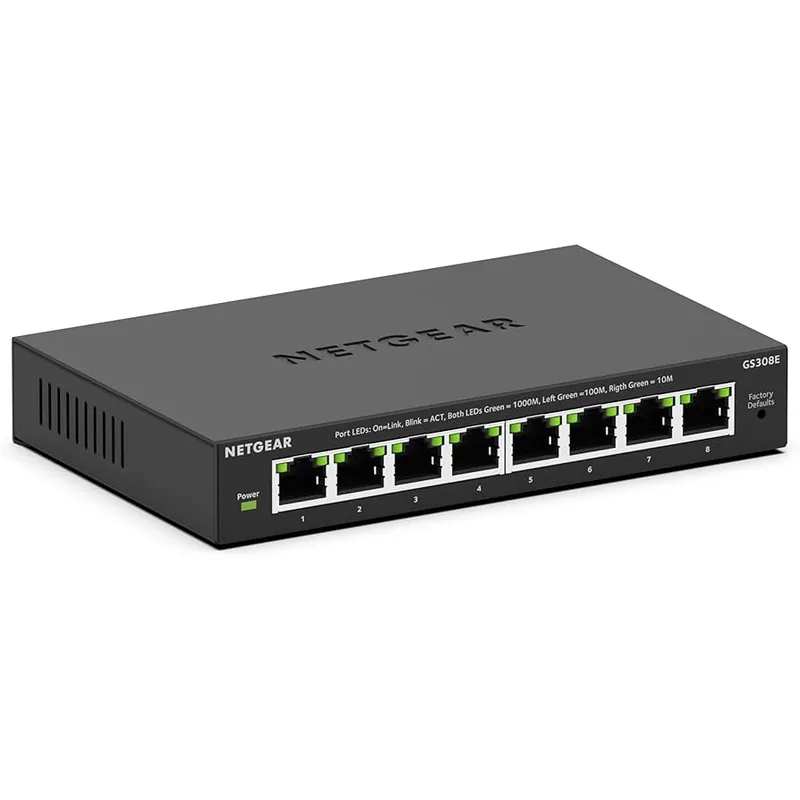
TP-Link 8-Port Gigabit Unmanaged Switch (TL-SG108)
Pros
- Under $20 for 8 ports of gigabit switching — the standard recommendation for home office wired setups for years running
- Completely silent fanless design — zero noise in a home office environment where you're on calls all day
- Steel housing with shielded ports reduces EMI interference from other gear on your desk
- Energy Efficient Ethernet automatically reduces power on idle or short-cable ports — saves up to 72% power
- Lifetime warranty means you buy one and don't think about it again
Cons
- No management features — no VLANs, no per-port QoS, no port mirroring; upgrade to TL-SG108E if you need those
- External power brick adds a cable to your setup; not as clean as switches with internal PSUs
- Tops out at 1G per port — upgrade to TL-SG108-M2 (~$50) if your router has a 2.5G port and you want full throughput to a NAS
Every home office with multiple wired devices needs a switch. The TL-SG108 has been the default recommendation for years because nothing has matched it at the price. Eight gigabit ports, completely silent, lifetime warranty. Plug it in behind your desk and run cables to your desktop, dock, NAS, or any other device that benefits from wired speeds.
Best Ethernet Cable: Amazon Basics Cat6 (10Gbps Snagless)
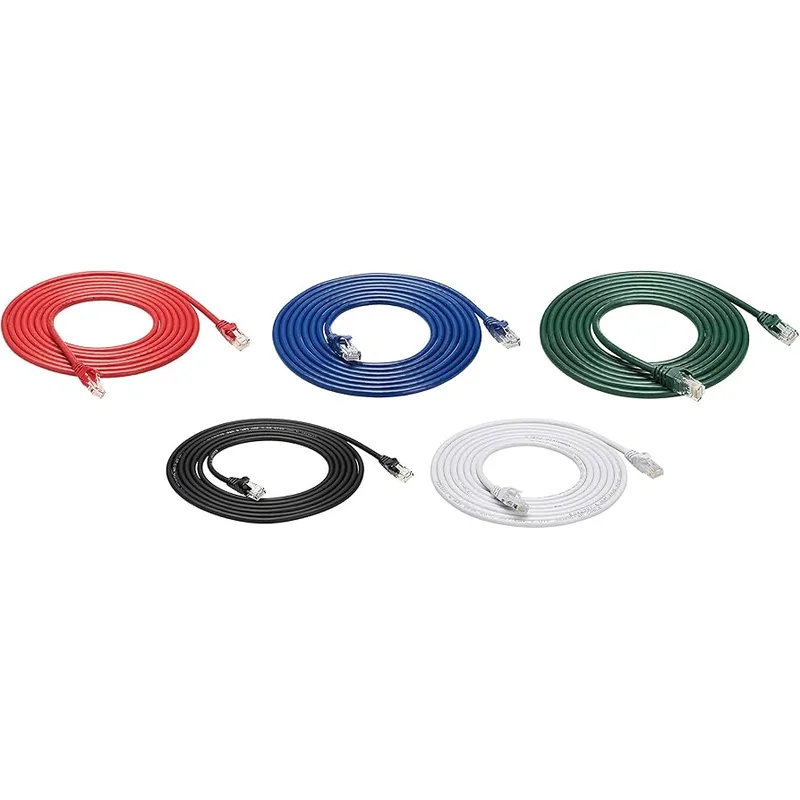
Amazon Basics Cat6 Ethernet Cable (10Gbps Snagless, 10ft)
Pros
- Rated for 10Gbps — future-proof for 2.5G routers, multi-gig switches, and 10G NAS connections at patch cable distances
- Snagless boot protects the RJ45 latch from breaking when routing cables behind desks and furniture
- Gold-plated connectors resist corrosion and maintain clean contact over years of use
- Available in the same product line from 3ft to 100ft — stock multiple lengths
Cons
- Stranded conductor design is for patch cables only — not suitable for in-wall or in-conduit runs (use solid conductor Cat6 for those)
- PVC jacket is not rated for outdoor or high-heat environments
- 10ft is short — buy the 25ft version for reaching from a switch to a desktop PC across the room
Cat6 rated for 10Gbps is barely more expensive than Cat5e and leaves room for any hardware upgrade in the next several years. The snagless boot matters — the plastic boot on cheap cables snaps off the first time you route them behind furniture, and then the latch that holds the cable in the port fails. Buy the right cable once.
Product Comparison
| Product | Type | Price | Best For |
|---|---|---|---|
| TP-Link Archer BE550 | WiFi 7 Router | $162.49-$239.00 as of Oct 18, 2026 | Apartments and smaller homes |
| eero Pro 6E 3-Pack | Mesh WiFi 6E | $499.99 as of Oct 18, 2026 | Larger homes, dead zone coverage |
| TP-Link TL-SG108 | Gigabit Switch | $18.12-$19.99 as of Oct 18, 2026 | Wiring multiple desk devices |
| Amazon Basics Cat6 | Ethernet Cable | $5.24 as of Oct 18, 2026 | Any wired connection |
Buying Guide: What to Prioritize
If you have one problem to solve, solve router placement first. Most home office WiFi issues trace back to a router installed in the wrong location — stuck in a closet, on the floor, or at the opposite end of the house from the office. Moving the router or adding a mesh node near the office fixes the majority of connectivity problems for free.
Ethernet is worth the 30-minute cable run. A wired desktop or laptop connected via dock simply doesn’t have the WiFi congestion, interference, or latency variability problems that wireless connections do. If you’re on wired ethernet and still having network issues, the problem is your ISP or your upstream speed tier.
Router age matters. A WiFi 5 router from 2019 struggles with 20+ device households in 2026 — not because of speed, but because of how it handles concurrent connections. WiFi 6 and 6E manage device congestion fundamentally better. If your router is more than 4–5 years old and you’re experiencing consistent problems, replacement beats troubleshooting.
Mesh adds latency. Wireless mesh systems work well for coverage, but each wireless hop adds a small amount of latency compared to a direct connection. For video calls and general browsing, this is imperceptible. For latency-sensitive applications (VoIP, real-time trading, competitive gaming), wired ethernet outperforms mesh.
Frequently Asked Questions
Do I need WiFi 7 for a home office in 2026?
Not strictly required, but at current prices it’s hard to justify WiFi 6 over WiFi 7 for new purchases. The TP-Link Archer BE550 is $177 and delivers better throughput, less interference, and Multi-Link Operation that improves call stability. WiFi 6E hardware is still excellent — the eero Pro 6E being one example — and costs less. The meaningful upgrade is moving from WiFi 5 or older to anything in the 6/6E/7 generation.
How much internet speed do I actually need for remote work?
A single remote worker doing video calls, file uploads, and cloud sync needs 25–50 Mbps symmetrical (up and down) for comfortable operation. The headline download speed on most home plans is not the bottleneck — upload speed often is. Check your upload speed specifically. Video calls like Zoom use 3–4 Mbps per participant. File uploads, screen sharing, and cloud backup all compete for upload bandwidth simultaneously.
Ethernet vs WiFi 6E — which actually performs better for calls?
Ethernet wins on latency and reliability. A wired Gigabit connection has consistent sub-1ms latency from your machine to the router. WiFi 6E on a clear channel is typically 2–10ms with occasional spikes. For video calls, both work fine — the variance shows up under load, when your household network is congested and your WiFi signal degrades while your ethernet connection stays flat.
Can a mesh system replace a standalone router?
Yes — mesh systems include router functionality and replace a standalone router entirely. The eero Pro 6E 3-pack connects directly to your modem and handles routing, DHCP, and WiFi for the whole home. You do not need a separate router. If you want to use a standalone router and also cover a larger home, place the router centrally and add wired access points or EasyMesh-compatible nodes (like TP-Link’s Deco line) rather than using a mesh system as a secondary device.
What’s the fastest way to fix a slow home office connection today, without buying anything?
Move your router to a more central location, or closer to your office. Place it elevated and away from walls, other electronics, and enclosed spaces. Switch to the 5 GHz band on your device instead of 2.4 GHz (look for the “5G” version of your network name in WiFi settings). Run a speed test at fast.com immediately after these changes to quantify the improvement. Most homes see a 20–50% throughput improvement from router repositioning alone.
Conclusion
The reliable home office network setup in 2026 comes down to three components: a current-generation router positioned correctly, ethernet cable to your primary work machine, and a switch if you have multiple wired devices at your desk.
For most setups, the TP-Link Archer BE550 at under $190 is the router buy — WiFi 7 at this price makes everything else look overpriced. For larger homes or dead zones, the eero Pro 6E 3-pack at $350–$400 remains the easiest full-home mesh solution available.
After that, run a cable to your desk, plug in a TL-SG108 if you have multiple wired devices, and use the time you save troubleshooting WiFi dropouts on actual work.
Detailed Reviews
TP-Link Archer BE550 WiFi 7 Router
Pros
- WiFi 7 under $190 — best value on the market right now; no other WiFi 7 router comes close at this price
- 2.5G WAN port means it's ready for multi-gig internet plans that ISPs are rolling out in 2026
- Multi-Link Operation (MLO) lets devices connect on two bands simultaneously — fewer dropped Zoom calls
- EasyMesh compatible — add satellite nodes later if you need to expand coverage without replacing the router
- HomeShield parental controls and network security included free
Cons
- LAN ports top out at 1G — if you have a NAS or desktop that can do 2.5G wired, you need the TL-SG108-M2 switch
- Single-unit coverage (~2,500 sq ft) means it won't cover a large home or one with thick concrete walls
- No 10G port — step up to the Archer BE900 if you need that for a NAS or 10G internet plan
eero Pro 6E Mesh WiFi System (3-Pack)
Pros
- Easiest mesh system to configure — app-guided setup takes under 10 minutes with no networking knowledge required
- Eliminates dead zones reliably in homes up to 6,000 sq ft; 3 nodes handle multi-story layouts and thick interior walls
- Device roaming is seamless — connections hand off between nodes without dropping a video call mid-sentence
- Wired backhaul option: run Ethernet between nodes for maximum throughput when cable access is available
- Built-in Zigbee hub replaces a separate smart home hub for Alexa devices and compatible sensors
Cons
- eero Secure subscription required for parental controls, ad blocking, and threat protection ($2.99/mo basic, $9.99/mo Plus)
- Only 2 Ethernet ports per node — challenging if you need to wire multiple devices at each node location
- No VLAN support or advanced QoS controls — hands-off by design, not for those who want to tinker
- WiFi 7 eero Pro 7 is now available at ~$699 for 3-pack — worth it if you're on a multi-gig plan
TP-Link 8-Port Gigabit Unmanaged Switch (TL-SG108)
Pros
- Under $20 for 8 ports of gigabit switching — the standard recommendation for home office wired setups for years running
- Completely silent fanless design — zero noise in a home office environment where you're on calls all day
- Steel housing with shielded ports reduces EMI interference from other gear on your desk
- Energy Efficient Ethernet automatically reduces power on idle or short-cable ports — saves up to 72% power
- Lifetime warranty means you buy one and don't think about it again
Cons
- No management features — no VLANs, no per-port QoS, no port mirroring; upgrade to TL-SG108E if you need those
- External power brick adds a cable to your setup; not as clean as switches with internal PSUs
- Tops out at 1G per port — upgrade to TL-SG108-M2 (~$50) if your router has a 2.5G port and you want full throughput to a NAS
Amazon Basics Cat6 Ethernet Cable (10Gbps Snagless, 10ft)
Pros
- Rated for 10Gbps — future-proof for 2.5G routers, multi-gig switches, and 10G NAS connections at patch cable distances
- Snagless boot protects the RJ45 latch from breaking when routing cables behind desks and furniture
- Gold-plated connectors resist corrosion and maintain clean contact over years of use
- Available in the same product line from 3ft to 100ft — stock multiple lengths
Cons
- Stranded conductor design is for patch cables only — not suitable for in-wall or in-conduit runs (use solid conductor Cat6 for those)
- PVC jacket is not rated for outdoor or high-heat environments
- 10ft is short — buy the 25ft version for reaching from a switch to a desktop PC across the room