Affiliate disclosure: SetupRanked earns a commission on qualifying purchases made through links on this page. This does not affect our editorial rankings.
Your laptop’s built-in webcam is probably 720p running in mediocre conditions. Every client call, every all-hands meeting, every one-on-one with your manager — everyone is seeing a grainy, dim version of you.
A webcam upgrade is one of the highest-value improvements you can make to a remote setup. Unlike a monitor or keyboard upgrade that only benefits you, a better webcam makes every person you call see you more clearly. Quick pick: the Logitech Brio 500 at $129 is the right answer for most remote workers. If you’re on a tighter budget, the C920s at $69-$70 is a reliable workhorse.
This guide covers five webcams picked specifically for video call performance: image quality, microphone reliability, low-light behavior, and auto-framing.
What Matters in a Webcam for Video Calls
Resolution: 1080p is sufficient in 2026. Zoom, Teams, and Google Meet all compress video before transmission, which reduces the perceptible gap between 1080p and 4K for live calls. 4K is a future-proofing advantage, not an immediate necessity for most remote workers.
Low-light performance: Home offices rarely have ideal lighting — windows behind you, overhead fluorescents, light that changes throughout the day. A webcam with a large sensor aperture or adaptive light handling manages these conditions far better than entry-level sensors.
Auto-framing: If you shift position, lean forward, or move around during calls, auto-framing keeps you centered automatically. The difference between looking partially off-screen versus consistently framed is more noticeable to the other party than resolution differences.
Microphone quality: Most webcam microphones are adequate at best. Noise reduction that suppresses keyboard clicks, HVAC, and background noise matters significantly for professional calls.
Platform compatibility: Every webcam here works plug-and-play with Zoom, Teams, Google Meet, Webex, and browser-based call tools on Windows, macOS, and ChromeOS.
1. Logitech Brio 500 — Editor’s Pick
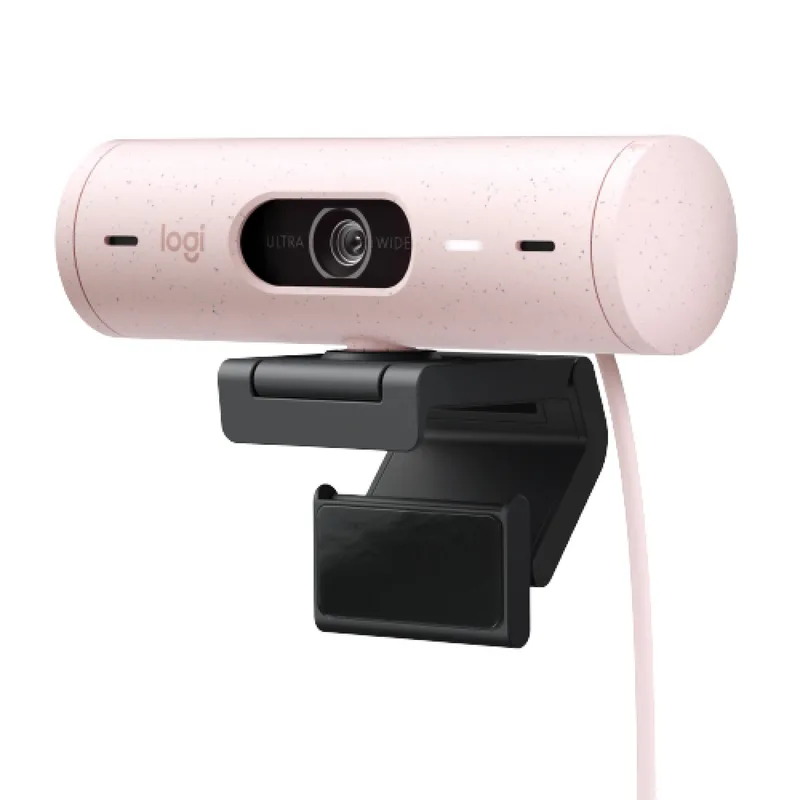
The Brio 500 was built for video calls, not streaming or content creation, and that focus shows. The 90° field of view captures enough context to look natural on calls without broadcasting the entire room behind you.
RightSight 2 auto-framing uses AI to track faces and keep the subject centered. It handles the common scenario of shifting in your chair or leaning forward during calls with smooth repositioning — none of the jarring pan-and-zoom behavior from older auto-framing implementations.
Low-light performance is a standout. The Brio 500 handles the kind of dim home office lighting that leaves a budget webcam producing grainy, dark video. The dual noise-reduction microphones suppress keyboard clicks, HVAC, and street noise without aggressively cutting voice quality. USB-C, physical privacy shutter, and compatibility with every major platform make it frictionless to set up.
The limitation is 1080p at 30fps. For calls, it’s more than sufficient. For recording content for later distribution, you’d want something that captures 4K or 60fps. The Brio 500 has risen to $129 — still fair value for the feature set.
Buy this if: You want the best all-round webcam for daily video calls and don’t want to think about it again.
Skip if: You also record content for distribution and need 4K or 60fps.
2. Logitech C920s HD Pro — Best Budget
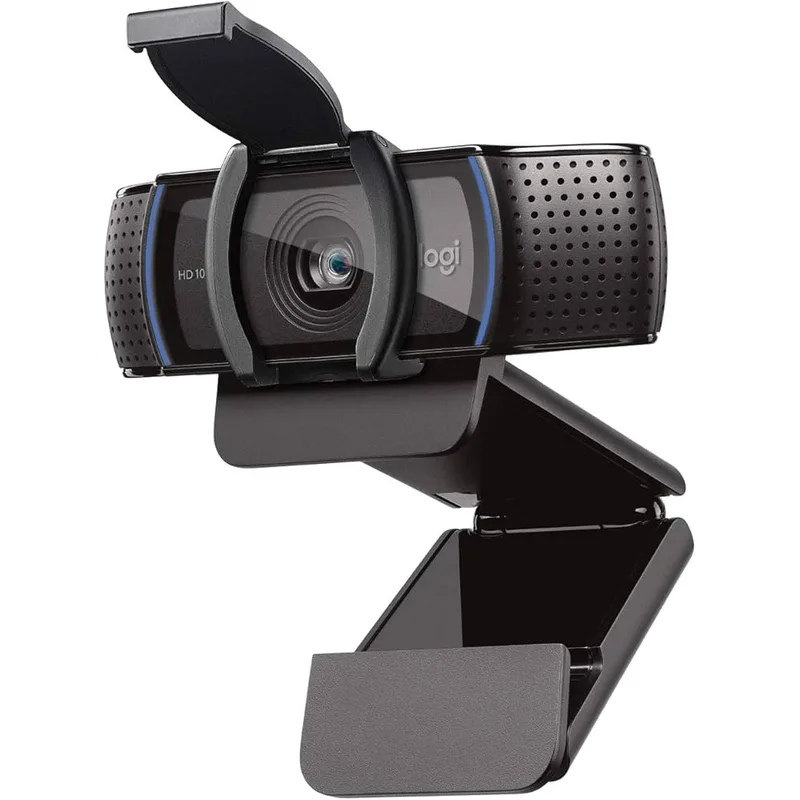
At $69-$70, the C920s HD Pro has risen in price but remains one of the most dependable budget webcams available. It has been the default budget recommendation for years because it reliably delivers 1080p, works on every platform, and never causes problems.
Hardware H.264 compression reduces the processing load on your laptop — this matters on older machines already taxed by video call windows and screen sharing. The dual omni-directional microphones are competent enough for standard calls in an average room.
What it doesn’t have: auto-framing, AI features, 60fps, or advanced low-light modes. It is a reliable 1080p webcam that works consistently and costs $69-$70. For remote workers who want something that functions without configuration or fuss, this is the correct answer.
The USB-A connection is the friction point — newer laptops increasingly lack USB-A ports. Budget for a USB-A to USB-C adapter if needed.
Buy this if: You need a solid webcam and don’t want to spend more than $70.
Skip if: Your home office has poor lighting, or your calls involve a lot of movement.
3. Razer Kiyo Pro — Best Low-Light
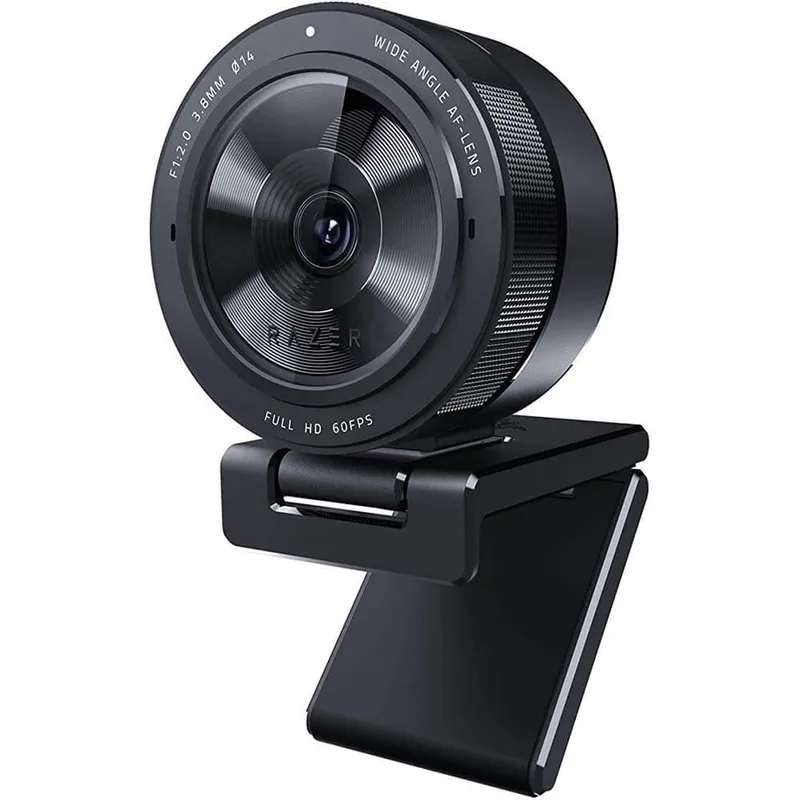
The Kiyo Pro uses a Sony STARVIS sensor with an adaptive light sensor that adjusts in real time to lighting changes. In dim conditions, it performs noticeably better than most webcams in the class. Home offices with inconsistent natural light — bright in the morning, dim by afternoon — are handled automatically.
The adjustable field of view is genuinely useful. The wide 103° setting creates a natural-looking frame on calls. The narrow 80° setting hides a cluttered background by tightening the frame around you. These can be switched through Razer Synapse software without repositioning the camera.
60fps helps any time there’s motion involved — flipping through documents, demonstrating a product, or any scenario where 30fps produces visible stutter. At $79, it offers strong value for the low-light specialization.
The physical size is a legitimate downside. The Kiyo Pro is among the largest webcams here, and monitor-mounted it can feel front-heavy. A desktop tripod alleviates this but adds another item to the desk.
Buy this if: Your home office has challenging or changing light conditions and low-light performance is the priority.
Skip if: Your lighting is solid and you want auto-framing — the Brio 500 handles both better.
4. Elgato Facecam — Best Image Quality
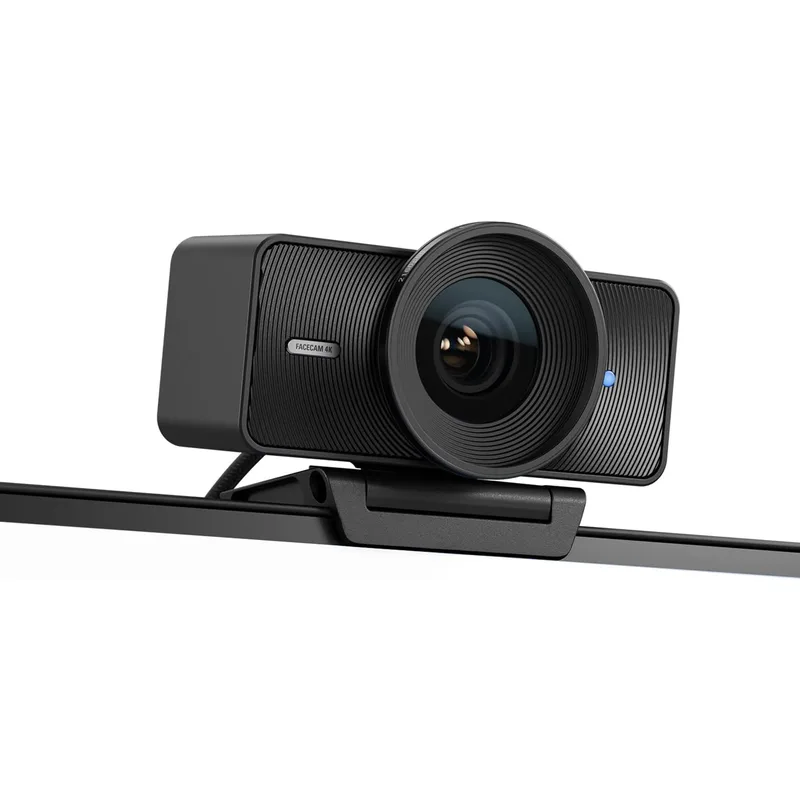
The Elgato Facecam has seen a significant price drop and now sits at $69 — dramatically changing its value proposition. At that price, it delivers image quality that competes with cameras twice as expensive, and it now makes a strong case as the best image-quality option per dollar on this list.
The Sony STARVIS sensor with fixed focus is optimized for the 50-70cm distance between a desk-mounted camera and a seated person. At that distance, the image is sharp and consistent in a way that distinguishes it from cameras that rely on constant autofocus adjustment. Camera Hub software gives granular control over exposure, white balance, sharpness, and tone curve — useful for maintaining a consistent appearance across different lighting setups throughout the day.
The absence of a built-in microphone is intentional. Elgato built this for users who already have a dedicated microphone. If you’re buying your first webcam upgrade, budget an extra $50-70 for a USB microphone alongside it.
Buy this if: Image quality is the priority and you already have or plan to get a separate microphone.
Skip if: You need a complete all-in-one solution with a microphone included.
5. Insta360 Link 2 — Best for Presenters
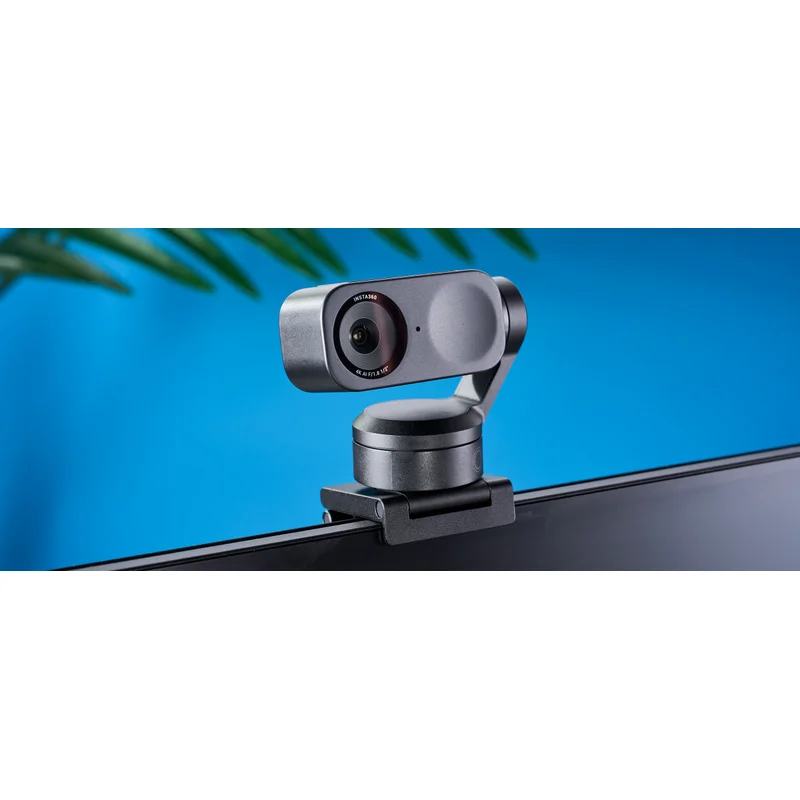
The Insta360 Link 2 succeeds the original Link with a lower price ($199 vs $299) and an improved 1/2” sensor. PTZ AI tracking repositions the camera physically to follow your face — the key distinction versus digital tracking, which reduces effective resolution as it crops the frame. Physical tracking maintains full 4K sensor resolution throughout.
The smart shooting modes are built specifically for remote work presentations: whiteboard mode automatically detects and frames a whiteboard, overhead mode provides a top-down view for showing physical documents or products, and portrait mode tightens the frame for formal calls. The AI noise-canceling microphones are the best built-in audio on this list, handling keyboard noise, HVAC, and background conversation more aggressively than competing webcam mics.
At $199 it’s still the most expensive option here. For someone on calls two or three times a week who stays at their desk, the value equation doesn’t add up compared to the Brio 500 at $129. For someone who presents daily, demonstrates things on camera regularly, or moves around frequently on calls, the Link 2 addresses every gap in a single device.
Buy this if: You present regularly, demonstrate products or documents on camera, or want the best tracking and 4K quality available.
Skip if: You mostly stay still during calls — the Brio 500’s auto-framing is sufficient and costs $70 less.
Comparison Table
| Webcam | Resolution | Auto-Framing | Low-Light | Price | Rating |
|---|---|---|---|---|---|
| Logitech Brio 500 | 1080p 30fps | Yes (RightSight 2) | Good | Unavailable | 9.3 |
| Insta360 Link 2 | 4K 30fps | Yes (PTZ AI) | Excellent | $199.99 as of Oct 18, 2026 | 9.2 |
| Elgato Facecam | 1080p 60fps | No | Good | $109.99-$119.00 as of Oct 18, 2026 | 9.1 |
| Razer Kiyo Pro | 1080p 60fps | No | Excellent | Unavailable | 8.8 |
| Logitech C920s HD Pro | 1080p 30fps | No | Average | $55.48-$59.99 as of Oct 18, 2026 | 8.6 |
Buying Guide: Key Considerations
Mounting options: All webcams here include a monitor clip and tripod thread. If your monitor has a thin bezel or no flat mounting surface, a small desktop tripod provides more stable placement.
Lighting before the camera: A $30-50 ring light or key light positioned in front of you improves image quality more than a camera upgrade alone. If your budget is limited, fix your lighting first, then upgrade the camera.
Microphone strategy: Webcam microphones range from adequate to poor. The Brio 500’s noise reduction is the best on-board mic implementation here. The Insta360 Link 2’s AI noise-canceling mics are a step above. For calls where audio matters — client presentations, recorded content — a dedicated USB microphone is a larger improvement than a camera upgrade.
USB-C vs USB-A: The Brio 500, Elgato Facecam, and Insta360 Link 2 use USB-C. The C920s and Kiyo Pro use USB-A. On MacBooks and newer laptops with USB-C-only ports, USB-A cameras need an adapter.
FAQ
What resolution webcam do I need for video calls?
1080p is the practical standard in 2026. Video conferencing platforms compress video before transmitting, so the perceptible difference between 1080p and 4K on the receiving end is smaller than the spec sheet implies. 4K is valuable for recording content where no compression is applied at capture. For live calls, 1080p is the right target.
Does lighting matter more than camera quality?
Substantially. A budget webcam with good lighting outperforms a $200 webcam in poor lighting for video calls. The most effective single upgrade many remote workers can make is adding a light source in front of them — a ring light, a lamp positioned beside the monitor, or a dedicated key light. A camera upgrade after improving lighting produces further gains.
Will these webcams work with Zoom, Teams, and Google Meet?
Every webcam on this list works with all major video conferencing platforms — Zoom, Teams, Google Meet, Webex, and browser-based call tools. They are UVC compliant, meaning they work without installing drivers on macOS, Windows, and ChromeOS. Advanced features like auto-framing may require manufacturer software on some platforms.
Do I need auto-framing?
More useful than it sounds. Remote workers who shift position, lean forward, or turn away from the camera look less professional than someone consistently framed. Auto-framing handles this automatically. The Brio 500’s RightSight 2 and the Insta360 Link 2’s PTZ tracking are the best implementations here. If you move around during calls, auto-framing is worth prioritizing.
What’s the difference between 30fps and 60fps for video calls?
For standard meetings where participants are mostly stationary, 30fps and 60fps are indistinguishable. For calls involving demonstrating products, presenting with movement, or any scenario with active motion, 60fps provides noticeably cleaner video. The Kiyo Pro, Elgato Facecam, and Insta360 Link 2 all support 60fps at 1080p.
Is the Elgato Facecam worth it without a microphone?
Yes — especially now at $69. The image quality is exceptional for the price, and most remote workers who care enough to spend $69 on a webcam already have a headset with a decent microphone or can add an inexpensive USB mic. Camera Hub also gives more image control than any other webcam here.
Conclusion
The Logitech Brio 500 is the best webcam for most remote workers. At $129, it covers the fundamentals — sharp 1080p, auto-framing, noise-reducing mic, USB-C — in one reliable package.
The Elgato Facecam at $69 is the standout value pick after its price drop. If image quality is the priority and you have a separate microphone, it’s exceptional.
Low-light specialists should look at the Razer Kiyo Pro at $79. Presenters who regularly demonstrate products or documents on camera should consider the Insta360 Link 2 at $199 — the PTZ tracking and smart modes address needs the other cameras don’t. And the Logitech C920s at $69-$70 remains the most dependable entry-level option in the category.
Detailed Reviews
Logitech Brio 500
Pros
- Auto-framing keeps you centered during calls even when you shift position
- Excellent low-light performance makes poor room lighting less of a problem
- Physical privacy shutter closes the lens when not in use
- USB-C connection and works plug-and-play with all major platforms
Cons
- 1080p rather than 4K — sufficient for calls but not ideal for content recording
- Show Mode (angling camera down to display a desk surface) is niche for most users
Logitech C920s HD Pro
Pros
- Proven reliability — widely used in professional remote work environments
- Solid 1080p quality that holds up in a range of lighting conditions
- Plug-and-play with Zoom, Teams, and Google Meet
- Physical privacy shutter included at this price point
Cons
- USB-A only — requires an adapter for newer USB-C-only laptops
- No auto-framing or AI features found in newer webcams
- No 60fps mode — 30fps only
Razer Kiyo Pro
Pros
- Best low-light performance in the class — home offices without good lighting benefit most
- Adjustable FOV gives control over how much background is visible on calls
- 60fps delivers noticeably smoother video for presentations with movement
- HDR capability for high-contrast lighting environments
Cons
- Physically large and heavy for a webcam — monitor mounting can feel unbalanced
- USB-A only, requiring an adapter for newer laptops
- No auto-framing
Elgato Facecam
Pros
- Professional-grade Sony STARVIS sensor delivers the sharpest 1080p image in the class
- Camera Hub software provides granular control over exposure, white balance, and sharpness
- 60fps for the smoothest motion rendering during active presentations
- USB-C connection and uncompressed video output
- Excellent value since the price drop to $69
Cons
- No built-in microphone — requires a separate mic for complete audio/video setup
- Fixed focus is not ideal for showing objects close to the camera
- No auto-framing
Insta360 Link 2
Pros
- PTZ AI tracking follows movement physically rather than digitally cropping
- Large 1/2" sensor for excellent image quality at 4K
- Multiple smart modes including whiteboard and overhead desk view
- AI noise-canceling mics are the best built-in audio on this list
- $100 cheaper than the original Insta360 Link it replaces
Cons
- Still the most expensive option on this list at $199
- PTZ mechanism requires occasional recalibration
- Overkill for users who stay still during calls