The Security Gap Remote Workers Can’t Ignore
Working without an IT department means you are responsible for the network, the devices, and the accounts. In 2026, that responsibility is not trivial. The CrowdStrike 2026 Global Threat Report documented AI-enabled adversaries cutting their average attack breakout time to 29 minutes — down dramatically from prior years. Attacks targeting home routers, VPNs, and remote-access tools account for 38% of cyberattacks, and 54% of CISOs report increasing credential theft tied to remote access.
Most remote workers fall into one of two camps: those who assume nothing bad will happen to them personally, and those who overreacted to one scare and now run three conflicting VPN services simultaneously. This guide covers practical, layered security for a solo home office — no enterprise budget or IT certifications required.
The Biggest Threats to Solo Remote Workers
Before buying hardware, it helps to understand what you’re actually defending against:
Credential theft via phishing. AI-generated phishing emails in 2026 are nearly indistinguishable from legitimate communications. A phishing email that successfully harvests a password is neutralized immediately if hardware-based 2FA is enabled — the attacker has the password but cannot log in without the physical key.
Home network compromise. Many home routers still run firmware from their 2021 or 2022 setup. Attackers actively scan for unpatched router vulnerabilities, and a compromised router can intercept all traffic — including VPN credentials and session tokens — before encryption happens.
Session token theft. Stealing active browser session tokens bypasses 2FA entirely. Network-layer monitoring (not just endpoint antivirus) can detect malicious traffic calling back to known command-and-control servers before the data leaves your network.
Shoulder surfing and physical access. Anyone who can see your screen in a coffee shop, shared apartment, or even a co-worker’s home can read sensitive documents, client data, and passwords. Physical privacy is a security layer most digital guides ignore.
Layer 1: Lock Down Your Accounts With Hardware 2FA
SMS-based two-factor authentication is better than nothing, but SIM-swap attacks have become routine. An attacker who convinces your carrier to transfer your number receives every SMS 2FA code you’d receive. Hardware security keys eliminate this attack vector entirely: authentication requires the physical key, which the attacker cannot social-engineer from a phone carrier.
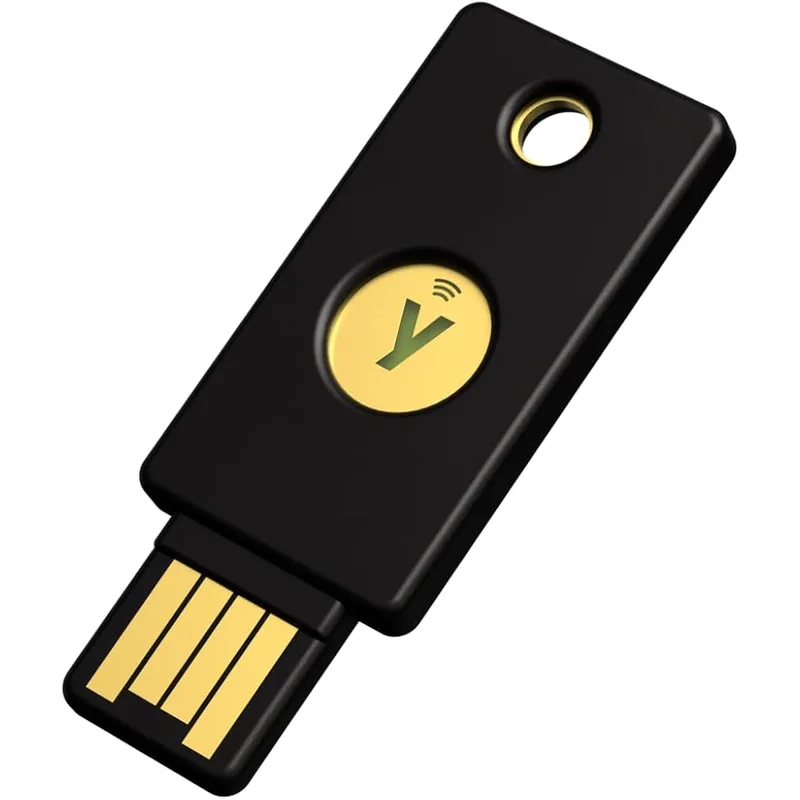
YubiKey 5C NFC
Pros
- Single key eliminates SMS 2FA vulnerabilities — hardware-based authentication cannot be intercepted by SIM-swap attacks, which are responsible for a significant share of account takeovers targeting remote workers who manage their own security
- NFC support means iPhone and Android users can tap the key to authenticate mobile apps without an adapter — important for remote workers who split screen time between a laptop and phone throughout the day
- USB-C fits modern MacBooks, Windows laptops, and Chromebooks directly without a dongle — eliminates the adapter friction that causes workers to skip hardware 2FA on their primary machines
- Works with Google, Microsoft, GitHub, Dropbox, password managers like 1Password and Bitwarden, and most enterprise SSO platforms — one key covers the entire remote work account stack
- Firmware is locked and cannot be updated remotely — this is a deliberate security feature that prevents attackers from compromising the key through software exploits, unlike phone-based authenticators
Cons
- No backup key is included — losing the primary key requires account recovery through each service individually; security professionals recommend buying two keys and registering both to all accounts
- Initial setup takes 30–60 minutes across all accounts — adding the key to a dozen services is methodical but not difficult; the one-time setup cost pays dividends for years
- USB-C only, no USB-A — laptops with only USB-A ports require a USB-C to USB-A adapter; older workstations may need the standard YubiKey 5 NFC (USB-A version) instead
The YubiKey 5C NFC is the right key for most remote workers with a modern laptop. It handles every authentication protocol you’ll encounter — FIDO2, WebAuthn, TOTP, PIV — from one physical device no larger than a house key. Plug it into the USB-C port on your MacBook or Windows machine, tap it to your phone via NFC, and authentication completes without typing a code or waiting for an SMS.
Start by registering the YubiKey on your most critical accounts: your work email (Google or Microsoft), password manager, GitHub, and any cloud services holding client data. Each service’s security settings page should have a “Security Keys” or “Passkey” option. The process takes a few minutes per account.
Buy two keys. Register both on every critical account. Keep one on your keychain and one in a secure drawer. If the primary key is lost, the backup key restores access without a panicked recovery process.
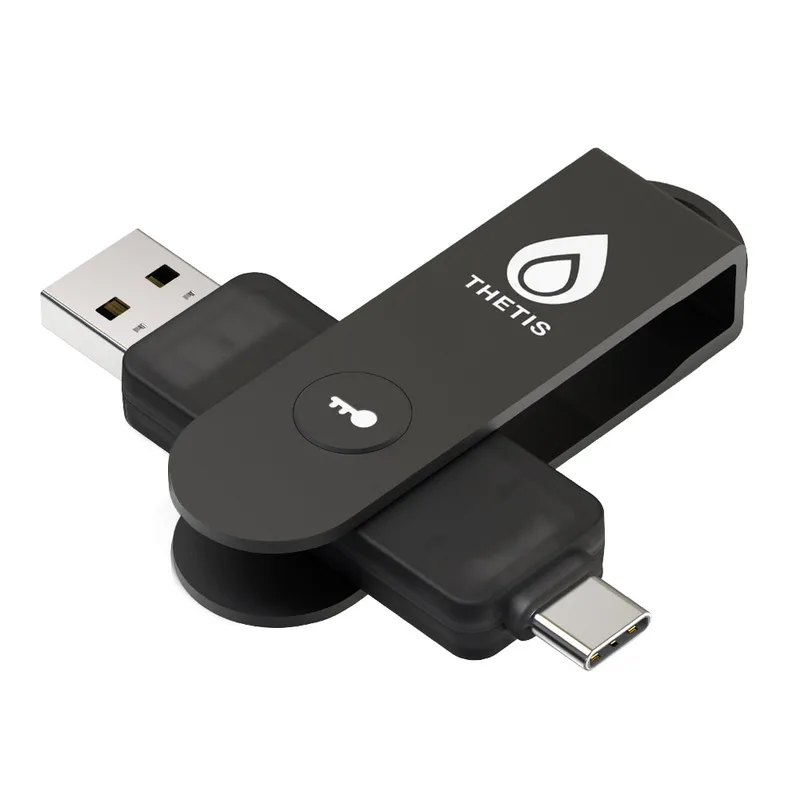
Thetis Pro FIDO2 Security Key
Pros
- Dual USB ports (USB-A and USB-C) in one key solve the port compatibility problem without buying two separate keys — works on every laptop without an adapter, which matters for remote workers who switch between different machines
- NFC support covers smartphone authentication — tap to log in works on Android and iOS apps that support hardware keys, matching the functionality of the YubiKey 5C at less than half the price
- TOTP authenticator app integration generates time-based one-time passwords through the Thetis software — useful as a backup authentication method when a service does not yet support hardware keys
- Metal rotating cap protects the USB connector during transport without requiring a separate case — owner reviews confirm the cap stays secure in bags and pockets without loosening over time
Cons
- Companion authenticator app (for TOTP) is less polished than dedicated apps like Authy — for FIDO2 hardware key use on supported sites, no app is needed; the limitation only applies to the TOTP backup mode
- Firmware update process is more complex than YubiKey — Thetis occasionally releases updates that require a desktop tool; not a concern for most users but worth noting for those managing fleets of keys
- Slightly bulkier than a YubiKey when both USB ports are exposed — the dual-port design adds minimal width, noticeable mainly on cramped laptop port layouts
If the YubiKey price is a barrier, the Thetis Pro FIDO2 key covers the same FIDO2 hardware authentication at about half the cost. The dual USB-A and USB-C ports eliminate the compatibility concerns of single-port keys. Owner feedback across hundreds of Amazon reviews consistently confirms it works on Google, Microsoft, and GitHub accounts without issues. The TOTP backup mode adds extra flexibility for older services that support app-based codes but not hardware keys yet.
Layer 2: Secure Your Network
Your router is the front door to every device in your home office. Two practical upgrades improve security without requiring you to replace your ISP-provided modem.
Router Firmware — The Free Fix Nobody Does
Log into your router admin panel (usually 192.168.1.1 or 192.168.0.1) and check the firmware version. Many routers ship with auto-update disabled, meaning they have not received security patches in years. Enable automatic updates. On most routers this is under Administration > Firmware Update or Advanced > Software Update.
Also:
- Change the default admin password to a 16+ character random string stored in your password manager
- Disable WPS (Wi-Fi Protected Setup) — it has known vulnerabilities
- Enable WPA3 if your router supports it; WPA2-AES is acceptable if WPA3 is unavailable; WPA or WEP are not acceptable
When You’re Not at Home
Public networks at coffee shops, libraries, and co-working spaces are the highest-risk environment for remote workers. A VPN is not paranoia here — it’s the correct response to sharing a network with strangers.
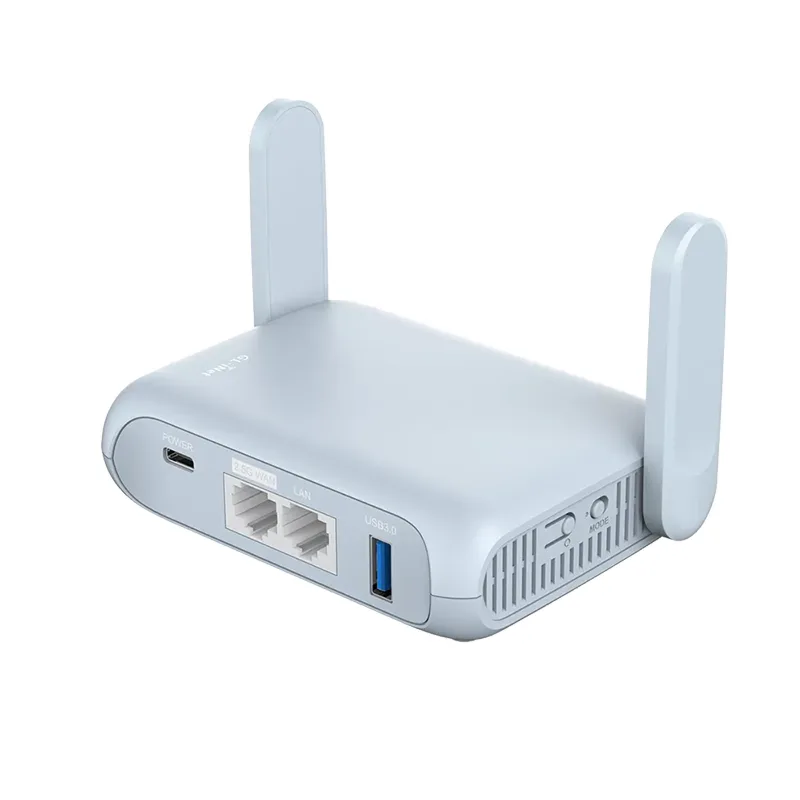
GL.iNet GL-MT3000 Beryl AX
Pros
- Built-in WireGuard and OpenVPN client means the router handles VPN encryption for every connected device simultaneously — rather than running a VPN app on each device separately, the Beryl AX encrypts all traffic at the network level, including smart home devices that cannot run VPN software themselves
- 2.5G WAN port exceeds most home internet subscription speeds — meaning the router is not the bottleneck on gigabit or multi-gigabit connections, which matters for remote workers on high-bandwidth plans who cannot afford latency on video calls
- Travel-router form factor (147g, pocket-sized) covers both home office and hotel use — at a coffee shop or hotel, plug into the wired port and connect all devices through the Beryl AX's VPN-protected network rather than the shared public WiFi
- GL.iNet open-source firmware (based on OpenWRT) receives consistent security updates — router firmware vulnerabilities are a real attack vector; the active maintenance schedule is a meaningful security advantage over budget routers that receive no updates after launch
- AdGuard Home integration blocks ad-tracking and known malicious domains at the router level — owner reports note this catches phishing domains that occasionally slip through browser-level blockers
Cons
- VPN throughput on WireGuard tops out around 560 Mbps — sufficient for most home office plans, but if symmetric multi-gig internet is the goal, a more powerful router is needed; for typical 500 Mbps or 1 Gbps plans this is a non-issue
- Initial VPN configuration requires reading the GL.iNet documentation — the web admin panel is well-designed, but connecting to a VPN provider still requires entering server addresses and authentication credentials manually; not a plug-and-play setup
- Single LAN port means downstream switches are needed for wired home office setups with multiple desktops — a common limitation in travel routers; most home office users connect wirelessly and use the LAN port only for a primary workstation
The GL.iNet Beryl AX is a travel router that solves public WiFi security at the network level. At a coffee shop, plug it into the ethernet port (if available) or connect it to the public WiFi as an uplink. Then connect your laptop and phone to the Beryl AX’s private network. Configure WireGuard VPN on the router, and every device connecting through it gets encrypted traffic — including devices that cannot run VPN software themselves.
At home, the Beryl AX works as a primary router with the same VPN-at-the-network-layer benefit. WireGuard on the router is fast enough that the 560 Mbps throughput ceiling will not throttle standard home internet plans. The open-source GL.iNet firmware receives consistent security updates, which is genuinely rare in consumer router hardware.
Layer 3: Monitor What’s Actually on Your Network
Endpoint antivirus monitors what happens on individual devices. Network-layer monitoring catches what your devices are connecting to — including devices that cannot run antivirus software, like smart TVs, printers, and IoT devices.
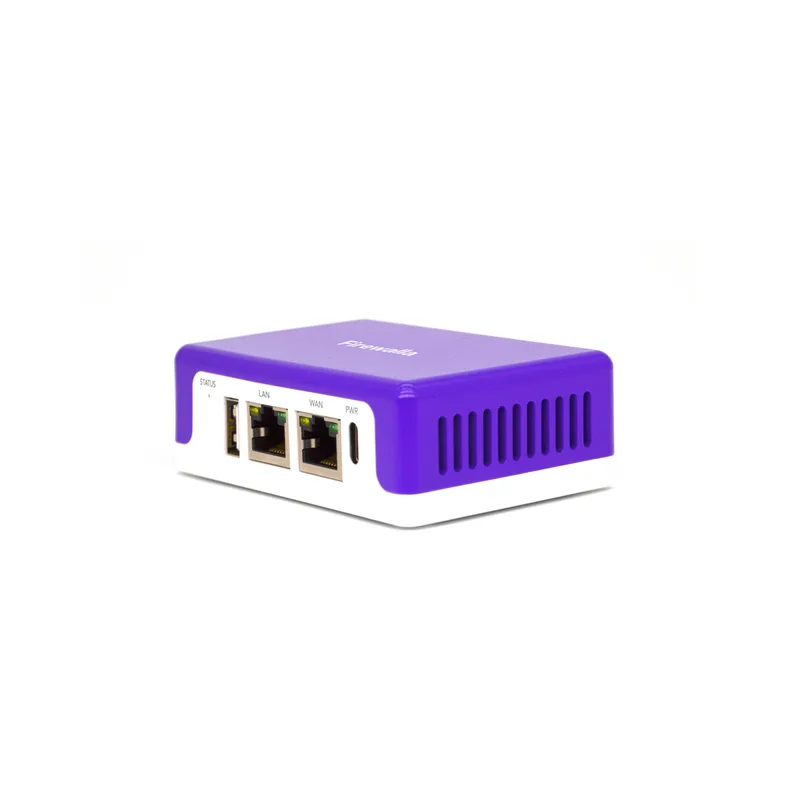
Firewalla Purple SE
Pros
- Passive network tap mode sits between the router and modem and monitors all traffic without reconfiguring your home network — no ISP router replacement required, no risk of disrupting existing smart home or NAS setups during installation
- No monthly subscription — network security devices from competitors often require recurring fees; Firewalla's one-time purchase model covers lifetime app access and traffic monitoring, which owner reviews cite as the primary reason for choosing it over enterprise alternatives
- Real-time alerts notify the phone app when a device attempts to connect to a known malicious domain, C2 server, or suspicious foreign IP — catches credential-harvesting malware that endpoint antivirus misses because the detection happens at the network layer, not the device layer
- Family and device segmentation lets remote workers create an isolated VLAN for work devices — separating the work laptop from personal smart home devices reduces lateral movement risk if a personal device (e.g., a smart TV) is compromised
- Ad blocking and DNS-over-HTTPS support is built in — encrypts DNS queries from the ISP and blocks trackers at the network level for every device on the network simultaneously
Cons
- 500 Mbps ceiling means users on gigabit or faster plans may see throughput limited in router mode — in passive tap mode this is not an issue; only relevant if using the Firewalla as the primary router
- Alert verbosity takes tuning — out of the box, the app generates frequent notifications for normal traffic patterns like cloud backups and CDN connections; takes a few days of use to configure sensible alert thresholds
- Mobile app is required for setup and ongoing management — there is no local web UI fallback; if the GL.iNet admin panel approach (local browser-based) is preferred, the app-first management model may feel limiting
The Firewalla Purple SE sits between your router and the rest of your home network in passive monitoring mode. It does not require replacing your router or reconfiguring DHCP. Once installed, the Firewalla app on your phone shows every device on the network, what it’s connecting to, and alerts you when anything attempts to communicate with a known malicious domain or suspicious IP range.
For remote workers, the most practical feature is device segmentation: you can create an isolated network segment for work devices, keeping your laptop separated from personal devices. If your smart TV is compromised (TV firmware security is notoriously poor), it cannot reach your work machine on a segmented network.
The no-subscription model is genuinely meaningful here. Network security appliances from competitors in the SMB space cost $15–30/month on top of the hardware. Firewalla charges once.
Layer 4: Physical and Visual Privacy
Screen privacy is the most neglected security layer in home office setups. A compromised password manager requires sophisticated attack tools. A neighbor walking past your open window and reading your visible screen requires zero technical skill.
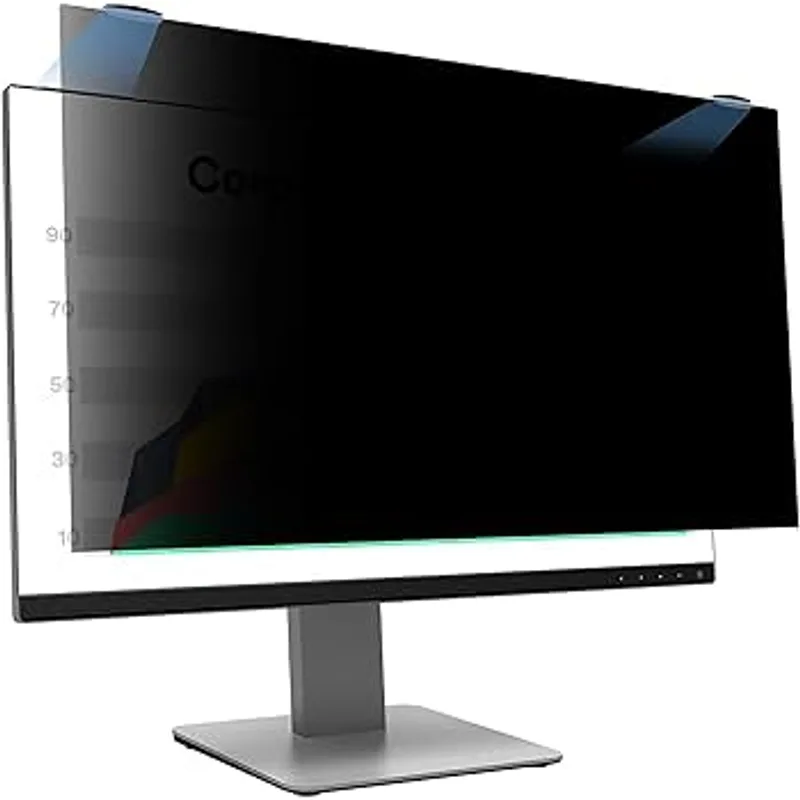
3M Privacy Filter for 27" Monitor (COMPLY Magnetic)
Pros
- COMPLY Magnetic attachment uses rare-earth magnets to click securely onto the monitor bezel — removes in under two seconds for screen sharing on calls, reattaches instantly for focused work; no adhesive strips or clips that damage the monitor or require repositioning
- Microlouver technology restricts the viewing angle to a 60-degree cone centered on the user — anyone seated beside you or passing behind the workstation sees a black screen; effective against shoulder surfing in shared living situations and co-working spaces
- Matte surface reduces glare from windows and overhead lighting simultaneously with the privacy function — two monitor ergonomics problems solved with one accessory, which owner reviews note reduces eye strain during long work sessions
- Reversible design provides a glossy-surface option when privacy is not needed — the glossy side improves color vibrancy for photo editing or video review tasks where privacy is not a concern
Cons
- Screen brightness reduction is noticeable — the microlouver filter absorbs approximately 30–40% of display brightness; monitors set below 70% brightness may appear dim with the filter attached; compensate by increasing display brightness
- Monitor-specific sizing means this 27" 16:9 filter does not fit curved monitors or 16:10 aspect ratio panels — check the aspect ratio and monitor curve radius before purchasing; 3M makes separate SKUs for curved and non-standard sizes
- Higher price than generic privacy screens — the magnetic attachment system adds cost over clip-on alternatives; the convenience of quick-release justifies the premium for users who regularly share their screen during calls
The 3M Privacy Filter with COMPLY Magnetic Attach makes privacy practical rather than cumbersome. The magnetic attachment clicks on and off in under two seconds — so when you’re sharing your screen on a Zoom call, the filter comes off instantly, and goes back on when the call ends. Competing clip-on filters require careful repositioning every time, which leads to workers leaving them off permanently.
The 60-degree viewing cone is effective in most home office situations: anyone more than 30 degrees to the side of your screen sees a darkened panel. In open-plan apartments, co-working spaces, or rooms with foot traffic, this eliminates the risk of shoulder surfing entirely.
Note the brightness tradeoff: the microlouver structure absorbs roughly 30–40% of display brightness. Increase monitor brightness to compensate.
Layer 5: Endpoint and Software Basics
Hardware is one part of the picture. These software practices cost nothing and cover gaps that hardware alone cannot:
Use a password manager. Bitwarden (free tier is fully functional) and 1Password ($3/month) both support hardware key authentication with YubiKey and Thetis FIDO2 keys. Using unique, randomly generated 20+ character passwords for every account means a single credential breach cannot cascade across your accounts.
Enable full-disk encryption. On macOS, FileVault is under System Settings > Privacy & Security. On Windows 11 Pro, BitLocker is under Settings > Privacy & Security > Device Encryption. On Windows 11 Home, Device Encryption (a lighter version) should enable automatically on modern hardware. Full-disk encryption means a stolen laptop contains no readable data without the password.
Keep your OS and apps updated. The fastest observed breach breakout time in the CrowdStrike 2026 report was 27 seconds — meaning delayed patching is a real and measurable risk, not theoretical. Enable automatic OS updates and audit which applications you actually use, uninstalling those that are not actively maintained.
Use DNS over HTTPS. Both the Beryl AX and Firewalla support DNS-over-HTTPS at the router level, encrypting DNS queries from your ISP’s view. On individual devices, this can be enabled in browser settings (Chrome: Settings > Privacy > Use secure DNS; Firefox: Settings > Privacy > DNS over HTTPS).
Audit connected apps. Go to your Google account (myaccount.google.com > Security > Third-party apps) and Microsoft account and revoke access from any apps you no longer use. Remote workers accumulate OAuth connections from trial apps and old integrations. Each one is an additional potential breach vector.
Recommended Gear Summary
| Product | Use Case | Price |
|---|---|---|
| YubiKey 5C NFC | Hardware 2FA for accounts | $58.00 as of Oct 18, 2026 |
| Thetis Pro FIDO2 | Budget hardware 2FA | Unavailable |
| GL.iNet Beryl AX | VPN router (home + travel) | $98.99 as of Oct 18, 2026 |
| Firewalla Purple SE | Network monitoring + segmentation | Unavailable |
| 3M Privacy Filter 27” | Visual privacy at the desk | $97.88 as of Oct 18, 2026 |
FAQ
Do I really need a VPN if I work from home all the time?
For home-only workers, a VPN is lower priority than hardware 2FA and router security. The bigger VPN use case is travel — public networks at airports, hotels, and coffee shops are where session interception is practical. At home, ensuring your router is patched and using DNS-over-HTTPS provides most of the benefit without VPN subscription cost.
Is a hardware security key worth it if I already use an authenticator app?
Authenticator apps (Google Authenticator, Authy) are significantly better than SMS. Hardware keys are better than apps for accounts holding sensitive client data, financial information, or work email — specifically because they are immune to real-time phishing attacks where an attacker relays your OTP code in real time. For low-stakes accounts, an authenticator app is fine.
Can I use one YubiKey for everything, or do I need multiple?
One key is functional. Two is the security standard. If you lose the only registered key, account recovery involves contacting each service individually and passing identity verification — a process that takes hours. Register a backup key to every account and store it separately from the primary.
What if my router already has a firewall?
All routers have a basic firewall (stateful inspection of inbound connections). The Firewalla Purple SE adds outbound traffic monitoring, malicious domain blocking, device-level traffic visibility, and network segmentation — features that consumer router firewalls do not include. They address different threat surfaces.
How do I know if my home network has already been compromised?
Run a tool like Fing (iOS/Android) to scan all connected devices on your network and identify any you do not recognize. The Firewalla Purple SE provides ongoing monitoring after initial setup. Unknown devices showing active network connections, or router DNS settings that have changed from your ISP’s default, are indicators of past compromise worth investigating.
Conclusion
Remote work security in 2026 is not about being paranoid — it is about removing the low-effort attacks from the table. Hardware 2FA eliminates credential phishing as a successful attack vector. Router firmware updates close the most common network entry points. Network-layer monitoring catches what endpoint antivirus misses. Physical privacy screens address the threat that requires zero technical sophistication to execute.
Start with a hardware security key. Register it on email, password manager, and financial accounts. Then work through router security and network monitoring at your own pace. Each layer adds to the last. None of them require an IT department.
The YubiKey 5C NFC is the best starting point for most USB-C laptop users. The Thetis Pro FIDO2 is the right answer if budget is the constraint. Both provide the core protection that makes the rest of the security stack more effective.
Detailed Reviews
YubiKey 5C NFC
Pros
- Single key eliminates SMS 2FA vulnerabilities — hardware-based authentication cannot be intercepted by SIM-swap attacks, which are responsible for a significant share of account takeovers targeting remote workers who manage their own security
- NFC support means iPhone and Android users can tap the key to authenticate mobile apps without an adapter — important for remote workers who split screen time between a laptop and phone throughout the day
- USB-C fits modern MacBooks, Windows laptops, and Chromebooks directly without a dongle — eliminates the adapter friction that causes workers to skip hardware 2FA on their primary machines
- Works with Google, Microsoft, GitHub, Dropbox, password managers like 1Password and Bitwarden, and most enterprise SSO platforms — one key covers the entire remote work account stack
- Firmware is locked and cannot be updated remotely — this is a deliberate security feature that prevents attackers from compromising the key through software exploits, unlike phone-based authenticators
Cons
- No backup key is included — losing the primary key requires account recovery through each service individually; security professionals recommend buying two keys and registering both to all accounts
- Initial setup takes 30–60 minutes across all accounts — adding the key to a dozen services is methodical but not difficult; the one-time setup cost pays dividends for years
- USB-C only, no USB-A — laptops with only USB-A ports require a USB-C to USB-A adapter; older workstations may need the standard YubiKey 5 NFC (USB-A version) instead
Thetis Pro FIDO2 Security Key
Pros
- Dual USB ports (USB-A and USB-C) in one key solve the port compatibility problem without buying two separate keys — works on every laptop without an adapter, which matters for remote workers who switch between different machines
- NFC support covers smartphone authentication — tap to log in works on Android and iOS apps that support hardware keys, matching the functionality of the YubiKey 5C at less than half the price
- TOTP authenticator app integration generates time-based one-time passwords through the Thetis software — useful as a backup authentication method when a service does not yet support hardware keys
- Metal rotating cap protects the USB connector during transport without requiring a separate case — owner reviews confirm the cap stays secure in bags and pockets without loosening over time
Cons
- Companion authenticator app (for TOTP) is less polished than dedicated apps like Authy — for FIDO2 hardware key use on supported sites, no app is needed; the limitation only applies to the TOTP backup mode
- Firmware update process is more complex than YubiKey — Thetis occasionally releases updates that require a desktop tool; not a concern for most users but worth noting for those managing fleets of keys
- Slightly bulkier than a YubiKey when both USB ports are exposed — the dual-port design adds minimal width, noticeable mainly on cramped laptop port layouts
GL.iNet GL-MT3000 Beryl AX
Pros
- Built-in WireGuard and OpenVPN client means the router handles VPN encryption for every connected device simultaneously — rather than running a VPN app on each device separately, the Beryl AX encrypts all traffic at the network level, including smart home devices that cannot run VPN software themselves
- 2.5G WAN port exceeds most home internet subscription speeds — meaning the router is not the bottleneck on gigabit or multi-gigabit connections, which matters for remote workers on high-bandwidth plans who cannot afford latency on video calls
- Travel-router form factor (147g, pocket-sized) covers both home office and hotel use — at a coffee shop or hotel, plug into the wired port and connect all devices through the Beryl AX's VPN-protected network rather than the shared public WiFi
- GL.iNet open-source firmware (based on OpenWRT) receives consistent security updates — router firmware vulnerabilities are a real attack vector; the active maintenance schedule is a meaningful security advantage over budget routers that receive no updates after launch
- AdGuard Home integration blocks ad-tracking and known malicious domains at the router level — owner reports note this catches phishing domains that occasionally slip through browser-level blockers
Cons
- VPN throughput on WireGuard tops out around 560 Mbps — sufficient for most home office plans, but if symmetric multi-gig internet is the goal, a more powerful router is needed; for typical 500 Mbps or 1 Gbps plans this is a non-issue
- Initial VPN configuration requires reading the GL.iNet documentation — the web admin panel is well-designed, but connecting to a VPN provider still requires entering server addresses and authentication credentials manually; not a plug-and-play setup
- Single LAN port means downstream switches are needed for wired home office setups with multiple desktops — a common limitation in travel routers; most home office users connect wirelessly and use the LAN port only for a primary workstation
Firewalla Purple SE
Pros
- Passive network tap mode sits between the router and modem and monitors all traffic without reconfiguring your home network — no ISP router replacement required, no risk of disrupting existing smart home or NAS setups during installation
- No monthly subscription — network security devices from competitors often require recurring fees; Firewalla's one-time purchase model covers lifetime app access and traffic monitoring, which owner reviews cite as the primary reason for choosing it over enterprise alternatives
- Real-time alerts notify the phone app when a device attempts to connect to a known malicious domain, C2 server, or suspicious foreign IP — catches credential-harvesting malware that endpoint antivirus misses because the detection happens at the network layer, not the device layer
- Family and device segmentation lets remote workers create an isolated VLAN for work devices — separating the work laptop from personal smart home devices reduces lateral movement risk if a personal device (e.g., a smart TV) is compromised
- Ad blocking and DNS-over-HTTPS support is built in — encrypts DNS queries from the ISP and blocks trackers at the network level for every device on the network simultaneously
Cons
- 500 Mbps ceiling means users on gigabit or faster plans may see throughput limited in router mode — in passive tap mode this is not an issue; only relevant if using the Firewalla as the primary router
- Alert verbosity takes tuning — out of the box, the app generates frequent notifications for normal traffic patterns like cloud backups and CDN connections; takes a few days of use to configure sensible alert thresholds
- Mobile app is required for setup and ongoing management — there is no local web UI fallback; if the GL.iNet admin panel approach (local browser-based) is preferred, the app-first management model may feel limiting
3M Privacy Filter for 27" Monitor (COMPLY Magnetic)
Pros
- COMPLY Magnetic attachment uses rare-earth magnets to click securely onto the monitor bezel — removes in under two seconds for screen sharing on calls, reattaches instantly for focused work; no adhesive strips or clips that damage the monitor or require repositioning
- Microlouver technology restricts the viewing angle to a 60-degree cone centered on the user — anyone seated beside you or passing behind the workstation sees a black screen; effective against shoulder surfing in shared living situations and co-working spaces
- Matte surface reduces glare from windows and overhead lighting simultaneously with the privacy function — two monitor ergonomics problems solved with one accessory, which owner reviews note reduces eye strain during long work sessions
- Reversible design provides a glossy-surface option when privacy is not needed — the glossy side improves color vibrancy for photo editing or video review tasks where privacy is not a concern
Cons
- Screen brightness reduction is noticeable — the microlouver filter absorbs approximately 30–40% of display brightness; monitors set below 70% brightness may appear dim with the filter attached; compensate by increasing display brightness
- Monitor-specific sizing means this 27" 16:9 filter does not fit curved monitors or 16:10 aspect ratio panels — check the aspect ratio and monitor curve radius before purchasing; 3M makes separate SKUs for curved and non-standard sizes
- Higher price than generic privacy screens — the magnetic attachment system adds cost over clip-on alternatives; the convenience of quick-release justifies the premium for users who regularly share their screen during calls