The most common home office networking question in 2026 is the same one it’s been for five years: do I actually need Ethernet for video calls, or is WiFi good enough? The honest answer is that it depends on your specific setup — and for a lot of people, modern WiFi is genuinely fine. But for another group, a $13 adapter and a short cable would permanently solve problems that no amount of router upgrading will fix.
This guide cuts through both the “Ethernet is always better” absolutism and the “WiFi 6E is just as good” hand-waving to give you a clear answer based on your actual situation.
What Video Calls Actually Require From Your Network
Zoom, Microsoft Teams, and Google Meet need surprisingly little bandwidth. HD video calls require approximately 3–4 Mbps upload per participant; 1080p bumps that to around 8–10 Mbps. Most broadband plans deliver 10–50x that upload capacity, so raw bandwidth is rarely the issue.
What video calls are genuinely sensitive to:
Packet loss. A drop rate above 1–2% causes visible freezing, audio glitching, and dropped calls. WiFi is more prone to packet loss than wired because it shares radio spectrum with neighboring networks, microwave ovens, Bluetooth devices, and other interference sources.
Latency spikes (jitter). Jitter — the variation in how long packets take to arrive — causes audio that sounds like it’s skipping or cutting out. Wired connections have near-zero jitter; WiFi introduces variable latency whenever the signal is contested or the radio is retransmitting dropped packets.
Upload consistency under load. If someone in your household starts streaming 4K video while you’re on a call, your router has to share the uplink. Wired connections handle this more predictably than WiFi because they don’t compete for airtime.
When WiFi Is Actually Fine
For most people on a recent setup, WiFi works well for video calls. You’re likely fine if:
- You’re within 20–30 feet of your router with at most one wall between you and it
- You have WiFi 6 or WiFi 6E — the OFDMA scheduling in WiFi 6 dramatically reduces the airtime contention that caused problems on WiFi 5
- Your household has fewer than 15–20 active devices simultaneously connected
- You’re on fiber or cable with at least 20 Mbps symmetrical upload
If you work from a home office within the same floor as your router, on a WiFi 6E or WiFi 7 network, and your calls are generally reliable — you don’t need to change anything.
When Wired Ethernet Makes a Real Difference
Switch to wired if you experience any of these:
Intermittent audio drops or video freezing during calls. This is the classic symptom of packet loss or jitter from a marginal WiFi signal. A cable eliminates it immediately.
Your office is far from the router. Two floors and 60 feet of distance through drywall and floors degrades WiFi performance substantially even with a good router. Distance means signal strength and speed both suffer.
You’re on WiFi 5 (802.11ac) or older. WiFi 5 handles congestion poorly. If upgrading the router isn’t in the budget, adding a cable costs $15 and outperforms any WiFi 5 setup.
You run video calls while uploading large files. File sync, cloud backups, and large uploads saturate your uplink. On WiFi, this degrades call quality significantly. On Ethernet, the router’s QoS handles traffic prioritization more reliably.
You’re on a shared network with many other users. If you live with multiple remote workers, gamers, or heavy streamers, network contention during business hours is real. Wired connections remove your traffic from the WiFi radio congestion entirely.
How to Check Your Current Connection Quality
Before spending money, run a 2-minute diagnosis:
-
Speed test: Go to fast.com and note your upload speed and latency. Also check the “Loaded Latency” (latency under load) — it should stay under 50ms for a good video call experience.
-
Packet loss test: Open a terminal and run
ping -c 100 8.8.8.8(macOS/Linux) orping -n 100 8.8.8.8(Windows). Any packet loss above 0 warrants investigation. Above 1% will affect call quality. -
During a call: Tools like Zoom and Teams show network quality in their settings during a call. Zoom’s Statistics panel (Settings → Statistics → Network) shows packet loss, jitter, and bitrate in real time. If you see consistent packet loss or jitter above 30ms, wired is the fix.
Option 1: Run Ethernet Directly (Best Performance)
Direct Ethernet — cable from router or switch to your laptop — is the highest-performance option and the right choice if cable routing is feasible.
What you need:
- A Cat 6 or better cable run from your router or a wall jack to your desk
- A USB-C or USB-A Ethernet adapter if your laptop doesn’t have a built-in port
Most modern business laptops removed the RJ45 port years ago. An adapter solves this for under $20.
Best Adapter for USB-C Laptops: Anker PowerExpand USB-C to Ethernet
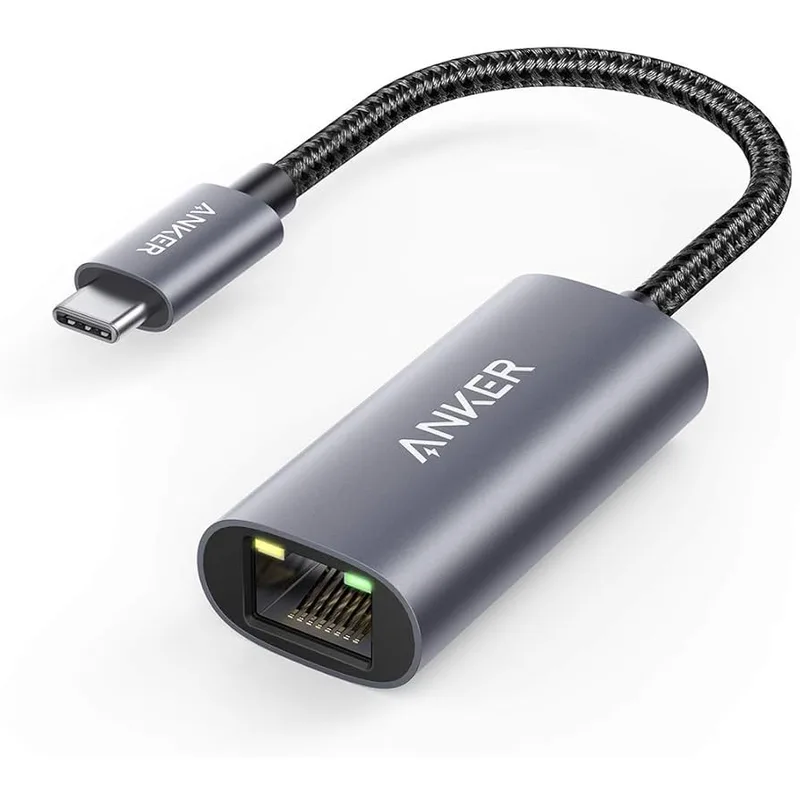
Anker USB-C to Gigabit Ethernet Adapter
Pros
- Reliable gigabit throughput — delivers full 1 Gbps in real-world use; no speed cap or throttling at the adapter level
- Braided nylon cable resists cracking with daily bag use; more durable than the hard-plastic cables on budget adapters
- Aluminum housing matches MacBook and premium Windows laptops; doesn't look out of place on a desk
- No driver installation required — plug into USB-C and the OS recognizes it immediately on macOS, Windows, and Chrome OS
- Compact enough to leave attached to a dock permanently or toss in a laptop bag without adding noticeable weight
Cons
- USB-C only — if your laptop has USB-A ports only, use the TP-Link UE300 instead
- Single Ethernet port with no passthrough — you lose one USB-C port while connected; pair with a USB-C dock if you need more ports
The Anker USB-C Ethernet adapter is the standard recommendation because it handles daily use well. The braided cable survives the wear that hard-plastic adapters don’t — repeated connections and disconnections eventually crack the plastic strain relief on cheaper units. Aluminum housing keeps heat manageable during extended use. Plug it into your MacBook, XPS, or Surface and you’re wired in under 10 seconds with no driver install.
The main limitation: it uses one USB-C port and doesn’t pass through power. If you need to charge and use Ethernet simultaneously, plug the adapter into a USB-C dock that has a dedicated Ethernet port, or use a hub adapter (like the Anker PowerExpand 8-in-1, which combines both).
Best Adapter for USB-A Laptops: TP-Link UE300
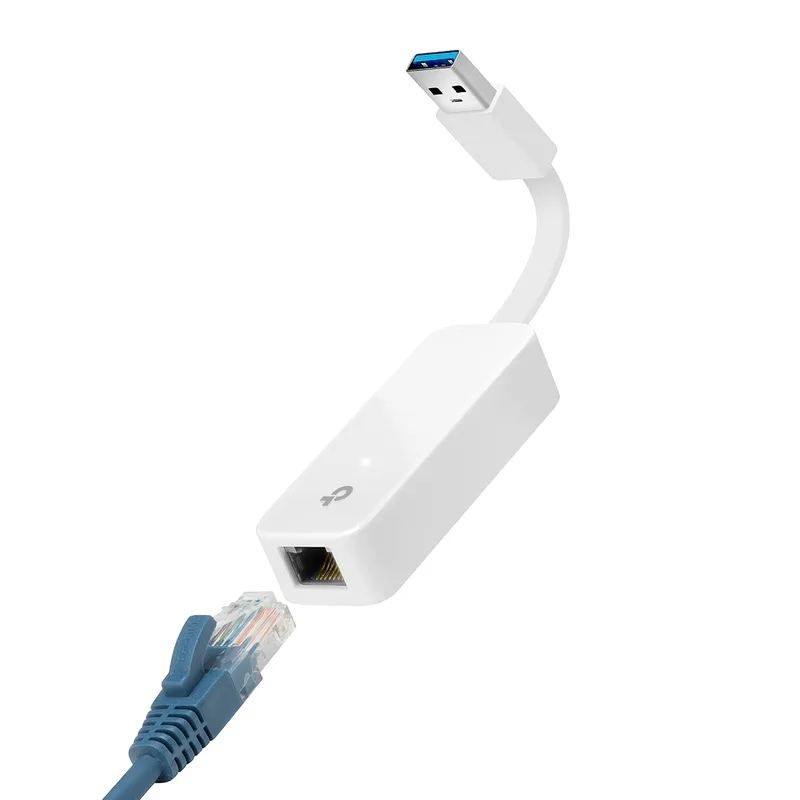
TP-Link UE300 USB 3.0 to Gigabit Ethernet Adapter
Pros
- Foldable USB-A connector makes this the most compact option for travel — folds flat into a bag pocket without breaking
- Under $13 with full gigabit throughput — straightforward value for any Windows laptop without a built-in ethernet port
- Wide OS support including Linux — works without drivers on Windows 10/11 and recent macOS versions
- Works on USB 2.0 ports at 100 Mbps — still useful on older hardware where USB 3.0 ports aren't available
Cons
- USB-A only — won't work in USB-C ports directly; use Anker's USB-C model if your laptop has USB-C
- Plastic housing feels less premium than aluminum adapters; no functional impact, purely aesthetic
- Short connector means the cable must reach; in tighter desk setups, adapter positioning can be awkward
Older Windows laptops — including many business-tier ThinkPads, HP ProBooks, and Dells from 2018–2022 — have USB-A ports but not USB-C. The TP-Link UE300 handles this correctly. The foldable connector is the differentiator here: most USB-A Ethernet adapters have a fixed plug that either sticks straight out or uses a short cable, but the UE300 folds flat for clean storage in a bag.
At under $13, it’s a practical add-on that most people should keep in their laptop bag even if they primarily use WiFi — it’s cheap insurance for hotel stays, coworking spaces, and any wired connection that turns out to be available.
Option 2: Powerline Adapters (No Cable Run Required)
If your office is on a different floor from your router and cable routing isn’t practical, powerline adapters are the next-best option. They use your home’s existing electrical wiring to carry a network signal between two adapters.
How it works: One adapter plugs in near your router and connects via short Ethernet cable. The second adapter plugs into any outlet near your desk and gives you an Ethernet port to connect your laptop. No new cable runs, no WiFi.
What to expect: Real-world throughput on AV1000 adapters is typically 150–350 Mbps — enough for video calls, cloud sync, and most work tasks. It’s slower than direct Ethernet but more consistent than marginal WiFi from across the house.
Best Powerline Kit: TP-Link AV1000 (TL-PA7017P KIT)
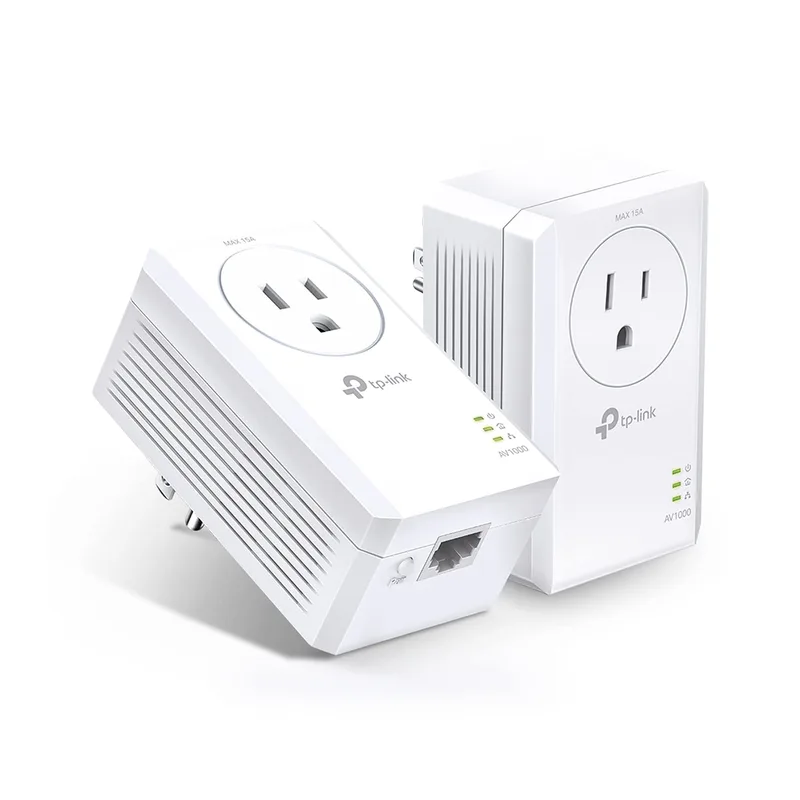
TP-Link AV1000 Powerline Adapter Kit (TL-PA7017P KIT)
Pros
- Pass-through outlet preserves your wall socket — critical in offices where power strips are already at capacity
- Nano-size receiving adapter sits discreetly at your desk without blocking adjacent outlets
- No cable runs required — plug one adapter near the router, one at your desk, connect with a short Cat 6 patch cable
- Plug-and-play pairing via button — setup completes in under 2 minutes with no software or app required
- Noise filtering improves consistency vs. older powerline standards, particularly in homes with mixed appliance loads
Cons
- Real-world throughput (typically 150-350 Mbps) is well below the AV1000 label — plan for roughly 50% of rated speed
- Performance varies by home wiring quality — works reliably in most homes built after 1980, less predictably in older structures
- One Ethernet port per adapter — add a gigabit switch (TP-Link TL-SG108) if you need multiple wired devices at your desk
The TL-PA7017P KIT is the practical choice for home offices that need wired stability without running new cable. The pass-through outlet is the key feature — most office desks are already overloaded with power strips, and a powerline adapter that blocks one outlet would be a problem. With the pass-through, you lose nothing.
Setup is genuinely 2 minutes: plug in both adapters, press the pair button, connect your laptop via the short Ethernet cable. Pairing is automatic and the LED confirms when the connection is established.
The limitation to keep in mind: powerline performance depends on your home’s wiring. In homes built after about 1980 with standard electrical wiring, throughput is consistent. In older homes with mixed wiring, GFCI outlets on the circuit, or significant appliance loads, performance can be lower. If your outlet is on a different circuit than the router outlet, the adapters may not communicate at all — circuits don’t bridge over your electrical panel.
When to upgrade to AV2000: The TP-Link AV2000 kit (TL-PA9020P KIT) doubles the theoretical throughput and adds a second Ethernet port per adapter. It’s worth the extra $20–30 if you need to connect two devices at your desk without adding a switch, or if you’re in a home where AV1000 speed tests under 100 Mbps.
Option 3: MoCA Adapters (Coax-Based, Highest Powerline Performance)
If your home has coaxial cable runs (the same type used for cable TV), MoCA 2.5 adapters deliver significantly higher throughput than powerline — typically 900–1,200 Mbps real-world vs. 150–350 Mbps for AV1000 powerline. The Actiontec ECB6250 MoCA 2.5 adapter kit costs around $85–$100 for a pair and is the right answer if you have accessible coax jacks in both your router location and office.
MoCA doesn’t interfere with cable TV service and doesn’t degrade based on appliance load the way powerline can. It’s the cleanest no-new-cable-run option — it just requires coax infrastructure to exist.
Comparison: Which Solution Fits Your Situation
| Solution | Cost | Performance | What You Need |
|---|---|---|---|
| USB-C Ethernet Adapter + Cable | $15-$25 | Best (full Gigabit) | USB-C laptop + cable route to router |
| USB-A Ethernet Adapter + Cable | $9-$20 | Best (full Gigabit) | USB-A laptop + cable route to router |
| AV1000 Powerline Kit | $33-$40 | Good (150-350 Mbps typical) | Outlet near router and desk, same circuit preferred |
| AV2000 Powerline Kit | $55-$75 | Better (300-600 Mbps typical) | Same as AV1000; better for multi-device desks |
| MoCA 2.5 Adapters | $85-$100 | Excellent (900+ Mbps) | Coax jack near router and desk |
FAQ
Does Ethernet actually improve Zoom and Teams call quality?
For most people with a stable WiFi signal, the difference is small and not perceptible during normal calls. The benefit shows up in specific scenarios: calls during peak household network usage, when your office is far from the router, when you’re on WiFi 5 hardware, or when you run heavy background uploads (cloud backup, Dropbox sync) during call hours. If your WiFi calls are already reliable, an Ethernet adapter won’t dramatically improve them. If you’re experiencing audio drops, freezing, or dropped calls — a cable almost always fixes it.
Will a Cat 8 cable make my video calls better than Cat 6?
No. Cat 8 is rated for 40 Gbps at up to 30 meters and is designed for data center environments. For a home office patch cable connecting a laptop to a router or switch, Cat 6 is more than sufficient for any residential internet connection or local network speed available in 2026. Spend the Cat 8 price difference on the adapter instead.
My router is on the other side of the house. What’s the best option?
If you can run a cable through a wall, attic, or crawlspace, do that — it’s a one-time 30-minute project that permanently solves the problem. If you rent, can’t route cable, or the distance is prohibitive, try powerline adapters first. If your home has coax runs, MoCA 2.5 is the higher-performance alternative. WiFi extenders and repeaters are the last resort — they cut throughput in half at each hop and introduce latency.
Do powerline adapters work in apartments?
Usually not reliably. Most apartments have shared electrical infrastructure between units, and powerline adapters require that both adapters be on the same circuit. Even within the same unit, circuit layout varies. In apartments, a WiFi mesh system or a long Ethernet cable run along baseboards tends to be more reliable than powerline.
I’m on fiber with 1 Gbps symmetrical. Does Ethernet still matter for calls?
With 1 Gbps symmetrical fiber and a modern WiFi 6E or WiFi 7 router, your upload bandwidth isn’t the constraint. However, packet loss and jitter are still WiFi phenomena — they exist even on fast connections because they come from radio interference and retransmission, not bandwidth limits. If you’re on fast fiber but still experiencing call issues, running Ethernet eliminates the radio layer entirely and typically resolves jitter and packet loss problems regardless of your raw speed.
The Bottom Line
Most people with a WiFi 6 or 6E router, a reasonable office-to-router distance, and a quiet household network don’t need to change anything for video calls. The setup works.
If you’re experiencing call problems — audio drops, freezing, or choppy video — stop adjusting WiFi settings and just add a cable. The Anker USB-C adapter ($15–$20) or TP-Link UE300 ($9–$13) plus a short Cat 6 patch cable is a $25 fix that solves the problem in 5 minutes. If cable routing isn’t an option, the TP-Link AV1000 powerline kit gives you stable wired performance through your electrical wiring for $33–$40.
Ethernet doesn’t make bad calls good. But it removes an entire category of problems — packet loss, jitter, and radio interference — that no amount of router upgrading resolves.
Detailed Reviews
Anker USB-C to Gigabit Ethernet Adapter
Pros
- Reliable gigabit throughput — delivers full 1 Gbps in real-world use; no speed cap or throttling at the adapter level
- Braided nylon cable resists cracking with daily bag use; more durable than the hard-plastic cables on budget adapters
- Aluminum housing matches MacBook and premium Windows laptops; doesn't look out of place on a desk
- No driver installation required — plug into USB-C and the OS recognizes it immediately on macOS, Windows, and Chrome OS
- Compact enough to leave attached to a dock permanently or toss in a laptop bag without adding noticeable weight
Cons
- USB-C only — if your laptop has USB-A ports only, use the TP-Link UE300 instead
- Single Ethernet port with no passthrough — you lose one USB-C port while connected; pair with a USB-C dock if you need more ports
TP-Link UE300 USB 3.0 to Gigabit Ethernet Adapter
Pros
- Foldable USB-A connector makes this the most compact option for travel — folds flat into a bag pocket without breaking
- Under $13 with full gigabit throughput — straightforward value for any Windows laptop without a built-in ethernet port
- Wide OS support including Linux — works without drivers on Windows 10/11 and recent macOS versions
- Works on USB 2.0 ports at 100 Mbps — still useful on older hardware where USB 3.0 ports aren't available
Cons
- USB-A only — won't work in USB-C ports directly; use Anker's USB-C model if your laptop has USB-C
- Plastic housing feels less premium than aluminum adapters; no functional impact, purely aesthetic
- Short connector means the cable must reach; in tighter desk setups, adapter positioning can be awkward
TP-Link AV1000 Powerline Adapter Kit (TL-PA7017P KIT)
Pros
- Pass-through outlet preserves your wall socket — critical in offices where power strips are already at capacity
- Nano-size receiving adapter sits discreetly at your desk without blocking adjacent outlets
- No cable runs required — plug one adapter near the router, one at your desk, connect with a short Cat 6 patch cable
- Plug-and-play pairing via button — setup completes in under 2 minutes with no software or app required
- Noise filtering improves consistency vs. older powerline standards, particularly in homes with mixed appliance loads
Cons
- Real-world throughput (typically 150-350 Mbps) is well below the AV1000 label — plan for roughly 50% of rated speed
- Performance varies by home wiring quality — works reliably in most homes built after 1980, less predictably in older structures
- One Ethernet port per adapter — add a gigabit switch (TP-Link TL-SG108) if you need multiple wired devices at your desk