Disclosure: SetupRanked earns a commission on purchases made through links on this page. This doesn’t affect our recommendations.
Your laptop’s built-in camera angles up at your chin. The microphone is next to the cooling fan. Overhead lighting throws shadows under your eyes. Any one of these makes you harder to pay attention to on a call — all three together, and participants are spending cognitive energy compensating rather than listening.
The good news: fixing all three doesn’t require a studio build. Three targeted upgrades — a dedicated webcam at eye level, a light source positioned in front of you, and a microphone or headset designed for speech capture — account for nearly all the visible and audible improvement. This guide covers each component in order of impact, with specific recommendations at different budgets.
In a hurry? The Logitech Brio 500 ($79-$99) handles the camera. The Elgato Key Light Air ($129) handles the light. The Blue Yeti ($99-$129) handles the audio. That’s the complete setup for most home offices.
Why Built-In Laptop Components Fall Short
Modern laptops have improved significantly, but their integrated cameras and microphones remain compromises. Webcams sit at the top bezel, creating a slight upward angle. The view emphasizes chin, nostrils, and ceiling rather than natural face geometry. Laptop microphones are omni-directional arrays designed to capture audio from all directions — which means they capture everything in the room.
The camera angle problem cannot be fixed with software. Post-processing can sharpen or adjust exposure, but it cannot change viewing angle. The microphone problem can be partially addressed by platform noise suppression (Zoom, Teams, and Meet all apply it automatically), but heavy processing creates robotic artifacts when noise is consistent. Better hardware requires less correction and produces more natural results.
The upgrade path is straightforward: fix position and angle first, then sound.
The Camera: Position Beats Resolution
Most conferencing platforms transmit at 720p or 1080p regardless of webcam resolution. A 4K webcam will not meaningfully improve a standard Zoom call. The visible improvement from a dedicated webcam comes from sensor quality, optics, and — most critically — placement.
A USB webcam on top of your monitor at eye level transforms the viewing geometry. The angle changes from upward to neutral or slight downward. Combined with better low-light performance and autofocus, a $79 webcam on a monitor beats a $1,500 laptop’s built-in camera every time.
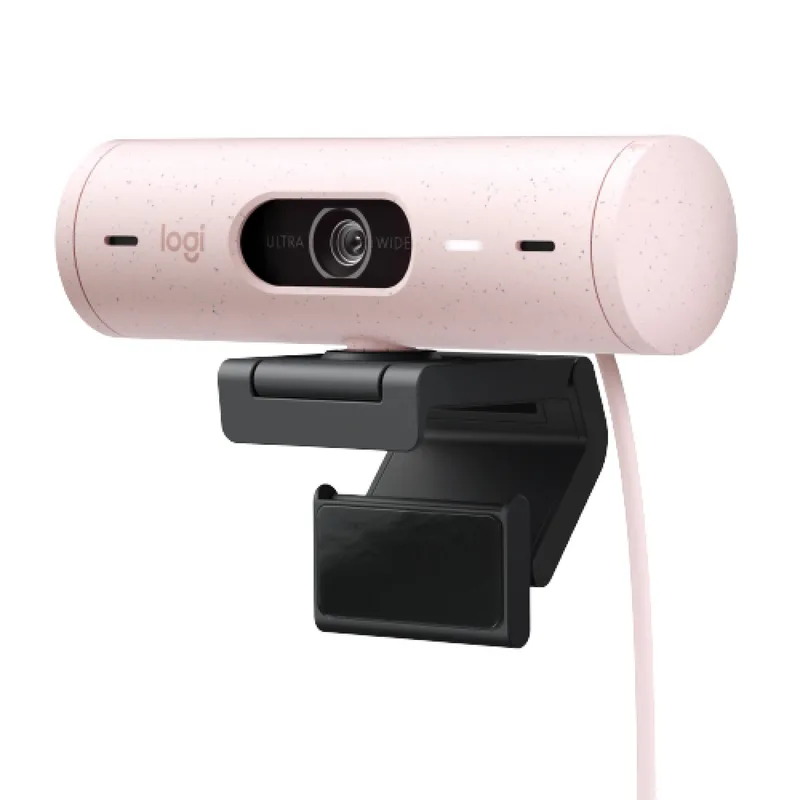
Logitech Brio 500
Pros
- Auto Light Correction adjusts exposure in real time as you move near or away from a window — produces more natural results than the overexposed whites that most built-in webcams create against backlit windows
- Show Mode tilts the camera down to show your keyboard or desk surface, useful for demonstrating physical objects during calls without needing a second camera
- USB-C connection matches modern laptops and docks without an adapter — included cable is long enough for most desk configurations
- Built-in dual noise-reduction microphones handle quiet rooms well as a single-device call solution before adding a dedicated microphone
- Auto-Framing uses AI to re-center the frame when you lean back or shift position, responding smoothly at normal desk speeds
Cons
- 30fps at 1080p shows limits in high-motion presentations or against strong window backlighting the correction can't fully overcome
- Privacy cover is a physical slide that sits loosely and can shift during cable adjustments or transport
- Full feature access requires Logitech G HUB software, adding setup friction for users who expect complete plug-and-play behavior
The Brio 500 handles camera duties for most remote workers at a price that doesn’t need justifying. Auto Light Correction continuously adjusts exposure as you move near or away from a window — the feature that makes the biggest practical difference in real home offices where lighting isn’t controlled. Auto-Framing keeps the frame centered when you lean back or turn to reference a second screen.
At $79-$99 (down from its $129 launch price), this is the right default choice.
Who should skip it: If you produce video content, present detailed visual material, or want 4K resolution for cropping flexibility, the Elgato Facecam 4K ($159) or Insta360 Link 2 ($149) are the right upgrades. For standard calls, the Brio 500 is sufficient.
Camera positioning: Mount the webcam at the top of the monitor at eye level when seated. Raise the monitor on an arm or stand if needed — the correct angle is neutral to slight downward from camera to face. Camera-to-face distance of 18–24 inches is standard; closer looks claustrophobic, farther makes you appear smaller in the frame.
The Lighting: Direction Matters More Than Brightness
The most common lighting mistake is direction, not intensity. Ceiling fixtures create shadows under eyes, nose, and chin. Window light from behind creates silhouette — the camera’s auto-exposure locks onto the bright background and underexposes the face.
The fix: put a light source in front of you, between camera and face, at approximately eye level. Even facial illumination, minimal shadows, accurate skin tone. A $49 light positioned correctly outperforms a $500 studio fixture positioned poorly.
Professional Tier
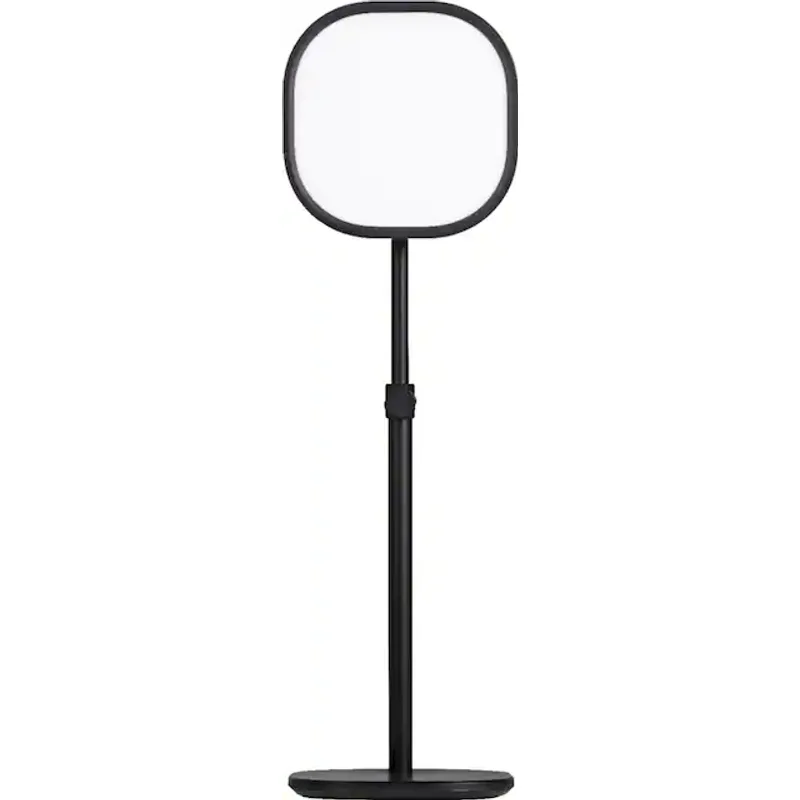
Elgato Key Light Air
Pros
- Wi-Fi app control lets you adjust brightness and color temperature from a phone without reaching across the desk — useful mid-call when room light shifts
- 1400 lumens strong enough to function as a primary key light even in rooms with significant ambient light, competing with overhead fixtures rather than being washed out
- 2900K–7000K color temperature range covers warm evening and cool daylight settings across a full workday as room lighting changes
- Stream Deck integration enables one-button scene switching with saved presets for those who already own one
Cons
- AC power only — requires a wall outlet near the desk; no battery or USB option for setups without accessible outlets
- Gooseneck arm is stiff during initial positioning and can drift on desks with vibration from typing or fans
- No physical controls — if the Wi-Fi app loses connection, all brightness and color adjustments become inaccessible until connectivity is restored
The Key Light Air’s Wi-Fi app control separates it from lights with physical-only controls. Adjust brightness and color temperature from a phone during a call without the movement of reaching across the desk. The 2900K–7000K range covers warm evening settings (matching incandescent room lights) to cool daylight (matching window or monitor glow). At 1400 lumens, it functions as the primary light source in most home offices without being overwhelmed by ambient light.
Setup tip: Position the Key Light Air at eye level, 2–4 feet to one side of the monitor. Slight off-center placement adds natural dimension compared to direct straight-on. Dial in brightness via the app until the on-call preview looks natural — typically 30–50% brightness for most rooms.
Budget Tier
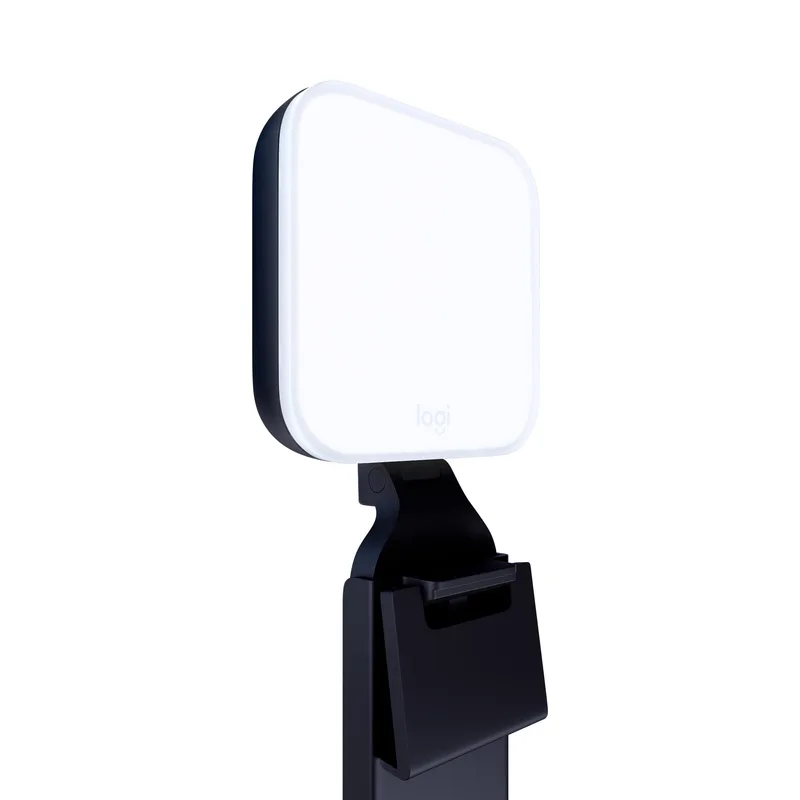
Logitech Litra Glow
Pros
- USB-A powered from your laptop, dock, or hub — no separate outlet needed, keeping cable count low in space-limited setups
- Monitor clip positions the light directly above the webcam, producing close-to-ideal straight-on facial illumination without a separate stand
- At $49 on sale, the most affordable professionally designed call light available — delivers a visible improvement over overhead room lighting
- 250 lumens adequate for typical home office environments, particularly as a fill light to soften shadows from a window source on one side
Cons
- 250 lumens cannot overcome strong direct window backlighting — afternoon sun will outcompete it regardless of settings
- Physical button controls only — reaching over to adjust brightness mid-call disrupts your position
- Small 5.2-inch panel produces less coverage than larger panels — adequate for the face, but does not extend to background or shoulders
The Litra Glow clips to the monitor, automatically positioning it near the camera at close-to-eye level. It doesn’t overcome strong window backlighting, but in a controlled indoor environment it produces visibly better facial lighting than overhead room fixtures alone. At $49 on sale (regular $70), it’s the right starting point before committing to the Key Light Air.
Who should skip it: If your office has afternoon sun through a window behind or beside you, 250 lumens won’t be enough. Move your desk so the window faces you — free, more effective than any light purchase — or step up to the Key Light Air.
The Microphone: Audio Has More Impact Than Video
Audio quality has a larger perceived impact on call quality than video. Poor audio forces participants to spend cognitive effort filling in what they missed, creating fatigue across long meeting days.
The upgrade from laptop microphone to dedicated cardioid USB microphone is significant. A cardioid pattern captures sound from in front (your voice) and rejects sound from the sides and rear (room noise, keyboard, fans). The mic also sits at optimal capture position — not buried in a chassis near a cooling fan.
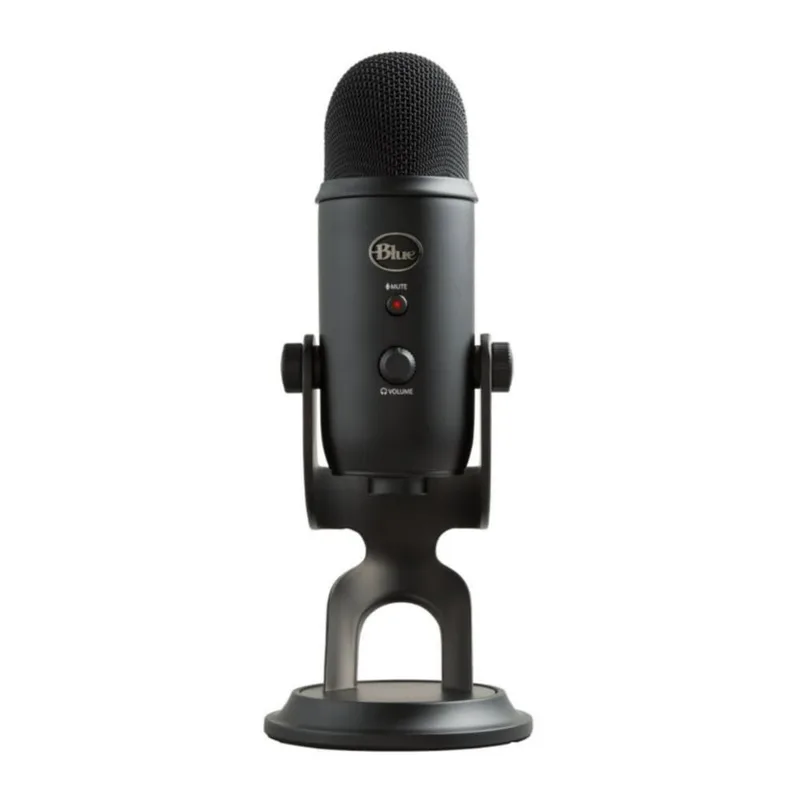
Blue Yeti USB Microphone
Pros
- Four switchable polar patterns handle solo calls (cardioid), room capture (omnidirectional), and two-person interviews (bidirectional) — the most flexible USB microphone in its class
- Zero-latency headphone monitoring lets you hear exactly what the mic captures before a call — immediately reveals whether room acoustics or positioning need adjusting
- Physical mute button with LED indicator is fast and reliable — tap once to mute, LED confirms status clearly in low-light conditions
- Built-in gain knob for quick level adjustment when switching between environments without navigating software
- Recognized immediately on all platforms as a standard audio input with no driver installation required
Cons
- Large desktop footprint (4.7 x 4.7 x 11.6 in on stand) — fixed-height stand is not adjustable, boom arm requires separate purchase
- USB-A only — requires an adapter on modern laptops that have moved entirely to USB-C
- Condenser element is sensitive to room noise — HVAC, traffic, and fan sounds are more audible than with a dynamic mic in the same environment
The Blue Yeti’s four polar patterns make it the most flexible USB microphone in its price range. For video calls, use cardioid exclusively — best noise rejection for solo work. The zero-latency headphone monitoring jack is the most underrated feature: plug in headphones before a call and listen to exactly what the mic captures. You’ll immediately know whether positioning, gain, or room acoustics need adjusting.
Placement: 6–8 inches from your mouth, slightly off-axis — angled toward your mouth from below rather than pointing directly at your face. This reduces plosive sounds (“p” and “b” bursts) without a separate pop filter.
For noisy rooms: The Shure MV7 (~$136-$149) is a better choice. Dynamic microphones require a close, loud signal to activate — which means they’re less sensitive to distant background noise. In an untreated room with HVAC, traffic, or persistent fan noise, the MV7 will sound cleaner than the condenser Yeti.
The Headset: For All-Day Call Work
A headset integrates microphone and playback in one purpose-built device. The boom arm positions the mic 3–4 inches from your mouth rather than 12–18 inches away at a desk, dramatically improving signal-to-noise ratio. Professional headsets also eliminate echo risk from using speakers alongside a microphone.
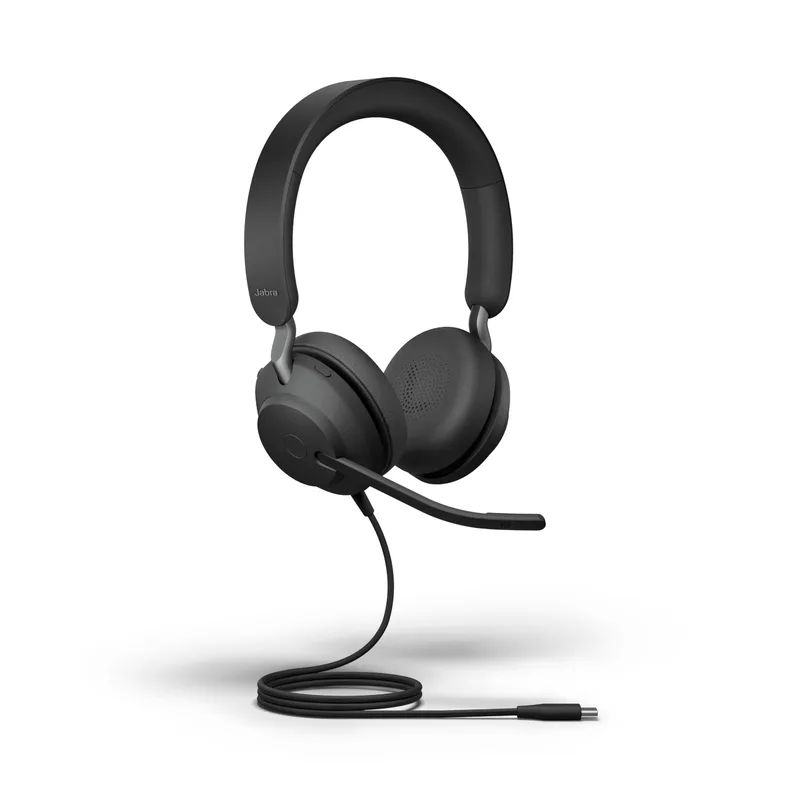
Jabra Evolve2 40 SE (2026 Version)
Pros
- Three-microphone call technology filters background noise at hardware level before platform software noise suppression adds another layer
- UC certification means hardware call controls (answer, end, mute) work with every major conferencing platform without configuration
- 2026 dual cable works with both USB-C and USB-A ports — one cable across modern and legacy computers
- Built-in busylight LED signals availability to people physically in the room — useful in shared homes or open office environments
- 149g is light enough for 8-hour workdays without ear pressure fatigue that heavier headsets accumulate
Cons
- Wired only — no wireless option in the Evolve2 40 line; the Evolve2 65 is the wireless upgrade at significantly higher cost
- Passive noise isolation only — earcup foam reduces ambient noise but does not match active noise cancellation of premium over-ear headphones
- At $119-$149, more expensive than general-purpose headsets with comparable audio quality — premium reflects UC certification and the 3-mic array
The Jabra Evolve2 40 SE is the right single-device solution for workers whose workday is primarily calls. The 2026 update addressed the original model’s main inconvenience — separate cables for USB-C and USB-A computers — with a combined dual cable that handles both. The three-microphone boom arm filters background noise at hardware level before platform processing adds another layer, producing cleaner call audio than a desktop microphone in an untreated room.
Headset vs. desktop microphone: Headsets work better in noisy environments and for all-day call schedules where the mic needs to always be in position. Desktop microphones produce more natural audio in quiet treated rooms and are better for content recording alongside calls. If you’re on calls more than 4 hours a day, a headset earns its cost quickly.
Background and Environment
Get the Geometry Right
Position the camera at eye level — this is more important than any equipment purchase. Raise the monitor if needed. The correct angle is neutral to slight downward from camera to face.
Avoid having a window directly behind you. Strong backlighting cannot be corrected by Auto Light Correction; you’ll appear as a silhouette against the bright background. Reposition so the window faces you, or use blackout curtains.
Physical Background Beats Virtual
A clean physical background requires no equipment. Close the door, clear visible clutter out of the roughly 60° frame behind you, and use a neutral wall, bookshelf, or simple decor. Real backgrounds consistently look better than virtual ones — edge-processing artifacts on hair and patterned clothing are visible at any camera quality.
If you must use a virtual background, soft blur produces fewer artifacts than full replacement.
Platform Settings: Zoom, Teams, and Meet
Zoom
Settings → Video: select your external webcam, enable HD. Settings → Audio: select your dedicated microphone, verify the input meter peaks around 70% at normal speaking volume. Enable “Suppress background noise” at High. Run the built-in mic test before important calls.
Microsoft Teams
Settings → Devices: select your microphone and camera. Teams applies AI noise suppression automatically. For manual control during a call: More → Device Settings → Noise suppression. Teams handles consistent background noise well. For dynamic or intermittent noise, third-party tools like Krisp produce more consistent results.
Google Meet
Settings (gear icon) → Video: select the webcam. Settings → Audio: select the microphone, run the built-in mic test. Confirm noise cancellation is active under Settings → Noise cancellation. Meet handles steady-state noise well; sounds close in frequency to speech are less consistently filtered.
Comparison Table
| Component | Product | Price | Best For |
|---|---|---|---|
| Webcam | Logitech Brio 500 | Unavailable | Most remote workers |
| Webcam (upgrade) | Elgato Facecam 4K | ~$159 | Content creators, 4K calls |
| Key light (pro) | Elgato Key Light Air | Unavailable | Bright rooms, app control |
| Key light (budget) | Logitech Litra Glow | $52.81-$58.60 as of Oct 18, 2026 | Controlled rooms, USB power |
| Desktop mic | Blue Yeti | $76.23-$98.99 as of Oct 18, 2026 | Quiet rooms, recording |
| Desktop mic (noisy) | Shure MV7 | ~$136-$149 | Noisy environments |
| All-day headset | Jabra Evolve2 40 SE | $123.93-$153.52 as of Oct 18, 2026 | Heavy call schedules |
Buying Guide: What Actually Matters
Webcam: Don’t overspend on resolution. For Zoom, Teams, and Meet calls, 1080p is the ceiling for what actually transmits. Spend on sensor quality and autofocus — the attributes that affect low-light performance and sharpness — rather than chasing 4K.
Lighting: Direction matters more than brightness. A $49 Litra Glow positioned correctly outperforms a professional studio light positioned poorly. Get direction right first — in front of you, at eye level.
Microphone: Match the pickup pattern to your room. Condenser microphones (Blue Yeti) capture subtle sounds precisely — great in quiet rooms, problematic in noisy ones. Dynamic microphones (Shure MV7) are less sensitive to background noise in untreated spaces.
Headset: The boom arm is the key feature. Boom arm = mic 3–4 inches from mouth. Built-in mic on headphone = 8–12 inches. The proximity difference has more impact on call audio quality than any other single spec.
Budget Tiers at a Glance
| Tier | Webcam | Light | Audio | Est. Cost |
|---|---|---|---|---|
| Starter | Brio 500 | Litra Glow | Webcam mics | ~$130 |
| Solid | Brio 500 | Key Light Air | Blue Yeti | ~$340 |
| All-Day Calls | Brio 500 | Litra Glow | Jabra Evolve2 40 SE | ~$320 |
| Professional | Facecam 4K | Key Light Air | Shure MV7 | ~$430 |
FAQ
Do I need a ring light or a key light panel?
For video calls, a panel is more effective than a ring light. Panel lights produce soft, even illumination without the circular catchlight reflection ring lights create in eyes. Ring lights are optimized for close-up content at 6–12 inches; panels match the 18–30 inch camera-to-face distance common at a desk.
Is 1080p still good enough for calls in 2026?
Yes. Most platforms transmit at 720p or 1080p regardless of webcam resolution. A 4K webcam offers cropping flexibility and looks better on platforms that support 4K streams, but the visible improvement over a quality 1080p camera on a standard call is minimal. Better lighting and microphone quality deliver more improvement per dollar.
What’s the difference between a headset and a desktop microphone for calls?
A headset’s boom arm positions the mic 3–4 inches from your mouth — high voice-to-noise ratio. A desktop mic sits 12–18 inches away, picking up proportionally more room noise. Headsets work better in noisy environments and for all-day call schedules. Desktop microphones produce more natural audio in quiet rooms and handle content recording better.
Will these products work through a USB-C dock?
Yes. USB webcams and USB audio devices work reliably through docks and hubs. Webcams require USB 2.0 bandwidth minimum, which all USB-C and USB-A docks support. If you experience dropouts through a dock, connect the device directly to the laptop to confirm whether the hub is the cause.
Does background blur help if I can’t control the physical background?
Soft blur helps and produces fewer artifacts than full virtual background replacement. The most reliable solution is a clean physical background — close a door, clear the visible frame, use a neutral wall. Free and consistently more natural than software substitution.
Should I fix the camera or the audio first?
Audio first. Call participants notice bad audio more acutely than bad video — degraded sound forces active effort to follow along. If participants have mentioned your audio quality, address that immediately. Then fix camera geometry (eye level). Lighting third, unless backlighting is genuinely bad.
Conclusion
Three upgrades account for most call quality improvement: a dedicated webcam at eye level, forward-facing light positioned between camera and face, and a microphone or headset that captures your voice rather than the room.
For most remote workers: Logitech Brio 500 for the camera. Elgato Key Light Air for professional lighting control, or Litra Glow if you’re starting out. Blue Yeti for microphone audio in quiet rooms. Jabra Evolve2 40 SE if your workday runs on calls.
Start with whatever addresses your weakest link. If call participants mention your audio, fix the microphone first. If lighting draws comments, address the light. The camera is often the last priority — built-in laptop cameras are passable, and simply raising the camera to eye level is free.
Detailed Reviews
Logitech Brio 500
Pros
- Auto Light Correction adjusts exposure in real time as you move near or away from a window — produces more natural results than the overexposed whites that most built-in webcams create against backlit windows
- Show Mode tilts the camera down to show your keyboard or desk surface, useful for demonstrating physical objects during calls without needing a second camera
- USB-C connection matches modern laptops and docks without an adapter — included cable is long enough for most desk configurations
- Built-in dual noise-reduction microphones handle quiet rooms well as a single-device call solution before adding a dedicated microphone
- Auto-Framing uses AI to re-center the frame when you lean back or shift position, responding smoothly at normal desk speeds
Cons
- 30fps at 1080p shows limits in high-motion presentations or against strong window backlighting the correction can't fully overcome
- Privacy cover is a physical slide that sits loosely and can shift during cable adjustments or transport
- Full feature access requires Logitech G HUB software, adding setup friction for users who expect complete plug-and-play behavior
Elgato Key Light Air
Pros
- Wi-Fi app control lets you adjust brightness and color temperature from a phone without reaching across the desk — useful mid-call when room light shifts
- 1400 lumens strong enough to function as a primary key light even in rooms with significant ambient light, competing with overhead fixtures rather than being washed out
- 2900K–7000K color temperature range covers warm evening and cool daylight settings across a full workday as room lighting changes
- Stream Deck integration enables one-button scene switching with saved presets for those who already own one
Cons
- AC power only — requires a wall outlet near the desk; no battery or USB option for setups without accessible outlets
- Gooseneck arm is stiff during initial positioning and can drift on desks with vibration from typing or fans
- No physical controls — if the Wi-Fi app loses connection, all brightness and color adjustments become inaccessible until connectivity is restored
Logitech Litra Glow
Pros
- USB-A powered from your laptop, dock, or hub — no separate outlet needed, keeping cable count low in space-limited setups
- Monitor clip positions the light directly above the webcam, producing close-to-ideal straight-on facial illumination without a separate stand
- At $49 on sale, the most affordable professionally designed call light available — delivers a visible improvement over overhead room lighting
- 250 lumens adequate for typical home office environments, particularly as a fill light to soften shadows from a window source on one side
Cons
- 250 lumens cannot overcome strong direct window backlighting — afternoon sun will outcompete it regardless of settings
- Physical button controls only — reaching over to adjust brightness mid-call disrupts your position
- Small 5.2-inch panel produces less coverage than larger panels — adequate for the face, but does not extend to background or shoulders
Blue Yeti USB Microphone
Pros
- Four switchable polar patterns handle solo calls (cardioid), room capture (omnidirectional), and two-person interviews (bidirectional) — the most flexible USB microphone in its class
- Zero-latency headphone monitoring lets you hear exactly what the mic captures before a call — immediately reveals whether room acoustics or positioning need adjusting
- Physical mute button with LED indicator is fast and reliable — tap once to mute, LED confirms status clearly in low-light conditions
- Built-in gain knob for quick level adjustment when switching between environments without navigating software
- Recognized immediately on all platforms as a standard audio input with no driver installation required
Cons
- Large desktop footprint (4.7 x 4.7 x 11.6 in on stand) — fixed-height stand is not adjustable, boom arm requires separate purchase
- USB-A only — requires an adapter on modern laptops that have moved entirely to USB-C
- Condenser element is sensitive to room noise — HVAC, traffic, and fan sounds are more audible than with a dynamic mic in the same environment
Jabra Evolve2 40 SE (2026 Version)
Pros
- Three-microphone call technology filters background noise at hardware level before platform software noise suppression adds another layer
- UC certification means hardware call controls (answer, end, mute) work with every major conferencing platform without configuration
- 2026 dual cable works with both USB-C and USB-A ports — one cable across modern and legacy computers
- Built-in busylight LED signals availability to people physically in the room — useful in shared homes or open office environments
- 149g is light enough for 8-hour workdays without ear pressure fatigue that heavier headsets accumulate
Cons
- Wired only — no wireless option in the Evolve2 40 line; the Evolve2 65 is the wireless upgrade at significantly higher cost
- Passive noise isolation only — earcup foam reduces ambient noise but does not match active noise cancellation of premium over-ear headphones
- At $119-$149, more expensive than general-purpose headsets with comparable audio quality — premium reflects UC certification and the 3-mic array