Affiliate disclosure: SetupRanked earns a commission on purchases made through links on this page at no extra cost to you.
Budget remote work gear has dropped considerably heading into 2026. IPS monitors that cost $200–$250 two years ago now sell for $80–$100. The Logitech C920s — still the benchmark for value webcams — remains widely available at $70. Building a complete, professional home office setup for under $500 is entirely practical, and this guide shows exactly how to do it with five specific Amazon picks that total $237.
The goal here isn’t to buy the cheapest possible gear. It’s to identify the components where budget options perform close to premium alternatives, and spend accordingly. A $40 USB headset performs significantly better on calls than a laptop’s built-in microphone. An $80 24-inch IPS monitor dramatically improves the workday compared to squinting at a 13-inch laptop screen. The gear below is not a compromise — it’s a focused starting point.
Quick Comparison
| Item | Product | Price | Key Spec |
|---|---|---|---|
| Monitor | LG 24MP400-B 24” IPS | $98.00-$149.90 as of Oct 18, 2026 | 1080p, IPS, 75Hz |
| Webcam | Logitech C920s HD Pro | Unavailable | 1080p, privacy shutter |
| Headset | Logitech H390 USB | $16.69-$20.99 as of Oct 18, 2026 | Noise-cancelling boom mic |
| Keyboard + Mouse | Logitech MK270 Combo | Unavailable | 24-month battery, full-size |
| USB-C Hub | Anker 332 5-in-1 | $6.99-$32.99 as of Oct 18, 2026 | 100W PD, 4K HDMI |
| Total | $237 | Under $500 with $263 to spare |
The $500 Budget Setup, Explained
1. Monitor: LG 24MP400-B 24” IPS
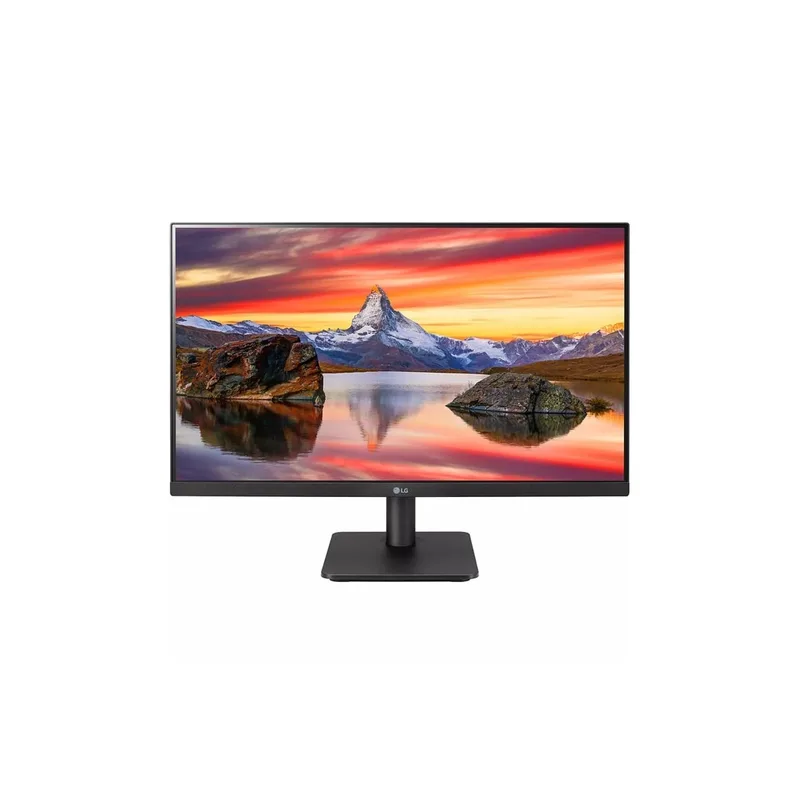
LG 24MP400-B 24-Inch FHD IPS Monitor
Pros
- IPS panel delivers wide viewing angles and accurate colors at a price that undercuts most VA competitors
- AMD FreeSync smooths motion for anyone who occasionally games after work hours
- Three-side borderless design looks clean in a dual-monitor config or on a minimal desk
- Reader Mode reduces blue light emission for long work sessions without color distortion
- 75x75mm VESA mount means you can add a monitor arm later without buying a new display
Cons
- No USB-C — requires a separate adapter or hub if your laptop is USB-C only
- No built-in speakers — plan for headset or external speakers
- 75Hz refresh rate and 5ms response time are adequate for work but not competitive for fast-paced gaming
The LG 24MP400-B is the clearest value in budget remote work monitors. At $80 — down from over $130 earlier in its product life — it delivers an IPS panel with accurate colors and wide viewing angles that VA panels at this price can’t match, plus a three-side borderless design that looks considerably more expensive than it is.
The 24-inch 1080p size is the practical sweet spot for a desk with limited depth. 1080p at 24 inches resolves to approximately 92 pixels per inch, which keeps text sharp without requiring display scaling. If you work primarily in productivity apps — documents, email, browser tabs, spreadsheets — 1080p at this size is entirely sufficient.
The connectivity is the one limitation: HDMI and D-Sub (VGA) only. There’s no USB-C, which means laptop users on USB-C-only hardware need the Anker hub below to connect via HDMI. The 75x75mm VESA mount is a useful future-proofing feature — if you want to add a monitor arm six months from now, you won’t need to replace the display.
The AMD FreeSync implementation works with most discrete GPUs and some integrated graphics. For productivity use it doesn’t matter much, but it’s a genuine benefit for anyone who also uses the setup for casual gaming.
The case for upgrading: If your budget extends to $160–$180, the LG 27MP60G-B offers a 27-inch 1080p IPS panel with similar specs and more screen space. The step up to 27 inches makes a real difference for multitasking with multiple windows open simultaneously.
2. Webcam: Logitech C920s HD Pro
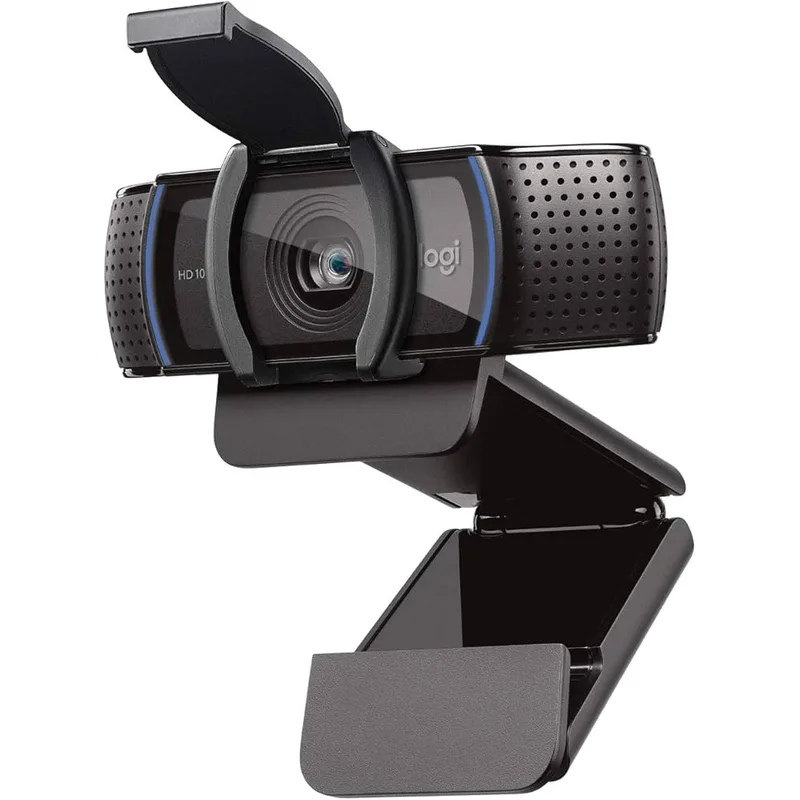
Logitech C920s HD Pro Webcam
Pros
- 1080p at 30fps delivers sharp, clear video on Zoom and Teams calls with no additional setup
- Physical privacy shutter closes the lens when not in use — no software required
- Dual stereo microphones serve as a capable backup audio source for casual calls
- Certified for Zoom, Teams, and Google Meet — recognized automatically on any major platform
- Clips to any monitor bezel or laptop screen securely with a flexible mount
Cons
- USB-A only — MacBook or USB-C only laptop users need an adapter or hub
- 30fps max — video looks smooth but not as fluid as 60fps webcams
- Auto light correction is basic compared to newer options like the Logitech Brio 500
The C920s has been in Logitech’s lineup for years and remains a reliable 1080p option for the price. The key upgrade over the older C920 is the physical privacy shutter — a sliding lens cover that closes the camera without software. If you are concerned about camera access, this is a meaningful practical addition.
The dual stereo microphones are usable for casual calls but should be treated as a backup option rather than your primary call audio. The H390 headset below delivers considerably better call quality for professional meetings. The webcam microphones work well for quick, informal check-ins where you don’t want to put on a headset.
Placement matters significantly with a budget webcam. The C920s performs best mounted at eye level — which means at the top edge of your external monitor. Eye-level framing looks professional on video calls; low-angle framing (laptop camera position) does not. Mount the webcam on the monitor, not the laptop.
The automatic light correction handles typical home office conditions — window behind you, overhead light above — but struggles in very dark rooms or with strong direct backlight. A $20 desk lamp positioned behind the monitor and aimed at your face transforms video quality more than any webcam upgrade will.
The case for upgrading: The Logitech Brio 500 ($99) adds RightLight 4 auto-correction, auto-framing, and a USB-C connection. The image quality difference in good lighting is marginal; in poor lighting it is noticeable.
3. Headset: Logitech H390 USB
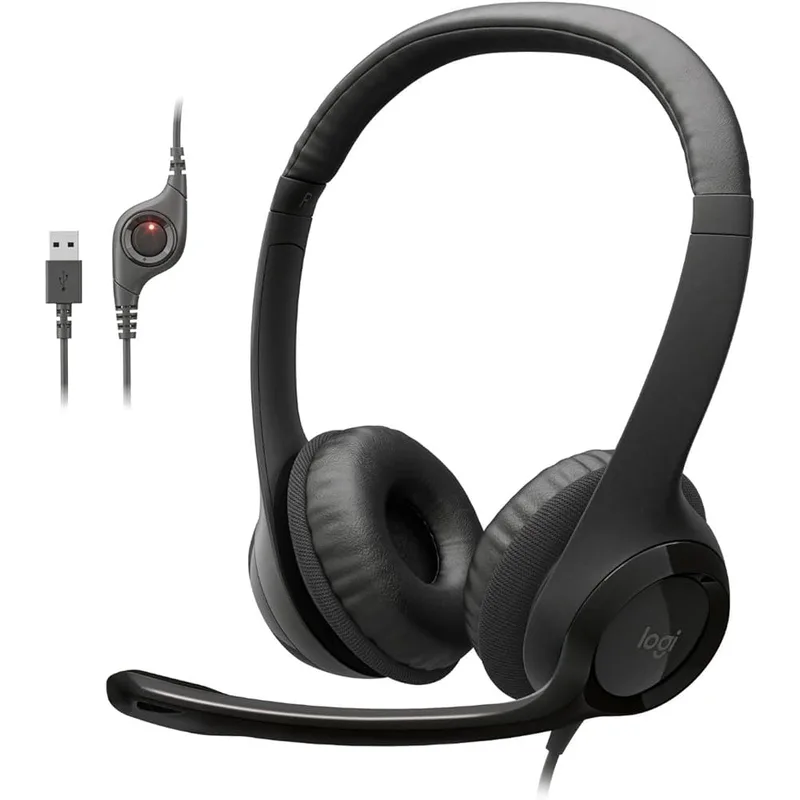
Logitech H390 USB Wired Headset
Pros
- Noise-cancelling boom mic positions close to your mouth for clear voice pickup on calls
- In-line mute and volume controls let you manage calls without touching your computer
- USB plug-and-play — no drivers needed, recognized immediately on Windows, Mac, and Chromebook
- Leatherette ear cushions stay comfortable through 4–5 hour call days
Cons
- Wired only — no Bluetooth option
- USB-A connection requires adapter for USB-C-only laptops
- Passive noise isolation only — no active noise cancellation for blocking ambient sound
Clear call audio is the highest-impact improvement a remote worker can make to their professional presence. A $40 headset with a dedicated boom microphone outperforms any built-in laptop microphone for call quality — the gap is audible to every person on the other end of the call.
The H390 is the practical entry point for professional call audio. The noise-cancelling boom mic positions 6–8 inches from your mouth (versus 12–18 inches for desktop microphones or laptop mics), which means the microphone captures your voice with less room noise in the signal. The in-line controls — volume wheel and mute button — let you manage calls without touching your keyboard.
The leatherette ear cushions are adequate for 4–5 hour call days. For all-day headset use (6+ hours), the H390’s ear pads will start to feel warm. At that usage level, a headset with fabric or velour cushions — like the Jabra Evolve2 40 ($149) — is worth the extra spend.
USB plug-and-play is the other practical advantage here. The H390 is recognized immediately on Windows, Mac, and Chromebook without driver installation. Plug in, open Zoom or Teams, and it appears as the audio device automatically.
The case for upgrading: The Jabra Evolve2 20 UC (~$80) delivers noticeably better call quality with a 3-mic array and deeper passive noise isolation. Worth considering if calls are a significant part of your daily work.
4. Keyboard + Mouse: Logitech MK270 Wireless Combo
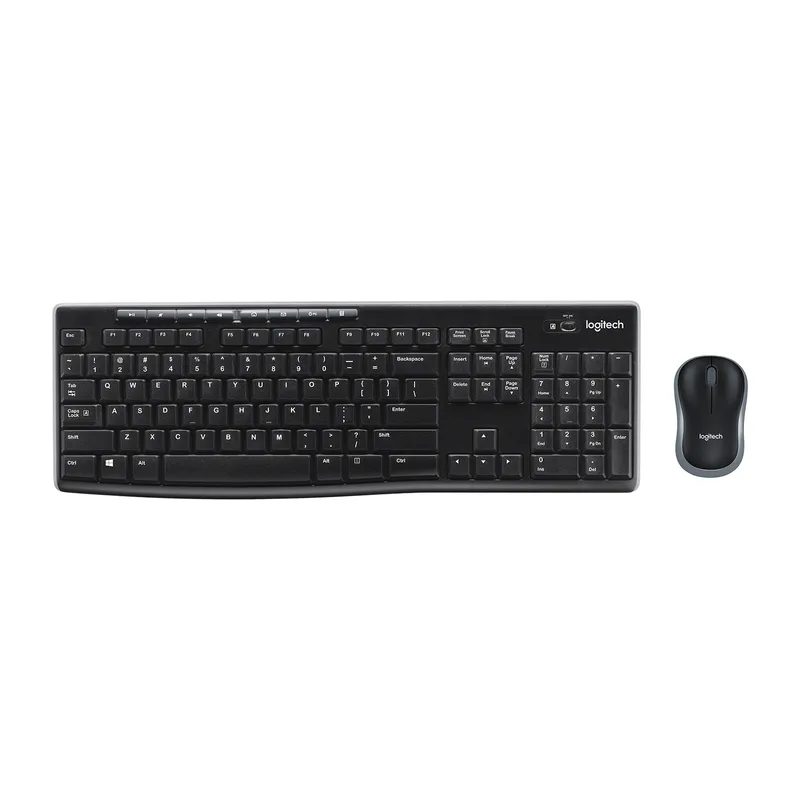
Logitech MK270 Wireless Keyboard and Mouse Combo
Pros
- Up to 24-month keyboard battery life means you won't replace batteries for two years under normal use
- Single USB nano-receiver handles both keyboard and mouse — keeps one USB port free
- Full-size layout with numpad suits spreadsheet-heavy work better than compact alternatives
- 2.4GHz connection is stable and latency-free for typing and navigation
Cons
- Windows-optimized — lacks dedicated Mac keys and some shortcuts differ on macOS
- Mouse is compact rather than ergonomic — not ideal for heavy daily mousing
- Keyboard has minimal key travel compared to mechanical or premium membrane options
The MK270 is the pragmatic keyboard and mouse pick for a budget setup. It covers the core requirements — wireless, full-size layout, reliable 2.4GHz connection — at a price that leaves room in the budget for gear with higher impact.
The up-to-24-month keyboard battery life is the standout specification. You won’t replace batteries for roughly two years under typical office use. The single USB nano-receiver handles both devices, which saves one USB port compared to separate Bluetooth or RF peripherals.
The full-size layout includes a numpad, which matters for anyone who works with numbers. Compact keyboards without numpads save desk space but require more keystrokes for numeric data entry.
For typing feel: the key travel is shallow and the actuation force is light. If you’re coming from a laptop keyboard, the transition is easy. If you’re comparing to a mechanical keyboard, the MK270 feels softer and less satisfying. For a budget setup focused on productivity over typing experience, this is an acceptable trade.
The mouse is compact and lightweight, with a rubber-textured grip that stays secure through long sessions. It’s not ergonomic in the vertical or sculpted sense, but it works reliably and tracks accurately on most desk surfaces including glass.
The case for upgrading: The Logitech MX Keys S ($100) and MX Master 3S mouse ($100) represent the next tier — tactile keys, multi-device pairing, and genuinely ergonomic mousing. Together at $200 they’re a meaningful upgrade when budget allows.
5. USB-C Hub: Anker 332 5-in-1
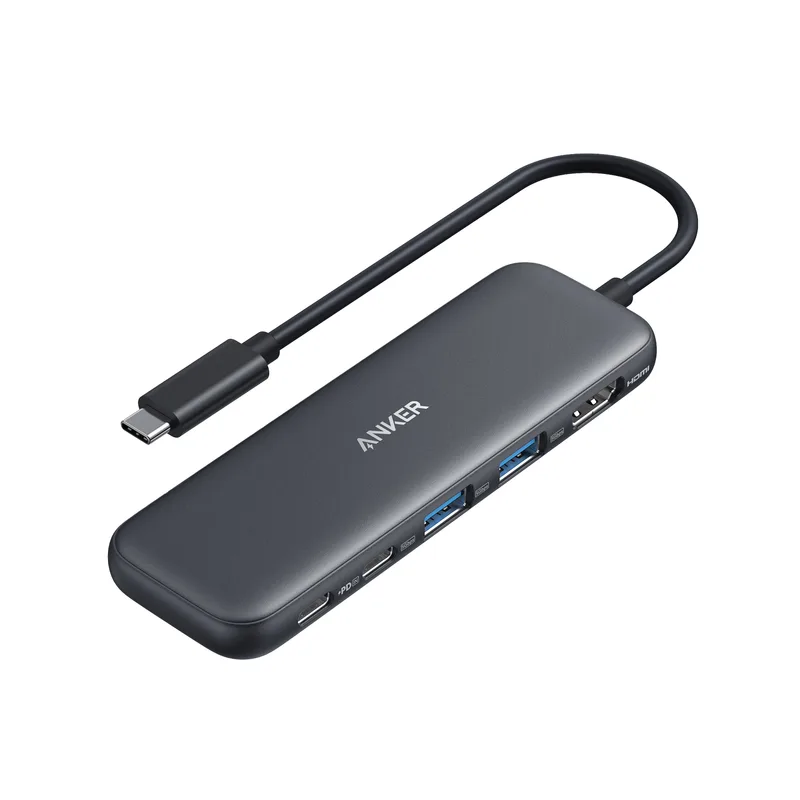
Anker 332 USB-C Hub (5-in-1)
Pros
- 100W USB-C power delivery charges a laptop at full speed while using all ports
- 4K HDMI output connects to the LG monitor or any external display
- Compact bus-powered design travels with you — no wall adapter required
- Two USB-A ports handle the Logitech receiver and webcam simultaneously
Cons
- No Ethernet port — add the Anker PowerExpand 7-in-1 if you need wired network
- 4K at 30Hz only — for productivity use this is fine, for color-critical work it may fall short
Modern laptops — particularly MacBooks and Windows ultrabooks — often ship with only two USB-C ports and no USB-A. The Anker 332 addresses that directly: one USB-C input expands into HDMI output, USB-C data, and two USB-A ports, with 100W pass-through charging keeping the laptop powered at full speed.
The practical configuration for this budget setup: HDMI to the LG monitor, one USB-A for the Logitech MK270 nano-receiver, one USB-A for the C920s webcam, USB-C data for the H390 (via included USB-A to C adapter if needed), and USB-C PD for laptop charging. That’s the full setup through one hub.
The 4K@30Hz HDMI output supports the LG 24MP400-B at 1080p without limitations — the 4K@30Hz spec simply means the hub supports up to 4K resolution at that refresh rate, which is the ceiling, not the floor.
The hub is bus-powered, meaning it draws power from the laptop’s USB-C port rather than requiring a wall adapter. That keeps the desk clean. The 100W pass-through means the laptop still charges from the same port that powers the hub.
The case for upgrading: The Anker 555 USB-C Hub (8-in-1, ~$49) adds SD card readers, a second HDMI, and 4K@60Hz output. Worth the extra $30 if you regularly transfer photos or use external storage cards.
Where to Spend, Where to Save
The $237 total leaves $263 unspent in the $500 budget. Here’s how to think about using that remaining budget:
Highest-impact upgrades:
- Lumbar support ($20–$40): A lumbar support cushion like the Everlasting Comfort lumbar pillow (~$30) improves posture for workers using any chair. This is the highest-impact non-tech spend in any home office.
- Desk lamp with video lighting ($20–$50): A simple adjustable LED desk lamp positioned behind the monitor and aimed at your face transforms webcam video quality. The Elgato Key Light Mini (~$50) is a purpose-built video call light; a standard adjustable LED desk lamp works similarly.
- Monitor arm ($30–$50): A Huanuo single-monitor arm (~$30) frees up desk space, improves monitor positioning, and allows height and angle adjustments that the LG’s built-in stand doesn’t offer.
Where to save:
- Cable management: Velcro cable ties ($8 for 100) and a cable channel rail ($12–$15) handle all the wiring from this setup without any premium organizer products.
- Desk mat: A large felt or rubber desk mat ($15–$25) provides a unified surface for keyboard and mouse without the $40–$60 premium of branded options.
Full Budget Breakdown
| Item | Product | Price |
|---|---|---|
| Monitor | LG 24MP400-B 24” IPS | $98.00-$149.90 as of Oct 18, 2026 |
| Webcam | Logitech C920s HD Pro | Unavailable |
| Headset | Logitech H390 USB | $16.69-$20.99 as of Oct 18, 2026 |
| Keyboard + Mouse | Logitech MK270 Combo | Unavailable |
| USB-C Hub | Anker 332 5-in-1 | $6.99-$32.99 as of Oct 18, 2026 |
| Core Total | $237 | |
| Budget remaining | $263 |
FAQ
Is 1080p still good enough for remote work in 2026?
At 24 inches, yes. 1080p at 24 inches resolves at approximately 92 PPI — text is sharp and readable without display scaling. You’ll notice the difference between 1080p and 1440p most in fine text rendering and when viewing photos or video. For remote workers spending most screen time in a browser, documents, and video calls, 1080p at 24 inches is entirely adequate. Moving to 27 inches is when 1440p becomes a more meaningful upgrade.
Can I run this setup from a MacBook?
Yes, with the Anker 332 hub. Connect the hub to your MacBook’s USB-C port, connect the LG monitor via the hub’s HDMI output, and plug the webcam and Logitech receiver into the USB-A ports. The H390 uses a USB-A connection — the hub’s ports handle it. One caveat: the MK270 is Windows-optimized and some keys (like the Windows key) don’t have direct macOS equivalents. It functions fine for typing; shortcut keys differ.
What’s the minimum I can spend and still upgrade meaningfully?
The two highest-impact upgrades from a bare laptop setup are a USB headset and an external monitor. The H390 at $40 eliminates the most common complaint colleagues have about remote workers: bad call audio. An external monitor at any size immediately expands your working area and removes neck strain from looking down at a laptop screen. These two items together cost $120 and address the most visible and most physically impactful problems.
Should I prioritize monitor, webcam, or audio?
In order: monitor, then audio, then webcam. The monitor affects every minute of your workday — eye strain, posture, screen space, and the ability to have multiple windows open simultaneously. Audio affects how every colleague perceives you on every call — poor mic quality is the most common reason remote workers are asked to repeat themselves or are perceived as less professional. Webcam video quality is the least impactful of the three because video call participants process audio primarily and use video for social cues secondarily.
Will this setup handle video editing or design work?
The LG 24MP400-B covers ~99% sRGB, which is suitable for basic design work and video review. It is not calibrated for professional color-critical use — color accuracy at this price tier is good but not certified. For occasional design tasks (presentations, social media graphics, light photo editing), this setup works fine. For professional color work (photography, videography, print design), a monitor with hardware calibration and wide color gamut (like the BenQ PD2725U) is the appropriate tool.
Conclusion
The five products above total $237 and cover every essential component of a professional remote work setup: external monitor for screen space, webcam for video calls, headset for audio quality, wireless keyboard and mouse for comfortable input, and USB-C hub for connectivity. Each product is the most practical option at its price point — not the cheapest, not the best, but the right balance of quality and cost for a budget build.
The LG 24MP400-B is the best pick here. It’s down to $80 from its original $130 price tag, making the value case even stronger than when this guide was first written. The monitor is what you interact with continuously throughout the workday, and the jump from a 13-inch laptop screen to a 24-inch external display is the single most impactful upgrade in any remote work setup.
The remaining $263 in your $500 budget is best spent on a monitor arm ($30), a desk lamp for better video lighting ($20–$30), and a better headset if calls are central to your work (Jabra Evolve2 20 UC, ~$80). If you’re building this setup from scratch, start with the monitor and headset. Add the rest as budget allows.
Detailed Reviews
LG 24MP400-B 24-Inch FHD IPS Monitor
Pros
- IPS panel delivers wide viewing angles and accurate colors at a price that undercuts most VA competitors
- AMD FreeSync smooths motion for anyone who occasionally games after work hours
- Three-side borderless design looks clean in a dual-monitor config or on a minimal desk
- Reader Mode reduces blue light emission for long work sessions without color distortion
- 75x75mm VESA mount means you can add a monitor arm later without buying a new display
Cons
- No USB-C — requires a separate adapter or hub if your laptop is USB-C only
- No built-in speakers — plan for headset or external speakers
- 75Hz refresh rate and 5ms response time are adequate for work but not competitive for fast-paced gaming
Logitech C920s HD Pro Webcam
Pros
- 1080p at 30fps delivers sharp, clear video on Zoom and Teams calls with no additional setup
- Physical privacy shutter closes the lens when not in use — no software required
- Dual stereo microphones serve as a capable backup audio source for casual calls
- Certified for Zoom, Teams, and Google Meet — recognized automatically on any major platform
- Clips to any monitor bezel or laptop screen securely with a flexible mount
Cons
- USB-A only — MacBook or USB-C only laptop users need an adapter or hub
- 30fps max — video looks smooth but not as fluid as 60fps webcams
- Auto light correction is basic compared to newer options like the Logitech Brio 500
Logitech H390 USB Wired Headset
Pros
- Noise-cancelling boom mic positions close to your mouth for clear voice pickup on calls
- In-line mute and volume controls let you manage calls without touching your computer
- USB plug-and-play — no drivers needed, recognized immediately on Windows, Mac, and Chromebook
- Leatherette ear cushions stay comfortable through 4–5 hour call days
Cons
- Wired only — no Bluetooth option
- USB-A connection requires adapter for USB-C-only laptops
- Passive noise isolation only — no active noise cancellation for blocking ambient sound
Logitech MK270 Wireless Keyboard and Mouse Combo
Pros
- Up to 24-month keyboard battery life means you won't replace batteries for two years under normal use
- Single USB nano-receiver handles both keyboard and mouse — keeps one USB port free
- Full-size layout with numpad suits spreadsheet-heavy work better than compact alternatives
- 2.4GHz connection is stable and latency-free for typing and navigation
Cons
- Windows-optimized — lacks dedicated Mac keys and some shortcuts differ on macOS
- Mouse is compact rather than ergonomic — not ideal for heavy daily mousing
- Keyboard has minimal key travel compared to mechanical or premium membrane options
Anker 332 USB-C Hub (5-in-1)
Pros
- 100W USB-C power delivery charges a laptop at full speed while using all ports
- 4K HDMI output connects to the LG monitor or any external display
- Compact bus-powered design travels with you — no wall adapter required
- Two USB-A ports handle the Logitech receiver and webcam simultaneously
Cons
- No Ethernet port — add the Anker PowerExpand 7-in-1 if you need wired network
- 4K at 30Hz only — for productivity use this is fine, for color-critical work it may fall short