Disclosure: SetupRanked earns a commission on purchases made through links on this page, at no extra cost to you.
You don’t need to spend a lot to work well from home. The three things that actually matter — a real monitor, clear audio, and a webcam that doesn’t make you look like you’re calling from a bunker — cost far less than people assume. A complete, professional remote work setup — five core components — totals $593. That leaves room in the $1,000 budget for a better chair, a proper lamp, or just savings.
This guide builds a specific $593 setup using five products, all available on Amazon with verified pricing. No vague ranges — actual picks checked against live Amazon listings.
Short answer: The Dell S2725QC at $299 is the monitor. The Jabra Evolve2 40 SE at $129 is the headset. The Logitech Brio 500 at $99 is the webcam. That trio handles everything visible and audible on calls. Add the Anker hub and a desk mat and you’re done.
Setting a Budget: Where to Invest vs. Where to Save
Not all remote work gear delivers equal value per dollar. Knowing where to put money — and where spending more delivers diminishing returns — is the most important part of building a smart setup.
Invest here:
- Monitor — The device you stare at for 8 hours a day. Resolution, panel quality, and USB-C connectivity have direct and continuous daily impact on your work. This is the single most impactful purchase in any remote setup.
- Audio (microphone or headset) — Poor audio quality is the number one productivity drain in remote collaboration. A $129 headset delivers vastly better call audio than built-in laptop microphones.
- Webcam — Your built-in laptop camera typically sits too low, with no light correction. A dedicated webcam at $99 transforms how you appear on calls.
Save here:
- Desk mat — The functional difference between a $30 mat and a $150 mat is zero for productivity. Get something that looks good and is spill-resistant.
- USB hub — The Anker 555 at $36 handles everything most remote setups need. Spending more rarely adds meaningfully useful features.
- Cable management — Velcro cable ties and simple cable channels cost under $15 and solve 90% of cable management problems.
The Monitor: Your Biggest Visual Upgrade
The display is where you spend the most time and where quality differences are most visible hour after hour. Three options at different price points:
Around $200 — LG 27MP60G-B: A 27-inch 1080p IPS monitor with basic connectivity. Gets the job done but the resolution is noticeably soft at this size. No USB-C. A reasonable minimum if budget is the primary constraint.
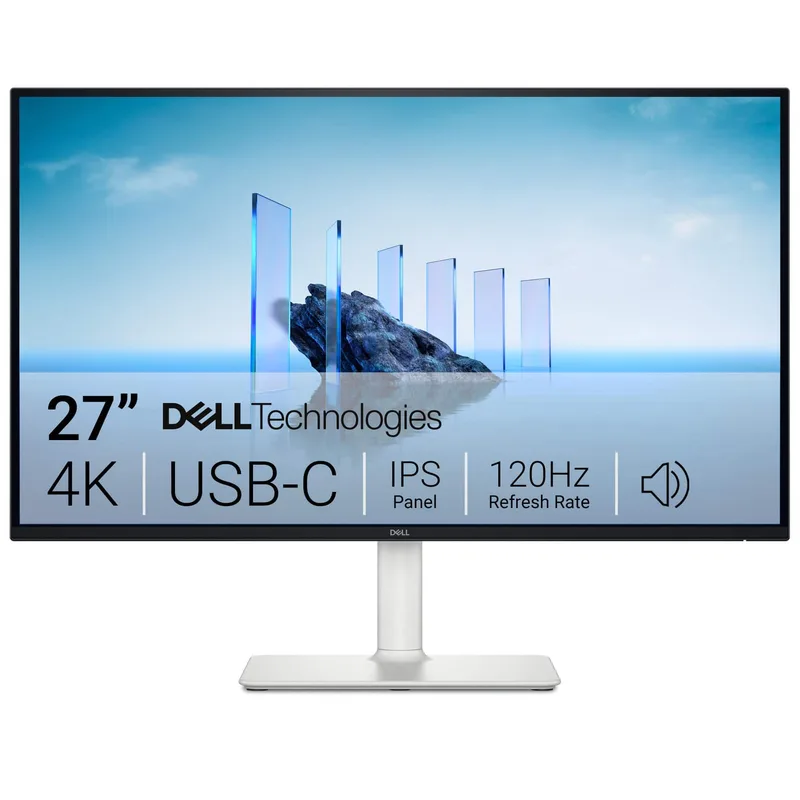
Around $299 — Dell S2725QC (our pick): 27-inch 4K IPS with USB-C at 65W and 120Hz. The best value at this price for a remote work primary display. The 4K resolution makes video calls, documents, and spreadsheets genuinely sharp. USB-C handles both video and power from a single cable. Built-in dual speakers mean you can skip a separate speaker purchase.
Around $350 — Samsung ViewFinity S32D600UAU: A 32-inch QHD IPS with USB-C at 90W. More screen space and higher power delivery. The jump from 27” to 32” requires sitting slightly further back, but the additional real estate helps when juggling multiple windows.
The Dell S2725QC at $299 covers every essential need — 4K, USB-C, IPS panel, built-in speakers — at a price that leaves room for everything else. The 120Hz panel is a meaningful upgrade over earlier 60Hz models for all-day work comfort.
Webcam: Why Built-In Laptop Cameras Fail
Laptop cameras have two fundamental problems for remote work. First, they sit at the bottom or side of the screen bezel, which creates an unflattering low-angle view that looks up at your face. Second, they have small sensors with no light correction — in typical home office lighting (window behind you, dim room in front), they produce dark, noisy video.
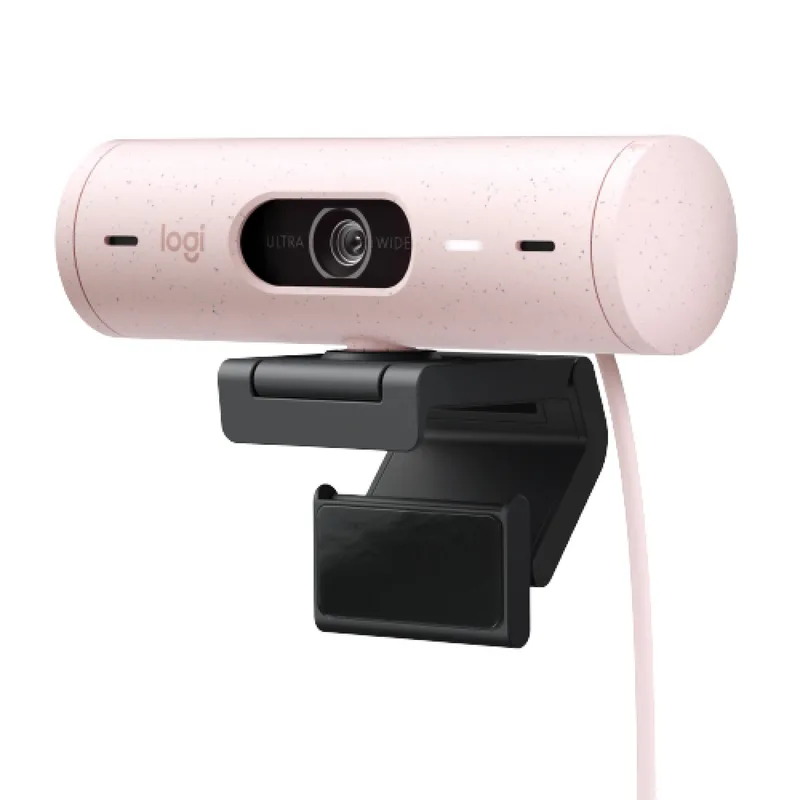
A dedicated webcam clips to the top of your external monitor, looking at you at eye level. The Logitech Brio 500 adds RightLight 4 automatic light correction, which adjusts exposure and color balance in real time to compensate for changing ambient light. Auto-framing keeps you centered as you move around your desk.
The Brio 500 at $99 is the pick. Certified for Zoom, Teams, and Google Meet — plug it in and it works without driver installation on any modern operating system. The dual noise-reducing microphones serve as a useful backup for casual calls, though the Jabra headset below provides significantly better audio for professional meetings.
Budget alternative at $70: The Logitech C920s HD Pro is a solid 1080p webcam with good auto-focus and basic light correction. It lacks the auto-framing of the Brio 500 but works well if the budget is tight.
Audio: The Two Paths
Clear call audio is the highest-impact investment in professional presence for remote workers. Two practical approaches:
Path 1 — Headset (recommended for frequent callers): A professional headset combines microphone and headphones in a purpose-built call device. The Jabra Evolve2 40 SE positions the mic 6–8 inches from your mouth via a boom arm, giving a loud, direct signal that noise suppression software works with effectively. Passive noise isolation blocks ambient sound from reaching your ears. The integrated busy light signals to household members when you’re on a call. The 2026 SE version includes both USB-C and USB-A cables in the box, so it works with any laptop immediately.
At $129, this is the recommended choice for remote workers on calls more than two hours per day.
Path 2 — USB Microphone + Headphones (for less frequent callers): A Blue Snowball iCE ($50) or Rode NT-USB Mini ($100) combined with existing headphones or earbuds provides good call audio with better listening comfort if you prefer not wearing an over-ear headset all day. This path makes sense if you already own wireless headphones and only occasionally switch to call mode.
For this build, the Jabra Evolve2 40 SE is the pick. It handles calls all day, reduces background noise effectively, and requires no additional hardware.
USB Hub: Why Single-Cable Connection Matters
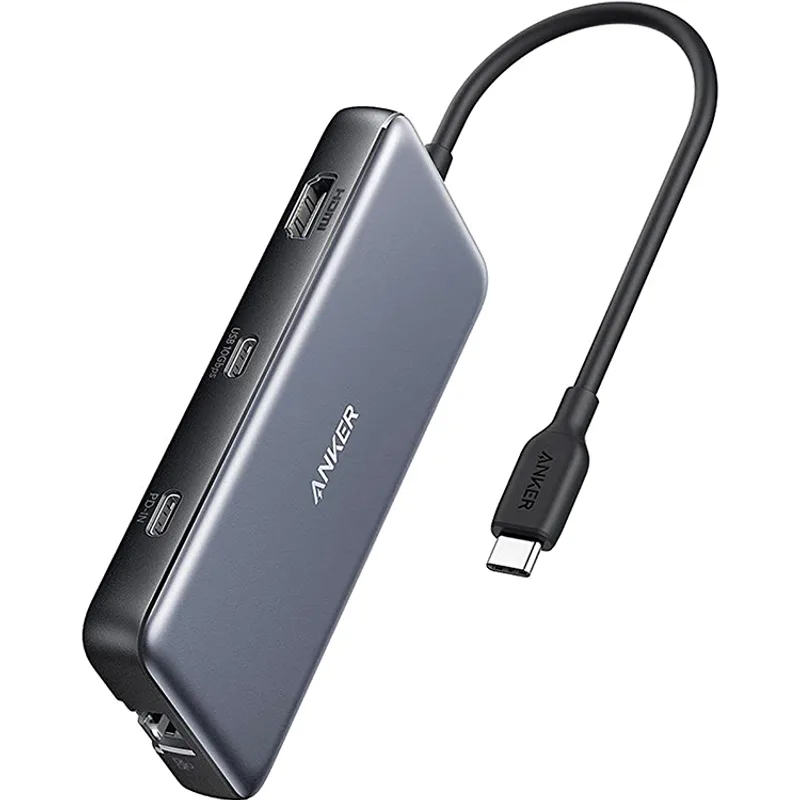
The goal of a single-cable desk setup is practical: connect one USB-C cable from your laptop to the hub, which delivers power, video, and peripheral connectivity simultaneously. Leave the desk — unplug one cable. Return — plug in one cable.
Without a hub, a laptop with limited ports requires multiple cables: power, video, USB for keyboard and mouse, Ethernet if needed. Four cables to manage every time you move.
The Anker 555 USB-C Hub at $36 provides eight ports from one USB-C connection: 4K HDMI video output, two 10Gbps USB-A ports, one 10Gbps USB-C data port, 85W pass-through charging, and SD/microSD card readers. For most remote work setups — laptop, external monitor, keyboard, mouse, webcam — this covers everything needed.
One real limitation: no Ethernet port. If your home office requires a wired network connection (strongly recommended for video calls — wired beats Wi-Fi for stability), the Anker PowerExpand 8-in-1 with Ethernet at around $50 is the upgrade pick.
Desk Organization: Mat and Cable Management
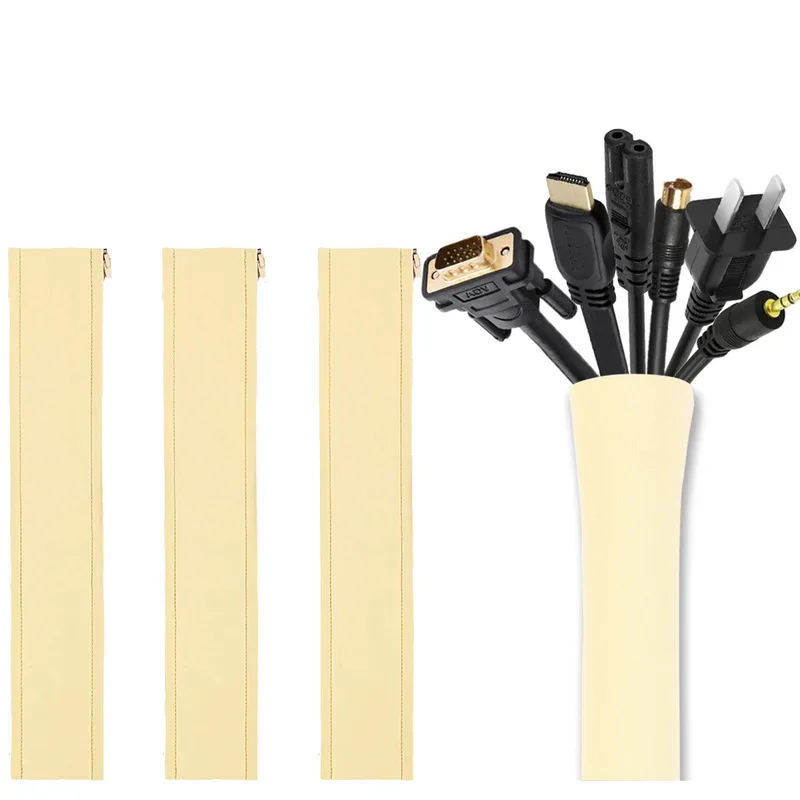
A desk mat serves two practical purposes: it provides a unified surface that keeps keyboard and mouse in a consistent position, and it looks professional on camera. The Logitech Desk Mat at $30 is 27.5 inches wide and covers keyboard, mouse, and small accessories with a spill-resistant microfiber finish.
Cable management requires minimal investment but has meaningful impact:
- Velcro cable ties ($8 for a pack of 100): organize cable bundles running to monitors, hubs, and power strips
- Cable channel ($15–$20): a plastic or aluminum channel that mounts under the desk edge and routes cables invisibly to the floor
- Cable clips ($10): small adhesive clips that hold individual cables along desk legs or monitor stands
Total cable management budget: $30–$40.
Bonus: Software That Costs $0
Several tools improve remote work setup quality at no cost:
Krisp (free tier): Real-time noise suppression that works as a virtual microphone. Any conferencing app can select it. The free tier includes limited hours per month — often enough for most remote workers.
OBS Virtual Camera (free): OBS Studio enables virtual backgrounds on any webcam without hardware, plus color correction filters and scene switching for presentations.
Zoom/Teams/Meet noise suppression (built-in): All three platforms include AI-powered noise suppression in their audio settings. Enable it. Not as aggressive as Krisp but costs nothing.
f.lux or Windows Night Light / macOS Night Shift (free): Reduces blue light from the monitor after sunset — noticeable difference for evening work sessions.
The Full Build Table
| Item | Recommended Pick | Price |
|---|---|---|
| Monitor | Dell S2725QC 27” 4K USB-C | $310.60-$342.69 as of Oct 18, 2026 |
| Webcam | Logitech Brio 500 | Unavailable |
| Headset | Jabra Evolve2 40 SE (2026) | $123.93-$153.52 as of Oct 18, 2026 |
| USB-C Hub | Anker 555 8-in-1 | Unavailable |
| Desk Mat | Logitech Studio Series | Unavailable |
| Total | $593 |
The $593 total leaves $407 remaining in the $1,000 budget. Recommended uses:
- Ergonomic chair upgrade ($200–$400): The chair affects physical health over years of remote work. The HON Ignition 2.0 ($250) or a used Herman Miller Aeron are strong picks — see our guide to ergonomic chairs under $500 for vetted options.
- Desk lamp ($40–$80): A proper lamp reduces eye strain from contrast between a bright monitor and a dark room. A Lume Cube or Elgato Key Light Air also improves video call lighting.
- External keyboard and mouse ($30–$100): Using an external keyboard lets you raise the laptop screen to proper eye height, which dramatically improves posture.
Buying Guide: What to Prioritize
Monitor resolution matters at 27 inches. At 27”, 1080p looks noticeably soft. QHD ($200–$250 range) is the minimum worth buying. 4K at $299 is the right sweet spot — text is sharper all day, every day.
USB-C with power delivery changes the desk setup. A monitor or hub with USB-C PD means one cable from your laptop does everything — charges, sends video, connects peripherals. A monitor without this adds cable clutter that compounds every time you move.
Headsets beat standalone mics for calls. A boom mic 6 inches from your mouth consistently outperforms a desk microphone 18 inches away. For frequent callers, the Jabra headset delivers better call audio than any $100 desk mic.
Ethernet beats Wi-Fi for video calls. If you can run a cable from your router, do it. A $10 Ethernet adapter and a run of Cat6 cable eliminates most video call freezes and quality drops. The Anker hub with Ethernet handles this cleanly.
FAQ
Can I build a remote setup for less?
Yes. A minimum viable upgrade costs under $200: a Logitech C920s webcam ($70) and a Blue Snowball iCE microphone ($50) improve the two highest-visibility elements — video and audio — for under $130 combined. Add a QHD monitor when budget allows and you have a solid base.
What should I upgrade first?
Priority order for a laptop-only setup: (1) external monitor, (2) audio, (3) webcam. The monitor has the most continuous daily impact. Audio affects how colleagues perceive you on every call. Webcam quality matters less than most people assume — audio is what participants notice first.
Do I need all of this?
No. Many remote workers work well with just a monitor and headset. The full setup represents a complete, comfortable, professional home office. Buy what addresses your actual friction points: if you’re squinting at a small screen, get the monitor first. If colleagues complain about your audio, fix that first.
What about ergonomics?
Monitor height, chair posture, and keyboard placement affect physical health over years of remote work. The monitor should sit at eye level — a monitor arm or a stack of books works if needed. Your forearms should be roughly parallel to the floor when typing. A standing desk adds the ability to change positions throughout the day, which matters more than most people realize.
Where should I compromise?
Compromise on cable management aesthetics, desk mat brand, and USB hub features. Don’t compromise on monitor resolution (QHD minimum at 27 inches), microphone quality for frequent callers, or chair ergonomics. The things you interact with constantly deserve real budget. The things in the background can be minimal.
Conclusion: Best Setup by Use Case
Full-day caller: The Jabra Evolve2 40 SE is non-negotiable. Pair it with the Dell monitor and Anker hub. Add the Brio 500 if video calls are important for your work. Total: $564 without the desk mat, $593 with it. Well under $1,000.
Visual creative or designer: Swap the Jabra for a Rode NT-USB Mini ($100) and quality headphones you already own. Put the saved budget toward a USB-C dock with more ports if you need dual-monitor output or high-wattage power delivery.
Budget-first remote worker: Brio 500 ($99) + Jabra Evolve2 40 SE ($129) covers audio and video for $228. Add a QHD monitor when ready. You don’t need everything on day one — start with the monitor, then fix audio.
The best setup is the one you’ll actually use. Start with the monitor — it improves every hour of every workday immediately. Then fix audio. Everything else follows.
Detailed Reviews
Dell S2725QC
Pros
- 4K resolution at $299 — sharp text for documents, spreadsheets, and video calls
- USB-C with 65W PD means one cable connects laptop power, video, and data
- Built-in dual speakers eliminate the need for a separate audio device
- 120Hz panel with AMD FreeSync Premium makes scrolling and cursor movement noticeably smoother
Cons
- No USB hub built in — peripherals beyond the USB-C connection need a separate hub
- 65W PD may not be enough for high-performance laptops under sustained load
Logitech Brio 500
Pros
- RightLight 4 auto-corrects exposure in real time — handles backlit windows and dim rooms
- Auto-framing keeps you centered as you move around your desk
- Certified for Zoom, Teams, and Google Meet with plug-and-play setup
- Physical privacy cover closes the lens when not in use
Cons
- 1080p max — no 4K option at this price point
- Auto-framing can lag when you move significantly out of frame

Jabra Evolve2 40 SE (2026)
Pros
- 3-microphone array delivers loud, direct call audio that noise suppression software works well with
- Passive noise isolation with memory foam blocks ambient sound during calls
- Includes both USB-C and USB-A cables — works with any laptop out of the box
- Integrated busy light signals availability to others in your home
Cons
- Wired only — no Bluetooth option in this model
- Boom arm is fixed-length and not adjustable like higher-end pro headsets
Anker 555 USB-C Hub (8-in-1)
Pros
- Eight ports from one USB-C connection — monitor, keyboard, mouse, webcam, card readers
- 85W pass-through charging keeps your laptop powered while using all ports
- 10Gbps data speeds for fast file transfers
- Compact and portable — takes up almost no desk space
Cons
- No Ethernet port — need a separate adapter for wired network connections
- HDMI only, no DisplayPort — verify compatibility with your monitor
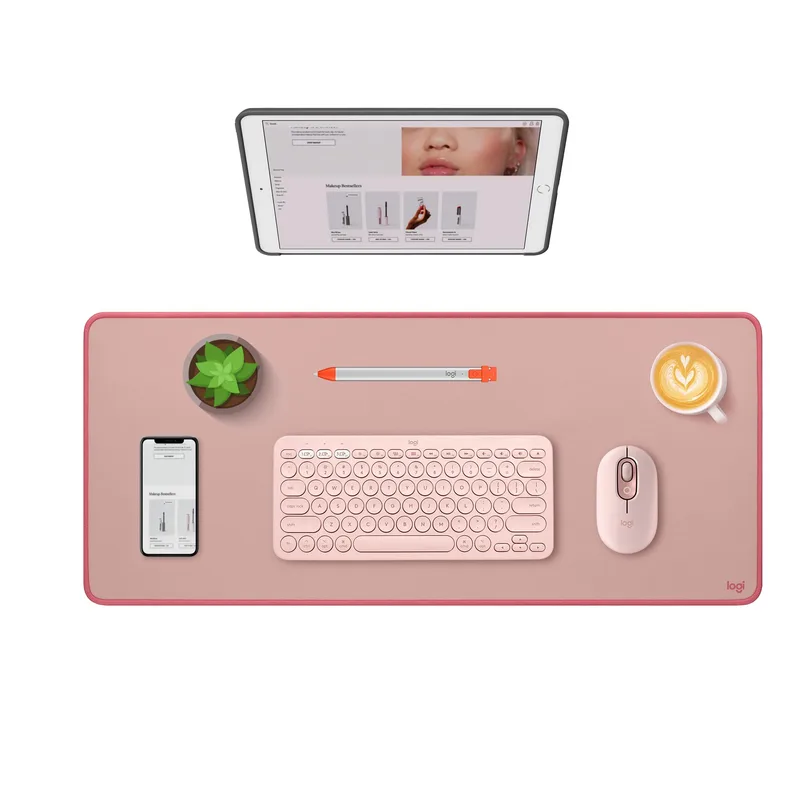
Logitech Desk Mat Studio Series
Pros
- Large surface unifies keyboard, mouse, and accessories on one clean mat
- Spill-resistant microfiber wipes clean easily — practical for working with drinks nearby
- Non-slip rubber base keeps everything stable on glass or wood desks
- Looks professional on camera — visible in video call backgrounds
Cons
- No wireless charging — purely a surface mat
- Limited color options compared to generic alternatives