Remote work has moved past the phase where it was a temporary accommodation or a perk for a select few. For tens of millions of professionals, it is simply how work happens — and the home office environment is as much a part of job performance as the skills and knowledge that go into the work itself.
The problem is that most home office setups evolved reactively. A laptop on a kitchen table became a laptop on a real desk. A real desk gained a monitor. The monitor gained a dock. Over years, people accumulate gear without a coherent strategy for what actually matters and what does not. The result is setups that cost real money but still have glaring weaknesses: brilliant monitor with built-in laptop mic, standing desk with a kitchen chair, $200 webcam with the laptop sitting on books.
This guide covers the six pillars of a capable remote work setup in deliberate priority order, then provides a tiered checklist — starter, solid, and premium — for building or upgrading your setup systematically.
The Six Pillars of a Remote Work Setup
A functional home office requires six distinct elements working together:
- Display — the primary interface for all work
- Audio/Video — how you communicate with colleagues, clients, and collaborators
- Networking — the physical infrastructure that makes everything else work
- Computing — the device doing the actual work
- Productivity — the accessories, organization, and tools that reduce friction
- Ergonomics — the physical setup that protects your health over years of daily use
Most setups fail at one or two of these. Identifying which pillar is weakest in your current setup is the starting point for effective improvement.
Pillar 1: Display
What to Prioritize in 2026
Resolution: QHD (2560x1440) at 27 inches is the current practical minimum for a primary remote work display. It is visibly sharper than 1080p, handles most display scaling preferences well, and is available at reasonable prices. 4K (3840x2160) at 27–32 inches is the upgrade target — sharper text rendering, better detail in video calls and presentations, and more comfortable for reading documents.
Size: 27 inches is the standard recommendation for most desk depths (24–30 inches from face to screen). 32 inches works at standard depth if you sit back slightly further. Anything larger requires sitting farther back or using a monitor arm to extend the display out to proper viewing distance.
USB-C with Power Delivery: If you work from a laptop, a monitor with USB-C and at least 65W power delivery is the single-cable setup enabler. One cable runs from laptop to monitor, delivering power in and video out simultaneously. This is one of the most underrated quality-of-life features for remote laptop setups. 90W or higher is preferred for high-performance laptops.
Panel type: IPS for accurate colors and wide viewing angles. IPS Black for better contrast if you use dark mode heavily. VA for deeper blacks at lower cost, with the tradeoff of worse off-angle viewing. Avoid TN panels for any professional or content work.
What matters less than advertised: Refresh rate (60–75Hz is sufficient for all office work), HDR certifications below HDR1000 (cosmetic at lower certifications), and built-in webcams (typically underpowered and not worth paying a premium for).
Monitor Recommendations by Budget
- Under $250: Samsung ViewFinity S27A600UUN (QHD, USB-C 65W) — solid value for a primary remote work display
- Around $280: Dell S2725QC (4K, 120Hz, USB-C 65W) — the 2026 successor to the S2722QC with a faster panel at the same price
- Around $500–$550: Dell UltraSharp U2723QE (4K, IPS Black, 90W USB-C, built-in USB hub and Ethernet) — the benchmark for remote work monitors
- Ultrawide alternative: LG 34WP65C-B (34” QHD ultrawide) — replaces dual monitors without a bezel gap
Pillar 2: Audio/Video
The Priority Order: Audio First
The instinct is to prioritize webcam quality — what colleagues see. The evidence says audio is more important. Participants forgive grainy video but cannot tune out muffled audio, background noise, or echo. Poor audio quality in calls correlates with perceived lower competence and higher cognitive fatigue for listeners. Start with audio.
Microphone and Audio Setup
Built-in laptop microphone: Only acceptable for occasional, informal calls in quiet environments. Omnidirectional pickup captures everything: room echo, keyboard noise, HVAC hum.
USB headset ($50–$200): The most practical audio upgrade. A professional headset (Jabra Evolve2 40, Poly Voyager Focus 2, Logitech Zone Wired) positions a microphone 6–8 inches from your mouth, passively isolates your ears from room noise, and works without any configuration. Ideal for frequent callers in less-than-perfect acoustic environments.
USB condenser microphone ($50–$200): Better listening comfort than a headset if you prefer not wearing audio equipment all day. A Blue Snowball iCE ($50) or Rode NT-USB Mini ($100) significantly outperforms built-in mics. Pair with separate headphones or speakers. Best in quieter home offices where background noise is controlled.
XLR microphone + interface ($250–$550): Broadcast-quality audio for those who spend most of their workday on calls, record content, or want the absolute best. A Focusrite Scarlett Solo interface ($130) with a Shure SM7B ($399) or Audio-Technica AT2020 ($99) delivers studio-level clarity.
Webcam Selection
A dedicated webcam on an external monitor positions your camera at eye level — the single most important factor in appearing professional on video calls. Built-in laptop cameras point up from a low angle or look down from the top of a small screen, creating unflattering perspectives.
1080p recommended picks: Logitech Brio 500 ($130) — auto light correction and auto-framing make it the standout option under $150. Logitech C920s ($70) — reliable, basic 1080p with decent light performance.
4K if needed: The Insta360 Link ($300) and Logitech Brio 4K ($180) provide 4K resolution, useful if your video appears on large screens or you produce content.
Background and Lighting
What appears behind you on video matters as much as what your camera produces. A clean wall, a bookshelf, or a minimal setup photographs well and signals professionalism. Cluttered or chaotic backgrounds distract participants.
Lighting is the most overlooked webcam upgrade. A ring light ($40–$80) or a panel light like the Elgato Key Light ($200) positioned at face height in front of you dramatically improves video quality regardless of webcam quality — because the improvement comes from the light reaching your face, not from the camera’s sensor. A $70 ring light and a $70 webcam often outperform a $300 webcam with poor lighting.
Pillar 3: Networking
The Foundation Everything Else Depends On
A dropped video call costs more professional credibility than poor video quality. A frozen screen mid-presentation is worse than a slightly grainy picture. Networking is the infrastructure layer that determines call quality, file transfer speed, and connection reliability — and it is often the most neglected pillar.
Wired vs. Wireless
Ethernet provides lower latency, more consistent speeds, and zero interference compared to WiFi. For video calls, the difference between a wired and wireless connection can be the difference between calls that work reliably and calls that occasionally freeze, drop audio, or require reconnections.
For most home offices, a hardwired Ethernet connection from your router to your desk is the highest-impact networking upgrade possible. If running a cable through walls is not practical, a powerline adapter (TP-Link AV2000, $50–$70) or MoCA adapter carries the network signal over existing electrical or coaxial wiring.
Router
A capable home router is worth investment if you share the network with other household members who also work from home, stream video, or game. The TP-Link Archer AX55 and ASUS RT-AX86U provide WiFi 6 with capable QoS (Quality of Service) settings that prioritize call traffic over other household bandwidth use.
VPN
If your employer requires VPN for work systems, be aware that VPN routing adds latency. Use split-tunnel VPN where possible (routes only work traffic through VPN, leaving personal traffic on your direct connection) rather than full-tunnel VPN (routes all traffic through VPN).
Pillar 4: Computing
Laptop vs. Desktop vs. Mini PC
Laptop: The default for remote workers. Portability enables hybrid work, working from different rooms, and carrying your full work environment to coffee shops or travel. Modern Apple Silicon MacBooks and AMD Ryzen laptops provide desktop-class performance. The tradeoff is thermal throttling under sustained heavy workloads and limited port selection.
Desktop: Maximum performance per dollar, but no portability. Relevant for compute-heavy workloads — video editing, 3D rendering, machine learning. Not the default recommendation for general remote work.
Mini PC: A compact desktop format that has become a compelling option for remote workers who never need portability. The Apple Mac mini (M4, starting at $599) and Intel NUC-style PCs provide desktop connectivity in a package smaller than a lunchbox. Pair with your preferred keyboard, mouse, and external webcam.
Performance Considerations
For most remote work tasks — documents, spreadsheets, video calls, browser-based tools — any laptop from the last three years is sufficient. The workloads that actually require performance are: large codebases, video editing, data analysis in Python/R with large datasets, virtual machine use, and complex graphics work.
If your machine struggles with video calls specifically, the bottleneck is more likely network or webcam than CPU or RAM.
Pillar 5: Productivity
Cable Management
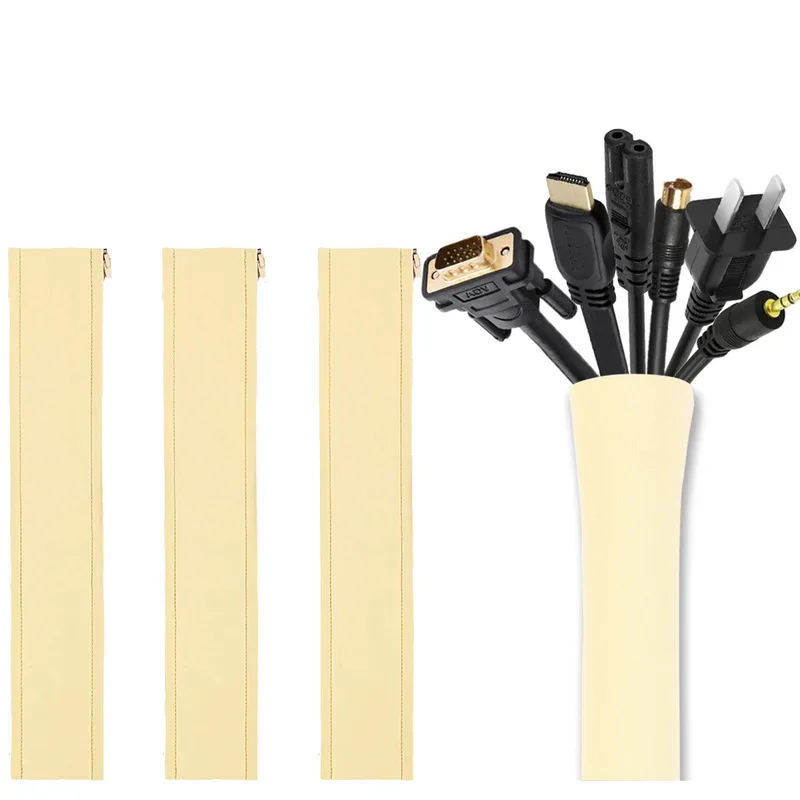
Visible cable clutter affects both video call professionalism (everything visible in your background matters) and daily workflow. Clean cable management also prevents the physical stress on connectors from cable movement. Solutions: velcro cable ties ($8), cable channels under the desk edge ($15–$25), cable clips on desk legs ($10), and a cable management box to hide power strips ($20–$40).
Desk Accessories
Desk mat: A large desk mat ($30–$60) provides a unified surface for keyboard and mouse, protects the desk, and looks professional on camera. It also reduces keyboard movement on smooth desk surfaces.
Monitor arm: A monitor arm ($50–$100 for a single arm, $80–$150 for a dual arm) gets the monitor stand off the desk surface, freeing significant horizontal and vertical space. It also enables precise ergonomic positioning — height, distance, and angle — that fixed stands do not provide.
Smart plug or power strip: A quality power strip ($25–$50) with enough outlets for all desk equipment, surge protection, and ideally USB-A and USB-C charging ports eliminates the need for multiple charging bricks.
Software That Costs $0
Several tools improve remote work quality at no cost:
- Krisp (free tier): Real-time AI noise suppression for calls — runs as a virtual microphone
- f.lux / macOS Night Shift / Windows Night Light: Reduces blue light after sunset
- PowerToys (Windows): Adds window snapping layouts, keyboard remapping, and productivity utilities
- Rectangle (macOS): Window management for multi-window keyboard shortcuts
- OBS Virtual Camera: Enables virtual backgrounds, color correction, and scene switching for any webcam in any conferencing platform
Pillar 6: Ergonomics
Often More Important Than Technology
Ergonomics affect physical health over the years — and years of bad posture or strain add up to real problems: back pain, neck pain, wrist strain, eye fatigue. These are not abstract future risks; most people working from home in poor ergonomic conditions are already experiencing them to some degree.
The interventions are well established:
Chair: Sit upright with your feet flat on the floor. Lumbar support is essential for preventing lower back fatigue over long sessions. The seat should be adjusted so your thighs are roughly parallel to the floor. An ergonomic chair does not have to be expensive — a secondhand Herman Miller Aeron from an office liquidator costs $300–$500, compared to $1,400 new. The HON Ignition 2.0 at $250 new is a reliable mid-range option.
Monitor height: The top of the screen should be at or slightly below eye level, with the monitor approximately arm’s length away (20–28 inches). Most people who use a laptop as a primary display work with their neck bent forward and down — a posture that creates significant neck and shoulder strain. Raising the laptop on a stand (or switching to an external monitor) fixes this immediately.
Desk and standing: A standing desk allows position changes throughout the day, which reduces lower back fatigue. You do not need to stand all day — standing for 20–30% of work time is beneficial. Entry-level electric standing desks (Flexispot E1, Vari Electric) start around $350–$400. A fixed desk is fine if you take movement breaks regularly.
Keyboard and mouse position: Forearms roughly parallel to the floor, wrists neutral (not bent up or down), shoulders relaxed. An external keyboard and mouse allows you to position the laptop on a stand at eye level and the input devices at a comfortable height — a critical ergonomic improvement for laptop users.
Lighting: A desk lamp or panel light reduces eye strain from the contrast between a bright monitor and a dark room. Position lighting to eliminate glare on the screen.
The Remote Work Setup Checklist
Starter Tier ($500)
- External monitor (27” QHD minimum, USB-C preferred) — $200–$280
- USB webcam (1080p, eye level on monitor) — $70–$100
- USB microphone or headset — $50–$100
- USB-C hub for single-cable connection — $35–$50
- Desk lamp for ambient light — $30–$50
- Close the door during calls (acoustic management, free)
- External keyboard and mouse — $30–$60
Solid Tier ($1,000)
Everything in Starter, plus:
- 4K USB-C monitor with built-in USB hub — $350–$500
- Professional headset (Jabra Evolve2 40 or equivalent) — $150
- Logitech Brio 500 webcam — $130
- Ring light or key light for video calls — $50–$100
- Ergonomic chair — $200–$350
- Cable management (ties, channel, clips) — $30–$50
- Wired Ethernet connection — $15–$70 (cable or powerline adapter)
Premium Tier ($2,000+)
Everything in Solid, plus:
- Dell UltraSharp U2723QE or similar premium display — $500–$550
- Dual-monitor arm — $100–$150
- Shure SM7B + Focusrite Scarlett Solo — $530
- Standing desk (electric) — $350–$600
- Herman Miller Aeron or Steelcase Leap chair — $300–$1,400
- Acoustic foam panels or fabric acoustic panels — $100–$300
- Elgato Key Light for video lighting — $200
Setting Up Your Digital Workspace
Apps and Conferencing Configuration
Configure your conferencing tools before relying on them for important calls. In Zoom, Teams, and Google Meet:
- Set your external microphone as the default input
- Enable noise suppression (High in Zoom, Auto in Teams)
- Test audio input and output levels before meetings
- Configure your webcam as the default video input
- Select a professional background or keep your physical background clean
Virtual Backgrounds
Virtual backgrounds are a useful fallback for remote workers whose physical background is cluttered or unprofessional. They work better with good physical lighting — the algorithm that separates you from the background relies on contrast and edge detection. Poor lighting produces blurry edges. If you use virtual backgrounds regularly, a ring light or panel light significantly improves the result.
Meeting Hygiene for Remote Workers
The most professional remote workers have consistent practices that are independent of their equipment:
- Mute when not speaking in large meetings
- Use a headset or earphones to prevent echo
- Position the camera at eye level and look toward it when speaking
- Maintain a consistent, clean background
- Test audio and video before high-stakes calls (client meetings, interviews, presentations)
FAQ
What is the most important thing to upgrade?
If you work from a laptop with no external monitor, the monitor is the highest-impact upgrade. You will spend every working hour in front of it. After the monitor, if you are on calls regularly, audio is next. After audio, webcam. That priority order — monitor, audio, webcam — accounts for most of the improvement available in a typical remote setup.
How do I look good on video calls?
Three things in order of impact: (1) Light. Position a light source in front of your face (not behind you). A window in front or beside you works. A desk lamp or ring light is better. (2) Camera at eye level. Mount your webcam on top of the external monitor, not the laptop. (3) Clean background. A blank wall, a simple bookshelf, or a neutral surface behind you reads as professional. These three changes have more impact than webcam quality.
What about standing desks?
A standing desk is a worthwhile investment for full-time remote workers who experience lower back fatigue or who sit for 8+ hours daily. The benefit is not standing all day — standing for extended periods has its own fatigue and strain issues. The benefit is variety: shifting between sitting and standing throughout the day, taking standing breaks during calls, and maintaining more movement in an otherwise sedentary workday. Entry-level electric standing desks (Flexispot E1, VIVO Electric) are available for $300–$400. Manual crank desks are cheaper but more tedious to adjust, which means people stop adjusting them.
How do I keep work and personal separate?
Physical and digital separation both matter. Physical: if possible, work from a dedicated room with a door. When the door is closed, you are at work. When the door is open, you have left. If you work from a common area, a consistent desk setup with specific work peripherals (external monitor, keyboard, mouse) that you set up and put away creates a transition ritual that reinforces the work/off separation. Digital: separate user accounts on your computer for work and personal use, or different browsers for each context.
What does a remote worker actually need?
The honest minimum is: a reliable internet connection, a device capable of running your work tools, and headphones for calls. Everything else improves quality of life and professional presence. The highest-value additions above the minimum are an external monitor (continuous daily impact), a proper microphone or headset (impacts how colleagues experience every call), and an ergonomic chair (long-term health protection). Start with whichever of those three is most deficient in your current setup.
Bottom Line
Fix the weakest pillar first. Not the most exciting one — the weakest one.
For most laptop workers, that is display: a 27-inch 4K monitor with USB-C changes every working hour. For heavy call users, it is audio: a dedicated headset or microphone changes how every colleague experiences you. For anyone with back pain, it is ergonomics: an adjustable chair and monitor at proper height stops a problem from compounding over years.
The starter tier — monitor, webcam, microphone, hub — gets you 80% of the professional setup for around $500. Everything above that is incremental improvement, not transformation. Start there, use it for a few months, then identify the next gap. That is a more effective approach than buying everything at once and not knowing what actually helped.