Remote work in 2026 is no longer about proving that distributed work functions. It does. The conversation has shifted to optimization: which tools, devices, and software in your daily stack reduce friction, and which add it?
Jabra’s 2026 release of the updated Evolve2 40 SE — shipping with both USB-C and USB-A cables for the first time — signals something about the market’s maturity. Even professional hardware makers are now solving interoperability problems that remote workers spent years patching with adapters. The gear is catching up to how remote work actually works.
If you want the short answer: the highest-impact upgrades in order are a 27” 4K monitor with USB-C (Dell U2723QE, $499), a professional headset (Jabra Evolve2 40 SE 2026, $129), and a USB-C dock (Anker PowerExpand 12-in-1, $80). Those three handle display, audio, and connectivity in one pass.
This guide covers the six hardware and software layers of a capable remote work tech stack, with specific picks at each layer and links to detailed roundups for deeper research on each category.
The Six Layers
A productive remote work setup runs on six interdependent layers:
- Display — your primary working surface for all tasks
- Audio & Video — how you communicate on every call
- Connectivity — the network and hub infrastructure that ties everything together
- Computing — the device doing the actual work
- Software — the applications running on top of the hardware
- Ergonomics — the physical setup protecting your health over years of daily use
Weaknesses compound. A fast computer and great monitor are undermined by poor audio. Good audio is undermined by a flaky WiFi connection. Identifying your weakest layer and addressing it first is more effective than making incremental upgrades across all six simultaneously.
Layer 1: Display
A dedicated external monitor is the highest-impact upgrade for any laptop-based remote worker. Every productive hour at a desk involves reading, writing, comparing, or reviewing something — all of it happening on screen.
What matters in 2026: QHD (2560×1440) is the practical minimum at 27 inches. 4K (3840×2160) is the upgrade target — sharper text rendering, more workable screen real estate, and better scaling behavior across both macOS and Windows. USB-C with Power Delivery (65W minimum, 90W preferred for high-performance laptops) enables single-cable setup: one connection handles power delivery and video output simultaneously.
For detailed comparisons by budget, resolution, and connectivity: Best Monitors for Remote Work → | Best 4K Monitors Under $500 → | Best Ultrawide Monitors →
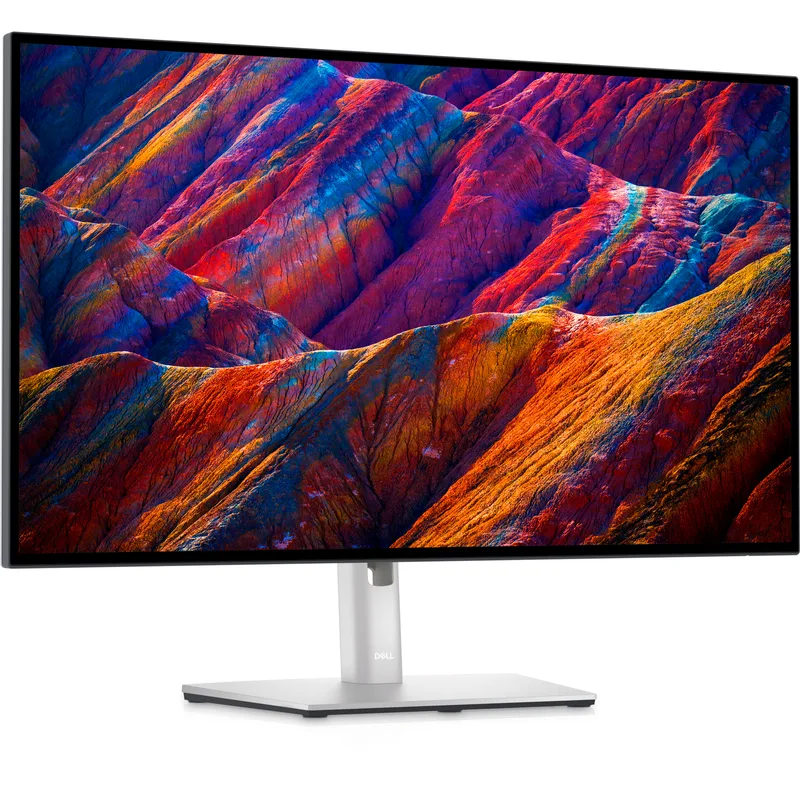
Dell UltraSharp U2723QE
Pros
- IPS Black panel delivers 2,000:1 contrast — noticeably deeper blacks than standard IPS at similar prices, without the viewing angle tradeoffs of VA panels
- 90W USB-C Power Delivery powers most MacBook Pros and high-performance Windows laptops at full speed on a single cable, eliminating the separate charger from your desk
- Built-in USB hub, RJ-45 Ethernet, and USB-C daisy-chaining turns the monitor into a full docking station — one USB-C cable from laptop connects keyboard, mouse, Ethernet, and additional USB devices
- 99% sRGB and 95% DCI-P3 color accuracy supports any professional display task from document editing to reviewing video footage on calls
Cons
- 60Hz refresh rate is standard for office work but worth noting for anyone who also games or does motion-heavy content review
- Around $499 vs $280 for the Dell S2722QC — the IPS Black panel and integrated hub justify the premium for full-time remote setups, but it is a real cost difference
Layer 2: Audio & Video
This is where most remote setups have gaps. The instinct is to prioritize video quality — what colleagues see. The evidence points the other way. Call participants forgive grainy video. Poor audio — muffled voice, background noise, echo — actively disrupts comprehension and strains attention throughout a call.
Priority order: audio first, then webcam, then lighting.
Webcam
A webcam mounted on top of your external monitor positions the camera at eye level. Built-in laptop cameras look up from below a low desk or down from the top of a small screen. Eye-level camera contact reads as more engaged and professional regardless of resolution.
For full coverage: Best Webcams for Video Calls → | Best Webcams for Mac →
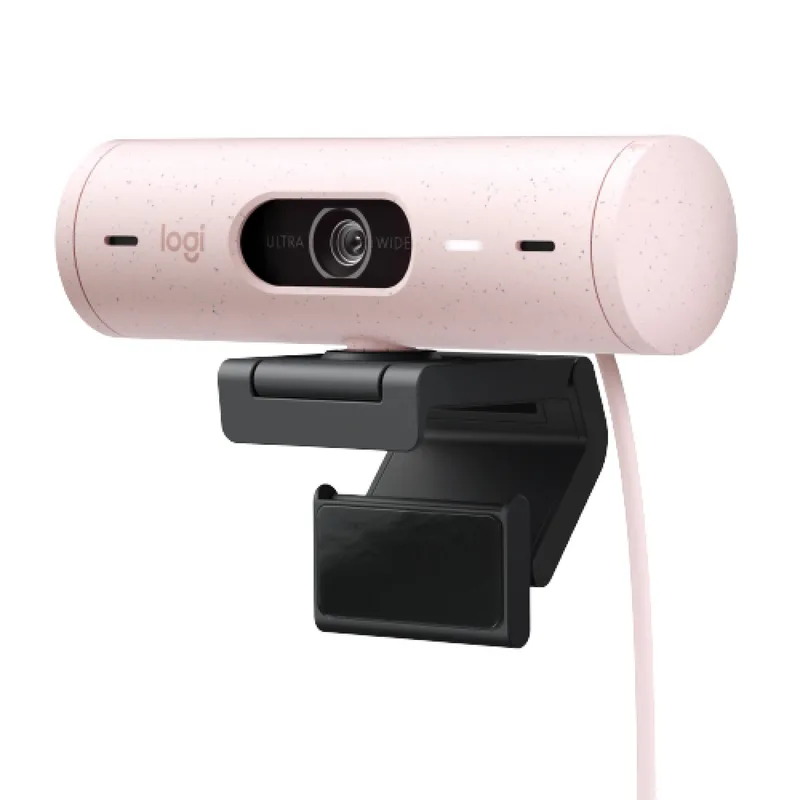
Logitech Brio 500
Pros
- Auto Light Correction adjusts exposure continuously — effective against backlit windows and mixed indoor lighting where most budget webcams overexpose
- Show Mode tilts the camera down to display your desk or keyboard during calls, useful when walking someone through physical hardware or documents
- USB-C cable is long enough for most desk configurations and connects directly to modern laptops and docks without an adapter
- Auto-Framing keeps you centered as you shift position — AI tracking is smooth at typical desk movement speeds without the jerky re-centering common in cheaper implementations
Cons
- 30fps at 1080p shows limitations in high-motion scenarios or when backlighting is severe enough to exceed what Auto Light Correction can compensate
- Logitech G HUB software is required for the full feature set — initial configuration adds friction for users expecting complete plug-and-play
Headset — Most Practical Audio Upgrade
A professional headset positions a microphone 6–8 inches from your mouth, passively isolates your ears from room noise, and works across every conferencing platform with zero configuration. For most remote workers — particularly those in less-than-ideal acoustic environments — this is the single most impactful audio upgrade.
For full comparison: Best Headsets for Remote Work →
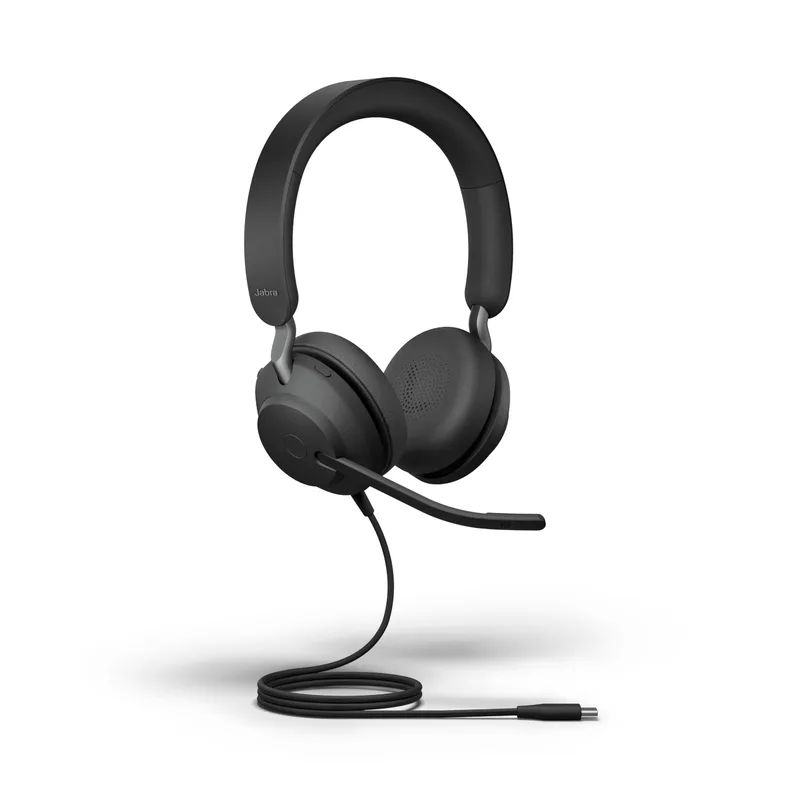
Jabra Evolve2 40 SE (2026)
Pros
- Three-microphone beamforming array focuses on your voice and rejects room noise from outside the pickup axis — noticeably cleaner call audio than single-mic headsets at similar prices
- 2026 version ships with both USB-C and USB-A cables, solving the adapter friction of earlier generations when switching between modern and legacy laptop ports
- Passive noise isolation combined with ANC covers both quiet focus sessions and noisier home environments without requiring Bluetooth or a charging cycle
- UC-certified and compatible with Zoom, Teams, Google Meet, and WebEx out of the box — no driver installation required
Cons
- Wired design limits movement radius — remote workers who frequently move around the home during calls may find a wireless headset more practical
- ANC requires USB power — passive isolation only when using a 3.5mm connection without USB
USB Microphone — Better for Quieter Offices
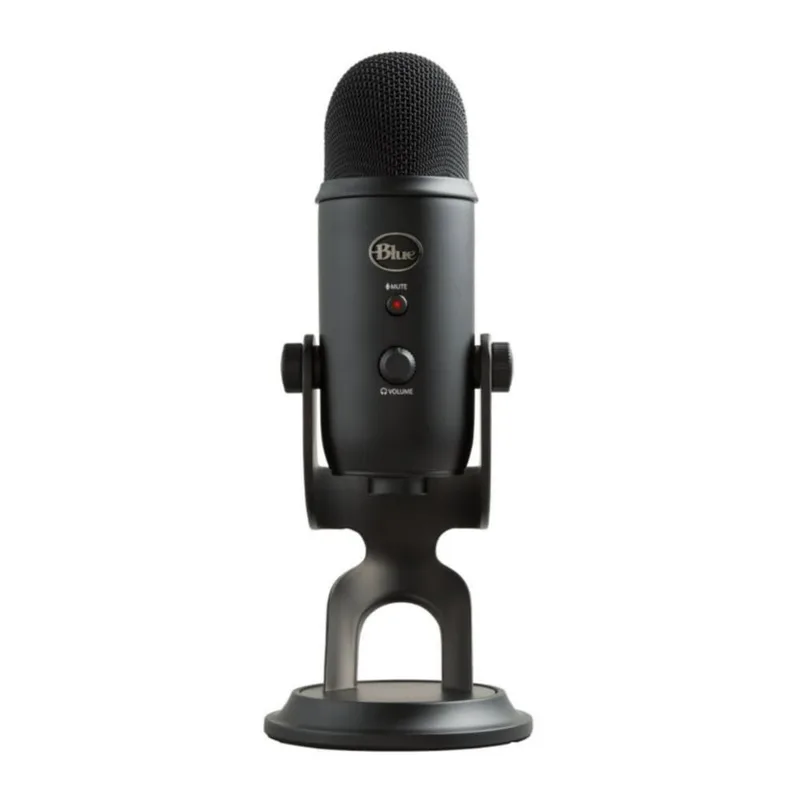
If wearing headphones all day is uncomfortable, a USB condenser microphone with separate speakers or headphones produces cleaner voice capture than any built-in mic. Best suited to quieter home offices with reasonable acoustic conditions.
For full comparison: Best Microphones for Remote Work →
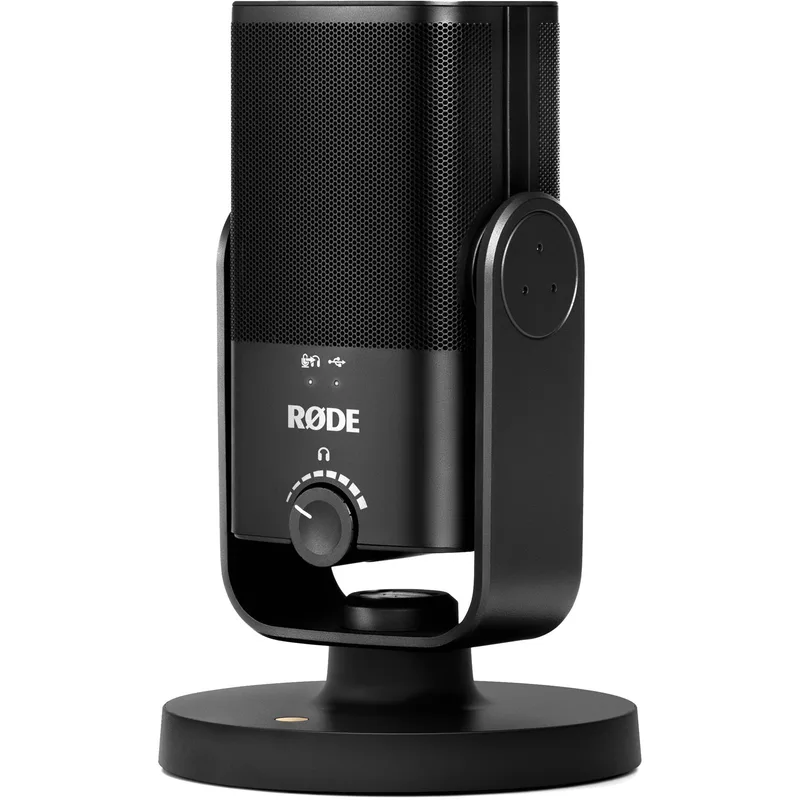
Rode NT-USB Mini
Pros
- Studio-grade condenser capsule produces warm, natural voice audio — clearly better than headset microphones or laptop built-ins according to consistent owner reports
- Integrated pop shield and compact desktop stand are included — the out-of-box setup requires no additional accessories for a professional-sounding result
- Headphone jack with zero-latency monitoring lets you hear your voice as it records, useful for catching audio issues before a high-stakes call
- Cardioid polar pattern rejects audio from behind and beside the microphone, helping in home offices with ambient noise from other areas of the room
Cons
- Microphone only — separate headphones or speakers required for private call listening, unlike an all-in-one headset
- Condenser capsules are more sensitive to room echo than dynamic microphones — performs best in spaces with soft surfaces and minimal echo
A note on lighting: A ring light or panel light positioned in front of your face is the most underrated video quality upgrade available. A $50 ring light paired with a $70 webcam frequently outperforms a $250 webcam under poor ambient lighting — because the improvement comes from light reaching your face, not from the camera sensor. Best Ring Lights for Video Calls →
Layer 3: Connectivity
Connectivity is where remote work setups most commonly have hidden weaknesses. A dropped call damages professional credibility in ways that slightly grainy video does not. A frozen shared screen mid-presentation is worse than 720p.
USB-C Docking Station
A dock connects your laptop to all desk peripherals through a single cable. Rather than plugging in a monitor cable, USB hub, Ethernet adapter, and charger individually every morning, one USB-C connection to the dock carries everything. The quality-of-life improvement from this single-cable simplicity is significant for any laptop-primary setup.
For full comparison: Best USB-C Docking Stations → | Best Thunderbolt 4 Docks →
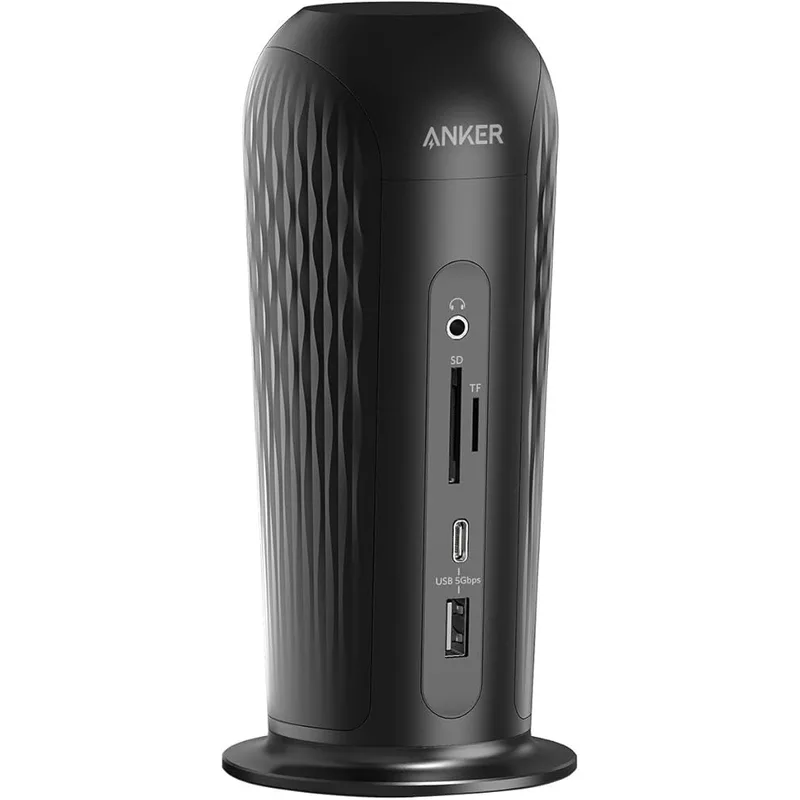
Anker PowerExpand 12-in-1 USB-C Dock
Pros
- 12 ports in a single unit covers nearly every peripheral a remote worker needs — display, drives, webcam, keyboard, Ethernet, and headset all from one cable to the laptop
- Both HDMI and DisplayPort outputs allow running two external monitors simultaneously from a single USB-C laptop connection
- Gigabit Ethernet port is the highest-value addition for laptop users who want wired network stability — eliminates a separate Ethernet adapter entirely
- SD and microSD slots support content creators and photographers who regularly move files from cameras or recording devices at the desk
Cons
- 60W charging is adequate for most ultrabooks and thin-and-light laptops but insufficient for high-performance 16-inch laptops under sustained load — Thunderbolt 4 docks with 96W+ PD are better suited for those
- USB-C 3.2 Gen 1 (5Gbps) bandwidth ceiling limits high-resolution multi-monitor daisy-chaining compared to Thunderbolt 4 solutions
Router
Ethernet is the correct answer for home office networking where physically practical. Lower latency, no radio interference, and zero channel congestion compared to WiFi. If a cable from router to desk is possible, run it. If not, a powerline adapter ($50–$70) carries the network signal over existing electrical wiring — near-wired performance without running new cable.
If WiFi is necessary, WiFi 6E is worth the investment in 2026 for offices with multiple connected devices. The 6GHz band provides bandwidth that no prior WiFi generation offered.
For full comparison: Best Routers for Home Office → | Best Mesh WiFi Systems →
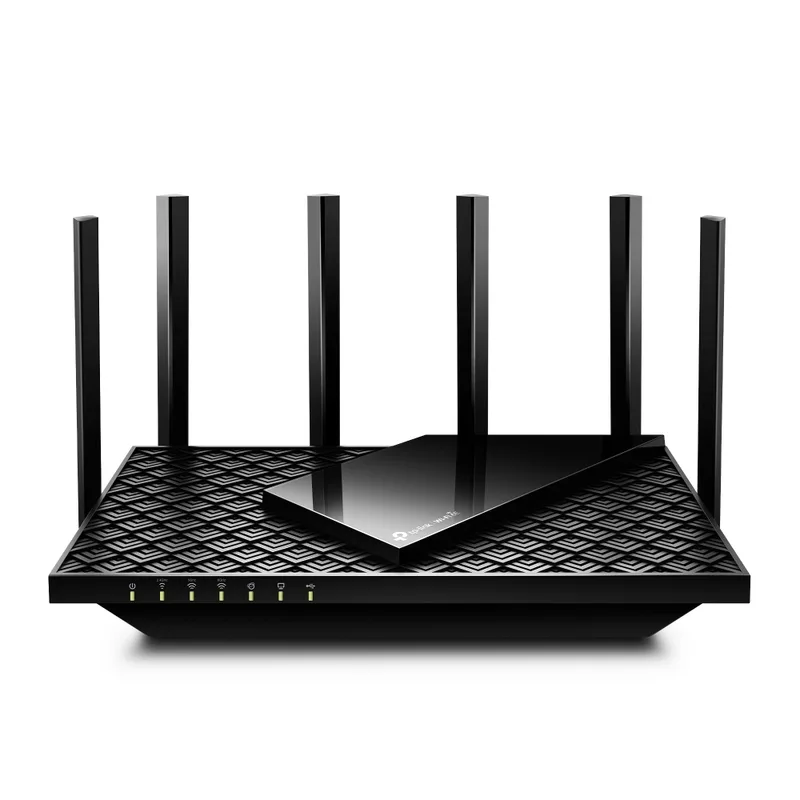
TP-Link Archer AXE75
Pros
- WiFi 6E adds a 6GHz band completely free of legacy device congestion — compatible devices get dedicated bandwidth without competing with older 2.4GHz appliances or IoT devices
- Quad-core processor handles QoS traffic prioritization effectively, keeping video call packets smooth while other household members stream or download
- WPA3 security and built-in VPN server (OpenVPN, WireGuard) reduce dependence on separate security hardware or subscription tools
- PCMag Editors' Choice recognition reflects consistent third-party validation at this price point — not marketing positioning
Cons
- 6GHz band benefit is limited to WiFi 6E-capable devices — older laptops and phones connect to 5GHz as they always have, with no immediate improvement
- Coverage suits most home offices but multi-story homes or layouts over 2,000 sq ft may need an additional OneMesh node
Layer 4: Computing
For most remote workers, the computing device is already in place. The relevant question is whether it is limiting you.
Signs computing is your weakest layer:
- Video calls drop frames even on stable Ethernet — this is rarely the CPU; check webcam drivers and network priority settings first
- Browser with 15+ tabs plus active screen share causes thermal throttling on thin-and-light laptops
- Running virtual machines or containerized development environments visibly slows everything else
Modern Apple Silicon (M3/M4) and AMD Ryzen 7 / Intel Core Ultra laptops handle nearly all standard remote work without becoming a bottleneck. RAM matters more than raw CPU speed for multi-tasking: 16GB is the practical 2026 minimum, 32GB if you run VMs or keep extensive browser sessions open routinely.
For full recommendations: Best Laptops for Remote Work → | Best Mini PCs for Home Office →
Layer 5: Software Stack
Hardware is the foundation; software is the structure built on it. The categories worth examining:
Communication:
- Slack / Teams for async text — use threads and channels, avoid DM chains that fragment context
- Zoom / Google Meet / Teams for synchronous calls — configure audio input and output once, leave settings consistent
- Loom for async video — replaces many short synchronous check-ins with recorded walkthroughs reviewable on any schedule
Focus tools:
- Krisp (free tier): AI noise suppression running as a virtual microphone — works in any conferencing app without hardware changes
- Rectangle (macOS) / PowerToys FancyZones (Windows): Window layout management for multi-monitor setups
- f.lux / macOS Night Shift: Blue light reduction during evening work sessions
Project and knowledge management:
- Notion / Obsidian: Async documentation and shared knowledge bases
- Linear / Jira / Asana: Task tracking scaled to team size
The critical 2026 software decision is resisting platform sprawl. Teams that add a specialized tool for every workflow gap end up with more context-switching, not less. Consolidate where multiple tools overlap before adding another.
The Stack by Budget
| Layer | Starter (~$500 total) | Solid (~$1,000 total) | Premium ($2,000+) |
|---|---|---|---|
| Display | 27” QHD USB-C 65W ($200) | Dell S2722QC 4K ($280) | Dell U2723QE 4K IPS Black ($499) |
| Webcam | Logitech C920s ($70) | Logitech Brio 500 ($129) | Insta360 Link 4K ($300) |
| Audio | Blue Snowball iCE ($50) | Jabra Evolve2 40 SE ($129) | Jabra Evolve2 85 + Rode NT-USB Mini |
| Dock | Anker 7-in-1 USB-C Hub ($35) | Anker PowerExpand 12-in-1 ($80) | CalDigit TS4 Thunderbolt 4 ($250) |
| Router | TP-Link Archer AX55 ($80) | TP-Link Archer AXE75 ($115) | ASUS ZenWiFi Pro ET12 ($350) |
| Peripherals | Laptop stand + external KB/mouse ($60) | Ergonomic KB, mouse, monitor arm ($200) | Herman Miller + standing desk ($1,000+) |
For ergonomic peripherals and desk accessories: Best Ergonomic Keyboards → | Best Ergonomic Mice → | Best Standing Desks →
FAQ
What should I upgrade first?
Start with the layer that is most visibly limiting your current setup. In order of frequency for most remote workers: (1) no external monitor — working from a laptop screen alone is the most common and highest-impact gap to address; (2) poor call audio — if you’re on calls daily with a built-in laptop mic, a headset or USB microphone is next; (3) unreliable network — if calls freeze or drop regularly, confirm you’re on Ethernet before blaming the router. Those three upgrades in sequence cover the majority of remote work friction for most setups.
Do I need both a headset and a USB microphone?
No. They address the same problem — capturing your voice clearly on calls. A headset is more practical for noisy home environments (it positions the mic close to your mouth and isolates your ears from room noise). A USB microphone gives better voice quality in quiet spaces and is more comfortable for all-day use if you dislike wearing headphones. Choose one based on your environment and listening preference.
Is a docking station worth it for a single-monitor setup?
Yes, for any laptop-primary setup. A dock eliminates the daily adapter shuffle — instead of individually connecting power, monitor, Ethernet, and USB devices each morning, one cable handles everything. The quality-of-life improvement from that simplicity is significant enough to justify a $70–$100 hub even in setups with a single external display.
How much does the router matter for video call quality?
It matters less than Ethernet access. A wired connection from your desk to the router eliminates WiFi latency variance and radio interference — the two most frequent causes of video call drops that remote workers attribute to the router itself. If a direct cable isn’t practical, a powerline adapter ($50–$70) provides near-wired performance over existing electrical wiring. Only after ruling out WiFi as a variable does upgrading the router itself produce meaningful call quality improvement.
How do I know if my computing hardware is the bottleneck?
The clearest signal: your machine runs hot and the fans run loud during calls. Thermal throttling on thin-and-light laptops during screen share plus active video is common and produces stuttering that looks like a network issue. Check CPU and memory usage during a call (Activity Monitor on macOS, Task Manager on Windows). If CPU is consistently above 80% during calls, computing may be the constraint. If CPU is moderate but calls still drop, check network first.
Conclusion
A complete remote work tech stack is a set of deliberate decisions across six layers — not a single purchase. The display defines your working environment. Audio quality determines how colleagues experience every call you’re on. Connectivity sets call reliability. Computing sets the ceiling on parallel workloads.
The most effective approach: identify your current weakest layer, consult the relevant roundup, make one upgrade, and assess the impact. Incremental improvement with clear measurement beats buying everything at once without understanding what actually changed.
Top pick per layer: Dell U2723QE (display) → Jabra Evolve2 40 SE 2026 (headset) → Logitech Brio 500 (webcam) → Anker PowerExpand 12-in-1 (dock) → TP-Link Archer AXE75 (router)
Detailed Reviews
Dell UltraSharp U2723QE
Pros
- IPS Black panel delivers 2,000:1 contrast — noticeably deeper blacks than standard IPS at similar prices, without the viewing angle tradeoffs of VA panels
- 90W USB-C Power Delivery powers most MacBook Pros and high-performance Windows laptops at full speed on a single cable, eliminating the separate charger from your desk
- Built-in USB hub, RJ-45 Ethernet, and USB-C daisy-chaining turns the monitor into a full docking station — one USB-C cable from laptop connects keyboard, mouse, Ethernet, and additional USB devices
- 99% sRGB and 95% DCI-P3 color accuracy supports any professional display task from document editing to reviewing video footage on calls
Cons
- 60Hz refresh rate is standard for office work but worth noting for anyone who also games or does motion-heavy content review
- Around $499 vs $280 for the Dell S2722QC — the IPS Black panel and integrated hub justify the premium for full-time remote setups, but it is a real cost difference
Logitech Brio 500
Pros
- Auto Light Correction adjusts exposure continuously — effective against backlit windows and mixed indoor lighting where most budget webcams overexpose
- Show Mode tilts the camera down to display your desk or keyboard during calls, useful when walking someone through physical hardware or documents
- USB-C cable is long enough for most desk configurations and connects directly to modern laptops and docks without an adapter
- Auto-Framing keeps you centered as you shift position — AI tracking is smooth at typical desk movement speeds without the jerky re-centering common in cheaper implementations
Cons
- 30fps at 1080p shows limitations in high-motion scenarios or when backlighting is severe enough to exceed what Auto Light Correction can compensate
- Logitech G HUB software is required for the full feature set — initial configuration adds friction for users expecting complete plug-and-play
Jabra Evolve2 40 SE (2026)
Pros
- Three-microphone beamforming array focuses on your voice and rejects room noise from outside the pickup axis — noticeably cleaner call audio than single-mic headsets at similar prices
- 2026 version ships with both USB-C and USB-A cables, solving the adapter friction of earlier generations when switching between modern and legacy laptop ports
- Passive noise isolation combined with ANC covers both quiet focus sessions and noisier home environments without requiring Bluetooth or a charging cycle
- UC-certified and compatible with Zoom, Teams, Google Meet, and WebEx out of the box — no driver installation required
Cons
- Wired design limits movement radius — remote workers who frequently move around the home during calls may find a wireless headset more practical
- ANC requires USB power — passive isolation only when using a 3.5mm connection without USB
Rode NT-USB Mini
Pros
- Studio-grade condenser capsule produces warm, natural voice audio — clearly better than headset microphones or laptop built-ins according to consistent owner reports
- Integrated pop shield and compact desktop stand are included — the out-of-box setup requires no additional accessories for a professional-sounding result
- Headphone jack with zero-latency monitoring lets you hear your voice as it records, useful for catching audio issues before a high-stakes call
- Cardioid polar pattern rejects audio from behind and beside the microphone, helping in home offices with ambient noise from other areas of the room
Cons
- Microphone only — separate headphones or speakers required for private call listening, unlike an all-in-one headset
- Condenser capsules are more sensitive to room echo than dynamic microphones — performs best in spaces with soft surfaces and minimal echo
Anker PowerExpand 12-in-1 USB-C Dock
Pros
- 12 ports in a single unit covers nearly every peripheral a remote worker needs — display, drives, webcam, keyboard, Ethernet, and headset all from one cable to the laptop
- Both HDMI and DisplayPort outputs allow running two external monitors simultaneously from a single USB-C laptop connection
- Gigabit Ethernet port is the highest-value addition for laptop users who want wired network stability — eliminates a separate Ethernet adapter entirely
- SD and microSD slots support content creators and photographers who regularly move files from cameras or recording devices at the desk
Cons
- 60W charging is adequate for most ultrabooks and thin-and-light laptops but insufficient for high-performance 16-inch laptops under sustained load — Thunderbolt 4 docks with 96W+ PD are better suited for those
- USB-C 3.2 Gen 1 (5Gbps) bandwidth ceiling limits high-resolution multi-monitor daisy-chaining compared to Thunderbolt 4 solutions
TP-Link Archer AXE75
Pros
- WiFi 6E adds a 6GHz band completely free of legacy device congestion — compatible devices get dedicated bandwidth without competing with older 2.4GHz appliances or IoT devices
- Quad-core processor handles QoS traffic prioritization effectively, keeping video call packets smooth while other household members stream or download
- WPA3 security and built-in VPN server (OpenVPN, WireGuard) reduce dependence on separate security hardware or subscription tools
- PCMag Editors' Choice recognition reflects consistent third-party validation at this price point — not marketing positioning
Cons
- 6GHz band benefit is limited to WiFi 6E-capable devices — older laptops and phones connect to 5GHz as they always have, with no immediate improvement
- Coverage suits most home offices but multi-story homes or layouts over 2,000 sq ft may need an additional OneMesh node