Affiliate disclosure: SetupRanked earns a commission on qualifying purchases. Prices were verified at time of writing and may change.
Dual monitors made sense when desks were large and cables were hidden behind IT-managed furniture. For a home office, that setup usually means two power bricks, a bezel cutting through your video call background, a mouse crossing three feet of desk, and a neck that rotates the same direction all day. An ultrawide solves all of this in one purchase.
Quick pick: The Dell UltraSharp U3423WE is the best overall. One USB-C cable replaces your dock, charges your laptop, and connects Ethernet. If budget is the priority, the LG 34WP65C-B at $399 is the strongest value here.
This guide covers the five best ultrawide monitors for home office and hybrid work use in 2026, ranked by total value to a remote worker — not gaming benchmarks.
What to Look for in an Ultrawide Monitor for Remote Work
USB-C with Power Delivery. The single biggest upgrade for laptop users. A monitor with 65W–90W USB-C charging means one cable handles display output, laptop charging, and USB ports simultaneously. No dock required.
Panel type. IPS panels have better viewing angles and more accurate color — useful for document review, screen sharing, or design work. VA panels have deeper blacks and higher contrast but narrower viewing angles. For most remote workers, IPS is the safer choice.
Resolution. The standard for 34-inch ultrawides is 3440x1440 (WQHD). This gives you meaningfully more workspace than any 1080p or 1440p flat panel. The 38-inch LG runs 3840x1600, adding extra vertical space.
Curvature. Most 34-inch ultrawides use 1800R or 2300R curves, which help reduce eye fatigue across a wider panel. Flatter curves work better for precise creative work. Steeper curves (like Samsung’s 1000R) feel more immersive but can distort straight lines near the edges.
Built-in connectivity. Business-grade ultrawides include Ethernet, USB hubs, and daisy-chain DisplayPort. These simplify your desk significantly and eliminate the need for a separate dock.
Best Ultrawide Monitors for Remote Workers in 2026
1. Dell UltraSharp U3423WE — Editor’s Pick
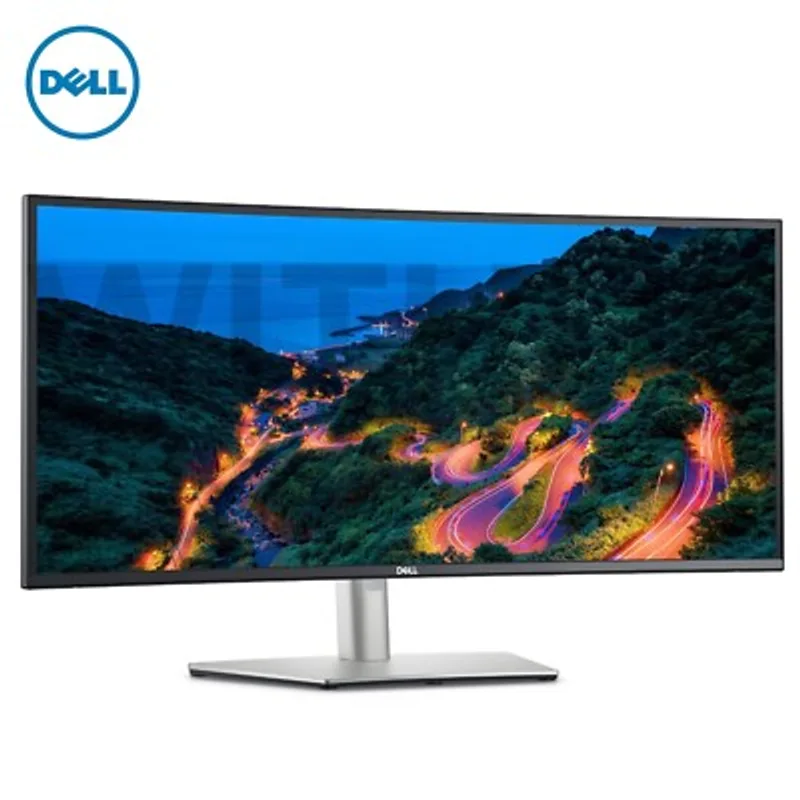
The U3423WE is the most complete package in this comparison, and the reason is simple: it replaces your dock. Connect your MacBook or Windows laptop via USB-C and you get 90W charging, a 3440x1440 display, wired Ethernet, and four additional USB ports — all through one cable. There’s no separate dock, no extra power brick, and no cable tangle behind the monitor.
The IPS panel is factory calibrated to Delta E under 2. Colors are accurate out of the box without any manual adjustments. At 3440x1440, the panel is wide enough to run a browser, a Slack window, and a spreadsheet simultaneously without any window obscuring another.
The DisplayPort daisy-chain output is a sleeper feature. If you later want a second monitor for reference materials or a dedicated camera feed, you can add one without buying additional hardware.
Who should buy this: Remote workers who want to simplify their desk down to one cable and eliminate a separate dock. Also ideal for anyone running a MacBook Pro or a business-class Windows laptop that benefits from a single power and data connection.
Who should skip this: Anyone who games after work hours — 60Hz is the ceiling here. For gaming-plus-work use, the LG 34WP65C-B covers both.
At $779-$899, the U3423WE is not cheap. But it replaces $100–$200 worth of hub and dock hardware, which changes the math considerably.
2. LG 34WP65C-B — Best Value
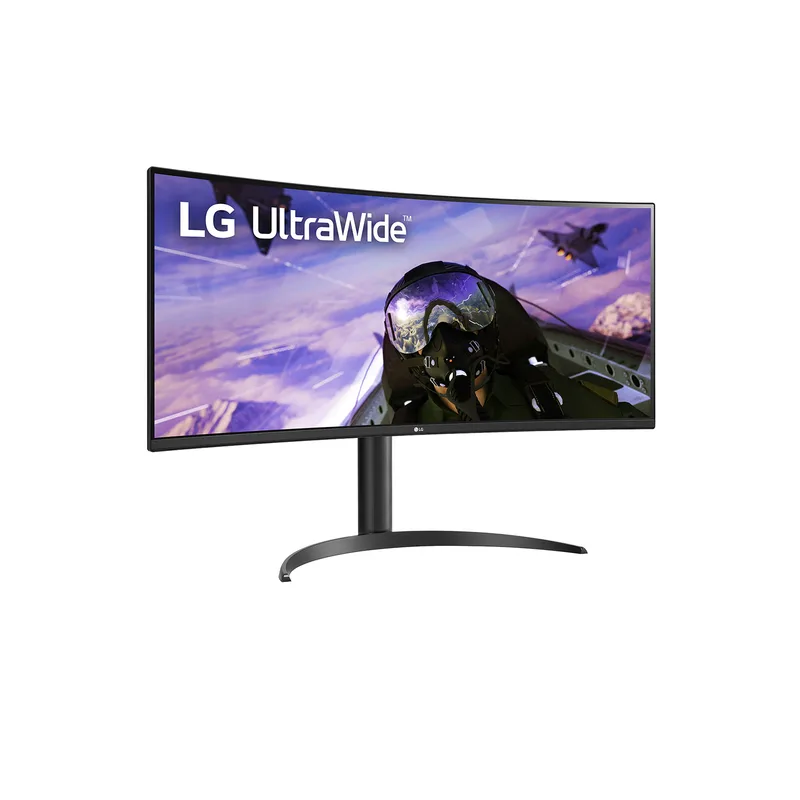
The LG 34WP65C-B sits at $399, making it the most affordable high-quality ultrawide here. The VA panel delivers stronger contrast and deeper blacks than IPS competitors at this price, and 160Hz is the fastest refresh rate in this comparison — well above the 60Hz standard at this price tier.
For remote workers, the main limitation is connectivity. No USB-C input, no Ethernet, no USB hub. On a Windows laptop with HDMI or DisplayPort output, this is straightforward. On a newer MacBook, you need an adapter plus a separate hub.
The 1800R curve, 3440x1440 resolution, and borderless design provide everything a remote worker actually needs from an ultrawide. The panel sits cleanly behind you on video calls. Windows tile easily. At $399, this is the pick for workers who do not need one-cable simplicity and want to spend as little as possible without sacrificing screen quality.
Who should buy this: Windows users with HDMI or DisplayPort output, or MacBook users who already own a dock. Good for anyone who games after hours — 160Hz handles both work and play well.
Who should skip this: MacBook users who want a single-cable setup. The lack of USB-C makes that impossible without additional hardware.
3. Samsung ViewFinity S65UA
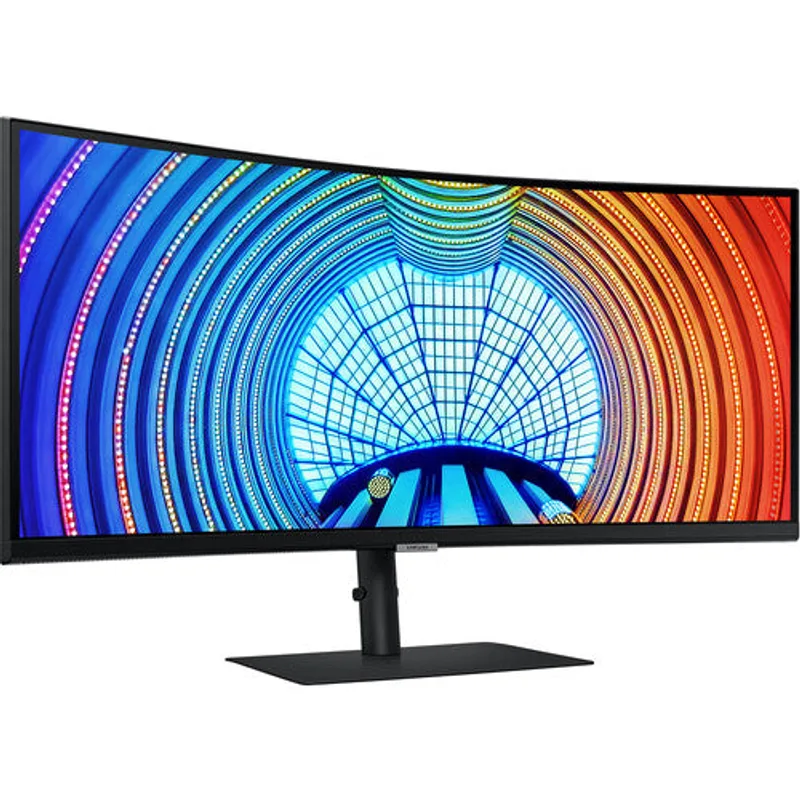
The Samsung S65UA has dropped to $329, making it a surprisingly strong middle-ground option. Unlike the LG value pick, this one includes 90W USB-C and built-in Ethernet — so a true one-cable desk setup is supported.
The 1000R curve is the deepest of any monitor here. It looks impressive and reduces eye movement across the wide panel. The trade-off is text distortion near the far edges. Most remote work happens in narrower application windows — email, Slack, browsers, spreadsheets — so the distortion is rarely noticeable in practice. Those who read full-width documents spanning the entire panel may find it occasionally irritating.
TUV-certified Intelligent Eye Care adjusts brightness and color temperature based on ambient lighting automatically. For long workdays where light shifts from bright morning to dim afternoon, this reduces eye fatigue without manual intervention.
Who should buy this: Remote workers who want one-cable connectivity and built-in Ethernet at a lower price than the Dell. The value at $329 for this feature set is hard to beat.
Who should skip this: Anyone who reads full-width documents frequently or needs wide viewing angles for sharing their screen with others in the room.
4. ASUS ProArt PA348CGV
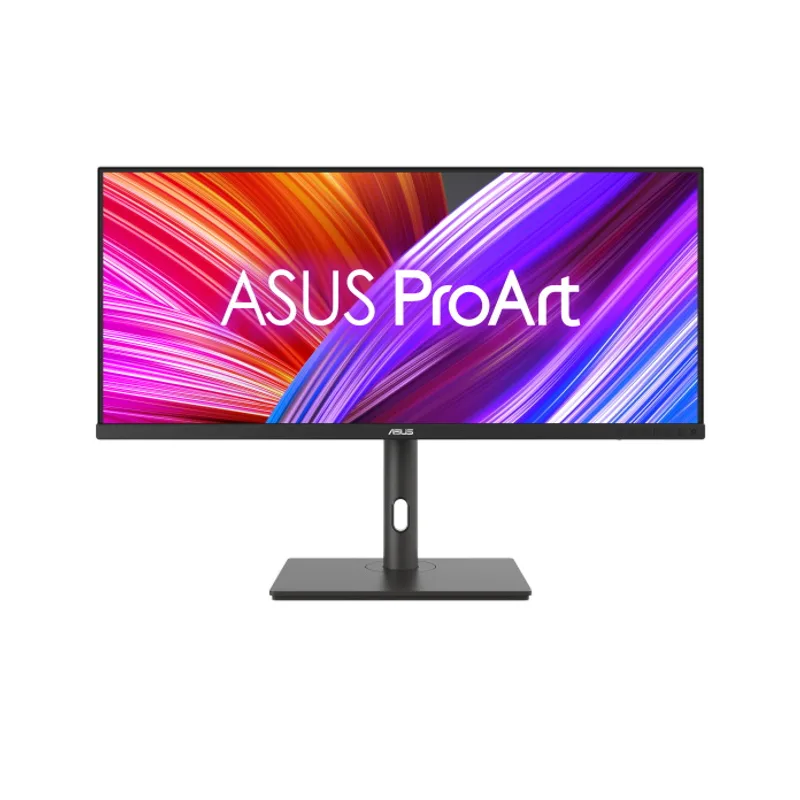
The ASUS ProArt PA348CGV is built for remote workers who also do creative work. Factory Calman-verified color, 98% DCI-P3 coverage, and Delta E under 2 make this the most color-accurate display in this comparison.
The flat panel is deliberate. Creative professionals prefer flat screens for precise work, and the flatness also means no edge distortion for full-width document reading. The 120Hz refresh rate makes scrolling and window animations noticeably smoother than the 60Hz options here — a small but real quality-of-life improvement for a monitor you stare at all day.
At $699, it offers better color accuracy than the Dell at a similar price tier. The trade-off is no built-in Ethernet and no USB hub — you will need a separate dock if USB connectivity matters.
Who should buy this: Designers, photographers, video editors, or any remote worker whose output includes color-sensitive creative work alongside standard productivity tasks.
Who should skip this: Workers who want built-in hub and Ethernet in one cable without adding a separate dock.
5. LG 38WP85C-W — Best Premium
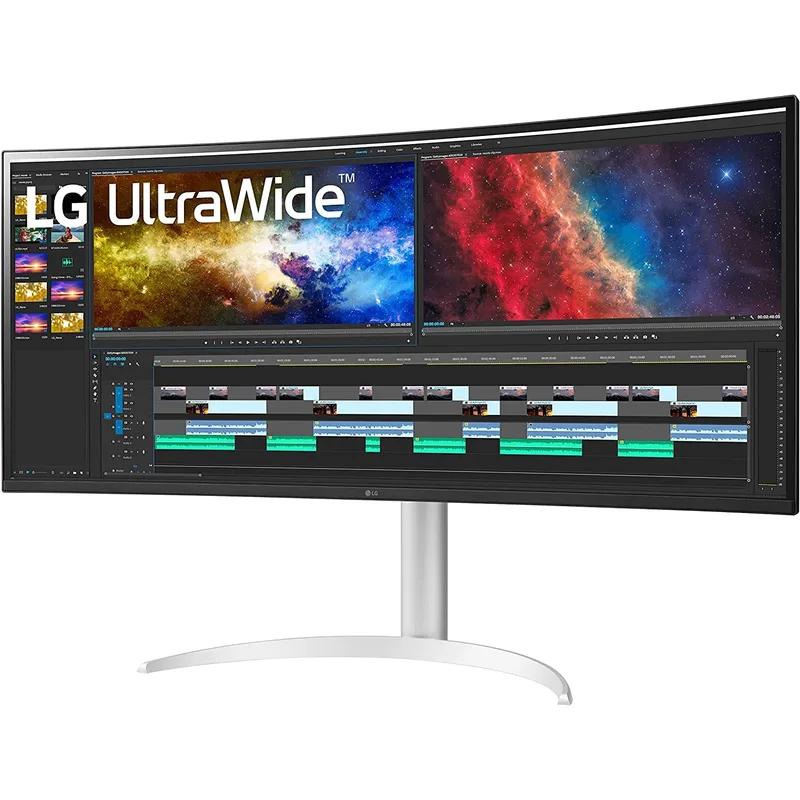
The LG 38WP85C-W steps up to 38 inches and 3840x1600 resolution. That extra size and resolution matters — you get more vertical workspace than any 34-inch model, which directly benefits anyone reading long documents, reviewing code, or working with timelines in video or audio software.
The IPS panel covers 95% DCI-P3 and provides accurate, wide-angle viewing. At 90W USB-C, it supports a full single-cable laptop connection. The 2300R curve is gentle enough to avoid edge distortion while still reducing eye travel across the wider panel.
The limiting factors are physical. The 38-inch panel requires a desk with at least 24 inches of depth — shallower desks position the screen uncomfortably close. At $1,099-$1,299, the cost needs to be justified by specific workflow requirements.
Who should buy this: Remote workers dealing with long documents, extensive code, or video timelines where additional vertical real estate translates to real time savings. Also worthwhile for anyone who regularly runs four application windows simultaneously.
Who should skip this: Small desk users and anyone who cannot justify the price premium over a solid 34-inch option.
Ultrawide Monitor Comparison Table
| Monitor | Size | Resolution | Curve | USB-C PD | Ethernet | Price | Rating |
|---|---|---|---|---|---|---|---|
| Dell U3423WE | 34” | 3440x1440 | 1800R | 90W | Yes | $688.98-$799.00 as of Oct 18, 2026 | 9.4 |
| LG 34WP65C-B | 34” | 3440x1440 | 1800R | No | No | Unavailable | 8.9 |
| Samsung S65UA | 34” | 3440x1440 | 1000R | 90W | Yes | Unavailable | 8.7 |
| ASUS ProArt PA348CGV | 34” | 3440x1440 | Flat | 90W | No | $729.00 as of Oct 18, 2026 | 8.6 |
| LG 38WP85C-W | 38” | 3840x1600 | 2300R | 90W | No | Unavailable | 9.1 |
Does an Ultrawide Monitor Actually Improve Remote Work?
For most remote workers, yes — and the primary reason is neck mechanics, not screen real estate. Dual monitors require physically turning your head between two displays throughout the day. Over 8 hours, that repetitive rotation contributes to neck and shoulder fatigue.
An ultrawide positions all content within a single field of view. You rotate your eyes, not your neck. Window management also changes fundamentally — modern operating systems support snapping windows to thirds or quarters of an ultrawide, so three applications can sit in view simultaneously without any overlap.
Video call backgrounds benefit too. A single ultrawide sits centered behind you on camera. Dual monitors often put one screen partially off-frame, or place the bezel between them in view — neither looks professional during calls.
Will an Ultrawide Work with My MacBook?
All five monitors in this roundup are compatible with Apple Silicon MacBooks. MacBooks from 2021 onward support one external display natively via Thunderbolt 4 / USB4. Monitors with USB-C inputs — Dell, Samsung, ASUS, LG 38” — connect with a single USB-C cable and deliver display output, charging, and hub functionality simultaneously.
The LG 34WP65C-B, which lacks USB-C input, connects via HDMI or DisplayPort with an adapter. A USB-C to HDMI adapter handles this and is widely available.
34-Inch vs. 38-Inch: Which Should You Choose?
A 34-inch ultrawide at 3440x1440 is the right choice for most remote workers. It fits on standard desks, provides enough horizontal space for three-window productivity, and covers a wide price range.
A 38-inch ultrawide at 3840x1600 is worth the premium if your work involves long vertical documents, code, video timelines, or any workflow where more visible lines translates to faster output. The desk depth and cost requirements are real constraints.
For a first ultrawide, start with 34 inches. Most remote workers who make the switch find it more than sufficient.
Does an Ultrawide Replace Dual Monitors?
For most remote work workflows, yes. The common objection is the inability to run different content full-screen on two separate panels — a full-screen video call on one screen and notes on another. Ultrawides do not replicate this exactly: you tile windows side by side within the single panel, so neither is truly full-screen.
Most video call applications (Zoom, Teams, Meet) work well in a split-view on an ultrawide. The practical difference from a dual setup is minimal, and the benefits — cleaner background, no bezel, simpler cable management — outweigh it for the majority of remote workers.
FAQ
Can I use an ultrawide monitor with a standing desk?
Yes. All five monitors include height-adjustable stands. Raise the monitor when standing, lower it when seated. VESA mounting is supported on all models if you prefer a monitor arm for more positioning flexibility.
What GPU or laptop port do I need for a 3440x1440 ultrawide?
Any modern laptop with HDMI 1.4, HDMI 2.0, DisplayPort 1.2, or USB-C with DisplayPort Alt Mode will drive a 3440x1440 ultrawide at 60Hz. Higher refresh rates (100Hz, 120Hz, 160Hz) require HDMI 2.0, DisplayPort 1.4, or USB-C with full Thunderbolt 4 / USB4 bandwidth.
How wide is a 34-inch ultrawide physically?
A 34-inch ultrawide (21:9 aspect ratio) is approximately 31.5 inches wide and 13.3 inches tall. Budget at least 32 inches of desk width, plus a few inches of clearance on each side.
Is a curved ultrawide better than a flat one for remote work?
Curved panels (1800R or 2300R) reduce eye travel fatigue on large screens — the edges sit at a more consistent distance from your eyes. Flat panels are better for precise document review and color work. For general remote work, either works well. The ASUS ProArt’s flat design suits creators; the curved Dell, Samsung, and LG options suit productivity-focused users.
Are ultrawides compatible with video conferencing software?
Yes. Zoom, Microsoft Teams, Google Meet, and Webex all run correctly on ultrawide monitors. Most apps open in a standard 16:9 window by default; you can tile alongside other applications or stretch to fill the panel.
Should I get an ultrawide or a 4K monitor?
A 4K monitor at 27 inches gives higher pixel density and sharper text. An ultrawide at 34 inches gives more horizontal workspace and easier application tiling. Remote workers who multitask heavily benefit more from the ultrawide. Those who need the sharpest possible image for detail work may prefer 4K.
Bottom Line
For most remote workers, the Dell UltraSharp U3423WE is the best overall pick — one cable, no dock needed, accurate IPS panel. If you’re on Windows and don’t need one-cable simplicity, the LG 34WP65C-B at $399 offers the most screen for the money. MacBook users who want USB-C and Ethernet without the Dell’s price tag should look at the Samsung S65UA at $329 — the value there is strong. Creators who need color accuracy get it with the ASUS ProArt PA348CGV. And for the best desk you can build around a single panel, the LG 38WP85C-W at 38 inches is the most impressive display here if you have the desk space for it.
Detailed Reviews
Dell UltraSharp U3423WE
Pros
- Built-in Ethernet and full USB hub replaces a separate dock entirely
- 90W USB-C charges most MacBooks and Windows laptops over one cable
- Factory calibrated IPS panel with Delta E under 2 for out-of-box accuracy
- DisplayPort daisy-chain output lets you add a second monitor later
Cons
- Only 60Hz — not suited for gaming after work hours
- Price is higher than most competitors at this size
LG 34WP65C-B
Pros
- 160Hz refresh rate — fastest at this price point
- Strong contrast and deep blacks from VA panel
- AMD FreeSync Premium for smooth motion
- Borderless design keeps video call backgrounds clean
Cons
- No USB-C input — requires adapter or dock for newer MacBooks
- VA panel has slower pixel response than IPS at similar prices
- No built-in USB hub or Ethernet
Samsung ViewFinity S65UA
Pros
- 90W USB-C and Ethernet for a true one-cable desk setup
- 1000R deep curve reduces eye travel across the panel
- TUV-certified Intelligent Eye Care adjusts brightness automatically
- 100Hz is a solid middle ground for productivity
Cons
- 1000R curve can distort text at screen edges for full-width documents
- VA panel not ideal for wide-angle viewing
ASUS ProArt PA348CGV
Pros
- 98% DCI-P3 and factory Calman-verified color accuracy out of the box
- Flat panel suits document review and creative work equally well
- 90W USB-C single-cable laptop connection
- 120Hz gives noticeably smoother scrolling than 60Hz options
Cons
- Flat panel means you miss the immersion benefit of a curve
- Aimed at creators — more accuracy than most remote workers need
LG 38WP85C-W
Pros
- 3840x1600 gives significantly more vertical space than 34-inch models
- IPS panel with 95% DCI-P3 for accurate, vivid color
- 90W USB-C single-cable connection to laptop
- 38 inches creates the largest immersive workspace in this comparison
Cons
- Premium price puts it out of reach for budget-conscious buyers
- Large panel requires a deep desk — not suited for compact home offices
- Only 60Hz refresh rate