Apple Silicon Macs have one of the best built-in cameras in any laptop — but it still cannot touch a dedicated external webcam for professional video calls. The gap widened further in 2026 with the Elgato Facecam 4K dropping to $159 and new AI tracking models from Insta360 arriving at sub-$150 prices, making 4K external webcams more accessible than ever for Mac users who want to upgrade their call presence without spending the $1,499 that Apple charges for the Studio Display.
Quick picks: For most Mac remote workers, the Logitech MX Brio ($199) is the clearest choice — it’s plug-and-play on macOS, produces sharp 4K video, and handles AI exposure adjustment automatically. If you create content or stream, the Elgato Facecam 4K ($159) delivers 4K@60fps with uncompressed output and manual camera controls — now $40 less than the MX Brio. On a budget, the Logitech C920S ($69-$89) is the most reliable 1080p upgrade available for macOS.
Every camera in this roundup is verified to work plug-and-play on macOS — no driver installation required. The key differences come down to resolution, sensor quality, AI features, and software compatibility on the Mac side.
Quick Comparison
| Webcam | Resolution | Sensor | macOS App | Auto-Framing | Price |
|---|---|---|---|---|---|
| Logitech MX Brio | 4K@30 / 1080p@60 | Upgraded | Logi Tune | No (crop) | $154.69-$169.99 as of Oct 18, 2026 |
| Elgato Facecam 4K | 4K@60 | 1/1.8” Sony | Camera Hub | No | $176.99 as of Oct 18, 2026 |
| Insta360 Link 2C | 4K@30 / 1080p@60 | 1/2” Sony | Link App | Yes (crop) | Unavailable |
| Razer Kiyo Pro Ultra | 4K@30 / 1080p@60 | 1/1.2” Sony | None on Mac | Yes | $311.48-$399.99 as of Oct 18, 2026 |
| Logitech C920S | 1080p@30 | Standard | Logi Tune | No | Unavailable |
1. Logitech MX Brio — Editor’s Pick
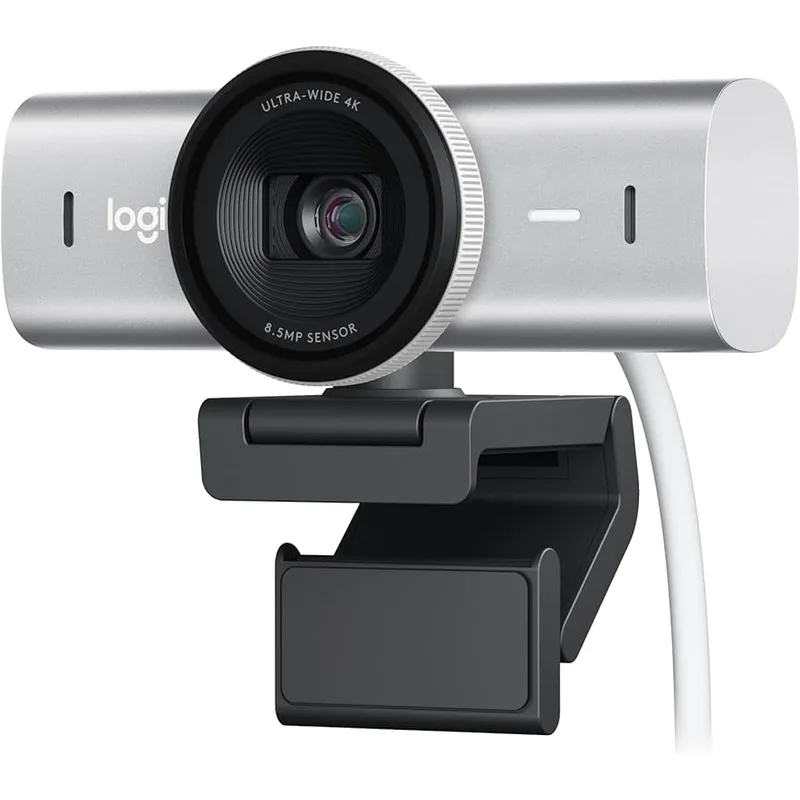
Logitech MX Brio
Pros
- Plug-and-play on macOS with zero configuration — installs as a native UVC device and works in Zoom, FaceTime, Teams, and Google Meet within seconds of plugging in
- AI-enhanced image processing adapts exposure and white balance in real time as lighting changes throughout the day — no manual adjustments needed between morning and afternoon calls
- Show Mode flips the camera to point forward and down at your desk, useful for demonstrating physical documents, sketches, or products in meetings
- Dual beamforming microphones with noise reduction handle keyboard noise and background ambient sound better than most built-in laptop mics
- Compact aluminum chassis looks and feels premium on any Mac setup — not the plastic-bodied construction common in this price range
- Adjustable FOV from 65° to 90° lets you control how much background is visible on calls — a practical privacy feature for home offices
Cons
- No PTZ (pan-tilt-zoom) motor — framing adjustments require physically repositioning the camera rather than software control
- 4K output is limited to 30fps; 4K@60fps requires the Elgato Facecam 4K or Razer Kiyo Pro Ultra if frame rate matters for your use case
- Logi Tune desktop app enhances features but is optional — camera functions without it, but AI optimization and FOV adjustment require the software
The MX Brio is the natural upgrade for Mac users who want better video calls without complexity. Plug it into any USB-C port on a MacBook, Mac Mini, or Mac Studio and it works immediately — macOS recognizes it as a native camera in Zoom, FaceTime, Teams, and every other conferencing app without a single driver or configuration step.
The AI-enhanced image processing is the practical differentiator over the older Brio 4K. The MX Brio adapts in real time: if you open a blind in the morning and direct light hits your face, the exposure adjusts within seconds. If you move from your desk to a darker corner for a standing call, the camera compensates. For remote workers who don’t want to manually manage camera settings, this automatic behavior consistently produces acceptable video in conditions where cheaper webcams would require intervention.
Show Mode is worth knowing about if you demonstrate physical items during calls. A press of a physical button flips the camera to point down at your desk, turning it into an overhead document camera — useful for showing physical notes, product samples, or sketching diagrams in real time. Not a feature most users will use daily, but genuinely useful when needed.
The adjustable 65°–78°–90° FOV means you can control how much background coworkers see. For a minimal background with less of your home visible on camera, 65° tightens the frame to your face. For showing a broader workspace or secondary monitors, 90° opens it up.
At $199, it’s $40 more than the Facecam 4K’s current street price of $159. The MX Brio wins on ease of use and macOS integration; the Facecam 4K wins on raw video quality for creators and now undercuts it on price. For most remote workers, the MX Brio’s all-day automatic performance and mic quality justify the premium over configuration-dependent manual control.
Best for: Mac remote workers who want a quality 4K camera that works without configuration, and benefits from built-in AI exposure management throughout varied lighting conditions.
2. Elgato Facecam 4K — Best for Creators
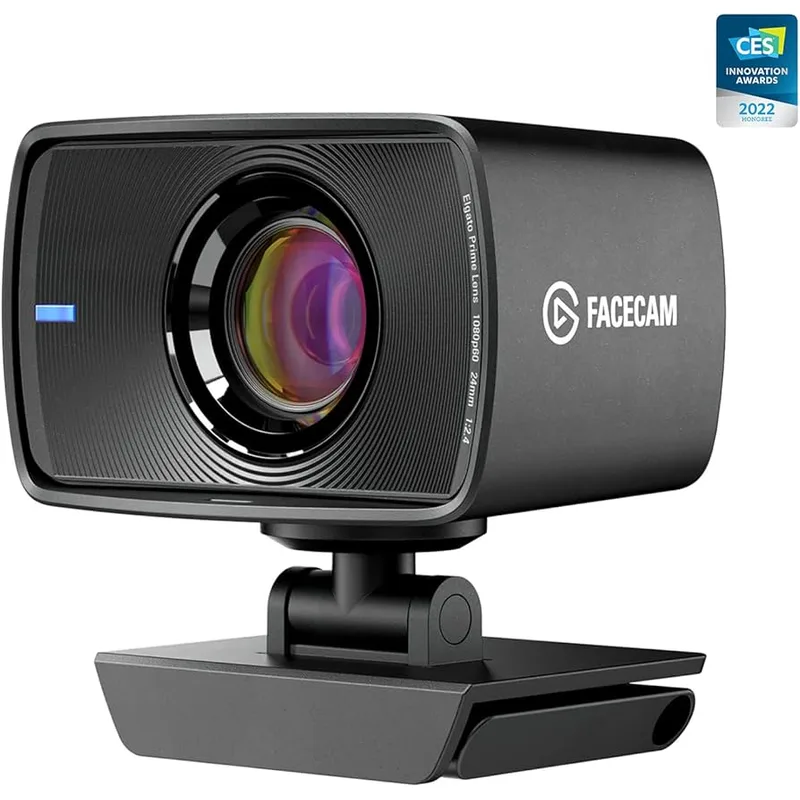
Elgato Facecam 4K
Pros
- The only webcam in this roundup to output 4K at 60fps — delivers significantly smoother motion during presentations, screen shares, and any movement-heavy content
- Uncompressed video over USB-C sends raw sensor data to the computer, avoiding the color banding and block artifacts that compressed webcams produce in high-contrast lighting
- Sony STARVIS 2 sensor combined with the 1/1.8" sensor size produces better color depth and dynamic range than sensors found in typical $200 webcams
- Camera Hub app on macOS gives manual control over exposure, white balance, ISO, and shutter — the level of control normally reserved for dedicated cameras or software like OBS
- Standard 49mm lens filter thread accepts real photography filters — circular polarizers, ND filters, and diffusion filters for anyone who wants DSLR-like lens customization
Cons
- Fixed focus is a limitation if you work closer than 0.5m to the camera or frequently move your position — autofocus models like the MX Brio adapt to position changes
- No built-in microphone — you need a separate mic or headset for audio, which is fine for dedicated setups but adds to total cost
- Camera Hub app is required to unlock the full feature set; basic mode without it works but wastes the manual control that differentiates this camera
The Elgato Facecam 4K launched in late 2025 at $200 and has since dropped to around $159 on Amazon — its sustained market price in 2026, not a temporary sale. It is the only webcam in this roundup capable of outputting true 4K at 60fps — and it does so uncompressed over USB-C, which matters more than most buyers realize.
Compressed webcam video (H.264 or MJPEG) processes video on the webcam itself, then sends it to the computer. This introduces artifacts: blocking in high-contrast areas, color smearing in motion, and quality degradation that gets worse after video conferencing software compresses the signal a second time. The Facecam 4K sends raw sensor data to the Mac, so the host machine handles processing. The result is cleaner, more accurate color and sharper detail through the entire Zoom/Teams compression pipeline.
The Sony STARVIS 2 sensor at 1/1.8” is the second-largest sensor in this roundup (behind only the Razer Kiyo Pro Ultra’s 1/1.2”). Larger sensors capture more light with less noise — particularly visible in offices where lighting isn’t perfect or changes throughout the day.
Fixed focus is the primary limitation. The lens is optimized for 0.5–1.2m — standard desk distance — and it does not autofocus. If you sit very close to your monitor, lean significantly forward during calls, or have a setup where your distance varies, the fixed focus can produce soft edges. For users who maintain a consistent desk position, this is a non-issue.
The Camera Hub app on macOS gives you manual control over exposure, white balance, shutter speed, and ISO — the kind of control normally found only in dedicated cameras or through OBS virtual camera setups. If you record video content, stream, or care about consistent color across different shooting conditions, this level of control is a meaningful advantage.
Best for: Mac users who record video content, stream, or want the highest raw image quality and manual camera control available in a USB webcam.
3. Insta360 Link 2C — Best AI Tracking
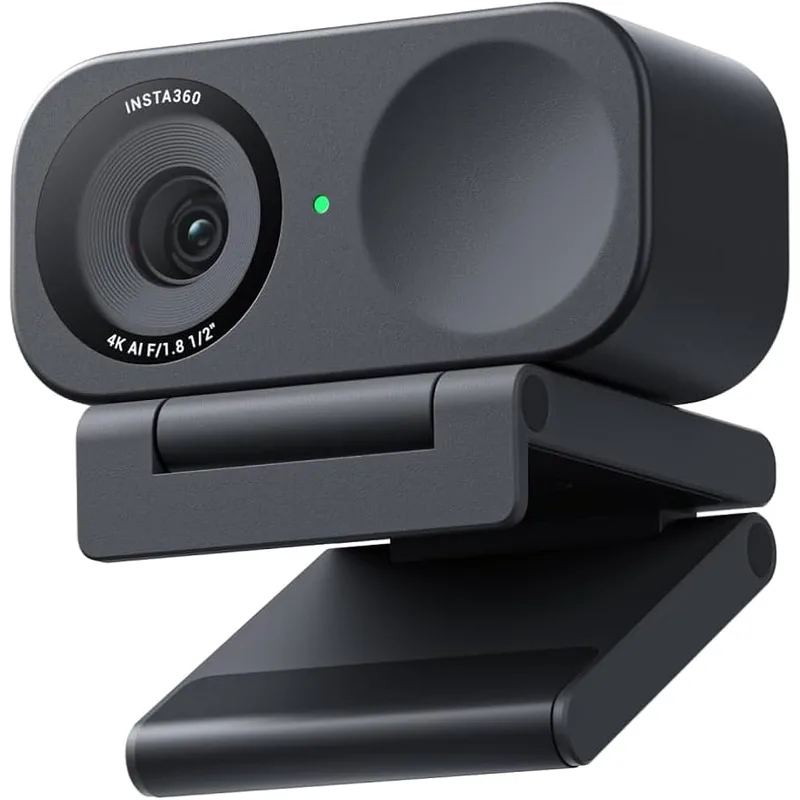
Insta360 Link 2C
Pros
- AI auto-framing tracks your position and keeps you centered in frame even when you stand up, lean forward, or move around your desk — genuinely useful for anyone who doesn't sit rigidly during calls
- 1/2" Sony Starlight sensor delivers strong low-light performance for a sub-$150 webcam — handles dim home office lighting without the grainy, washed-out output common at this price
- Gesture control lets you switch modes without touching the camera: raise a palm to activate auto-framing, make a peace sign for whiteboard mode that zooms into documents or whiteboards
- AI noise-canceling microphone distinguishes voice from ambient background noise effectively — ceiling fans, HVAC, and outdoor traffic are significantly reduced in recordings
- Compact design with magnetic mount makes it easy to position on monitors, laptops, or tripods — the magnetic attachment is secure and positions faster than traditional clip mounts
Cons
- No motorized gimbal (unlike the original Link) — AI auto-framing is software-based cropping rather than true PTZ movement, which reduces effective resolution when tracking
- 79.5° FOV is narrower than the 90° on the MX Brio and Facecam 4K — if you want a wide team-visible frame that shows your background, the narrower FOV can feel cramped
- Insta360 Link controller app on macOS is less polished than Logitech's Logi Tune or Elgato's Camera Hub — basic settings work fine but power users may find it limiting
The Link 2C is the best-value AI camera in this roundup. At $129-$149, it delivers 4K video, a 1/2” Sony Starlight sensor, and AI auto-framing that tracks your movement — a feature combination that costs $50-$70 more in competing options. Note: Insta360 launched the upgraded Link 2C Pro at CES 2026 ($199.99), which adds improved audio processing and a physically gimbal-free design refinement. The original Link 2C remains available and is the better buy if you don’t need the Pro’s audio upgrades.
The AI auto-framing is software-based crop-and-zoom rather than a physical motorized gimbal (which the original Link used). This means there is a resolution tradeoff when tracking: the camera crops from the 4K sensor to maintain a tight frame on you as you move, which slightly reduces effective resolution. In practice, for video calls where Zoom and Teams are compressing your feed anyway, the resolution reduction is not visible. For 4K content recording where you’re stationary, disable tracking and use the full sensor.
The gesture controls are a practical addition for anyone who manages their camera actively. Raising an open palm activates auto-framing mode. A peace sign switches to whiteboard mode, which zooms into a physical surface in front of you — a document, a notebook page, a whiteboard — without touching the camera. For calls that involve showing physical documents, this removes the awkward “let me hold this up to the camera” moment.
The 1/2” Sony Starlight sensor performs above expectations for this price range in dim environments. Home offices lit primarily by a desk lamp rather than overhead lighting, or rooms with limited window light, will see noticeably better results from the Link 2C than from a similarly-priced webcam with a smaller, cheaper sensor.
macOS support is straightforward: plug-and-play via USB-C, and the Insta360 Link controller app is available on Mac for adjusting framing modes, AI settings, and video parameters. The app is functional but less refined than Logitech’s or Elgato’s software.
Best for: Remote workers who move around during calls, want AI auto-framing under $150, or need good low-light performance without spending $350+.
4. Razer Kiyo Pro Ultra — Best Low-Light
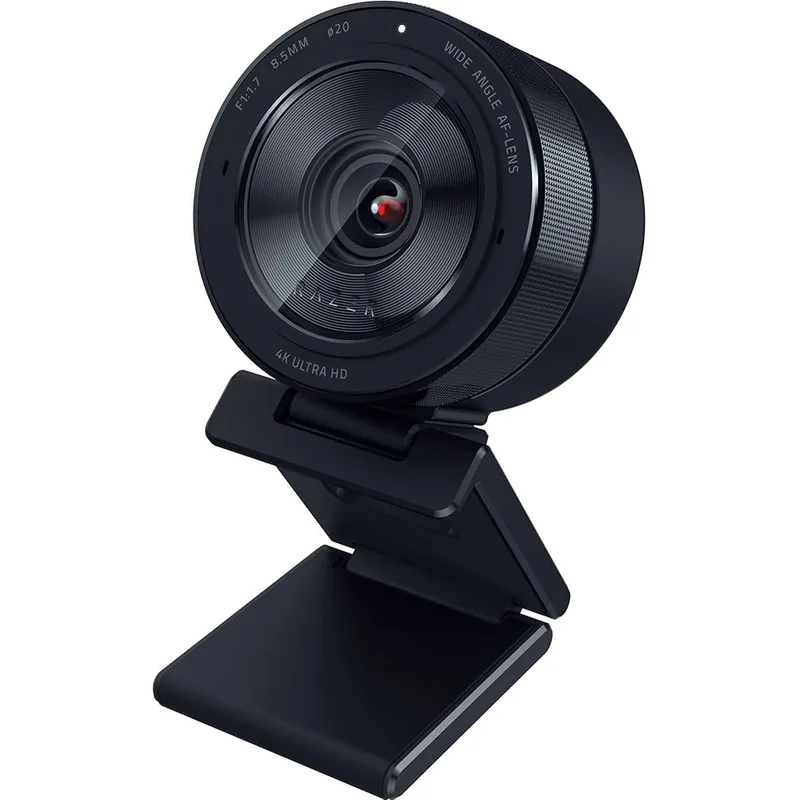
Razer Kiyo Pro Ultra
Pros
- The 1/1.2" sensor combined with f/1.7 aperture is the best light-gathering combination in this roundup — low-light performance noticeably outperforms every other webcam here, with less grain and better color accuracy in dim rooms
- AI face tracking and continuous autofocus keep you sharp and well-lit regardless of movement or changing ambient conditions — consistently accurate exposure that doesn't blow out highlights from windows
- HDR at 30fps handles high-contrast scenes like bright windows or desk lamps in frame without blowing out the background or darkening your face
- Built-in privacy shutter closes manually with a physical mechanism — no software required, and more reliable than electronic software shutters that depend on driver state
Cons
- Razer Synapse customization software is Windows-only — the webcam works plug-and-play on macOS, but you cannot adjust HDR, FOV, or AI features without a Windows machine
- USB-A connection requires an adapter on modern MacBooks, Mac Mini, and Mac Studio which have only USB-C/Thunderbolt ports
- $349-$399 is a significant premium over the $159-$199 options — the low-light advantage is real, but only meaningfully differentiating for poorly-lit home offices
The Razer Kiyo Pro Ultra has the best sensor hardware in this roundup by a clear margin. The 1/1.2” Sony STARVIS 2 sensor with an f/1.7 aperture lens gathers significantly more light than any competing webcam at any price. The difference is visible in dim rooms: the Kiyo Pro Ultra produces clean, well-exposed video in lighting conditions that push the MX Brio and Facecam 4K into grainy, underexposed territory.
For Mac users, the key caveat is software. Razer Synapse — the software that unlocks HDR modes, AI enhancements, FOV adjustment, and fine-tuned exposure settings — is Windows-only. On macOS, the Kiyo Pro Ultra operates as a standard UVC plug-and-play camera. It works, the image quality is excellent, but you cannot access any of the advanced features that differentiate it from cheaper options. If you primarily use macOS, you are paying for hardware that you cannot fully configure.
The USB-A connection is a minor but real annoyance for modern Mac users. Every current MacBook, Mac Mini, and Mac Studio has USB-C/Thunderbolt ports only. A USB-A to USB-C adapter works but adds a connection point and may affect USB 3.0 bandwidth on some port configurations.
At $349-$399, the Kiyo Pro Ultra is worth considering only if your home office is genuinely poorly lit — a basement office, a north-facing room with no direct light, or a setup where overhead lighting is inconsistent. In that specific scenario, the sensor hardware advantage is real and meaningfully differentiating. For a well-lit desk setup, the $159-$199 alternatives produce equivalent results at a fraction of the price.
Best for: Mac users in dim or challenging lighting environments who want the best possible low-light performance and don’t need macOS-specific software features.
5. Logitech C920S — Best Budget
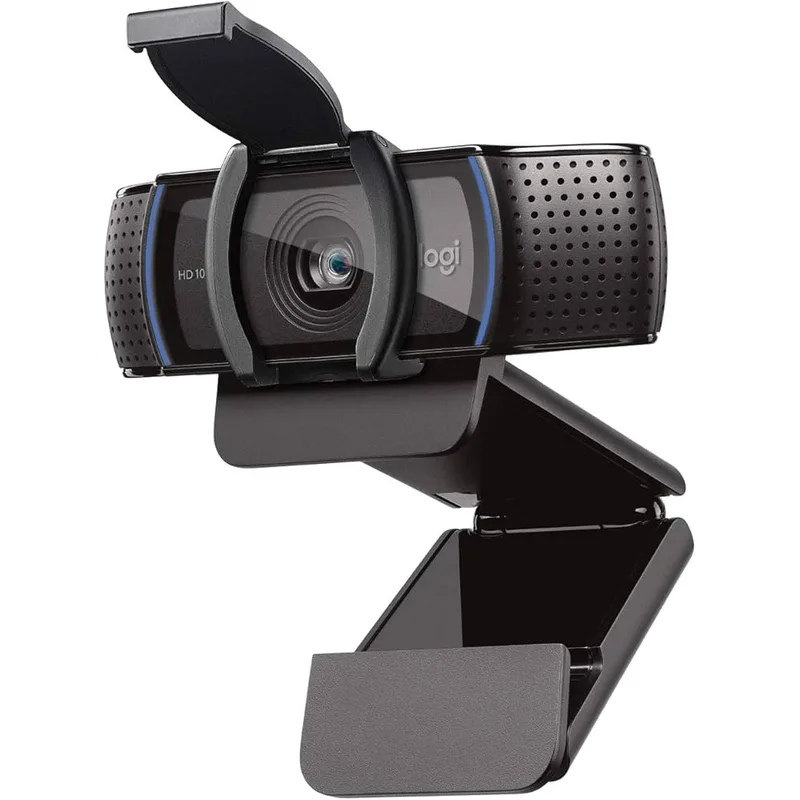
Logitech C920S
Pros
- The most reliable plug-and-play webcam on macOS — works with every version of macOS since 10.10 with zero driver installation, compatible with FaceTime, Zoom, Teams, Slack, and every platform without exception
- 1080p@30fps is more than sufficient for standard video calls — the quality gap between 1080p and 4K is essentially invisible in compressed video streams from Zoom and Teams
- Dual stereo microphones pick up voice clearly in typical home office conditions — for workers who don't need advanced noise cancellation, the built-in mics eliminate the need for a separate mic on calls
- At $69-$89, it costs a fraction of 4K options while delivering professional-quality 1080p — a strong first step up from any built-in laptop camera
Cons
- 1080p@30fps only — no 4K option and 30fps produces slightly less smooth motion compared to 60fps cameras, visible in fast head movements during active presentations
- USB-A connection requires an adapter on modern MacBooks — a minor inconvenience but worth factoring in if your desk setup is USB-C only
- No AI-based auto-framing or advanced noise reduction — performs well in normal conditions but lacks the intelligent processing of newer cameras at double the price
The C920S has been the most reliable 1080p webcam for Mac users for several years, and nothing has changed in 2026. It works on every macOS version since 10.10, connects via USB-A (with an adapter for modern Macs), and delivers clean 1080p@30fps video that looks substantially better than any built-in MacBook camera.
For most video calls, 1080p@30fps is all you need. Zoom, Google Meet, and Microsoft Teams all cap standard call quality at 720p or 1080p. The 4K from more expensive cameras gets downsampled before your colleagues see it. The meaningful quality factors — autofocus accuracy, microphone clarity, auto light correction — the C920S handles competently at its $69-$89 price.
The dual stereo mics are better than what most laptop mics offer. They don’t have the AI noise cancellation of the Insta360 or the beamforming technology of the MX Brio, but they handle standard home office audio — typing, moderate HVAC, normal room ambience — without the hollow, tunnel-echo sound common in built-in mics.
The C920S is the right answer for remote workers who want a meaningful upgrade from a laptop camera without spending $200, or who need a reliable secondary camera for a spare machine or travel setup. If your primary calls are on a video conferencing platform that caps at 1080p anyway, the extra $110-$130 for a 4K camera delivers no visible benefit to your colleagues.
Best for: Remote workers on a budget who want a reliable 1080p upgrade from a built-in Mac camera, or a dependable secondary webcam for travel or a spare machine.
Buying Guide: What to Look for in a Mac Webcam
macOS Compatibility
Every webcam in this roundup works plug-and-play on macOS — no driver installation required. The macOS USB Video Class (UVC) driver handles recognition automatically. The differences show up in companion apps: Logitech Logi Tune, Elgato Camera Hub, and Insta360 Link are all available on macOS. Razer Synapse is Windows-only, which matters if you want to unlock the Kiyo Pro Ultra’s advanced features.
Resolution: 1080p vs 4K
For standard video calls, 1080p is sufficient. Zoom, Teams, and Meet compress video for transmission, and the 4K advantage is largely invisible to meeting participants over standard broadband connections. Where 4K matters: recording video content, streaming, screen shares where your face is captured alongside high-resolution screen content, and setups where your video feed is displayed on large screens at the receiving end.
Sensor Size
Larger sensors capture more light with less noise. The sensor hierarchy in this roundup, from largest to smallest: Razer Kiyo Pro Ultra (1/1.2”) → Elgato Facecam 4K (1/1.8”) → Insta360 Link 2C (1/2”) → Logitech MX Brio (unspecified upgraded sensor) → Logitech C920S (standard). If your office has dim or inconsistent lighting, sensor size is the most important hardware spec to prioritize.
Fixed Focus vs Autofocus
Fixed-focus webcams (like the Elgato Facecam 4K) are optimized for a specific distance range — typically 0.5–1.2 meters from a desk setup. They deliver sharp images at that distance without the slight delay of autofocus adjusting. Autofocus webcams adapt to distance changes and position shifts. For users who maintain a consistent desk position, fixed focus is fine. For users who move, lean in, or use the camera at varying distances, autofocus is worth prioritizing.
AI Auto-Framing
AI auto-framing tracks your position and keeps you centered in frame as you move. It works through software cropping of the sensor (not physical camera movement on the Link 2C), which reduces effective resolution when tracking. For calls where you gesture, stand up, or move around, auto-framing produces more professional-looking results than a static camera that shows your face drifting in and out of frame.
USB-C vs USB-A on Mac
All current Mac hardware — MacBook Air, MacBook Pro, Mac Mini, Mac Studio, Mac Pro — uses USB-C/Thunderbolt ports exclusively. Webcams with USB-A connections (C920S, Razer Kiyo Pro Ultra) require a USB-A to USB-C adapter. This works but adds a connection point to your desk cable setup. USB-C native webcams (MX Brio, Facecam 4K, Link 2C) connect directly without adapters.
Frequently Asked Questions
Is Apple’s built-in Mac camera good enough for video calls?
Modern MacBook cameras with Apple Silicon are competent for casual calls, but dedicated external webcams produce better results across several dimensions: eye-level camera placement (built-in cameras shoot from below the screen), 4K resolution vs 1080p built-in, better low-light performance, and separate positioning flexibility. The biggest practical benefit of an external webcam is placing the camera at eye level on an external monitor — the single biggest factor in looking engaged and professional on calls.
Do I need to install drivers for a USB webcam on macOS?
No. Every webcam in this roundup is UVC-compatible, meaning macOS recognizes it automatically as a camera device without driver installation. Companion apps (Logi Tune, Camera Hub, Insta360 Link app) are optional software for additional control — they’re not required for basic camera operation in any conferencing app.
Will a 4K webcam look better on Zoom calls than a 1080p webcam?
Not necessarily. Zoom compresses video for transmission, and the maximum quality most plans support is 1080p. The 4K difference is invisible to meeting participants over a standard call. The advantage of 4K webcams shows up in local recording quality, in streaming setups where your feed is displayed at high resolution, and in image processing — larger 4K sensors often produce better-exposed, lower-noise 1080p output than native 1080p sensors.
Why doesn’t Razer Synapse work on Mac?
Razer Synapse is a Windows-only application. Razer has not released a macOS version. The Kiyo Pro Ultra works as a plug-and-play UVC camera on macOS — basic camera operation functions correctly — but advanced settings (HDR mode, AI enhancement controls, FOV adjustment, exposure fine-tuning) are not accessible from macOS without running Windows in a virtual machine. If advanced software control matters to you, the Elgato Facecam 4K with Camera Hub or the Logitech MX Brio with Logi Tune are better choices for Mac.
What’s the difference between AI auto-framing and a PTZ webcam?
AI auto-framing in webcams like the Insta360 Link 2C uses software to crop and zoom the camera’s sensor to keep you centered — no moving parts. A PTZ (pan-tilt-zoom) webcam uses physical motors to move the lens. Physical PTZ produces no resolution tradeoff because it moves the actual camera rather than cropping the image. The original Insta360 Link had a motorized gimbal for true PTZ; the Link 2C is lighter and more affordable but uses software auto-framing instead. For video calls, software auto-framing works well. For recording content where full-resolution tracking matters, a physical PTZ camera is worth the additional cost.
What webcam works best with Apple’s Center Stage on Mac?
Center Stage is Apple’s auto-framing feature for devices with Apple Silicon and a Center Stage-compatible camera (primarily iPad and iPhone). External USB webcams do not use Center Stage — they use the webcam’s own auto-framing or operate as a fixed camera. The Insta360 Link 2C offers the closest equivalent with its AI auto-framing feature. If you want automatic framing on a Mac, the Link 2C is the best substitute for Center Stage available in a USB webcam.
Conclusion
For most Mac remote workers, the Logitech MX Brio is the right call. It works plug-and-play on macOS, delivers 4K quality with automatic AI exposure management, and handles varied lighting without any configuration. At $199, it costs $40 more than the Facecam 4K — but the built-in mic and all-day automatic exposure are worth that gap for anyone who doesn’t want to touch camera settings.
If you record content, stream, or want the highest raw image quality and manual controls, the Elgato Facecam 4K is the stronger choice at $159. The 4K@60fps output and uncompressed video distinguish it from every other camera under $300 for production work on Mac — and it’s now the better value pickup of the two.
For AI-powered auto-framing under $150, the Insta360 Link 2C delivers more intelligent features per dollar than anything else in this roundup. On a tight budget, the Logitech C920S remains the most reliable 1080p option on macOS and is a meaningful upgrade from any built-in laptop camera.
The only camera to approach with caution for a Mac-primary workflow is the Razer Kiyo Pro Ultra — exceptional hardware, but advanced software features are Windows-only. Its low-light advantage is real, but only for genuinely dim setups where $350-$399 makes sense over the $159 Facecam 4K.
Detailed Reviews
Logitech MX Brio
Pros
- Plug-and-play on macOS with zero configuration — installs as a native UVC device and works in Zoom, FaceTime, Teams, and Google Meet within seconds of plugging in
- AI-enhanced image processing adapts exposure and white balance in real time as lighting changes throughout the day — no manual adjustments needed between morning and afternoon calls
- Show Mode flips the camera to point forward and down at your desk, useful for demonstrating physical documents, sketches, or products in meetings
- Dual beamforming microphones with noise reduction handle keyboard noise and background ambient sound better than most built-in laptop mics
- Compact aluminum chassis looks and feels premium on any Mac setup — not the plastic-bodied construction common in this price range
- Adjustable FOV from 65° to 90° lets you control how much background is visible on calls — a practical privacy feature for home offices
Cons
- No PTZ (pan-tilt-zoom) motor — framing adjustments require physically repositioning the camera rather than software control
- 4K output is limited to 30fps; 4K@60fps requires the Elgato Facecam 4K or Razer Kiyo Pro Ultra if frame rate matters for your use case
- Logi Tune desktop app enhances features but is optional — camera functions without it, but AI optimization and FOV adjustment require the software
Elgato Facecam 4K
Pros
- The only webcam in this roundup to output 4K at 60fps — delivers significantly smoother motion during presentations, screen shares, and any movement-heavy content
- Uncompressed video over USB-C sends raw sensor data to the computer, avoiding the color banding and block artifacts that compressed webcams produce in high-contrast lighting
- Sony STARVIS 2 sensor combined with the 1/1.8" sensor size produces better color depth and dynamic range than sensors found in typical $200 webcams
- Camera Hub app on macOS gives manual control over exposure, white balance, ISO, and shutter — the level of control normally reserved for dedicated cameras or software like OBS
- Standard 49mm lens filter thread accepts real photography filters — circular polarizers, ND filters, and diffusion filters for anyone who wants DSLR-like lens customization
Cons
- Fixed focus is a limitation if you work closer than 0.5m to the camera or frequently move your position — autofocus models like the MX Brio adapt to position changes
- No built-in microphone — you need a separate mic or headset for audio, which is fine for dedicated setups but adds to total cost
- Camera Hub app is required to unlock the full feature set; basic mode without it works but wastes the manual control that differentiates this camera
Insta360 Link 2C
Pros
- AI auto-framing tracks your position and keeps you centered in frame even when you stand up, lean forward, or move around your desk — genuinely useful for anyone who doesn't sit rigidly during calls
- 1/2" Sony Starlight sensor delivers strong low-light performance for a sub-$150 webcam — handles dim home office lighting without the grainy, washed-out output common at this price
- Gesture control lets you switch modes without touching the camera: raise a palm to activate auto-framing, make a peace sign for whiteboard mode that zooms into documents or whiteboards
- AI noise-canceling microphone distinguishes voice from ambient background noise effectively — ceiling fans, HVAC, and outdoor traffic are significantly reduced in recordings
- Compact design with magnetic mount makes it easy to position on monitors, laptops, or tripods — the magnetic attachment is secure and positions faster than traditional clip mounts
Cons
- No motorized gimbal (unlike the original Link) — AI auto-framing is software-based cropping rather than true PTZ movement, which reduces effective resolution when tracking
- 79.5° FOV is narrower than the 90° on the MX Brio and Facecam 4K — if you want a wide team-visible frame that shows your background, the narrower FOV can feel cramped
- Insta360 Link controller app on macOS is less polished than Logitech's Logi Tune or Elgato's Camera Hub — basic settings work fine but power users may find it limiting
Razer Kiyo Pro Ultra
Pros
- The 1/1.2" sensor combined with f/1.7 aperture is the best light-gathering combination in this roundup — low-light performance noticeably outperforms every other webcam here, with less grain and better color accuracy in dim rooms
- AI face tracking and continuous autofocus keep you sharp and well-lit regardless of movement or changing ambient conditions — consistently accurate exposure that doesn't blow out highlights from windows
- HDR at 30fps handles high-contrast scenes like bright windows or desk lamps in frame without blowing out the background or darkening your face
- Built-in privacy shutter closes manually with a physical mechanism — no software required, and more reliable than electronic software shutters that depend on driver state
Cons
- Razer Synapse customization software is Windows-only — the webcam works plug-and-play on macOS, but you cannot adjust HDR, FOV, or AI features without a Windows machine
- USB-A connection requires an adapter on modern MacBooks, Mac Mini, and Mac Studio which have only USB-C/Thunderbolt ports
- $349-$399 is a significant premium over the $159-$199 options — the low-light advantage is real, but only meaningfully differentiating for poorly-lit home offices
Logitech C920S
Pros
- The most reliable plug-and-play webcam on macOS — works with every version of macOS since 10.10 with zero driver installation, compatible with FaceTime, Zoom, Teams, Slack, and every platform without exception
- 1080p@30fps is more than sufficient for standard video calls — the quality gap between 1080p and 4K is essentially invisible in compressed video streams from Zoom and Teams
- Dual stereo microphones pick up voice clearly in typical home office conditions — for workers who don't need advanced noise cancellation, the built-in mics eliminate the need for a separate mic on calls
- At $69-$89, it costs a fraction of 4K options while delivering professional-quality 1080p — a strong first step up from any built-in laptop camera
Cons
- 1080p@30fps only — no 4K option and 30fps produces slightly less smooth motion compared to 60fps cameras, visible in fast head movements during active presentations
- USB-A connection requires an adapter on modern MacBooks — a minor inconvenience but worth factoring in if your desk setup is USB-C only
- No AI-based auto-framing or advanced noise reduction — performs well in normal conditions but lacks the intelligent processing of newer cameras at double the price