Affiliate disclosure: SetupRanked earns a commission on qualifying purchases made through links on this page. This does not affect our editorial rankings.
Remote work has a monitor problem. Most people spend eight or more hours staring at a screen that was picked for its price tag, not its performance. The result is eye strain by 3 PM, washed-out colors on video calls, and a desk cluttered with cables trying to compensate for a monitor that lacks the right connectivity.
A quality work monitor does several things simultaneously: it displays accurate colors so you look presentable on video calls, it handles laptop charging through a single USB-C cable to eliminate desk clutter, and it provides enough resolution to keep multiple windows open without constant context switching.
This guide covers five monitors that address those needs specifically, tested against remote work criteria rather than gaming benchmarks or content creator requirements.
What Remote Workers Actually Need From a Monitor
Before the product breakdown, it helps to understand which specs matter for work-from-home use and which are irrelevant.
Resolution: 4K (3840x2160) on a 27-inch panel is the sweet spot. Text is sharp enough to read for hours without fatigue, and the pixel density makes spreadsheets and document work genuinely more comfortable than 1080p. QHD (2560x1440) is a worthwhile middle ground if 4K is outside budget.
Panel type: IPS panels are the correct choice for remote work. They provide wide viewing angles and accurate color representation. OLED is exceptional but expensive and not necessary for video calls.
USB-C with Power Delivery: This is the feature that separates modern work monitors from everything else. A USB-C port that delivers 65W or more charges a MacBook Air or most Windows ultrabooks while also carrying the video signal. One cable replaces a power brick and a separate video cable.
Refresh rate: 60Hz is sufficient for office work. Refresh rate matters for gaming. For documents, spreadsheets, and video calls, 60Hz is fine.
Color accuracy: Factory-calibrated panels with Delta E values under 2 display skin tones correctly on video calls. This matters more than most remote workers realize — a poorly calibrated monitor can make you look sallow or oversaturated on camera.
1. Dell UltraSharp U2723QE — Editor’s Pick
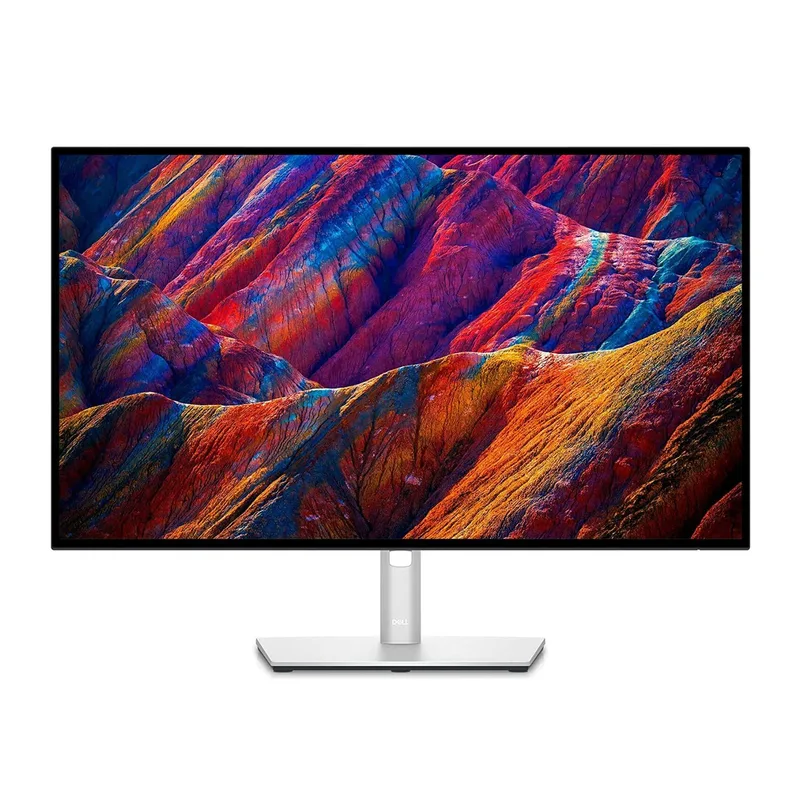
The U2723QE is the monitor most remote workers should buy. Dell’s IPS Black panel technology delivers contrast ratios closer to VA panels without sacrificing IPS viewing angles, which means whites stay white and blacks have actual depth. The result on video calls is that your background looks as good as your camera allows.
The 90W USB-C power delivery covers nearly every laptop on the market, including 14-inch MacBook Pro models that struggle with lower-wattage chargers. Connect one USB-C cable and your laptop charges, the monitor gets a video signal, and the built-in USB hub gives you extra ports for peripherals. That hub includes multiple USB-A and USB-C downstream ports.
Factory calibration with Delta E under 2 means the colors you see on screen are accurate. For remote workers who also do any design, photography, or presentation work, that accuracy matters. For everyone else, it means your video calls show true-to-life colors without any manual adjustment.
The one notable omission is a built-in webcam. At $449, it would be reasonable to expect one. You will need to budget for a separate webcam if you want integrated camera functionality.
Best for: Remote workers who want the best all-around work monitor and do not mind the premium price.
2. LG 27UN83A-W — Best Value
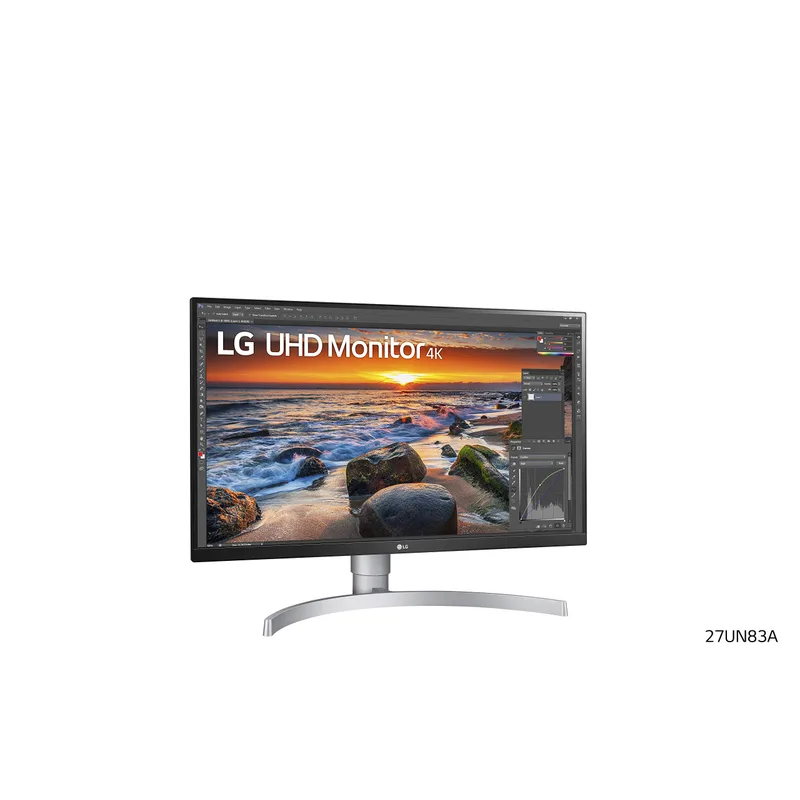
LG’s 27UN83A-W hits the right balance of 4K resolution, color accuracy, and USB-C connectivity at a price that is $100 less than the Dell UltraSharp. The IPS panel covers 95% of DCI-P3, which translates to colors that are reliably accurate across the range of work tasks remote workers encounter daily.
Brightness is a genuine strength. Home offices often deal with ambient light from windows, and the 27UN83A-W holds up well in bright conditions without washing out. HDR10 support adds some depth for any media work.
The 60W USB-C power delivery handles MacBook Air and many Windows ultrabooks, though power-hungry laptops like the MacBook Pro 16-inch may still require a supplemental charger. The stand is the main limitation — the height adjustment range is narrow, and taller users may find themselves looking slightly downward at the screen. A monitor arm solves this problem but adds cost.
Best for: Remote workers who want 4K resolution and reliable USB-C connectivity without paying a premium for advanced hub features.
3. Samsung ViewFinity S27A600UUN — Best Budget
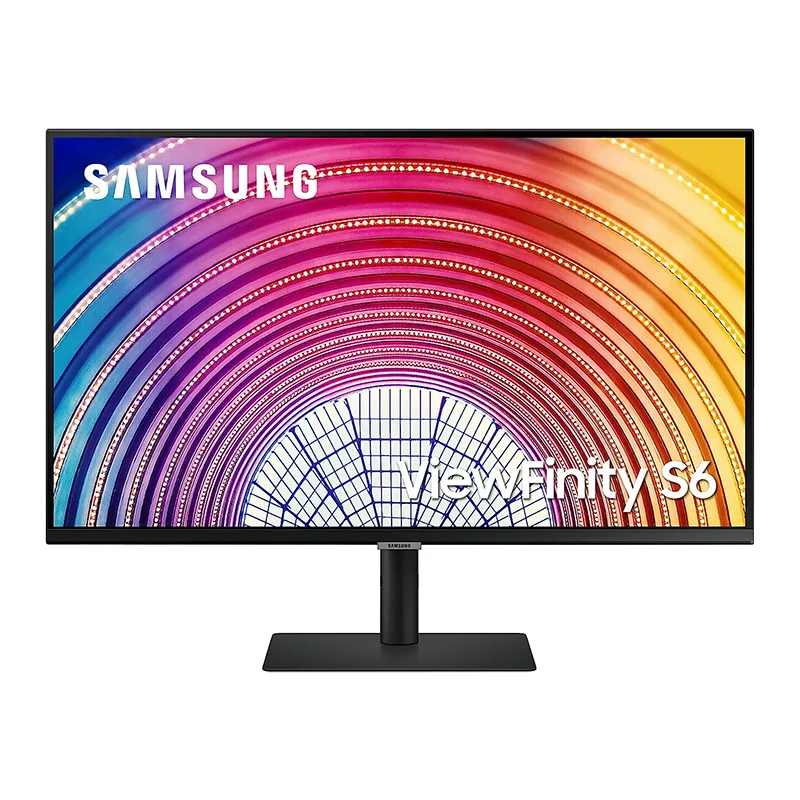
At $279, the ViewFinity S27A600UUN makes QHD resolution and USB-C connectivity accessible without cutting corners on panel quality. The IPS panel displays accurate, consistent colors, and the 75Hz refresh rate provides smoother scrolling than 60Hz alternatives at this price.
The standout feature for remote workers building a multi-monitor setup is daisy-chain support. Connect this monitor to your laptop via USB-C, then connect a second monitor via the DisplayPort output. Two monitors, one cable from the laptop. That simplifies cable routing considerably.
The trade-off is resolution. QHD at 27 inches is sharp and perfectly comfortable for all-day work, but 4K text is noticeably crisper. If you split your time between document work requiring small text and communication apps, the difference is visible. If your work is primarily in larger-text apps like Slack, email, and video calls, QHD is entirely adequate.
Best for: Budget-conscious remote workers building a dual-monitor setup, or those who want USB-C connectivity without paying 4K prices.
4. ASUS ProArt PA279CV
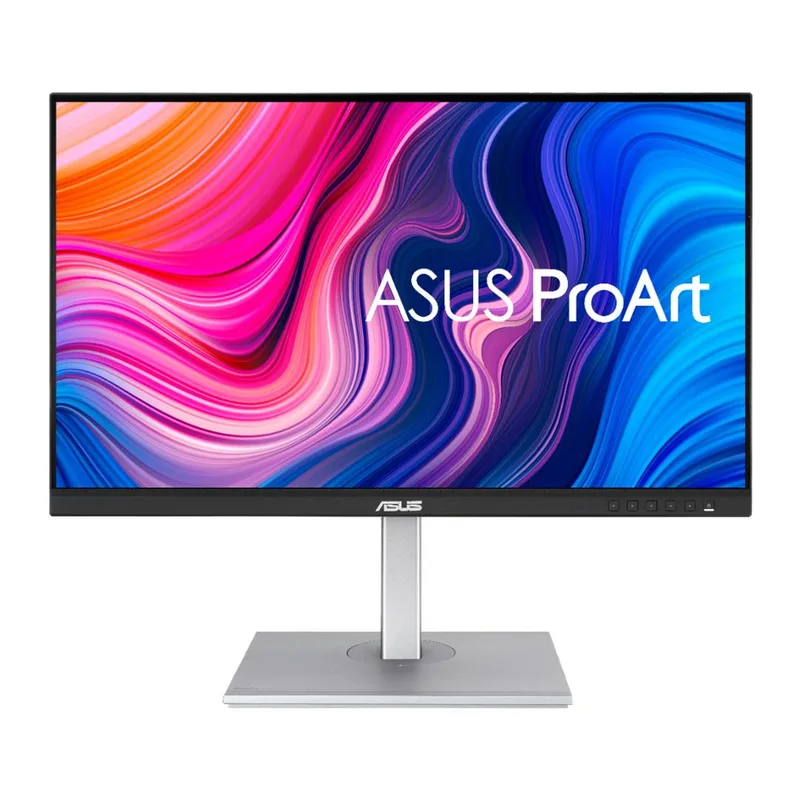
The ProArt PA279CV is built around color accuracy, and it delivers on that promise with Calman-verified factory calibration. Calman is a professional color calibration standard used by display manufacturers and video professionals. What it means for remote workers: your skin tones look accurate on video calls, your presentations render correctly, and your documents look exactly as they should.
100% sRGB coverage and 95% DCI-P3 make this monitor appropriate for any work that touches color-critical output, from presentations with branded colors to design work that needs to match print. The built-in USB hub and 65W USB-C power delivery add practical connectivity similar to the Dell UltraSharp but at a slightly lower price.
The design is utilitarian rather than stylish. ASUS has not updated the ProArt aesthetic recently, and the monitor looks dated next to newer ultra-thin designs. The functionality is current, but the aesthetics are not a strength.
Best for: Remote workers who also do design, content creation, or any work where color accuracy is a professional requirement.
5. Dell S2722QC
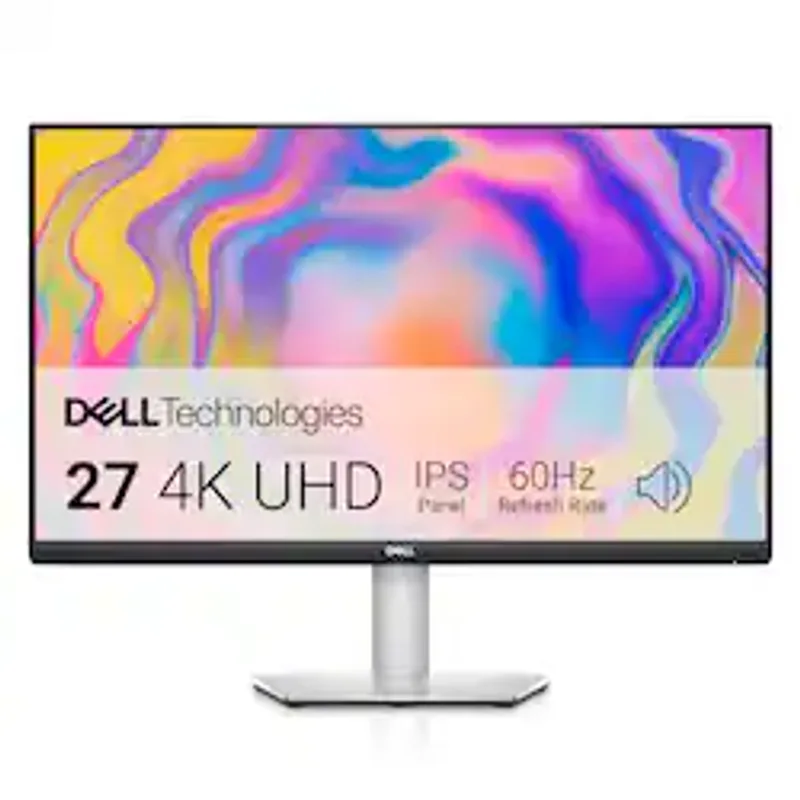
The S2722QC makes a case for value-oriented 4K by including built-in speakers, which few monitors at this price point bother to offer. The dual 3W speakers are adequate for video calls, eliminating the need for a separate speaker or relying on laptop speakers. Combined with USB-C single-cable setup, this monitor keeps desk surfaces clear.
The 4K IPS panel with 1.07 billion colors provides quality that most remote workers will find indistinguishable from more expensive options in practical use. Colors are reasonably accurate without factory calibration, and sharpness at 4K holds up for all-day document work.
The limitations are connectivity depth — there is no USB hub — and the speakers are the low point. They are functional but lack bass and can sound thin at higher volumes. For Zoom calls and Teams meetings, they are fine. For anything requiring decent audio quality, an external speaker is worth considering.
Best for: Remote workers who want a 4K panel with built-in speakers for clean desk setup at an accessible price.
Comparison Table
| Monitor | Size | Resolution | USB-C PD | Price | Rating |
|---|---|---|---|---|---|
| Dell UltraSharp U2723QE | 27” | 4K UHD | 90W | $449 | 9.4 |
| LG 27UN83A-W | 27” | 4K UHD | 60W | $349 | 8.9 |
| ASUS ProArt PA279CV | 27” | 4K UHD | 65W | $399 | 9.1 |
| Dell S2722QC | 27” | 4K UHD | 65W | $279 | 8.6 |
| Samsung ViewFinity S27A600UUN | 27” | QHD | 65W | $279 | 8.4 |
Buying Guide: What to Look For
USB-C wattage matters. A 45W USB-C port charges an iPhone and an iPad. A 65W port charges most Windows ultrabooks. A 90W port charges nearly any laptop, including power-hungry models. Check your laptop’s charging wattage before buying.
Factory calibration vs. out-of-box accuracy. Factory-calibrated monitors have been individually tested and adjusted at the factory. Monitors with good out-of-box accuracy are accurate by design but not individually verified. Both are better than an uncalibrated panel, but factory calibration provides more consistency.
Hub integration vs. separate dock. A monitor with a built-in USB hub simplifies the desk. If the monitor has a hub, you connect your laptop via USB-C and plug peripherals into the monitor. Without a hub, you need a separate dock, which costs more and adds another cable.
Monitor arm compatibility. All monitors listed here are VESA-compatible. A monitor arm gives complete height, angle, and positioning flexibility regardless of stand limitations.
FAQ
What resolution do I need for remote work?
QHD (2560x1440) is the minimum worth considering in 2026. It provides meaningfully more screen real estate than 1080p and makes dual-app layouts practical. 4K (3840x2160) is better for 27-inch panels — text is sharper, images are cleaner, and the productivity gains for document-heavy work are noticeable. If your work involves small text, code, or spreadsheets, 4K pays dividends.
Does monitor size matter for video calls?
Not in the way most people expect. Your webcam image quality depends on the webcam, not the monitor. What monitor size affects is how large the other person’s face appears during calls. On a 27-inch monitor, a video call participant appears at a comfortable size for reading facial expressions without the video window dominating the entire screen.
Do I need a 4K monitor for remote work?
Not strictly required, but worth it. At 27 inches, the difference between QHD and 4K is visible — especially on text and fine UI elements. The sharper display reduces eye strain over an eight-hour workday. 4K monitors have also dropped significantly in price; several options on this list deliver 4K for under $350.
Should I prioritize USB-C connectivity?
Yes, for any laptop-based remote work setup. USB-C with Power Delivery means one cable carries video signal and charges the laptop simultaneously. This eliminates the separate power brick from the desk equation and dramatically reduces cable clutter. If your laptop charges via USB-C, this feature should be non-negotiable.
What about blue light filtering?
Most monitors on this list include some form of low-blue-light mode or flicker-free backlighting. These features reduce eye strain during long sessions. Operating system-level night mode features (Night Shift on macOS, Night Light on Windows) can be layered on top for additional control. Neither eliminates eye strain — taking regular screen breaks remains the most effective mitigation.
Conclusion: The Clear Winner
The Dell UltraSharp U2723QE is the best monitor for remote work in 2026. The IPS Black panel, 90W USB-C power delivery, built-in USB hub, and factory-verified color accuracy cover every practical need a remote worker has. It costs more than the other options, and it delivers more than any of them.
For those working with a tighter budget, the LG 27UN83A-W at $349 delivers 4K quality and USB-C connectivity without compromise on the core specs. The Samsung ViewFinity S27A600UUN at $279 is the right choice for anyone building a dual-monitor setup or prioritizing USB-C charging over 4K resolution.
Check current prices using the buttons below — monitor pricing fluctuates regularly, and the gap between these options can shrink at any time.
Detailed Reviews
Dell UltraSharp U2723QE
Pros
- Outstanding color accuracy — factory calibrated with Delta E under 2
- 90W USB-C power delivery runs most laptops on a single cable
- Built-in USB hub eliminates the need for a separate dock
- IPS Black panel delivers deeper blacks than standard IPS
Cons
- No built-in webcam, so you will still need a separate webcam
- 60Hz refresh rate is not ideal for anyone gaming after hours
LG 27UN83A-W
Pros
- Accurate colors out of the box for confident video call appearances
- USB-C connectivity handles both video signal and laptop charging
- Excellent brightness holds up in bright home offices with windows
- HDR10 support for media work alongside calls
Cons
- Stand has limited adjustability — height adjustment range is narrow
- No built-in USB hub, so peripheral management requires extra hardware
Samsung ViewFinity S27A600UUN
Pros
- Daisy-chain support makes dual-monitor setups simpler with fewer cables
- USB-C with 65W power delivery keeps most laptops charged
- QHD resolution gives significantly more screen real estate than 1080p
- 75Hz provides slightly smoother scrolling than standard 60Hz panels
Cons
- QHD rather than 4K — text is not as crisp as on 4K monitors at this size
- No HDR support
ASUS ProArt PA279CV
Pros
- Calman-verified color accuracy ensures skin tones look correct on video calls
- 100% sRGB coverage for reliable color representation
- Built-in USB hub adds practical connectivity to the desk
- 65W USB-C handles most ultrabooks on a single cable
Cons
- Slightly dated industrial design compared to newer monitors
- No built-in webcam or speaker
Dell S2722QC
Pros
- Built-in speakers free up desk space and simplify the audio setup
- Excellent 4K value at the $279 price point
- USB-C single-cable setup for clean desk management
- 1.07 billion color depth for smooth gradients and accurate rendering
Cons
- Built-in speakers are functional but not impressive for music or critical listening
- Only two ports — no USB hub functionality