Your monitor is what you stare at for eight hours a day. A 4K display at this price tier isn’t a luxury — it’s a practical decision. More pixels mean two documents fit side by side without squinting, small text stays readable without scaling, and your screen looks sharp when a camera picks up your workspace during video calls.
The problem is finding one that doesn’t force trade-offs. At under $500, you want USB-C single-cable connectivity, a stand that actually adjusts, and a panel accurate enough that colors don’t lie. You don’t want a monitor stuck at a fixed height, a hub with one port, or whites that look vaguely yellow after three hours.
Quick pick: The Dell UltraSharp U2723QE covers most remote work needs well. If budget matters, the LG 27UP850K-W has dropped to $279 and overdelivers at that price.
What Matters in a 4K Monitor for Remote Work
USB-C with Power Delivery. One cable handles video, data, and laptop charging simultaneously. Look for 65W minimum; 90W is better for 15-inch laptops running under load. Four monitors on this list hit 90W — only the ASUS PA279CV delivers 65W.
Panel accuracy. For reading documents and video calls, accurate whites and neutral grays matter more than peak brightness. IPS panels are the standard choice — wide viewing angles and consistent color across the screen. Factory calibration (DeltaE < 2) is worth the premium if you review photos, presentations, or design files regularly.
Ergonomic stand. Height adjustment is non-negotiable for all-day comfort. A monitor stuck at a fixed position will cause neck strain within weeks of daily use. All five options here are VESA-compatible for monitor arm use.
Eye care features. Flicker-free backlighting and low blue light modes reduce fatigue during long sessions. Standard at this price tier — confirm before purchasing.
Built-in USB hub. A 4-port USB-A hub keeps your keyboard dongle, webcam, and USB drive plugged into the monitor, not your laptop. Expected at $350–$500; the LG at $279 is the exception with two ports.
The 5 Best 4K Monitors Under $500 for Home Office
1. Dell UltraSharp U2723QE — Editor’s Pick
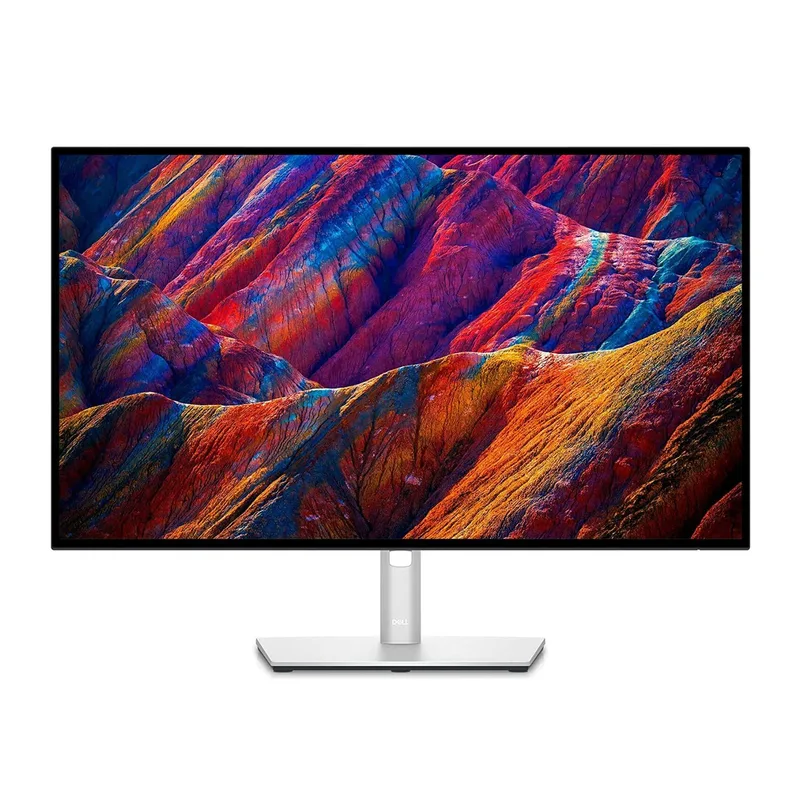
The U2723QE earns top spot for a single specification most monitors skip: the IPS Black panel, which delivers a 2000:1 contrast ratio. Standard IPS panels achieve 1000:1. That gap shows up in daily use — dark UI elements look richer, and white backgrounds appear cleaner by comparison.
For remote work, the built-in Ethernet is the real differentiator. Connect the monitor to your router with an Ethernet cable, connect your laptop to the monitor via USB-C, and your laptop gets a wired internet connection through that single cable. No adapter needed. On video calls, wired internet means stable packet delivery — no frozen frames when your WiFi drops during a presentation.
The 90W USB-C charges most laptops fully. Four USB-A downstream ports handle webcam, keyboard receiver, USB drive, and a spare. The 100% sRGB and 98% DCI-P3 coverage means documents and visuals look correct without adjusting any color profiles.
At $449, this is the most complete single-cable work monitor on this list.
Who should buy this: Remote workers who want the best all-around option — Ethernet, superior contrast, full USB hub, and 90W charging in one cable.
Who should skip this: Gamers, or anyone who needs above 60Hz refresh rate.
2. ASUS ProArt PA279CV — Best Value
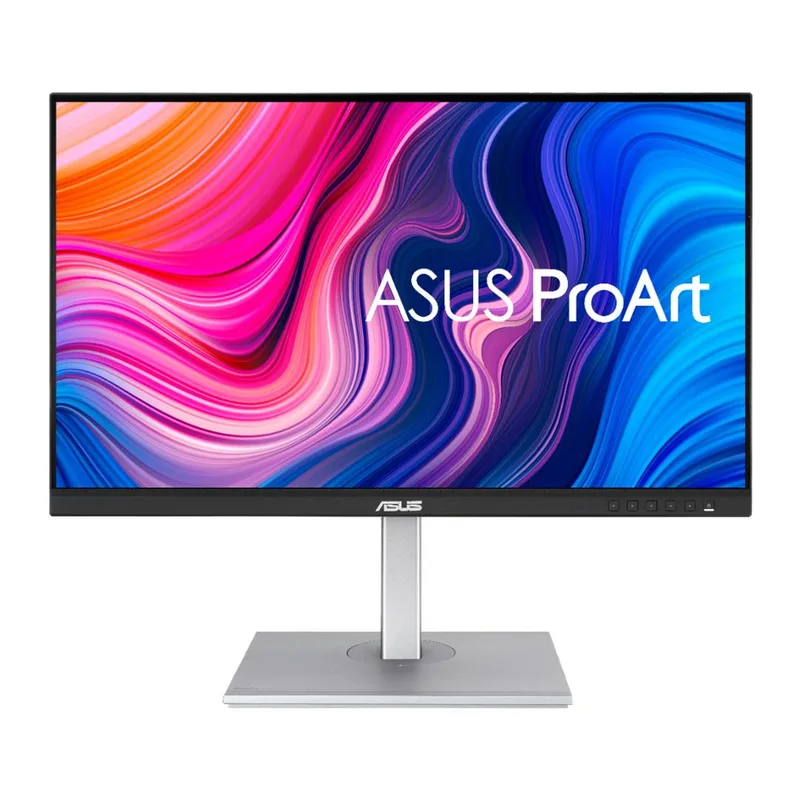
The PA279CV is built for remote workers who need factory-calibrated accuracy at a lower price. ASUS ships it Calman Verified with DeltaE under 2 — accurate enough for photo editing and design review without manual calibration.
The practical draw is 100% sRGB and 100% Rec. 709 coverage. These are the color spaces your documents, browser, and video conferencing apps use. Text looks neutral. Web page colors render correctly. You won’t get the warm tint or cool cast that comes off an uncalibrated budget panel.
The USB-C connection delivers 65W. Most 13-inch ultrabooks charge fine on that. MacBook Pro 14-inch and larger, or high-performance Windows laptops under heavy load — those will slow-charge while in use. Check your laptop’s charging spec before assuming 65W is enough.
At $349, the PA279CV is the best-value professional monitor on this list and has been for two years.
Who should buy this: Anyone reviewing design files, photos, or presentations where colors need to be right.
Who should skip this: Users with power-hungry 15-inch or 16-inch laptops who need full-speed charging throughout the day.
3. Samsung ViewFinity S80PB
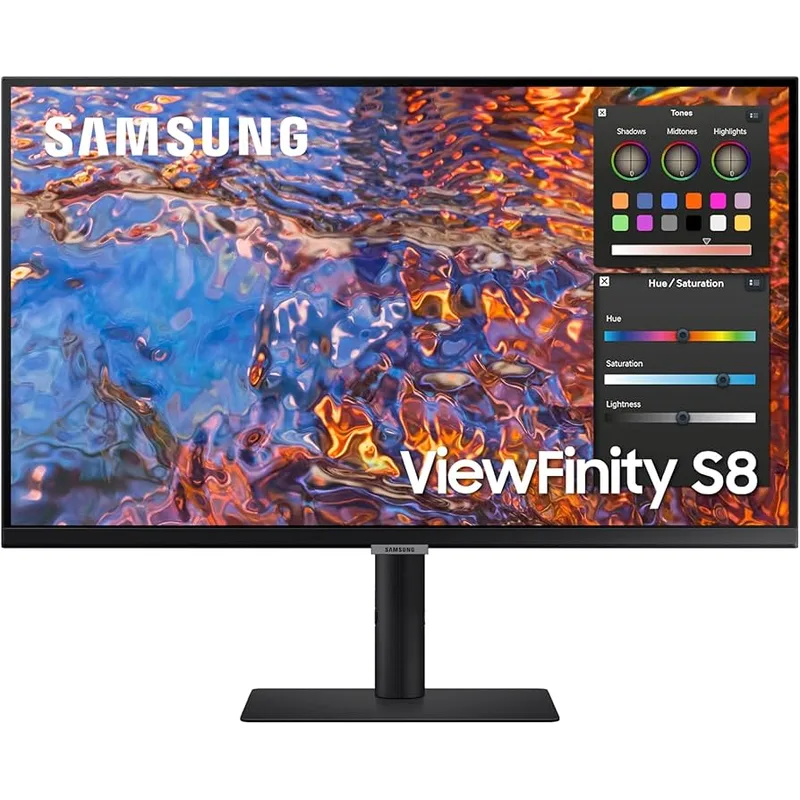
The S80PB earns its place with one feature most monitors don’t address: the matte display coating. In a real home office with a window behind you, a lamp off to one side, and overhead lighting, a glossy display creates constant distracting reflections. The S80PB’s matte surface absorbs them and keeps screen content readable in most conditions.
The 98% DCI-P3 coverage is strong at $329, and the 90W USB-C handles full laptop charging. Samsung’s Intelligent Eye Care adjusts brightness and color temperature automatically as ambient light shifts — useful for a home office where conditions change throughout the day.
The stand is the weak point. Height adjustment exists but the range is narrower than the Dell or ASUS options. For monitor arm users this doesn’t matter; for users relying on the included stand, verify the height range works for your seated eye level before committing.
Who should buy this: Remote workers in bright rooms who need a matte display and 90W USB-C at the lowest price on this list.
Who should skip this: Users who need precise height control from an included stand.
4. LG 27UP850K-W — Best Budget
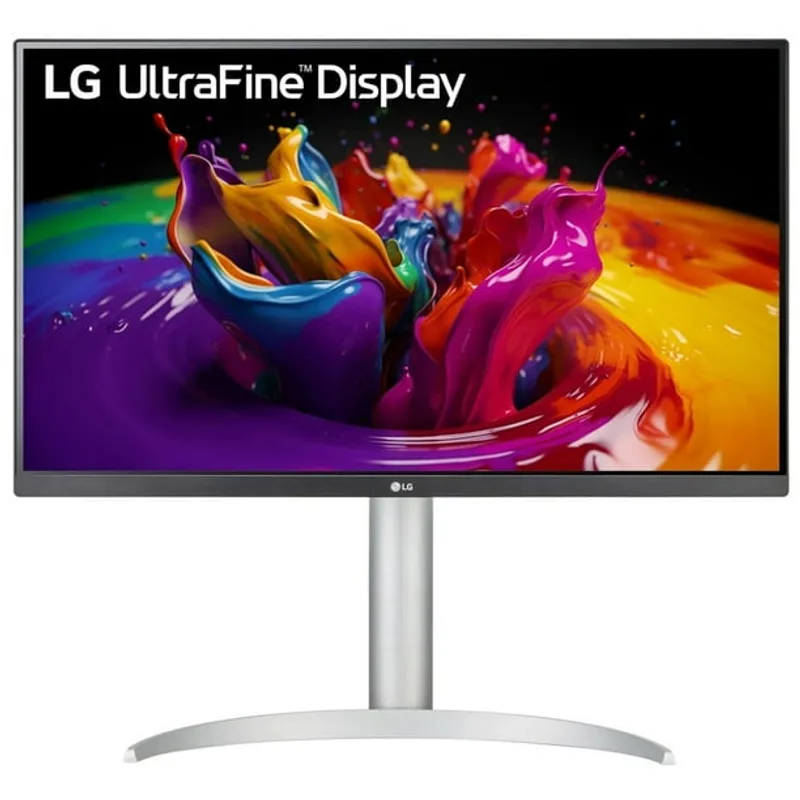
The LG 27UP850K-W has dropped significantly in price — it’s now around $279, which makes it one of the sharper deals in the 4K monitor category. The 90W USB-C, 95% DCI-P3 coverage, and full ergonomic stand (height, tilt, pivot) are features you’d normally pay more for.
The three-sided borderless frame makes the display feel larger than 27 inches. The sRGB emulation mode constrains colors to standard web and document space — useful when you need colors to look exactly as they will on someone else’s screen.
Portrait mode works well on this monitor. The 163 PPI pixel density keeps text sharp when rotated, and the pivot stand makes the rotation easy. For reading long documents or reviewing code, a 27-inch 4K panel in portrait orientation is genuinely comfortable.
The USB hub is the limitation: two USB-A ports downstream, versus four on the Dell or BenQ. Plan for an additional hub if you’re running more than two USB peripherals.
Who should buy this: Budget-conscious remote workers who want 90W USB-C and full ergonomic adjustability without paying full price.
Who should skip this: Users with more than two USB peripherals who need a proper built-in hub.
5. BenQ PD2706U — Best for Multi-Machine Setups
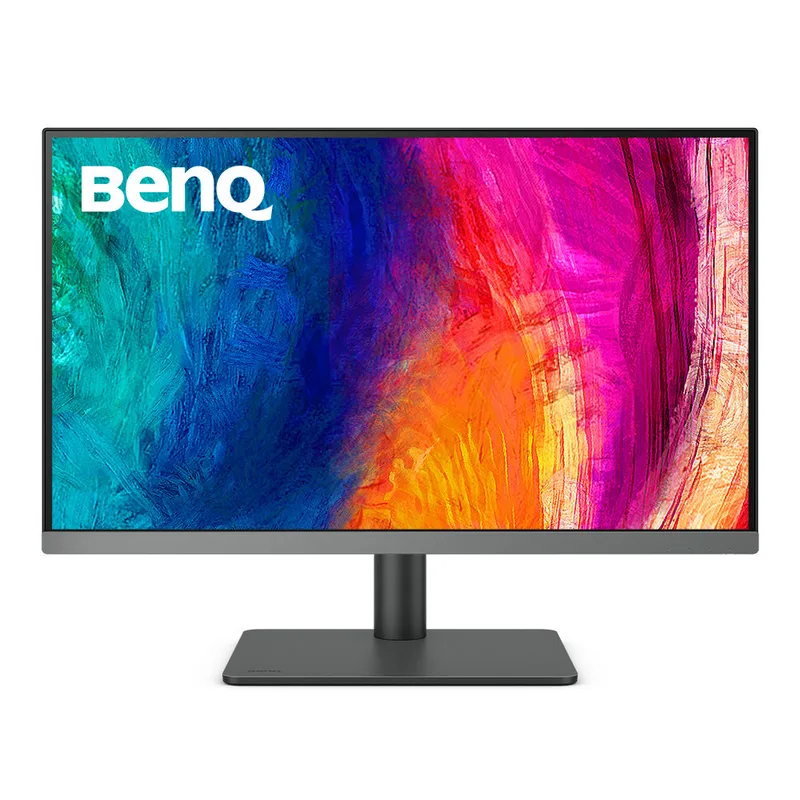
The PD2706U is designed for remote workers who run more than one computer. The built-in KVM switch lets one keyboard and mouse control two machines — personal laptop and work laptop, or laptop and desktop — with a button press. That eliminates a separate KVM switch from your desk entirely.
The HotKey Puck is a physical control dial that switches between color modes, inputs, and brightness levels without touching on-screen menus. In practice, it saves real time when moving between color-calibrated creative work and general use throughout a workday.
Four USB-A downstream ports, 90W USB-C, and factory-calibrated accuracy with a physical calibration report round out a package that eliminates several peripheral purchases.
At $449, the PD2706U matches the Dell’s price. The choice between them is specific: Dell if you want IPS Black contrast and Ethernet; BenQ if you manage two computers and want the KVM and HotKey Puck built in.
Who should buy this: Hybrid workers managing a work-issued machine and a personal computer from the same desk.
Who should skip this: Single-computer setups where the KVM and HotKey Puck features add cost without adding value.
Comparison Table
| Monitor | Price | USB-C PD | Contrast | Color Coverage | USB Ports | Ethernet |
|---|---|---|---|---|---|---|
| Dell UltraSharp U2723QE | $512.34-$689.00 as of Oct 18, 2026 | 90W | 2000:1 | 100% sRGB, 98% DCI-P3 | 4x USB-A + RJ45 | Yes |
| ASUS ProArt PA279CV | $289.41-$307.72 as of Oct 18, 2026 | 65W | 1000:1 | 100% sRGB, 100% Rec.709 | 4x USB-A | No |
| Samsung ViewFinity S80PB | $280.49-$439.00 as of Oct 18, 2026 | 90W | 1000:1 | 98% DCI-P3 | 3x USB-A | No |
| LG 27UP850K-W | $267.80-$349.99 as of Oct 18, 2026 | 90W | 1000:1 | 95% DCI-P3 | 2x USB-A | No |
| BenQ PD2706U | $399.99 as of Oct 18, 2026 | 90W | 1000:1 | 99% sRGB, 95% DCI-P3 | 4x USB-A | No |
Buying Guide: What to Look for in a 4K Home Office Monitor
Verify USB-C wattage against your laptop’s spec. Check your laptop’s charging requirement on the manufacturer’s site. Most 13-inch ultrabooks charge on 45–65W. MacBook Pro 14-inch and 15-inch Windows performance laptops need 90–100W for full-speed charging under load. Every monitor on this list except the ASUS PA279CV delivers 90W.
IPS vs. IPS Black. Standard IPS panels deliver 1000:1 contrast. IPS Black (as in the Dell U2723QE) delivers 2000:1. The difference is visible during normal use — dark themes and shadow detail in design files look notably richer. It’s the one meaningful panel upgrade in this price bracket.
Factory calibration matters for color-sensitive work. “100% sRGB” coverage tells you how wide the color range is — it doesn’t tell you how accurate the colors are. DeltaE < 2 and Calman Verified (ASUS) or a physical calibration report (BenQ) confirm the panel actually hits those numbers out of the box. Uncalibrated IPS monitors can vary significantly even at the same price point.
Matte vs. semi-glossy coating. Most home offices have variable lighting. Matte coatings diffuse reflections rather than bouncing them back. The Samsung S80PB has the most aggressive matte coating on this list. The other monitors have lighter anti-glare treatments that handle most conditions but won’t match the S80PB in very bright rooms.
Check stand height range before assuming you’ll use an arm. Monitor arms are excellent but require desk depth and a mounting surface that handles the weight. If your desk doesn’t fit an arm well, verify the included stand’s height range covers your seated eye level — typically 95–115cm from the floor for most desk heights.
FAQ
Do I need a 4K monitor specifically for video calls?
Not for the call resolution — conferencing platforms cap well below 4K. The benefit is your surrounding workspace: sharp text in apps, multiple windows without cramping, and a professional appearance if your screen is visible on camera. The resolution benefit is all-day, not just call-specific.
Is 27 inches the right size for 4K at a home desk?
At 27 inches, 4K delivers approximately 163 pixels per inch — sharp enough that individual pixels disappear at normal desk distances. It’s the practical sweet spot: large enough for split-screen work without sitting at arm’s length, dense enough to read small text without scaling.
What USB-C power delivery wattage do I need for my laptop?
Most 13-inch ultrabooks charge comfortably on 45–65W. The 15-inch MacBook Pro and most larger Windows laptops need 90–100W for full-speed charging under load. The ASUS PA279CV at 65W will slow-charge larger laptops while in use. Every other monitor here is at 90W.
Can these monitors connect to both a Windows laptop and a Mac?
All five accept DisplayPort, HDMI, and USB-C regardless of operating system. Color management differs slightly between Windows and macOS, but factory-calibrated monitors (Dell, ASUS, BenQ) produce accurate results on both platforms without manual adjustments.
What’s the difference between sRGB and DCI-P3 coverage?
sRGB is the standard color space for web content, documents, and most productivity apps. 100% sRGB means everyday content looks accurate. DCI-P3 is a wider space used in photo and video production. High DCI-P3 coverage helps creative professionals; it has minimal impact on everyday remote work tasks.
Should I buy now or wait for a new release?
These are mature products with stable pricing. The Dell U2723QE and ASUS PA279CV have been the benchmark professional options for two years and remain best-in-class at their price points. The LG has recently dropped to around $279, making it one of the better deals available right now. No major sub-$500 4K replacements are expected for 2026.
Conclusion
For most remote workers, the Dell UltraSharp U2723QE is the right answer. The IPS Black panel, built-in Ethernet, 90W USB-C, and four-port hub cover everything a home office needs — all through one cable.
Budget-conscious? The LG 27UP850K-W at $279 now offers 90W USB-C and a full ergonomic stand at a price that’s hard to argue with.
Color work is the domain of the ASUS ProArt PA279CV — Calman Verified accuracy at $349 is the honest professional choice.
And if you’re running two computers from one desk, the BenQ PD2706U solves that problem better than anything else on this list.
Detailed Reviews
Dell UltraSharp U2723QE
Pros
- IPS Black panel delivers 2000:1 contrast — double standard IPS
- 90W USB-C charges most laptops at full speed
- Built-in Ethernet routes wired internet through a single USB-C cable
- Exceptional factory color accuracy for documents and design review
- VESA compatible with full height/tilt/swivel/pivot adjustment
Cons
- 60Hz only — not suitable for gaming, but fine for all remote work tasks
- Slightly above mid-range price for this category
ASUS ProArt PA279CV
Pros
- Factory-calibrated with DeltaE < 2 — colors are accurate without manual adjustment
- USB-C with 65W power delivery handles most ultrabooks
- Calman Verified color accuracy ships out of the box
- Best price-to-accuracy ratio in this roundup
- Quiet minimal design fits any home office aesthetic
Cons
- 65W USB-C PD won't fully charge 15-inch or larger laptops under load
- No Ethernet port
- Lower USB-C PD wattage than most competitors
Samsung ViewFinity S80PB
Pros
- 90W USB-C power delivery — full charge for MacBooks and most laptops
- Matte anti-glare coating handles bright rooms without reflections
- Slim bezel design looks clean during video calls
- Strong DCI-P3 coverage for the price point
- Intelligent Eye Care adapts brightness to ambient light automatically
Cons
- Stand height adjustment range is narrower than Dell or ASUS
- No built-in Ethernet
- Fewer USB downstream ports than top-ranked options
LG 27UP850K-W
Pros
- 90W USB-C charges most MacBooks and Windows ultrabooks at full speed
- sRGB emulation mode for accurate web and document color matching
- Full height, tilt, and pivot adjustment for ergonomic setup
- Three-sided borderless frame makes the screen feel larger
- Best value proposition on this list at current pricing
Cons
- Only two USB-A downstream ports — half the hub capacity of Dell or BenQ
- White/silver finish may not suit darker home office aesthetics
- No Ethernet port
BenQ PD2706U
Pros
- Factory-calibrated with physical calibration report included in the box
- HotKey Puck for fast switching between color modes without navigating menus
- Built-in KVM switch controls two computers with one keyboard and mouse
- Four USB-A ports replace a separate hub entirely
- Excellent for hybrid workers running a personal and work laptop together
Cons
- KVM and HotKey Puck add setup complexity many users won't use
- No Ethernet port
- At this price, the Dell's IPS Black contrast is a legitimate alternative