World Backup Day came and went on March 31 this year, and the NAS vendors used it to push deals on central backup boxes. The marketing is loud, but the reason is simple: most remote workers still keep their only copy of client files on one laptop. If that laptop gets stolen, drowns in coffee, or gets hit by ransomware, there is no second copy.
This guide gives you a plan you can finish in an afternoon. It follows the 3-2-1 rule, picks the cheapest tool that does each job, and explains where a spare external drive is enough and where a NAS earns its place. It is based on manufacturer documentation, spec sheets, and owner feedback rather than our own lab work.
The 3-2-1 Rule in Plain English
- 3 copies of your data: the original on your laptop plus two backups.
- 2 types of storage: for example the laptop’s internal drive and an external drive or NAS, so one failure mode cannot kill both copies.
- 1 copy offsite: a cloud backup or a drive kept somewhere other than your home office, so fire, flood, or theft does not take everything.
A single external drive plugged in next to your laptop is one backup, not a plan. If the same surge, spill, or burglary hits both, you lose both.
Step 1: Turn On the Built-In Backup
Your operating system already has a backup tool. Use it first, because it is free and handles the “what to back up” question for you.
Mac (Time Machine). Plug in an external drive, open System Settings > General > Time Machine, and select the drive. Time Machine keeps hourly versions for a day, daily versions for a month, and weekly versions after that, until the disk fills. It needs a drive formatted for macOS, which it will offer to do for you. That erases the drive, so use a new or empty one.
Windows (File History and Windows Backup). File History copies files in your user folders to a drive on a schedule. Open Settings > System > Storage > Advanced storage settings > Backup options to turn it on. Windows 11 also has a Windows Backup app that syncs folders, settings, and some app lists to a Microsoft account, which helps when you set up a replacement PC. It is not a full disk image. Check what it covers on your version before relying on it.
Neither tool replaces the others below. They are copy number two.
Step 2: Pick the Local Backup Target
You have two realistic choices for the second copy.
Option A: An External Drive
This is the right pick for one person with one computer. Get a drive at least twice the size of your laptop’s internal storage so you have room for version history. A 2TB model covers most 512GB or 1TB laptops.
- Hard drive: the cheapest per terabyte, fine for a drive that sits on a desk. Spinning drives dislike being knocked while running.
- SSD: faster and tougher, costs more per terabyte. Worth it if you also carry the drive around or back up large video files.
If you want a deeper comparison, see our best external hard drives for remote workers, best portable SSDs, and external SSDs under $100.
| Spec | WD My Passport 2TB | Seagate One Touch 2TB | SanDisk Extreme Portable SSD 1TB | Synology DiskStation DS223 | QNAP TS-233 |
|---|---|---|---|---|---|
| Rating | 8.4/10 | 8.2/10 | 8.8/10 | 9.0/10 | 8.3/10 |
| Price | $99.95-$129.90as of Nov 22, 2026 | $135.70as of Nov 22, 2026 | $199.99-$209.99as of Nov 22, 2026 | $265.97-$285.99as of Nov 22, 2026 | $199.00as of Nov 22, 2026 |
| Type | Portable hard drive | Portable hard drive | Portable SSD | 2-bay NAS (drives sold separately) | 2-bay NAS (drives sold separately) |
| Capacity | 2TB | 2TB | 1TB | — | — |
| Interface | USB 3.2 Gen 1 (USB-A cable, USB-C adapter included in some versions) | USB 3.0 (Micro-B cable with USB-A) | USB 3.2 Gen 2 (USB-C) | — | — |
| Encryption | 256-bit AES hardware encryption with password | Password-activated hardware encryption | — | — | — |
| Compatibility | Windows 10/11, macOS (reformat needed for Time Machine) | Windows and macOS (Time Machine supported after setup) | — | — | — |
| Read Speed | — | — | Up to 1,050 MB/s | — | — |
| Durability | — | — | IP55 water and dust resistance, drop-tested by the manufacturer | — | — |
| Processor | — | — | — | Realtek RTD1619B quad-core 1.7GHz | ARM Cortex-A55 quad-core 2.0GHz |
| Memory | — | — | — | 2GB DDR4 | 2GB DDR4 |
| Network | — | — | — | 1x Gigabit Ethernet | 1x Gigabit Ethernet |
| Backup software | — | — | — | Active Backup for Business, Hyper Backup, Time Machine support | Hybrid Backup Sync, Time Machine support |
| Check Price → | Check Price → | Check Price → | Check Price → | Check Price → |
Prices change daily — tap Check Price for the current Amazon price.
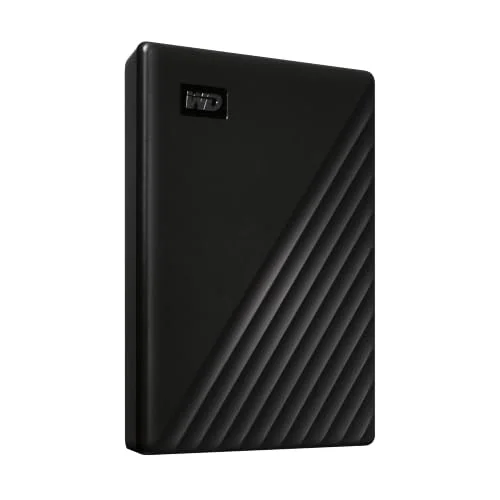
WD My Passport 2TB
Pros
- Lowest cost per terabyte of the three drives here
- Password protection with hardware encryption
- Bus-powered, so no wall adapter on the desk
- Works with Windows File History after a one-time setup
Cons
- Spinning hard drive, so it is slower and less shock-tolerant than an SSD
- Needs reformatting for Time Machine on a Mac
- Bundled backup software is basic compared with built-in OS tools
The WD My Passport is the cheapest way to get a real second copy. For a single-laptop home office where the drive stays plugged into a dock or the laptop, a hard drive is enough. Format it for Time Machine on a Mac, or point File History at it on Windows. The password feature is worth turning on, since a backup drive holds everything an attacker would want.
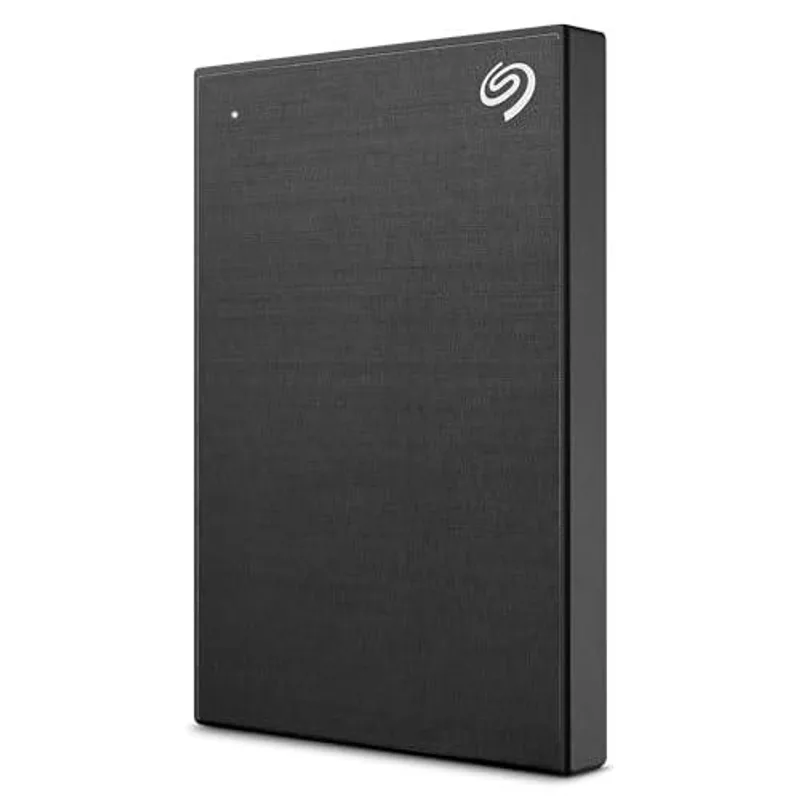
Seagate One Touch 2TB
Pros
- Hardware encryption that you turn on with a password
- Seagate Toolkit supports scheduled backups
- Slim and light enough to keep in a laptop bag
- Often listed with a recovery-services plan from the manufacturer
Cons
- Costs more than the WD drive for the same capacity
- Still a spinning drive, so avoid bumping it while it is running
- Stock was listed as limited when this guide was written
The Seagate One Touch fills the same slot. It costs more for the same capacity, so choose it if you prefer the Toolkit software or the password feature setup. Otherwise the WD is the better deal.
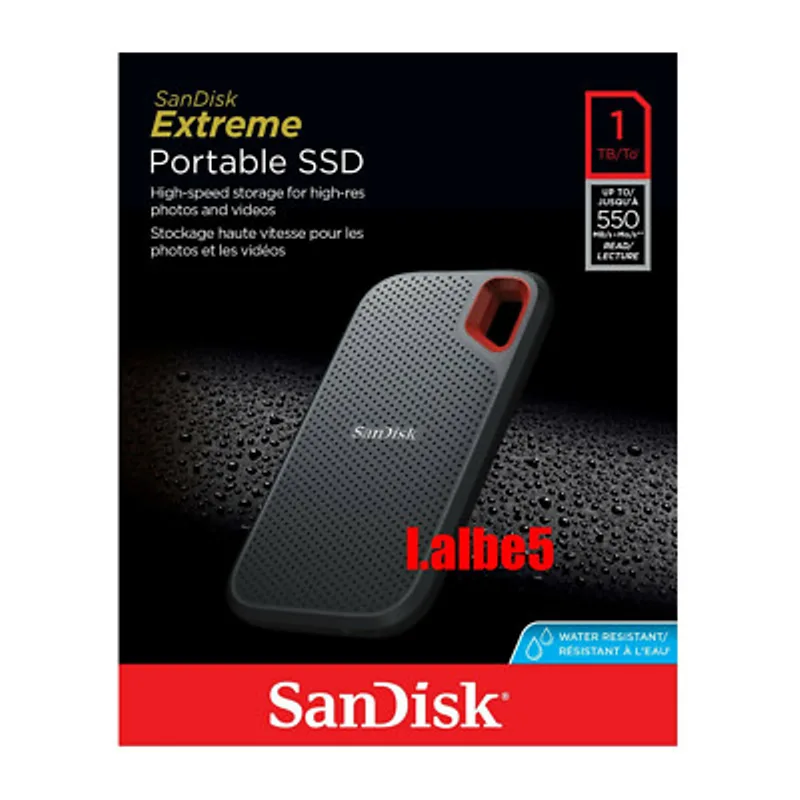
SanDisk Extreme Portable SSD 1TB
Pros
- First backup of a full laptop finishes much sooner than on a hard drive
- No moving parts, so it survives a tumble off the desk better
- USB-C connection suits current Macs and Windows laptops
- Small enough to carry as a grab-and-go offsite copy
Cons
- Highest cost per terabyte of the three
- Amazon lists this version as the older model
- 1TB fills quickly if you back up video projects
The SanDisk Extreme is the pick when speed or portability matters. Your first full backup is the slow one, and an SSD finishes it far faster. It is also small enough to be the drive you rotate offsite, which brings up step four.
Option B: A NAS
A NAS is a small always-on box that holds drives and shares them over your network. It pays off if you have more than one computer, a partner who also works from home, or years of files you cannot lose. Backups run automatically over Wi-Fi or Ethernet, so nothing depends on you remembering to plug a drive in.
Put it on wired Ethernet to your router if you can, and keep it on a UPS or a good surge protector. See our UPS roundup and power strip picks.
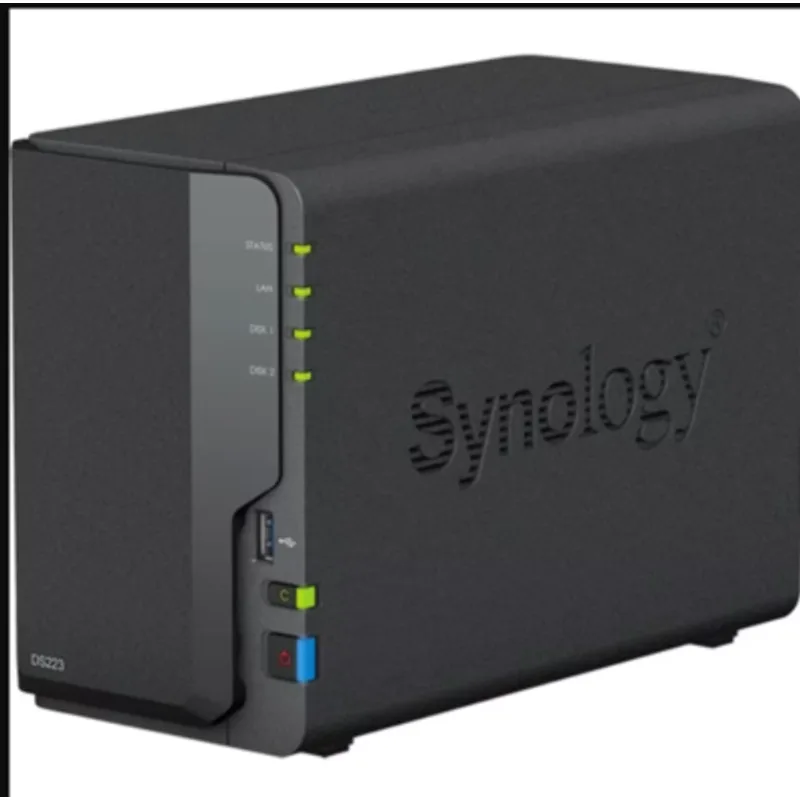
Synology DiskStation DS223
Pros
- Backs up several Macs and PCs automatically over the network
- Two bays let you mirror drives so one failure does not lose data
- Hyper Backup can push a copy to the cloud or to another drive for the offsite leg
- Well-regarded DSM software with snapshot options
Cons
- Drives are not included, so the real cost is higher
- Gigabit Ethernet only
- Overkill if you only have one laptop
The Synology DS223 is the easiest NAS to recommend for backups because its Active Backup for Business software handles Windows PCs, Macs, and servers from one console, and Hyper Backup covers the offsite copy. Budget for drives, since none are included. Buy two matching NAS-rated drives and mirror them.
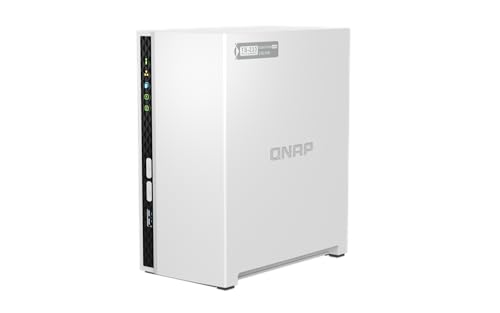
QNAP TS-233
Pros
- Lowest entry price for a two-bay NAS in this guide
- Supports scheduled backups and syncing to cloud storage
- Compact enough for a shelf or the corner of a desk
- Mirrored drives are possible with RAID 1
Cons
- Drives are not included
- Fewer polished backup tools than Synology's Active Backup suite, based on owner feedback
- Gigabit Ethernet only
The QNAP TS-233 costs less and does the core job: scheduled backups, Time Machine support, and cloud sync. If you are comfortable fiddling with settings it works, but owners generally say Synology’s backup tools are friendlier.
For help choosing, read our guide to choosing a NAS for your home office, the NAS roundup, and the best NAS under $500.
RAID is not a backup. Mirrored drives protect against one drive failing. They do not protect against deletion, ransomware, or a power surge that takes out the whole box.
Step 3: Back Up the Cloud-Synced Stuff Too
Services like OneDrive, iCloud Drive, Dropbox, and Google Drive sync files. Sync is not backup. If you delete a file or ransomware encrypts it, the change usually syncs everywhere. Most services keep a deleted-file recycle bin or version history for a limited time, but check the retention window for your plan. A local backup of your synced folders closes that gap.
Step 4: Add the Offsite Copy
You have two simple ways to cover the “1” in 3-2-1.
- Encrypted cloud backup. A backup service or your NAS’s cloud sync sends an encrypted copy to a provider’s servers. It is automatic, but the first upload can take days on a slow upstream connection.
- A rotated drive. Keep a second drive at a relative’s home or a locked desk drawer elsewhere. Swap it with your local drive every month or so. It is manual, which is the weakness, but it costs nothing monthly.
Either works. The best one is the one you will keep doing.
Step 5: Protect and Test the Backups
- Encrypt the drives. Use FileVault or BitLocker on the laptop, and the drive’s password feature or the OS’s encrypted-backup option on the backup. See our remote work cybersecurity guide.
- Set a reminder to test a restore. Once every few months, open the backup and pull one file back. A backup you have never restored is a hope, not a plan.
- Unplug or isolate one copy. Ransomware can encrypt anything that is connected and writable. An offsite or rotated drive that is not plugged in is out of reach.
- Check for failures. Time Machine, File History, and NAS software all show errors if backups stop. Look at them when you are doing your monthly check.
What to Buy: Quick Recommendations
- One laptop, tight budget: WD My Passport plus built-in Time Machine or File History, with a free or cheap cloud tier for offsite.
- One laptop, travels a lot: SanDisk Extreme SSD for speed and durability.
- Two or more computers, or lots of files: Synology DS223 with two drives, and cloud sync for offsite.
- Want a NAS for less: QNAP TS-233, and accept a slightly steeper setup.
FAQ
Is one external drive enough to back up my work laptop?
It is better than nothing and covers the most common failure, a dead internal drive. It does not cover theft, fire, or a power surge that hits both devices. Add an offsite copy to complete the plan.
Do I need a NAS or is an external drive fine?
An external drive is fine for one computer. A NAS makes more sense for several computers, shared files, or automatic backups without plugging anything in.
Is cloud storage the same as a backup?
No. Sync services mirror changes, including accidental deletions. Use cloud storage alongside a real backup with version history.
How often should I back up?
Continuously or daily for work files. Time Machine runs hourly by default, and File History and NAS software can be scheduled. Pick a setup that runs without you.
How much storage do I need?
Aim for at least twice the size of the data you are protecting, so there is room for older versions. A 2TB drive covers most laptops.
The Bottom Line
Start with the built-in tool and a 2TB drive. The WD My Passport is the cheapest way to turn “one copy” into “two copies.” Then add an offsite copy, either an encrypted cloud backup or a drive you swap out. If you have more than one computer to protect, step up to the Synology DS223 with mirrored drives and let it run the backups for you.
Detailed Reviews
WD My Passport 2TB
Pros
- Lowest cost per terabyte of the three drives here
- Password protection with hardware encryption
- Bus-powered, so no wall adapter on the desk
- Works with Windows File History after a one-time setup
Cons
- Spinning hard drive, so it is slower and less shock-tolerant than an SSD
- Needs reformatting for Time Machine on a Mac
- Bundled backup software is basic compared with built-in OS tools
Seagate One Touch 2TB
Pros
- Hardware encryption that you turn on with a password
- Seagate Toolkit supports scheduled backups
- Slim and light enough to keep in a laptop bag
- Often listed with a recovery-services plan from the manufacturer
Cons
- Costs more than the WD drive for the same capacity
- Still a spinning drive, so avoid bumping it while it is running
- Stock was listed as limited when this guide was written
SanDisk Extreme Portable SSD 1TB
Pros
- First backup of a full laptop finishes much sooner than on a hard drive
- No moving parts, so it survives a tumble off the desk better
- USB-C connection suits current Macs and Windows laptops
- Small enough to carry as a grab-and-go offsite copy
Cons
- Highest cost per terabyte of the three
- Amazon lists this version as the older model
- 1TB fills quickly if you back up video projects
Synology DiskStation DS223
Pros
- Backs up several Macs and PCs automatically over the network
- Two bays let you mirror drives so one failure does not lose data
- Hyper Backup can push a copy to the cloud or to another drive for the offsite leg
- Well-regarded DSM software with snapshot options
Cons
- Drives are not included, so the real cost is higher
- Gigabit Ethernet only
- Overkill if you only have one laptop
QNAP TS-233
Pros
- Lowest entry price for a two-bay NAS in this guide
- Supports scheduled backups and syncing to cloud storage
- Compact enough for a shelf or the corner of a desk
- Mirrored drives are possible with RAID 1
Cons
- Drives are not included
- Fewer polished backup tools than Synology's Active Backup suite, based on owner feedback
- Gigabit Ethernet only