Disclosure: SetupRanked earns commissions from qualifying Amazon purchases. Prices verified March 2026.
Monthly cloud storage bills are one of those expenses that creep up quietly. 2TB on Google One runs $10/month. 5TB is $25. By the time you’re actually backing up your work laptop, phone photos, and spouse’s files, you’re looking at $300+ per year for storage you don’t own. A NAS — Network Attached Storage — solves this permanently.
Quick pick: The Synology DS223 at $285 is the right NAS for most home office workers. It’s the easiest to set up, has the best software, and handles every core remote work use case.
A NAS sits on your local network, shows up as a shared drive to every computer in your home, automatically backs up your laptops, and lets you reach your files from anywhere with an internet connection. Setup takes an afternoon. After that, it runs in the background indefinitely.
This comparison covers five options across different price points and performance levels. All are 2-bay diskless enclosures — you supply the drives.
⚠️ WD My Cloud Alert for 2026
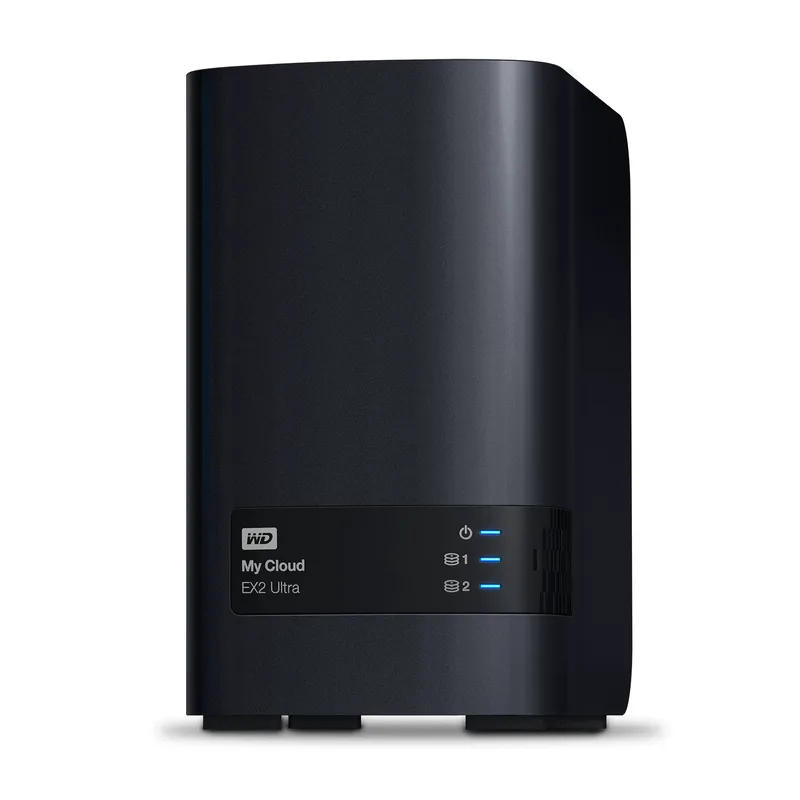
If you currently own a WD My Cloud EX2 Ultra, be aware: Western Digital is ending cloud service support for My Cloud OS 5 devices in 2026. Remote access features will degrade or stop working after the end-of-support date. If remote access to your files matters, plan to replace it with a Synology or QNAP device.
What a NAS Actually Does for Remote Workers
Local backup with redundancy. RAID 1 mirrors your data across two drives simultaneously. One drive fails — data survives intact on the second. This is not the same as a backup (you still need an offsite copy), but it protects against the most common failure scenario.
Remote file access without monthly fees. Synology Drive and QNAP myQNAPcloud give you Dropbox-like access to your files from anywhere — same UX as commercial cloud storage, but the files live on hardware you own. No subscription after the initial purchase.
Laptop backup on a schedule. Synology’s Active Backup and QNAP’s Hybrid Backup Sync automatically back up your work laptop’s contents to the NAS overnight. If your laptop is ever lost or stolen, full restore takes minutes.
Shared storage for home teams. Two people sharing a home office? A NAS acts as a shared network drive with permission controls. Both of you access the same files without emailing documents back and forth.
The math. 4TB on Google One runs $100/year. A $285 NAS with two 4TB WD Red Plus drives ($160 total) costs about $445 all-in and breaks even in under five years with zero ongoing fees. After that, pure savings.
What to Look for in a Home Office NAS
CPU and RAM
For basic file serving and laptop backup with one or two users, an ARM processor and 2GB RAM handles the load without issue. The DS223 and QNAP TS-233 are both in this class.
If you want to run Plex, Docker containers, virtual machines, or multiple simultaneous users, you need an x86 processor. The DS224+ (Intel Celeron) and TerraMaster F2-424 (Intel N95) both qualify. The F2-424 is in a different performance class entirely — 8GB DDR5 and 3.4GHz make it the fastest 2-bay NAS under $500.
Network Speed
Standard 1GbE delivers about 110 MB/s local transfer speed. Fine for documents, fine for remote access, slow for large video files. The TerraMaster F2-424’s dual 2.5GbE ports push closer to 275 MB/s per port — noticeable if you’re moving video project files or multi-gigabyte database exports regularly.
Software Ecosystem
This is where the products diverge most:
Synology DSM is the best NAS operating system available. Clean, approachable, well-documented. First-time NAS users consistently find setup takes under an hour without technical knowledge.
QNAP QTS is powerful with a large app catalog, but visually denser and more complex. Better suited to users who want deep configuration options.
TerraMaster TOS 6 is functional and actively improving, but has a smaller app catalog and less community support than the two above.
WD My Cloud OS 5 is the most consumer-friendly — minimal setup, basic functionality. No longer recommended for new purchases given the 2026 end-of-support timeline.
RAID Configuration
RAID 1 is the right choice for home office use. Two drives, everything mirrored. One fails, replace it while the NAS keeps running. Synology’s SHR (Synology Hybrid RAID) on the DS224+ is slightly smarter about mixed-capacity drives, but for matching drives, it’s functionally identical to RAID 1.
The Best NAS Drives for Home Office 2026
1. Synology DiskStation DS223 — Editor’s Pick
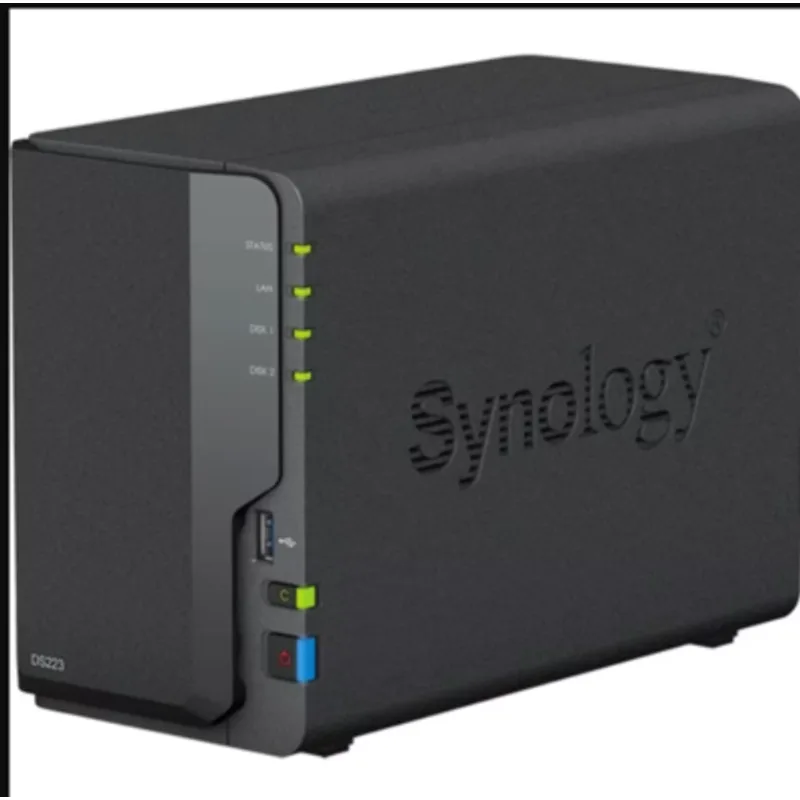
The DS223 is the answer for remote workers who haven’t used a NAS before. Synology’s DSM makes setup genuinely approachable: you log into an onboarding wizard, plug in drives, configure RAID 1, and you’re done. Total time: 45 minutes including drive formatting.
Synology Drive is the feature that changes daily workflow. It installs as a desktop app on your Mac or Windows machine and syncs selected folders to the NAS automatically — just like Dropbox, but with your own hardware. Change a file on your laptop, it syncs to the NAS, and appears on every other device you’ve connected.
Active Backup for Business handles the backup side. It monitors your laptop and runs incremental backups on a schedule you set. If you spill coffee on your work laptop, full restore from a recent state takes 20–30 minutes.
The hardware is conservative: 1.7GHz ARM processor, 2GB RAM, 1GbE. For one or two users doing document work and backup, this is entirely adequate. The 1GbE ceiling only matters when you’re copying large files locally — 100MB takes under a second, 10GB takes about a minute and a half. Remote access speed depends on your internet connection, not the NAS hardware.
Diskless at $285. Add two 4TB WD Red Plus drives at ~$80 each and your total comes to around $445.
Best for: First-time NAS owners, solo remote workers, anyone who wants the best software without complexity.
Skip if: You need fast local transfers for video projects or want to run Plex or Docker — the DS224+ handles those better.
2. TerraMaster F2-424 — Best Performance
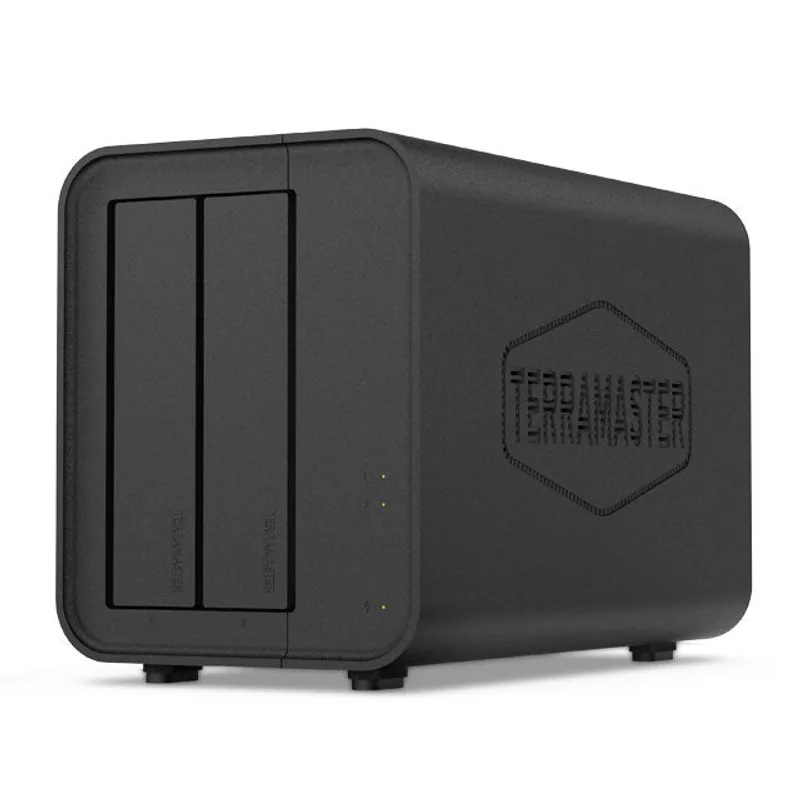
The F2-424 hits a performance tier that its competitors can’t touch. Intel N95 at 3.4GHz, 8GB DDR5 RAM, dual 2.5GbE — this is a proper server processor in a $380 desktop box. For home office workers who generate large files, run multiple background services, or want room to grow, the F2-424 sets a ceiling nobody else approaches in the 2-bay category.
The dual 2.5GbE ports support link aggregation. On a network with a 2.5GbE switch and 2.5GbE-capable computers, you can aggregate both ports for up to 550 MB/s effective throughput. That’s the difference between a 10GB file transferring in 18 seconds vs. 90. NVMe caching support further accelerates frequently accessed files.
The tradeoff is TOS 6. It covers the essentials — file serving, remote access, backup, media — but it’s not as polished as DSM and has a smaller app ecosystem. Community guides and troubleshooting resources are thinner than Synology’s. The F2-424 is the performance pick, not the ease-of-use pick.
Best for: Video editors, RAW photography workflows, anyone who transfers large files regularly, users who want a NAS that won’t become a bottleneck.
Skip if: You’re new to NAS and want straightforward setup — the DS223 or DS224+ handle that better.
3. QNAP TS-233 — Best Value
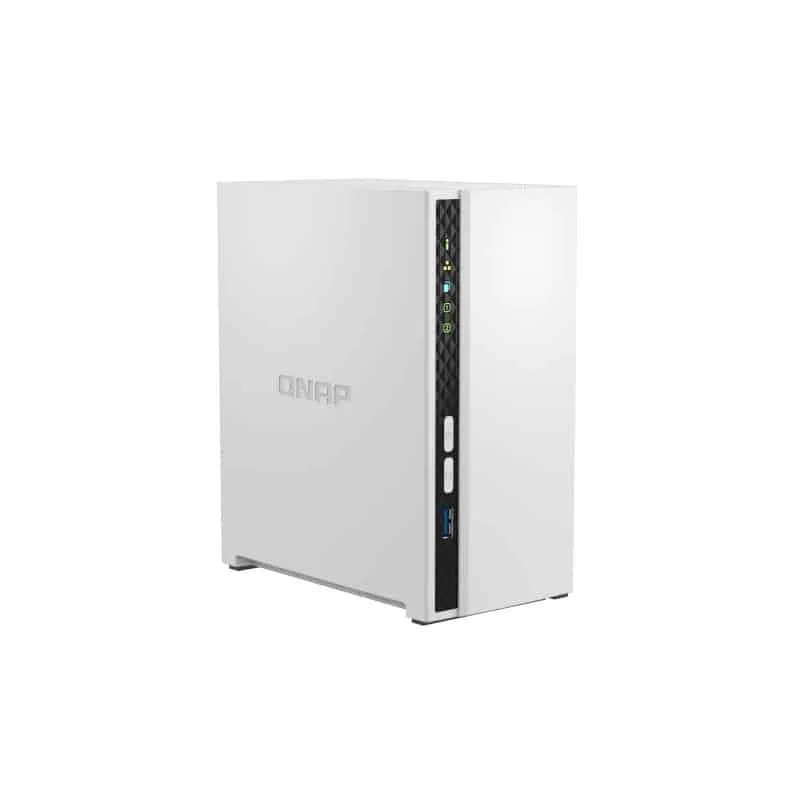
At $199, the QNAP TS-233 is the most affordable capable NAS available from a name-brand manufacturer. The ARM Cortex-A55 quad-core handles file serving, backup, and remote access without issue. QNAP’s app catalog runs deep — there are official apps for almost any home office workflow including business backup, video surveillance, cloud sync, and development tools.
myQNAPcloud sets up remote access without any router configuration. You get a subdomain (yourname.myqnapcloud.com) and access your files through a browser or the QNAP mobile app from anywhere. Functionally comparable to Synology QuickConnect.
The QNAP interface is more technically dense than Synology’s. More settings are exposed, more options are visible at once. Power users appreciate this; newcomers can find it overwhelming. If you’ve ever managed a home server, router, or any network hardware, you’ll feel at home with QTS. If this is your first NAS and you want minimal friction, the DS223 is worth the $86 premium.
Best for: Budget-conscious buyers comfortable with technical interfaces, users who want QNAP’s specific app ecosystem.
Skip if: This is your first NAS and you want the simplest setup experience.
4. WD My Cloud EX2 Ultra — Budget Pick (with Caution)
Important update for 2026: WD is ending cloud service support for My Cloud OS 5 in 2026. The remote access features that make the EX2 Ultra useful — accessing files from anywhere via browser or mobile app — will degrade or stop working once the service is discontinued. If remote access is part of your workflow, this is a meaningful limitation.
That said, at $169, the EX2 Ultra is the cheapest entry into 2-bay NAS. For a home that only needs local network file sharing — a shared drive that both computers on the same WiFi can access — it still works. My Cloud OS 5 is the most approachable interface here, designed for users who want to plug in and go rather than configure a platform.
The hardware is the oldest in this comparison. Dual-core 1.3GHz with 512MB RAM limits multi-user performance and any app beyond basic file serving. For a single remote worker doing simple document backup on the local network, it’s adequate. For anything more, the DS223 or QNAP TS-233 are clearly better choices.
Best for: Budget-constrained buyers who only need local network storage and aren’t relying on remote access.
Skip if: Remote file access when traveling is important, or you plan to use the NAS for more than basic file sharing.
5. Synology DS224+ — Best Upgrade
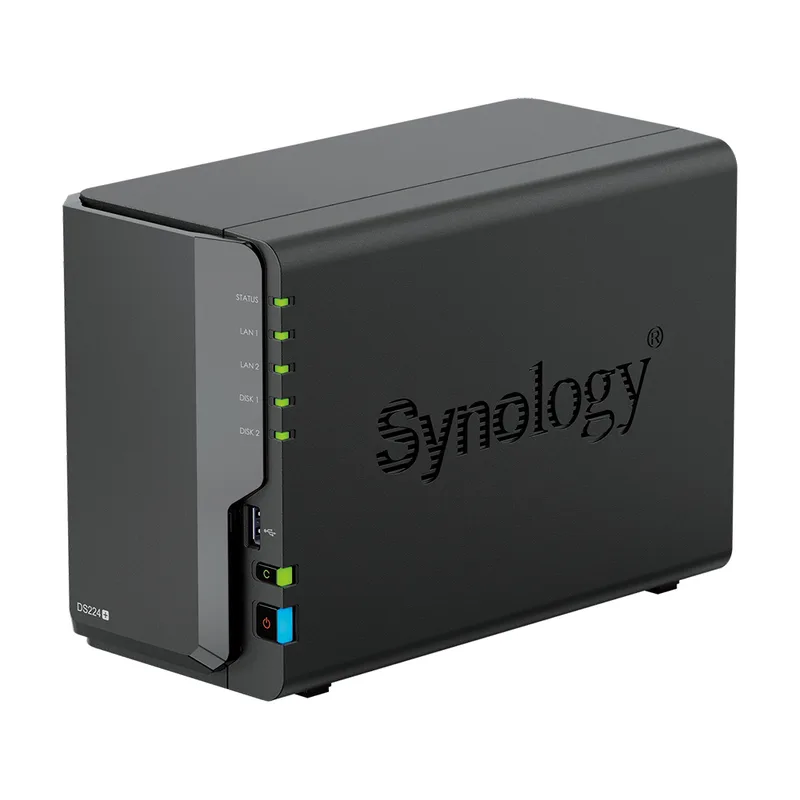
The DS224+ dropped from $369 to $299 in early 2026 — now it’s priced identically to the DS223’s previous price. That makes it significantly better value than it was a year ago.
The Intel Celeron J4125 unlocks the full Synology app catalog. Virtual Machine Manager lets you run Windows or Linux VMs on the NAS itself. Container Manager (Docker) opens self-hosted productivity tools — Nextcloud, task managers, calendar servers. Hardware transcoding handles 4K video streaming via Plex without stuttering.
For pure home office backup and remote access, the DS223 handles day-to-day tasks just as well. The DS224+ premium buys specific capabilities: Plex, VMs, Docker. If those aren’t in your plans, the DS223 covers the same ground at the same price now.
RAM starts at 2GB but expands to 6GB — worth doing if you’re running multiple apps simultaneously. The dual 1GbE ports support link aggregation for doubled local throughput, but both are still 1GbE — no 2.5GbE like the F2-424.
Best for: Users who want to run Plex, Docker, or virtual machines alongside standard NAS functions; anyone who outgrew the DS223’s capabilities.
Skip if: You just need file backup and remote access — the DS223 does that at the same price.
Comparison Table
| NAS | CPU | RAM | Network | OS | Price | Best For |
|---|---|---|---|---|---|---|
| Synology DS223 | ARM 1.7GHz | 2GB DDR4 | 1GbE | DSM | $255.83-$286.59 as of Oct 18, 2026 | Beginners, solo workers |
| TerraMaster F2-424 | Intel N95 3.4GHz | 8GB DDR5 | 2x 2.5GbE | TOS 6 | Unavailable | Large files, power users |
| QNAP TS-233 | ARM 2.0GHz | 2GB DDR4 | 1GbE | QTS | $239.00 as of Oct 18, 2026 | Budget, tech-savvy users |
| WD EX2 Ultra | ARM 1.3GHz | 512MB DDR3 | 1GbE | My Cloud OS 5 | Unavailable | Local-only, basic use |
| Synology DS224+ | Intel Celeron | 2GB DDR4 | 2x 1GbE | DSM | Unavailable | Plex, Docker, VMs |
Buying Guide: How to Choose the Right NAS
Start with use case, not price. If your goal is laptop backup and remote file access, the DS223 and QNAP TS-233 both deliver. If you want to run Plex or Docker, you need the DS224+ or F2-424. Hardware limitations can’t be patched with software.
Budget for drives. Every NAS in this roundup is sold diskless. Budget $70–$90 per 4TB NAS drive (WD Red Plus or Seagate IronWolf), and you need two for RAID 1. A 4TB-per-drive RAID 1 setup (4TB usable) runs $140–$180 in drives alone. Factor this into your total.
1GbE is fine for most use cases. For documents, backup, and remote access, 1GbE’s 110 MB/s ceiling isn’t a real constraint. It only matters if you’re regularly moving video files, database archives, or other multi-gigabyte content over local network. If that’s you, the TerraMaster F2-424 is the clear choice.
Software quality is a real differentiator. Synology DSM’s lead over the competition has only grown. If you want the smoothest experience and the broadest selection of well-maintained apps, Synology is worth the premium over QNAP.
Skip WD for new purchases in 2026. With cloud services sunsetting, the EX2 Ultra’s core remote access features have a limited lifespan. The DS223 and QNAP TS-233 are better starting points.
Frequently Asked Questions
Do I need to buy hard drives separately?
Yes — all five enclosures are sold diskless. You need to purchase NAS-rated drives separately. Recommended options: WD Red Plus or Seagate IronWolf in 4TB ($70–$90 each) or 8TB ($120–$150 each). Standard desktop drives technically work but aren’t rated for 24/7 operation and carry more risk of early failure in always-on RAID configurations. Budget for two drives minimum.
How does a NAS compare to just plugging a USB drive into my router?
A NAS is a dedicated network computer with its own processor, RAM, and operating system. It handles file system operations independently, runs RAID in the background, serves remote access software, and can run backup agents and additional apps. A USB drive on a router provides a basic network share — no RAID, no remote access, no additional services. NAS devices are also significantly faster and designed for continuous operation.
Can I reach my NAS files when traveling?
Yes, with Synology, QNAP, and TerraMaster devices. Synology QuickConnect, QNAP myQNAPcloud, and TerraMaster’s equivalent all provide secure remote access through a browser or mobile app without requiring router configuration. You access files the same way you’d use Dropbox — through an app or browser — but they’re stored on your hardware at home. Note: WD My Cloud EX2 Ultra’s remote access is being retired in 2026.
How much storage should I get for a home office?
For a solo remote worker backing up one laptop and storing documents, 2x2TB in RAID 1 (2TB usable) is comfortable for several years. For photo or video work, 2x4TB (4TB usable) is the practical starting point. NAS platforms support drive replacement for expansion later — replace drives one at a time while the NAS runs, rebuild the volume, repeat until capacity is doubled. You don’t need to max out storage upfront.
Is a NAS secure enough for confidential work files?
Yes, with proper configuration. All major NAS platforms support encrypted storage volumes, two-factor authentication for remote access, and encrypted connections (HTTPS/TLS). Enable drive encryption during setup, use two-factor authentication, and keep firmware updated. Use the manufacturer’s relay service (Synology QuickConnect, QNAP myQNAPcloud) rather than direct port forwarding — relay access is simpler to configure and reduces exposure.
How much power does a NAS use?
Most 2-bay NAS devices draw 15–25 watts during active use and 5–10 watts in drive sleep mode. At average US electricity rates (~$0.16/kWh), running a NAS continuously costs $20–$35 per year. The F2-424 draws slightly more due to its faster processor. All devices in this roundup support HDD sleep schedules to reduce power consumption during off-hours.
Conclusion
Most remote workers should start with the Synology DS223. At $285, it pairs the best NAS software available with hardware that handles every standard home office task. Setup is genuinely easy, the app ecosystem covers file sync, laptop backup, and remote access, and Synology’s documentation makes troubleshooting simple.
Budget shoppers get the QNAP TS-233 at $199 — comparable functionality at the lowest price for a capable NAS, with a tradeoff in interface complexity.
If you generate large files regularly or want a NAS that won’t hold you back, the TerraMaster F2-424 at $380 delivers performance nothing else in this price range can touch.
The Synology DS224+ at $299 is a compelling option now that the price dropped — the Intel processor unlocks Plex, Docker, and VMs that the DS223 can’t run.
The WD EX2 Ultra is only worth considering if you’re on a strict budget and need local storage only — its remote access features won’t be long for this world.
Detailed Reviews
Synology DiskStation DS223
Pros
- DiskStation Manager (DSM) is the most polished NAS operating system available
- Synology Drive enables remote file access from anywhere via browser or desktop app
- Active Backup for Business protects Windows and macOS laptops automatically
- Large app ecosystem covers file sync, photo backup, surveillance, and more
- Easiest setup of any NAS in this roundup — done in under an hour
Cons
- 1GbE network port limits local transfer speeds compared to 2.5GbE models
- Diskless — drives must be purchased separately, adding $140-$200 to total cost
- No expandable RAM, capped at 2GB
TerraMaster F2-424
Pros
- Intel N95 processor and 8GB DDR5 RAM handle multi-user workloads easily
- Dual 2.5GbE ports support link aggregation for up to 550 MB/s throughput
- NVMe SSD caching support for significantly faster frequently-accessed files
- Best raw performance per dollar of any 2-bay NAS available in 2026
Cons
- TOS 6 software is less mature and has a smaller app catalog than Synology DSM
- Higher price point — $380 before adding drives
- Smaller community support base than Synology or QNAP
QNAP TS-233
Pros
- Most affordable entry point for a capable name-brand NAS at $199
- QNAP's app catalog is extensive with strong business productivity options
- myQNAPcloud provides remote access without manual port forwarding
- Good file server performance for one or two simultaneous users
Cons
- QTS interface is more complex than Synology DSM for new NAS users
- 1GbE network port is a bottleneck for large file transfers on fast local networks
- Fewer community guides and tutorials than Synology
WD My Cloud EX2 Ultra
Pros
- Lowest enclosure price in this roundup at $169
- My Cloud mobile app provides basic remote access with minimal setup
- Consumer-friendly onboarding — least technical of the four options
- WD Red drive compatibility validated for optimal performance
Cons
- My Cloud OS 5 cloud services reaching end-of-support in 2026 — remote access will degrade
- 512MB RAM limits multi-user and app performance significantly
- Oldest processor architecture — slowest performer in this comparison
- Limited app ecosystem with no path to expansion
Synology DS224+
Pros
- Intel x86 processor enables the full Synology app catalog including Virtual Machine Manager
- Expandable RAM up to 6GB for running multiple applications simultaneously
- Hardware transcoding for Plex and Synology Video Station
- Dual ethernet supports link aggregation for doubled throughput on fast networks
- Now priced at $299 — same as DS223 was a year ago, much better value in 2026
Cons
- Still 1GbE only — no 2.5GbE despite the higher processor class
- Advanced features (VMs, Docker) most home office users won't need