Webcam shopping in 2026 means picking through spec sheets that lean hard on resolution numbers most video platforms won’t even use. Logitech’s MX Brio landed as the mainstream premium 4K pick at $199, Insta360’s Link 2 made motorized AI tracking affordable at $200, and Elgato’s Facecam 4K launched $100 below its own Facecam Pro — all real, current options. But the spec that dominates marketing copy, resolution, is the one least likely to change what a call participant actually sees: Zoom, Microsoft Teams, and Google Meet don’t transmit above 1080p in the vast majority of calls, no matter what camera is plugged in.
This guide walks through what actually matters when choosing a webcam — resolution, field of view, low-light handling, AI features, microphone, and connection type — then matches specific products to specific needs.
Quick Picks
| Spec | Elgato Facecam | Logitech C920S HD Pro | Anker PowerConf C200 | Logitech MX Brio | Insta360 Link 2 | Elgato Facecam 4K | Razer Kiyo Pro |
|---|---|---|---|---|---|---|---|
| Rating | 8.9/10 | 8.4/10 | 8.2/10 | 9.0/10 | 8.8/10 | 8.9/10 | 8.6/10 |
| Price | $109.99-$119.00as of Oct 18, 2026 | $55.48-$59.99as of Oct 18, 2026 | $69.99as of Oct 18, 2026 | $198.99as of Oct 18, 2026 | $199.99as of Oct 18, 2026 | $176.99as of Oct 18, 2026 | Unavailable |
| Resolution | 1080p 60fps | 1080p 30fps | 2K (2560x1440) 30fps | 4K UHD (3840x2160) 30fps | — | 4K 60fps | 1080p 60fps (HDR at 30fps) |
| Field of View | 82° (fixed focus) | 78° | Adjustable 65° / 78° / 95° | Adjustable 65° / 78° / 90° | 79.5° (f/1.8, 26mm equivalent) | 90°, f/4.0 | Adjustable 80° / 90° / 103° |
| Sensor | Sony STARVIS CMOS | — | — | — | 1/2-inch (4K/30fps or 1080p/60fps) | Sony STARVIS 2 CMOS | Sony IMX327 STARVIS CMOS, f/2.0 |
| Microphone | None — requires external mic | Dual stereo mics | Dual AI noise-canceling mics | Dual beamforming mics, ~5 ft pickup range | — | None — requires external mic | Built-in stereo, 16-bit/48kHz |
| Connection | USB-C | USB-A | USB-A | USB-C | USB-C | — | USB-A |
| Software | Camera Hub (manual exposure, white balance, sharpness) | — | — | — | — | — | — |
| Autofocus | — | Yes | Yes (15cm–3m range) | — | 10cm to infinity | — | — |
| Privacy Shutter | — | Yes, slide cover | Built-in cover | — | — | — | — |
| Low-Light | — | — | — | RightLight 5 with HDR | — | — | Adaptive light sensor |
| Digital Zoom | — | — | — | 4x | 4x | — | — |
| AI Tracking | — | — | — | — | Motorized 2-axis gimbal with tracking boundaries | — | — |
| Lens | — | — | — | — | — | Elgato Prime Lens, 21mm fixed focus | — |
| Focus Range | — | — | — | — | — | 30–120cm | — |
| Check Price → | Check Price → | Check Price → | Check Price → | Check Price → | Check Price → | Check Price → |
Prices change daily — tap Check Price for the current Amazon price.
Resolution: Why 4K Rarely Matters on the Call Itself
Most webcam marketing leads with resolution, but the video conferencing platforms doing the actual transmitting cap out well below what these cameras can capture. Zoom, Teams, and Meet compress and transmit at 1080p or lower for nearly every call, regardless of source resolution. A 4K webcam sends a downscaled stream to match.
Where 4K genuinely pays off: recorded video (webinars, training content, YouTube), digital zoom and reframing in post, and any workflow where you’re capturing footage to edit later rather than just appearing on a live call. If your webcam only ever needs to look good in Zoom, a strong 1080p sensor like the
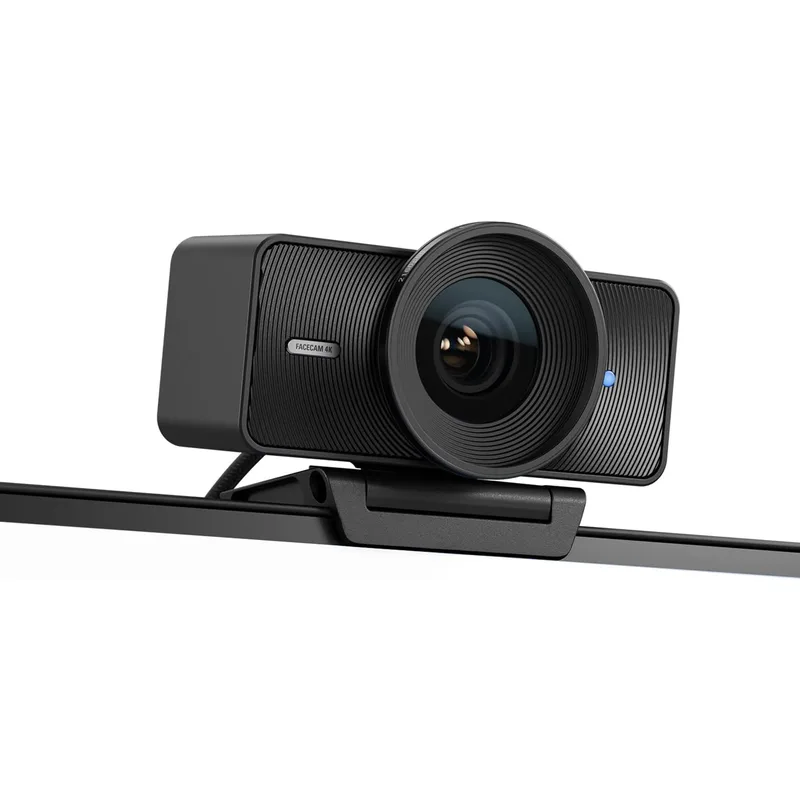
Elgato Facecam
Pros
- Sony STARVIS sensor and uncompressed video output produce the sharpest 1080p image of any webcam in this price range
- Camera Hub software gives DSLR-style manual control over exposure and white balance instead of relying on auto-adjust guesswork
- 60fps holds up during presentations or hand gestures where 30fps webcams show visible motion blur
- USB-C connection works cleanly through docks without the bandwidth issues some USB-A webcams hit
Cons
- No built-in microphone — this is a camera-only device, so budget for a separate mic or headset
- Fixed focus is tuned for typical desk distance and can't rack focus for close-up object demos
- No auto-framing or AI tracking — you set the shot once and it stays put
Field of View and Autofocus: Framing Beats Sharpness
Field of view (FOV) determines how much of you and your background the camera captures. A narrow FOV (65°–80°) fills the frame with just your face and shoulders — flattering for a solo desk shot, but it clips out anything beside you. A wide FOV (90°–103°) captures more of the room, useful for group shots or showing a whiteboard, but pushes you smaller into the frame and can introduce lens distortion near the edges.
Fixed-FOV webcams, like the Facecam models in this guide, pick one angle and stay there. Software-adjustable FOV — available on the
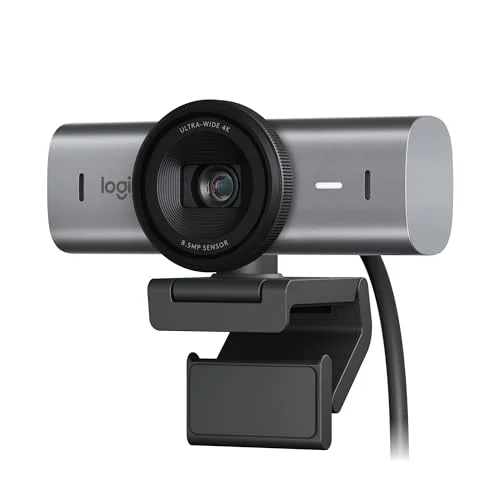
Logitech MX Brio
Pros
- 4K sensor gives real cropping headroom — digitally zoom or reframe in software without losing usable resolution
- RightLight 5 with HDR handles backlit windows and dim rooms noticeably better than fixed-exposure budget webcams
- Adjustable field of view (65°–90°) via software matches the framing to a solo desk shot or a wider group call
- Dual beamforming mics pick up voice clearly from several feet away, useful for stand-up desks or hands-free calls
Cons
- Most video platforms cap incoming resolution well below 4K, so the resolution advantage mainly shows up in recordings, not live calls
- Price runs well above budget and mid-range picks for a spec advantage most callers won't visibly notice
- Full feature set (FOV switching, RightLight tuning) requires Logitech's software running in the background
Autofocus matters more than most buyers expect. A fixed-focus lens (both Facecam models) is tuned for a specific distance and stays sharp there, but can’t rack focus if you lean in or hold up a document. Autofocus webcams track distance changes automatically, at the cost of occasionally hunting for focus in low light.
Low-Light Performance: Sensor Size Beats Megapixels
Home office lighting is rarely studio-controlled, and this is where sensor quality — not resolution — separates a usable webcam from a grainy one. Look for STARVIS or STARVIS 2 sensor branding (Sony’s back-illuminated sensor line, used across several webcams in this guide) and a wide aperture (f/1.8–f/2.0 lets in more light than f/4.0).
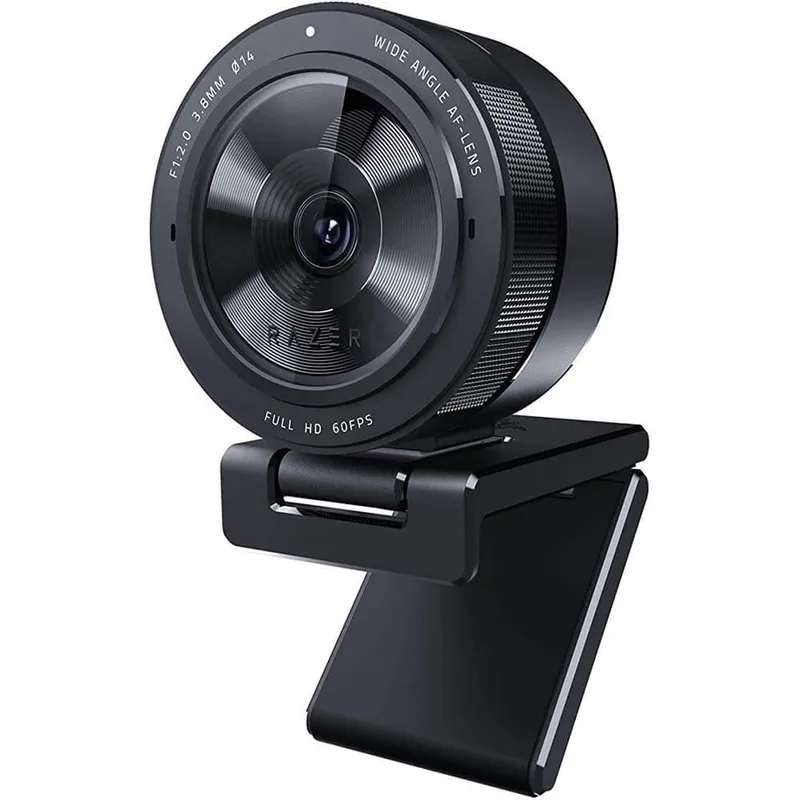
Razer Kiyo Pro
Pros
- STARVIS back-illuminated sensor is built around low-light sensitivity, noticeably cleaner than competitors in dim rooms without adding a light
- Adaptive light sensor adjusts exposure automatically as room lighting changes through the day, without manual tuning
- Three switchable field-of-view settings (80°/90°/103°) go wider than the 4K picks in this guide, useful for group shots
- Built-in stereo mic is a genuine microphone, not an afterthought, unlike the Facecam models
Cons
- USB-A connection requires an adapter on USB-C-only laptops, same limitation as the budget picks
- Physically larger and heavier on a monitor mount than the slimmer Facecam or MX Brio bodies
- Built-in mic picks up keyboard and mouse clicks at typical desk distance — still worth pairing with a headset for calls
The Razer Kiyo Pro’s Sony IMX327 STARVIS sensor and adaptive light sensor are built specifically around dim-room performance — it adjusts exposure automatically as light changes through the day rather than requiring manual correction. For anyone in a windowless room or working after dark without a dedicated light, low-light sensor quality matters more than any other spec on this list.
AI Features: Auto-Framing and Tracking
Software-driven framing has become a standard feature on premium webcams. Two distinct approaches exist:
Digital auto-framing crops and pans within the sensor’s native resolution to keep you centered — this is how most auto-framing webcams work, including higher-end Logitech models. It requires resolution headroom to crop into, which is part of why 4K sensors pair naturally with this feature.
Motorized tracking physically moves the camera to follow you, rather than cropping digitally.
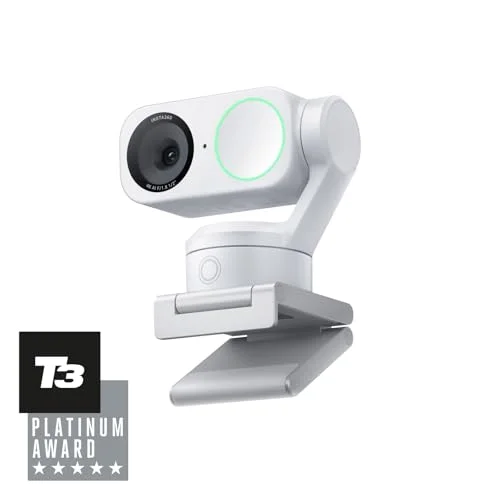
Insta360 Link 2
Pros
- The motorized gimbal physically pans and tilts to keep you framed as you move — a real mechanical advantage over webcams that only digitally crop
- AI subject detection adjusts depth of field in real time, separating you from the background more convincingly than static webcams
- Tracking boundaries let you cap how far the gimbal follows, useful if you don't want it panning toward a messy corner of the room
- Autofocus down to 10cm handles both a typical desk distance and close-up object show-and-tell
Cons
- The moving gimbal mechanism is one more physical part that can fail compared to a fixed-lens webcam
- AI tracking is the most useful for workers who move around during calls — deskbound callers who sit still get less benefit relative to the price
- At $199.99, it costs roughly 3x the budget pick for features most solo desk callers won't fully use
The Insta360 Link 2 uses a motorized 2-axis gimbal that pans and tilts in real time, with adjustable tracking boundaries so it doesn’t follow you out of frame entirely. This is a genuine advantage for anyone who moves around during a call — presenting at a whiteboard, gesturing with a standing desk — but it’s a feature that mostly benefits people who actually move. A caller who sits still gets limited practical value from the $200 price relative to a fixed webcam.
Built-In Microphone vs. External Audio
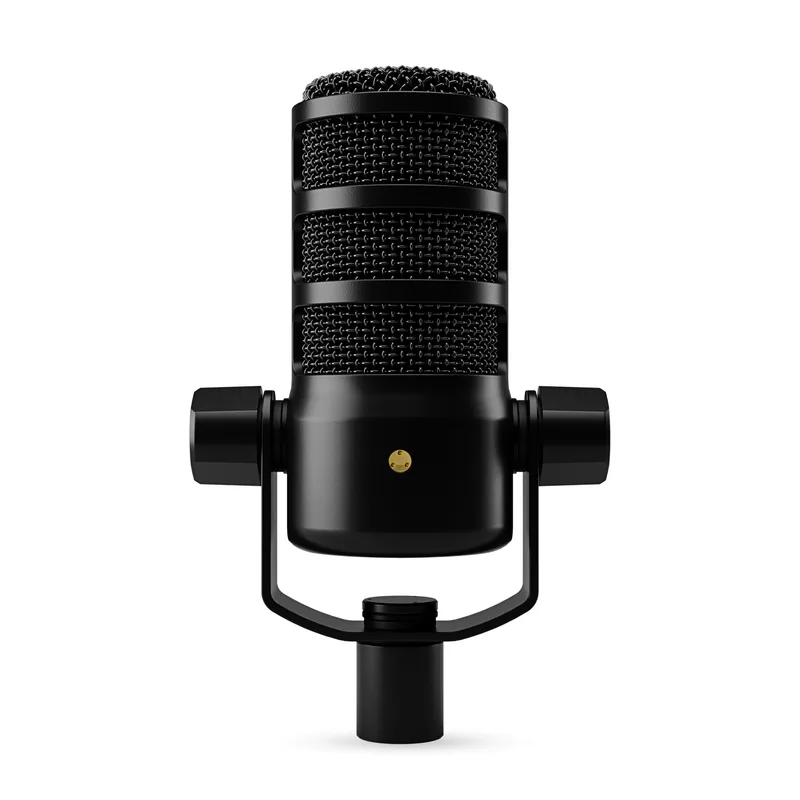
Not every webcam includes a microphone, and it’s worth checking before buying. Both Elgato Facecam models in this guide ship with no built-in mic at all — Elgato’s position is that webcam mics generally sound worse than a dedicated USB or headset mic, so it strips the component out entirely and expects you to pair one separately. If audio matters — and on video calls, it usually matters more than video — factor a USB microphone or headset into the budget alongside a mic-less camera.
Webcams that do include a microphone vary widely in quality. The Anker PowerConf C200’s dual AI noise-canceling mics and the MX Brio’s beamforming array are built to reduce room noise; the Kiyo Pro’s built-in stereo mic is functional but picks up keyboard and mouse clicks at typical desk distance.
Connection Type: USB-A vs. USB-C
USB-C webcams (Elgato Facecam models, MX Brio, Insta360 Link 2) connect directly to modern laptops and most docks without an adapter. USB-A webcams (Logitech C920S, Anker PowerConf C200, Razer Kiyo Pro) need a USB-C-to-A adapter or an available USB-A port on a dock — a minor but real friction point on newer USB-C-only laptops. Bandwidth isn’t a practical concern either way: all the webcams here run comfortably within USB 2.0 bandwidth through any modern hub or dock.
Software and Privacy
Adjustable FOV, auto-framing, and low-light tuning are typically gated behind manufacturer software (Logitech G HUB or Logi Tune, Elgato Camera Hub, AnkerWork, Insta360Link). Running that software adds background CPU and memory use and, on some webcams, is required just to unlock features that ship on the hardware. A physical privacy shutter — standard on the C920S and PowerConf C200, optional on premium models — is a simpler and more reliable privacy control than a software toggle, since it can’t be bypassed by a bug or forgotten setting.
Buying Guide: Match the Camera to How You Actually Work
You’re on standard video calls and nothing else. Resolution above 1080p buys you nothing the other participants will see. Prioritize sensor quality and low-light handling over megapixel count — the
Elgato Facecam
Pros
- Sony STARVIS sensor and uncompressed video output produce the sharpest 1080p image of any webcam in this price range
- Camera Hub software gives DSLR-style manual control over exposure and white balance instead of relying on auto-adjust guesswork
- 60fps holds up during presentations or hand gestures where 30fps webcams show visible motion blur
- USB-C connection works cleanly through docks without the bandwidth issues some USB-A webcams hit
Cons
- No built-in microphone — this is a camera-only device, so budget for a separate mic or headset
- Fixed focus is tuned for typical desk distance and can't rack focus for close-up object demos
- No auto-framing or AI tracking — you set the shot once and it stays put
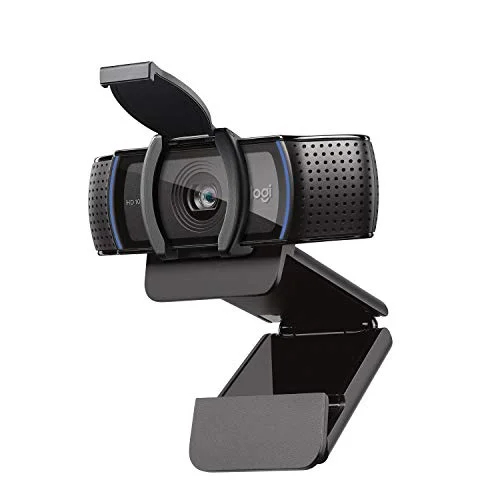
Logitech C920S HD Pro
Pros
- Proven track record — this has been a standard remote-work webcam for years with wide driver and platform support
- Autofocus keeps you sharp without any manual adjustment, unlike the fixed-focus Facecam
- Physical privacy shutter slides closed over the lens, a feature some pricier webcams skip
- Plug-and-play on Zoom, Teams, and Meet with no companion app required
Cons
- USB-A only — needs an adapter or hub port on newer USB-C-only laptops
- 30fps caps out at a noticeably less smooth image than 60fps competitors during motion
- No adjustable field of view or AI framing features
You record video for training, webinars, or content. 4K matters here because you’re capturing footage to crop, zoom, or edit later. The
Logitech MX Brio
Pros
- 4K sensor gives real cropping headroom — digitally zoom or reframe in software without losing usable resolution
- RightLight 5 with HDR handles backlit windows and dim rooms noticeably better than fixed-exposure budget webcams
- Adjustable field of view (65°–90°) via software matches the framing to a solo desk shot or a wider group call
- Dual beamforming mics pick up voice clearly from several feet away, useful for stand-up desks or hands-free calls
Cons
- Most video platforms cap incoming resolution well below 4K, so the resolution advantage mainly shows up in recordings, not live calls
- Price runs well above budget and mid-range picks for a spec advantage most callers won't visibly notice
- Full feature set (FOV switching, RightLight tuning) requires Logitech's software running in the background
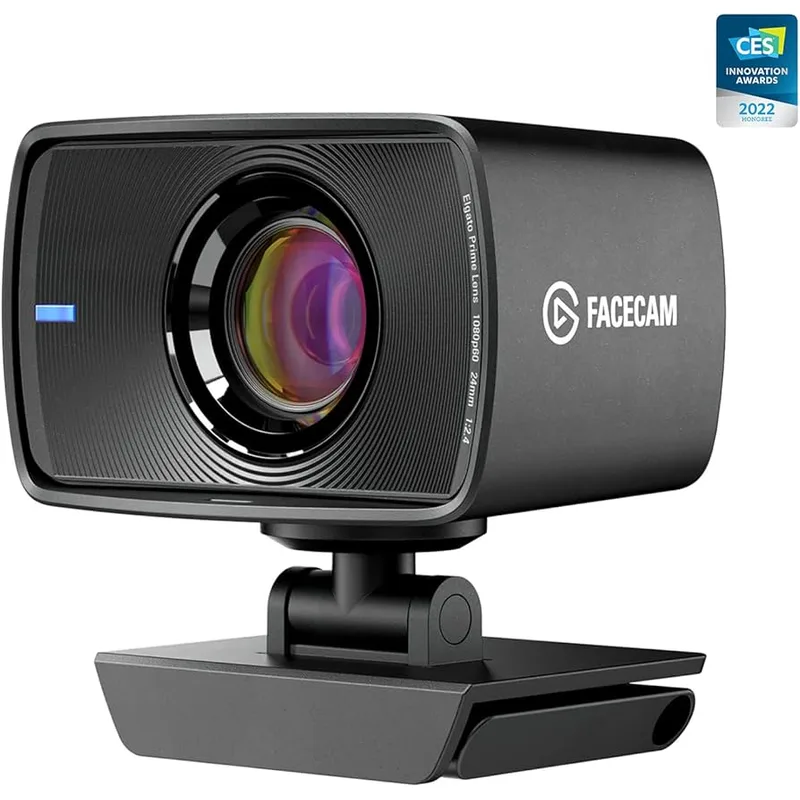
Elgato Facecam 4K
Pros
- 4K at 60fps is a rare combination — most 4K webcams cap at 30fps, so this holds smooth motion at full resolution
- Sony STARVIS 2 sensor and uncompressed output deliver the cleanest 4K image in this guide, launched at $100 below Elgato's own Facecam Pro
- Camera Hub software gives the same manual exposure and white balance control as the 1080p Facecam
- Wide 90° field of view suits multi-person shots or a desk setup with a lot of visible background
Cons
- No built-in microphone, same tradeoff as the 1080p Facecam — this is camera-only hardware
- Fixed 21mm lens focus range (30–120cm) doesn't rack focus the way an autofocus webcam does
- Most video call platforms don't transmit at 4K, so the resolution mainly benefits recorded video, not live calls
You move around during calls or present at a whiteboard. Motorized tracking is worth the premium. The Insta360 Link 2 is the only webcam here that physically follows you rather than just digitally cropping.
Your room has inconsistent or poor lighting. Sensor quality and adaptive exposure matter more than any other spec. The Razer Kiyo Pro’s STARVIS sensor and adaptive light sensor are purpose-built for this.
You’re buying on a tight budget. The Logitech C920S at $59.99 covers the fundamentals — autofocus, a real microphone, a privacy shutter — without the extras that drive up premium webcam prices.
FAQ
Do I need a 4K webcam for Zoom or Teams calls?
No. Zoom, Microsoft Teams, and Google Meet transmit at 1080p or lower for nearly all calls, regardless of the source camera’s resolution. A 4K webcam only pays off if you’re recording video separately from the live call, since you get real cropping and reframing headroom in the raw footage.
What field of view should I look for?
For a solo desk shot, 65°–80° keeps the frame tight on you without much wasted background. For group calls or showing a wider workspace, 90°+ captures more of the room but pushes you smaller into frame. Adjustable-FOV webcams let you switch between the two without buying a second camera.
Is a built-in microphone necessary?
It depends on your setup. If you already have a headset or dedicated USB microphone, a mic-less webcam like either Elgato Facecam model is fine — you’re not paying for a feature you won’t use. If the webcam is your only audio input, choose one with a real built-in mic, and prioritize models with noise-canceling or beamforming mics over a generic single-element mic.
Does STARVIS sensor branding actually matter?
Yes, in low-light conditions specifically. STARVIS and STARVIS 2 are Sony back-illuminated sensor lines built for better light-gathering than standard CMOS sensors. In a well-lit room, the difference is minor. In a dim or windowless office, a STARVIS-equipped webcam noticeably outperforms a standard sensor at the same resolution.
Is AI auto-framing worth paying for?
Only if you actually move during calls. Digital auto-framing crops within the sensor to re-center you when you shift position; motorized tracking physically pans the camera. Both help someone who gestures, stands up, or moves between a desk and a whiteboard. A caller who sits still in one position gets little practical benefit from either feature relative to the added cost.
Conclusion
Resolution is the spec least likely to change what your call participants actually see — sensor quality, field of view, and low-light handling matter more day to day. For most remote workers on standard video calls, the Elgato Facecam or Logitech C920S covers the fundamentals without paying for 4K headroom that Zoom and Teams won’t transmit anyway. Step up to the MX Brio or Facecam 4K only if you’re recording video separately, and consider the Insta360 Link 2 specifically if you move around during calls rather than sitting still at a desk. For the full ranked lineup across every budget, see Best Webcams for Video Calls in 2026 →, and for a complete camera-plus-lighting-plus-audio build, see The Complete Video Call Setup Guide →.
Detailed Reviews
Elgato Facecam
Pros
- Sony STARVIS sensor and uncompressed video output produce the sharpest 1080p image of any webcam in this price range
- Camera Hub software gives DSLR-style manual control over exposure and white balance instead of relying on auto-adjust guesswork
- 60fps holds up during presentations or hand gestures where 30fps webcams show visible motion blur
- USB-C connection works cleanly through docks without the bandwidth issues some USB-A webcams hit
Cons
- No built-in microphone — this is a camera-only device, so budget for a separate mic or headset
- Fixed focus is tuned for typical desk distance and can't rack focus for close-up object demos
- No auto-framing or AI tracking — you set the shot once and it stays put
Logitech C920S HD Pro
Pros
- Proven track record — this has been a standard remote-work webcam for years with wide driver and platform support
- Autofocus keeps you sharp without any manual adjustment, unlike the fixed-focus Facecam
- Physical privacy shutter slides closed over the lens, a feature some pricier webcams skip
- Plug-and-play on Zoom, Teams, and Meet with no companion app required
Cons
- USB-A only — needs an adapter or hub port on newer USB-C-only laptops
- 30fps caps out at a noticeably less smooth image than 60fps competitors during motion
- No adjustable field of view or AI framing features
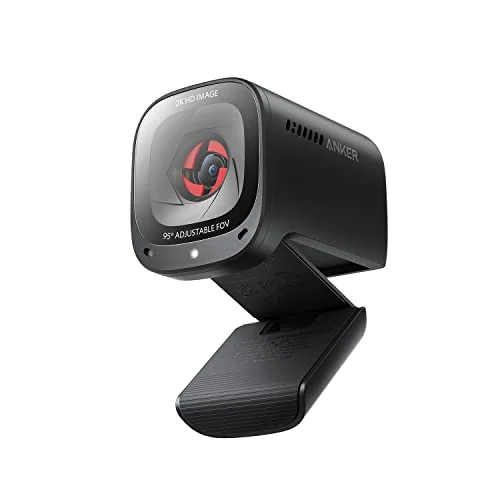
Anker PowerConf C200
Pros
- 2K resolution and adjustable field of view (65°–95°) via software cover more use cases than most fixed-FOV webcams at this price
- AI noise-canceling dual mics are a genuine upgrade over a typical budget webcam's single mic
- Built-in privacy cover slides shut without needing a separate physical accessory
- Autofocus range down to 15cm makes it workable for close-up product or document demos
Cons
- 2K isn't a resolution most video platforms transmit natively — the practical gain over 1080p is limited on calls
- USB-A connection, same adapter requirement as the C920S on USB-C-only laptops
- AnkerWork companion app is required to unlock the adjustable FOV and mic tuning options
Logitech MX Brio
Pros
- 4K sensor gives real cropping headroom — digitally zoom or reframe in software without losing usable resolution
- RightLight 5 with HDR handles backlit windows and dim rooms noticeably better than fixed-exposure budget webcams
- Adjustable field of view (65°–90°) via software matches the framing to a solo desk shot or a wider group call
- Dual beamforming mics pick up voice clearly from several feet away, useful for stand-up desks or hands-free calls
Cons
- Most video platforms cap incoming resolution well below 4K, so the resolution advantage mainly shows up in recordings, not live calls
- Price runs well above budget and mid-range picks for a spec advantage most callers won't visibly notice
- Full feature set (FOV switching, RightLight tuning) requires Logitech's software running in the background
Insta360 Link 2
Pros
- The motorized gimbal physically pans and tilts to keep you framed as you move — a real mechanical advantage over webcams that only digitally crop
- AI subject detection adjusts depth of field in real time, separating you from the background more convincingly than static webcams
- Tracking boundaries let you cap how far the gimbal follows, useful if you don't want it panning toward a messy corner of the room
- Autofocus down to 10cm handles both a typical desk distance and close-up object show-and-tell
Cons
- The moving gimbal mechanism is one more physical part that can fail compared to a fixed-lens webcam
- AI tracking is the most useful for workers who move around during calls — deskbound callers who sit still get less benefit relative to the price
- At $199.99, it costs roughly 3x the budget pick for features most solo desk callers won't fully use
Elgato Facecam 4K
Pros
- 4K at 60fps is a rare combination — most 4K webcams cap at 30fps, so this holds smooth motion at full resolution
- Sony STARVIS 2 sensor and uncompressed output deliver the cleanest 4K image in this guide, launched at $100 below Elgato's own Facecam Pro
- Camera Hub software gives the same manual exposure and white balance control as the 1080p Facecam
- Wide 90° field of view suits multi-person shots or a desk setup with a lot of visible background
Cons
- No built-in microphone, same tradeoff as the 1080p Facecam — this is camera-only hardware
- Fixed 21mm lens focus range (30–120cm) doesn't rack focus the way an autofocus webcam does
- Most video call platforms don't transmit at 4K, so the resolution mainly benefits recorded video, not live calls
Razer Kiyo Pro
Pros
- STARVIS back-illuminated sensor is built around low-light sensitivity, noticeably cleaner than competitors in dim rooms without adding a light
- Adaptive light sensor adjusts exposure automatically as room lighting changes through the day, without manual tuning
- Three switchable field-of-view settings (80°/90°/103°) go wider than the 4K picks in this guide, useful for group shots
- Built-in stereo mic is a genuine microphone, not an afterthought, unlike the Facecam models
Cons
- USB-A connection requires an adapter on USB-C-only laptops, same limitation as the budget picks
- Physically larger and heavier on a monitor mount than the slimmer Facecam or MX Brio bodies
- Built-in mic picks up keyboard and mouse clicks at typical desk distance — still worth pairing with a headset for calls