Affiliate disclosure: SetupRanked earns a commission from qualifying Amazon purchases at no extra cost to you.
The math on 1440p monitors changed in 2026. According to market reporting earlier this year, solid IPS panels at 27 inches with 144-165Hz refresh rates now land well under $300 — prices that were reserved for 1080p displays two or three years ago. If you’re still running a 1080p monitor for remote work, the gap in text sharpness alone makes upgrading worth considering.
The 27-inch 1440p format sits at the practical center of the monitor market for remote workers. The pixel density (109 PPI) is sharp enough that Windows 11 or macOS scaling works well at 100% without blurry UI elements. The 27-inch size is large enough for side-by-side document comparison without reaching ultrawide territory and its associated desk space requirements. And at 1440p, modern integrated graphics (Intel Iris Xe, AMD Radeon 680M/780M) drive the resolution without discrete GPU assistance — relevant for anyone working from a modern laptop.
This roundup covers five 27-inch 1440p monitors across four price tiers: budget productivity, KVM multi-PC, curved gaming/work hybrid, high-color professional, and premium Nano IPS. All five are verified in stock on Amazon as of June 2026 with confirmed ASINs.
Comparison
| Spec | LG 27GP850-B UltraGear | ASUS ProArt PA278CGV | Gigabyte M27Q | Dell S2722DGM | MSI PRO MP275Q |
|---|---|---|---|---|---|
| Rating | 9.2/10 | 9.0/10 | 8.7/10 | 8.5/10 | 8.2/10 |
| Price | $289-$339 | $249-$329 | $199-$249 | $249-$279 | $129-$149 |
| Panel | Nano IPS | IPS | SS IPS (Super Speed IPS) | VA (1500R curved) | IPS |
| Resolution | 2560×1440 (QHD) | 2560×1440 (QHD) | 2560×1440 (QHD) | 2560×1440 (QHD) | 2560×1440 (QHD) |
| Refresh Rate | 165Hz | 144Hz | 165Hz | 165Hz (DP), 144Hz (HDMI) | 100Hz |
| Response Time | 1ms (GtG) | 5ms (GtG) | 0.5ms (MPRT) | 2ms (GtG, Extreme Mode) | 1ms (MPRT) |
| Color Gamut | 98% DCI-P3 | 95% DCI-P3, 100% sRGB, 100% Rec.709 | 92% DCI-P3 | 99% sRGB | ~99% sRGB |
| Sync | G-SYNC Compatible + FreeSync Premium | — | AMD FreeSync Premium | AMD FreeSync Premium | Adaptive Sync |
| Inputs | 1× DisplayPort 1.4, 2× HDMI 2.0, 1× USB-A hub | 1× DisplayPort 1.2, 1× HDMI 2.0, 1× USB-C (90W PD), 4× USB-A hub | 1× DisplayPort 1.2, 2× HDMI 2.0, 2× USB 3.0 | 1× DisplayPort 1.2, 2× HDMI 2.0 | 1× DisplayPort 1.2a, 1× HDMI 2.0b |
| Ergonomics | Height, tilt, pivot, swivel adjustable | — | — | Height, tilt adjustable | — |
| Calibration | — | Calman Verified, ΔE < 2 | — | — | — |
| HDR | — | DisplayHDR 400 | — | — | — |
| KVM | — | — | Built-in hardware KVM switch | — | — |
| Extras | — | — | — | — | Built-in speakers, flicker-free, anti-glare |
The Picks
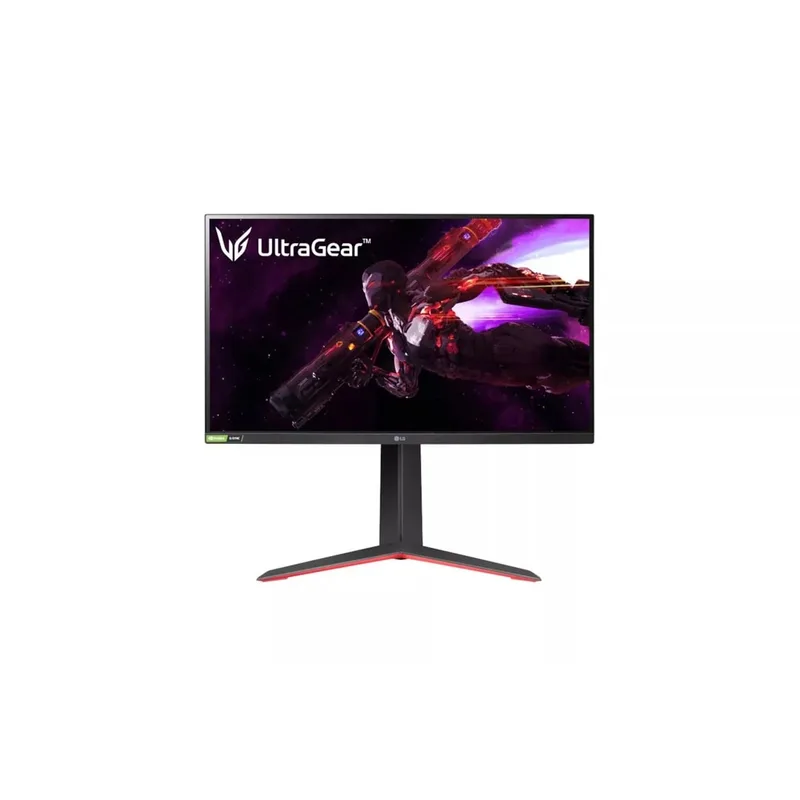
LG 27GP850-B UltraGear
Pros
- Nano IPS panel hits 98% DCI-P3 — sharper colors than standard IPS at this resolution, particularly noticeable in design work and video editing timelines
- 165Hz at 1440p eliminates any motion blur during presentation transitions or fast-scrolling through documents, and doubles as a capable gaming display after hours
- Full ergonomic adjustment (height, tilt, pivot, swivel) means the stand handles every desk configuration without a third-party arm
- G-SYNC Compatible and FreeSync Premium certification covers both NVIDIA and AMD GPU users without buying a monitor specifically for one platform
- Factory-calibrated Nano IPS panel arrives with accurate color out of box — color-critical work doesn't require manual profiling to get usable results
Cons
- No USB-C input or power delivery — laptop users who want single-cable connectivity will need a separate hub or dock
- At $289-$339, priced higher than standard IPS panels at 165Hz — the premium is justified by Nano IPS color, but budget buyers won't find relief here
- HDR implementation is entry-level (HDR10 compatible, not DisplayHDR 600 or higher) — HDR content looks better than SDR, but not dramatically so
The LG 27GP850-B earns the top spot on the strength of its Nano IPS panel. Standard IPS and SS IPS panels typically cover 95-96% sRGB. The Nano IPS panel in the 27GP850-B reaches 98% DCI-P3 — a wider color space than sRGB — which translates to visibly richer greens, reds, and oranges in design work, video editing timelines, and photo review workflows.
The 165Hz refresh rate at 1440p is smooth enough for fluid presentation scrolling and video playback during calls, and it doubles as a capable gaming monitor at 165fps. The 1ms GtG response time keeps motion artifacts minimal. LG ships this with both G-SYNC Compatible and FreeSync Premium certification, so it works with variable refresh rate regardless of whether your GPU is NVIDIA or AMD.
The stand covers the full ergonomic range: height, tilt, pivot, and swivel. Remote workers who move between sitting and standing don’t need to buy an arm to get the monitor into the right position. The pivot function (rotating 90 degrees to portrait) is useful for reading long documents or reviewing code without horizontal scrolling.
The primary limitation: no USB-C. Remote workers who want a one-cable desk connection from a USB-C laptop have to add a dock or hub. At $289-$339, this is also the second most expensive monitor in this roundup — the ASUS ProArt sometimes lands at similar prices with USB-C and factory calibration.
Buy this if: You want the best all-around 27-inch 1440p panel for a mixed productivity and creative workload, and your desk has a separate dock or hub for laptop connectivity.
Skip this if: You need USB-C power delivery from the monitor, or you’re color-critical enough to need factory calibration documentation.
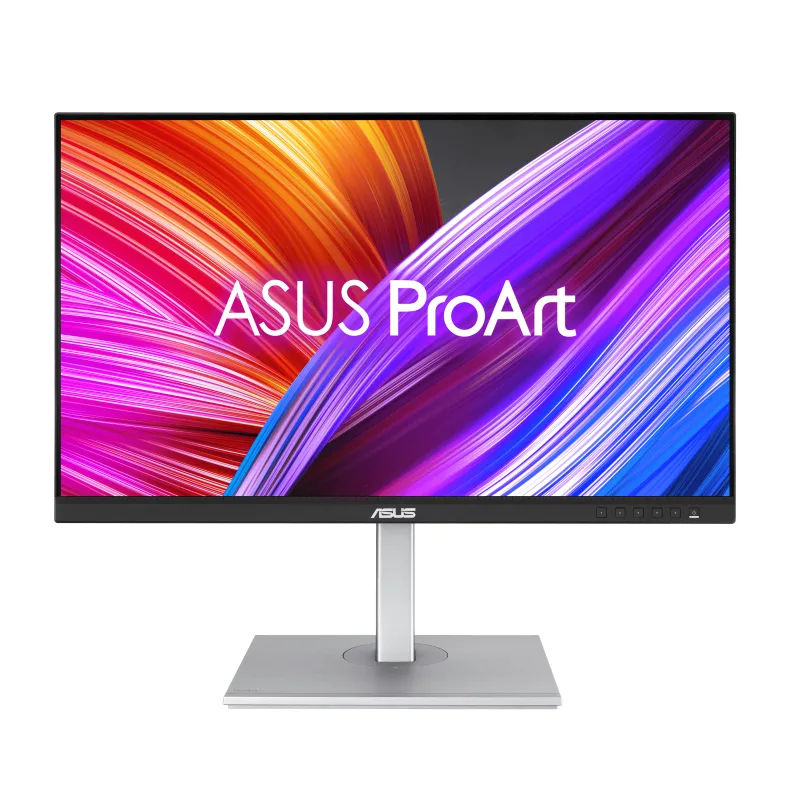
ASUS ProArt PA278CGV
Pros
- USB-C with 90W power delivery handles modern laptops (14-15W CPUs) directly — one cable carries display signal and charges the laptop simultaneously
- Calman Verified factory calibration with ΔE < 2 color accuracy means colors are accurate for photo editing and design work without buying a colorimeter and profiling yourself
- 95% DCI-P3 and 100% sRGB coverage makes this genuinely useful for client-facing creative work — colors you see on screen match print and broadcast references reliably
- Four USB-A hub ports plus USB-C turns the monitor into a desk hub — one cable from the laptop powers monitor, USB peripherals, and charging simultaneously
- 144Hz refresh rate is high enough for fluid document scrolling and casual gaming, at a price point lower than 165Hz Nano IPS alternatives
Cons
- 5ms GtG response time is slower than the LG 27GP850-B — fast gaming or motion-heavy video work shows more trailing on high-contrast edges
- No NVIDIA G-SYNC support — FreeSync Premium only, meaning NVIDIA GPU users lose adaptive sync benefits
- DisplayHDR 400 certification is the entry tier — peak brightness is adequate but not competitive with OLED or DisplayHDR 1000 displays for HDR-specific work
The ASUS ProArt PA278CGV is the strongest option for remote workers whose job involves visual output that other people will see and judge. The 95% DCI-P3 and 100% sRGB coverage, paired with Calman Verified factory calibration and ΔE < 2 color accuracy, means what you see on screen reliably matches what clients, print shops, and broadcast monitors will reproduce.
The practical differentiator is USB-C with 90W power delivery. One cable from a MacBook Pro 14-inch or a modern Windows laptop (up to 90W) carries the display signal and charges the laptop simultaneously. The four USB-A hub ports downstream mean you can connect a keyboard, mouse, USB drive, and webcam all through the monitor — one cable from laptop to monitor manages the entire desk setup. For anyone who moves between a home office and a client office, this single-cable workflow eliminates the cable tangle that usually follows.
The 144Hz refresh rate is slightly lower than the 165Hz in the LG and Gigabyte options, and the 5ms GtG response time is slower. Neither gap matters for document work, video calls, or photo editing — but if fast gaming is a regular after-hours activity, the LG’s motion handling is noticeably cleaner.
Slickdeals tracked the PA278CGV at $229 in April 2026, and it regularly sits at $279-$299 on Amazon. When it’s at the lower end of the $249-$329 range, this is arguably the best value in the roundup for creative remote workers.
Buy this if: You work in design, photography, or video and need reliable color accuracy with verifiable calibration documentation — and your laptop uses USB-C.
Skip this if: You game heavily after hours, or your GPU is NVIDIA and you want G-SYNC variable refresh rate support.
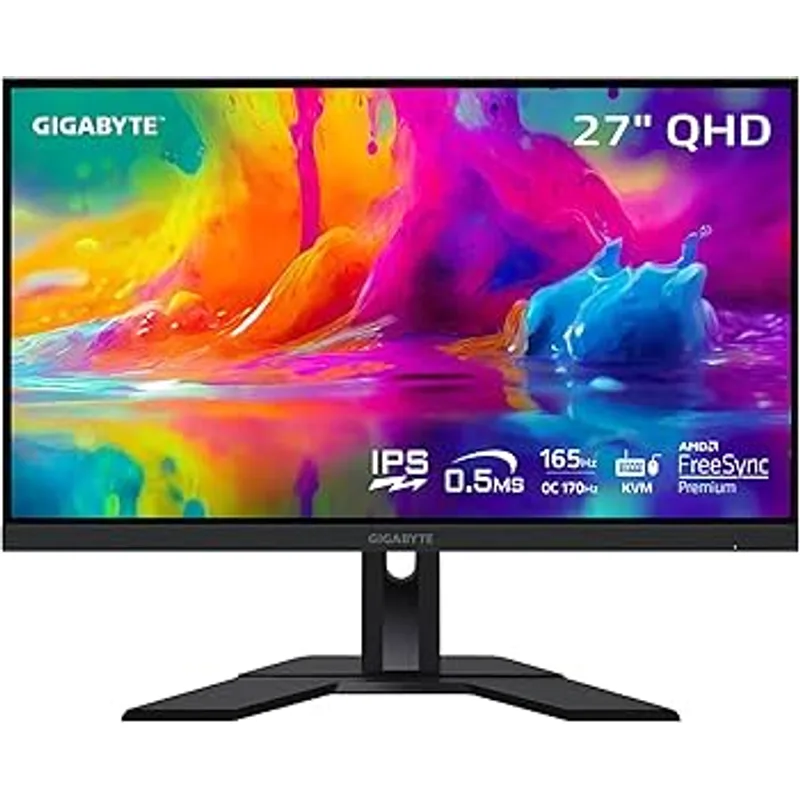
Gigabyte M27Q
Pros
- Built-in hardware KVM switch lets you control two PCs with one keyboard and mouse — essential for remote workers who run a personal laptop and a work-issued machine on one desk
- SS IPS panel at 165Hz and 0.5ms MPRT response time delivers the best motion clarity in this price range — faster than most standard IPS panels at the same refresh rate
- 92% DCI-P3 coverage is solid for a mid-range monitor and noticeably better than the standard 72% sRGB typical of budget office displays
- 165Hz refresh rate at 1440p for $199-$249 represents the best price-to-performance ratio in this roundup for pure display specs
- Two USB 3.0 downstream ports enable a lightweight desk hub for keyboards, mice, and USB drives without separate hardware
Cons
- No USB-C input — laptop users require a separate cable for display and a separate charger, eliminating the single-cable desk setup
- 92% DCI-P3 trails the LG Nano IPS (98%) and ASUS ProArt (95% DCI-P3) for color-critical creative work — good for general use, not ideal for professional photo editing
- Height adjustment range is limited compared to the LG and ASUS options — ergonomic positioning requires more stand shimming for some desk setups
The Gigabyte M27Q’s defining feature is its built-in hardware KVM switch. Connect two computers — a personal laptop and a company-issued machine, or a desktop and a laptop — to the monitor via separate inputs. One keyboard and mouse stays plugged into the M27Q’s USB hub. Press a button (or set a hotkey) and control switches instantly between both systems without physical cable swapping or a dedicated KVM box.
For remote workers who maintain two computing environments on one desk, this is a $199-$249 solution to a problem that dedicated KVM switches typically solve for $50-$150 more, without an additional box cluttering the desk.
The SS IPS panel at 165Hz with 0.5ms MPRT response time outperforms standard IPS panels on motion clarity at the same refresh rate. The 92% DCI-P3 color coverage is solid — not at the level of the LG Nano IPS or ASUS ProArt, but meaningfully better than the 72% sRGB typical of budget productivity displays. Daily work in Figma, Notion, and browser-based tools looks clean and accurate.
At $199-$249, the M27Q is the best price-per-spec panel in this roundup for pure display performance. The tradeoffs are real — no USB-C, tighter ergonomic range on the stand — but for anyone who values the KVM functionality or just wants the most monitor per dollar spent, the M27Q is hard to beat.
Buy this if: You run two computers on one desk and want a hardware KVM without a separate box, or you want the highest refresh rate 1440p IPS panel under $250.
Skip this if: You need USB-C display input from a laptop, or you need factory-calibrated color for professional creative work.
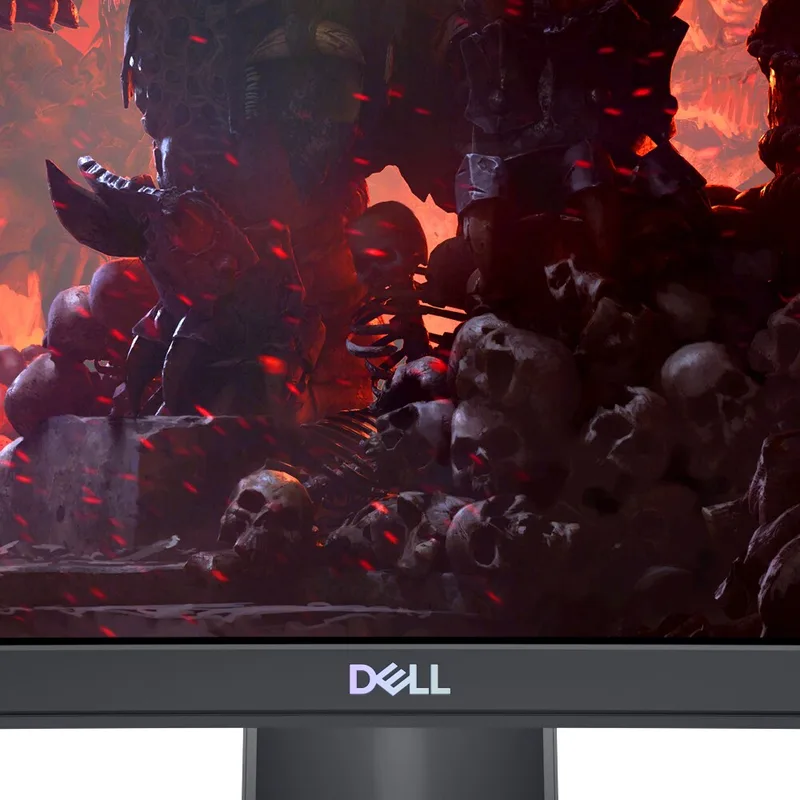
Dell S2722DGM
Pros
- 1500R curve radius creates a consistent viewing distance across the full 27-inch width — edges of the screen match focus distance of the center without eye strain during long document review sessions
- VA panel delivers deeper blacks and higher static contrast than IPS panels — dark UI themes, terminal windows, and dark-mode browser sessions look substantially better than on IPS at this price
- 165Hz at 1440p for $249-$279 on a Dell-warranted panel covers both productivity use and after-hours gaming without a second monitor purchase
- Height and tilt adjustment handles most ergonomic setups at this price — unusual for curved monitors that often ship with fixed-height stands
- 99% sRGB coverage is accurate for standard office and web work, and consistent enough for light photo editing against standard color profiles
Cons
- VA panel has slower pixel response than IPS or SS IPS — motion artifacts on high-contrast edges are visible in very fast-paced content even at 165Hz
- No USB hub, no USB-C — purely a display, requiring separate connectivity for peripherals and laptop charging
- 1500R curve is a strong opinion: remote workers who frequently reference printed materials alongside the screen may find the geometry disorienting compared to a flat display
The Dell S2722DGM is the curved option in this roundup. The 1500R curve radius is visible at 27 inches — the screen wraps gently around your field of view, and all parts of the display are approximately equidistant from your eyes when you’re seated at a reasonable desk distance (60-70cm). For long document review sessions or extended coding, the curve reduces the eye travel and refocus effort that a flat 27-inch panel requires when looking from the center to an edge.
The VA panel brings a contrast ratio advantage that IPS panels at this price cannot match. Deep blacks in terminal windows, dark IDE themes, or browser dark mode are visibly richer on the S2722DGM than on any IPS panel in this roundup at a similar price. Static contrast on VA runs 3000:1 or higher versus 1000:1 typical for IPS — the difference is clearest in dark environments or on content with dark and bright elements on screen simultaneously.
165Hz over DisplayPort handles both fluid UI and casual gaming. The 2ms GtG response time in Extreme mode is adequate for most use cases but shows more trailing on very fast motion than the 0.5ms M27Q or 1ms LG panel. For office work and video calls, this is not a practical concern.
The Dell warranty and support infrastructure is a quiet advantage: for remote workers whose income depends on their display, Dell’s next-business-day warranty (if enrolled) or standard support process is more accessible than smaller brands.
Buy this if: You prefer a curved display for extended work sessions, or you want VA panel contrast ratios for dark-mode-heavy workflows and don’t need professional-grade color accuracy.
Skip this if: You work with photos or color-critical design — VA panel color uniformity and accuracy at this price tier is below IPS and Nano IPS alternatives.
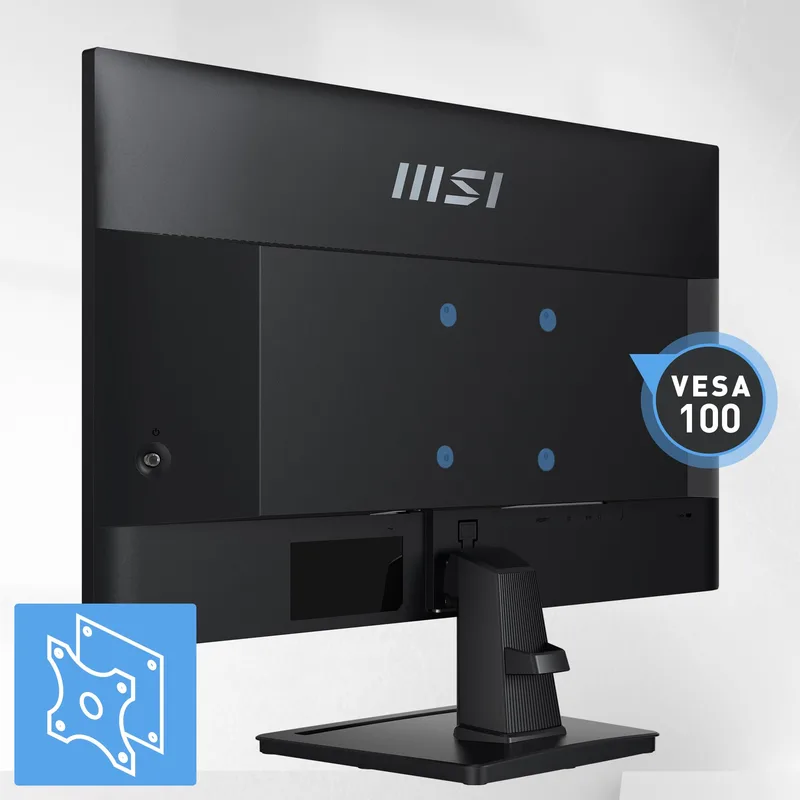
MSI PRO MP275Q
Pros
- At $129-$149, the cheapest path to a 27-inch 1440p IPS panel — the step up from 1080p is immediately visible in text sharpness, document readability, and UI scaling
- Built-in speakers handle video calls and background music without separate desktop speakers — meaningful for minimalist setups or anyone who wants fewer cables
- IPS panel with flicker-free backlight and anti-glare coating makes all-day screen time more comfortable than TN or uncertified panels at similar prices
- Adaptive Sync compatible — GPU doesn't need to be NVIDIA or AMD certified, covers integrated graphics in modern Intel and AMD laptops
- 100Hz is noticeably smoother than 60Hz for scrolling, video calls, and typing — the gap is perceptible in daily work in a way that jumping from 144Hz to 165Hz is not
Cons
- 100Hz refresh rate falls short of the 144-165Hz panels in the rest of this roundup — not a problem for office work, but limits usefulness for gaming or motion-heavy video production
- No height adjustment — tilt-only stand requires a monitor arm or laptop riser to achieve proper ergonomic positioning for most desk heights
- No USB hub or USB-C — straightforward display only, which forces separate cables for all peripherals
The MSI PRO MP275Q at $129-$149 solves one specific problem: getting to 1440p at 27 inches without spending $200. The resolution upgrade from 1080p to 1440p at 27 inches is more visible than almost any other single hardware change a remote worker can make — text gets sharper, more content fits without scrolling, and UI scaling on Windows 11 or macOS works correctly at 100% without blurry compromises.
The 100Hz refresh rate is not the 165Hz headline number of the other monitors in this roundup, but it is 67% faster than the 60Hz displays it replaces in most home offices. At 100Hz, scrolling through long documents, moving windows, and typing feel noticeably smoother than 60Hz. The gap from 100Hz to 165Hz is real but much less perceptible in daily office use.
Built-in speakers distinguish the MP275Q from most monitors at this price. For video calls, they’re adequate — the audio won’t replace a dedicated speaker, but it eliminates the need for one on a minimalist desk. The anti-glare coating and flicker-free backlight are practical for all-day work near a window, where reflections and eye strain are real concerns that premium monitors with glossy panels or insufficient anti-glare coating fail to address.
The limitations are honest: no height adjustment, no USB hub, no USB-C. The stand tilts but doesn’t rise. At $129-$149, the MSI PRO MP275Q is not trying to be a desk hub or a gaming monitor — it’s trying to be an accurate, sharp, comfortable 27-inch 1440p screen for the lowest possible price. It succeeds at that goal.
Buy this if: You’re moving from a 1080p monitor and want the sharpness upgrade without spending more than $150, or you need a second display on a tight budget.
Skip this if: You need ergonomic height adjustment, USB-C charging from the display, or plan to game seriously on this monitor.
Buying Guide: What to Look for in a 27-Inch 1440p Home Office Monitor
Panel type matters more than refresh rate for most remote workers
The three panel technologies in this roundup — Nano IPS, standard IPS/SS IPS, and VA — have different strengths:
- Nano IPS (LG 27GP850-B): Best color coverage (98% DCI-P3), fast response, consistent brightness. Best for creative work and color-accurate output.
- Standard IPS / SS IPS (ASUS ProArt, Gigabyte M27Q, MSI MP275Q): Accurate color, wide viewing angles, fast pixel response on SS IPS. The standard for productivity monitors.
- VA (Dell S2722DGM): Higher contrast ratio and deeper blacks. Better for dark-mode workflows; weaker color uniformity than IPS for design work.
For general remote work — documents, spreadsheets, video calls, browser-based apps — any IPS panel at 1440p is a significant upgrade over a typical 1080p office display.
USB-C with power delivery changes your desk setup
A monitor with USB-C and 90W PD turns a two-cable desk (power + display) into a one-cable setup from the laptop. Only the ASUS ProArt PA278CGV in this roundup offers USB-C with full 90W PD. If your workflow involves frequently moving a laptop between locations, the cable reduction is worth prioritizing.
KVM is underrated for two-computer desks
Remote workers who maintain a personal machine and a company machine on the same desk often solve the input-sharing problem with two keyboards and two mice, or a hardware KVM box. The Gigabyte M27Q’s built-in KVM handles this within the monitor itself — no extra box, no extra cost above the monitor price.
Refresh rate for office work: 100Hz is the floor, 165Hz is the ceiling that matters
At 27 inches and 1440p, the difference between 100Hz and 60Hz is clearly visible in scrolling and window movement. The jump from 100Hz to 144Hz or 165Hz is real but subtle for office applications. For gaming, the higher refresh rate matters more. Budget appropriately: if you don’t game, the MSI PRO MP275Q’s 100Hz is adequate, and the savings versus a 165Hz panel are substantial.
Stand quality affects long-term comfort
The LG 27GP850-B and ASUS ProArt PA278CGV offer full ergonomic adjustment (height, tilt, pivot, swivel). The Dell S2722DGM adjusts height and tilt. The MSI PRO MP275Q only tilts. If you work eight-plus hours at a desk and your monitor isn’t at eye level, a monitor arm ($30-$80) solves the problem for any of these displays.
FAQ
Is 1440p noticeably better than 1080p on a 27-inch monitor? Yes — significantly. At 27 inches, 1080p is 82 PPI, which is below the threshold where individual pixels become visible on-screen. 1440p at 27 inches is 109 PPI, which is sharp enough that Windows and macOS 100% scaling looks clean without blurry text. The difference is most visible in small UI elements, text documents, and spreadsheets.
Do these monitors work with MacBooks? All five monitors work with Intel and Apple Silicon MacBooks via the appropriate cable or adapter. The ASUS ProArt PA278CGV is the only one in this roundup with native USB-C display input, which connects directly to a MacBook’s Thunderbolt port. The others require a USB-C to DisplayPort adapter, or a Thunderbolt dock with a DisplayPort output. Apple Silicon Macs support only one external monitor natively on M1/M2; M3 and M4 MacBook Pros support up to two.
Is 165Hz worth the extra cost over 100Hz for office work? For document work, email, and video calls, 100Hz is adequate. The jump from 60Hz to 100Hz is clearly visible; from 100Hz to 165Hz is subtle in non-gaming contexts. If you game regularly after work, 165Hz panels give you noticeably smoother gameplay. If your workload is purely productivity, the MSI PRO MP275Q’s 100Hz saves $100+ versus 165Hz alternatives.
What’s the difference between Nano IPS and standard IPS? Both are IPS technology, but Nano IPS uses nanoparticles applied to the backlight to filter out unwanted light wavelengths, resulting in a wider and more accurate color gamut (98% DCI-P3 versus the 95-96% typical of standard IPS). In practical terms, Nano IPS reproduces greens, reds, and blues that are closer to the full visible spectrum — visible in color-graded photos and video but often imperceptible in spreadsheet work or document editing.
Can these monitors run at 1440p from laptop integrated graphics? Yes. Intel Iris Xe (11th gen and later), AMD Radeon 680M/780M, and Apple M-series integrated graphics all drive 1440p displays at their native refresh rates without difficulty. For the 165Hz monitors, confirm your laptop’s DisplayPort or USB-C output supports HBR3 data rate — most modern laptops do. HDMI 2.0 handles 1440p at 144Hz; getting 165Hz requires either DisplayPort or USB-C with DisplayPort Alt Mode at HBR3 speeds.
Conclusion
The LG 27GP850-B is the strongest all-around 27-inch 1440p monitor for home office use in 2026. The Nano IPS panel’s 98% DCI-P3 color coverage combined with 165Hz and full ergonomic adjustment puts it ahead of standard IPS alternatives for a reasonable premium. For remote workers who do both creative and productivity work, the Nano IPS color advantage matters in real workflows.
For creative professionals who need verified color accuracy and a single USB-C cable to the laptop, the ASUS ProArt PA278CGV is the better choice. Its Calman Verified ΔE < 2 calibration and 90W USB-C PD justify its price for design, photo, and video work.
If budget is the priority, the MSI PRO MP275Q at $129-$149 delivers a 27-inch 1440p IPS panel that beats any 1080p office monitor in sharpness and working space without requiring a large investment. The upgrade makes a bigger practical difference than almost any other single change to a home office display setup.
Detailed Reviews
LG 27GP850-B UltraGear
Pros
- Nano IPS panel hits 98% DCI-P3 — sharper colors than standard IPS at this resolution, particularly noticeable in design work and video editing timelines
- 165Hz at 1440p eliminates any motion blur during presentation transitions or fast-scrolling through documents, and doubles as a capable gaming display after hours
- Full ergonomic adjustment (height, tilt, pivot, swivel) means the stand handles every desk configuration without a third-party arm
- G-SYNC Compatible and FreeSync Premium certification covers both NVIDIA and AMD GPU users without buying a monitor specifically for one platform
- Factory-calibrated Nano IPS panel arrives with accurate color out of box — color-critical work doesn't require manual profiling to get usable results
Cons
- No USB-C input or power delivery — laptop users who want single-cable connectivity will need a separate hub or dock
- At $289-$339, priced higher than standard IPS panels at 165Hz — the premium is justified by Nano IPS color, but budget buyers won't find relief here
- HDR implementation is entry-level (HDR10 compatible, not DisplayHDR 600 or higher) — HDR content looks better than SDR, but not dramatically so
ASUS ProArt PA278CGV
Pros
- USB-C with 90W power delivery handles modern laptops (14-15W CPUs) directly — one cable carries display signal and charges the laptop simultaneously
- Calman Verified factory calibration with ΔE < 2 color accuracy means colors are accurate for photo editing and design work without buying a colorimeter and profiling yourself
- 95% DCI-P3 and 100% sRGB coverage makes this genuinely useful for client-facing creative work — colors you see on screen match print and broadcast references reliably
- Four USB-A hub ports plus USB-C turns the monitor into a desk hub — one cable from the laptop powers monitor, USB peripherals, and charging simultaneously
- 144Hz refresh rate is high enough for fluid document scrolling and casual gaming, at a price point lower than 165Hz Nano IPS alternatives
Cons
- 5ms GtG response time is slower than the LG 27GP850-B — fast gaming or motion-heavy video work shows more trailing on high-contrast edges
- No NVIDIA G-SYNC support — FreeSync Premium only, meaning NVIDIA GPU users lose adaptive sync benefits
- DisplayHDR 400 certification is the entry tier — peak brightness is adequate but not competitive with OLED or DisplayHDR 1000 displays for HDR-specific work
Gigabyte M27Q
Pros
- Built-in hardware KVM switch lets you control two PCs with one keyboard and mouse — essential for remote workers who run a personal laptop and a work-issued machine on one desk
- SS IPS panel at 165Hz and 0.5ms MPRT response time delivers the best motion clarity in this price range — faster than most standard IPS panels at the same refresh rate
- 92% DCI-P3 coverage is solid for a mid-range monitor and noticeably better than the standard 72% sRGB typical of budget office displays
- 165Hz refresh rate at 1440p for $199-$249 represents the best price-to-performance ratio in this roundup for pure display specs
- Two USB 3.0 downstream ports enable a lightweight desk hub for keyboards, mice, and USB drives without separate hardware
Cons
- No USB-C input — laptop users require a separate cable for display and a separate charger, eliminating the single-cable desk setup
- 92% DCI-P3 trails the LG Nano IPS (98%) and ASUS ProArt (95% DCI-P3) for color-critical creative work — good for general use, not ideal for professional photo editing
- Height adjustment range is limited compared to the LG and ASUS options — ergonomic positioning requires more stand shimming for some desk setups
Dell S2722DGM
Pros
- 1500R curve radius creates a consistent viewing distance across the full 27-inch width — edges of the screen match focus distance of the center without eye strain during long document review sessions
- VA panel delivers deeper blacks and higher static contrast than IPS panels — dark UI themes, terminal windows, and dark-mode browser sessions look substantially better than on IPS at this price
- 165Hz at 1440p for $249-$279 on a Dell-warranted panel covers both productivity use and after-hours gaming without a second monitor purchase
- Height and tilt adjustment handles most ergonomic setups at this price — unusual for curved monitors that often ship with fixed-height stands
- 99% sRGB coverage is accurate for standard office and web work, and consistent enough for light photo editing against standard color profiles
Cons
- VA panel has slower pixel response than IPS or SS IPS — motion artifacts on high-contrast edges are visible in very fast-paced content even at 165Hz
- No USB hub, no USB-C — purely a display, requiring separate connectivity for peripherals and laptop charging
- 1500R curve is a strong opinion: remote workers who frequently reference printed materials alongside the screen may find the geometry disorienting compared to a flat display
MSI PRO MP275Q
Pros
- At $129-$149, the cheapest path to a 27-inch 1440p IPS panel — the step up from 1080p is immediately visible in text sharpness, document readability, and UI scaling
- Built-in speakers handle video calls and background music without separate desktop speakers — meaningful for minimalist setups or anyone who wants fewer cables
- IPS panel with flicker-free backlight and anti-glare coating makes all-day screen time more comfortable than TN or uncertified panels at similar prices
- Adaptive Sync compatible — GPU doesn't need to be NVIDIA or AMD certified, covers integrated graphics in modern Intel and AMD laptops
- 100Hz is noticeably smoother than 60Hz for scrolling, video calls, and typing — the gap is perceptible in daily work in a way that jumping from 144Hz to 165Hz is not
Cons
- 100Hz refresh rate falls short of the 144-165Hz panels in the rest of this roundup — not a problem for office work, but limits usefulness for gaming or motion-heavy video production
- No height adjustment — tilt-only stand requires a monitor arm or laptop riser to achieve proper ergonomic positioning for most desk heights
- No USB hub or USB-C — straightforward display only, which forces separate cables for all peripherals