Ultrawide monitors had a real moment at CES 2026 — Samsung’s new QD-OLED panel pushed 34-inch curved ultrawides to a 360Hz refresh rate and 1,300 nits of HDR brightness, and LG expanded its business UltraWide line with 38- and 40-inch models built specifically for multitasking. More people are buying ultrawides for work than ever. Fewer of them are actually set up correctly.
An ultrawide is not a bigger monitor — it’s a different monitor. Windows’ default Snap Layouts only split a screen into two columns, which wastes most of a 34-49 inch panel. A webcam sitting on a laptop off to one side films you from a bad angle instead of head-on. And a panel heavy enough to need a real mount usually still ships sitting on a flimsy desk stand. This guide covers the parts of an ultrawide setup that actually make it work: window management, camera placement, mounting, and cabling.
| Spec | HUANUO TitanLift Heavy-Duty Monitor Arm | Anker 555 USB-C Hub (8-in-1) | Logitech Brio 305 Webcam | Univivi 36-Inch Under-Desk Cable Management Tray |
|---|---|---|---|---|
| Rating | 8.7/10 | 8.8/10 | 8.6/10 | 8.3/10 |
| Price | $94.11-$109.99as of Oct 18, 2026 | $35.99as of Oct 18, 2026 | $28.99-$54.99as of Oct 18, 2026 | $37.99as of Oct 18, 2026 |
| Weight Capacity | 44 lbs | — | — | — |
| Screen Size | Up to 49 inches | — | — | — |
| VESA Pattern | 75x75 or 100x100mm | — | — | — |
| Material | Aluminum alloy | — | — | Fabric-wrapped tray |
| Mount | C-clamp or grommet base, desks up to 3.5 in thick | — | — | No-drill clamp or screw mount |
| Motion | Tilt +50/-50°, swivel 180°, rotate 360°, 22.5 in extension | — | — | — |
| Warranty | 5 years | — | — | — |
| Display Output | — | 1x HDMI, 4K at 60Hz | — | — |
| Data Ports | — | 2x USB-A 3.0, 1x USB-C (10Gbps) | — | — |
| Power Delivery | — | 85W passthrough | — | — |
| Ethernet | — | 1 Gbps RJ45 | — | — |
| Card Reader | — | SD + microSD (UHS-I) | — | — |
| Size | — | 0.6 in thick, 4.4 oz | — | — |
| Resolution | — | — | 1080p at 30fps, 2MP sensor | — |
| Field of View | — | — | 70 degrees diagonal | — |
| Connector | — | — | USB-C | — |
| Light Correction | — | — | RightLight 2 automatic exposure | — |
| Microphone | — | — | Noise-reducing mono mic | — |
| Privacy | — | — | Integrated lens shutter | — |
| Length | — | — | — | 36 inches |
| Capacity | — | — | — | Holds a power strip plus multiple wall adapters |
| Compatibility | — | — | — | Wood, glass, or metal desktops |
| Check Price → | Check Price → | Check Price → | Check Price → |
Prices change daily — tap Check Price for the current Amazon price.
Step 1: Mount It at the Right Height and Distance
The stock stand that comes with most ultrawides places the screen too low and too close for a curved 34-49 inch panel. Two fixes matter most:
Get the top third of the screen at eye level. On a stock stand, most people end up looking down and forward at once, which strains the neck over an 8-hour day faster than the width of the panel does.
Push the monitor back to 28-35 inches from your eyes. A wide curved panel that’s too close forces you to swivel your head to read the edges instead of just moving your eyes. Curved ultrawides (1800R or 1500R radius) tolerate closer distances better than flat ultrawides because the edges curve toward you.
A monitor arm solves both problems in one step and also reclaims desk depth, since the stock stand’s footprint on a 34-49 inch panel eats into the space you need for a keyboard and a mouse with room to move. Check the arm’s weight rating against your monitor’s actual weight (not just screen size) before buying — a 49-inch curved panel can weigh 25-30 lbs, more than most standard monitor arms are rated for.
Step 2: Fix Window Snapping (This Is the Real Ultrawide Problem)
Windows 11’s built-in Snap Layouts cap out at a handful of preset splits and don’t handle three or four windows across a 34-49 inch panel well. This is the single biggest reason people buy an ultrawide and then feel like they’re not using most of it.
On Windows: install PowerToys and turn on FancyZones. PowerToys is a free Microsoft utility. FancyZones lets you draw custom zones — three even columns, a wide center pane with two narrow side panes, or any layout you want — and then snap windows into them with a drag or a keyboard shortcut. Turn on “Override Windows Snap” in the FancyZones settings so Windows key + arrow keys snap into your custom zones instead of the default two-column layout.
On macOS: use Rectangle (free) or Magnet (paid, App Store). Both add keyboard shortcuts and custom zone layouts that macOS doesn’t include natively. Rectangle is open-source and covers most of what Magnet does at no cost; Magnet adds a few more layout presets and a simpler settings UI.
Set up a layout you actually use daily, rather than a maximally clever one. A common effective split on a 34-inch ultrawide: a wide center pane for your primary work app, a narrower pane on one side for chat/email, and a narrow strip on the other side for reference material or a terminal. Save it as a default zone layout so it’s there every time you sit down.
Step 3: Fix Video Call Framing
A laptop’s built-in camera sits wherever the laptop sits — often off to one side of an ultrawide, which puts you at a bad angle in every call. Two fixes:
Move the video call window to directly above or below your webcam, not to whichever side is convenient. Looking at the call window instead of the camera is the single biggest reason people look like they’re staring off-screen during video calls.
Use a separate USB-C webcam clipped to the top-center of the ultrawide instead of relying on the laptop’s camera. This puts the lens where you’re actually looking and fixes the angle problem completely — it’s a five-minute change that makes more visible difference on calls than almost any other setup change.
If your video conferencing app supports it, disable “auto-frame” or “smart crop” features when using an ultrawide-adjacent second monitor — some apps crop aggressively when they detect an unusual aspect ratio nearby, which can cut off part of your frame.
Step 4: Connect It With One Cable
If you’re docking a laptop rather than running a desktop, a USB-C hub or dock that carries video, power, and data over a single cable keeps an ultrawide setup from turning into a cable knot every time you sit down or pack up. Look for a hub rated for at least 4K at 60Hz if your ultrawide runs 3440x1440 or higher, and check that the power delivery wattage covers your laptop’s charging needs so you’re not plugging in a second charger separately.
Step 5: Manage the Cable Runoff
An ultrawide setup generates more cabling than a standard monitor: the display cable, a monitor arm with its own cable channel, a USB-C hub, and usually a power strip to feed all of it. A cable tray sized for the full width of the desk — not a short one meant for a 24-inch monitor setup — keeps a power strip and adapters off the floor and out of view.
Step 6: Set the Right Resolution and Scaling
Run the panel at native resolution. Scaling an ultrawide down from its native 3440x1440 or 5120x1440 makes text blurry and defeats the point of the extra screen real estate.
Use 100% display scaling if you sit at a normal desk distance. Ultrawides are designed to be viewed slightly farther back than a standard monitor, which is usually enough to make 100% scaling comfortable even at high resolutions. Bump to 110-125% only if you’re finding text too small after adjusting your seating distance.
Turn off any “auto-brightness” syncing between the ultrawide and a second monitor if you use one. Mismatched auto-brightness between two displays sitting side by side creates a visible flicker or brightness mismatch that’s more distracting than either uneven display alone.
Recommended Gear
Best Monitor Arm: HUANUO TitanLift Heavy-Duty Monitor Arm
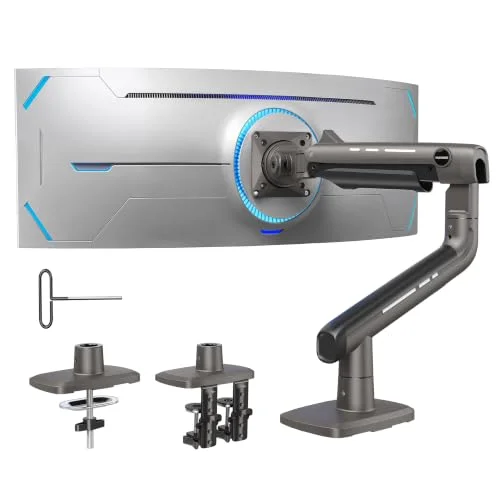
HUANUO TitanLift Heavy-Duty Monitor Arm
Pros
- 44 lb capacity comfortably handles 34-49 inch ultrawides, including curved panels that run heavier than flat displays of the same size
- 22.5 inch extension and 19.6 inch height range make it easy to get an ultrawide to correct eye-level height regardless of desk height
- Gas spring rated for 50,000 cycles holds position without drift, so the panel doesn't sag after months of daily adjustment
- Lifting the monitor off its stock stand frees up desk depth — the stand footprint on a 34-49 inch panel eats into keyboard and mouse space otherwise
Cons
- Some owners report a slight wobble when typing forcefully on the same desk it's clamped to
- C-clamp needs a few inches of clearance behind the desk; use the grommet mount if the desk sits flush against a wall
- 44 lbs is real capacity, but leave a margin — a heavy curved 49 inch panel can run close to that ceiling on its own
At 44 lbs of rated capacity and up to 49 inches of screen support, this covers the vast majority of ultrawide panels including heavier curved models. The 22.5 inch extension and nearly 20 inches of height adjustment make it realistic to get the correct eye-level height on almost any desk.
Best Single-Cable Dock: Anker 555 USB-C Hub (8-in-1)
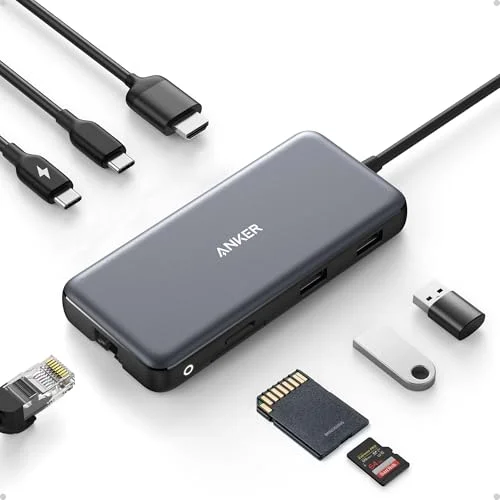
Anker 555 USB-C Hub (8-in-1)
Pros
- Single USB-C cable delivers display, laptop charging, ethernet, and a card reader — the cleanest way to feed a laptop into an ultrawide desk setup
- 85W power delivery charges most laptops while driving the display, so you're not running two cables to the same machine
- 4K at 60Hz HDMI output covers common ultrawide resolutions (3440x1440, 2560x1080) without dropping refresh rate
- Small and light enough to travel with if the same laptop needs to dock at a second location
Cons
- Single HDMI output — running an ultrawide plus a second display needs a hub with two video outputs or a laptop with a native extra port
- USB-A and USB-C data ports are data-only; they don't add meaningful charging power for peripherals
One cable in, and the laptop gets display output, power, ethernet, and a card reader out the other side. The 85W passthrough covers most laptop charging needs while still driving a 4K@60Hz display, which is the main thing to check before buying any hub for this purpose.
Best Webcam for Ultrawide Framing: Logitech Brio 305
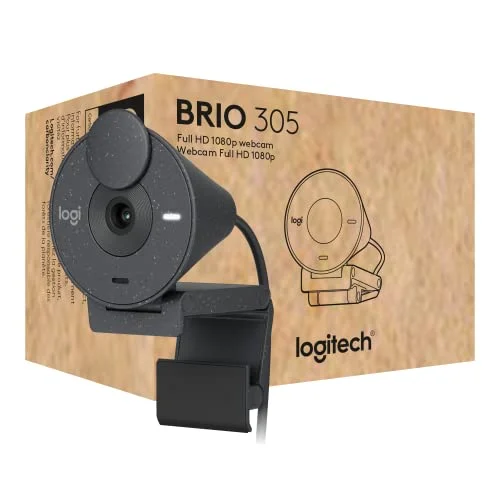
Logitech Brio 305 Webcam
Pros
- Small clip mounts anywhere along an ultrawide's top bezel, which fixes the off-axis camera angle that comes from sitting far to one side of a 34-49 inch panel
- RightLight 2 automatically corrects exposure in mixed lighting — more noticeable on a wide desk setup with windows or lamps hitting at odd angles
- USB-C connector plugs straight into a dock or hub without an extra USB-A adapter
- Built-in privacy shutter closes over the lens without a separate clip-on cover
Cons
- 1080p at 30fps is fine for video calls but visibly softer than 1440p or 4K webcams if you also record video
- Fixed focus with no manual override occasionally hunts in low light
Clipping a dedicated webcam to the top-center of the panel — instead of relying on wherever the laptop camera happens to sit — is the single change that makes the most visible difference on video calls with an ultrawide on the desk.
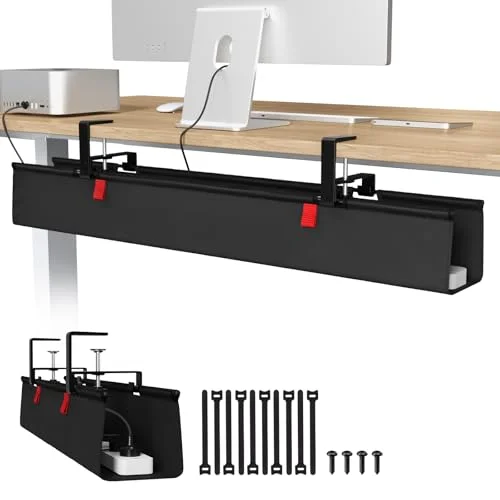
Best Cable Management: Univivi 36-Inch Under-Desk Tray
Univivi 36-Inch Under-Desk Cable Management Tray
Pros
- 36 inch length spans the full width of a desk sized for an ultrawide, where standard 17 inch trays fall short
- No-drill clamp avoids putting holes in the desk while still holding a loaded power strip and several wall adapters
- Keeps the extra cabling from a monitor arm, USB-C hub, and power strip off the floor and out of view under a wide desk
Cons
- Fabric construction sags slightly under a fully loaded power strip plus several bulky wall adapters
- Clamp needs several inches of clearance underneath the desk — doesn't fit desks with drawers directly below
Standard cable trays are sized for a 24-27 inch monitor desk. This one runs the full width of a desk built for a 34-49 inch panel, which matters once you add a monitor arm cable channel and a hub on top of the usual power strip.
Product Comparison
| Product | Type | Price | Best For |
|---|---|---|---|
| HUANUO TitanLift | Monitor Arm | $94.11-$109.99 as of Oct 18, 2026 | Mounting a 34-49 inch panel at eye level |
| Anker 555 USB-C Hub | Dock/Hub | $35.99 as of Oct 18, 2026 | Single-cable laptop docking |
| Logitech Brio 305 | Webcam | $28.99-$54.99 as of Oct 18, 2026 | Fixing off-center camera angle |
| Univivi 36-Inch Tray | Cable Management | $37.99 as of Oct 18, 2026 | Hiding cable runoff under a wide desk |
If you haven’t bought the monitor itself yet, see our ultrawide vs. dual 4K monitor comparison for picks and sizing guidance before working through this setup guide.
Buying Guide: What to Prioritize
Solve window management before buying anything. FancyZones and Rectangle are free. Most of the “I bought an ultrawide and don’t use the extra space” problem is a software configuration problem, not a hardware one — fix it first, then decide what hardware you actually need.
Buy the monitor arm based on actual weight, not screen size. A 34-inch flat ultrawide and a 49-inch curved ultrawide can differ by 15+ lbs. Check the manufacturer’s listed weight, not just the diagonal measurement, against the arm’s rated capacity.
Don’t skip a dedicated webcam if your laptop sits off-center. This is the cheapest fix on this list relative to how much it changes how you come across on video calls, and it’s the one most people skip because the built-in camera technically works.
Cable management is optional, but buy the right length if you do it. A 17-inch tray designed for a 24-inch monitor desk doesn’t cover the width most ultrawide desks need — measure your desk before buying.
Frequently Asked Questions
Do I need a monitor arm for an ultrawide, or is the stock stand fine?
The stock stand works if the height and distance already feel right and you don’t need the desk space back. Most people benefit from a monitor arm on an ultrawide specifically because the stock stand’s footprint is large relative to how much desk depth is left for a keyboard and mouse, and because getting the exact eye-level height dialed in matters more on a wide panel you’ll be looking at for hours.
What’s the single best software fix for an ultrawide?
FancyZones (Windows, part of the free PowerToys utility) or Rectangle (Mac, free). Both fix the core problem: Windows’ and macOS’s built-in window snapping isn’t designed for panels wider than about 27-30 inches, so most of the screen goes unused without a third-party layout tool.
Why does my webcam make me look like I’m not looking at the camera?
Because the call window is displayed somewhere other than directly above or below the camera lens, so you’re looking at the person you’re talking to instead of the lens. Move the call window to sit right above or below wherever your camera physically is, or move the camera itself if you’re using a clip-on webcam that can reposition.
Can I run an ultrawide off a laptop with only one USB-C port?
Yes, with a hub or dock rated for the resolution you’re running. A single USB-C hub carrying DisplayPort Alt Mode video, power delivery, and USB data lets one port handle display, charging, and peripherals simultaneously. Check the hub’s maximum supported resolution and refresh rate against your monitor’s native settings before buying.
Is a curved or flat ultrawide easier to set up?
Curved panels (1800R or 1500R) tolerate closer viewing distances better since the edges angle toward you, which can work on a shallower desk. Flat ultrawides need more distance to avoid distortion at the edges but mount slightly more predictably on a monitor arm since there’s no curve to account for when centering the panel.
Conclusion
An ultrawide’s biggest problems are usually not hardware problems. Installing FancyZones or Rectangle and actually building a zone layout you use every day fixes more of the “wasted space” complaint than any accessory will. After that, a monitor arm rated for your panel’s real weight gets the height and distance right, a dedicated webcam clipped to the bezel fixes video call framing, and a single-cable USB-C hub keeps a laptop-based setup from turning into a mess of cords every time you sit down.
Start with the HUANUO TitanLift if the stock stand is holding your setup back, and don’t skip the free software fix — it costs nothing and solves the problem most ultrawide owners actually have.
Detailed Reviews
HUANUO TitanLift Heavy-Duty Monitor Arm
Pros
- 44 lb capacity comfortably handles 34-49 inch ultrawides, including curved panels that run heavier than flat displays of the same size
- 22.5 inch extension and 19.6 inch height range make it easy to get an ultrawide to correct eye-level height regardless of desk height
- Gas spring rated for 50,000 cycles holds position without drift, so the panel doesn't sag after months of daily adjustment
- Lifting the monitor off its stock stand frees up desk depth — the stand footprint on a 34-49 inch panel eats into keyboard and mouse space otherwise
Cons
- Some owners report a slight wobble when typing forcefully on the same desk it's clamped to
- C-clamp needs a few inches of clearance behind the desk; use the grommet mount if the desk sits flush against a wall
- 44 lbs is real capacity, but leave a margin — a heavy curved 49 inch panel can run close to that ceiling on its own
Anker 555 USB-C Hub (8-in-1)
Pros
- Single USB-C cable delivers display, laptop charging, ethernet, and a card reader — the cleanest way to feed a laptop into an ultrawide desk setup
- 85W power delivery charges most laptops while driving the display, so you're not running two cables to the same machine
- 4K at 60Hz HDMI output covers common ultrawide resolutions (3440x1440, 2560x1080) without dropping refresh rate
- Small and light enough to travel with if the same laptop needs to dock at a second location
Cons
- Single HDMI output — running an ultrawide plus a second display needs a hub with two video outputs or a laptop with a native extra port
- USB-A and USB-C data ports are data-only; they don't add meaningful charging power for peripherals
Logitech Brio 305 Webcam
Pros
- Small clip mounts anywhere along an ultrawide's top bezel, which fixes the off-axis camera angle that comes from sitting far to one side of a 34-49 inch panel
- RightLight 2 automatically corrects exposure in mixed lighting — more noticeable on a wide desk setup with windows or lamps hitting at odd angles
- USB-C connector plugs straight into a dock or hub without an extra USB-A adapter
- Built-in privacy shutter closes over the lens without a separate clip-on cover
Cons
- 1080p at 30fps is fine for video calls but visibly softer than 1440p or 4K webcams if you also record video
- Fixed focus with no manual override occasionally hunts in low light
Univivi 36-Inch Under-Desk Cable Management Tray
Pros
- 36 inch length spans the full width of a desk sized for an ultrawide, where standard 17 inch trays fall short
- No-drill clamp avoids putting holes in the desk while still holding a loaded power strip and several wall adapters
- Keeps the extra cabling from a monitor arm, USB-C hub, and power strip off the floor and out of view under a wide desk
Cons
- Fabric construction sags slightly under a fully loaded power strip plus several bulky wall adapters
- Clamp needs several inches of clearance underneath the desk — doesn't fit desks with drawers directly below