| Spec | Dell 34 Plus USB-C Curved Monitor S3425DW | LG 34WQ73A-B UltraWide QHD Curved Monitor | Dell 27 4K Plus S2725QS Monitor | LG 27UP850K-W 4K USB-C Monitor |
|---|---|---|---|---|
| Rating | 9.0/10 | 8.0/10 | 9.0/10 | 8.0/10 |
| Price | $357.19-$379.99as of Oct 18, 2026 | Unavailable | $263.19-$279.99as of Oct 18, 2026 | $267.80-$349.99as of Oct 18, 2026 |
| Panel | VA curved 1800R | IPS curved | IPS Black | IPS |
| Resolution | 3440x1440 (WQHD) | 3440x1440 (WQHD) | 3840x2160 (4K UHD) | 3840x2160 (4K UHD) |
| Refresh Rate | 120Hz | 60Hz | 120Hz | 60Hz |
| Response Time | 1ms MPRT | — | — | — |
| Brightness | 300 cd/m² | — | — | — |
| Color | 95% DCI-P3, HDR10 | 99% sRGB, HDR10 | — | 95% DCI-P3, HDR400 |
| USB-C Power Delivery | 65W | 90W | 65W | 96W |
| Connectivity | 2x USB-C, 2x HDMI, DisplayPort, 2x USB-A | USB-C 90W, 2x HDMI, DisplayPort, 2x USB-A 3.0 | USB-C 65W, 2x HDMI 2.0, DisplayPort 1.4, 4x USB-A 3.2 | USB-C 96W (Thunderbolt compatible), 2x HDMI 2.0, DisplayPort 1.4, 2x USB-A, USB-C data |
| Speakers | 2x 10W built-in | — | — | — |
| Warranty | 3 years | 3 years | 3 years | 3 years |
| Built-in KVM | — | Yes | — | — |
| Contrast | — | — | 1,500:1 (IPS Black) | — |
| Ergonomics | — | — | Height, tilt, swivel, pivot | — |
| Daisy Chain | — | — | — | Yes (via DisplayPort out) |
| Check Price → | Check Price → | Check Price → | Check Price → |
Prices change daily — tap Check Price for the current Amazon price.
The question of single ultrawide versus dual 4K keeps resurfacing in 2026, and the answer has shifted. GPU drivers across Windows 11 24H2 and macOS Sequoia now handle ultrawide aspect ratios more consistently than in prior years, which has made 34-inch ultrawides genuinely practical for non-gamers. At the same time, prices on capable 27-inch 4K monitors have dropped to the $239-$279 range — making a dual 4K rig accessible without a second job.
Both approaches deliver a significant screen-space upgrade over a single 1080p or 1440p display. The difference is in how that space is organized, what your GPU has to push, and how much desk real estate you’re willing to commit.
This comparison breaks down both setups objectively, then recommends the best monitors in each camp.
| Spec | Dell 34 Plus USB-C Curved Monitor S3425DW | LG 34WQ73A-B UltraWide QHD Curved Monitor | Dell 27 4K Plus S2725QS Monitor | LG 27UP850K-W 4K USB-C Monitor |
|---|---|---|---|---|
| Rating | 9.0/10 | 8.0/10 | 9.0/10 | 8.0/10 |
| Price | $357.19-$379.99as of Oct 18, 2026 | Unavailable | $263.19-$279.99as of Oct 18, 2026 | $267.80-$349.99as of Oct 18, 2026 |
| Panel | VA curved 1800R | IPS curved | IPS Black | IPS |
| Resolution | 3440x1440 (WQHD) | 3440x1440 (WQHD) | 3840x2160 (4K UHD) | 3840x2160 (4K UHD) |
| Refresh Rate | 120Hz | 60Hz | 120Hz | 60Hz |
| Response Time | 1ms MPRT | — | — | — |
| Brightness | 300 cd/m² | — | — | — |
| Color | 95% DCI-P3, HDR10 | 99% sRGB, HDR10 | — | 95% DCI-P3, HDR400 |
| USB-C Power Delivery | 65W | 90W | 65W | 96W |
| Connectivity | 2x USB-C, 2x HDMI, DisplayPort, 2x USB-A | USB-C 90W, 2x HDMI, DisplayPort, 2x USB-A 3.0 | USB-C 65W, 2x HDMI 2.0, DisplayPort 1.4, 4x USB-A 3.2 | USB-C 96W (Thunderbolt compatible), 2x HDMI 2.0, DisplayPort 1.4, 2x USB-A, USB-C data |
| Speakers | 2x 10W built-in | — | — | — |
| Warranty | 3 years | 3 years | 3 years | 3 years |
| Built-in KVM | — | Yes | — | — |
| Contrast | — | — | 1,500:1 (IPS Black) | — |
| Ergonomics | — | — | Height, tilt, swivel, pivot | — |
| Daisy Chain | — | — | — | Yes (via DisplayPort out) |
| Check Price → | Check Price → | Check Price → | Check Price → |
Prices change daily — tap Check Price for the current Amazon price.
Ultrawide Monitors: One Screen, Continuous Canvas
A 34-inch ultrawide at 3440x1440 gives you roughly the horizontal equivalent of two 24-inch 1080p monitors — but as one continuous panel without a center bezel. That bezel gap matters more than most buyers expect. Video calls, spreadsheets, document comparison, and coding all benefit from having no split down the middle of your primary focal zone.
The tradeoff: a 34-inch ultrawide at 3440x1440 has a lower pixel density (~109 PPI) than a 27-inch 4K at 3840x2160 (~163 PPI). If text sharpness at native scaling is important — especially on macOS Retina-dependent workflows — dual 4K wins on pixel quality.
Who ultrawide makes sense for:
- Video call users who want a centered camera position with context visible on both sides
- Coders and terminal users who keep multiple panes open side by side
- Desk-space constrained setups where a second monitor arm doesn’t fit
- Laptop users with USB-C where one cable handles power, display, and USB
The GPU requirement reality
A single 3440x1440 ultrawide at 60Hz requires moderate GPU resources for display — most integrated graphics on Intel 12th-gen or later and Apple Silicon handle it cleanly. At 120Hz, discrete GPU performance helps, especially for animation-heavy tasks. Dual 4K (7680x2160 total) is significantly more demanding: many integrated GPUs struggle to run dual 4K at 60Hz smoothly, making a docking station with dedicated display output or a discrete GPU nearly essential.
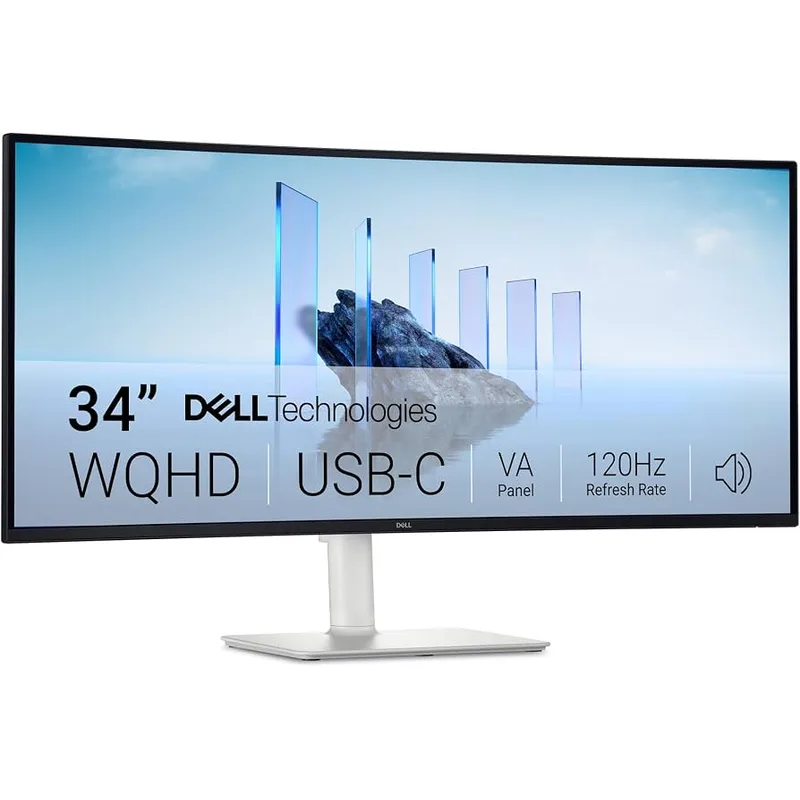
Dell 34 Plus USB-C Curved Monitor S3425DW
Pros
- 120Hz refresh on a 34" ultrawide is rare at this price — makes scrolling and window management noticeably smoother
- 95% DCI-P3 color coverage handles most creative and design work without calibration
- 65W USB-C charges most ultrabooks with one cable while running dual display
- Two built-in 10W speakers eliminate the need for a desktop speaker for video calls
- 3,000:1 VA contrast ratio gives deeper blacks than IPS for late-night work sessions
- Three-year warranty with Advanced Exchange means next-business-day replacement on failure
Cons
- VA panel has slower pixel transitions than IPS — minor ghosting visible on fast mouse movements
- 65W USB-C falls short for MacBook Pro 16-inch under CPU-intensive loads
- 1800R curvature suits solo viewers; a second person at the desk sees color shift at the edges
The Dell S3425DW is the strongest ultrawide recommendation for remote work in 2026. The 120Hz refresh at this price makes a real difference in day-to-day feel — resizing windows, scrolling in Chrome, and dragging files between virtual desktops all feel more fluid than on 60Hz panels. Most competitors at the $329 price point cap at 60Hz or 75Hz.
The VA panel is the key tradeoff. Dell’s 3,000:1 contrast ratio delivers noticeably deeper blacks than IPS in the same tier, which helps for work in dim rooms and video-heavy workflows. The downside: VA panels have slower pixel transitions. Fast mouse movement on white backgrounds can show trailing, though it’s not an issue during normal office work.
Two 10W built-in speakers earn genuine praise from owner reviews — video calls and music don’t require an external speaker. The 65W USB-C covers most ultrabooks and mid-size laptops. MacBook Pro 16-inch users may want to supplement with the power adapter during heavy rendering.
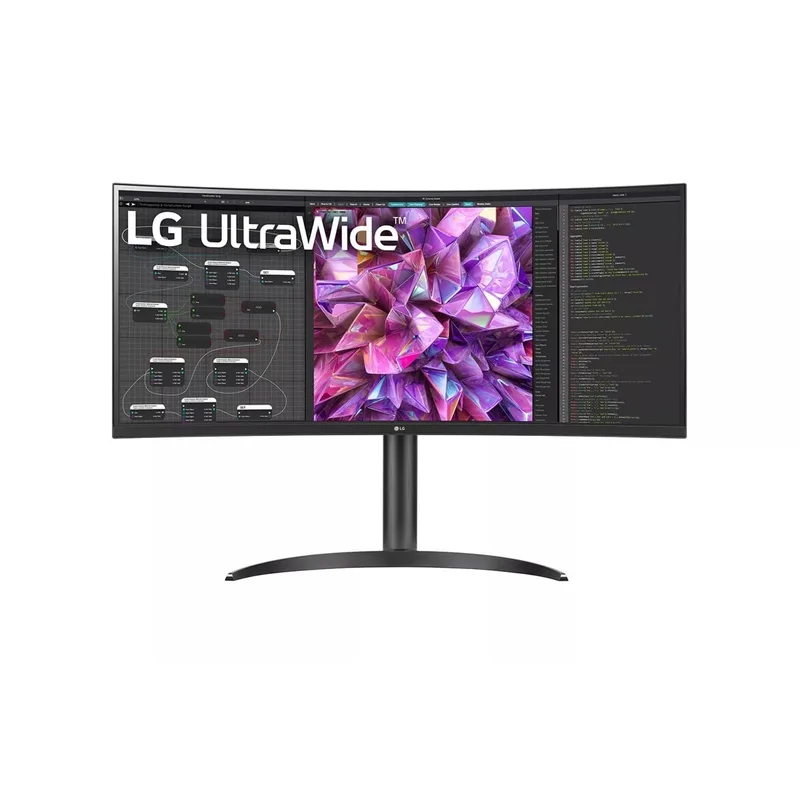
LG 34WQ73A-B UltraWide QHD Curved Monitor
Pros
- 90W USB-C charges MacBook Pro 14-inch and most Windows laptops at full speed with one cable
- Built-in KVM switch lets two computers share the monitor, keyboard, and mouse without a separate hub
- IPS panel delivers accurate 99% sRGB color without the VA off-axis shift
- 3440x1440 gives 34% more horizontal workspace than a 27-inch 4K without requiring a second cable run
- Curved IPS at this price point is uncommon — most IPS ultrawides at $329 are flat
Cons
- 60Hz refresh feels sluggish compared to the Dell S3425DW at the same price tier
- No built-in speakers — requires external audio or headset for video calls
- Stand lacks pivot and swivel adjustments; VESA mount adapter recommended for ergonomic positioning
The LG 34WQ73A-B targets the same price bracket as the Dell S3425DW but makes different tradeoffs. The IPS panel delivers more accurate color out of the box — 99% sRGB compared to Dell’s DCI-P3 focus — and the off-axis viewing angle is cleaner, which matters in shared workspaces or when showing the screen to a colleague.
The standout feature is the built-in KVM switch. If you frequently switch between two computers — a work laptop and a personal machine, or a laptop and a desktop — the KVM eliminates the need for a separate KVM box or hub. One monitor, one keyboard, one mouse, two computers. Owner reviews consistently call this feature out as a workflow change.
The 60Hz refresh is the main concession compared to the Dell. For office work, 60Hz is acceptable; for anyone who notices display smoothness during fast window movement, the Dell’s 120Hz is the upgrade worth paying for.
Dual 4K Monitors: Maximum Pixel Count, Maximum Flexibility
Two 27-inch 4K monitors give you 7,680x2,160 total pixels — 22.1 million pixels versus the 4.95 million on a 34-inch ultrawide. Text is sharper. Photos are more detailed. macOS Retina scaling works correctly. And the two-screen configuration lets you dedicate full-screen space to two applications independently.
The bezel between monitors isn’t entirely a negative. It serves as a visual boundary that can help focus — keeping communication tools on the right panel and work applications on the left creates cleaner cognitive separation.
Who dual 4K makes sense for:
- Retina-dependent macOS users who need sharp native-resolution text
- Photo and video editors who use a second monitor for the library or timeline
- Developers with reference-heavy workflows who keep documentation full-screen alongside their editor
- Existing single-monitor users who already own a 4K display and want to add a matched second
The cost math
A dual 4K setup at the value tier costs roughly $478-$558 using two Dell S2725QS monitors. A premium dual 4K setup with two LG 27UP850K-W units runs $658-$758. A 34-inch ultrawide at comparable quality costs $329-$399. The ultrawide is cheaper to enter, but the dual 4K setup gives more total display area.
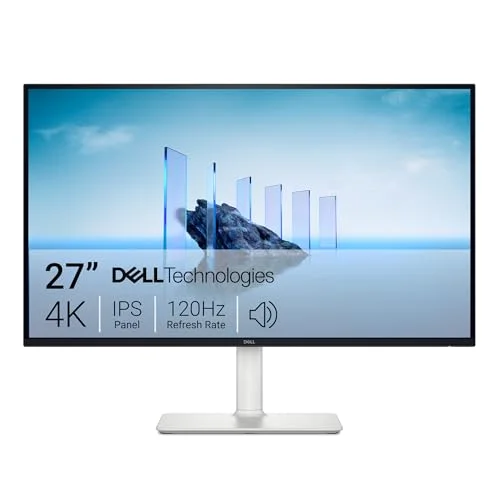
Dell 27 4K Plus S2725QS Monitor
Pros
- IPS Black panel delivers 1,500:1 contrast — significantly better than standard IPS for dark content
- 120Hz at 4K on a 27-inch panel makes text rendering and UI animations sharper than 60Hz panels
- $239-$279 street price undercuts most competing 27-inch 4K monitors by $60-$150
- Full ergonomic adjustments (height, tilt, swivel, pivot) adapt to any desk or sitting position
- Four USB-A ports on a monitor this affordable reduces dock dependency for peripheral management
- Three-year Dell warranty applies via Advanced Exchange program
Cons
- 65W USB-C covers most ultrabooks but won't fully charge MacBook Pro 16-inch under load
- No built-in speakers — calls require external audio
- At 27 inches, text can feel small at native 4K without display scaling on Windows
The Dell S2725QS is the dual 4K starting point in 2026. The IPS Black panel specification is what separates it from competitors at similar prices: 1,500:1 contrast is significantly better than the 800:1-1,000:1 standard for IPS panels, which means whites and blacks look more distinct without crossing into VA territory.
Owner feedback repeatedly mentions the USB-A hub value: four USB-A 3.2 ports on a $239 monitor reduces reliance on a separate hub or dock. The 120Hz refresh at 4K remains rare in this price tier, and it’s genuinely noticeable compared to the 60Hz displays it replaced.
For matched dual setups, the S2725QS is the most cost-effective pairing. Two units come in under $560 and leave desktop clutter minimal with only one cable to each monitor (plus USB-C from one back to the laptop).
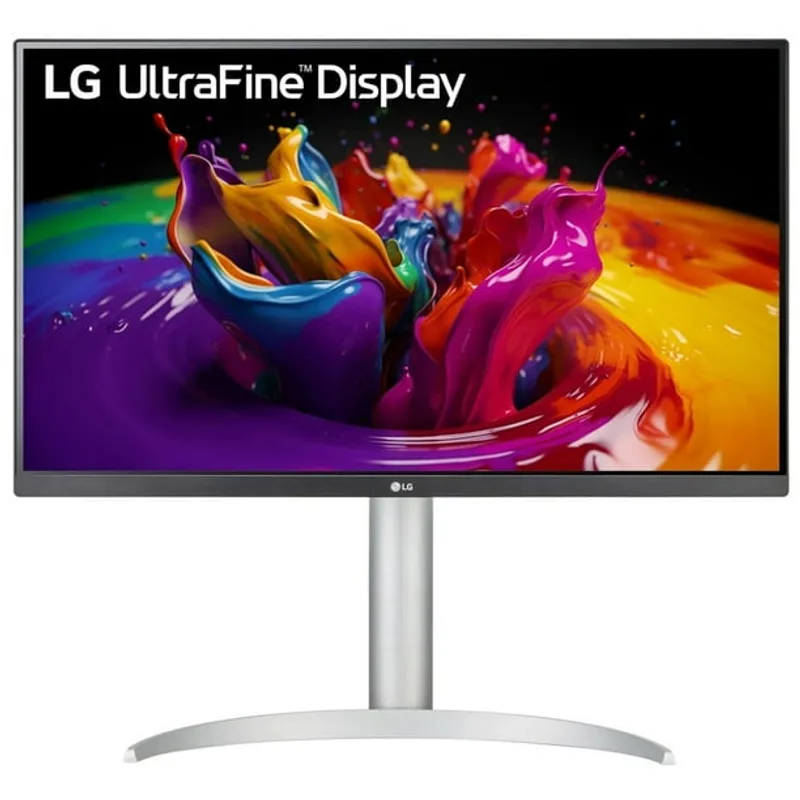
LG 27UP850K-W 4K USB-C Monitor
Pros
- 96W USB-C covers MacBook Pro 16-inch fully under load — the highest charging wattage in this monitor tier
- VESA DisplayHDR 400 certification handles video content and HDR workflows better than non-certified panels
- Daisy-chain DisplayPort output lets two of these monitors run from a single cable on Thunderbolt laptops
- 95% DCI-P3 makes it suitable for Lightroom photo editing and Figma UI design work
- Thin bezels on three sides look clean in a matched dual-monitor configuration
Cons
- 60Hz refresh is the standard cap — not ideal for anyone who wants smoother UI on a second display
- $329-$379 buys only one monitor; a dual setup costs $658-$758, significantly more than a single ultrawide
- No built-in speakers or USB hub depth compared to the Dell S2725QS at this tier
The LG 27UP850K-W earns its premium over the Dell through two specific advantages: 96W USB-C and daisy-chaining. The 96W delivery is the highest available in this monitor class and fully charges MacBook Pro 16-inch even during sustained rendering work — something the Dell S2725QS and most competitors at the price can’t claim.
The daisy-chain DisplayPort output simplifies cable management in two-monitor setups on Thunderbolt laptops. One Thunderbolt cable from the laptop to the primary monitor, then one DisplayPort cable from the first monitor to the second. No separate cables to the laptop for the second display.
The 95% DCI-P3 color coverage — with VESA DisplayHDR 400 certification — makes the LG 27UP850K-W worth pairing for design or photo work where color accuracy across both displays matters. The Dell S2725QS is a better all-around value; the LG 27UP850K-W is the right choice for MacBook-heavy workflows and creative use cases.
Buying Guide: Which Setup Is Right for You?
Choose ultrawide if:
Your GPU is integrated. A single 3440x1440 panel is significantly lighter on GPU resources than dual 4K. Intel Iris Xe, AMD Radeon integrated, and Apple Silicon all handle ultrawide at 60Hz cleanly. Dual 4K at 60Hz pushes most integrated GPUs harder and can cause frame drops in video playback or heavy browser tabs.
You use video conferencing constantly. A centered camera position on a single wide panel looks better on calls than a camera mounted over a bezel gap. Zoom and Teams both support ultrawide aspect ratios well; showing your screen in a call fills the frame more naturally on a 21:9 display.
Desk depth is limited. Two 27-inch monitors on arms need 20-24 inches of clear depth from wall to user. A single 34-inch ultrawide needs 18-20 inches. In compact home offices, the ultrawide often fits where a dual setup doesn’t.
You only have one USB-C display output. Many USB-C docks and some laptops support only one external display. An ultrawide works as that one display. Running dual 4K often requires a dock with two separate display outputs or specific daisy-chain support.
Choose dual 4K if:
You work on macOS and care about text sharpness. macOS scales UI elements to match display resolution. At 4K on a 27-inch panel, Retina-quality text rendering is sharp at default scaling. The LG 34WQ73A-B and Dell S3425DW ultrawides run at 3440x1440 — acceptable on Windows but noticeably softer than Retina on macOS without scaling adjustments.
You reference content full-screen while working. Keeping Slack or Notion full-screen on the right display while your IDE or writing app fills the left display is a cleaner split than managing two windows side by side on an ultrawide. App focus is clearer with a physical boundary.
You already own a 4K monitor. Adding a matched second display is significantly cheaper than replacing your current setup with a new ultrawide. The Dell S2725QS at $239-$279 makes a strong pairing partner for any existing 27-inch 4K.
You need maximum total resolution for media work. Photo editing, video color grading, and design review benefit from raw pixel count. Dual 4K at 7,680x2,160 gives more room for panels, palettes, and timeline tracks than any single 34-inch ultrawide.
Quick Comparison: Ultrawide vs Dual 4K
| Category | Ultrawide (34”) | Dual 4K (27” x2) |
|---|---|---|
| Total pixels | ~4.95 million | ~22.1 million |
| Horizontal width | 34 inches | ~55 inches |
| Center bezel | None | One gap |
| GPU demand | Moderate | High |
| Desk space needed | 18-20” depth | 20-24” depth |
| Entry cost (value tier) | $329-$349 | $478-$558 |
| Text sharpness | Good on Windows | Excellent on both OS |
| Cable simplicity | One cable (USB-C) | One or two cables |
| macOS compatibility | Good | Excellent |
FAQ
Can I run a 34-inch ultrawide from a laptop’s USB-C port?
Most modern laptops with a USB-C or Thunderbolt port support a single ultrawide display via USB-C. The Dell S3425DW and LG 34WQ73A-B both support USB-C display input directly, so one cable handles power and video. Verify your laptop outputs video over USB-C — some USB-C ports are power-only. Check the laptop’s spec sheet under “display output” before assuming compatibility.
Will a single dock run dual 4K at 60Hz?
It depends on the dock. Thunderbolt 4 docks with two display outputs — like the CalDigit TS4 — handle dual 4K@60Hz reliably. USB-C docks without Thunderbolt certification often struggle with dual 4K over a single cable or require MST (Multi-Stream Transport) support on both the dock and monitor. Confirm MST and TB4/USB4 support before buying a dock for dual 4K.
Does an ultrawide work well for video calls?
Yes. Apps like Zoom, Google Meet, and Teams all support ultrawide layouts and don’t letterbox the video feed. The advantage of an ultrawide for calls is keeping reference documents, notes, or a second participant’s screen visible alongside the main call window without switching apps. Camera placement matters: a webcam above the center of a 34-inch ultrawide gives a more natural eye-contact angle than a camera positioned above one of two side-by-side monitors.
Is 3440x1440 ultrawide or dual 4K sharper?
Dual 4K at 3840x2160 per screen has significantly higher pixel density — approximately 163 PPI on a 27-inch display versus 109 PPI on a 34-inch ultrawide. The sharpness difference is most apparent in text rendering, particularly on macOS. On Windows with display scaling, the gap narrows because the OS renders UI at a higher virtual resolution and downsamples. For productivity work, both are comfortable; for photography or detailed design review, dual 4K provides noticeably more detail.
Can I add a second monitor to an ultrawide later?
Yes. An ultrawide and a secondary vertical monitor is a popular arrangement — a 27-inch 4K in portrait orientation alongside a 34-inch ultrawide covers reference browsing, Slack, and email without cluttering the primary work surface. Most laptops and docks support this combination without issues. The secondary monitor doesn’t need to match the ultrawide exactly; a lower-resolution vertical display for reference tasks keeps GPU load minimal.
The Verdict
For most remote workers running Windows laptops with USB-C: the Dell S3425DW is the ultrawide to buy. The 120Hz refresh and 65W USB-C at $329-$349 represents a strong value in the 34-inch category, and the 10W built-in speakers make a real difference in cable-reduced setups.
MacBook users — particularly those on M-series chips who run heavy workflows — will benefit most from dual 4K with daisy-chaining. Start with the Dell S2725QS as the value entry point, then add a second unit or upgrade to the LG 27UP850K-W when the budget allows.
The one answer that works for nearly everyone who’s currently on a single 1080p display: either upgrade beats the alternative. Whether you go wide or stacked, the productivity gain over a single 1080p panel is substantial enough that the ultrawide vs. dual 4K debate is secondary to simply getting more screen.
Detailed Reviews
Dell 34 Plus USB-C Curved Monitor S3425DW
Pros
- 120Hz refresh on a 34" ultrawide is rare at this price — makes scrolling and window management noticeably smoother
- 95% DCI-P3 color coverage handles most creative and design work without calibration
- 65W USB-C charges most ultrabooks with one cable while running dual display
- Two built-in 10W speakers eliminate the need for a desktop speaker for video calls
- 3,000:1 VA contrast ratio gives deeper blacks than IPS for late-night work sessions
- Three-year warranty with Advanced Exchange means next-business-day replacement on failure
Cons
- VA panel has slower pixel transitions than IPS — minor ghosting visible on fast mouse movements
- 65W USB-C falls short for MacBook Pro 16-inch under CPU-intensive loads
- 1800R curvature suits solo viewers; a second person at the desk sees color shift at the edges
LG 34WQ73A-B UltraWide QHD Curved Monitor
Pros
- 90W USB-C charges MacBook Pro 14-inch and most Windows laptops at full speed with one cable
- Built-in KVM switch lets two computers share the monitor, keyboard, and mouse without a separate hub
- IPS panel delivers accurate 99% sRGB color without the VA off-axis shift
- 3440x1440 gives 34% more horizontal workspace than a 27-inch 4K without requiring a second cable run
- Curved IPS at this price point is uncommon — most IPS ultrawides at $329 are flat
Cons
- 60Hz refresh feels sluggish compared to the Dell S3425DW at the same price tier
- No built-in speakers — requires external audio or headset for video calls
- Stand lacks pivot and swivel adjustments; VESA mount adapter recommended for ergonomic positioning
Dell 27 4K Plus S2725QS Monitor
Pros
- IPS Black panel delivers 1,500:1 contrast — significantly better than standard IPS for dark content
- 120Hz at 4K on a 27-inch panel makes text rendering and UI animations sharper than 60Hz panels
- $239-$279 street price undercuts most competing 27-inch 4K monitors by $60-$150
- Full ergonomic adjustments (height, tilt, swivel, pivot) adapt to any desk or sitting position
- Four USB-A ports on a monitor this affordable reduces dock dependency for peripheral management
- Three-year Dell warranty applies via Advanced Exchange program
Cons
- 65W USB-C covers most ultrabooks but won't fully charge MacBook Pro 16-inch under load
- No built-in speakers — calls require external audio
- At 27 inches, text can feel small at native 4K without display scaling on Windows
LG 27UP850K-W 4K USB-C Monitor
Pros
- 96W USB-C covers MacBook Pro 16-inch fully under load — the highest charging wattage in this monitor tier
- VESA DisplayHDR 400 certification handles video content and HDR workflows better than non-certified panels
- Daisy-chain DisplayPort output lets two of these monitors run from a single cable on Thunderbolt laptops
- 95% DCI-P3 makes it suitable for Lightroom photo editing and Figma UI design work
- Thin bezels on three sides look clean in a matched dual-monitor configuration
Cons
- 60Hz refresh is the standard cap — not ideal for anyone who wants smoother UI on a second display
- $329-$379 buys only one monitor; a dual setup costs $658-$758, significantly more than a single ultrawide
- No built-in speakers or USB hub depth compared to the Dell S2725QS at this tier