| Spec | Logitech MX Brio | Elgato Facecam 4K | Elgato Facecam |
|---|---|---|---|
| Rating | 9.2/10 | 8.7/10 | 8.9/10 |
| Price | $209.99as of Oct 13, 2026 | $176.99as of Oct 13, 2026 | $119.00as of Oct 13, 2026 |
| Sensor | 8.5MP Sony STARVIS | Sony STARVIS 2 CMOS | Sony STARVIS CMOS |
| Resolution | 4K@30fps / 1080p@60fps | 4K@60fps / 1080p@60fps | 1080p@60fps |
| Field of View | Adjustable 90° / 78° / 65° | 90° | 82° diagonal (fixed) |
| Focus | Autofocus | Adjustable in Camera Hub | Fixed, sharp roughly 12 to 47 inches out |
| Microphones | Dual beam-forming noise-reducing | — | — |
| Connection | USB-C (detachable cable) | Integrated USB-C | USB-C |
| Privacy | Built-in sliding shutter | — | — |
| Lens Filter | — | 49mm standard thread | — |
| Software | — | Camera Hub (Mac/PC) | Camera Hub |
| Microphone | — | — | None, external required |
| Check Price → | Check Price → | Check Price → |
Prices change daily — tap Check Price for the current Amazon price.
Webcam shopping used to be a one-brand decision: Logitech. Elgato changed that by bringing a creator-first camera to the desk, and the Facecam 4K is its 4K@60 flagship in 2026. Meanwhile Logitech’s MX Brio remains the plug-in-and-forget answer for people whose day is mostly Zoom and Teams.
Those are two different philosophies. Logitech builds a webcam that makes decisions for you, with autofocus, AI image tuning, and built-in microphones. Elgato builds a camera you configure, with manual exposure, filter threads, and no microphone at all. This comparison is based on spec sheets, manufacturer documentation, and owner and reviewer feedback, not our own bench work, and it is written for remote workers deciding where to put their money.
Quick Comparison
| Spec | Logitech MX Brio | Elgato Facecam 4K | Elgato Facecam |
|---|---|---|---|
| Rating | 9.2/10 | 8.7/10 | 8.9/10 |
| Price | $209.99as of Oct 13, 2026 | $176.99as of Oct 13, 2026 | $119.00as of Oct 13, 2026 |
| Sensor | 8.5MP Sony STARVIS | Sony STARVIS 2 CMOS | Sony STARVIS CMOS |
| Resolution | 4K@30fps / 1080p@60fps | 4K@60fps / 1080p@60fps | 1080p@60fps |
| Field of View | Adjustable 90° / 78° / 65° | 90° | 82° diagonal (fixed) |
| Focus | Autofocus | Adjustable in Camera Hub | Fixed, sharp roughly 12 to 47 inches out |
| Microphones | Dual beam-forming noise-reducing | — | — |
| Connection | USB-C (detachable cable) | Integrated USB-C | USB-C |
| Privacy | Built-in sliding shutter | — | — |
| Lens Filter | — | 49mm standard thread | — |
| Software | — | Camera Hub (Mac/PC) | Camera Hub |
| Microphone | — | — | None, external required |
| Check Price → | Check Price → | Check Price → |
Prices change daily — tap Check Price for the current Amazon price.
Logitech MX Brio
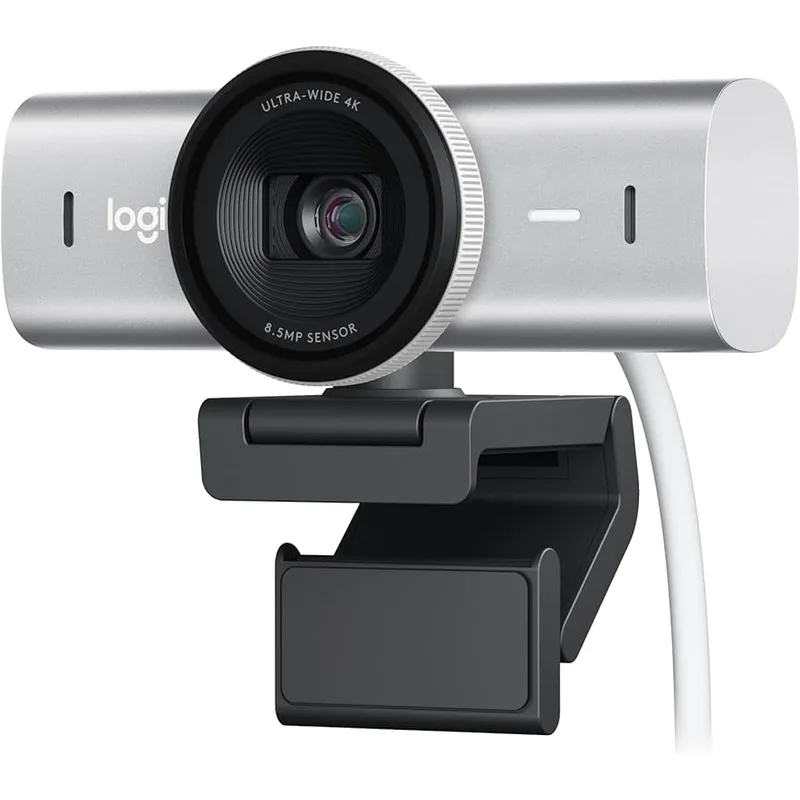
Logitech MX Brio
Pros
- Autofocus keeps you sharp when you lean in, stand up, or hold a document up to the lens
- Dual beam-forming microphones mean one fewer thing on the desk for people who live on calls
- Adjustable field of view lets you tighten the frame to hide a messy room or widen it for a whiteboard
- Detachable USB-C cable turns a frayed cord into a cheap fix instead of a webcam replacement
- Built-in sliding privacy shutter physically blocks the lens
Cons
- Tops out at 4K@30fps, so streamers who want 4K@60fps need the Elgato
- AI image enhancement is conservative, and users who want full manual control have fewer dials than on the Elgato
- Costs more than either Elgato option, and the built-in mics do not match a dedicated microphone
The MX Brio is the safer buy. Reviewers consistently praise its color handling: skin tones come out natural without you touching a slider, and the AI face-based enhancement keeps exposure sensible when the window light shifts across the afternoon.
The two beam-forming microphones are the practical difference on a work desk. Keyboard noise and room tone get suppressed before they reach the call. If you do not own a headset with a boom mic or a USB microphone, this camera covers you on day one. Pair it with a real mic later if audio becomes a priority.
Autofocus is the other everyday advantage. Hold a printed contract or a product to the lens and it refocuses. Show Mode flips the view downward for desk-sharing, which works as a stand-in for a document camera. The adjustable field of view (90°, 78°, or 65°) is useful for tightening the frame when your background is not meeting-ready.
Buy it if: you spend most of your day on calls, want good results out of the box, and would rather not install configuration software.
Skip it if: you record or stream and want 4K at 60fps, or you want to tune every exposure parameter yourself.
Elgato Facecam 4K
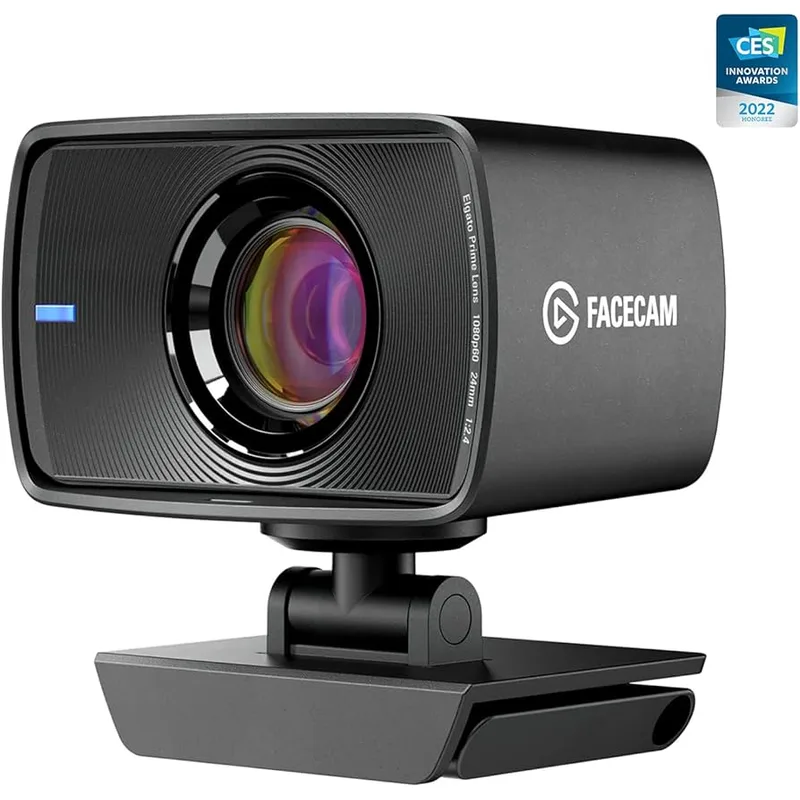
Elgato Facecam 4K
Pros
- True 4K@60fps output, which no Logitech webcam currently matches
- Camera Hub gives DSLR-style manual control over ISO, shutter speed, white balance, and focus
- 49mm filter thread accepts ND filters, polarizers, and other lens attachments
- Uncompressed video over USB-C avoids compression artifacts in footage you plan to edit
Cons
- No built-in microphone, so you must budget for a mic or headset
- Needs setup time in Camera Hub; the default image is average until you tune it
- Integrated (non-detachable) USB-C cable complicates cable management on tight desks
The Facecam 4K is built around a Sony STARVIS 2 sensor and a short list of priorities: clean uncompressed output, 4K at 60 frames per second, and manual control through Camera Hub. The 49mm filter thread is an unusual touch on a webcam and opens the door to ND filters and other attachments.
For video calls specifically, the 4K60 headline matters less than it sounds. Zoom, Meet, and Teams compress and downscale what they send, so the call itself will not show you 4K at 60. What you gain is a larger sensor’s cleaner 1080p picture and, if you also record or stream, footage you can actually edit.
The tradeoffs are real. There is no microphone, so you need a separate audio source. The out-of-box image is average until you spend time in Camera Hub. And the cable is attached to the camera. If you want a webcam that disappears into your workflow, this is not it. If you treat your camera like a piece of production gear, it is the strongest webcam Elgato sells.
Buy it if: you record tutorials, stream, or edit footage and want manual control plus 4K60.
Skip it if: you want plug-and-play, built-in audio, or a detachable cable.
Elgato Facecam (1080p60)
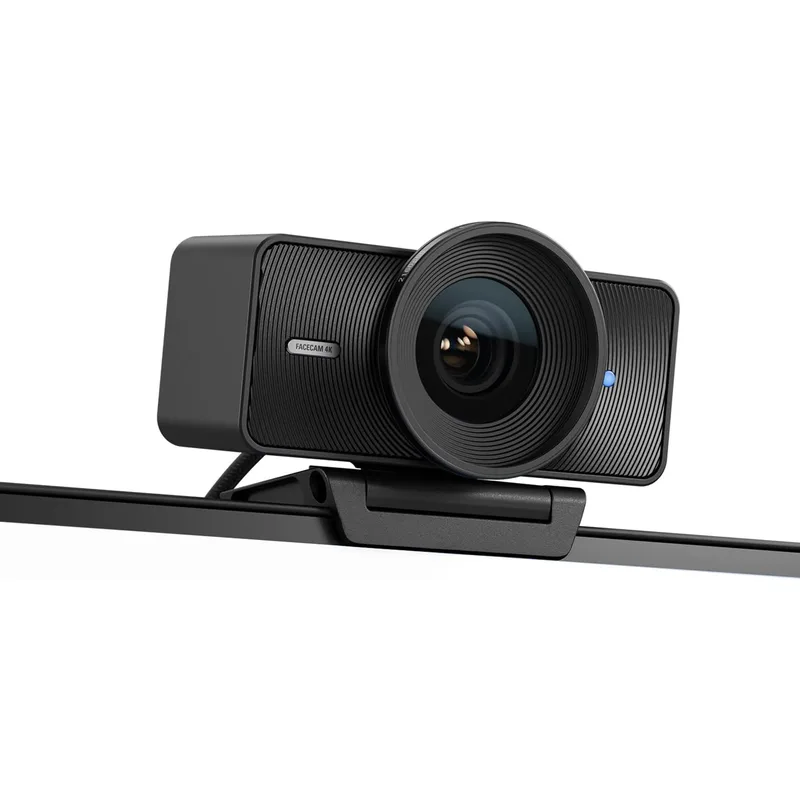
Elgato Facecam
Pros
- 1080p at 60fps gives noticeably smoother motion than the 30fps picture of most webcams
- Sony STARVIS sensor holds up well in dim evening rooms
- Fixed focus removes autofocus hunting when you shift in your chair
- Camera Hub settings are stored on the camera, so your image profile follows you between computers
Cons
- No built-in microphone, so audio is a separate purchase
- Fixed focus means you cannot hold up a document at close range and expect a crisp result
- Fixed 82° field of view with no way to tighten the frame
The original Facecam is the Elgato most remote workers should actually consider. It drops 4K and keeps what made the line popular: a clean sensor, smooth 60fps, and settings stored on the camera. Fixed focus means everything from roughly 12 to 47 inches is in focus, which covers a normal seated distance, and there is no focus hunting to distract coworkers.
It carries the same missing-microphone caveat as its bigger sibling. If you already use a headset or a USB mic, that is a non-issue and you save money against the MX Brio. If you do not, add the cost of a mic before you compare prices.
Buy it if: you already have good audio and want a sharp, smooth picture for less.
Skip it if: you need autofocus for showing documents or products on camera.
Head-to-Head: Where Each Brand Wins
| Logitech MX Brio | Elgato Facecam 4K | Elgato Facecam | |
|---|---|---|---|
| Best for | Daily calls | Recording, streaming | Smooth 1080p on a budget |
| Built-in mic | Yes (dual) | No | No |
| Focus | Autofocus | Adjustable in Camera Hub | Fixed focus |
| Max frame rate at top resolution | 30fps at 4K | 60fps at 4K | 60fps at 1080p |
| Software | Logi Options+ | Camera Hub | Camera Hub |
| Privacy shutter | Built in | Not built in | Not built in |
The pattern is simple. Logitech wins on convenience: microphones, shutter, autofocus, and a detachable cable. Elgato wins on image control and frame rate. Neither brand wins on everything, and that is why the answer depends on your desk.
Buying Guide: How to Choose
Count the microphone
An Elgato webcam plus a decent USB microphone costs more than an MX Brio. If you take calls from a shared room, factor that in. If you already own a headset, the Elgato price stands as quoted.
Be honest about 4K
Video call platforms downscale. A 4K sensor helps by producing a cleaner 1080p image, but you are not going to see 4K on a call. Pay for 4K60 only if you record or stream.
Lighting matters more than the camera
A $120 webcam in a lit room beats a $210 webcam in a dark one. If your face is lit from behind, fix that first. Our ring light roundup and monitor light bar guide cover the options.
Check your ports
All three of these cameras connect over USB-C. If your desktop or dock is USB-A only, plan for an adapter or use a USB-C docking station.
Mounting
Monitor-top clips work for most displays, but thin ultrawides and curved panels can be awkward. A VESA monitor mount with a camera arm option gives you more freedom in placement.
Software and day-to-day use
Logitech’s software is optional for most people: the camera behaves well with defaults, and the app is there for field of view, Show Mode, and basic image tweaks. Elgato’s Camera Hub is closer to a camera menu. You get exposure, white balance, ISO, and sharpness controls, and you can save a profile on the camera itself. That is great if you care about the picture and tedious if you just want to join a meeting in two minutes. Think about how you actually work: if a webcam that needs tuning would sit unconfigured, the more automatic camera will look better in practice.
Who each brand is really for
Logitech suits people on calls for hours who want one device that handles video, audio, and privacy. Elgato suits people whose webcam doubles as production gear: tutorials, recorded presentations, a side channel, or a stream. Plenty of remote workers fall somewhere between, and for them the question is simply whether they already own a microphone. If you do, the original Facecam is a strong value. If you do not, price the full setup before deciding.
Price, availability, and when to buy
Prices on both brands move around, so the Check Price buttons on each card show the live Amazon figure. If you are not in a rush, watch for price drops on the Facecam 4K and MX Brio rather than paying list price. Do not wait on a rumored successor, because neither brand has announced one that we could confirm.
FAQ
Is the Elgato Facecam 4K better than the Logitech MX Brio?
For recording and streaming, yes, because of 4K@60fps and manual controls. For a typical workday of video calls, the MX Brio is the easier fit thanks to built-in microphones, a privacy shutter, and AI-tuned image quality.
Do Elgato webcams have a microphone?
No. Both the Facecam and Facecam 4K leave the microphone out on purpose, so you need a headset or a dedicated mic. See our best microphones for remote work picks.
Does 4K matter on Zoom or Teams?
Not directly. These platforms downscale video, so you will not see 4K on a call. A 4K sensor can still produce a cleaner 1080p image, which is the real benefit.
Which is better for Mac users?
Both brands work with macOS. The MX Brio is plug-and-play and Elgato’s Camera Hub runs on Mac. For more Mac options, see our best external webcams for Mac roundup.
Is the original Elgato Facecam still worth buying?
Yes, if you already have a microphone and want smooth 1080p60. Its fixed focus is the main limit.
Conclusion
For most remote workers, the Logitech MX Brio is the pick. It works the moment you plug it in, handles audio, and keeps you in focus without fiddling. If you create content, record tutorials, or stream, the Elgato Facecam 4K is the better camera and worth the extra setup. If you want the Elgato look for less and already own a mic, the original Facecam is the best value of the three.
For a wider field, read our best webcams for video calls and best 4K webcams roundups.
Detailed Reviews
Logitech MX Brio
Pros
- Autofocus keeps you sharp when you lean in, stand up, or hold a document up to the lens
- Dual beam-forming microphones mean one fewer thing on the desk for people who live on calls
- Adjustable field of view lets you tighten the frame to hide a messy room or widen it for a whiteboard
- Detachable USB-C cable turns a frayed cord into a cheap fix instead of a webcam replacement
- Built-in sliding privacy shutter physically blocks the lens
Cons
- Tops out at 4K@30fps, so streamers who want 4K@60fps need the Elgato
- AI image enhancement is conservative, and users who want full manual control have fewer dials than on the Elgato
- Costs more than either Elgato option, and the built-in mics do not match a dedicated microphone
Elgato Facecam 4K
Pros
- True 4K@60fps output, which no Logitech webcam currently matches
- Camera Hub gives DSLR-style manual control over ISO, shutter speed, white balance, and focus
- 49mm filter thread accepts ND filters, polarizers, and other lens attachments
- Uncompressed video over USB-C avoids compression artifacts in footage you plan to edit
Cons
- No built-in microphone, so you must budget for a mic or headset
- Needs setup time in Camera Hub; the default image is average until you tune it
- Integrated (non-detachable) USB-C cable complicates cable management on tight desks
Elgato Facecam
Pros
- 1080p at 60fps gives noticeably smoother motion than the 30fps picture of most webcams
- Sony STARVIS sensor holds up well in dim evening rooms
- Fixed focus removes autofocus hunting when you shift in your chair
- Camera Hub settings are stored on the camera, so your image profile follows you between computers
Cons
- No built-in microphone, so audio is a separate purchase
- Fixed focus means you cannot hold up a document at close range and expect a crisp result
- Fixed 82° field of view with no way to tighten the frame