Affiliate disclosure: SetupRanked earns a commission from qualifying Amazon purchases at no extra cost to you.
Spreadsheet work got heavier in 2026. Microsoft’s Excel AI Agent Mode, which lets users run natural language queries and automated data cleaning directly in sheets, started rolling out to enterprise and Microsoft 365 Personal subscribers in early 2026. The result: spreadsheets are doing more than ever, sessions run longer, and the gap between a mediocre display and a genuinely useful one has widened.
What data work needs from a monitor is different from what general office use or gaming demands. Refresh rate above 60Hz matters far less than pixel density. Color gamut matters less than color accuracy — conditional formatting heat maps and chart series colors need to be distinguishable, not visually stunning. And screen real estate — the combination of physical size and resolution — determines how many rows and columns fit before scrolling becomes the bottleneck in your workflow.
This roundup covers five monitors optimized for spreadsheets, data analysis, and long data entry sessions. The lineup includes a 34-inch ultrawide that eliminates horizontal scrolling in wide Excel models, two 32-inch 4K options (one premium, one budget), and two 27-inch 4K picks at opposite ends of the price range. All five are verified active on Amazon as of July 2026.
Quick Comparison
| Monitor | Size | Resolution | USB-C | Panel | Price |
|---|---|---|---|---|---|
| Dell U3225QE | 32” | 4K 120Hz | Thunderbolt 4 | IPS Black | $624.97-$811.94 as of Oct 25, 2026 |
| LG 34WQ75C-B | 34” | WQHD 75Hz | 90W PD + LAN | IPS | Unavailable |
| Dell U2723QE | 27” | 4K 60Hz | 90W PD | IPS Black | $512.34-$670.93 as of Oct 25, 2026 |
| ASUS ProArt PA279CV | 27” | 4K 60Hz | 65W PD | IPS | $324.22-$375.16 as of Oct 25, 2026 |
| Samsung ViewFinity S7 | 32” | 4K 60Hz | None | IPS | Unavailable |
1. Dell UltraSharp U3225QE — Best Overall
Dell UltraSharp U3225QE
Pros
- IPS Black panel hits 3000:1 contrast ratio — substantially higher than standard IPS panels, so dark UI themes, terminal windows, and chart backgrounds render without the gray wash typical of IPS at this size
- Thunderbolt 4 hub eliminates the need for a separate dock — two TB4 ports, four USB-A, 2.5GbE Ethernet, and USB-C all live on the monitor itself, and a single cable handles display, charging, and data transfer simultaneously
- 120Hz at 4K means scrolling through long data tables and switching between sheets is noticeably smoother than 60Hz displays — not a spreadsheet requirement, but genuinely visible during all-day sessions
- Built-in hardware KVM lets you share one keyboard and mouse between a work laptop and a personal PC — useful for remote workers who juggle a company-issued machine alongside a personal setup
- 99% DCI-P3 and DisplayHDR 600 make this the strongest choice in the roundup if your data work bleeds into design, data visualization, or color-coded reporting that needs accurate rendering
Cons
- At $749-$849, priced at a significant premium over the other 32-inch option in this roundup — the Thunderbolt hub and IPS Black panel are what justify the cost, but pure spreadsheet users will not use all of that hardware
- 32-inch 4K at 120Hz requires DisplayPort 1.4 or Thunderbolt — HDMI 2.0 laptops cannot drive the full resolution at 120Hz, limiting some older MacBooks and budget Windows machines
- Large footprint and heavy stand make repositioning difficult — setup is semi-permanent compared to lighter 27-inch options
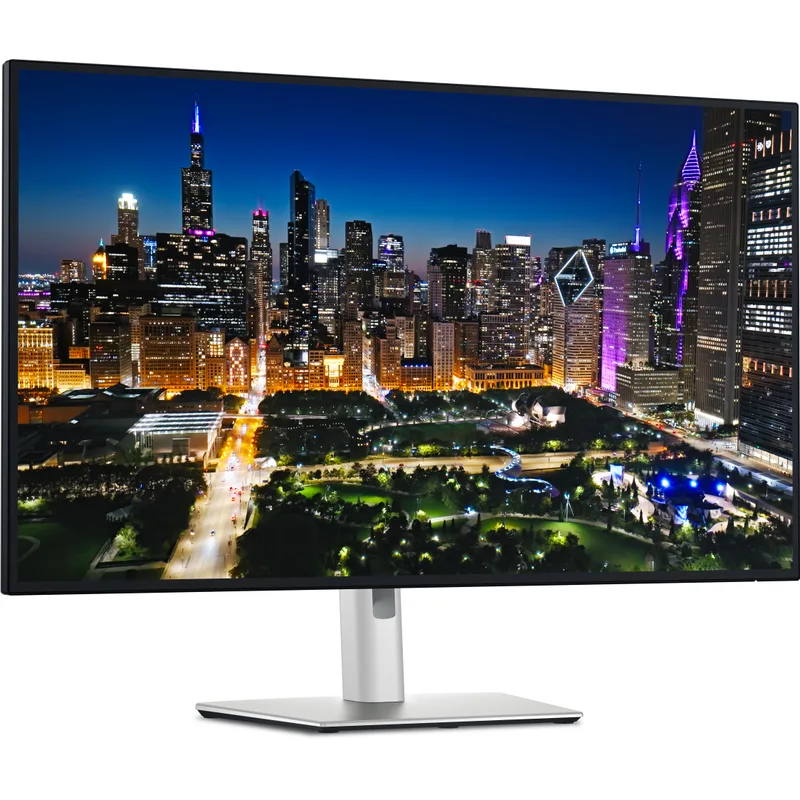
The U3225QE is the monitor PCWorld called “the best home office monitor yet” — and for data-heavy remote workers, the case holds. IPS Black panels are rare above 27 inches: this is one of only a handful of 32-inch displays that delivers 3000:1 contrast on an IPS substrate, which means you get IPS-accurate color and wide viewing angles alongside VA-class dark rendering.
The Thunderbolt 4 hub is what separates this from most 32-inch 4K options. Two TB4 ports, four USB-A downstream ports, 2.5GbE Ethernet, and a USB-C port all live on the monitor. For a remote worker running a MacBook Pro or modern Windows laptop, the monitor becomes the dock — one cable handles display, charging, Ethernet, and USB peripherals simultaneously.
At 4K and 120Hz, the display comfortably renders 3840 columns of pixel data — in practice, an Excel sheet with dozens of visible columns and hundreds of visible rows at 100% zoom. Text at this density stays sharp. Chart labels on tight Y-axes remain readable without zooming in.
The built-in KVM switch is genuinely useful for anyone running a personal machine alongside a work laptop. One keyboard, one mouse, two computers — switch between sources with a monitor button press without disconnecting hardware.
Best for: Remote workers who want one cable from their laptop and need the monitor to replace a dock entirely. Also the right call for anyone whose data work bleeds into design, dashboarding, or color-critical reporting.
2. LG 34WQ75C-B — Best Ultrawide
LG 34WQ75C-B
Pros
- 3440×1440 ultrawide resolution shows roughly 50% more horizontal columns than a standard 1920×1080 display — scrolling left and right in wide Excel sheets or comparing datasets side-by-side becomes significantly less frequent
- USB-C with 90W power delivery handles most 14-inch and 15-inch laptops directly — single cable for display signal, charging, and the built-in LAN connection without a separate dock
- Built-in LAN (RJ-45) port provides wired Ethernet through the USB-C connection — useful for remote workers on unstable Wi-Fi who need reliable low-latency connectivity for cloud spreadsheets like Google Sheets or Office 365
- Built-in KVM switch and picture-by-picture mode let you view two sources simultaneously — run a data pipeline on one PC while monitoring dashboards on another without switching inputs
- 1900R curve radius reduces eye travel across the wide panel — reviewers consistently report less neck movement and more consistent focus distance compared to flat ultrawides at 34 inches
Cons
- WQHD (1440p vertical) means you see fewer rows per screen height than a 4K display at the same physical size — if vertical data density matters more than horizontal column width, a 32-inch 4K panel shows more
- 75Hz refresh rate is the lowest in this roundup — adequate for spreadsheet work, but noticeably less smooth than 120Hz panels during fast document scrolling or switching between apps
- No height adjustment on the stock stand — stand height is fixed, requiring a monitor arm for ergonomic positioning if the default height does not suit your desk setup
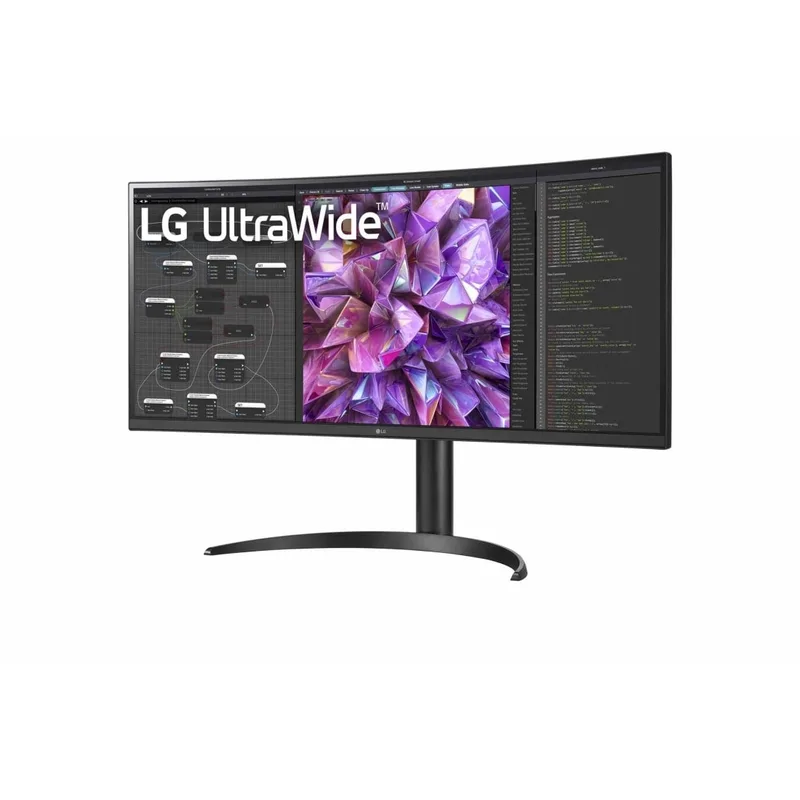
The argument for an ultrawide in spreadsheet work is straightforward: the horizontal axis is where wide Excel models live. A 3440×1440 ultrawide shows roughly 34% more horizontal pixels than a 2560×1440 QHD display and around 50% more than 1920×1080 — and those extra pixels translate directly into fewer horizontal scrolling interruptions during data review.
The LG 34WQ75C-B adds features specifically useful for productivity setups. The built-in LAN port (RJ-45), accessible through the USB-C connection, provides wired Ethernet without a separate adapter — meaningful for users on cloud-connected data tools like Google Sheets, BigQuery, or Office 365 where consistent low-latency connectivity reduces sync interruptions. The USB-C connection delivers 90W of power delivery, which handles most mainstream 15-inch laptops at full charging speed.
The 1900R curve is subtle at 34 inches — not as aggressive as ultrawide gaming monitors — and based on user reports, it reduces eye travel distance across the full width of the panel. The built-in KVM and picture-by-picture mode let you put two data sources on screen simultaneously: a live dashboard on the left, a local spreadsheet on the right, both driven from different machines.
What you trade relative to a 4K display: vertical resolution. At 1440p height, you see fewer rows per inch than a 4K 27-inch or 4K 32-inch display. If your data work is more row-heavy than column-heavy — think long transaction logs or audit trails — a tall 4K display will serve you better.
Best for: Data analysts and finance professionals working with wide financial models, pivot tables with many columns, or comparative datasets displayed side-by-side. Also suits remote workers who want built-in Ethernet without a separate dock.
3. Dell UltraSharp U2723QE — Best 27-Inch
Dell UltraSharp U2723QE
Pros
- IPS Black panel at 27 inches delivers 2000:1 contrast — the world's first 27-inch 4K display with IPS Black, which makes dark-background dashboards and data visualization charts look dramatically better than standard IPS
- Full docking hub built in — 90W USB-C charging, two USB-C data ports, five USB-A, RJ-45 Ethernet, HDMI, and DisplayPort all available without a separate dock, and one cable clears the desk of charging bricks
- 3840×2160 at 27 inches hits 163 PPI — individual characters in Excel cells and axis labels on charts are noticeably sharper than at 1440p, reducing eye strain during long labeling and data entry sessions
- ComfortView Plus certification means the backlight reduces blue light at the hardware level without a color-shifting software filter — the screen looks neutral white, not yellowish, throughout the workday
Cons
- 60Hz refresh rate shows in fast document scrolling — not a problem for most spreadsheet work, but noticeable coming from 120Hz or 144Hz displays
- At $499-$649, more expensive than the ASUS ProArt PA279CV for similar resolution and size — the IPS Black panel and larger port array are the justification, but value-focused buyers will feel the gap
- Large port array means the bottom edge of the monitor is thick with connections — not visually clean in setups where monitor cable management is a priority
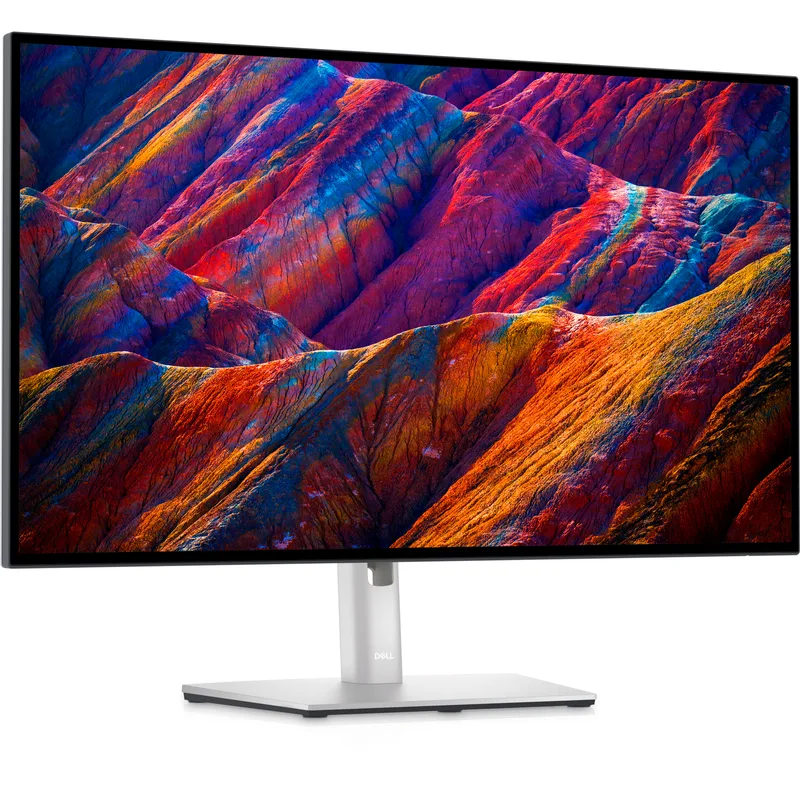
The U2723QE holds a notable spec: it was the world’s first 27-inch 4K monitor with an IPS Black panel. The 2000:1 contrast ratio is double what standard IPS panels achieve at 27 inches, and it shows. Dark-mode Excel themes, Power BI dashboards with dark backgrounds, and Tableau visualizations with dark chart canvases all look substantially better than on a standard IPS panel without the viewing angle penalties of VA technology.
The built-in connectivity is comprehensive for a 27-inch display. USB-C at 90W handles most mainstream laptops at full charging speed. Two additional USB-C data ports, five USB-A downstream ports, and an RJ-45 Ethernet port turn the monitor into a complete desk hub — meaningful for remote workers who don’t want a separate dock but need full port coverage.
At 163 PPI, the 27-inch 4K panel renders Excel cell text, axis labels, and footnotes at a sharpness that 1440p at 27 inches cannot match. Small fonts in dense data tables are readable without zooming, which reduces the constant scaling adjustments that affect workflow continuity.
The ComfortView Plus certification reduces blue light at the hardware level rather than through a software filter. Based on owner reports, this means the screen white point stays neutral — not shifted warm or yellow — while still reducing the high-frequency blue light associated with eye fatigue in extended screen sessions.
Best for: Remote workers who want a compact, desk-friendly 27-inch form factor with 4K sharpness and a complete built-in hub. Good fit for dual-monitor setups where screen footprint matters.
4. ASUS ProArt PA279CV — Best Value
ASUS ProArt PA279CV
Pros
- 4K (3840×2160) resolution at 27 inches at $279-$329 is one of the most cost-effective ways to get genuinely sharp text in Excel, Google Sheets, or Power BI without spending above $350
- USB-C with 65W power delivery charges most thin-and-light laptops at full speed — a 13-inch or 14-inch MacBook or Dell XPS runs fully powered through a single cable connected to this monitor
- Calman Verified factory calibration with ΔE < 2 means color-coded cell formatting, conditional formatting heat maps, and chart series colors display accurately — no manual profiling required out of the box
- Four USB-A hub ports plus USB-C connectivity turn the monitor into a compact desk hub — keyboard, mouse, USB drives, and charging all route through one cable from the laptop
- Full ergonomic stand adjustment (height, tilt, pivot, swivel) accommodates most desk heights and viewing preferences without purchasing a monitor arm
Cons
- Standard IPS panel at 1000:1 contrast shows a gray backlight bleed on dark backgrounds — visible in dark-themed dashboards or when working in a dim room; not a concern for bright Excel sheets
- 65W USB-C charging is insufficient for some 16-inch laptops under load — a MacBook Pro 16-inch or a high-wattage gaming laptop may not charge at full speed during intensive tasks
- No built-in Ethernet or KVM — remote workers who rely on wired networking or switch between two computers need an additional hub or dock
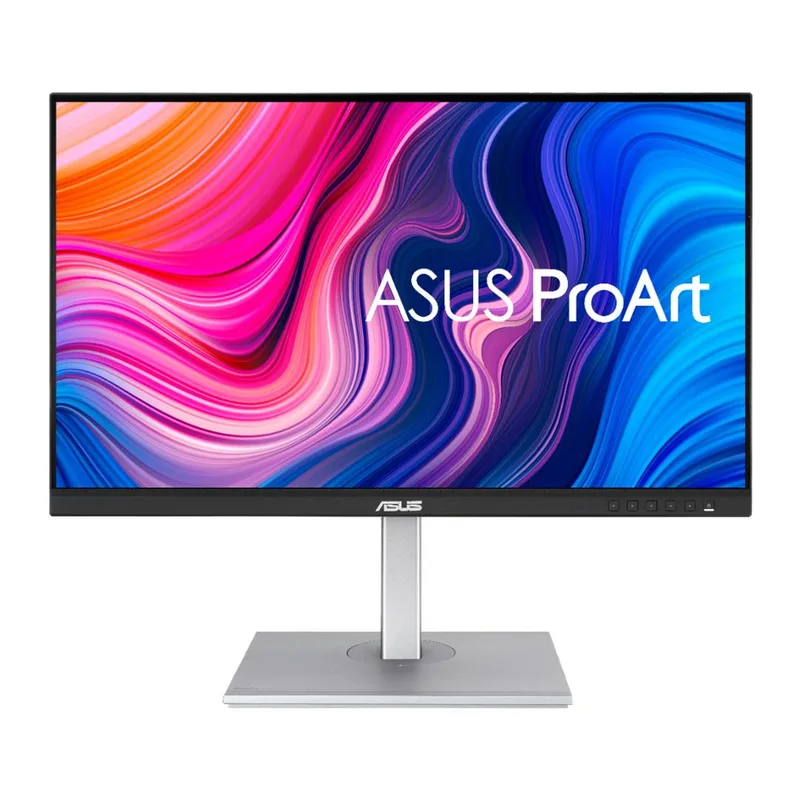
The ASUS ProArt PA279CV is the right answer for anyone who wants 4K resolution and USB-C connectivity at the lowest price in this roundup. At $279-$329, it undercuts the Dell U2723QE by roughly $200 while delivering the same 27-inch 4K resolution and USB-C power delivery.
The tradeoff is panel technology: standard IPS at 1000:1 contrast, not IPS Black at 2000:1. In practice, this matters most in dim environments and dark-mode applications. For standard Excel sessions on a light or neutral background, the difference is not significant. For Tableau dashboards or dark-themed IDEs with data, the gap is visible.
Calman Verified factory calibration with ΔE < 2 means the color accuracy is confirmed by a third-party testing standard, not just a manufacturer claim. Color-coded conditional formatting, chart series fills, and RAG status indicators (red/amber/green) display accurately out of the box — important for data work where cell color carries semantic meaning.
The full ergonomic stand adjustment — height, tilt, pivot, and swivel — is unusual at this price. Most monitors under $350 ship with tilt-only stands. The PA279CV’s stand handles proper monitor height without a monitor arm.
Best for: Budget-conscious remote workers who want 4K sharpness and USB-C single-cable setup without spending above $330. A strong first 4K monitor for analysts upgrading from 1080p or 1440p.
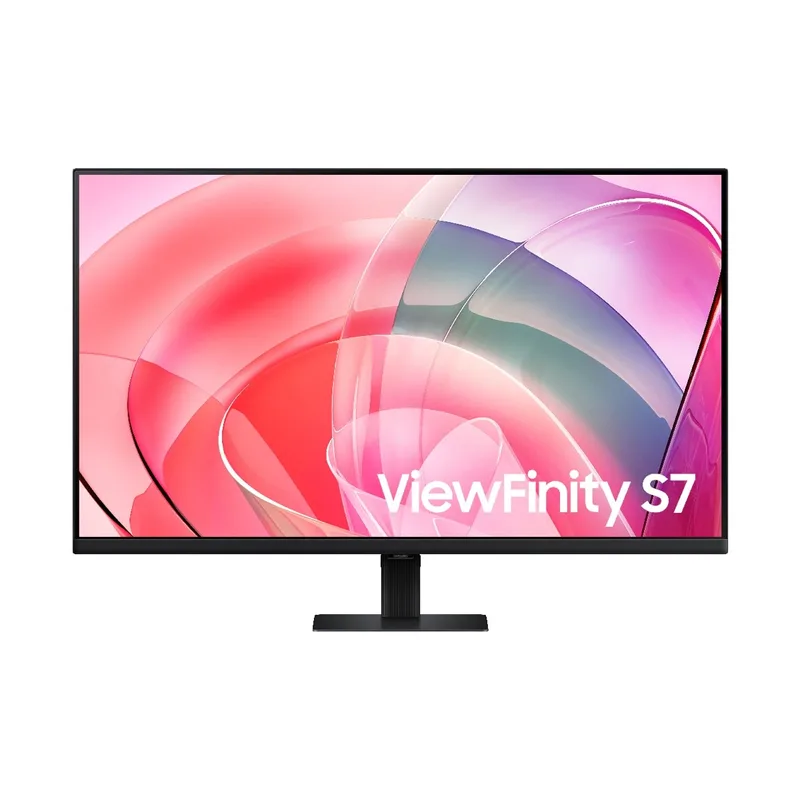
5. Samsung ViewFinity S7 S70D — Budget 32-Inch Pick
Samsung ViewFinity S7 S70D
Pros
- 32-inch 4K at $349-$429 is the lowest price in this roundup for that combination — fitting for remote workers who prioritize screen real estate per dollar without needing USB-C or a built-in hub
- TÜV Rheinland Eye Comfort certification and Samsung's Eye Saver mode reduce flicker and blue light at a hardware level — validated independently, not just a marketing claim
- 32 inches at 4K delivers 138 PPI — sharper than a 27-inch 1440p display and matches the cell density of a 27-inch 4K panel, just with a larger physical cell size for easier reading at normal viewing distance
- HDR10 support improves chart contrast and color range in Power BI and Tableau dashboards that export HDR-compatible content, even though the panel lacks dedicated HDR brightness headroom
Cons
- No USB-C input — laptop users need a separate adapter or dock for display connectivity, which eliminates the clean single-cable setup that USB-C monitors provide
- Standard IPS contrast at 1000:1 is the weakest panel specification in the roundup — visible on dark-mode applications and terminal windows compared to the IPS Black panels in the Dell U3225QE and U2723QE
- No built-in USB hub — the monitor is a pure display, adding zero desk ports, which means a separate hub is required for any peripheral connectivity
- 60Hz and no adaptive sync beyond AMD FreeSync — adequate for all spreadsheet work, but the limitation matters if the monitor ever gets used for anything motion-sensitive
The Samsung ViewFinity S7 S70D makes 32-inch 4K accessible at $349-$429, a price point where most 32-inch options compromise down to 1440p. For spreadsheet work, 32 inches at 4K hits a useful sweet spot: 138 PPI means text is noticeably sharper than 1440p at the same size, cell content is readable at 100% scaling, and the physical screen area is large enough to hold a spreadsheet and reference document side-by-side without cramped column widths.
Samsung’s Eye Saver mode and the TÜV Rheinland Eye Comfort certification address one of the practical concerns of all-day data sessions — fatigue from extended blue light exposure. Based on owner reports, the Samsung Eye Saver implementation is less aggressive in color shift than some competitors, keeping the screen visually neutral rather than warm-tinted.
The major practical limitation is connectivity: no USB-C. The ViewFinity S7 accepts DisplayPort and HDMI only. This means users with USB-C laptops need an adapter or dock, which adds cable clutter and cost that partially offsets the monitor’s price advantage. If clean single-cable setup matters for your desk, this is the wrong pick. If you’re connecting a desktop PC or a laptop that already has HDMI or DisplayPort output, it’s a non-issue.
Best for: Desktop PC users or laptop users with HDMI/DisplayPort output who want a large 4K display for spreadsheets at the lowest price in this roundup. Not the right pick for single-cable USB-C laptop setups.
Buying Guide: What to Look for in a Monitor for Spreadsheets and Data Work
Screen Real Estate: Size and Resolution Together
The number of spreadsheet cells visible without scrolling depends on both physical screen size and resolution. A 27-inch 4K display (163 PPI) shows more rows and columns than a 27-inch 1440p display at the same scaling, but fewer than a 32-inch 4K display at the same scaling. An ultrawide at 3440×1440 shows more horizontal columns than any 16:9 display, but fewer vertical rows.
Rule of thumb:
- Most data visible: 32-inch 4K (balanced rows and columns at high density)
- Most columns without scrolling: 34-inch ultrawide WQHD (horizontal advantage)
- Sharpest text: 27-inch 4K at 163 PPI
- Best budget density: 32-inch 4K over 27-inch 1440p
Panel Type: IPS vs IPS Black vs VA
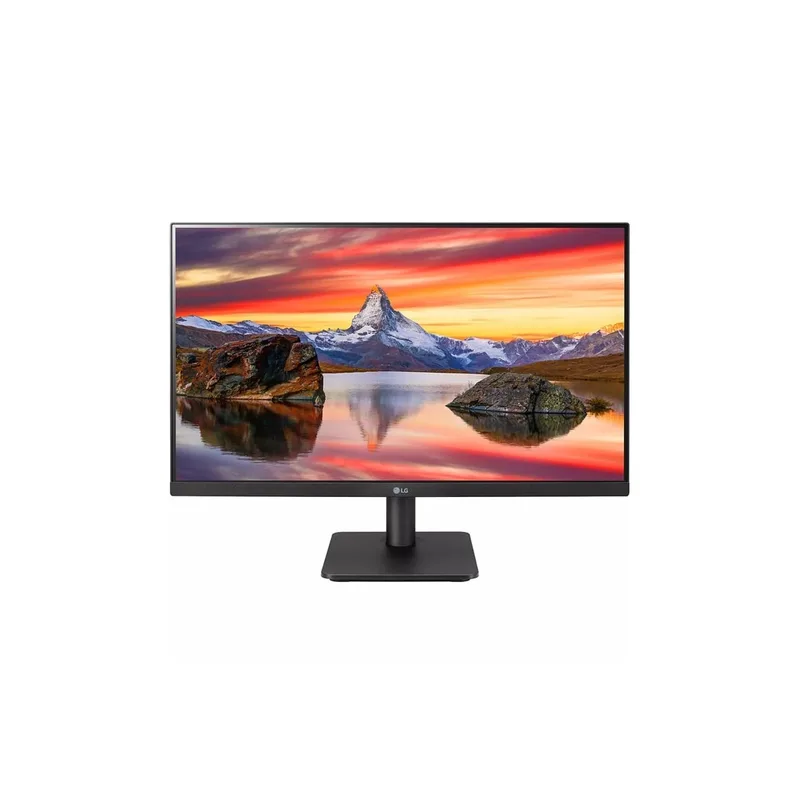
Standard IPS panels deliver accurate color and wide viewing angles at 1000:1 contrast. IPS Black panels (Dell’s technology) double that to 2000:1-3000:1 without the off-angle color shift of VA panels. VA panels hit 3000:1+ natively but have slower pixel response and inconsistent off-axis colors. For spreadsheet work:
- Standard IPS: Fine for bright offices and light-background Excel use
- IPS Black: Worth the premium for dark-mode dashboards, data visualization, or dim rooms
- VA: Rarely the right choice for data work where off-axis viewing of wide datasets is common
USB-C Connectivity
USB-C with power delivery is worth prioritizing for laptop users. A monitor with 65W+ USB-C handles most thin-and-light machines at full charging speed while transmitting display signal — a single cable replaces the laptop charger, HDMI cable, and USB hub. Built-in Ethernet (like the LG 34WQ75C-B) further simplifies the desk. For desktop users, USB-C matters less.
Eye Comfort for Long Sessions
Data work involves more sustained reading than casual office use. Look for:
- Flicker-free backlight: Eliminates eye fatigue from imperceptible backlight strobing
- Anti-glare coating: Reduces reflections in home office windows
- Low blue light certification: Hardware-level reduction is preferable to software filters
- TÜV Rheinland or similar third-party certification: Confirms the claim is independently tested
How Many Spreadsheet Rows Can You See?
At 100% scaling on a 27-inch 4K display, a standard 22-pixel Excel row height fits approximately 110 rows in the visible area. At 1440p on the same screen, you see roughly 60-65 rows. The jump from 1080p to 4K roughly doubles visible data density, which is the practical argument for 4K in data-heavy roles.
FAQ
Does 4K actually make a difference for spreadsheet work?
Yes, measurably. A 27-inch 1440p display fits roughly 60-65 rows of standard-height Excel cells in the visible area. A 27-inch 4K display at 100% scaling fits approximately 110. The improvement in text sharpness — particularly for small axis labels, footnotes, and cell content at compact column widths — is immediately visible during the first session. For data-dense workflows, the density difference directly reduces the frequency of vertical scrolling.
Ultrawide vs dual monitor for spreadsheets: which is better?
Ultrawide wins for single-source workflows — comparing two sections of the same spreadsheet, or running a wide financial model — because the horizontal space is seamless with no bezel gap in the middle. Dual monitors win when you regularly need two separate applications open simultaneously (spreadsheet and reference browser, for instance) where two windows need independent focus and sizing. An ultrawide at 3440×1440 also fits fewer vertical rows than two 4K 27-inch panels stacked in understanding — the height is fixed at 1440 pixels either way.
Do I need more than 60Hz for data work?
No. 60Hz is fully adequate for spreadsheet navigation, data entry, and document review. 120Hz and higher are more beneficial for gaming, video editing, or motion-heavy work. That said, monitors like the Dell U3225QE at 120Hz do produce noticeably smoother scrolling behavior in long spreadsheets, which some users find reduces friction during extended data review sessions even if 60Hz is technically sufficient.
Does the monitor need to be color-accurate for data work?
It depends on how much meaning your data visualizations carry through color. For standard Excel use with default color themes, any monitor with 95%+ sRGB is sufficient. For conditional formatting heat maps, RAG status indicators, Power BI dashboards, or Tableau charts shared with stakeholders, calibrated monitors like the ASUS ProArt PA279CV (Calman Verified, ΔE < 2) ensure color-coded information displays accurately across machines and print references. An uncalibrated monitor can make amber status flags look red, or cause gradient heat maps to display misleading visual weight in certain cells.
What if I already have a 1440p monitor — is it worth upgrading to 4K for spreadsheets?
At 27 inches, yes. At 32 inches, it depends on how data-dense your work is. The jump from 1440p to 4K at 27 inches produces immediately visible text sharpness improvements because the pixel density increases from 109 PPI to 163 PPI. At 32 inches, 1440p sits at 92 PPI (noticeably soft at close range) while 4K sits at 138 PPI (sharp and readable). If you spend most of your day in spreadsheets, the upgrade pays off in reduced eye strain and better data density.
Bottom Line
Best Overall: The Dell UltraSharp U3225QE is the complete package — IPS Black contrast, Thunderbolt 4 hub, 120Hz at 4K, and a built-in KVM. If you want one monitor that replaces your dock and handles any data visualization work, this is it. Check current price →
Best Value: The ASUS ProArt PA279CV delivers 4K sharpness, USB-C single-cable setup, and Calman-verified color accuracy at $279-$329 — under $330 for a 27-inch 4K display with proper ergonomics and a USB hub. Check current price →
Best Ultrawide: The LG 34WQ75C-B is the right call if wide financial models or multi-column data comparisons are your daily workflow. The built-in LAN port, KVM, and 90W USB-C remove the need for a separate dock at a price well below the premium Dell options. Check current price →
If your budget is under $350 and you’re connecting a desktop PC, the Samsung ViewFinity S7 S70D gives you 32-inch 4K at the lowest price in this roundup — skip the USB-C absence if DisplayPort or HDMI works for your setup, and spend the savings on a monitor arm.
For a broader look at display options for home office use, see our best 27-inch 1440p monitors and best 4K monitors under $500 roundups.
Detailed Reviews
Dell UltraSharp U3225QE
Pros
- IPS Black panel hits 3000:1 contrast ratio — substantially higher than standard IPS panels, so dark UI themes, terminal windows, and chart backgrounds render without the gray wash typical of IPS at this size
- Thunderbolt 4 hub eliminates the need for a separate dock — two TB4 ports, four USB-A, 2.5GbE Ethernet, and USB-C all live on the monitor itself, and a single cable handles display, charging, and data transfer simultaneously
- 120Hz at 4K means scrolling through long data tables and switching between sheets is noticeably smoother than 60Hz displays — not a spreadsheet requirement, but genuinely visible during all-day sessions
- Built-in hardware KVM lets you share one keyboard and mouse between a work laptop and a personal PC — useful for remote workers who juggle a company-issued machine alongside a personal setup
- 99% DCI-P3 and DisplayHDR 600 make this the strongest choice in the roundup if your data work bleeds into design, data visualization, or color-coded reporting that needs accurate rendering
Cons
- At $749-$849, priced at a significant premium over the other 32-inch option in this roundup — the Thunderbolt hub and IPS Black panel are what justify the cost, but pure spreadsheet users will not use all of that hardware
- 32-inch 4K at 120Hz requires DisplayPort 1.4 or Thunderbolt — HDMI 2.0 laptops cannot drive the full resolution at 120Hz, limiting some older MacBooks and budget Windows machines
- Large footprint and heavy stand make repositioning difficult — setup is semi-permanent compared to lighter 27-inch options
LG 34WQ75C-B
Pros
- 3440×1440 ultrawide resolution shows roughly 50% more horizontal columns than a standard 1920×1080 display — scrolling left and right in wide Excel sheets or comparing datasets side-by-side becomes significantly less frequent
- USB-C with 90W power delivery handles most 14-inch and 15-inch laptops directly — single cable for display signal, charging, and the built-in LAN connection without a separate dock
- Built-in LAN (RJ-45) port provides wired Ethernet through the USB-C connection — useful for remote workers on unstable Wi-Fi who need reliable low-latency connectivity for cloud spreadsheets like Google Sheets or Office 365
- Built-in KVM switch and picture-by-picture mode let you view two sources simultaneously — run a data pipeline on one PC while monitoring dashboards on another without switching inputs
- 1900R curve radius reduces eye travel across the wide panel — reviewers consistently report less neck movement and more consistent focus distance compared to flat ultrawides at 34 inches
Cons
- WQHD (1440p vertical) means you see fewer rows per screen height than a 4K display at the same physical size — if vertical data density matters more than horizontal column width, a 32-inch 4K panel shows more
- 75Hz refresh rate is the lowest in this roundup — adequate for spreadsheet work, but noticeably less smooth than 120Hz panels during fast document scrolling or switching between apps
- No height adjustment on the stock stand — stand height is fixed, requiring a monitor arm for ergonomic positioning if the default height does not suit your desk setup
Dell UltraSharp U2723QE
Pros
- IPS Black panel at 27 inches delivers 2000:1 contrast — the world's first 27-inch 4K display with IPS Black, which makes dark-background dashboards and data visualization charts look dramatically better than standard IPS
- Full docking hub built in — 90W USB-C charging, two USB-C data ports, five USB-A, RJ-45 Ethernet, HDMI, and DisplayPort all available without a separate dock, and one cable clears the desk of charging bricks
- 3840×2160 at 27 inches hits 163 PPI — individual characters in Excel cells and axis labels on charts are noticeably sharper than at 1440p, reducing eye strain during long labeling and data entry sessions
- ComfortView Plus certification means the backlight reduces blue light at the hardware level without a color-shifting software filter — the screen looks neutral white, not yellowish, throughout the workday
Cons
- 60Hz refresh rate shows in fast document scrolling — not a problem for most spreadsheet work, but noticeable coming from 120Hz or 144Hz displays
- At $499-$649, more expensive than the ASUS ProArt PA279CV for similar resolution and size — the IPS Black panel and larger port array are the justification, but value-focused buyers will feel the gap
- Large port array means the bottom edge of the monitor is thick with connections — not visually clean in setups where monitor cable management is a priority
ASUS ProArt PA279CV
Pros
- 4K (3840×2160) resolution at 27 inches at $279-$329 is one of the most cost-effective ways to get genuinely sharp text in Excel, Google Sheets, or Power BI without spending above $350
- USB-C with 65W power delivery charges most thin-and-light laptops at full speed — a 13-inch or 14-inch MacBook or Dell XPS runs fully powered through a single cable connected to this monitor
- Calman Verified factory calibration with ΔE < 2 means color-coded cell formatting, conditional formatting heat maps, and chart series colors display accurately — no manual profiling required out of the box
- Four USB-A hub ports plus USB-C connectivity turn the monitor into a compact desk hub — keyboard, mouse, USB drives, and charging all route through one cable from the laptop
- Full ergonomic stand adjustment (height, tilt, pivot, swivel) accommodates most desk heights and viewing preferences without purchasing a monitor arm
Cons
- Standard IPS panel at 1000:1 contrast shows a gray backlight bleed on dark backgrounds — visible in dark-themed dashboards or when working in a dim room; not a concern for bright Excel sheets
- 65W USB-C charging is insufficient for some 16-inch laptops under load — a MacBook Pro 16-inch or a high-wattage gaming laptop may not charge at full speed during intensive tasks
- No built-in Ethernet or KVM — remote workers who rely on wired networking or switch between two computers need an additional hub or dock
Samsung ViewFinity S7 S70D
Pros
- 32-inch 4K at $349-$429 is the lowest price in this roundup for that combination — fitting for remote workers who prioritize screen real estate per dollar without needing USB-C or a built-in hub
- TÜV Rheinland Eye Comfort certification and Samsung's Eye Saver mode reduce flicker and blue light at a hardware level — validated independently, not just a marketing claim
- 32 inches at 4K delivers 138 PPI — sharper than a 27-inch 1440p display and matches the cell density of a 27-inch 4K panel, just with a larger physical cell size for easier reading at normal viewing distance
- HDR10 support improves chart contrast and color range in Power BI and Tableau dashboards that export HDR-compatible content, even though the panel lacks dedicated HDR brightness headroom
Cons
- No USB-C input — laptop users need a separate adapter or dock for display connectivity, which eliminates the clean single-cable setup that USB-C monitors provide
- Standard IPS contrast at 1000:1 is the weakest panel specification in the roundup — visible on dark-mode applications and terminal windows compared to the IPS Black panels in the Dell U3225QE and U2723QE
- No built-in USB hub — the monitor is a pure display, adding zero desk ports, which means a separate hub is required for any peripheral connectivity
- 60Hz and no adaptive sync beyond AMD FreeSync — adequate for all spreadsheet work, but the limitation matters if the monitor ever gets used for anything motion-sensitive