The content creator economy shifted meaningfully in 2026. More people are building dedicated home office-to-studio hybrids — workspaces that function as a regular desk setup for 9-to-5 work and flip into a recording or streaming environment in under five minutes. Office tours on YouTube from early 2026 show this pattern clearly: dual-purpose spaces with removable green screens, monitor-mounted key lights, and USB-C monitors that double as power hubs for editing laptops.
This guide covers the gear that makes that dual-use setup work. Each product was selected for creator-specific performance — not just general office usability. If you already have a solid desk and chair, this is the equipment layer that turns a home office into a production environment.
What This Guide Covers
| Category | Our Pick | Price |
|---|---|---|
| Camera | Elgato Facecam 4K | $176.99 as of Oct 18, 2026 |
| Lighting | Elgato Key Light Neo | Unavailable |
| Microphone | Blue Yeti USB | $79-$99 |
| Monitor | Dell S2725QC 27” 4K | $310.60-$342.69 as of Oct 18, 2026 |
| Storage | Samsung T7 Shield 1TB | $244.74-$261.21 as of Oct 18, 2026 |
| Green Screen | Elgato Green Screen | Unavailable |
Total budget for the full setup: approximately $800-$900, not including your laptop or desk.
Camera: The Elgato Facecam 4K
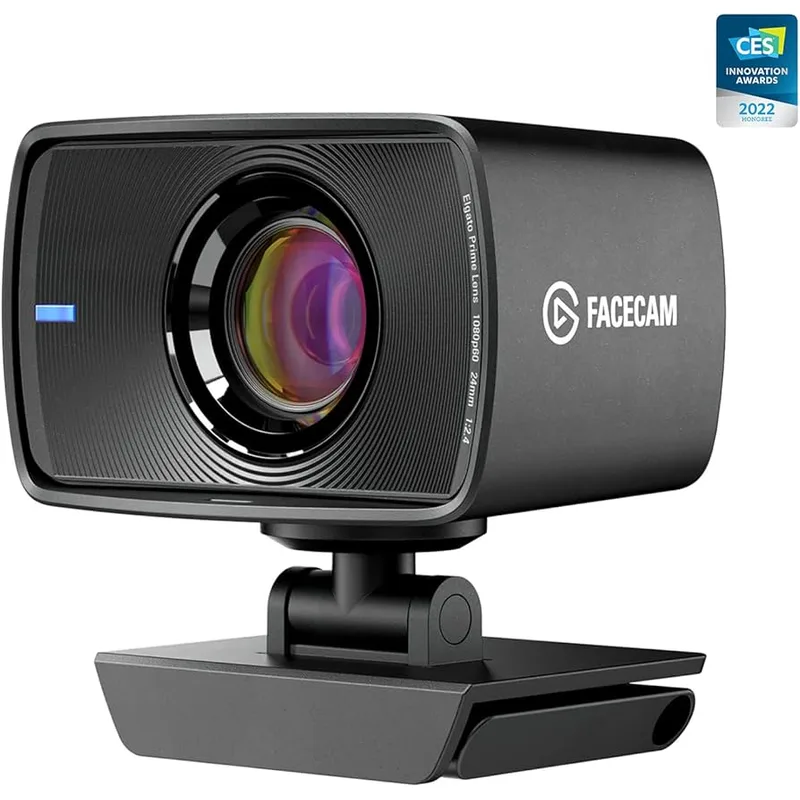
Most webcams aim for the broadest possible audience — decent image quality at 1080p for video calls. The Facecam 4K was built specifically for creators. Its Sony STARVIS 2 sensor, fixed-focus lens, and Elgato’s Camera Hub software provide the level of control that a creator who cares about their image quality actually needs.
Elgato Facecam 4K
Pros
- Sony STARVIS 2 sensor delivers significantly better low-light performance than most webcams in this price range — owner reports confirm the image holds detail in office lighting conditions where competing 4K webcams produce noisy, muddy footage
- Fixed-focus design eliminates the autofocus hunting that plagues recording sessions — the camera locks on a sharp image at typical desk distances and stays there, which is critical for long-form recording and live streams where focus drift is distracting
- Elgato Camera Hub software provides granular control over exposure, white balance, sharpening, noise reduction, and color science — the camera does not assume you want a 'beautified' image, it gives you accurate footage that you can grade in post
- 1080p/60fps mode produces smooth motion for talking-head videos and live gameplay commentary without requiring 4K file storage — useful for creators who edit on a laptop and cannot spare the storage overhead of 4K
- USB-C connection provides plug-and-play compatibility with modern MacBooks and Windows laptops without adapters — eliminates a common friction point in creator setups where USB-A webcams require dongles on thin-and-light machines
Cons
- Fixed focus is calibrated for the 60cm to 2m range — creators who frequently move to a whiteboard or stand far from the camera will need a different webcam; the Insta360 Link 2's gimbal tracking handles this scenario better
- No built-in microphone — by design, as Elgato expects creators to use a dedicated mic; not an issue for anyone following this guide, but worth noting if you want an all-in-one solution
- 4K mode is capped at 30fps — acceptable for YouTube uploads but not ideal for high-frame-rate streams or gaming content where 60fps is the standard expectation
The fixed-focus design divides opinions, but for desk-bound creators it’s the correct call. Autofocus hunting — where the camera briefly loses lock and refocuses during a take — is one of the most common complaints in creator-focused webcam reviews. The Facecam 4K avoids it entirely by calibrating the focus for 60cm to 2m shooting distance and locking there.
For creators who move around, stream while gaming at a distance from the camera, or use a large standing desk, a tracking webcam like the Insta360 Link 2 may be a better fit. Our best webcams for video calls guide covers that full spectrum.
Lighting: The Elgato Key Light Neo
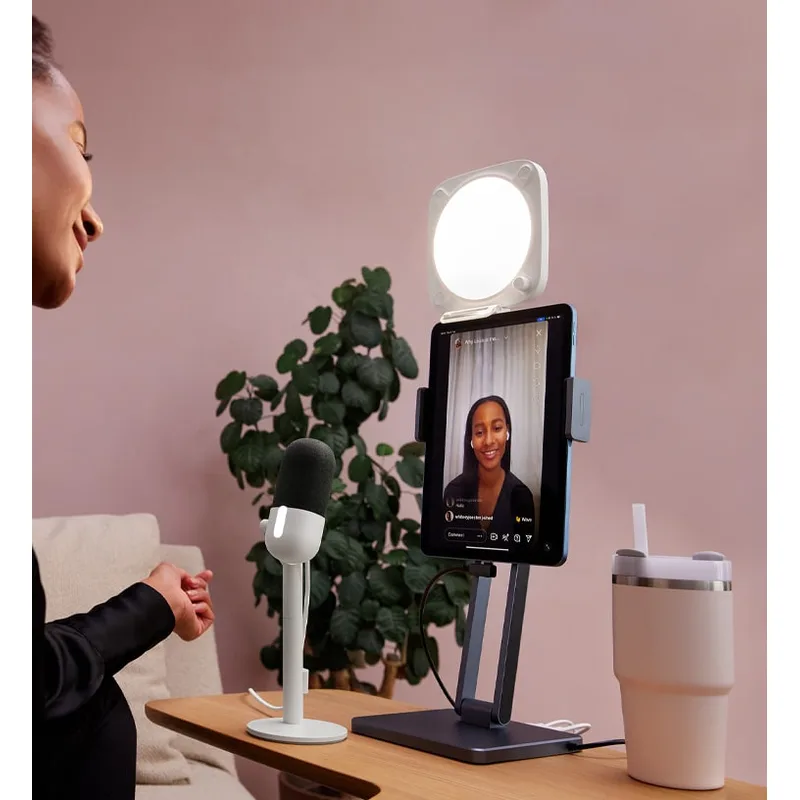
Lighting improvement has the highest visual impact per dollar of any creator gear upgrade. A $90 key light transforms footage shot with an average webcam. A premium webcam in bad light still looks bad.
Elgato Key Light Neo
Pros
- CRI 96+ color rendering index means skin tones look accurate and natural on camera — a meaningful advantage over budget LED panels that spike in blue or green, causing color casts that take time to correct in video editing software
- Compact panel design clips directly onto a monitor without a separate stand — this preserves valuable desk space in home offices where a freestanding light arm would crowd the keyboard or eat into the webcam's frame
- Color temperature adjustment from 2900K to 7000K covers warm ambient setups through cool daylight-matched environments — lets creators match the light to the mood of the content without post-correction in every clip
- Elgato Control Center integration allows scene-based lighting presets — if the computer is already running OBS or Stream Deck, lighting adjustments sync into the same workflow without a separate app
- USB-C power connection at maximum setting reaches 700 lumens — adequate as a solo key light for a close-range webcam setup in a room with some ambient fill
Cons
- Maximum 1000 lumens requires a separate power supply (sold separately) — USB power limits output to 700 lumens via USB-C or 400 lumens via USB-A; budget for the power adapter if you need full brightness for a larger room
- Panel size is smaller than the Elgato Key Light Air or a 12-inch ring light — for close-range desk setups this works well, but the smaller surface area produces harder light than larger panels at the same distance
- App-dependent for scene control — physical buttons handle basic on/off and brightness, but integrating with stream scenes requires the desktop app running in the background
The Key Light Neo is the right starting point for most home office creators. Its compact monitor-clip design keeps the light out of the desk workspace while positioning it where a key light belongs — near eye level, slightly to one side of the camera. The CRI 96+ rating ensures skin tones read accurately rather than with the green or blue cast common in budget LED panels.
The Neo’s main limitation is brightness ceiling — 700 lumens via USB-C and 1,000 lumens with a separate power adapter. For a home office with controlled ambient light, this is sufficient. For a bright room with large windows, consider stepping up to the Elgato Key Light Air, which outputs 2,800 lumens from a larger panel surface for softer, more flattering light.
Quick lighting tip from owner feedback: Position the key light at roughly the same height as your eyes, about 45 degrees to one side of the camera. This creates natural-looking one-light setups that avoid the flat, washed-out look from a front-mounted ring light.
Audio: The Blue Yeti USB
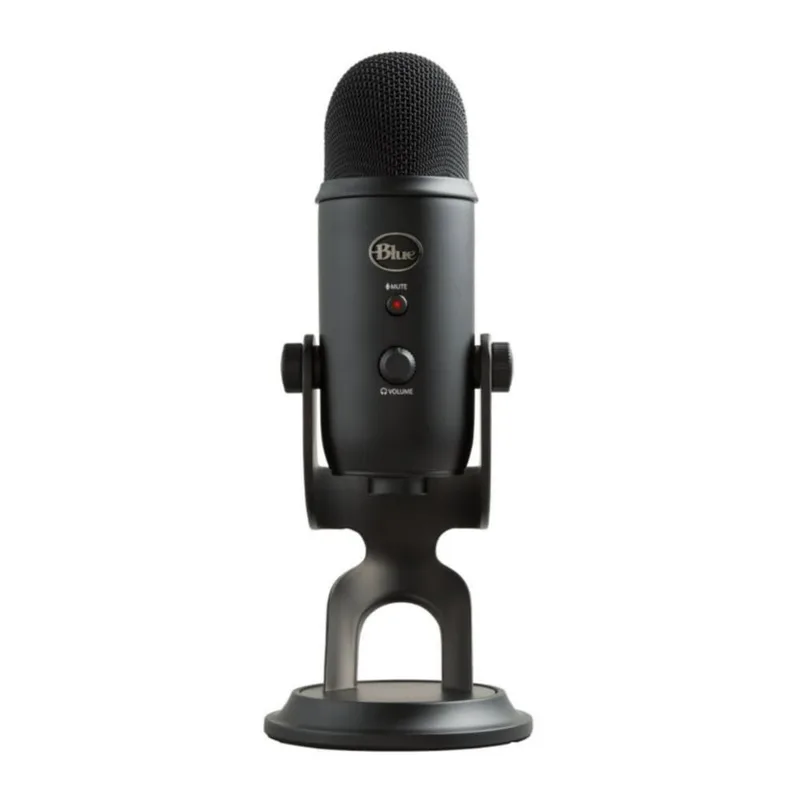
Audio quality matters more than video quality for viewer retention. Research on creator content consistently shows that viewers will tolerate lower video resolution longer than they’ll tolerate poor audio — echo, hiss, room noise, and thin microphone character cause faster abandonment than a slightly soft image.
Logitech for Creators Blue Yeti USB Microphone
Pros
- Four switchable polar patterns in a single microphone cover every creator scenario — cardioid for solo podcasting and voiceover, omnidirectional for roundtable discussion, stereo for musical instrument recording, bidirectional for two-person interviews; no separate mic is needed for each use case
- Zero-latency headphone monitoring through the 3.5mm output lets creators hear themselves in real time without the delay that software monitoring introduces — critical for catching room echo and breath sounds before they appear in a recorded take
- Hardware gain knob and mute button require no software interaction — adjustments happen on the mic body, which means creators can respond to environmental noise changes mid-stream without alt-tabbing out of their content
- Plug-and-play USB operation requires no audio interface, no driver installation, and no XLR chain — the Yeti shows up as a USB audio device in Windows and macOS immediately, which reduces setup friction for new creators who want professional sound without an audio engineering background
- Under $100 for most of 2026 — the Yeti has settled at $79-$99 on Amazon throughout the year, making it one of the best-value condenser microphones available to creators who are not ready to invest in an XLR setup
Cons
- Cardioid pattern picks up room reflections and keyboard clicks — the Yeti is a large-diaphragm condenser, so acoustic treatment (even a $30 foam panel behind the desk) makes a noticeable difference; in an untreated room, it captures everything
- USB-A connector requires a USB-A port or an adapter — on MacBooks with only USB-C ports, a USB-A to USB-C adapter is needed; the Yeti X model uses USB-C natively if this matters
- Stand is functional but short — the included stand places the microphone low on the desk, which is fine for proximity recording but encourages poor posture; a boom arm (around $20-$30) positions the mic at mouth level without taking up desk space
The Blue Yeti remains the most popular first USB microphone for creators in 2026 for good reason: it works immediately, sounds good out of the box, and provides enough control — gain, pattern selection, mute, headphone monitoring — to handle most creator recording scenarios without touching software.
Acoustic treatment matters more than the mic. The Yeti’s cardioid mode captures everything in front of it, including room echo. Even basic treatment helps: positioning the mic close to your mouth (6-10 inches) reduces room pickup significantly. Hanging a moving blanket or acoustic panel behind the desk — visible in the audio above but not in the camera frame — makes a measurable difference in recording quality.
For creators ready to step up to an XLR setup, the Shure MV7+ and Rode PodMic USB offer similar plug-and-play simplicity with slightly improved frequency response. Our best microphones for remote work guide covers those options.
Monitor: The Dell S2725QC
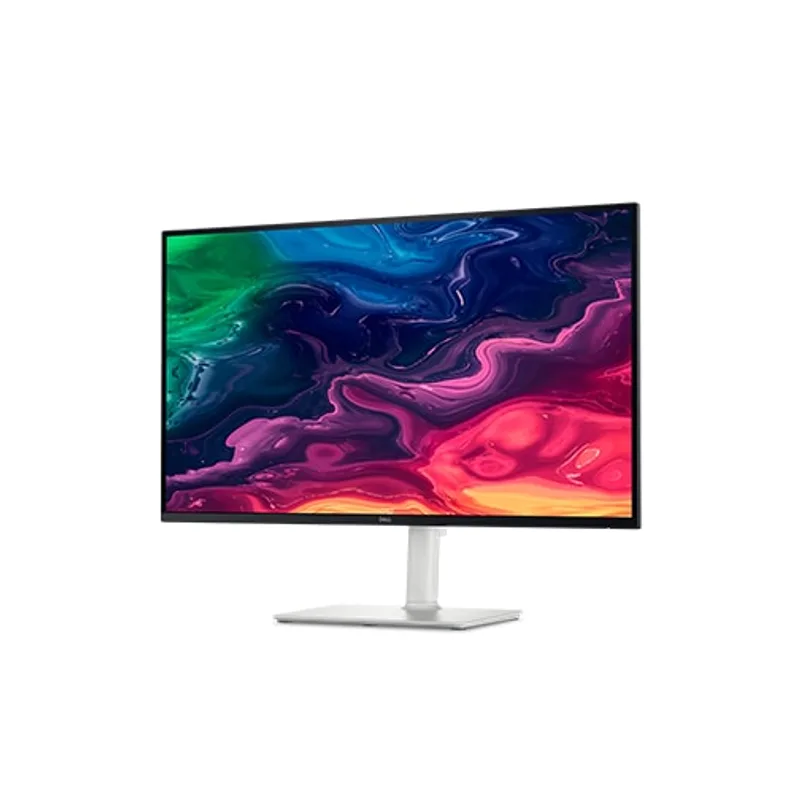
Editing video and designing thumbnails on a color-inaccurate monitor produces work that looks different on every other screen. The Dell S2725QC’s 99% sRGB and 90% DCI-P3 coverage at this price point is the practical solution for creators who cannot justify a $600+ professional display but need accurate color in their workflow.
Dell S2725QC 27-Inch 4K USB-C Monitor
Pros
- 99% sRGB and 90% DCI-P3 coverage at this price point gives creators accurate color for thumbnail design, video color grading, and photo editing — most monitors in the sub-$300 segment hit 95-97% sRGB but fall short on DCI-P3, which is the color space used in video production
- USB-C with 65W Power Delivery charges a MacBook Air M3 or Dell XPS 13 over a single cable — one cable handles video signal, USB hub, and laptop power simultaneously, eliminating the separate power brick on the desk for compatible laptops
- 4K resolution at 27 inches produces a pixel density of 163 PPI — text and UI elements are sharp enough to see fine details in the timeline of DaVinci Resolve or Premiere Pro without scaling the interface down to impractical sizes
- IPS panel eliminates the color shift seen when viewing from an angle — when positioning a reference monitor beside a secondary screen, or when the recording frame includes the monitor in the background, colors look consistent regardless of viewing position
- Built-in USB hub extends a laptop's port count — the two USB-A 3.2 ports on the monitor body are available for keyboards, stream deck controllers, or USB storage without reaching behind the display
Cons
- 60Hz refresh rate is the primary trade-off for creators who are also gamers — the S2725QC is built for content production and office work; for high-frame-rate gaming alongside editing, a monitor with 120Hz+ IPS panel and similar color accuracy costs significantly more
- 350 nits peak brightness is sufficient for a light-controlled home office but washes out in a sun-facing room — position this monitor away from direct window light or pair it with blinds for editing sessions where color accuracy matters
- HDR400 certification reflects a basic HDR implementation — it handles SDR content accurately, but the peak brightness and local dimming are not sufficient for serious HDR mastering; use this monitor as the creative workhorse, not as an HDR reference display
The USB-C Power Delivery feature is the practical reason this monitor works well in a dual-use home office. A single USB-C cable handles video output, the USB hub, and up to 65W of laptop charging simultaneously. Transitioning the desk from work mode to creator mode — swapping from a work laptop to a creator machine — takes one cable pull rather than reconfiguring a dock.
On refresh rate: The 60Hz panel is fine for editing timelines, color grading, and thumbnail review. It is not ideal for gaming content creators who want to see their gameplay at high frame rates on the monitor. If gaming is part of the content mix, look at the LG 27GR95QE OLED at 240Hz (though at a significantly higher price), or keep a separate gaming display in the setup.
Storage: The Samsung T7 Shield 1TB
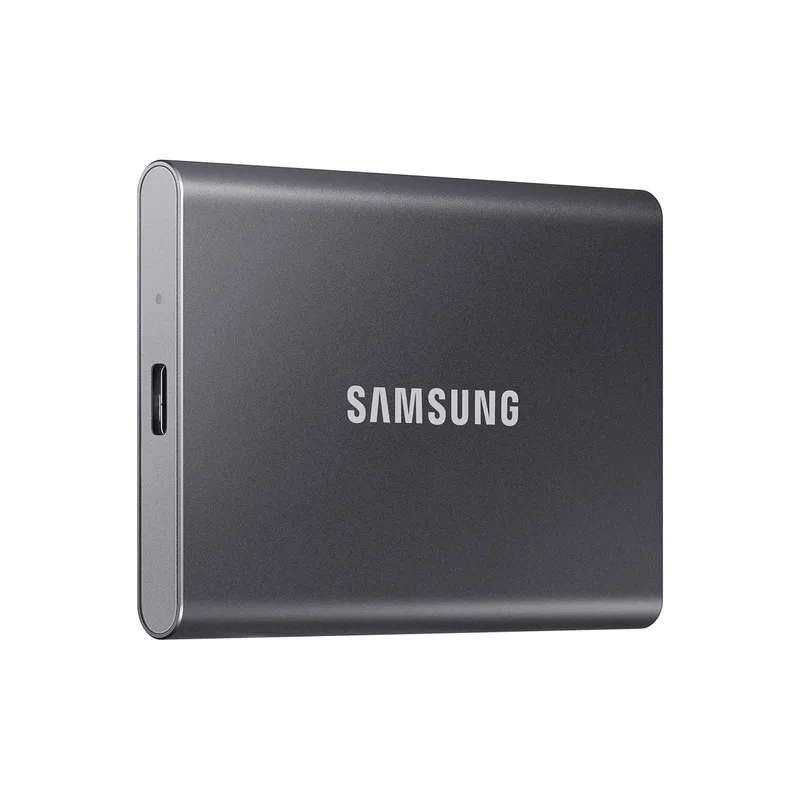
4K footage is large. A 30-minute recording session at moderate bitrate fills 20-30GB. Without an SSD fast enough to read footage directly during editing, the workflow becomes an exercise in waiting for proxy transcodes. The T7 Shield eliminates that wait.
Samsung T7 Shield 1TB Portable SSD
Pros
- 1,050 MB/s read speed eliminates the bottleneck of pulling 4K footage off an external drive during editing — at this speed, DaVinci Resolve and Premiere Pro can read native 4K source files directly from the drive without proxies, which removes a transcoding step from the workflow
- IP65 water and dust resistance protects footage at outdoor shoots, rental studios, or coffee shop editing sessions — the drive survives a pocket full of camera gear, a light rain, and accidental spills without losing a file
- Drop resistance up to 9.8 feet covers realistic field accident scenarios — creator gear gets knocked off desks and falls from camera bags; the T7 Shield's reinforced construction handles those falls without the filesystem corruption that plagues cheaper drives
- 98-gram weight and credit-card-thin profile means the drive disappears into any camera bag — carrying footage storage alongside a camera and lens kit adds no meaningful weight or bulk to the load-out
- USB 3.2 Gen 2 at 10Gbps is compatible with USB-C ports on every modern laptop and desktop — no thunderbolt-specific requirements means the drive works at rated speed on Windows, Mac, and Linux machines without driver installation
Cons
- 1TB fills faster than expected with 4K footage — a single hour of 4K/60fps at a typical H.264 bitrate consumes 25-50GB depending on recording settings; plan to offload footage to a home NAS or larger desktop drive regularly during active projects
- Portable SSD prices have been elevated throughout 2026 due to global NAND supply constraints — the T7 Shield 1TB sits above its pre-2026 historical pricing; monitor for deals if the budget is tight, as the drive goes on sale periodically
- USB-C cable included but USB-A adapter is not — laptops without USB-C require a separate USB-A to USB-C adapter cable to connect at rated speed; the included cable is high quality but short at approximately 11 inches
The 1TB capacity covers an active project and recent archives. The workflow that works best: keep the current project on the T7 Shield for fast in-editor access, then archive completed projects to a home NAS or large desktop drive when finished. Our Synology vs QNAP comparison covers NAS options for that archiving tier.
Note on pricing in 2026: Portable SSD prices have been elevated throughout the year due to global NAND supply constraints. The T7 Shield 1TB fluctuates more than usual — check Amazon and compare with Best Buy for periodic deals that bring it back toward historical pricing.
Background: The Elgato Green Screen
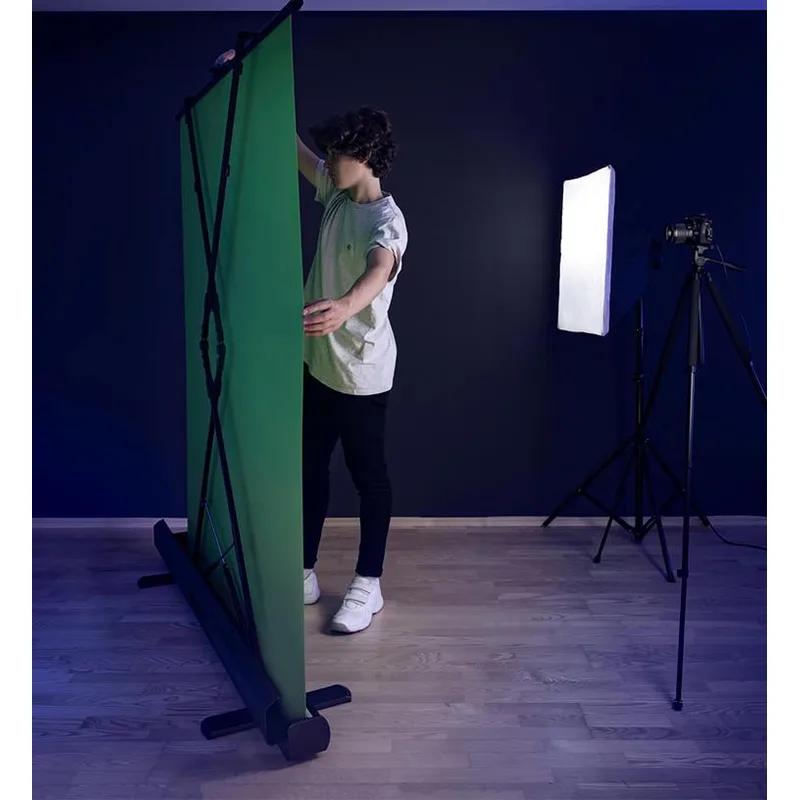
Virtual backgrounds in Zoom and Teams have improved, but they still produce visible edge artifacts on hair and loose clothing. A real green screen eliminates these artifacts and produces clean chroma key composites in OBS, Streamlabs, and any editing software.
Elgato Green Screen
Pros
- Wrinkle-resistant Dacron fabric produces a consistent chroma-green surface without requiring ironing or steaming before every session — the material returns to a smooth state after collapsing without permanent creases, which is the main failure point of cheaper nylon green screens
- Self-locking deployment mechanism extends fully in about 10 seconds and collapses in under 30 — compared to pop-up backdrop frames that require separate assembly and disassembly, the Elgato Green Screen sets up and breaks down fast enough to use for short recording sessions and put away afterward
- 59-inch width covers a seated creator from the shoulders outward in most standard chair-plus-desk setups — wide enough to maintain chroma key integrity when moving arms during gesturing without revealing the edges of the screen in the camera frame
- Works with OBS, Streamlabs, XSplit, and virtual background features in Zoom and Teams natively — no specialized capture card or software license required beyond what most creators already have installed
- Floor-standing design does not require wall mounting or ceiling rigging — sets up on any flat surface without tools, which matters in rented apartments or home offices where permanent installation is not possible
Cons
- Base footprint of approximately 15" × 30" permanently occupies floor space in the shooting area — unlike the wall-mounted Elgato Green Screen MT, this version requires a clear stretch of floor behind the desk to stand; measure before purchasing
- 57.5-inch height works for seated creators but does not cover a standing creator's full height — standing creators need either the Green Screen MT (wall-mounted) or a taller pop-up backdrop to avoid revealing their body below the green screen frame
- Lighting the green screen separately from the subject requires a second light source — without dedicated green screen illumination, shadows fall on the fabric and produce inconsistent keying; budget for a second Key Light or ring light aimed at the screen, not the subject
The Elgato Green Screen’s self-locking collapse mechanism is the feature that makes it practical in a dual-use home office. The screen deploys in under 30 seconds for recording and collapses in about the same time when the desk needs to function as a normal workspace. The wrinkle-resistant fabric returns to a smooth state after each collapse without steaming.
Lighting the green screen separately is non-optional. The most common green screen failure is uneven illumination — shadows on the fabric create dark areas that the chroma key algorithm cannot key out consistently. A second light source pointed at the screen (not the subject) solves this. The Elgato Key Light Neo’s flexible mounting works for this application.
How to Budget Your Creator Setup
Not everyone needs the full setup on day one. Here’s a phased approach based on what delivers the most noticeable improvement per dollar:
Phase 1 — Audio first ($79-$99): The Blue Yeti alone transforms the quality of video calls, podcasts, and screen-recorded tutorials. A laptop’s built-in camera is serviceable for early content; the built-in microphone is not.
Phase 2 — Lighting second ($79-$90): A key light doubles the impact of any webcam. The Key Light Neo improves the image from a MacBook’s built-in camera more noticeably than upgrading to a mid-tier webcam under poor light.
Phase 3 — Camera ($159): Once lighting and audio are solid, upgrade the camera. The visual improvement from the Facecam 4K is most visible after the lighting is already good — a great sensor in bad light still looks mediocre.
Phase 4 — Monitor and storage ($430-$470): If video editing is part of the workflow, the Dell S2725QC and T7 Shield improve the editing experience significantly. These are infrastructure investments that pay dividends over multiple years of use.
Phase 5 — Green screen ($129-$149): The green screen is optional if virtual backgrounds work acceptably for your content type. It becomes essential for content where clean background removal matters — gaming streams, interview formats, or polished tutorial videos.
Acoustic Treatment on a Budget
No product card here because acoustic panels do not have an Amazon affiliate angle that we feel strongly about — the best option is often DIY. A moving blanket hung on the wall behind the desk, a bookshelf filled with irregular objects, or foam panels from a local hardware store reduce room echo more cost-effectively than branded acoustic panels at three times the price.
What actually matters: reduce hard parallel surfaces near the microphone. Echo bounces between drywall walls and glass windows. Soft furniture, bookshelves, and textiles break up those reflections. A quick test: record a minute of silence in cardioid mode, then listen for room tone and echo. If it sounds like a bathroom, treat the room before recording more content.
Frequently Asked Questions
Do I need a green screen if I use a 4K webcam? Not necessarily. Virtual backgrounds improved substantially in 2026, and 4K webcam footage provides a sharper subject silhouette for AI-based background removal. The green screen becomes worthwhile when you need consistent, artifact-free keying for longer videos where occasional edge glitches are distracting, or when the content format demands a professional composite background.
Can I use the Blue Yeti for podcast recording with two people in the same room? Yes — switch to bidirectional mode and position the microphone between both speakers. The bidirectional pattern captures audio from the front and back of the capsule while rejecting sound from the sides. Results vary based on room acoustics; acoustic treatment behind each speaker helps significantly.
Will the Dell S2725QC work with an M3 MacBook Air over a single cable? Yes. The USB-C port on the S2725QC supports DisplayPort Alt Mode and provides 65W Power Delivery simultaneously. The M3 MacBook Air’s USB-C port accepts both signals over the same cable — one cable delivers video, power, and USB hub access. Verify your laptop supports USB-C video output before assuming this works; older USB-C ports on some Windows laptops are power-only.
How much storage do I actually need for 4K content creation? Plan for approximately 1GB per minute of finished video in 4K at typical export settings. Raw footage runs 2-5x larger than the finished export depending on the recording codec. For a YouTube creator publishing weekly 10-minute videos, the 1TB T7 Shield holds a comfortable buffer of several projects at once before archiving to a NAS. Podcasters and screen recorders need far less storage than video creators.
Is the Facecam 4K compatible with streaming software like OBS? Yes — it shows up as a standard USB video device in OBS, Streamlabs, and XSplit, and can be configured with any resolution and frame rate the camera supports. The Elgato Camera Hub software settings persist on the camera hardware, so adjustments made in Camera Hub apply automatically in OBS without per-software reconfiguration.
Conclusion
For a creator running a home office in 2026, the priority order is clear: audio first, then lighting, then camera. The monitor and storage follow as the workflow scales to editing. The green screen is optional but valuable once the other fundamentals are solid.
The six products in this guide work together as a cohesive system — all from or compatible with the Elgato ecosystem for the core video gear, with a Dell monitor that handles the USB-C hub and charging requirements of a modern creator laptop. Budget around $800-$900 for the complete setup, or phase the purchases over a few months starting with the microphone.
The Elgato Facecam 4K is the top pick for camera — its Sony sensor and fixed-focus design produce consistent, high-quality footage that holds up well for YouTube uploads and streaming simultaneously. Pair it with the Key Light Neo and Blue Yeti, and the foundation of a professional-looking home office studio is in place.
Detailed Reviews
Elgato Facecam 4K
Pros
- Sony STARVIS 2 sensor delivers significantly better low-light performance than most webcams in this price range — owner reports confirm the image holds detail in office lighting conditions where competing 4K webcams produce noisy, muddy footage
- Fixed-focus design eliminates the autofocus hunting that plagues recording sessions — the camera locks on a sharp image at typical desk distances and stays there, which is critical for long-form recording and live streams where focus drift is distracting
- Elgato Camera Hub software provides granular control over exposure, white balance, sharpening, noise reduction, and color science — the camera does not assume you want a 'beautified' image, it gives you accurate footage that you can grade in post
- 1080p/60fps mode produces smooth motion for talking-head videos and live gameplay commentary without requiring 4K file storage — useful for creators who edit on a laptop and cannot spare the storage overhead of 4K
- USB-C connection provides plug-and-play compatibility with modern MacBooks and Windows laptops without adapters — eliminates a common friction point in creator setups where USB-A webcams require dongles on thin-and-light machines
Cons
- Fixed focus is calibrated for the 60cm to 2m range — creators who frequently move to a whiteboard or stand far from the camera will need a different webcam; the Insta360 Link 2's gimbal tracking handles this scenario better
- No built-in microphone — by design, as Elgato expects creators to use a dedicated mic; not an issue for anyone following this guide, but worth noting if you want an all-in-one solution
- 4K mode is capped at 30fps — acceptable for YouTube uploads but not ideal for high-frame-rate streams or gaming content where 60fps is the standard expectation
Elgato Key Light Neo
Pros
- CRI 96+ color rendering index means skin tones look accurate and natural on camera — a meaningful advantage over budget LED panels that spike in blue or green, causing color casts that take time to correct in video editing software
- Compact panel design clips directly onto a monitor without a separate stand — this preserves valuable desk space in home offices where a freestanding light arm would crowd the keyboard or eat into the webcam's frame
- Color temperature adjustment from 2900K to 7000K covers warm ambient setups through cool daylight-matched environments — lets creators match the light to the mood of the content without post-correction in every clip
- Elgato Control Center integration allows scene-based lighting presets — if the computer is already running OBS or Stream Deck, lighting adjustments sync into the same workflow without a separate app
- USB-C power connection at maximum setting reaches 700 lumens — adequate as a solo key light for a close-range webcam setup in a room with some ambient fill
Cons
- Maximum 1000 lumens requires a separate power supply (sold separately) — USB power limits output to 700 lumens via USB-C or 400 lumens via USB-A; budget for the power adapter if you need full brightness for a larger room
- Panel size is smaller than the Elgato Key Light Air or a 12-inch ring light — for close-range desk setups this works well, but the smaller surface area produces harder light than larger panels at the same distance
- App-dependent for scene control — physical buttons handle basic on/off and brightness, but integrating with stream scenes requires the desktop app running in the background
Logitech for Creators Blue Yeti USB Microphone
Pros
- Four switchable polar patterns in a single microphone cover every creator scenario — cardioid for solo podcasting and voiceover, omnidirectional for roundtable discussion, stereo for musical instrument recording, bidirectional for two-person interviews; no separate mic is needed for each use case
- Zero-latency headphone monitoring through the 3.5mm output lets creators hear themselves in real time without the delay that software monitoring introduces — critical for catching room echo and breath sounds before they appear in a recorded take
- Hardware gain knob and mute button require no software interaction — adjustments happen on the mic body, which means creators can respond to environmental noise changes mid-stream without alt-tabbing out of their content
- Plug-and-play USB operation requires no audio interface, no driver installation, and no XLR chain — the Yeti shows up as a USB audio device in Windows and macOS immediately, which reduces setup friction for new creators who want professional sound without an audio engineering background
- Under $100 for most of 2026 — the Yeti has settled at $79-$99 on Amazon throughout the year, making it one of the best-value condenser microphones available to creators who are not ready to invest in an XLR setup
Cons
- Cardioid pattern picks up room reflections and keyboard clicks — the Yeti is a large-diaphragm condenser, so acoustic treatment (even a $30 foam panel behind the desk) makes a noticeable difference; in an untreated room, it captures everything
- USB-A connector requires a USB-A port or an adapter — on MacBooks with only USB-C ports, a USB-A to USB-C adapter is needed; the Yeti X model uses USB-C natively if this matters
- Stand is functional but short — the included stand places the microphone low on the desk, which is fine for proximity recording but encourages poor posture; a boom arm (around $20-$30) positions the mic at mouth level without taking up desk space
Dell S2725QC 27-Inch 4K USB-C Monitor
Pros
- 99% sRGB and 90% DCI-P3 coverage at this price point gives creators accurate color for thumbnail design, video color grading, and photo editing — most monitors in the sub-$300 segment hit 95-97% sRGB but fall short on DCI-P3, which is the color space used in video production
- USB-C with 65W Power Delivery charges a MacBook Air M3 or Dell XPS 13 over a single cable — one cable handles video signal, USB hub, and laptop power simultaneously, eliminating the separate power brick on the desk for compatible laptops
- 4K resolution at 27 inches produces a pixel density of 163 PPI — text and UI elements are sharp enough to see fine details in the timeline of DaVinci Resolve or Premiere Pro without scaling the interface down to impractical sizes
- IPS panel eliminates the color shift seen when viewing from an angle — when positioning a reference monitor beside a secondary screen, or when the recording frame includes the monitor in the background, colors look consistent regardless of viewing position
- Built-in USB hub extends a laptop's port count — the two USB-A 3.2 ports on the monitor body are available for keyboards, stream deck controllers, or USB storage without reaching behind the display
Cons
- 60Hz refresh rate is the primary trade-off for creators who are also gamers — the S2725QC is built for content production and office work; for high-frame-rate gaming alongside editing, a monitor with 120Hz+ IPS panel and similar color accuracy costs significantly more
- 350 nits peak brightness is sufficient for a light-controlled home office but washes out in a sun-facing room — position this monitor away from direct window light or pair it with blinds for editing sessions where color accuracy matters
- HDR400 certification reflects a basic HDR implementation — it handles SDR content accurately, but the peak brightness and local dimming are not sufficient for serious HDR mastering; use this monitor as the creative workhorse, not as an HDR reference display
Samsung T7 Shield 1TB Portable SSD
Pros
- 1,050 MB/s read speed eliminates the bottleneck of pulling 4K footage off an external drive during editing — at this speed, DaVinci Resolve and Premiere Pro can read native 4K source files directly from the drive without proxies, which removes a transcoding step from the workflow
- IP65 water and dust resistance protects footage at outdoor shoots, rental studios, or coffee shop editing sessions — the drive survives a pocket full of camera gear, a light rain, and accidental spills without losing a file
- Drop resistance up to 9.8 feet covers realistic field accident scenarios — creator gear gets knocked off desks and falls from camera bags; the T7 Shield's reinforced construction handles those falls without the filesystem corruption that plagues cheaper drives
- 98-gram weight and credit-card-thin profile means the drive disappears into any camera bag — carrying footage storage alongside a camera and lens kit adds no meaningful weight or bulk to the load-out
- USB 3.2 Gen 2 at 10Gbps is compatible with USB-C ports on every modern laptop and desktop — no thunderbolt-specific requirements means the drive works at rated speed on Windows, Mac, and Linux machines without driver installation
Cons
- 1TB fills faster than expected with 4K footage — a single hour of 4K/60fps at a typical H.264 bitrate consumes 25-50GB depending on recording settings; plan to offload footage to a home NAS or larger desktop drive regularly during active projects
- Portable SSD prices have been elevated throughout 2026 due to global NAND supply constraints — the T7 Shield 1TB sits above its pre-2026 historical pricing; monitor for deals if the budget is tight, as the drive goes on sale periodically
- USB-C cable included but USB-A adapter is not — laptops without USB-C require a separate USB-A to USB-C adapter cable to connect at rated speed; the included cable is high quality but short at approximately 11 inches
Elgato Green Screen
Pros
- Wrinkle-resistant Dacron fabric produces a consistent chroma-green surface without requiring ironing or steaming before every session — the material returns to a smooth state after collapsing without permanent creases, which is the main failure point of cheaper nylon green screens
- Self-locking deployment mechanism extends fully in about 10 seconds and collapses in under 30 — compared to pop-up backdrop frames that require separate assembly and disassembly, the Elgato Green Screen sets up and breaks down fast enough to use for short recording sessions and put away afterward
- 59-inch width covers a seated creator from the shoulders outward in most standard chair-plus-desk setups — wide enough to maintain chroma key integrity when moving arms during gesturing without revealing the edges of the screen in the camera frame
- Works with OBS, Streamlabs, XSplit, and virtual background features in Zoom and Teams natively — no specialized capture card or software license required beyond what most creators already have installed
- Floor-standing design does not require wall mounting or ceiling rigging — sets up on any flat surface without tools, which matters in rented apartments or home offices where permanent installation is not possible
Cons
- Base footprint of approximately 15" × 30" permanently occupies floor space in the shooting area — unlike the wall-mounted Elgato Green Screen MT, this version requires a clear stretch of floor behind the desk to stand; measure before purchasing
- 57.5-inch height works for seated creators but does not cover a standing creator's full height — standing creators need either the Green Screen MT (wall-mounted) or a taller pop-up backdrop to avoid revealing their body below the green screen frame
- Lighting the green screen separately from the subject requires a second light source — without dedicated green screen illumination, shadows fall on the fabric and produce inconsistent keying; budget for a second Key Light or ring light aimed at the screen, not the subject