| Spec | CalDigit TS4 | CalDigit TS5 Plus | OWC Thunderbolt Go Dock | OWC 11-Port Thunderbolt Dock |
|---|---|---|---|---|
| Rating | 9.0/10 | 8.5/10 | 8.5/10 | 8.0/10 |
| Price | $329.99as of Nov 22, 2026 | $449.99as of Nov 22, 2026 | $199.99as of Nov 22, 2026 | $199.99as of Nov 22, 2026 |
| Connectivity | Thunderbolt 4 | Thunderbolt 5 | Thunderbolt 4 | Thunderbolt 4 |
| Total Ports | 18 | 20 | 11 | 11 |
| Laptop Charging | 98W | 140W | 90W | 96W |
| Ethernet | 2.5 GbE | 10 GbE | 2.5 GbE | 1 GbE |
| Card Reader | SD UHS-II | SD 4.0 and microSD 4.0 UHS-II | — | SD 4.0 UHS-II |
| Warranty | 3 years | — | — | — |
| Video Output | — | 1x DisplayPort 2.1 | 1x HDMI 2.0 plus Thunderbolt | — |
| Power Supply | — | — | Built in | — |
| Downstream Thunderbolt | — | — | — | 3x |
| Check Price → | Check Price → | Check Price → | Check Price → |
Prices change daily — tap Check Price for the current Amazon price.
Thunderbolt 5 dominated CES 2026, with Kensington previewing TB5 docks and Satechi announcing its first TB5 product, the CubeDock. Two names that were already established in the dock category, CalDigit and OWC, take very different approaches: CalDigit sells port-heavy, premium stations, while OWC sells compact docks aimed at Mac users, often for far less money.
This comparison is based on spec sheets, manufacturer documentation, and owner reports, not a bench test. It focuses on what matters at a remote work desk: port count, charging, networking, and what you pay. We already compare the TS4 against Anker in a separate head-to-head and rank the wider field in our best Thunderbolt 4 docks roundup.
Quick Comparison
| Spec | CalDigit TS4 | CalDigit TS5 Plus | OWC Thunderbolt Go Dock | OWC 11-Port Thunderbolt Dock |
|---|---|---|---|---|
| Rating | 9.0/10 | 8.5/10 | 8.5/10 | 8.0/10 |
| Price | $329.99as of Nov 22, 2026 | $449.99as of Nov 22, 2026 | $199.99as of Nov 22, 2026 | $199.99as of Nov 22, 2026 |
| Connectivity | Thunderbolt 4 | Thunderbolt 5 | Thunderbolt 4 | Thunderbolt 4 |
| Total Ports | 18 | 20 | 11 | 11 |
| Laptop Charging | 98W | 140W | 90W | 96W |
| Ethernet | 2.5 GbE | 10 GbE | 2.5 GbE | 1 GbE |
| Card Reader | SD UHS-II | SD 4.0 and microSD 4.0 UHS-II | — | SD 4.0 UHS-II |
| Warranty | 3 years | — | — | — |
| Video Output | — | 1x DisplayPort 2.1 | 1x HDMI 2.0 plus Thunderbolt | — |
| Power Supply | — | — | Built in | — |
| Downstream Thunderbolt | — | — | — | 3x |
| Check Price → | Check Price → | Check Price → | Check Price → |
Prices change daily — tap Check Price for the current Amazon price.
The Brands
CalDigit builds docks as its core business. Its Thunderbolt Station line puts port count and I/O speed first, and the company backs the TS4 with a three-year warranty.
OWC (Other World Computing) started in Mac upgrades and storage. Its docks tend to be smaller and cheaper, with a Mac-first design and features like Thunderbolt Share.
The split: CalDigit is the pick for maximum I/O, OWC for a lean dock at a lower price.
CalDigit TS4
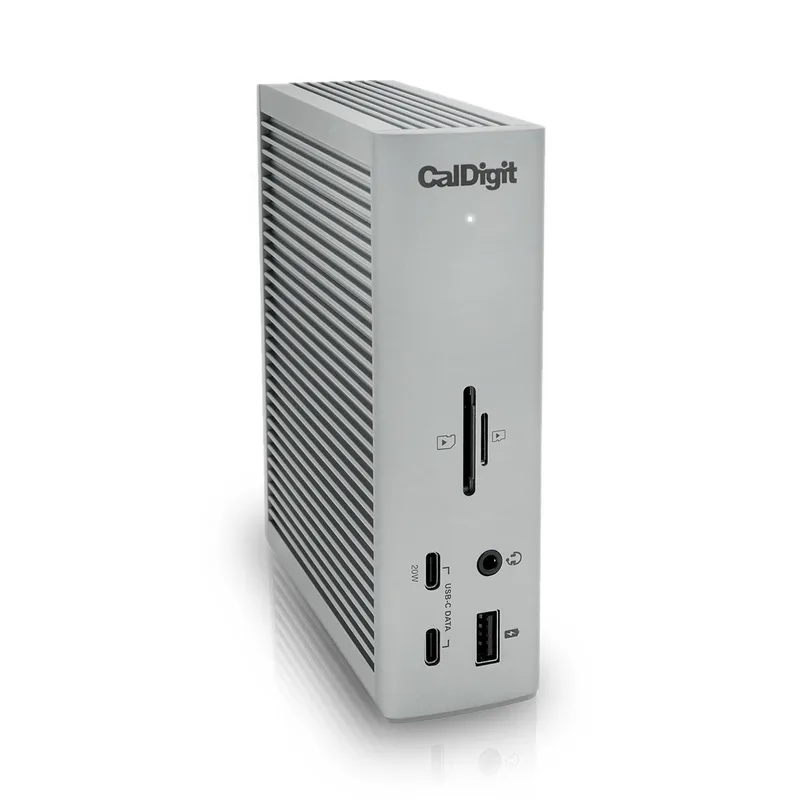
CalDigit TS4
Pros
- 18 ports cover nearly every desk peripheral without a second hub
- 2.5 GbE Ethernet and a UHS-II SD slot suit NAS and camera workflows
- 98W charging handles 16-inch laptops
- Three-year warranty is longer than most docks in this class
Cons
- Highest price of the Thunderbolt 4 docks here
- No native HDMI or DisplayPort, so older monitors need adapters
- Owner reports describe it running warm under heavy load
The TS4’s 18 ports are the headline. You get three downstream Thunderbolt 4 ports, three 10 Gbps USB-C ports, six USB-A ports, a UHS-II SD slot, audio jacks, and 2.5 GbE Ethernet. A keyboard, audio interface, external drives, webcam, and card reader can all stay plugged in.
Video runs through the Thunderbolt ports, so HDMI or DisplayPort monitors need an adapter or cable. Owners also report it gets warm under sustained load, so give it airflow.
Best for: Mac users and anyone with a crowded desk who wants one dock for years.
CalDigit TS5 Plus
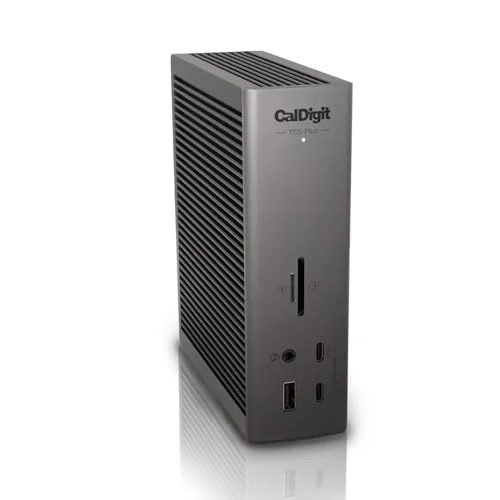
CalDigit TS5 Plus
Pros
- 10 GbE Ethernet is the fastest wired networking on a consumer dock
- 140W host charging covers high-power laptops
- Dual USB controllers keep ten USB ports from sharing one bandwidth pool
- Includes a Thunderbolt 5 cable
Cons
- The most expensive dock in this comparison
- Only pays off with a Thunderbolt 5 laptop
- Large external power brick
The TS5 Plus is the Thunderbolt 5 step up: 20 ports, 140W charging, 10 GbE Ethernet, and a DisplayPort 2.1 output alongside the Thunderbolt 5 ports. Dual USB controllers mean ten USB ports are not fighting for one pool of bandwidth.
It costs a lot, and the benefits only show up if your laptop has Thunderbolt 5. On a Thunderbolt 4 laptop it still works, but you pay for bandwidth the laptop cannot use. See our Thunderbolt 5 dock roundup for the rest of that tier.
Best for: Thunderbolt 5 laptop owners with a 10 GbE network or heavy storage workflows.
OWC Thunderbolt Go Dock
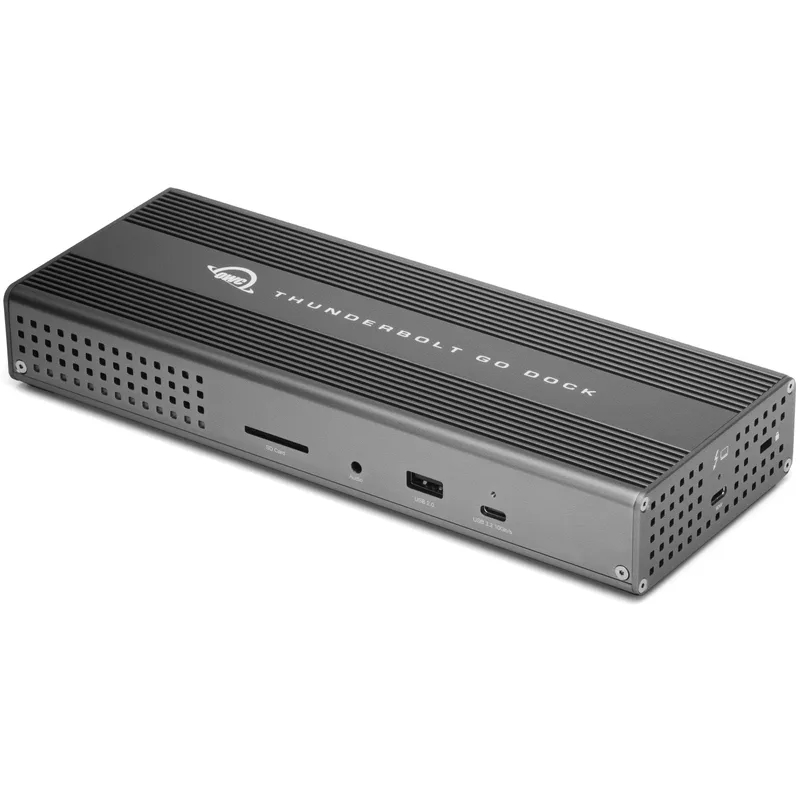
OWC Thunderbolt Go Dock
Pros
- Built-in power supply means no separate brick on the desk
- 2.5 GbE Ethernet at roughly half the TS4's price
- Supports OWC's Thunderbolt Share feature between two computers
- Compact aluminum body
Cons
- Only one HDMI output, so a second monitor needs a Thunderbolt connection
- 11 ports is limiting for heavy peripheral setups
- 90W charging falls short for the most power-hungry laptops
The Go Dock is the value pick. It has a built-in power supply, so only a wall cord and one Thunderbolt cable are needed, plus 2.5 GbE Ethernet, 90W charging, and Thunderbolt Share support for moving files and sharing a display between two computers.
The trade-offs are 11 ports and a single HDMI output. A dual-monitor setup uses the Thunderbolt port for the second screen.
Best for: One or two monitors, a lighter peripheral load, and buyers who want 2.5 GbE without the TS4 price.
OWC 11-Port Thunderbolt Dock
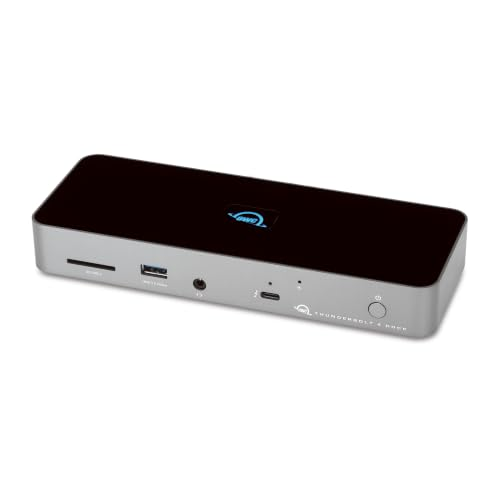
OWC 11-Port Thunderbolt Dock
Pros
- Three downstream Thunderbolt 4 ports for drives and displays
- 96W charging covers most MacBook Pro models
- UHS-II SD slot for photographers
- Smaller footprint than the TS4
Cons
- 1 GbE Ethernet trails both the TS4 and the Go Dock
- Fewest ports of the docks here
- Older design than the Go Dock at the same price
This is the older OWC design. Its draw is three downstream Thunderbolt 4 ports and 96W charging, which suit daisy-chained drives, audio gear, and displays. Ethernet tops out at 1 GbE, and at the same price as the Go Dock, most buyers will prefer the newer model’s networking and built-in power supply.
Best for: Creative setups that need several downstream Thunderbolt ports on a smaller budget than the TS4.
Head-to-Head
Ports
CalDigit wins. 18 (TS4) or 20 (TS5 Plus) against 11 for both OWC docks.
Networking
CalDigit wins at the top, OWC wins on value. The TS5 Plus offers 10 GbE. The TS4 and Go Dock both offer 2.5 GbE, but the Go Dock costs about half as much.
Charging
CalDigit wins. 98W on the TS4 and 140W on the TS5 Plus, against 96W and 90W on the OWC docks. All four cover typical work laptops.
Price
OWC wins. Both OWC docks cost about $200 against $380 and $500 for the CalDigit models.
Warranty and Reliability
CalDigit wins on documented coverage. The TS4 carries a three-year warranty. Check OWC’s current terms before buying.
Monitors and Displays
Display handling is the part of a dock purchase that causes the most returns, so check it before anything else.
The CalDigit TS4 has no HDMI or DisplayPort output. Monitors connect through the downstream Thunderbolt ports, either directly to a USB-C or Thunderbolt monitor or through a Thunderbolt-to-DisplayPort or Thunderbolt-to-HDMI cable. That works well, but it adds a cable purchase if your monitors only have HDMI. The TS5 Plus adds a DisplayPort 2.1 output, which makes a two-monitor desk simpler.
The OWC Go Dock has one HDMI port. The second monitor goes on a Thunderbolt connection, so the cable situation is similar to the TS4 once you add a second screen. The older OWC 11-Port Dock has no HDMI and relies on Thunderbolt for video too.
Apple’s own limits apply on top of any dock. Base-model Apple silicon chips support a limited number of external displays, and no dock changes that. If you run a base MacBook and need two external monitors, a DisplayLink dock is the usual workaround, and our dual monitor docking station roundup covers those.
Mac vs Windows
All four docks use standard Thunderbolt and work with Thunderbolt-equipped Windows laptops as well as Macs. OWC markets heavily to Mac users and its Thunderbolt Share feature is aimed at moving files and sharing a display between two computers, so confirm it supports your specific pair of machines. CalDigit also targets Mac creative workers but is widely used on Windows desks. Neither brand is a wrong choice for either platform; the difference is in ports, networking, and price.
Who Should Skip Both Brands
Not everyone needs a Thunderbolt dock. If you only need a few extra USB ports and one HDMI monitor, a USB-C hub costs a fraction of any dock here. Our USB-C hub and dock guide covers cheaper options.
Also skip these if your laptop has only a basic USB-C port without Thunderbolt. The docks will connect, but you may lose the multi-display and bandwidth features that justify the price. Check your laptop’s spec sheet for the Thunderbolt logo before ordering.
What Each Dock Means for Daily Use
A dock lives on your desk for years, so think about the day-to-day. With the TS4, the main habit is airflow: owners report warmth under load, so leave room around it rather than burying it in a drawer. With the TS5 Plus, plan for the external power brick and a Thunderbolt 5 laptop to make use of the extra bandwidth. With the Go Dock, the built-in power supply keeps the desk tidy, and it is the easiest of the four to set up with a single cable to the laptop. With the 11-Port OWC, the draw is chaining drives and displays through the downstream ports.
If you plan to change laptops in the next couple of years, buy for the port you will have then, not the one you have now. A Thunderbolt 4 dock stays useful across generations, but a Thunderbolt 5 dock only reaches its full speed once your laptop catches up.
Buying Guide
Choose the TS4 if you have many peripherals, want 2.5 GbE, and plan to keep a dock for several years.
Choose the TS5 Plus if your laptop has Thunderbolt 5 and you use 10 GbE or high-speed storage.
Choose the OWC Go Dock if you run one or two monitors and want the best value with a built-in power supply.
Choose the OWC 11-Port if you need multiple downstream Thunderbolt ports for daisy-chaining.
Whichever you pick, check your laptop’s Thunderbolt generation and its external display limits first. Apple’s base chips cap external displays regardless of which dock you use.
FAQ
Is CalDigit better than OWC? For port count, networking speed, and warranty, yes. For price and a compact desk footprint, OWC is the better value.
Is the OWC Go Dock good enough for a home office? For one or two monitors and a modest set of peripherals, yes. The built-in power supply and 2.5 GbE are strong at the price. Heavy USB users will outgrow 11 ports.
Do I need the CalDigit TS5 Plus? Only with a Thunderbolt 5 laptop and a use for 10 GbE or very fast storage. Otherwise the TS4 covers the same practical needs for less.
Do these docks work with Windows laptops? Yes, all four are Thunderbolt docks that work with Thunderbolt-equipped Windows and Mac laptops. Thunderbolt Share on the Go Dock is a feature to confirm against your own computers before relying on it.
Conclusion
For most remote workers, the CalDigit TS4 is the top pick: 18 ports, 2.5 GbE, and a three-year warranty. If budget matters more than port count, the OWC Thunderbolt Go Dock is the better buy at about half the price. Thunderbolt 5 laptop owners with 10 GbE should look at the TS5 Plus.
Detailed Reviews
CalDigit TS4
Pros
- 18 ports cover nearly every desk peripheral without a second hub
- 2.5 GbE Ethernet and a UHS-II SD slot suit NAS and camera workflows
- 98W charging handles 16-inch laptops
- Three-year warranty is longer than most docks in this class
Cons
- Highest price of the Thunderbolt 4 docks here
- No native HDMI or DisplayPort, so older monitors need adapters
- Owner reports describe it running warm under heavy load
CalDigit TS5 Plus
Pros
- 10 GbE Ethernet is the fastest wired networking on a consumer dock
- 140W host charging covers high-power laptops
- Dual USB controllers keep ten USB ports from sharing one bandwidth pool
- Includes a Thunderbolt 5 cable
Cons
- The most expensive dock in this comparison
- Only pays off with a Thunderbolt 5 laptop
- Large external power brick
OWC Thunderbolt Go Dock
Pros
- Built-in power supply means no separate brick on the desk
- 2.5 GbE Ethernet at roughly half the TS4's price
- Supports OWC's Thunderbolt Share feature between two computers
- Compact aluminum body
Cons
- Only one HDMI output, so a second monitor needs a Thunderbolt connection
- 11 ports is limiting for heavy peripheral setups
- 90W charging falls short for the most power-hungry laptops
OWC 11-Port Thunderbolt Dock
Pros
- Three downstream Thunderbolt 4 ports for drives and displays
- 96W charging covers most MacBook Pro models
- UHS-II SD slot for photographers
- Smaller footprint than the TS4
Cons
- 1 GbE Ethernet trails both the TS4 and the Go Dock
- Fewest ports of the docks here
- Older design than the Go Dock at the same price