The MacBook Air ships with two USB-C ports, and that is the whole reason this category exists. Plug in a monitor and a charger and you are out of ports before the keyboard is connected. A 2026 buying search for a hub keeps landing on the same questions: does it behave with macOS, does it handle the display you own, and does it pass enough power to keep the Air from draining while you work?
This roundup is based on spec sheets, manufacturer claims, and published reviews, not our own bench work. Every pick connects to the Air through a single USB-C connection except the Anker 547, which clips across both. Macs are picky about hubs: the common complaints are no HDMI signal, flicker, devices dropping under load, and slow transfers when ports share bandwidth. We favored hubs from brands with a track record on those issues.
Comparison
| Spec | Anker 547 USB-C Hub (7-in-2, for MacBook) | UGREEN Revodok Pro 9-in-1 USB-C Hub | Anker 8-in-1 USB-C Hub (555) | HyperDrive Next 10 Port USB-C Hub | Satechi Slim Multiport Adapter V2 | HyperDrive SOLO 7-in-1 USB-C Hub |
|---|---|---|---|---|---|---|
| Rating | 9.0/10 | 9.0/10 | 8.4/10 | 8.7/10 | 7.8/10 | 7.4/10 |
| Price | $26.99-$54.99as of Oct 11, 2026 | $31.99-$54.99as of Oct 11, 2026 | $49.99as of Oct 11, 2026 | Unavailable | $59.99as of Oct 11, 2026 | $29.98-$74.41as of Oct 11, 2026 |
| Ports | 7-in-2 (two USB-C host connectors, HDMI, USB-C, USB-A, and more) | 9-in-1 (USB-C, USB-A x3, HDMI, Ethernet, SD, microSD, PD) | 8-in-1 (USB-C PD, USB-C data, USB-A x2, HDMI, Ethernet, SD, microSD) | 10-in-1 (HDMI, USB-C x2, USB-A x2, SD 4.0, microSD 4.0, Ethernet, 3.5mm, PD) | 5-in-1 (USB-C PD, HDMI, USB 3.0, microSD, SD) | 7-in-1 (HDMI, USB-C, USB-A x2, SD, microSD, 3.5mm) |
| Video | 4K HDMI plus 5K USB-C display, per Anker | — | — | — | — | — |
| Data Speed | 40Gbps, per Anker | 10Gbps | 10Gbps | 10Gbps | 5Gbps | — |
| Power Delivery | 100W charging | 100W input, 90W to host | 85W to host | 140W input, 125W to host | 60W | — |
| Form Factor | Flush clip-on design that leaves the MagSafe port clear | — | — | — | Side-mount, no cable | Compact side-mount |
| HDMI | — | 4K@60Hz | 4K@60Hz | 4K@60Hz | 4K@60Hz | — |
| Cable | — | Built-in short cable | — | — | — | — |
| Ethernet | — | — | Gigabit | — | — | — |
| Audio | — | — | — | 3.5mm jack | — | — |
| Use Case | — | — | — | — | — | Travel and light desk use |
| Check Price → | Check Price → | Check Price → | Check Price → | Check Price → | Check Price → |
Prices change daily — tap Check Price for the current Amazon price.
The Picks
1. Anker 547: Best for MacBook Air
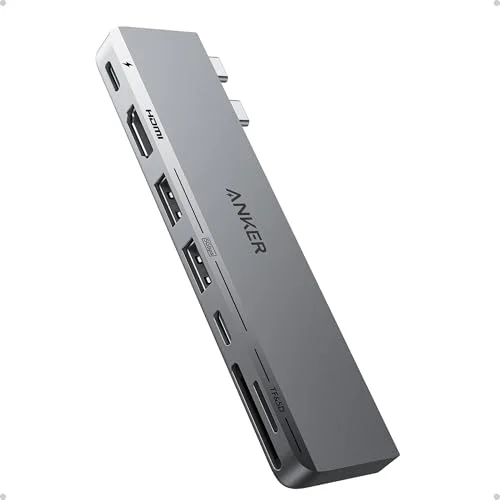
Anker 547 USB-C Hub (7-in-2, for MacBook)
Pros
- Built for the MacBook Air's two-port layout: it clips flush against the chassis instead of dangling a cable across the desk
- Leaves the MagSafe port unobstructed on current MacBook Air and Pro models, so you can charge without eating a hub port
- 100W charging passthrough and a 40Gbps rating mean the hub should not be the bottleneck for an Air
- Supports a 4K HDMI display and a 5K USB-C display at the same time, according to Anker
Cons
- Uses both USB-C ports on the Air while attached, so you give up the second port for the hub's connector
- Rigid clip-on design is tied to the MacBook's port spacing and will not suit other laptops
- Fewer legacy ports than the 8-in-1 and 9-in-1 hubs below, with no card-reader focus
The Anker 547 is the one built around the Air’s actual layout. It clips flush to the chassis, leaves the MagSafe port clear, and per Anker supports 100W charging, 40Gbps data, and dual displays (4K HDMI plus 5K over USB-C). If your Air lives on a desk with a monitor, this is the cleanest setup, with no cable trailing across the desk.
The tradeoff is that it occupies both USB-C ports. If you use MagSafe for power, that costs you nothing. If you charge over USB-C, the 555 or UGREEN below fit better.
2. UGREEN Revodok Pro: Most Ports
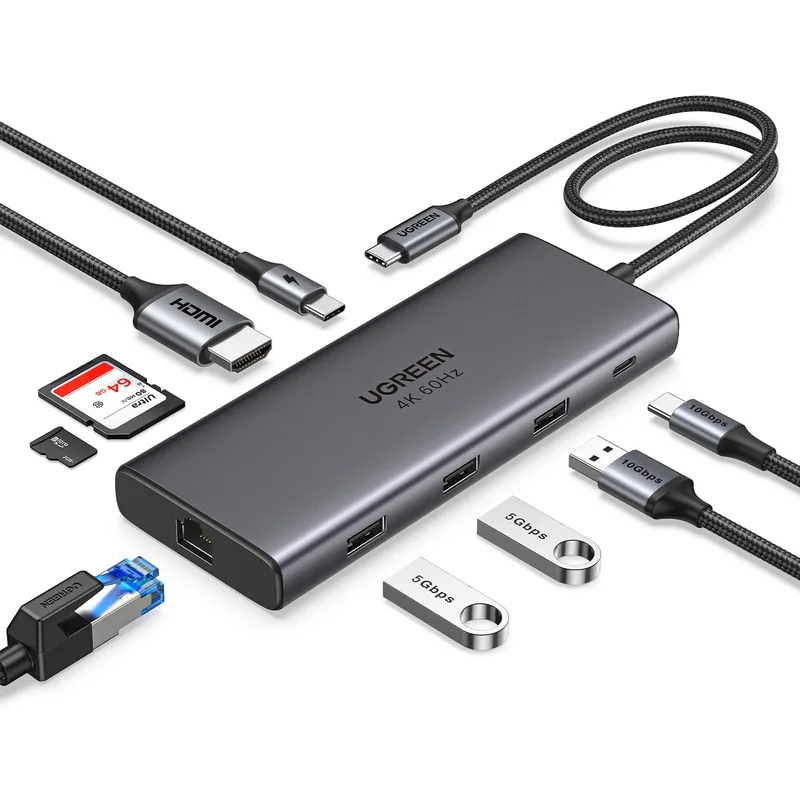
UGREEN Revodok Pro 9-in-1 USB-C Hub
Pros
- Nine ports on one cable covers monitor, wired Ethernet, three USB-A peripherals, and both card sizes
- 10Gbps data on the USB ports suits external SSD transfers
- Single-cable design keeps the Air's second USB-C port free
Cons
- Only one downstream USB-C data port
- HDMI only, no DisplayPort output
- A full port load makes it run warm, as with most hubs this size
Nine ports on one cable is the most connectivity here. Wired Ethernet, three USB-A ports, HDMI, and both card slots mean a keyboard, mouse, drive, and monitor all connect without a second hub. It is the pick if you also want to keep one USB-C port free on the Air. For a closer look at the category, see our USB-C multiport adapter roundup.
3. Anker 8-in-1 (555): Best Value
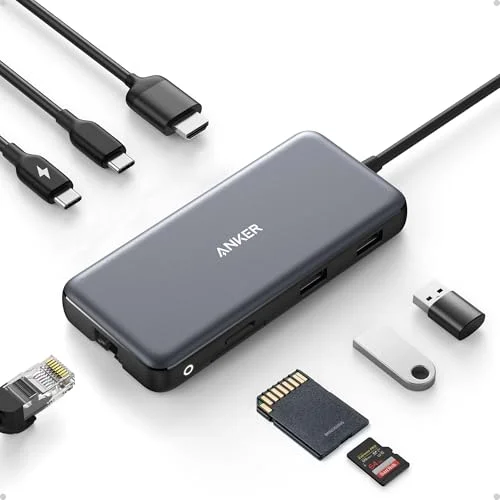
Anker 8-in-1 USB-C Hub (555)
Pros
- 85W passthrough is plenty for any MacBook Air
- Full port set including Ethernet and card readers from a single cable
- Anker backs it with a longer-than-typical warranty
Cons
- Short built-in cable limits placement on a crowded desk
- No 3.5mm audio jack, so headsets plug into the Air directly
- Bulkier than a clip-on hub for travel
The 555 trades a little port count for a long track record. HDMI 4K@60Hz, Gigabit Ethernet, card readers, and 85W passthrough cover a standard work desk, and 85W is more than any Air needs. Anker has not been a source of macOS compatibility drama in owner reports we reviewed.
4. HyperDrive Next 10 Port: Best for Power Users
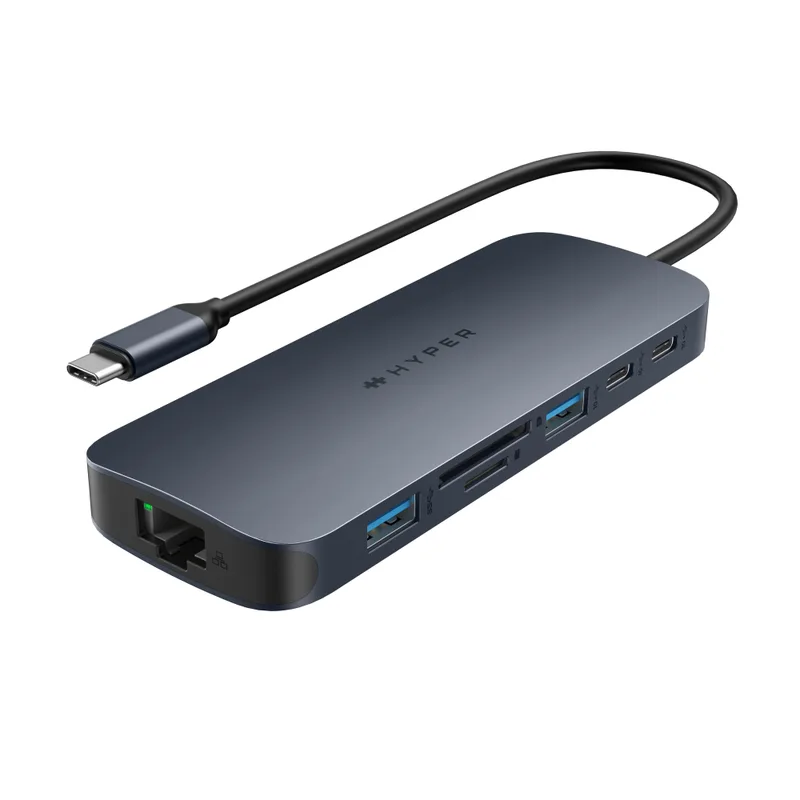
HyperDrive Next 10 Port USB-C Hub
Pros
- Includes a 3.5mm headset jack, which most hubs here skip
- SD 4.0 and microSD 4.0 readers suit camera card offloads
- Two USB-C ports give more modern-peripheral flexibility than the USB-A-heavy hubs
Cons
- Overkill for most Air owners; the 125W host charging rating exceeds what an Air draws
- Costs more than the Anker and UGREEN options for similar everyday ports
- HDMI only, no DisplayPort
Buy this one for the headset jack, the second USB-C port, or the SD 4.0 readers. The 125W host charging rating is aimed at MacBook Pro owners, so an Air buyer is paying for headroom they will not use. Photographers who dump cards weekly are the exception.
5. Satechi Slim Multiport V2: Most Portable
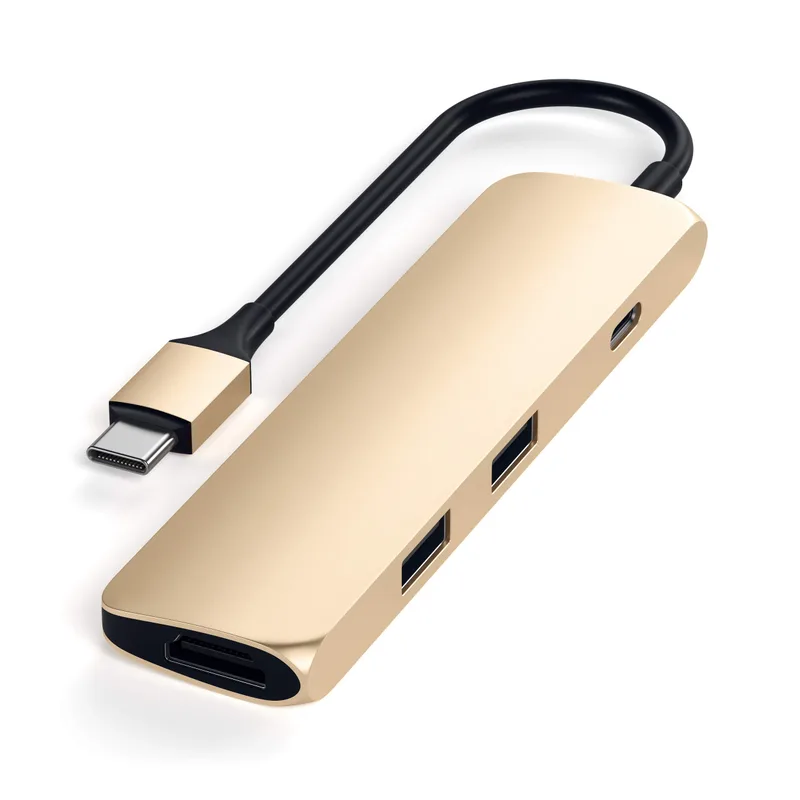
Satechi Slim Multiport Adapter V2
Pros
- No cable at all: it plugs straight into the Air and sits flush
- Aluminum finish matches the MacBook's look
- 60W passthrough is enough for an Air
Cons
- No Ethernet port
- 5Gbps USB 3.0 is slower than the 10Gbps hubs above
- Side-mounted body blocks the adjacent USB-C port on the Air
The Satechi has no cable, so it adds almost nothing to a bag and matches the Air’s finish. Its limits are no Ethernet, 5Gbps data, and a body that blocks the neighboring USB-C port. Treat it as a travel hub, not a desk anchor.
6. HyperDrive SOLO: Compact Pick
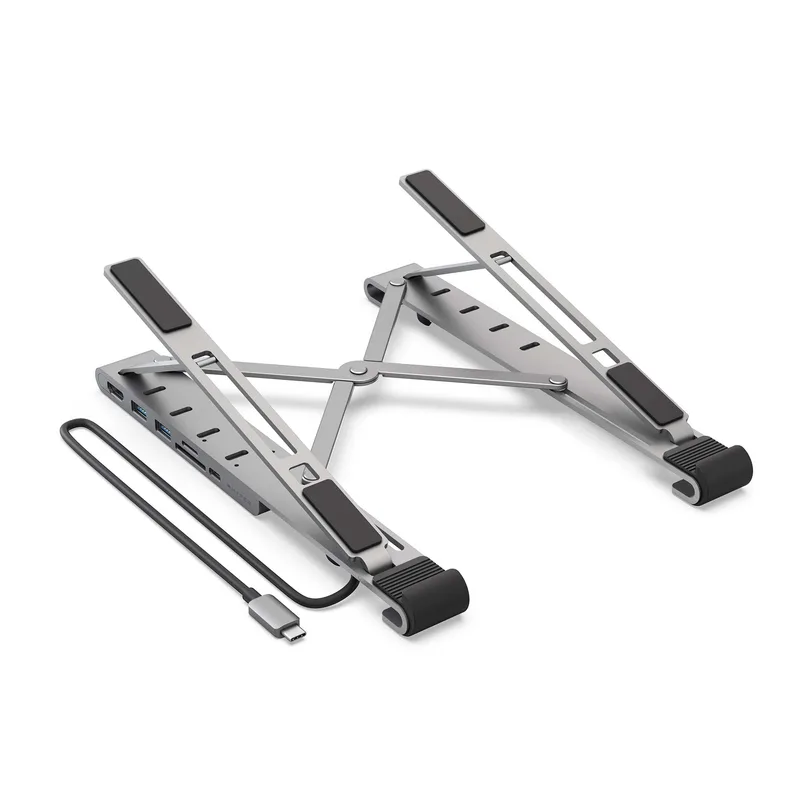
HyperDrive SOLO 7-in-1 USB-C Hub
Pros
- Small enough to leave in a laptop bag
- Includes a headset jack and both card slots
- No power brick or extra cable to carry
Cons
- An older design; newer hubs offer faster data and higher charging wattage
- No Ethernet port
- Street price swings widely on Amazon, so check the button before buying
An older, smaller design that still covers HDMI, USB-A, and card readers. It makes sense only if you want the lightest possible hub and are not after fast data or high wattage.
How We Narrowed the Field
We started from hubs that list MacBook Air compatibility and removed anything that was out of stock on Amazon today, which is why a couple of older favorites are missing. From there we compared port mix, passthrough wattage, video output, and how each hub physically attaches. Owner feedback and published reviews broke ties. Nothing here comes from our own bench work, so treat the spec numbers as manufacturer claims.
Two patterns showed up across the shortlist. First, the cabled hubs (UGREEN, Anker 555, HyperDrive Next) win on port count and keep the Air’s second USB-C port free. Second, the no-cable hubs (Anker 547, Satechi, HyperDrive SOLO) win on tidiness and travel, but each costs you a port or the ability to add Ethernet. Decide which of those two camps you are in before comparing individual models.
Which Hub for Which Desk
Fixed desk with one monitor: the UGREEN Revodok Pro or Anker 555. Wired Ethernet and several USB-A ports mean the Air can stay docked all day, and the hub sits on the desk rather than hanging off the laptop.
Laptop that moves between desk and couch: the Anker 547. Clip it on at the desk and pull it off in seconds, with nothing to untangle.
Coffee shop and travel: the Satechi or HyperDrive SOLO. Both are small enough to forget about in a bag, with HDMI and card slots for the occasional presentation.
Creative work with camera cards: the HyperDrive Next 10 Port, for the SD 4.0 readers and headset jack.
If your desk setup grows, a hub is also a good first step before a dock. Pairing one with a USB-C monitor for MacBook can cut the cable count to one, and a good power strip with USB-C PD handles the rest of the desk.
Buying Guide
Count the connectors you really use. Most remote desks need a monitor, wired network, and two or three USB devices. If that is you, an 8-in-1 or 9-in-1 hub is enough.
Check how it attaches. A flush clip-on hub is tidy but uses both ports. A cabled hub keeps the second port free and moves further from the Mac, which helps with heat.
Match the power rating to the laptop. An Air does not need more than 60W-85W of passthrough. Pay for 100W+ only if you may move to a MacBook Pro later.
Know your display limits. Per the sources we reviewed, MacBook Air models support a limited number of external displays, so a hub with two video outputs will not necessarily drive two monitors. Check Apple’s spec for your exact model.
Think about whether you need a dock instead. If you want multiple monitors, 2.5GbE or more, and an always-powered desk, a dock is the better fit. See our best USB-C docking stations or portable docking stations. Cables matter too: our USB-C cable guide covers which ones carry video and 100W.
Watch the warranty and return window. Hubs are one of the more failure-prone accessories because they handle power, data, and video at once. A longer warranty, like the one Anker lists on the 555, is worth a few dollars, and buying from Amazon keeps returns simple if a monitor flickers or a port drops out.
Avoid unbranded bargain hubs. The cheapest listings often advertise 4K but ship with HDMI 1.4, which caps you at 30Hz, and the cursor lag is obvious on a work display. Check that the listing says 4K@60Hz before you buy.
FAQ
Will any USB-C hub work with a MacBook Air?
Most will charge and move data, but video is where it goes wrong. HDMI version, bandwidth sharing, and macOS quirks decide whether a monitor works cleanly. Stick to established brands and check the hub’s stated display support.
Do I need Power Delivery passthrough?
Yes if you want to charge the Air through the hub. Look for 60W or more. If you charge via MagSafe, passthrough matters less.
Can a hub run two external monitors from an Air?
It depends on the Air model and the hub. The Anker 547 lists dual-display support, but the Mac itself sets the limit. Confirm with Apple’s spec for your model before buying.
Hub or dock: which should I buy?
A hub is bus-powered, small, and travels. A dock needs a wall outlet and suits a permanent desk with several displays. For one monitor and a few peripherals, a hub is enough.
Does a hub slow down my MacBook Air?
A hub does not slow the Mac itself, but ports on one hub usually share a single connection’s bandwidth. Heavy simultaneous use, such as an external SSD copy while on a video call over Ethernet, can slow individual devices. A hub with a faster rating (the Anker 547 lists 40Gbps) gives more headroom.
Do USB-C hubs get hot?
Many warm up under load, especially when charging, driving a display, and moving data at once. Warmth is normal; a hub too hot to touch is worth returning. Cabled hubs keep that heat away from the laptop body.
Can I charge the Air through the hub?
Yes, on every pick here that lists Power Delivery. Plug the charger into the hub’s PD input and the hub passes power through to the Mac. Check the wattage against your Air’s charger rating.
The Verdict
For most MacBook Air owners the Anker 547 is the top pick: it is shaped for the Air, keeps MagSafe free, and carries a strong spec sheet. If you want more ports on a single cable, the UGREEN Revodok Pro is the better desk hub, and the Anker 8-in-1 (555) is the safe budget choice.
Detailed Reviews
Anker 547 USB-C Hub (7-in-2, for MacBook)
Pros
- Built for the MacBook Air's two-port layout: it clips flush against the chassis instead of dangling a cable across the desk
- Leaves the MagSafe port unobstructed on current MacBook Air and Pro models, so you can charge without eating a hub port
- 100W charging passthrough and a 40Gbps rating mean the hub should not be the bottleneck for an Air
- Supports a 4K HDMI display and a 5K USB-C display at the same time, according to Anker
Cons
- Uses both USB-C ports on the Air while attached, so you give up the second port for the hub's connector
- Rigid clip-on design is tied to the MacBook's port spacing and will not suit other laptops
- Fewer legacy ports than the 8-in-1 and 9-in-1 hubs below, with no card-reader focus
UGREEN Revodok Pro 9-in-1 USB-C Hub
Pros
- Nine ports on one cable covers monitor, wired Ethernet, three USB-A peripherals, and both card sizes
- 10Gbps data on the USB ports suits external SSD transfers
- Single-cable design keeps the Air's second USB-C port free
Cons
- Only one downstream USB-C data port
- HDMI only, no DisplayPort output
- A full port load makes it run warm, as with most hubs this size
Anker 8-in-1 USB-C Hub (555)
Pros
- 85W passthrough is plenty for any MacBook Air
- Full port set including Ethernet and card readers from a single cable
- Anker backs it with a longer-than-typical warranty
Cons
- Short built-in cable limits placement on a crowded desk
- No 3.5mm audio jack, so headsets plug into the Air directly
- Bulkier than a clip-on hub for travel
HyperDrive Next 10 Port USB-C Hub
Pros
- Includes a 3.5mm headset jack, which most hubs here skip
- SD 4.0 and microSD 4.0 readers suit camera card offloads
- Two USB-C ports give more modern-peripheral flexibility than the USB-A-heavy hubs
Cons
- Overkill for most Air owners; the 125W host charging rating exceeds what an Air draws
- Costs more than the Anker and UGREEN options for similar everyday ports
- HDMI only, no DisplayPort
Satechi Slim Multiport Adapter V2
Pros
- No cable at all: it plugs straight into the Air and sits flush
- Aluminum finish matches the MacBook's look
- 60W passthrough is enough for an Air
Cons
- No Ethernet port
- 5Gbps USB 3.0 is slower than the 10Gbps hubs above
- Side-mounted body blocks the adjacent USB-C port on the Air
HyperDrive SOLO 7-in-1 USB-C Hub
Pros
- Small enough to leave in a laptop bag
- Includes a headset jack and both card slots
- No power brick or extra cable to carry
Cons
- An older design; newer hubs offer faster data and higher charging wattage
- No Ethernet port
- Street price swings widely on Amazon, so check the button before buying