Remote development puts a specific kind of stress on your eyes. Eight-point font in a terminal. Syntax colors crammed into a 100-column IDE. Scrolling through a 400-line diff while your video call runs in a corner. The wrong monitor makes this genuinely exhausting. The right one fades into the background after ten minutes.
Short on time? The Dell UltraSharp U2723QE is the top pick. It gives you 4K IPS Black at 27 inches, 90W USB-C that charges most laptops, and a built-in Ethernet port — full single-cable desk setup without a separate dock. For multitasking on a tighter budget, the LG 34WP65C-B ultrawide at $349-$399 is the best value going right now.
This guide covers five monitors chosen specifically for remote developers — people working from a home office, co-working space, or wherever a laptop and an external display is the daily setup. Each was evaluated on resolution and pixel density for sharp text rendering, color accuracy for terminal themes and syntax highlighting, screen real estate for multi-window workflows, and connectivity for single-cable setups.
What Makes a Good Coding Monitor
Resolution is the starting point. At 27 inches, 4K (3840x2160) gives you the sharpest possible text rendering. Fonts at 10pt are crisp and legible without any rendering artifacts. QHD (2560x1440) at the same size is still noticeably better than 1080p, and many developers prefer it at 100% scaling. Full HD (1920x1080) at 27 inches is visibly soft — you can see pixel stairstepping on diagonal edges of letters, which adds subtle eye strain over a long session.
Panel type affects color and contrast. IPS panels are the standard recommendation for development work because their wide viewing angles and accurate colors mean syntax highlighting, terminal themes, and UI work look consistent from any viewing position — centered or at an angle. VA panels deliver deeper blacks — useful for dark mode coding — but have slower pixel response and worse off-angle performance. OLED exists in this segment now but adds cost and brings burn-in risk for static code editor UIs.
USB-C connectivity matters for remote workers. A monitor with USB-C and sufficient power delivery (65W minimum, 90W preferred) lets you connect a MacBook, a Dell XPS, or a Framework laptop with a single cable — power in, video out. That eliminates cable clutter and means you can unplug and walk away in seconds.
Eye care features reduce fatigue. Flicker-free backlights and low blue light modes are worth having for 6–10 hour coding days. They don’t replace good habits, but they reduce the background fatigue that compounds over a long remote work week.
The 5 Best Monitors for Remote Developers in 2026
1. Dell UltraSharp U2723QE — Editor’s Pick
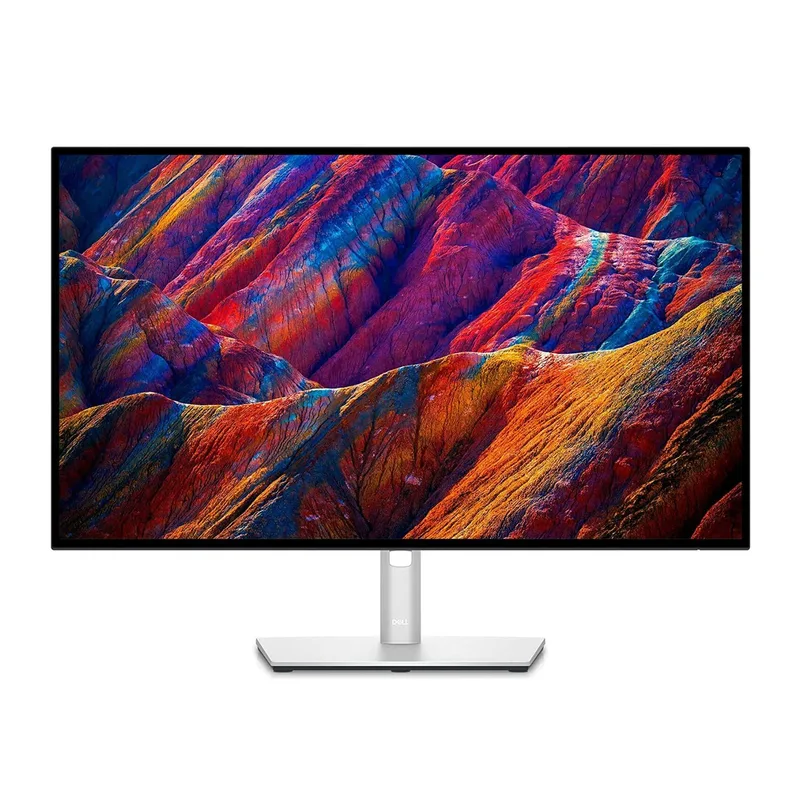
The U2723QE is the benchmark for remote developer monitors in 2026. Its IPS Black panel delivers contrast ratios closer to VA panels while keeping the wide viewing angles and color accuracy IPS is known for. At 27 inches and 4K, the pixel density is high enough that code at any practical font size is razor sharp without needing OS-level display scaling.
The connectivity package is the real differentiator. The 90W USB-C port handles most MacBook Pro models and high-end Windows laptops at full charging speed. The built-in USB hub adds four downstream USB-A ports and one USB-C. An Ethernet port rounds it out — one cable gets you power, video, USB for keyboard and mouse, and a wired network connection. For remote work where network reliability matters for video calls and git operations, that Ethernet option is genuinely useful.
Color accuracy is factory verified with a Delta E under 2 across the sRGB and Rec.709 color spaces. For coding purposes, that means terminal themes, syntax highlighting schemes, and UI prototypes look exactly as designed. The monitor ships with a calibration report.
Who should buy this: Developers who want the best all-in-one monitor for a clean laptop desk setup. The 90W USB-C and built-in Ethernet replace a dock entirely.
Who should skip: Anyone who games after hours. The 60Hz refresh rate is a hard ceiling for gaming use.
2. LG 34WP65C-B — Best for Multitasking
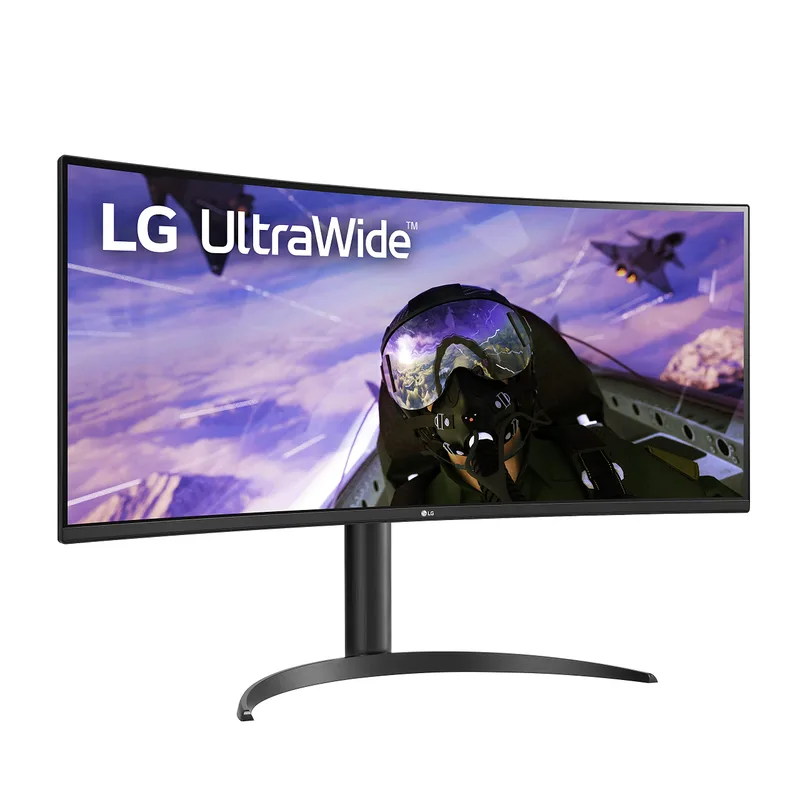
The 34-inch ultrawide format fundamentally changes how you organize a development workspace. At 3440x1440, you have enough horizontal space to keep your IDE at full width, a browser window open alongside it, and a terminal panel below — all simultaneously, with no overlapping windows and no alt-tabbing. At $349-$399, it’s currently the best-priced quality ultrawide available.
The curved VA panel delivers 99% sRGB coverage and noticeably deeper blacks than most IPS competitors in this price range. Dark mode themes benefit — the blacks in a dark terminal background are richer, making syntax colors pop with more contrast. The 160Hz refresh rate is a bonus that most developers won’t need for work but will appreciate for gaming.
The main limitation for remote workers is connectivity. There’s no USB-C on this monitor — you’ll connect via HDMI or DisplayPort, which means a separate dock or hub is needed. Budget $50–$80 for a USB-C docking station if this is your pick.
Who should buy this: Developers who miss the productivity of two monitors. The ultrawide replaces a dual setup without the bezel gap, at a price that leaves room in the budget for a dock.
Who should skip: Laptop users who need USB-C charging and don’t want to buy a dock. Also skip if you share your office and need good off-angle visibility.
3. ASUS ProArt PA279CV — Best Color Accuracy
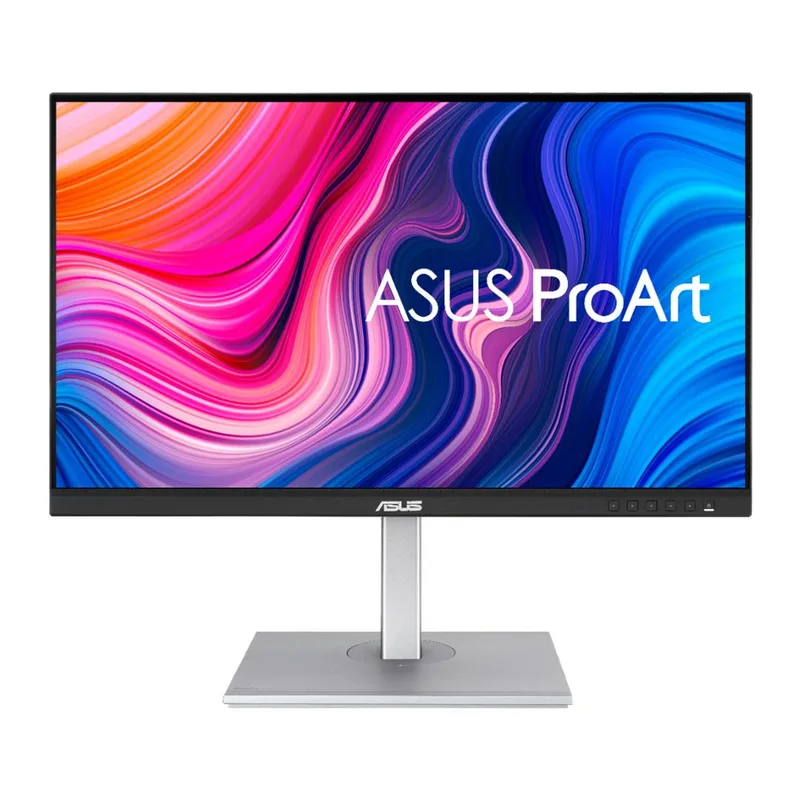
ASUS’s ProArt line targets content creators who need color they can trust, and the PA279CV delivers that at a price point accessible to developers who want accuracy without compromise. It ships with a factory calibration report certifying Delta E under 2, and covers 100% of sRGB and 100% of Rec.709 — both relevant for UI design work that often overlaps with development.
The 27-inch 4K IPS panel has wide viewing angles and consistent brightness across the screen. The ergonomic stand adjusts for height, tilt, swivel, and pivot — you can rotate into portrait orientation for reading long files or API documentation, which is practical in certain workflows.
USB-C provides 65W of power delivery. That covers most thin-and-light laptops comfortably. High-performance 16-inch laptops that draw more under load — an M3 Max MacBook Pro or a gaming-class Windows laptop — may not charge at full speed.
Who should buy this: Front-end developers, design-adjacent engineers, or anyone whose terminal themes and UI color accuracy matter more than maximum contrast depth.
Who should skip: Developers who need more than 65W USB-C charging under full load, or want a gaming monitor for after-hours use.
4. Samsung ViewFinity S27A600UUN — Best Value
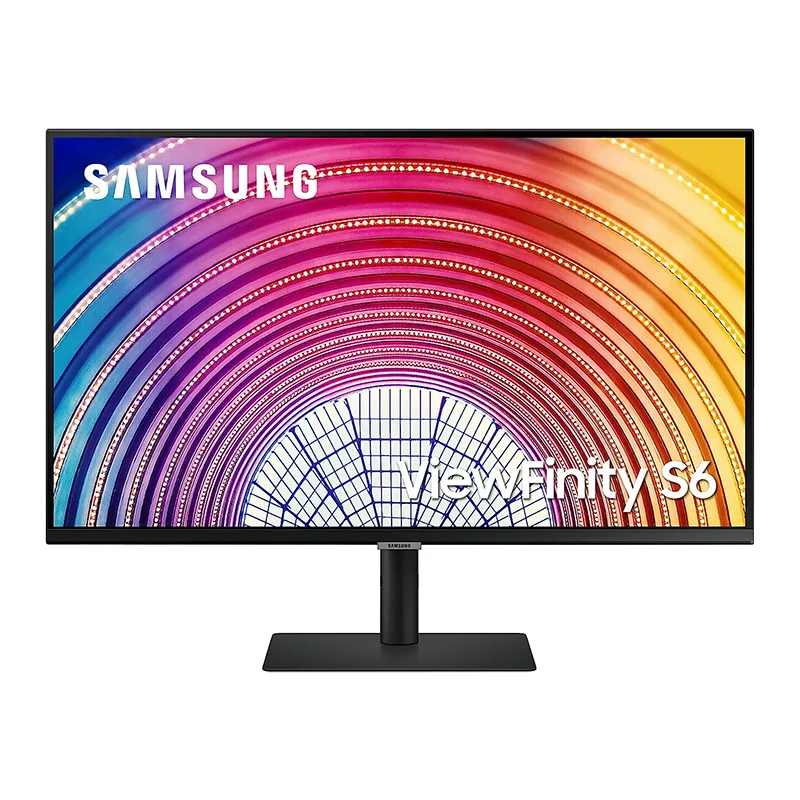
The S27A600UUN makes QHD at 27 inches accessible for developers on a tighter budget. QHD at this size provides noticeably more sharpness than 1080p — the jump in text rendering clarity is significant — without requiring display scaling. At 100% scaling, more code fits on screen with more comfortable default font sizes.
The connectivity set is practical: USB-C with 65W power delivery, a built-in USB 3.0 hub, HDMI, and DisplayPort. The USB-C connection handles power and video simultaneously; the USB hub takes keyboard and mouse. One cable, clean desk. The price sits in the $329-$379 range, making the single-cable laptop setup compelling value.
Compared to the Dell and ASUS picks, this monitor makes compromises. Color accuracy is solid for development — terminal themes look right — but it doesn’t ship with a calibration report. The 75Hz refresh rate is unremarkable.
Who should buy this: Developers with a $329-$379 budget who need QHD resolution and USB-C single-cable capability without paying for premium color accuracy.
Who should skip: Anyone doing front-end work or design reviews where color consistency is critical, or who needs stronger USB-C charging.
5. BenQ GW2785TC — Best for Eye Care
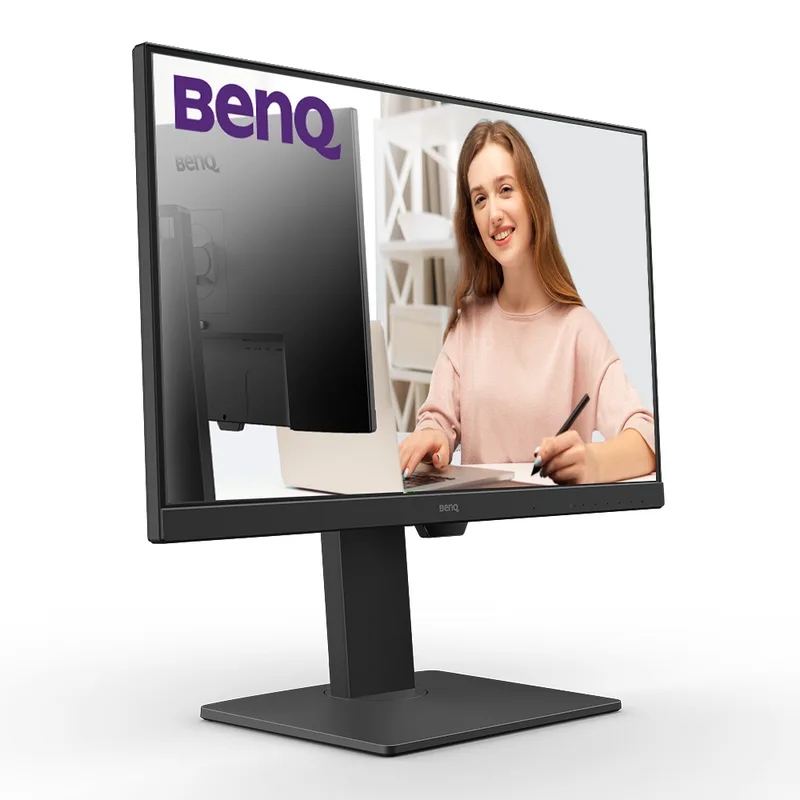
The GW2785TC occupies a specific niche: a 27-inch 1080p monitor with a feature set built for long coding sessions and home office use. BenQ’s Coding Mode adjusts contrast and color temperature to make dark-mode development environments easier to sustain for hours. The Brightness Intelligence+ sensor reads ambient room lighting and adjusts the backlight automatically — meaningful in a home office where natural light changes throughout the day.
The built-in noise-cancelling microphone is a practical addition for remote workers who want a backup audio input without a dedicated USB mic. It handles quick standup meetings and impromptu video chats without fuss.
The 1080p resolution is the honest limitation. At 27 inches, 1080p is noticeably soft compared to QHD or 4K. Developers who regularly read dense code at small font sizes will find the pixel stairstepping on text edges adds fatigue over time.
Who should buy this: Developers who are extremely light-sensitive, need the eye care features, and will use this as a secondary display alongside a higher-resolution primary.
Who should skip: Anyone planning this as their only monitor for full-time coding. The 1080p resolution will become a limiting factor.
Comparison Table
| Monitor | Size | Resolution | Panel | USB-C PD | Price | Best For |
|---|---|---|---|---|---|---|
| Dell U2723QE | 27” | 4K | IPS Black | 90W | $512.34-$689.00 as of Oct 18, 2026 | Overall best for developers |
| LG 34WP65C-B | 34” | QHD Ultrawide | VA | No | Unavailable | Multitasking, multi-window |
| ASUS ProArt PA279CV | 27” | 4K | IPS | 65W | $289.41-$307.72 as of Oct 18, 2026 | Color accuracy, UI work |
| Samsung S27A600UUN | 27” | QHD | IPS | 65W | Unavailable | Best value, budget-conscious |
| BenQ GW2785TC | 27” | 1080p | IPS | 60W | Unavailable | Eye care, secondary display |
Buying Guide: What Remote Developers Should Prioritize
Reduce eye strain. Prioritize a high-resolution IPS panel (QHD minimum, 4K ideal) with a flicker-free backlight. Resolution matters more than panel brand for text clarity — sharper pixels mean less squinting at small font sizes.
Simplify cable management. If you’re on a laptop, USB-C with adequate power delivery is nearly as important as resolution. A monitor that charges your laptop through the same cable that carries video changes the ergonomics of your desk and makes leaving the home office quick. Check that the wattage matches your laptop’s needs: 65W handles most ultrabooks; 90W is needed for larger MacBooks and high-performance Windows laptops under load.
Account for color work. If you do any front-end development or UI work alongside backend development, a factory-calibrated monitor ensures your color themes and design assets look accurate. The Dell and ASUS picks both ship with calibration reports. The Samsung and BenQ don’t — they’re adequate for development work, not reliable for color-critical output.
Consider the ultrawide format. A single 34-inch ultrawide avoids the bezel gap of two separate monitors, uses less desk depth, and simplifies cable management considerably. For developers who miss the productivity of a dual-monitor setup, the LG at $349-$399 is the most accessible way to get it back. See the full ultrawide guide for a broader comparison across screen sizes.
For dual-monitor setups, read the single vs. dual monitor guide before buying two of anything — the calculus has changed with how wide ultrawide options have gotten.
FAQ
What resolution is best for coding?
QHD (2560x1440) at 27 inches is the practical sweet spot for most remote developers. You get sharp text rendering without needing display scaling, and the resolution increase over 1080p is immediately visible in code legibility. 4K at 27 inches is sharper still and worth the price premium if you read dense code at small font sizes or work with UI elements where pixel precision matters. 1080p at 27 inches is serviceable but visibly soft compared to either alternative.
Do programmers need color-accurate monitors?
Pure backend developers who work in terminals and text editors can get by with any IPS monitor that covers basic sRGB. Front-end developers, UI/UX engineers, and anyone who works with design assets alongside code benefit from a factory-calibrated monitor. Color accuracy also matters for terminal themes — a monitor with poor calibration can make carefully chosen syntax color schemes look muddy or harsh, increasing eye fatigue over time.
Is ultrawide good for coding?
Ultrawide formats (34 inches at 3440x1440) are excellent for coding workflows that involve multiple simultaneous windows. Having a code editor, browser, terminal, and documentation panel visible at once without overlapping is a genuine productivity improvement for many developers. The tradeoff is that most ultrawide monitors in this price range don’t include USB-C charging, so laptop users will need a separate dock. The center bezel gap of a dual-monitor setup is gone, but there’s more horizontal head movement.
How big should a coding monitor be?
27 inches at standard desk depth (24–30 inches from face to screen) is the most common size for development work. It provides enough screen real estate without requiring extreme neck movement. 32 inches works well at the same distance for developers who want more code visible without scaling. Ultrawides at 34 inches are popular for multi-window work. Going larger requires sitting farther back or raising the monitor’s height, which can create ergonomic problems in a fixed home office.
Is IPS or VA better for coding?
IPS is the standard recommendation for coding monitors because of its accurate color reproduction and wide viewing angles — consistent color no matter where on the screen you look. VA panels offer deeper blacks (better contrast), which makes dark mode terminal themes look richer, but VA has worse off-angle color consistency and slower pixel transitions. If you use dark mode consistently and want the deepest blacks without paying for IPS Black, the LG 34WP65C-B VA ultrawide is worth considering. For general use, IPS remains the safer choice.
Do I need a separate dock if my monitor has USB-C?
Depends on wattage and ports. The Dell U2723QE’s 90W USB-C plus built-in Ethernet and USB hub means no dock needed for most setups. The Samsung and ASUS at 65W USB-C are dock-free for ultrabooks but may leave high-performance laptops slightly undercharged. The LG 34WP65C-B has no USB-C at all — you’ll definitely need a separate hub or dock. Check the USB-C docking station guide if you need to add ports.
Final Verdict
For most remote developers, the Dell UltraSharp U2723QE is the right answer. The 4K IPS Black panel, 90W USB-C, built-in Ethernet, and USB hub make it a genuine all-in-one workstation connection. You don’t need a dock, the color accuracy is excellent, and the monitor stays sharp for years of software work.
If budget is tight, the Samsung ViewFinity S27A600UUN at $349-$379 offers QHD resolution and USB-C charging in a clean package. It’s not as sharp or accurate as the Dell, but it covers the core requirements of remote development work at a significantly lower price.
For multitasking — multiple browser tabs, IDE, terminal, documentation all visible at once — the LG 34WP65C-B at $349-$399 is hard to argue against. The ultrawide format genuinely changes how you organize a development workspace, and it’s currently underpriced relative to the alternatives.
For front-end or design work where color fidelity matters, the ASUS ProArt PA279CV is the calibrated choice. Pick it over the Dell if you care more about Calman-verified color accuracy than built-in Ethernet.
The BenQ GW2785TC is a secondary monitor or very specific use case purchase. Its eye care features are best-in-class, but 1080p at 27 inches will frustrate anyone reading dense code full-time.
Detailed Reviews
Dell UltraSharp U2723QE
Pros
- 4K resolution makes 8pt font in terminals and IDEs crisp at any zoom level
- 90W USB-C powers MacBooks and most laptops with one cable
- Built-in USB hub and Ethernet eliminate the need for a separate dock
- IPS Black panel delivers deeper contrast than standard IPS — helps dark themes pop
Cons
- 60Hz refresh rate means no gaming use after hours
- Price sits near the top of the practical range for a 27-inch monitor
LG 34WP65C-B
Pros
- 21:9 aspect ratio replaces a dual-monitor setup without a bezel gap
- 3440x1440 gives enough width for code + browser + terminal side by side
- 99% sRGB coverage keeps color themes and terminal palettes accurate
- 160Hz refresh rate is a bonus for developers who game
Cons
- VA panel has worse off-angle viewing than IPS — matters in shared offices
- No USB-C — laptop users will need a separate dock or adapter
ASUS ProArt PA279CV
Pros
- Factory calibrated with a report in the box — color accuracy verified before shipping
- 100% sRGB coverage means terminal color schemes look as intended
- USB-C with 65W power delivery handles most ultrabooks and mid-range laptops
- Ergonomic stand with full height, tilt, swivel, and pivot adjustment
Cons
- 65W USB-C charging may not fully power higher-wattage laptops under load
- 60Hz only — not suitable for dual use as a gaming display
Samsung ViewFinity S27A600UUN
Pros
- QHD at 27 inches is the productivity sweet spot — sharp without scaling issues
- USB-C with 65W PD handles single-cable setups for most remote work laptops
- USB 3.0 hub built in for keyboard, mouse, and peripheral connections
- Competitive price for a QHD IPS panel with solid connectivity
Cons
- 75Hz is functional but not exciting — nothing for high-refresh applications
- Color accuracy is adequate, not exceptional — serious color work deserves better
BenQ GW2785TC
Pros
- Coding Mode reduces blue light while preserving contrast on dark themes
- Built-in noise-cancelling microphone is a useful backup for quick calls
- Brightness Intelligence+ auto-adjusts backlight to ambient room light
- 60W USB-C powers most thin-and-light laptops for a clean desk setup
Cons
- 1080p resolution is noticeably less sharp than QHD or 4K for dense code
- Best suited as a secondary display or budget entry — not the ideal primary for heavy coding