ASUS launched its first QD-OLED ProArt panels this year, chasing the contrast and color numbers that make OLED tempting for creative work. For CAD and 3D design specifically, that’s a harder sell than it sounds — AutoCAD, SolidWorks, and Fusion 360 all keep static toolbars and ribbons on screen for hours at a stretch, and that’s exactly the usage pattern that risks OLED burn-in. Component costs are also pushing monitor prices up industry-wide through 2026, which is worth knowing before you shop: the prices below reflect current listings, but they’re more likely to drift up than down later in the year.
None of that changes what actually matters for CAD and 3D work: color accuracy tight enough to trust on-screen renders, contrast that separates shaded surfaces in a 3D view, and enough resolution to work on a complex assembly without constant zooming. Refresh rate and HDR — the specs that dominate gaming monitor marketing — matter far less here. This roundup covers five monitors from a budget-friendly 27-inch panel to a 31.5-inch display with a dedicated CAD/CAM picture mode, all currently listed on Amazon with verified product pages.
Every product here has a verified live Amazon listing. Selections are based on manufacturer specifications, patterns across owner feedback, and research into the current professional monitor market.
| Spec | Dell UltraSharp U2723QE | BenQ PD3225U | Dell UltraSharp U3223QE | ViewSonic VP2768a | ASUS ProArt PA278CV |
|---|---|---|---|---|---|
| Rating | 9.2/10 | 9.0/10 | 8.8/10 | 8.5/10 | 8.3/10 |
| Price | $512.34-$689.00as of Oct 18, 2026 | $739.99-$849.99as of Oct 18, 2026 | $693.99-$809.00as of Oct 18, 2026 | $379.99as of Oct 18, 2026 | $190.00-$269.64as of Oct 18, 2026 |
| Panel Size | 27 inches | 31.5 inches | 31.5 inches | 27 inches | 27 inches |
| Resolution | 3840x2160 (4K UHD) | 3840x2160 (4K UHD) | 3840x2160 (4K UHD) | 2560x1440 (QHD) | 2560x1440 (QHD) |
| Panel Type | IPS Black | IPS Black, 10-bit | IPS Black | IPS | IPS |
| Contrast Ratio | 2000:1 native | 2000:1 native | 2000:1 native | — | — |
| Color Accuracy | 95-98% DCI-P3, factory calibrated Delta E <2 | 98% DCI-P3, 99% sRGB, Delta E <=2 | Up to 98% DCI-P3, factory calibrated | 100% sRGB, Pantone Validated, Delta E <2 | 100% sRGB, Calman Verified, Delta E <2 |
| Refresh Rate | 60Hz | 60Hz | 60Hz | 60Hz | 60Hz |
| Ports | USB-C 90W PD, DisplayPort, HDMI, RJ45 Ethernet, 4x USB-A 3.2 | Thunderbolt, USB-C 85W PD, USB hub, KVM switch, daisy chain | USB-C 90W PD, DisplayPort, HDMI, RJ45 Ethernet, USB-A hub | USB-C 90W PD, DisplayPort, HDMI, RJ45 Ethernet, daisy chain | USB-C 65W PD, DisplayPort 1.2 in/out, HDMI 1.4, 4x USB 3.1 hub |
| Warranty | 3-year Advanced Exchange | 3 years | 3-year Advanced Exchange | 3-year limited | 3 years |
| Brightness | — | 400 nits | — | — | — |
| Check Price → | Check Price → | Check Price → | Check Price → | Check Price → |
Prices change daily — tap Check Price for the current Amazon price.
1. Dell UltraSharp U2723QE — Best Overall
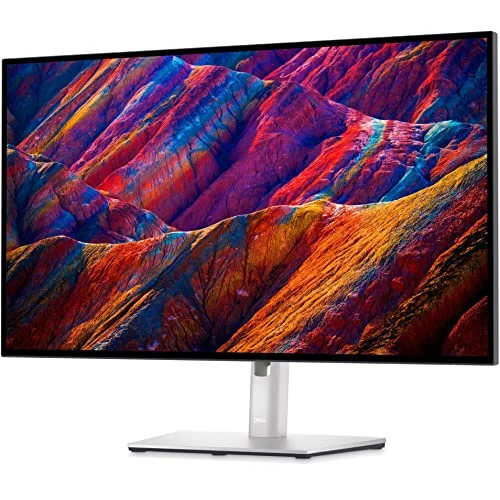
Dell UltraSharp U2723QE
Pros
- IPS Black panel roughly doubles contrast versus standard IPS panels, which is immediately visible in shaded 3D renders and shadowed assembly views
- Factory color accuracy is independently measured near Delta E 1 by reviewers, tighter than most monitors that only claim Delta E <2 on the spec sheet
- One USB-C cable carries video, 90W laptop charging, and a wired Ethernet connection, replacing a separate docking station on a CAD workstation desk
- 4K resolution gives real working room for dense assemblies and layered drawings without constant zooming
Cons
- 60Hz only, so rotating a large 3D model doesn't feel as smooth as it would on a higher refresh panel
- No Thunderbolt, only DisplayPort Alt Mode over USB-C, which caps daisy-chained external displays at two
- HDR support is entry-level; buy this for color accuracy and contrast, not HDR content
The U2723QE is the monitor to buy if you want one panel that handles CAD, 3D rendering, and general work without a specific weakness. Dell’s IPS Black panel technology is the reason: it roughly doubles native contrast over a standard IPS panel, which shows up immediately in shaded 3D views where depth and shadow detail otherwise get flattened.
Factory color accuracy here is genuinely tight — reviewers who’ve independently measured it report results close to Delta E 1, better than the Delta E under 2 claim on the spec sheet. For anyone trusting on-screen color to represent a rendered material or finish before it goes to a client, that matters more than most other specs.
The single USB-C cable is the other reason this lands at the top. It carries 4K video, 90W of laptop charging, and a wired Ethernet connection simultaneously, which means a CAD laptop can dock and undock with one cable instead of juggling a separate power brick, Ethernet dongle, and video cable.
The tradeoffs are real but narrow. It’s 60Hz only, so spinning a complex 3D model doesn’t feel as fluid as it would on a high-refresh gaming panel, and there’s no Thunderbolt — just DisplayPort Alt Mode over USB-C, which limits how many displays you can daisy-chain off one port.
Bottom line: The best all-around CAD and 3D design monitor in this roundup, and the one to buy if you’re not sure which specialized pick you need.
2. BenQ PD3225U — Best CAD/CAM Mode
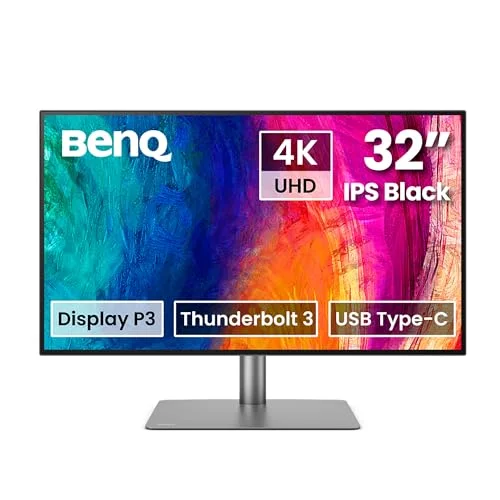
BenQ PD3225U
Pros
- Dedicated hardware CAD/CAM picture mode is the standout feature in this roundup — no other monitor here has a mode built specifically for line drawings and technical views
- Ships with an individual factory calibration report for that specific unit, not just a generic spec-sheet claim
- Built-in KVM switch lets one keyboard and mouse control both a CAD workstation and a laptop without swapping cables
- 31.5-inch 4K canvas leaves room for full-sheet drawings or a model next to a parts list without constant window juggling
Cons
- The priciest monitor in this roundup by a wide margin
- 60Hz only, same ceiling as the rest of this lineup
- Owner feedback flags the built-in speakers as an afterthought — plan on external audio
The PD3225U is the only monitor in this roundup built with a picture mode designed specifically for CAD and CAM work, and that’s the whole reason to consider paying more for it. Where the Dell panels rely on general-purpose factory calibration, BenQ’s CAD/CAM mode adjusts contrast and line rendering specifically for the thin lines and technical views common in drafting software — a difference that’s subtle on a spec sheet but noticeable when you’re staring at a wireframe for hours.
This is also the only monitor here that ships with an individual, unit-specific factory calibration report rather than a general spec-sheet claim, which matters if color consistency between multiple workstations in an office is a requirement.
The built-in KVM switch is a practical bonus for anyone splitting time between a dedicated CAD workstation and a laptop — one keyboard and mouse controls both without unplugging anything. At 31.5 inches and native 4K, there’s enough room for a full-sheet drawing next to a parts list or BOM without constant window switching.
The cost is the obvious tradeoff: this is the most expensive monitor in the roundup, and owner feedback consistently flags the built-in speakers as weak, so budget for external audio if you need it.
Bottom line: The right choice if your CAD software’s line rendering and technical detail matter more to you than saving a few hundred dollars.
3. Dell UltraSharp U3223QE — Best for Large-Format Work
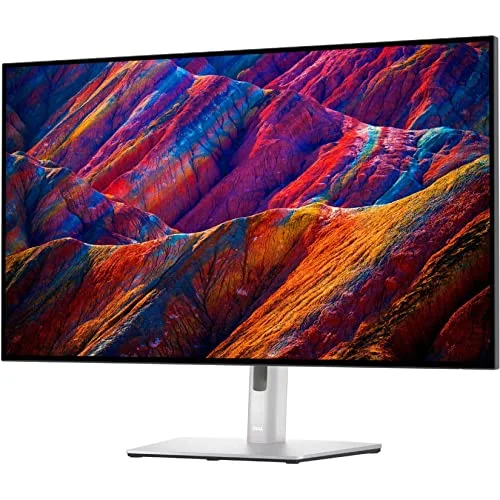
Dell UltraSharp U3223QE
Pros
- Largest canvas in this roundup at 31.5 inches, useful for full assemblies or a model window next to reference material side by side
- Same IPS Black contrast advantage as the smaller U2723QE, just scaled up
- Extensive port selection docks a CAD workstation with a single USB-C cable
- Build quality and viewing angles hold up well in independent reviews from RTINGS, PCWorld, and TechRadar
Cons
- Reviewers note the factory calibration is good but not a meaningful step up from the smaller, cheaper U2723QE
- No CAD/CAM-specific picture mode — same generic calibration approach as Dell's smaller model
- Premium price for a panel that mostly adds size rather than new capability over the U2723QE
The U3223QE is essentially the U2723QE scaled up to 31.5 inches, and that extra size is the entire case for buying it. A larger canvas at native 4K means more room for a full assembly, a model next to reference drawings, or a wider timeline in a rendering tool — real estate that a 27-inch panel eventually runs out of on complex projects.
It carries the same IPS Black contrast advantage and factory color calibration as the U2723QE, along with the same extensive port selection for single-cable docking. Independent reviews from RTINGS, PCWorld, and TechRadar consistently rate the build quality and viewing angles well.
Where it falls short of expectations is calibration accuracy: several reviewers note the factory calibration, while good, isn’t a meaningful improvement over the smaller and cheaper U2723QE. You’re paying the premium mostly for screen size, not for a sharper color or contrast profile, and there’s no CAD/CAM-specific mode here either — Dell doesn’t offer one on any of its UltraSharp panels.
Bottom line: Worth the upgrade over the U2723QE only if the extra screen real estate is something you’ll actually use daily, not for better accuracy.
4. ViewSonic VP2768a — Best Value
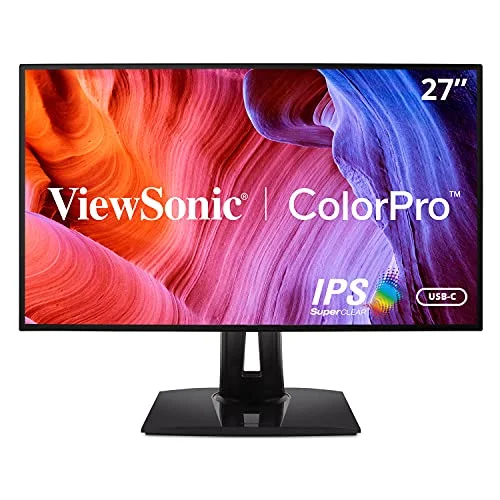
ViewSonic VP2768a
Pros
- Pantone Validated status stacked on top of factory Delta E <2 calibration is an unusual combination at this price
- 90W USB-C Power Delivery fully charges most CAD-capable laptops through the same cable that carries video
- RJ45 Ethernet pass-through simplifies a single-cable docking setup at a wired desk
- Daisy chain support leaves a clear upgrade path to a second display later
Cons
- QHD resolution, not 4K — can feel tight on dense assembly drawings compared to the 4K monitors in this roundup
- 60Hz only, same as most of this lineup
- HDR support is basic and shouldn't factor into the buying decision
The VP2768a is the pick for buyers who want genuine color-critical credentials without stepping up to a 4K panel’s price. Pantone Validated status stacked on top of factory Delta E under 2 calibration is a combination you don’t often see below $400, and it puts this monitor closer to the accuracy of panels costing twice as much.
A 90W USB-C connection fully charges most CAD-capable laptops through the same cable carrying video, and an RJ45 Ethernet pass-through means a single cable can also handle a wired network connection — a genuinely convenient setup for a desk that isn’t near a router.
The compromise is resolution. QHD (2560x1440) is sharp for everyday work but starts to feel tight on dense assembly drawings or layered 3D scenes where a 4K panel gives more room to see detail without zooming in. Daisy chain support does leave a clear path to add a second display later if screen real estate becomes the limiting factor.
Bottom line: The best choice for accurate color on a budget, as long as QHD resolution doesn’t feel limiting for your specific projects.
5. ASUS ProArt PA278CV — Best Budget
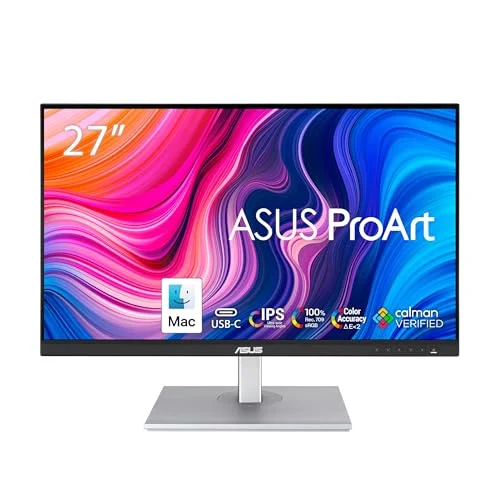
ASUS ProArt PA278CV
Pros
- Calman Verified factory calibration at Delta E <2 is rare at this price point
- DisplayPort daisy-chaining makes it straightforward to add a second monitor for reference material or a parts browser
- Full ergonomic stand with pivot rotates to portrait mode, useful for tall assembly drawings or long BOMs
- Quiet, no-frills professional design without gaming-monitor styling
Cons
- 1000:1 contrast ratio means blacks look noticeably grayer next to the IPS Black panels elsewhere in this roundup
- 65W USB-C Power Delivery may not fully charge larger CAD workstation laptops
- No CAD/CAM-specific picture mode, just accurate general-purpose calibration
The PA278CV is the entry point into professionally calibrated monitors, and it doesn’t cut the corner that matters most: color accuracy. Calman Verified factory calibration at Delta E under 2 is uncommon at this price, and 100% sRGB coverage means colors on screen are trustworthy even if you’re not doing final-output rendering work.
DisplayPort daisy-chaining makes adding a second monitor for reference material or a parts browser straightforward, and the full ergonomic stand pivots into portrait mode — genuinely useful for tall assembly drawings or scrolling through a long bill of materials without constant scrolling.
The tradeoffs track with the lower price. A 1000:1 contrast ratio means blacks look noticeably grayer next to the IPS Black panels elsewhere in this roundup, and 65W of USB-C power delivery may not fully charge larger CAD workstation laptops under sustained load. There’s no CAD/CAM-specific picture mode here either, just accurate general-purpose calibration.
Bottom line: The right starting point if budget matters more than contrast or a dedicated CAD picture mode.
Buying Guide: What Actually Matters for CAD and 3D Design
Color Accuracy (Delta E) Matters More Than Refresh Rate
Delta E measures how far a monitor’s displayed color strays from the true color value — lower is better, and anything under 2 is considered accurate enough that most people can’t spot the difference by eye. For CAD and 3D work, this matters because renders, material previews, and finish colors need to represent what you’ll actually get in production or present to a client. A high refresh rate helps games feel smoother; it does nothing for whether a rendered material color is trustworthy.
4K vs. QHD: Screen Real Estate for Complex Assemblies
A 4K panel (3840x2160) gives meaningfully more working room than QHD (2560x1440) once a project involves a complex assembly, a full-sheet technical drawing, or a 3D scene with multiple reference windows open. QHD panels like the ViewSonic and ASUS picks in this roundup are sharp and accurate, but you’ll zoom and pan more often on dense projects. If your work stays relatively simple — smaller parts, single-view drafting — QHD at a lower price is a reasonable tradeoff.
IPS Black vs. Standard IPS Contrast
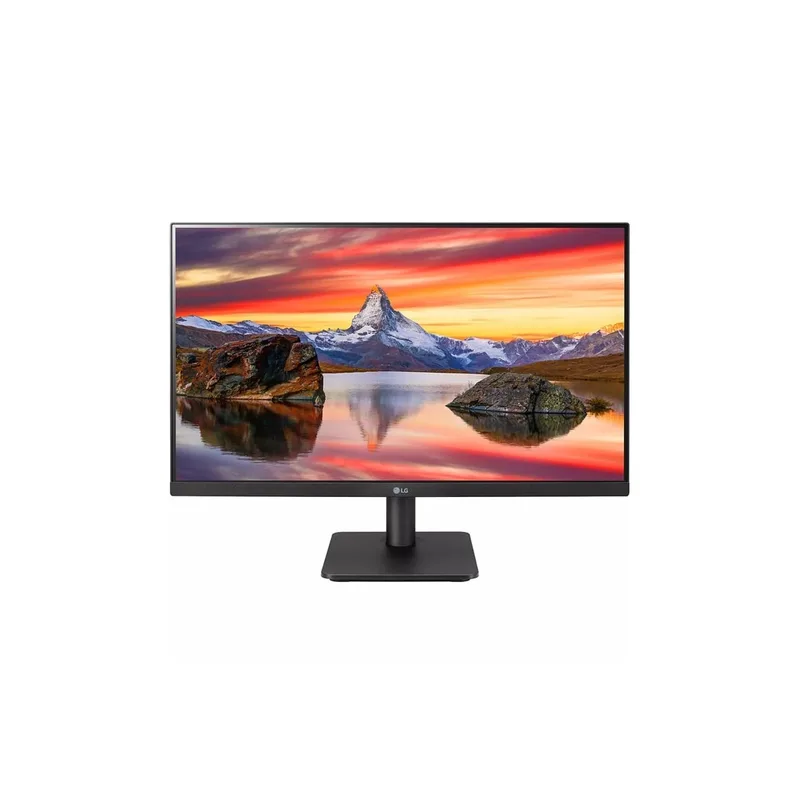
IPS Black panels, used in both Dell UltraSharp monitors and the BenQ pick here, roughly double the native contrast ratio of a standard IPS panel — 2000:1 versus around 1000:1. In practice, that means shaded 3D surfaces and shadowed assembly views show more depth and separation instead of looking flat. Standard IPS panels like the ASUS and ViewSonic picks are still color-accurate; they just don’t render deep shadow detail as convincingly.
CAD/CAM Picture Modes Explained
Only the BenQ PD3225U in this roundup includes a dedicated CAD/CAM picture mode, which adjusts line rendering and contrast specifically for technical drawings and wireframes rather than photos or video. It’s a real difference for heavy CAD users, but it’s not a dealbreaker if you’re missing it — every monitor here is accurate enough for general professional work, and a good factory calibration covers most of what a CAD/CAM mode adds for lighter use.
Port Selection: USB-C, Thunderbolt, and Docking
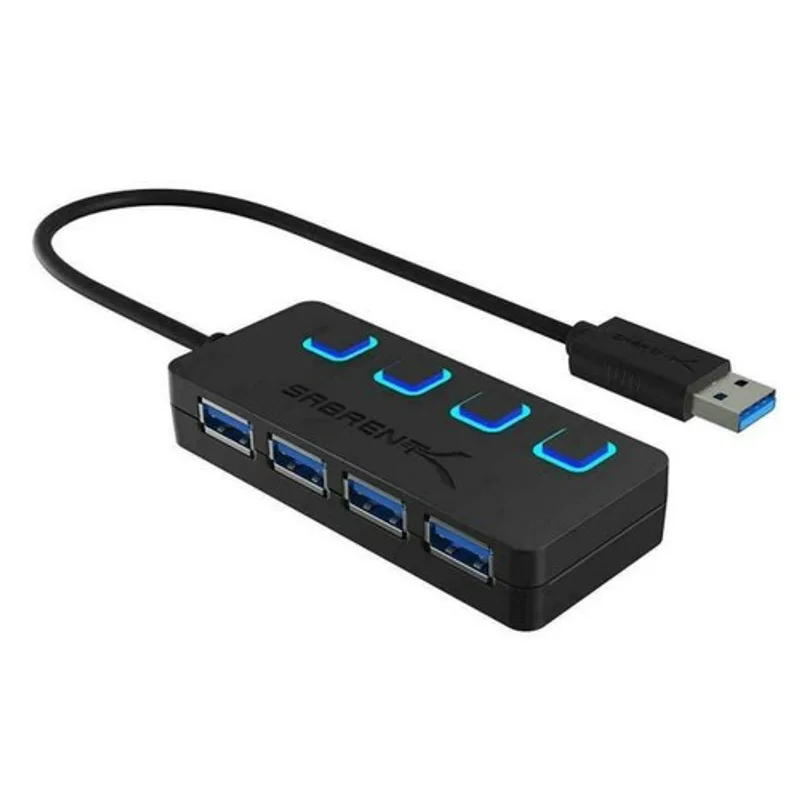
All five monitors in this roundup support USB-C for single-cable docking, but power delivery wattage varies from 65W to 90W — check that against your laptop’s actual charging requirement, especially for larger CAD workstation laptops that draw more power under load. None of these monitors include full Thunderbolt, only DisplayPort Alt Mode over USB-C, which is fine for a single external display but limits how many additional monitors you can daisy-chain off one port.
FAQ
Do I need a 4K monitor for CAD work, or is QHD enough?
QHD (2560x1440) is enough for straightforward CAD work — single parts, simpler assemblies, standard drafting. 4K becomes worth the extra cost once you’re regularly working with complex assemblies, full-sheet technical drawings, or 3D scenes where you want to see fine detail without constantly zooming in and out.
What is Delta E, and why does it show up in every spec sheet here?
Delta E measures the difference between a color a monitor displays and that color’s true value — a lower number means more accurate color. A Delta E under 2 is considered accurate enough that most people can’t perceive the error by eye, which matters for CAD and 3D work because you’re trusting on-screen colors to represent renders, materials, and finishes.
Is a CAD/CAM picture mode actually necessary, or is factory calibration enough?
For most CAD and 3D design work, accurate factory calibration (Delta E under 2) covers what you need. A dedicated CAD/CAM mode, like the one on the BenQ PD3225U, adjusts specifically for line drawings and technical views, which heavy CAD users notice and appreciate — but it’s a refinement, not a requirement, for lighter or occasional use.
Should I buy an OLED monitor for CAD software?
Be cautious. OLED panels offer genuinely better contrast and color than LCD-based IPS panels, but CAD software keeps static toolbars, ribbons, and menus on screen for hours at a stretch — exactly the usage pattern that raises the risk of OLED burn-in over time. None of the monitors in this roundup use OLED for that reason; if you want to try one anyway, look for a model with pixel-shifting or screen-saver protections built in.
Do I need a color-calibrated monitor if I’m not doing rendering or visualization work?
Less critical, but still useful. Even for pure drafting and modeling without final-render color work, consistent, accurate contrast makes it easier to distinguish overlapping lines, surfaces, and shaded areas in a 3D view. You don’t need Pantone validation for line work alone, but a monitor with poor factory calibration can make dense drawings genuinely harder to read.
Conclusion
For most CAD and 3D design work, the Dell UltraSharp U2723QE at $449-$549 is the strongest all-around buy in this roundup — IPS Black contrast, tight factory color accuracy, and single-cable docking cover what most engineers and designers need without pushing into four-figure pricing.
Buyers whose software leans heavily on technical line drawings should look at the BenQ PD3225U — its dedicated CAD/CAM picture mode and KVM switch are genuine advantages if the higher price fits the budget. Anyone regularly working on large, complex assemblies gets more usable screen space from the Dell UltraSharp U3223QE, though it doesn’t improve on the U2723QE’s accuracy.
On a tighter budget, the ViewSonic VP2768a delivers Pantone-validated color accuracy well below four-figure pricing, and the ASUS ProArt PA278CV is the right starting point if 27-inch QHD and Calman-verified calibration cover what you need without spending more.
Detailed Reviews
Dell UltraSharp U2723QE
Pros
- IPS Black panel roughly doubles contrast versus standard IPS panels, which is immediately visible in shaded 3D renders and shadowed assembly views
- Factory color accuracy is independently measured near Delta E 1 by reviewers, tighter than most monitors that only claim Delta E <2 on the spec sheet
- One USB-C cable carries video, 90W laptop charging, and a wired Ethernet connection, replacing a separate docking station on a CAD workstation desk
- 4K resolution gives real working room for dense assemblies and layered drawings without constant zooming
Cons
- 60Hz only, so rotating a large 3D model doesn't feel as smooth as it would on a higher refresh panel
- No Thunderbolt, only DisplayPort Alt Mode over USB-C, which caps daisy-chained external displays at two
- HDR support is entry-level; buy this for color accuracy and contrast, not HDR content
BenQ PD3225U
Pros
- Dedicated hardware CAD/CAM picture mode is the standout feature in this roundup — no other monitor here has a mode built specifically for line drawings and technical views
- Ships with an individual factory calibration report for that specific unit, not just a generic spec-sheet claim
- Built-in KVM switch lets one keyboard and mouse control both a CAD workstation and a laptop without swapping cables
- 31.5-inch 4K canvas leaves room for full-sheet drawings or a model next to a parts list without constant window juggling
Cons
- The priciest monitor in this roundup by a wide margin
- 60Hz only, same ceiling as the rest of this lineup
- Owner feedback flags the built-in speakers as an afterthought — plan on external audio
Dell UltraSharp U3223QE
Pros
- Largest canvas in this roundup at 31.5 inches, useful for full assemblies or a model window next to reference material side by side
- Same IPS Black contrast advantage as the smaller U2723QE, just scaled up
- Extensive port selection docks a CAD workstation with a single USB-C cable
- Build quality and viewing angles hold up well in independent reviews from RTINGS, PCWorld, and TechRadar
Cons
- Reviewers note the factory calibration is good but not a meaningful step up from the smaller, cheaper U2723QE
- No CAD/CAM-specific picture mode — same generic calibration approach as Dell's smaller model
- Premium price for a panel that mostly adds size rather than new capability over the U2723QE
ViewSonic VP2768a
Pros
- Pantone Validated status stacked on top of factory Delta E <2 calibration is an unusual combination at this price
- 90W USB-C Power Delivery fully charges most CAD-capable laptops through the same cable that carries video
- RJ45 Ethernet pass-through simplifies a single-cable docking setup at a wired desk
- Daisy chain support leaves a clear upgrade path to a second display later
Cons
- QHD resolution, not 4K — can feel tight on dense assembly drawings compared to the 4K monitors in this roundup
- 60Hz only, same as most of this lineup
- HDR support is basic and shouldn't factor into the buying decision
ASUS ProArt PA278CV
Pros
- Calman Verified factory calibration at Delta E <2 is rare at this price point
- DisplayPort daisy-chaining makes it straightforward to add a second monitor for reference material or a parts browser
- Full ergonomic stand with pivot rotates to portrait mode, useful for tall assembly drawings or long BOMs
- Quiet, no-frills professional design without gaming-monitor styling
Cons
- 1000:1 contrast ratio means blacks look noticeably grayer next to the IPS Black panels elsewhere in this roundup
- 65W USB-C Power Delivery may not fully charge larger CAD workstation laptops
- No CAD/CAM-specific picture mode, just accurate general-purpose calibration