Affiliate disclosure: SetupRanked earns a commission on qualifying purchases made through links on this page. This does not affect our editorial rankings.
Most people pick a work monitor based on price, plug it in, and never think about it again. Then they spend years squinting at washed-out 1080p, fumbling with three cables every time they move the laptop, and wondering why they look greenish on every Zoom call.
A proper remote work monitor fixes all of this. Sharp 4K text cuts eye strain significantly over an eight-hour day. USB-C with real wattage replaces the power brick and video cable with one connection. Factory-calibrated color accuracy means your face looks like your actual face on video calls.
If you want the short answer: buy the Dell UltraSharp U2723QE. It costs $549, does everything right, and you will not need to replace it for years. If that’s too much, the LG 27UP850K-W at $334 covers the same core specs for less.
Keep reading for detailed comparisons across all five picks.
What Remote Workers Actually Need From a Monitor
Before the product breakdown, it helps to know which specs matter for remote work and which are marketing noise.
Resolution: 4K (3840x2160) on a 27-inch panel is the sweet spot for desk work. Text is sharp enough to read all day without strain. Spreadsheets, code, and document layouts all benefit from the higher pixel density. QHD (2560x1440) is a solid middle ground if budget is the constraint — still a meaningful upgrade from 1080p.
Panel type: IPS for remote work, full stop. Wide viewing angles and accurate color are the priority. OLED is exceptional but expensive and overkill for video calls and spreadsheets.
USB-C with Power Delivery: This is the feature that separates modern work monitors from everything else. A port that delivers 65W or more charges a MacBook Air or most Windows ultrabooks while carrying the video signal. One cable instead of two. At 90W, it covers nearly every laptop on the market.
Refresh rate: 60Hz is completely sufficient for office work. Refresh rate matters for gaming. For documents, spreadsheets, and video calls, the difference between 60Hz and 144Hz is irrelevant.
Color accuracy: Factory-calibrated displays with Delta E values under 2 show skin tones correctly on video. A poorly calibrated panel can make you look sallow or over-saturated on camera — a small thing that adds up across dozens of calls per week.
Hub integration: Monitors with built-in USB hubs let you plug peripherals directly into the display rather than the laptop. Combined with a single USB-C cable, this creates a true one-cable desk connection.
1. Dell UltraSharp U2723QE — Editor’s Pick
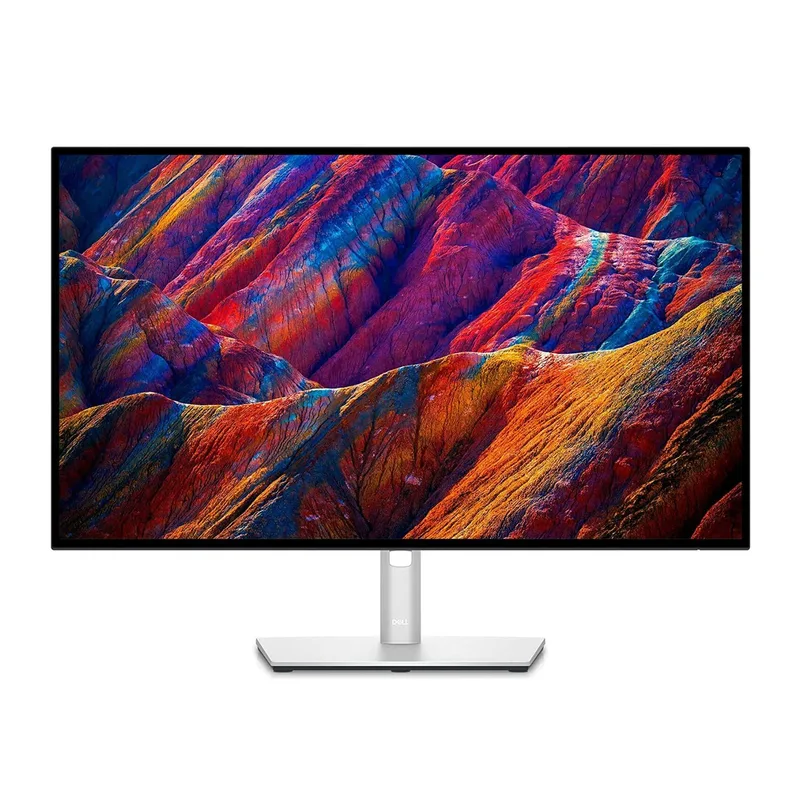
The U2723QE is the monitor most remote workers should buy. Dell’s IPS Black panel technology delivers contrast closer to VA panels without sacrificing the viewing angles that make IPS good for shared desks. Whites stay white, and blacks have real depth — the result is that backgrounds look as sharp as your camera allows on video calls.
The 90W USB-C port covers nearly every laptop, including the 14-inch MacBook Pro models that struggle with lower-wattage chargers. Connect one cable and your laptop charges, the monitor gets video, and the built-in hub provides USB-A and USB-C ports for peripherals. That’s a complete desk connection through one plug.
Factory calibration with Delta E under 2 means individual variance is measured and corrected at the factory. For remote workers who also do presentations, design work, or branded content, accurate color is a practical requirement. For everyone else, it means no manual calibration needed out of the box.
The trade-off: no built-in webcam at $549. Budget for a separate camera if you want integrated functionality. And 60Hz is a real limitation for anyone who games in the evening — the monitor does nothing well for that use case.
Best for: Remote workers who want the best all-around work monitor and are buying once rather than twice.
Skip if: You need a gaming monitor in the evenings or your laptop only charges at 45W anyway.
2. LG 27UP850K-W — Best Value

LG’s 27UP850K-W hits the right price point for 4K with USB-C at $334 — over $200 less than the Dell UltraSharp. The IPS panel covers 95% of DCI-P3, which means reliable color across the full range of work tasks — presentations, charts, video calls, design reviews.
The 90W USB-C output is the biggest practical strength here. It charges a MacBook Pro 16-inch under sustained load — the same wattage as the Dell UltraSharp and better than most monitors at this price. Connect one cable and your laptop charges while you work. DisplayHDR 400 adds useful brightness headroom for rooms with windows.
The stand has full height, tilt, and pivot adjustment. Taller users and people using monitor arms can both get proper eye-level positioning without extra hardware. Built-in speakers handle calls and ambient audio without adding a separate device to the desk.
No USB hub means peripherals still need a dock or go directly into the laptop. That is the real trade-off against the Dell UltraSharp.
Best for: Remote workers who want 4K and 90W USB-C charging without paying for hub and IPS Black features they do not need.
Skip if: You need a built-in USB hub for clean peripheral management at your desk.
3. Samsung ViewFinity S27A600UUN — Best Budget
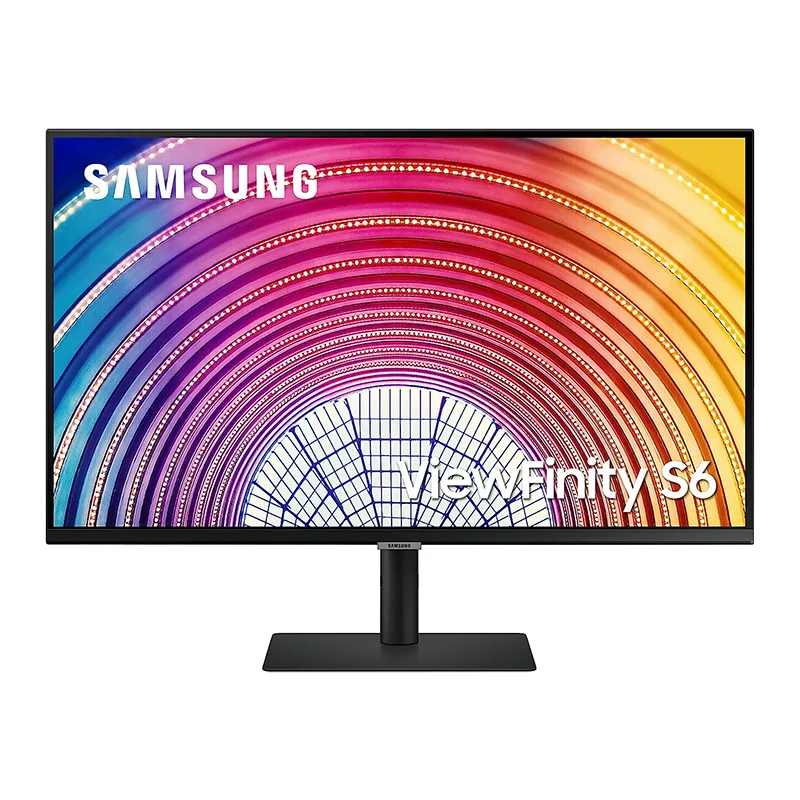
At $349-$379, the ViewFinity S27A600UUN makes USB-C connectivity and a quality IPS panel accessible without cutting corners on build quality. The 75Hz refresh rate is a small bonus over 60Hz alternatives — scrolling and dragging windows feels incrementally smoother, which adds up over long sessions.
The standout feature for remote workers building a multi-monitor setup is daisy-chaining. Connect this monitor to your laptop via USB-C, then run a second monitor via DisplayPort output. Two screens, one cable from the laptop. The cable routing is significantly cleaner than running two separate connections.
The trade-off is resolution. QHD at 27 inches is comfortable and genuinely sharp, but 4K text is noticeably crisper — especially at small font sizes in code editors or spreadsheets. If your work lives in Slack, email, and video calls where text is larger, QHD is entirely sufficient. If you split time between document work with dense information and communication apps, the 4K difference becomes relevant.
Color gamut is narrower than the 4K options here, which is a minor issue for pure office work but more noticeable in presentations with branded colors or photos.
Best for: Budget-conscious remote workers building a dual-monitor setup, or those prioritizing USB-C over 4K resolution.
Skip if: Small-text work like coding or dense spreadsheets is central to your day.
4. ASUS ProArt PA279CV — Best for Color Work
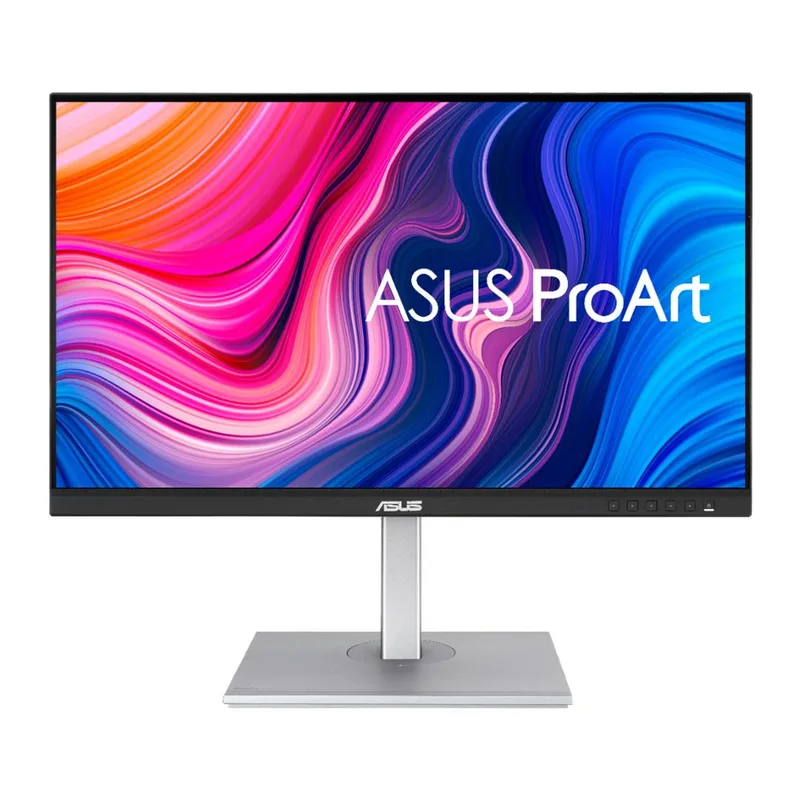
The ProArt PA279CV is built around color accuracy and delivers with Calman-verified factory calibration. Calman is a professional-grade standard — panels are individually measured and certified rather than manufactured to a specification and assumed compliant. For remote workers, that means skin tones look accurate on video calls without adjustment, and branded presentation colors match what clients see on their screens.
100% sRGB and 95% DCI-P3 coverage make this monitor appropriate for any color-critical output — from branded slide decks to design handoffs that need to match print. The built-in USB hub and 65W USB-C add the same one-cable desk connection as the Dell UltraSharp, at a lower price.
The design is utilitarian. ASUS has not refreshed the ProArt visual identity recently, and the monitor looks functional rather than stylish next to modern ultra-thin displays. The 65W USB-C also falls short for high-performance 15-inch laptops under sustained load — the Dell’s 90W handles that more cleanly.
Best for: Remote workers whose jobs involve design, content review, branded presentations, or any output where color needs to be correct.
Skip if: Color accuracy is irrelevant to your work and you want a sleeker-looking desk.
5. Dell S2722QC — Best with Speakers
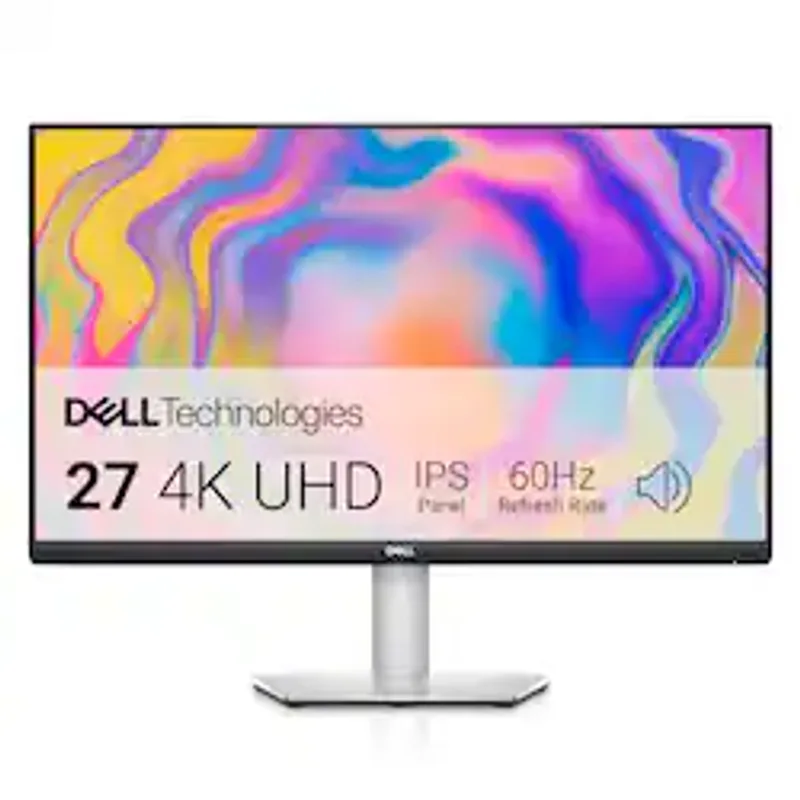
The S2722QC makes a practical argument for its price by including built-in speakers, which few monitors at this level bother to include. The dual 3W setup is adequate for video calls and ambient background audio — it eliminates the need for a separate speaker and stops you relying on laptop audio piped through the monitor.
The 4K IPS panel delivers quality that most remote workers find indistinguishable from more expensive options in daily use. Colors are reasonably accurate without factory calibration, and 4K sharpness holds up for all-day document work. USB-C single-cable setup keeps the desk clean.
The limitations are connectivity and audio quality. There is no USB hub, so peripherals still go directly into the laptop or through a separate dock. The speakers work but they are the weakest link — thin bass, and the volume tops out faster than you would expect from a 27-inch frame. For Zoom calls they are fine. For anything requiring fidelity, an external speaker is worth the addition.
Best for: Remote workers who want a 4K panel with built-in speakers for a cleaner desk, without paying for USB hub features.
Skip if: You already have quality external speakers and would rather save on a different spec.
Comparison Table
| Monitor | Size | Resolution | USB-C PD | Panel | Price | Rating |
|---|---|---|---|---|---|---|
| Dell UltraSharp U2723QE | 27” | 4K UHD | 90W | IPS Black | $512.34-$689.00 as of Oct 18, 2026 | 9.4 |
| ASUS ProArt PA279CV | 27” | 4K UHD | 65W | IPS | $289.41-$307.72 as of Oct 18, 2026 | 9.1 |
| LG 27UP850K-W | 27” | 4K UHD | 90W | IPS | $267.80-$349.99 as of Oct 18, 2026 | 8.9 |
| Dell S2722QC | 27” | 4K UHD | 65W | IPS | Unavailable | 8.6 |
| Samsung ViewFinity S27A600UUN | 27” | QHD | 65W | IPS | $329.99 as of Oct 18, 2026 | 8.4 |
Buying Guide: What to Look For
USB-C wattage is not one number. A 45W USB-C port charges a phone and a tablet. A 65W port covers most Windows ultrabooks and the MacBook Air. A 90W port covers nearly any laptop, including MacBook Pro 14-inch and 16-inch models that need higher sustained wattage. Check your laptop’s charging specification before buying — a monitor that can’t charge your laptop defeats the single-cable setup.
Factory calibration vs. out-of-box accuracy. Factory-calibrated monitors are individually tested and adjusted before shipping. Monitors with good out-of-box accuracy are accurate by design but not individually verified. Both outperform uncalibrated panels significantly, but factory calibration ensures consistency regardless of which unit you receive.
Hub integration changes the desk. A monitor with a built-in USB hub means one USB-C cable from laptop to monitor handles video, charging, and peripheral connections simultaneously. Without a hub, you need a separate dock, which adds cost and another cable. If you use more than one USB peripheral daily, hub functionality is worth prioritizing.
QHD vs 4K at 27 inches. The difference is visible but context-dependent. Dense text — code, spreadsheets, small-font documents — looks sharper on 4K. Communication apps, video calls, and browser work are comfortable on QHD. Know which category your workday falls into.
Monitor arm compatibility. Every monitor on this list is VESA-compatible. A monitor arm eliminates stand height limitations entirely and frees up significant desk surface in front of the display.
FAQ
What resolution do I need for remote work?
QHD (2560x1440) is the minimum worth considering in 2026. It gives meaningfully more screen real estate than 1080p and makes side-by-side window layouts practical. 4K (3840x2160) is better for 27-inch panels — text is sharper and the productivity gains for document-heavy work are noticeable. Code editors, spreadsheets, and anything with dense information benefit from 4K. Video call apps and communication tools are comfortable at either resolution.
Does monitor size matter for video calls?
Not in the way most people assume. Your webcam image quality depends on the webcam, not the monitor. What monitor size affects is how large the other participant’s face appears during calls. At 27 inches, a video call window sits at a comfortable size for reading facial expressions without the video dominating the entire screen.
Do I need a 4K monitor for remote work?
Not strictly required, but it’s worth it now that prices have come down. At 27 inches, the jump from QHD to 4K is visible — especially on text and small UI elements. Sharper text reduces eye strain over an eight-hour workday. Several options on this list deliver 4K for under $400.
Should I prioritize USB-C connectivity?
Yes, for any laptop-based remote work setup. USB-C with Power Delivery means one cable carries video and charges the laptop simultaneously. The practical effect: one fewer plug per work session, less cable management on the desk, and faster connection when moving between locations. If your laptop charges via USB-C, this feature is worth treating as a requirement rather than a nice-to-have.
What about blue light filtering?
Most monitors on this list include low-blue-light modes or flicker-free backlighting. Operating system features like Night Shift on macOS and Night Light on Windows can be layered on top. Neither feature eliminates eye strain on its own — the 20-20-20 rule (every 20 minutes, look at something 20 feet away for 20 seconds) does more for sustained comfort than any hardware filter.
Is 60Hz enough for work?
Yes. Refresh rate affects the smoothness of fast motion. For scrolling documents, moving windows, and video calls, 60Hz is indistinguishable from 144Hz in practice. The one exception is if you use the same monitor for gaming in the evenings — in that case, the 75Hz Samsung or a gaming-oriented display is worth considering.
Conclusion: The Clear Winner by Use Case
The Dell UltraSharp U2723QE is the best remote work monitor for most people. IPS Black panel, 90W USB-C, built-in USB hub, and factory-verified color accuracy cover every practical need. The $549 price is justified by the feature set and the fact that it will last through multiple laptop upgrades.
For value: the LG 27UP850K-W at $334 delivers 4K resolution and 90W USB-C charging with a fully adjustable stand — the best per-dollar option on this list.
For color-critical work: the ASUS ProArt PA279CV at $399 is the right choice. Calman verification and 100% sRGB coverage make it purpose-built for professionals who care about color accuracy.
For a budget dual-monitor setup: the Samsung ViewFinity S27A600UUN at $349-$379 with daisy-chain support is ideal for building a two-screen desk without running two separate cables from the laptop.
Monitor pricing moves frequently — check current prices using the buttons below before buying.
Detailed Reviews
Dell UltraSharp U2723QE
Pros
- Outstanding color accuracy — factory calibrated with Delta E under 2
- 90W USB-C power delivery runs most laptops on a single cable
- Built-in USB hub eliminates the need for a separate dock
- IPS Black panel delivers deeper blacks than standard IPS
Cons
- No built-in webcam, so you will still need a separate webcam
- 60Hz refresh rate is not ideal for anyone gaming after hours
- Premium price is noticeably higher than comparable 4K options
LG 27UP850K-W
Pros
- Accurate colors out of the box for confident video call appearances
- 90W USB-C charges even MacBook Pro 16-inch on a single cable
- Full height, tilt, and pivot stand adjustment — no monitor arm required
- Built-in speaker handles ambient audio and calls without extra hardware
- DisplayHDR 400 adds brightness headroom for media work
Cons
- No built-in USB hub, so peripheral management requires extra hardware
- 60Hz panel is not suitable for gaming use after hours
Samsung ViewFinity S27A600UUN
Pros
- Daisy-chain support makes dual-monitor setups simpler with fewer cables
- USB-C with 65W power delivery keeps most laptops charged
- QHD resolution gives significantly more screen real estate than 1080p
- 75Hz provides slightly smoother scrolling than standard 60Hz panels
Cons
- QHD rather than 4K — text is not as crisp as on 4K monitors at this size
- No HDR support limits depth on media content
- Color gamut coverage is narrower than the 4K options on this list
ASUS ProArt PA279CV
Pros
- Calman-verified color accuracy ensures skin tones look correct on video calls
- 100% sRGB coverage for reliable color representation
- Built-in USB hub adds practical connectivity to the desk
- 65W USB-C handles most ultrabooks on a single cable
Cons
- Slightly dated industrial design compared to newer monitors
- No built-in webcam or speaker
- 65W USB-C falls short for high-performance 15-inch laptops under load
Dell S2722QC
Pros
- Built-in speakers free up desk space and simplify the audio setup
- Excellent 4K value for the price
- USB-C single-cable setup for clean desk management
- 1.07 billion color depth for smooth gradients and accurate rendering
Cons
- Built-in speakers are functional but thin at higher volumes
- Only two ports — no USB hub functionality
- No DisplayPort output limits multi-monitor daisy-chaining options