Keychron’s CES 2026 announcement of the Q Ultra series — wireless mechanical keyboards with up to 660 hours of battery life running ZMK open-source firmware — put every other keyboard brand on notice. Battery life, open firmware, and 2.4GHz low-latency wireless are now table stakes rather than premium features in the wireless keyboard market. For remote workers, this is good news: there are more capable wireless keyboards under $150 than at any point in the last five years.
Remote work typing adds up fast. An 8-hour workday with active communication involves roughly 40,000–60,000 keystrokes. Keyboard feel, battery reliability, and multi-device switching have a direct impact on daily fatigue and workflow friction. A keyboard that drops Bluetooth connections, dies mid-call, or forces you to manually change Bluetooth settings every time you switch between a work laptop and a personal machine is a productivity tax paid in small doses every single day.
This roundup covers five wireless keyboards evaluated for full-time remote work: daily video calls, long writing sessions, document work, and multi-device desk setups. The picks range from $79 to $149 and cover every primary use case — cross-platform productivity, Mac-exclusive biometric login, hot-swappable mechanical customization, and ultraportable travel setups.
Quick Comparison
| Keyboard | Layout | Wireless | Multi-Device | Battery | Price |
|---|---|---|---|---|---|
| Logitech MX Keys S | Full-size | Bluetooth + Logi Bolt | 3 devices | 10 days (lit) | $100.09-$119.99 as of Oct 18, 2026 |
| Apple Magic Keyboard Touch ID | Compact TKL | Bluetooth | 1 device | ~1 month | $132.68 as of Oct 18, 2026 |
| Keychron K8 Pro | TKL 80% | Bluetooth + USB | 3 devices | 100-300 hours | Unavailable |
| NuPhy Air96 V2 | 96% | Bluetooth + 2.4GHz + USB | 3 devices | 120-220 hours | $69.00 as of Oct 18, 2026 |
| Logitech MX Keys Mini | Compact TKL | Bluetooth + Logi Bolt | 3 devices | 10 days (lit) | $81.16-$99.99 as of Oct 18, 2026 |
1. Logitech MX Keys S — Editor’s Pick
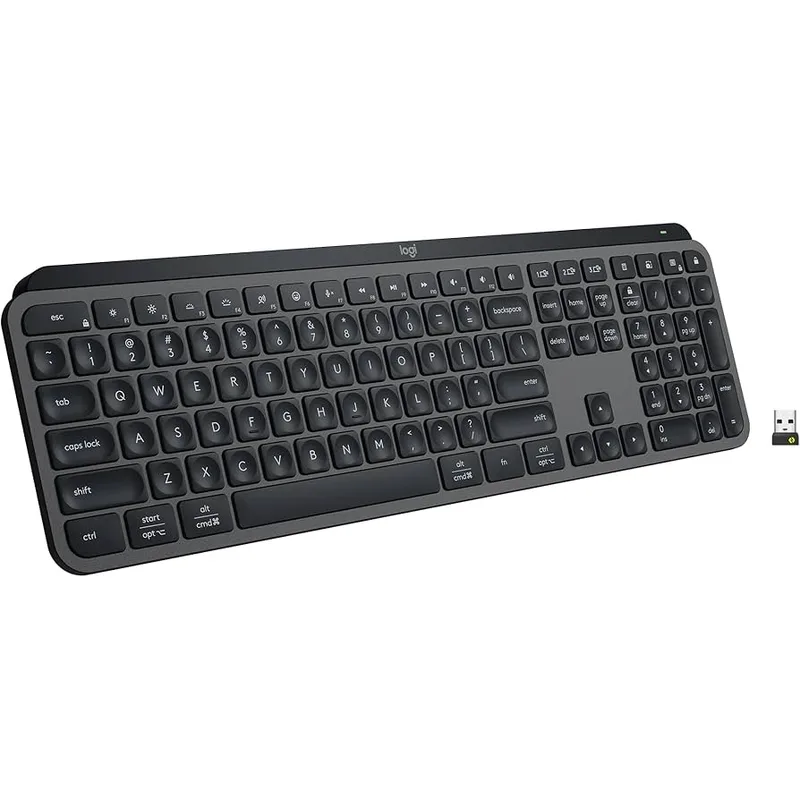
Logitech MX Keys S
Pros
- Quiet scissor-switch keys clock in at roughly 35 decibels — significantly quieter than mechanical switches and almost entirely inaudible on video calls, which matters when you're on six hours of Zoom meetings per day
- Proximity activation wakes the backlight when your hands approach and dims when you step away — a small but practical feature that extends battery life without requiring you to manually toggle the illumination
- Easy-Switch button cycles between three paired devices with one press — work laptop, personal machine, and a tablet; combined with Logi Flow software, you can move your cursor across two screens on different computers without a KVM switch
- Logi Options+ Smart Actions let you trigger multi-step automations (open browser, load a specific URL, switch app) from a single programmable key — a genuine productivity advantage for remote workers with repetitive daily workflows
- USB-C charging with a 10-day backlit battery means you charge once per week during a meeting and forget about it; five-month battery life without backlighting if you prefer unlit typing
- Dual-labeled keycaps print both Windows and macOS symbols, and the keyboard auto-detects the OS on connection — practical for remote workers who use both a Mac and a Windows PC at the same desk
Cons
- No mechanical switch option — scissor-switch feel is excellent for an office keyboard but will not satisfy anyone who specifically wants tactile click or linear mechanical actuation
- Sold in graphite and pale gray only; the compact MX Keys Mini is a separate product — you cannot get the full-size MX Keys S in a numpad-free version
- Logi Options+ software required for Smart Actions and advanced key remapping; the software is well-designed but adds a background process to your machine
The MX Keys S is the most complete wireless keyboard for remote work at any price. It handles multi-device switching, has a quiet scissor-switch action that won’t bleed into microphones, charges via USB-C, and works natively across macOS, Windows, and Linux without configuration. It is not the most customizable keyboard in this roundup, and it is not the cheapest, but it does more things right for a remote worker’s actual daily use than any alternative.
The proximity activation is genuinely useful. The backlight wakes the moment your hands approach the keyboard and dims when you walk away — battery management happens automatically. Over a five-day workweek this extends charge cycles meaningfully compared to keyboards that leave illumination on whenever the board is active.
Smart Actions via Logi Options+ rewards the time you spend configuring it. Assigning a single key to open your project management tool, load a specific browser tab, and mute Slack notifications is a workflow customization that accumulates minutes saved each day. For a remote worker managing multiple tools across calls and async communication, this programmability has more daily impact than switch type selection.
Dual-labeled keycaps print both macOS and Windows symbols. The keyboard auto-detects the operating system when it connects — plug into a Mac and the Option and Command labels activate; switch to a Windows machine and the Windows and Alt functions engage. For anyone who runs both platforms at the same desk, this is the most frictionless cross-platform keyboard available.
Best for: Remote workers who need cross-platform compatibility, multi-device switching, and a keyboard that works correctly out of the box without firmware or customization effort.
2. Apple Magic Keyboard with Touch ID (USB-C) — Best for Mac
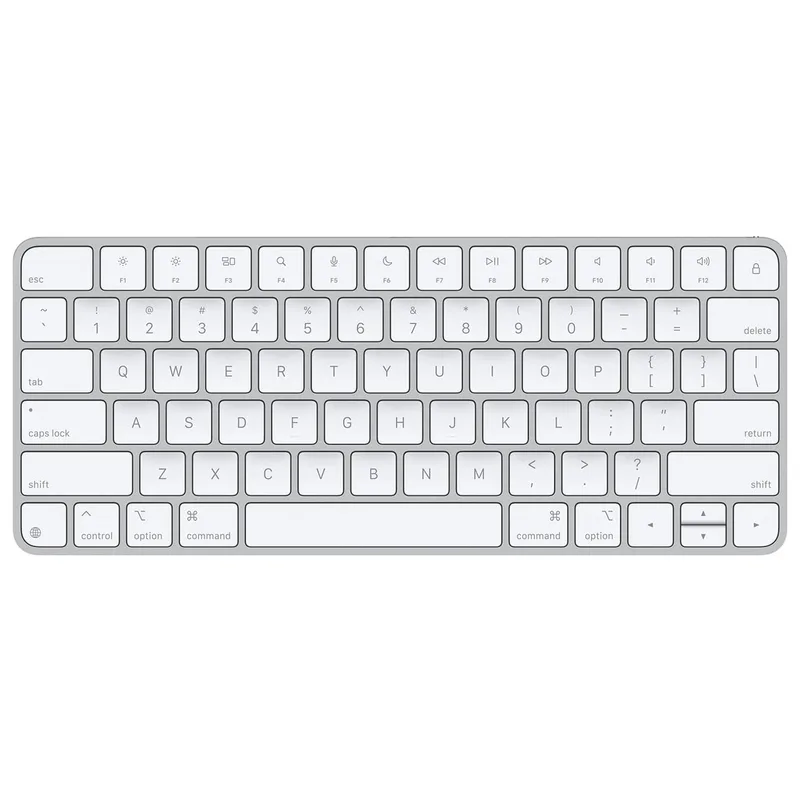
Apple Magic Keyboard with Touch ID (USB-C)
Pros
- Touch ID fingerprint sensor eliminates password typing for macOS login, Apple Pay, and app authorization — the integration with Secure Enclave makes it as fast and reliable as the built-in Touch ID on MacBook keyboards
- Scissor-switch mechanism with 1mm travel and 0.5mm switch activation provides one of the most uniform, consistent key feels available at this price — the benchmark that other low-profile keyboards are compared against
- Extremely lightweight at 0.6 lbs and slim at 0.4 inches — the slimmest keyboard in this roundup and the easiest to pack for remote workers who occasionally work from a café or coworking space
- USB-C charging port (replacing the old Lightning connector) means you charge with the same cable as your MacBook and iPhone — a genuine convenience improvement for cable-minimal desk setups
Cons
- Single-device Bluetooth pairing only — switching to another Mac or iPad requires going into Bluetooth settings, which is a meaningful limitation for remote workers running two machines
- No backlight — in a $129 keyboard, the lack of illumination is notable; the Logitech MX Keys S at a similar price has full proximity-activated backlighting
- macOS-only functionality — Touch ID and F-key shortcuts don't work on Windows or Linux; this is not a cross-platform keyboard
- No angle adjustment; the flat 0.4-inch profile works for some users but offers no ergonomic customization and may require a wrist rest for long sessions
Apple’s Magic Keyboard with Touch ID is the correct choice if you use only macOS devices and want a keyboard that integrates deeply with the operating system. The Touch ID fingerprint sensor authenticates macOS login, Apple Pay, and third-party apps that support biometric authorization. The integration is reliable — it uses the same Secure Enclave processing as MacBook fingerprint sensors, so authorization completes in under a second.
The scissor-switch mechanism with 1mm travel defines the benchmark for low-profile keyboard feel. Other keyboards in this roundup are routinely compared against it in reviews and typing tests. The uniform key resistance, consistent actuation point, and shallow base design produce a typing experience that Apple has refined across multiple keyboard generations. For heavy typists who find mechanical switches too noisy or imprecise during calls, this keyboard’s sound floor is the lowest in this category.
The USB-C port on the current model (replacing the old Lightning connector) means you’re charging with the same cable as your MacBook and iPhone. That cable standardization matters for travel and desk setups where minimizing cable types is a priority.
Where it loses ground is flexibility. Single-device Bluetooth pairing means any second Mac or iPad requires a trip into Bluetooth settings to switch. There is no backlight at any price in Apple’s standard keyboard lineup. And the Touch ID functionality simply doesn’t work on Windows or Linux — making this a commitment to Apple-only workflows.
Best for: Single-Mac remote workers who value macOS-native Touch ID authentication, the quietest possible typing sound, and Apple ecosystem integration without any cross-platform compromise.
3. Keychron K8 Pro — Best Mechanical
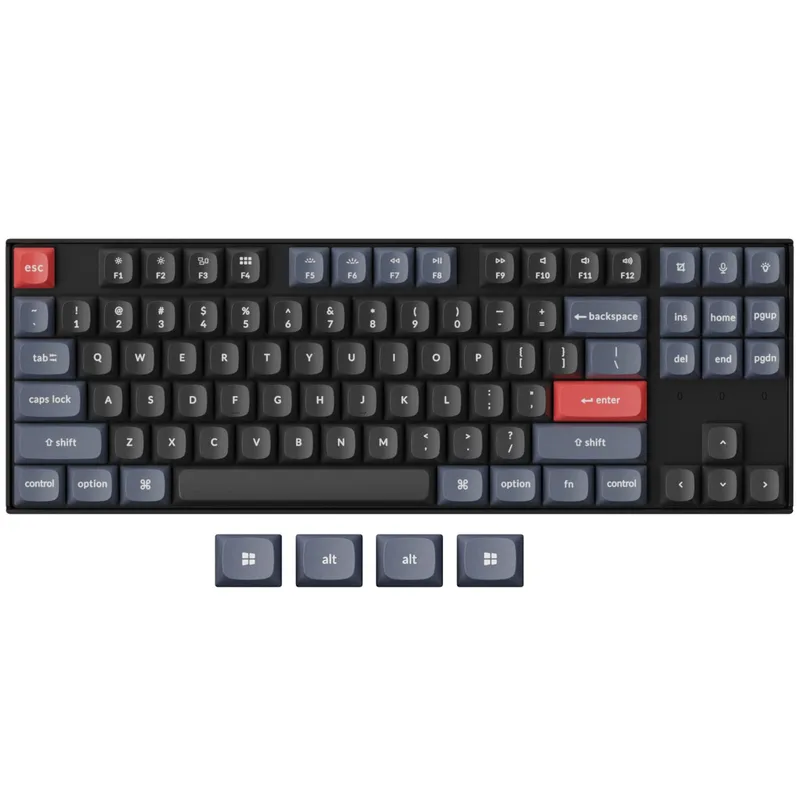
Keychron K8 Pro
Pros
- Hot-swappable PCB means you can pull switches with a switch puller and install a different type without soldering — the most upgrade-friendly keyboard at this price if you want to experiment with switch feel
- QMK/VIA programmability gives you complete firmware control: remap every key, create custom layers, set per-key RGB, and build macros through the open-source VIA interface without manufacturer server dependency
- 4000mAh battery delivers 100 hours with RGB enabled or 300 hours with backlighting off — far better than the MX Keys S's 10-day backlit battery, with charging every 1-4 weeks depending on your RGB usage
- Bluetooth 5.1 multi-device pairing connects three devices via Fn+1/2/3 shortcuts — switching between a work Mac and a personal Windows machine is a 2-second operation
- macOS/Windows toggle switch on the board swaps modifier key functions and labels without software — the most seamless cross-platform operation of any mechanical keyboard at this price
Cons
- Tray-mount build design produces a harder, more resonant typing sound than gasket-mount boards — noticeable on open calls unless you close your mic on keystrokes or add foam dampening
- Bluetooth connection can have intermittent dropout on the first reconnection after sleep — a known firmware behavior that Keychron has partially addressed in updates but not fully resolved
- PBT keycap legend quality varies across production runs — printing sharpness can differ by key; many K8 Pro owners install aftermarket keycap sets for improved consistency
The K8 Pro is the entry point into serious mechanical keyboard customization without paying enthusiast prices. The hot-swappable PCB is the defining feature: pull old switches, insert new ones, and the keyboard works differently — no soldering required. For remote workers still determining their preferred switch type, this means you can buy the K8 Pro with linear Red switches, evaluate them for two weeks, order Gateron Brown tactile switches for $25, and swap them in under 15 minutes.
QMK/VIA firmware support is the other key differentiator. The entire keyboard is reprogrammable through an open-source interface — every key, every layer, every RGB pattern. Unlike proprietary software from Logitech or Apple, VIA runs in a browser and doesn’t require a manufacturer account. Your configuration lives in the firmware on the board, not in a cloud profile. That matters for privacy-conscious remote workers and for anyone who wants the keyboard to behave identically on any computer they plug it into.
The 4000mAh battery lasting 100 hours with RGB or 300 hours without is a practical advantage. Charging weekly with RGB on heavy use — or monthly without backlight — versus the MX Keys S’s 10-day charge cycle reduces battery management overhead by a meaningful margin.
The Bluetooth dropout issue on wake from sleep is the most consistent user complaint. Reconnecting after the host computer sleeps takes 3–8 seconds. A practical workaround is keeping the USB-C cable plugged in during focused work sessions and using Bluetooth only for couch or secondary device use.
Best for: Remote workers who want mechanical switch customization, open firmware programmability, and strong battery life in a TKL layout that fits any standard desk footprint.
4. NuPhy Air96 V2 — Best Low-Profile Mechanical
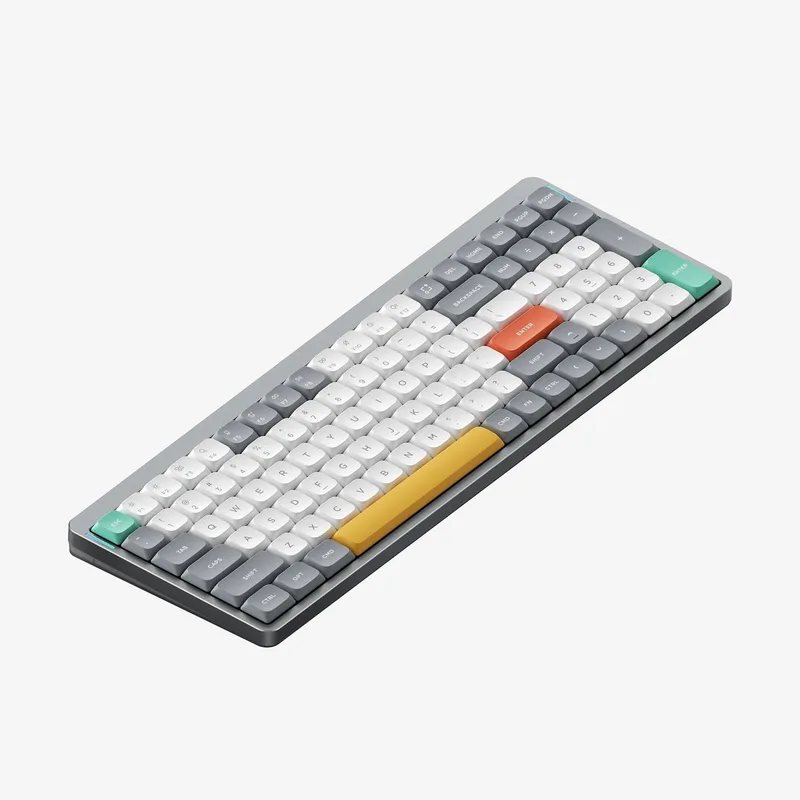
NuPhy Air96 V2
Pros
- The 2.4GHz wireless mode runs at 1000Hz polling with 1ms latency — the most responsive wireless option in this roundup; if you notice Bluetooth lag during fast typing sessions, the 2.4GHz dongle eliminates it
- 96% layout retains the numpad-adjacent number column and full navigation cluster in a compact footprint — for data-entry remote workers who need number input without a full 100% board, this eliminates the compromise
- Aluminum alloy frame gives the Air96 V2 a rigidity and desk presence that no plastic keyboard matches — the 1.8 lbs weight prevents desk sliding during fast typing without feeling heavy
- 220-hour battery without RGB means charging roughly every 3-4 weeks for an 8-hour workday — the best battery life in this roundup and the most forgiving for remote workers who dislike cable management
- Low-profile 13.5mm height works on most desks without a wrist rest — a natural typing angle for users who prefer a nearly flat hand position
Cons
- No dedicated macOS software for key remapping — firmware configuration requires Windows-based NuPhy utility or third-party QMK tools; macOS users have a more limited customization experience
- The 96% layout places the numpad column adjacent to the main keyboard without a gap, which causes right-hand navigation errors for users transitioning from a standard keyboard until they adapt
- Low-profile switches have shorter key travel (1.5-2mm) than standard height switches — users who prefer deep, deliberate keystrokes will find the actuation too light; this is preference rather than defect
The NuPhy Air96 V2 is what you buy when you want mechanical keyboard tactility and customization in a profile thin enough to work without a wrist rest. At 13.5mm total height at its thinnest point and an aluminum top frame, it has the build quality of keyboards at twice the price and wireless performance to match.
The 2.4GHz wireless mode is the technical standout. At 1000Hz polling with 1ms latency, it outperforms Bluetooth in every wireless latency measurement. If you’re a fast typist who notices lag or character doubling on Bluetooth keyboards, the 2.4GHz dongle eliminates it. Bluetooth still connects three paired devices for multi-machine setups, but during your main work session, the 2.4GHz mode delivers the response you’d expect from a wired board.
The 96% layout solves a real problem. Most wireless keyboards choose between compact (no numpad, reduced desk footprint) or full-size (full numpad, wide board). The 96% layout keeps all keys from a full-size board but removes the whitespace between key sections — arrows, navigation cluster, and number column all present, with a total footprint barely wider than a TKL board. For spreadsheet-heavy remote workers, this is the compact keyboard that doesn’t force a key compromise.
The 220-hour battery without RGB — roughly 3–4 weeks for an 8-hour workday — is the best battery life in this roundup. Charging once per month is a meaningful reduction in peripheral management.
Best for: Remote workers who want low-profile mechanical feel, a full key count in a compact 96% layout, tri-mode wireless with 2.4GHz speed, and aluminum build quality under $140.
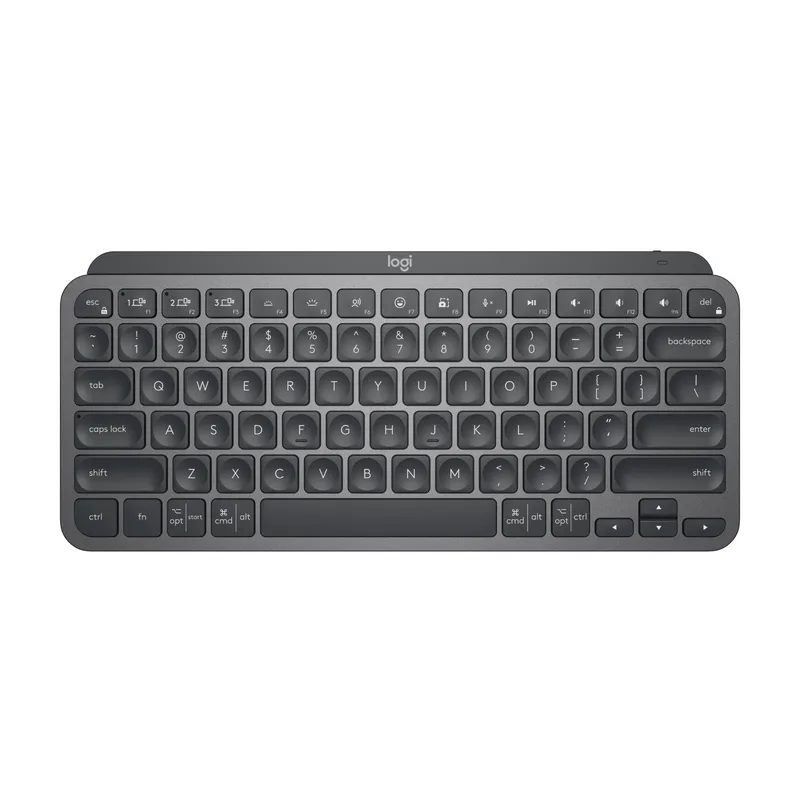
5. Logitech MX Keys Mini — Best Compact
Logitech MX Keys Mini
Pros
- At 11.6 x 5.0 inches and 0.5 lbs, the MX Keys Mini is the lightest keyboard in this roundup and fits flat into any laptop bag — the best option for remote workers who move between home, coworking spaces, and client sites
- Same scissor-switch mechanism as the MX Keys S with proximity-activated backlighting at a $20-30 lower price — the typing experience is nearly identical in a significantly smaller footprint
- Three-device Easy-Switch pairing with Logi Bolt stability — the compact form factor sacrifices none of the multi-device functionality that makes the MX line the productivity standard
- macOS-specific version available in Pale Grey with Mac-labeled modifier keys — if you work exclusively on macOS and iPadOS, the Mac variant has correct F-key shortcuts without any remapping
Cons
- No numpad — for remote workers who do frequent data entry or financial spreadsheet work, the missing numpad is a real workflow impact; the full-size MX Keys S is the better choice
- Compact function row limits some Logi Options+ Smart Action configurations that rely on dedicated F-keys present on the full-size MX Keys S
- Slightly tighter key spacing than the full-size version — typists transitioning from a 100% or TKL keyboard may notice the condensed layout during the first week of adjustment
The MX Keys Mini gives you the MX Keys S typing experience in a keyboard that slips into any laptop sleeve. The same scissor-switch mechanism, the same proximity-activated backlight, the same Easy-Switch three-device pairing, and the same Logi Bolt stability — in a body that is 6 inches shorter and 1.3 lbs lighter than the full-size version.
For remote workers who move between locations — home office to coworking spaces, client sites, or travel — the Mini’s portability advantage is consistent and daily. The full-size MX Keys S is a desk keyboard; the Mini is the keyboard you bring everywhere. At the lower price point ($79–$99 vs $119), it is also the better value for remote workers who have no numpad workflow.
The compact layout does remove some function-row keys present on the larger model, and Smart Actions via Logi Options+ are slightly more limited without the dedicated F-key row. For remote workers who use Smart Actions heavily, the full-size MX Keys S justifies the extra cost and desk footprint. For everyone else who primarily types and switches devices, the Mini covers the same ground in less space.
A Mac-specific version (Pale Grey, Mac-labeled modifier keys) is available for Apple-only users who want correct key labels and F-key shortcuts without any remapping in System Settings.
Best for: Remote workers who regularly move between locations, anyone who wants the MX Keys S experience in a smaller form factor, and buyers prioritizing portability over numpad access.
Buying Guide: What Matters in a Wireless Keyboard for Remote Work
Multi-Device Pairing
Most remote workers run at least two machines — a work laptop and a personal computer, or a laptop and a tablet. Multi-device keyboards that switch with a button press (rather than a Bluetooth settings change) eliminate daily friction. Logitech’s Easy-Switch, Keychron’s Fn+1/2/3, and NuPhy’s equivalent all handle this reliably. Apple’s Magic Keyboard pairs to one device at a time — the standout limitation in an otherwise excellent product.
Battery Life and Charging
Battery life matters more than it sounds in daily practice. A keyboard that needs charging every 7–10 days is a 5-minute task each week — minor. A keyboard that dies mid-workday because you forgot is a real disruption. Keyboards with 100+ hour batteries (Keychron K8 Pro, NuPhy Air96 V2) are significantly more forgiving. All five keyboards in this roundup charge via USB-C — one cable type works for everything.
Switch Type and Noise
For shared spaces and video calls, noise matters. Scissor-switch keyboards (MX Keys S, Magic Keyboard, MX Keys Mini) measure under 40dB in typical use. Mechanical keyboards with linear switches (Gateron Red) are quieter than tactile (Brown) or clicky (Blue). For remote workers on calls 4+ hours daily, linear or scissor switches are the practical choice. If you work solo with noise-isolation headphones and want deliberate tactile feedback, mechanical switches reward the investment.
Wireless Technology: Bluetooth vs. 2.4GHz
Bluetooth is ubiquitous and handles multi-device switching effectively. Logi Bolt (Logitech’s 2.4GHz proprietary protocol) is more stable and consistently lower latency than standard Bluetooth — noticeably so in environments with crowded 2.4GHz spectrum (apartment buildings, coworking spaces). NuPhy’s 2.4GHz mode runs at 1000Hz, the fastest wireless option in this roundup. For most remote workers, any of these implementations is adequate; for fast typists who notice Bluetooth latency, 2.4GHz wireless makes a perceptible difference.
Layout
- Full-size with numpad: Best for data entry, financial work, and spreadsheet-heavy workflows (MX Keys S)
- TKL / Compact TKL (no numpad): Best desk space balance for most remote workers (Keychron K8 Pro, MX Keys Mini, Magic Keyboard)
- 96% (compact full-size): Full key access in a TKL footprint — ideal for numpad users with limited desk space (NuPhy Air96 V2)
FAQ
What is the quietest wireless keyboard for video calls? The Logitech MX Keys S and MX Keys Mini are the quietest in this roundup at approximately 35dB. Apple’s Magic Keyboard is similarly quiet. On mechanical keyboards, linear switches (Red, Yellow) are quieter than tactile switches (Brown) and far quieter than clicky (Blue). If you’re using a mechanical keyboard during calls and need to reduce noise, O-ring switch dampeners add 5–10dB noise reduction without replacing the switches.
Can I use these keyboards with both a Mac and a Windows PC? The Logitech MX Keys S, Keychron K8 Pro, NuPhy Air96 V2, and MX Keys Mini all work on both macOS and Windows. The MX Keys S auto-detects the OS on connection. The K8 Pro has a physical Mac/Windows toggle switch on the board. The Apple Magic Keyboard with Touch ID is macOS-only in any meaningful sense — Touch ID and F-key shortcuts don’t function on Windows.
Is wireless latency an issue for typing at a remote work desk? No. For document work, email, coding, and spreadsheets, even standard Bluetooth latency is imperceptible during typing. Wireless latency only becomes a meaningful variable for competitive gaming where milliseconds matter. Logi Bolt and 2.4GHz wireless (NuPhy) have effectively zero perceptible latency for typing in all conditions.
How long does a wireless keyboard typically last? A quality wireless keyboard used daily typically lasts 5–8 years. The limiting factor is usually keycap legend wear (printing fades on ABS keycaps after 1–2 years of heavy use) or switch degradation (mechanical switches are rated for 50–100 million keystrokes). PBT keycaps on the NuPhy Air96 V2 and Keychron K8 Pro resist fading significantly better than ABS. All five keyboards in this roundup are built to handle 5+ years of daily remote work use.
Should I get an ergonomic keyboard instead of a standard wireless keyboard? If you type 6+ hours daily and have any wrist or forearm discomfort, an ergonomic keyboard is worth evaluating before a standard wireless board. Ergonomic keyboards address ulnar deviation and pronation through split or curved layouts. The Logitech ERGO K860 (covered in our ergonomic keyboards roundup) is the top pick for remote workers with comfort concerns. Standard wireless keyboards are the right choice when ergonomic positioning isn’t the primary concern and portability or aesthetics matter more.
Conclusion
The Logitech MX Keys S is the right keyboard for most remote workers. It pairs to three devices, charges via USB-C, is quiet enough for video calls, and operates on both Mac and Windows without any configuration. It is the keyboard you set up once and stop thinking about.
For Mac-only remote workers: the Apple Magic Keyboard with Touch ID provides Touch ID biometric integration and the cleanest macOS typing experience, but its single-device pairing is a real limitation for anyone running two machines.
For mechanical switch enthusiasts: the Keychron K8 Pro delivers hot-swap customization, QMK firmware, and strong battery life at a price that beats most keyboard upgrade paths. The Bluetooth sleep reconnection quirk is real but workable.
For travel-heavy remote workers: the NuPhy Air96 V2 packs tri-mode wireless, aluminum build, 220-hour battery, and a full 96% key layout into the most capable wireless package under $140.
For anyone who wants the MX Keys S experience in a bag-friendly size: the Logitech MX Keys Mini delivers it at a lower price with excellent portability and no meaningful compromise on typing feel or multi-device switching.
Detailed Reviews
Logitech MX Keys S
Pros
- Quiet scissor-switch keys clock in at roughly 35 decibels — significantly quieter than mechanical switches and almost entirely inaudible on video calls, which matters when you're on six hours of Zoom meetings per day
- Proximity activation wakes the backlight when your hands approach and dims when you step away — a small but practical feature that extends battery life without requiring you to manually toggle the illumination
- Easy-Switch button cycles between three paired devices with one press — work laptop, personal machine, and a tablet; combined with Logi Flow software, you can move your cursor across two screens on different computers without a KVM switch
- Logi Options+ Smart Actions let you trigger multi-step automations (open browser, load a specific URL, switch app) from a single programmable key — a genuine productivity advantage for remote workers with repetitive daily workflows
- USB-C charging with a 10-day backlit battery means you charge once per week during a meeting and forget about it; five-month battery life without backlighting if you prefer unlit typing
- Dual-labeled keycaps print both Windows and macOS symbols, and the keyboard auto-detects the OS on connection — practical for remote workers who use both a Mac and a Windows PC at the same desk
Cons
- No mechanical switch option — scissor-switch feel is excellent for an office keyboard but will not satisfy anyone who specifically wants tactile click or linear mechanical actuation
- Sold in graphite and pale gray only; the compact MX Keys Mini is a separate product — you cannot get the full-size MX Keys S in a numpad-free version
- Logi Options+ software required for Smart Actions and advanced key remapping; the software is well-designed but adds a background process to your machine
Apple Magic Keyboard with Touch ID (USB-C)
Pros
- Touch ID fingerprint sensor eliminates password typing for macOS login, Apple Pay, and app authorization — the integration with Secure Enclave makes it as fast and reliable as the built-in Touch ID on MacBook keyboards
- Scissor-switch mechanism with 1mm travel and 0.5mm switch activation provides one of the most uniform, consistent key feels available at this price — the benchmark that other low-profile keyboards are compared against
- Extremely lightweight at 0.6 lbs and slim at 0.4 inches — the slimmest keyboard in this roundup and the easiest to pack for remote workers who occasionally work from a café or coworking space
- USB-C charging port (replacing the old Lightning connector) means you charge with the same cable as your MacBook and iPhone — a genuine convenience improvement for cable-minimal desk setups
Cons
- Single-device Bluetooth pairing only — switching to another Mac or iPad requires going into Bluetooth settings, which is a meaningful limitation for remote workers running two machines
- No backlight — in a $129 keyboard, the lack of illumination is notable; the Logitech MX Keys S at a similar price has full proximity-activated backlighting
- macOS-only functionality — Touch ID and F-key shortcuts don't work on Windows or Linux; this is not a cross-platform keyboard
- No angle adjustment; the flat 0.4-inch profile works for some users but offers no ergonomic customization and may require a wrist rest for long sessions
Keychron K8 Pro
Pros
- Hot-swappable PCB means you can pull switches with a switch puller and install a different type without soldering — the most upgrade-friendly keyboard at this price if you want to experiment with switch feel
- QMK/VIA programmability gives you complete firmware control: remap every key, create custom layers, set per-key RGB, and build macros through the open-source VIA interface without manufacturer server dependency
- 4000mAh battery delivers 100 hours with RGB enabled or 300 hours with backlighting off — far better than the MX Keys S's 10-day backlit battery, with charging every 1-4 weeks depending on your RGB usage
- Bluetooth 5.1 multi-device pairing connects three devices via Fn+1/2/3 shortcuts — switching between a work Mac and a personal Windows machine is a 2-second operation
- macOS/Windows toggle switch on the board swaps modifier key functions and labels without software — the most seamless cross-platform operation of any mechanical keyboard at this price
Cons
- Tray-mount build design produces a harder, more resonant typing sound than gasket-mount boards — noticeable on open calls unless you close your mic on keystrokes or add foam dampening
- Bluetooth connection can have intermittent dropout on the first reconnection after sleep — a known firmware behavior that Keychron has partially addressed in updates but not fully resolved
- PBT keycap legend quality varies across production runs — printing sharpness can differ by key; many K8 Pro owners install aftermarket keycap sets for improved consistency
NuPhy Air96 V2
Pros
- The 2.4GHz wireless mode runs at 1000Hz polling with 1ms latency — the most responsive wireless option in this roundup; if you notice Bluetooth lag during fast typing sessions, the 2.4GHz dongle eliminates it
- 96% layout retains the numpad-adjacent number column and full navigation cluster in a compact footprint — for data-entry remote workers who need number input without a full 100% board, this eliminates the compromise
- Aluminum alloy frame gives the Air96 V2 a rigidity and desk presence that no plastic keyboard matches — the 1.8 lbs weight prevents desk sliding during fast typing without feeling heavy
- 220-hour battery without RGB means charging roughly every 3-4 weeks for an 8-hour workday — the best battery life in this roundup and the most forgiving for remote workers who dislike cable management
- Low-profile 13.5mm height works on most desks without a wrist rest — a natural typing angle for users who prefer a nearly flat hand position
Cons
- No dedicated macOS software for key remapping — firmware configuration requires Windows-based NuPhy utility or third-party QMK tools; macOS users have a more limited customization experience
- The 96% layout places the numpad column adjacent to the main keyboard without a gap, which causes right-hand navigation errors for users transitioning from a standard keyboard until they adapt
- Low-profile switches have shorter key travel (1.5-2mm) than standard height switches — users who prefer deep, deliberate keystrokes will find the actuation too light; this is preference rather than defect
Logitech MX Keys Mini
Pros
- At 11.6 x 5.0 inches and 0.5 lbs, the MX Keys Mini is the lightest keyboard in this roundup and fits flat into any laptop bag — the best option for remote workers who move between home, coworking spaces, and client sites
- Same scissor-switch mechanism as the MX Keys S with proximity-activated backlighting at a $20-30 lower price — the typing experience is nearly identical in a significantly smaller footprint
- Three-device Easy-Switch pairing with Logi Bolt stability — the compact form factor sacrifices none of the multi-device functionality that makes the MX line the productivity standard
- macOS-specific version available in Pale Grey with Mac-labeled modifier keys — if you work exclusively on macOS and iPadOS, the Mac variant has correct F-key shortcuts without any remapping
Cons
- No numpad — for remote workers who do frequent data entry or financial spreadsheet work, the missing numpad is a real workflow impact; the full-size MX Keys S is the better choice
- Compact function row limits some Logi Options+ Smart Action configurations that rely on dedicated F-keys present on the full-size MX Keys S
- Slightly tighter key spacing than the full-size version — typists transitioning from a 100% or TKL keyboard may notice the condensed layout during the first week of adjustment