Affiliate disclosure: SetupRanked earns a commission on qualifying purchases made through links on this page. This does not affect our editorial rankings.
The Logitech MX Master 3S has spent three years as the default productivity mouse recommendation. In early 2026, Logitech released the MX Master 4 with haptic feedback and an AI-linked Action Ring, raising a genuine question: is the 3S still worth buying at $99, or does the new model justify the $20 premium?
Short answer: the MX Master 3S is still the correct choice for most remote workers. The MX Master 4’s additions are real but primarily benefit power users who’ll invest time setting up per-app customization. For the majority of people who want an excellent wireless mouse that works well immediately, the 3S remains the pick.
This roundup covers four mice selected specifically for remote work use: the MX Master 3S, the new MX Master 4, the Razer Pro Click V2 (released late 2025), and the Logitech M720 Triathlon as a budget alternative.
What Matters in a Productivity Mouse
Ergonomics for all-day use: A mouse you use 8 hours a day has a more significant impact on comfort than most desk accessories. Thumb rests, weight distribution, and grip shape all affect wrist and shoulder fatigue over the course of a work week.
Scroll wheel behavior: Scrolling through long documents, Slack threads, and code files is the most repeated action in knowledge work. MagSpeed electromagnetic scrolling (present in both MX Master models) eliminates the physical ratchet mechanism, allowing free-spin through long content and precise ratchet control when needed.
Multi-device connectivity: Many remote workers operate a laptop for travel and a desktop at their home office. A mouse that can switch between both without pairing repeatedly saves meaningful friction throughout the week.
Software customization: Per-app button assignments matter for heavy users of specific tools. Assigning browser back/forward, clipboard history, mission control, or app-specific shortcuts to thumb buttons can reduce keyboard usage significantly over a full work day.
Battery life: A dead mouse in the middle of a call or deadline is a real cost. USB-C charging with 70-day battery life (as in both MX Master models) effectively removes battery anxiety from the equation.
Comparison Table
| Mouse | Sensor | Connection | Battery | Multi-Device | Price | Rating |
|---|---|---|---|---|---|---|
| Logitech MX Master 3S | 8,000 DPI | Bluetooth / Bolt | 70 days USB-C | Up to 3 | Unavailable | 9.2 |
| Logitech MX Master 4 | 8,000 DPI | Bluetooth / Bolt | 70 days USB-C | Up to 3 | $102.53-$118.00 as of Oct 18, 2026 | 9.0 |
| Razer Pro Click V2 | 30,000 DPI | BT / 2.4GHz / USB-C | 3.5 months | Up to 4 | $78.40-$89.99 as of Oct 18, 2026 | 8.5 |
| Logitech M720 Triathlon | 1,000 DPI | Bluetooth / Unifying | 24 months AA | 3 devices | $31.30-$34.99 as of Oct 18, 2026 | 8.0 |
1. Logitech MX Master 3S — Editor’s Pick
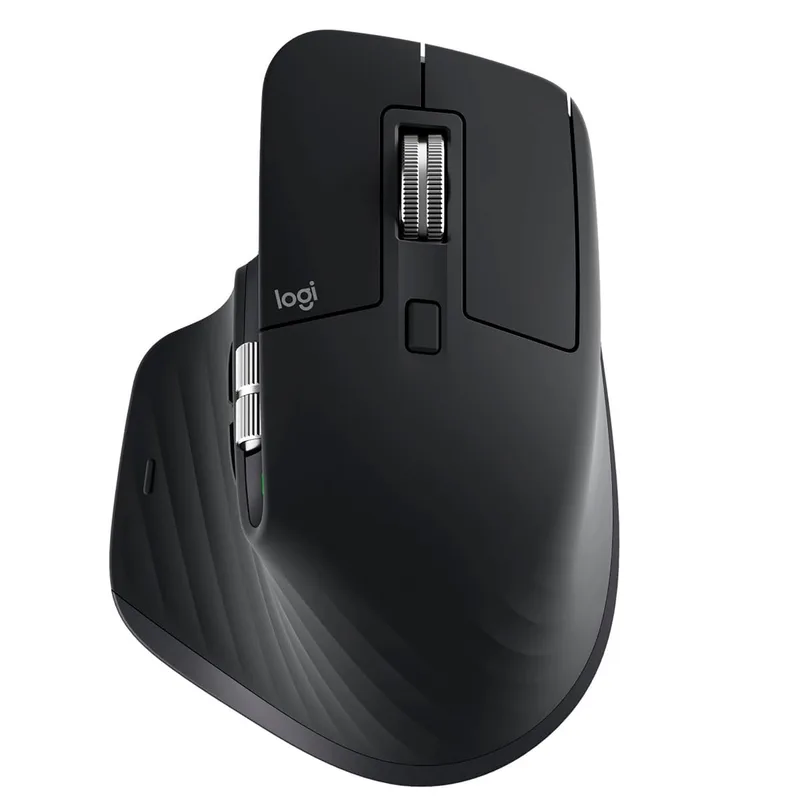
The MX Master 3S earns its ranking because it gets almost everything right for remote work without requiring configuration to be useful out of the box.
The MagSpeed scroll wheel is the feature that makes the biggest daily difference. In ratchet mode, each scroll increment is precise for navigating lists, spreadsheet rows, and code. In free-spin mode, a single flick sends the wheel spinning through thousands of lines. The scroll wheel switches between modes automatically based on scroll speed, or manually via the button beneath it. No competing scroll implementation at this price point comes close.
Silent clicks reduce the audible click noise by 90% compared to standard mechanical switches. In open-plan spaces, shared apartments, or homes with family nearby, the quieter clicks are a genuine quality-of-life improvement. The reduction in noise doesn’t affect tactile feedback — the click still registers cleanly.
The 8,000 DPI sensor tracks on glass surfaces, which matters if your desk is glass or you prefer working without a mouse pad. Logi Options+ allows per-application button mapping: the thumb button can paste in one app, open a specific shortcut in another. Deep customization is available for power users who want it, but the default configuration is useful immediately without any software setup.
USB-C charging with 70-day battery life means charging is a brief, infrequent event rather than a maintenance task. At $99.99 regular price — with periodic sales pushing it to $79-$80 — the MX Master 3S represents the best balance of features, ergonomics, and value on this list.
Buy this if: You want the best all-round work mouse at a fair price and don’t need haptic feedback.
Skip if: You use app-specific workflows in Figma, Photoshop, or Notion daily and want hardware-level haptic integration.
2. Logitech MX Master 4 — Best New for 2026
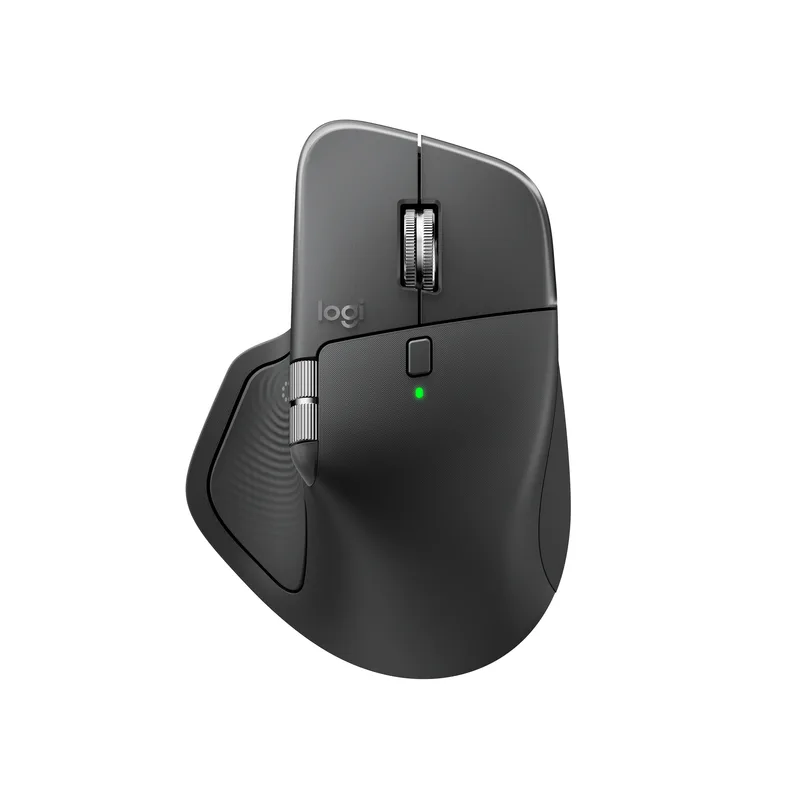
The MX Master 4 launched in October 2025 at $119.99. Logitech positioned it as a hardware-and-software product rather than a standalone device. It has seen brief promotional discounts to around $107, but typically holds its $119.99 price point.
The key addition is haptic feedback. The scroll wheel delivers tactile notifications — a subtle bump when switching virtual desktops, confirmation when snapping to a value in a slider, or notification when an email sends. Whether this is worth $20 over the MX Master 3S depends entirely on whether you’ll configure it. The haptics work on default system actions without setup, but the more compelling use cases require configuring app-specific profiles in Logi Options+.
The Action Ring is a context-sensitive shortcut overlay that appears on screen when you rotate the back scroll wheel. It surfaces app-specific shortcuts — undo/redo, zoom levels, layer controls — as a visual menu navigable without looking at the keyboard. For designers using Figma or Photoshop, this reduces keyboard reliance. For people primarily in Slack, email, and browser tabs, it adds complexity without proportional benefit.
The wireless connectivity is improved over the 3S through a new radio chip and antenna placement, which Logitech claims delivers twice the reliable range. In real-world home office distances, this difference is unlikely to be noticeable. Both mice handle Bluetooth and Logi Bolt USB receiver connections.
Buy this if: You do design, development, or creative work with app-specific tools and will invest time in Logi Options+ profiles.
Skip if: You primarily use browser, email, and communication tools — the MX Master 3S handles those equally well for $20 less.
3. Razer Pro Click V2 — Best for Power Users
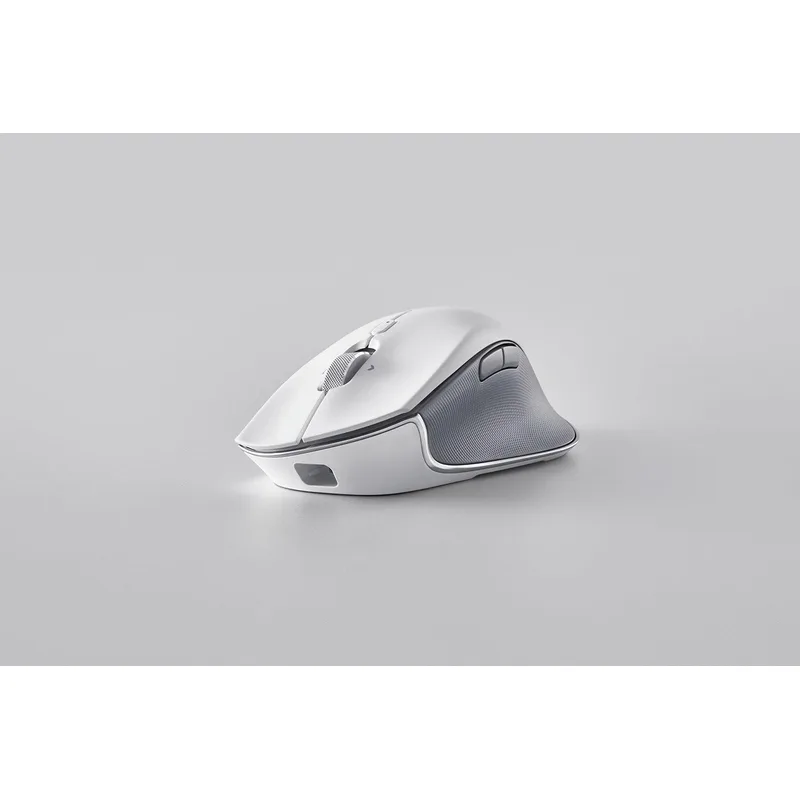
The Razer Pro Click V2, released in late 2025 and now available around $95-$100, targets productivity users who also want precision sensor performance beyond office-grade hardware.
The 30,000 DPI sensor is significantly more than any office task requires, but it also means the tracking accuracy and consistency exceeds dedicated office mice. On high-resolution multi-monitor setups, particularly with 4K displays spanning a wide physical area, higher DPI settings allow finer pointer control across the full display surface.
Three connectivity modes — 2.4GHz wireless, Bluetooth, and USB-C wired — cover every desk scenario. The 2.4GHz mode reduces latency compared to Bluetooth for situations where wireless precision matters. Wired USB-C mode works on any device without pairing. Four-device Bluetooth switching (vs. three for the MX Master models) is useful for power users switching between phone, tablet, and two computers.
The one-click AI prompt shortcut is Razer’s 2026 addition: a dedicated button that sends highlighted text directly to ChatGPT or Windows Copilot for rephrasing, summarizing, or email composition. This is more immediately useful than the MX Master 4’s Action Ring for people who use AI writing assistance regularly.
Battery life at 3.5 months on 2.4GHz wireless is the longest on this list. The HyperScroll wheel offers fast tactile scrolling but lacks the electromagnetic free-spin of MagSpeed — it’s a good mechanical scroll wheel, not a fundamentally different scrolling experience.
Buy this if: You want maximum connectivity flexibility, a one-click AI shortcut, and the longest battery life on this list.
Skip if: You prioritize ergonomic shape and silent clicks over sensor performance — the MX Master 3S is more comfortable for extended sessions.
4. Logitech M720 Triathlon — Best Budget
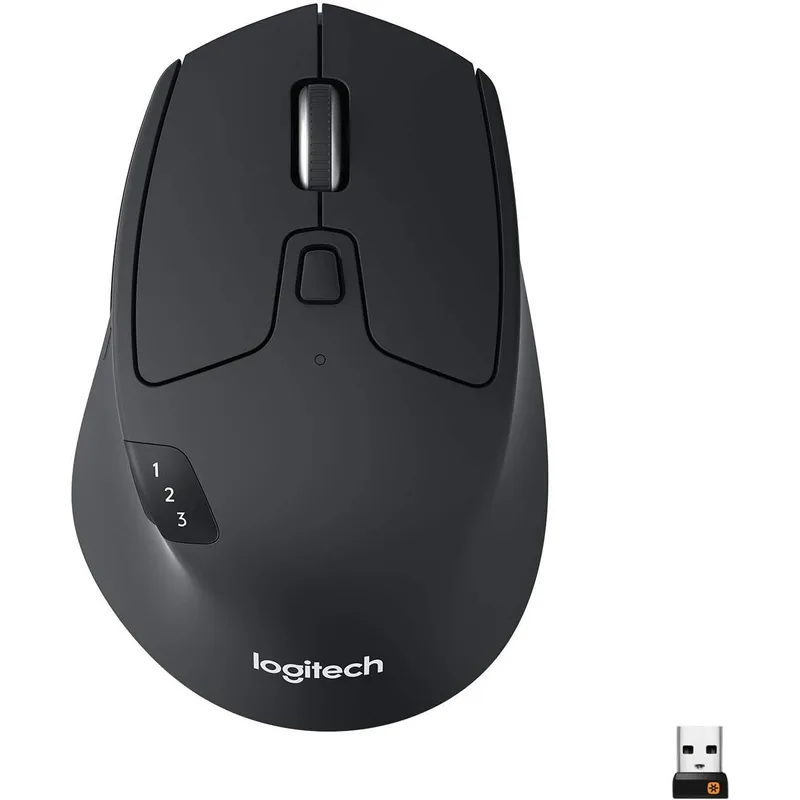
At $40, the M720 Triathlon is the best multi-device wireless mouse in the budget category. The Easy-Switch button on the bottom of the mouse cycles between three paired devices — press once to jump from a work laptop to a home desktop without re-pairing.
The standout feature at this price point is the 24-month AA battery life. No USB-C cable, no charging anxiety. You replace a single AA battery roughly once every two years and never think about it again. For users who find charging maintenance tedious, this is a meaningful advantage over premium mice.
The hyper-fast scroll wheel allows free-spin scrolling similar in concept to MagSpeed but with a physical mechanism — it’s notably less smooth than the electromagnetic implementation in the MX Master. The 1,000 DPI sensor is adequate for standard office tasks on regular surfaces but lacks the precision of higher-DPI sensors on atypical surfaces or fast multi-monitor navigation.
Software via Logi Options+ provides button customization, but the depth of per-app profiles available to MX Master users isn’t fully available on the M720. It’s a capable, reliable productivity mouse at a fair price.
Buy this if: You need a budget multi-device mouse with long battery life and don’t want to spend MX Master prices.
Skip if: You use large or fast mouse movements across multiple monitors — the 1,000 DPI sensor limits precision at those extremes.
Buying Guide: How to Choose the Right Work Mouse
MX Master 3S vs. MX Master 4: Which Should You Buy?
The honest answer for most people: MX Master 3S. The $20 price difference compounds over time only if you actively use the MX Master 4’s differentiating features — haptic feedback and the Action Ring. Both mice feel identical in hand (same shape, same weight, same scroll wheel mechanism). Both have the same sensor, same battery life, and same connectivity.
If you use Figma, Photoshop, or Lightroom daily and you’re willing to spend time configuring Logi Options+ app profiles, the MX Master 4 earns its premium. If you primarily work in browser, Slack, Google Docs, and Zoom, the MX Master 3S is functionally identical at a lower price.
When to Choose the Razer Pro Click V2
The Razer Pro Click V2 makes sense if connectivity flexibility matters to you. Its four-device Bluetooth, 2.4GHz, and USB-C wired modes cover scenarios the Logitech mice can’t. The one-click AI shortcut is the most immediately useful new feature on any mouse reviewed here for people who use AI tools regularly.
When to Choose the M720 Triathlon
The M720 Triathlon is the correct choice if budget is the primary constraint and multi-device switching is important. At $40, it delivers multi-device features that previously required a $100+ mouse.
Size and Ergonomics
All four mice here are right-hand ergonomic form factors. None of these options work well for left-handed users. The MX Master 3S and 4 have the deepest thumb rest of the group; the Razer Pro Click V2 has a narrower grip more suited to medium-sized hands.
FAQ
Is the Logitech MX Master 3S still worth buying in 2026 now that the MX Master 4 is out?
Yes. The MX Master 3S remains the better value for most remote workers. The MX Master 4 adds haptic feedback and an Action Ring shortcut system, but these features primarily benefit users who invest time in app-specific customization. For everyday office tasks, the MX Master 3S and 4 perform identically.
Can the MX Master 3S connect to multiple computers?
Yes. The MX Master 3S connects to up to three devices via Logi Bolt USB receiver or Bluetooth. An Easy-Switch button under the mouse cycles between paired devices. It supports Windows, macOS, Linux, and ChromeOS.
What’s the difference between the Logi Bolt receiver and Bluetooth on the MX Master 3S?
Logi Bolt is Logitech’s proprietary 2.4GHz USB receiver that offers lower latency and more reliable connectivity than standard Bluetooth, particularly in office environments with many wireless devices. Bluetooth works without the dongle and is convenient for travel. Most users won’t notice a practical difference in a home office, but the Logi Bolt receiver is recommended if the USB port is available.
Does the MX Master 3S work without software?
Yes. Plug it in (or pair it via Bluetooth) and all core functions work immediately without installing Logi Options+. Software is only required for per-app button customization, gesture configuration, and advanced features.
How long does the MX Master 3S battery last?
Up to 70 days on a full charge via USB-C. A 1-minute quick charge provides approximately 3 hours of use, which eliminates the dead battery scenario in practice. Battery level is visible in Logi Options+ or via the LED indicator on the mouse.
Conclusion
The Logitech MX Master 3S is the right mouse for most remote workers in 2026. MagSpeed scrolling, silent clicks, glass-surface tracking, and USB-C charging at $99 solve the actual pain points of daily computer work. The arrival of the MX Master 4 doesn’t change this — it extends the lineup upward rather than replacing the 3S.
Buy the MX Master 4 if you work daily in creative software and want hardware haptic integration. Buy the Razer Pro Click V2 if you need multi-mode connectivity and a one-click AI shortcut. Buy the M720 Triathlon if you need multi-device switching at $40.
For everyone else: the MX Master 3S at $99 is the productivity mouse to own.
Detailed Reviews
Logitech MX Master 3S
Pros
- MagSpeed scroll wheel switches between ratchet and free-spin — faster than any competing scroll implementation
- Silent clicks reduce noise by 90% compared to standard mechanical switches
- 8,000 DPI sensor tracks reliably on glass surfaces, including glass desks
- USB-C charging and 70-day battery life means almost zero downtime
- Logi Options+ software enables deep per-app customization with programmable buttons
Cons
- No haptic feedback — the MX Master 4 adds this for $20 more
- Right-handed only — no left-hand variant available
- Slightly aging design compared to the new MX Master 4
Logitech MX Master 4
Pros
- Haptic feedback on scroll wheel and gestures provides tactile confirmation for common actions
- Action Ring adds a context-sensitive shortcut overlay for tools like Notion, Photoshop, and Figma
- Improved wireless chip delivers more reliable connectivity than previous generation
- Same MagSpeed scroll wheel as the 3S with additional haptic precision
- App-specific shortcut integrations via Logi Options+ now include AI tools
Cons
- $20 premium over the MX Master 3S for features most users won't use daily
- App-specific Action Ring requires setup time in Logi Options+ to get value from it
- Same ergonomic shape — no redesign of the right-hand-only form factor
Razer Pro Click V2
Pros
- 30,000 DPI sensor is overkill for office work but future-proofs multi-monitor setups
- Three connectivity modes — 2.4GHz, Bluetooth, USB-C wired — handle any desk situation
- One-click AI prompt shortcut integrates with ChatGPT and Windows Copilot
- Exceptional 3.5-month battery life on wireless
- HyperScroll wheel delivers fast, tactile scrolling through long documents
Cons
- Chroma RGB is unnecessary for an office mouse and adds slight weight
- Razer Synapse software is heavier than Logi Options+ and requires an account
- Slightly narrower grip than the MX Master — larger hands may find it less comfortable
Logitech M720 Triathlon
Pros
- Easy-Switch button cycles between 3 paired devices instantly — ideal for laptop + desktop setups
- 24-month AA battery eliminates charging entirely
- Hyper-fast scrolling wheel for quick document navigation
- Pairs via both Bluetooth and Unifying USB receiver
- Comfortable ergonomic shape for full-day use
Cons
- AA battery instead of USB-C charging feels dated in 2026
- 1,000 DPI sensor is sufficient but noticeably less precise than MX Master 3S at 8,000 DPI
- No per-app customization depth of Logi Options+ advanced profiles
- Software experience is basic compared to MX Master alternatives