A piece from XDA Developers in early 2026 made a sharp observation: burn-in fear is keeping people on inferior LCD monitors for no good reason. The argument holds. Modern QD-OLED panels come with three-year manufacturer burn-in warranties, protection modes that work automatically, and a track record from years of OLED laptop screens that show near-zero real-world issues for typical office use. Meanwhile, the Samsung Odyssey OLED G6 dropped to $519.99 in May 2026 — price-competitive with premium IPS panels that can’t match its contrast or color volume.
That context shapes this guide. The panel type question is real and worth understanding, but the answer is no longer as simple as “IPS for work, everything else for gaming.” Here’s what each technology actually does in a remote work context, with a specific product recommendation at each price point.
Quick Decision: Which Panel Is Right for You?
| Use Case | Best Panel | Why |
|---|---|---|
| Color-critical design, photo editing | IPS (or OLED) | Consistent color accuracy; IPS is lower risk |
| Dark-room document work | VA or OLED | Deep native contrast matters more than color |
| Dual work-and-gaming setup | OLED or VA | High refresh rates; OLED has superior image quality |
| Video calls, standard office work | IPS | Best viewing angles; safest for any lighting |
| Budget-first decision | IPS or VA | OLED premium rarely justified for pure productivity |
IPS Panels: Still the Safest Default
IPS (In-Plane Switching) panels deliver consistent color at wide viewing angles — typically 178 degrees in both directions. That consistency is the key advantage for office work: the image holds accurate color from center position, at an angle during a collaborative session, or under overhead fluorescent lighting.
Standard IPS contrast tops out around 1000:1. This means dark backgrounds appear as dark gray rather than black. In a bright office with window light, this limitation is invisible. In a dim home office at 7pm, it becomes obvious. Dell’s IPS Black technology (used in the U2723QE below) improves native contrast to roughly 2000:1 — a meaningful step up without the static risk of OLED.
For remote work, IPS is the panel type that requires the fewest trade-offs. Wide viewing angles matter for video calls. Consistent color matters for any work involving images, presentations, or documents shared across screens. And the price-to-quality ratio at the 4K tier has improved significantly in 2026.
Best IPS Value: LG 27UP850K-W
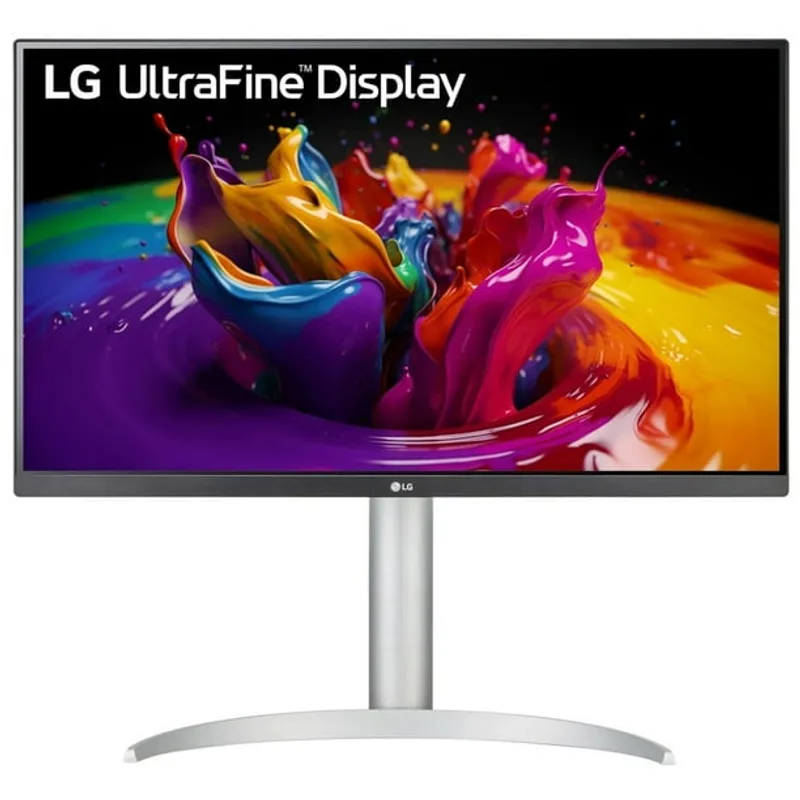
LG 27UP850K-W
Pros
- 95% DCI-P3 color coverage is exceptional for this price tier — professional color accuracy without paying professional monitor prices, making it a strong pick for anyone editing photos or reviewing design files alongside regular productivity work
- USB-C 90W power delivery charges a MacBook Pro or most Windows laptops at full speed over a single cable — eliminates the separate power brick from the desk and reduces cable clutter to one connection between laptop and monitor
- DisplayHDR 400 certification provides a meaningful bump in highlight brightness over non-HDR IPS panels — cloud detail in photography and bright sky tones in video calls look visibly more dimensional than they do on budget monitors
- Wide viewing angles (178°/178°) mean color accuracy holds at extreme positions — relevant for remote workers who share their screen over a shoulder or pivot the monitor for a colleague during hybrid office days
- Built-in speaker covers basic notification and video call audio — avoids the need for external speakers in setups where audio quality is not a priority
Cons
- 60Hz refresh rate is the standard for work monitors but will feel sluggish for anyone accustomed to 120Hz or higher — not a productivity concern, but a perceptible difference if you use the same machine for both work and gaming
- Contrast ratio of approximately 1000:1 is typical for IPS — blacks appear gray in dark environments compared to VA or OLED panels; dark-room users will notice this limitation more than those in well-lit offices
- No USB-A hub means every peripheral still requires a separate connection to the laptop or desktop — the single USB-C connection handles power and video only
The LG 27UP850K-W is the best value entry into 4K IPS for remote work. The 95% DCI-P3 color gamut is unusually wide for this price tier — comparable panels from ASUS and Dell at similar prices typically hit 95% sRGB rather than P3, which is a meaningful difference for anyone reviewing photography or video work alongside standard documents.
USB-C 90W power delivery handles single-cable connectivity for most laptops. MacBook users get full charging alongside video; ThinkPad and Dell XPS users get the same. The monitor does not include a USB-A hub, so peripheral connections still route through the laptop or a separate dock — worth noting if your desk runs multiple wired devices.
The 60Hz refresh rate is the only concession that matters for daily use. Scrolling through long documents and browser tabs feels marginally less fluid than 120Hz, but this is a perceptible-but-tolerable trade-off that most remote workers adapt to quickly. If you game heavily on the same machine, this limitation is more significant.
Best IPS for Pro Work: Dell UltraSharp U2723QE
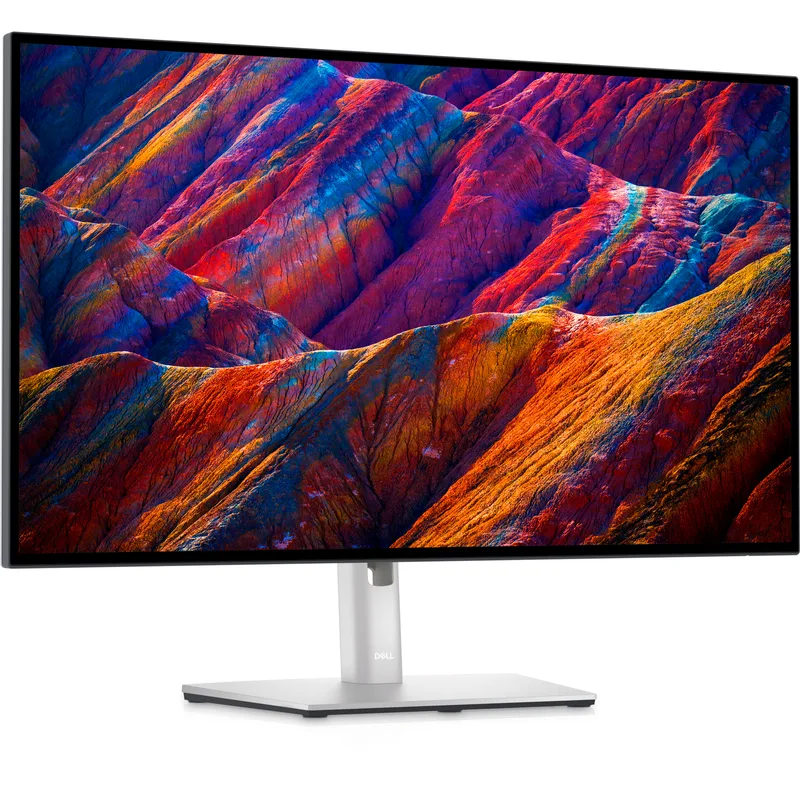
Dell UltraSharp U2723QE
Pros
- IPS Black panel technology delivers contrast ratios near 2000:1 — roughly double standard IPS — which means dark backgrounds in code editors and presentation slides look genuinely dark rather than washed-out gray in a moderately dim office
- Built-in USB-C hub with KVM switch support allows one monitor to serve two computers with a single cable swap per machine — confirmed by multiple owners as a reliable solution for switching between a work laptop and personal desktop without touching keyboard or mouse
- 99% sRGB and 98% DCI-P3 coverage verified by third-party reviews — the factory calibration holds up; this is among the most color-accurate IPS panels available at the 27-inch size without stepping into dedicated professional display territory
- RJ-45 Ethernet port on the monitor passes a wired network connection through the USB-C cable — eliminates a separate Ethernet adapter for laptops and keeps the desk cable-free without sacrificing wired speeds
- ComfortView Plus always-on low-blue-light mode requires no software toggle — the display reduces blue light output at the hardware level across all content, not just specific apps or times of day
Cons
- At $499-$549, this is a significant investment over budget IPS alternatives — the premium buys IPS Black contrast, the KVM switch, and Ethernet passthrough, but remote workers who need only basic 4K accuracy can get most of the visual quality from the LG 27UP850K-W for $150-$200 less
- USB-C power delivery is 90W — sufficient for most laptops but may not deliver full-speed charging to 140W machines like the 16-inch MacBook Pro under heavy load
- 60Hz only — the IPS Black panel does not include a high-refresh option at this size, which limits the monitor's usefulness outside office hours for anyone who games
The Dell U2723QE uses IPS Black panel technology, which delivers native contrast near 2000:1 — double the standard IPS figure. The practical effect is visible: dark mode terminals, video call backgrounds, and reference material in photography software appear with genuine depth rather than the washed-out gray-black of conventional IPS.
The built-in USB-C hub with KVM switch capability is a meaningful feature for multi-machine setups. Remote workers who maintain a work laptop and a personal desktop can cable both to the monitor and switch input without touching peripherals. The RJ-45 Ethernet passthrough eliminates adapter dongles for laptops — the wired connection travels up the USB-C cable alongside video and power.
At $499-$549, the U2723QE costs $150-$200 more than the LG 27UP850K-W. The premium buys IPS Black contrast, KVM, Ethernet, and an additional USB hub — a legitimate upgrade path for desk setups that need the hub functionality, and unnecessary cost for those who don’t.
VA Panels: Deeper Contrast, Lower Cost
VA (Vertical Alignment) panels produce native contrast ratios of 2500:1 to 4000:1 — significantly deeper than IPS without the static risk of OLED. This contrast advantage is most useful in dim environments and for content with large dark areas: video playback, dark-mode code editors, and design work with dark backgrounds all look measurably better on VA than IPS at the same price.
The trade-off is pixel response time. VA panels produce a “ghosting” or smearing artifact when pixels transition between similar dark values at high speeds. For fast gaming this is a significant problem. For document scrolling at normal speeds, it reads as a subtle softness on moving text rather than a hard artifact. Most users adjust to it without noticing; users who switch directly from a high-end IPS to VA at the same refresh rate will catch the difference.
VA panels also carry a viewing angle penalty. Colors shift noticeably past 30-40 degrees off-axis in a way that IPS does not. For solo-user setups where you sit directly in front of the monitor, this is irrelevant. For shared setups or wide viewing positions, it matters.
Best VA Pick: Samsung Odyssey G55C 32”
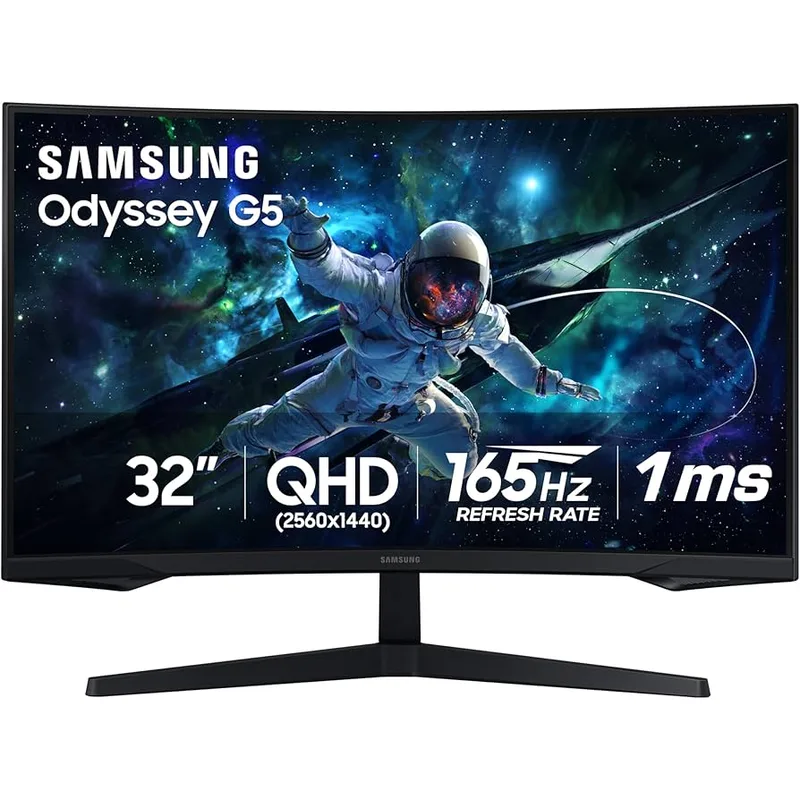
Samsung Odyssey G55C 32"
Pros
- 3000:1 native contrast ratio delivers blacks that read as genuinely dark on screen — document work with white text on dark backgrounds, dark-mode IDEs, and video conferencing backgrounds all benefit visibly compared to the gray-black appearance of standard IPS at the same brightness
- 32 inches at 1440p delivers a screen density (93 PPI) that reads comfortably without scaling — spreadsheets, browser windows, and terminal output all fit at 100% scale without the eye strain that 27-inch 1080p introduces at normal desk distances
- 165Hz refresh rate makes the monitor genuinely dual-purpose — remote workers who use the same machine for gaming after hours get a responsive display without buying a dedicated gaming monitor; the Odyssey G55C bridges both use cases at under $250
- 1000R curve matches the natural focal depth of human vision at typical desk distances — the curved surface reduces the perceived brightness difference between screen center and edges, which matters for long reading sessions and spreadsheet review
- AMD FreeSync Premium with HDR10 support covers the baseline feature set for variable refresh gaming without requiring an NVIDIA card
Cons
- VA pixel response at lower refresh rates produces visible smearing on fast-moving content — scrolling through long documents at standard speed looks slightly soft compared to IPS, a known trade-off that owners of VA monitors consistently report for text-heavy workflows
- No USB-C connectivity — connections are HDMI and DisplayPort only; USB-C laptop users need an adapter or dock to connect, which adds complexity and cost
- 1440p at 32 inches is sharper than 1080p but significantly less dense than 4K at 27 inches — fine for most productivity work, but users who switch between this monitor and a high-DPI laptop screen will notice the resolution gap
- Curved design divides opinion in office settings — the 1000R curve is pronounced and may look unusual in corporate video call backgrounds; a flat monitor reads as more professional in framing
The Samsung Odyssey G55C is a 32-inch curved VA panel that bridges gaming and work more effectively than most monitors under $250. The 3000:1 contrast ratio delivers the VA black-level advantage without requiring a premium OLED budget. The 165Hz refresh rate makes the monitor fully capable for gaming — the VA response at 165Hz is fast enough to keep ghosting minimal for most gaming genres outside competitive shooters.
For remote work, the 32-inch size at 1440p (93 PPI) is a practical sweet spot. The screen area fits two document windows side by side without scaling. The 1000R curve is more pronounced than most curved monitors and takes adjustment, but owners consistently report that fatigue on long reading sessions is lower than flat panels at the same size.
The monitor has no USB-C connectivity and no hub. Desktop users are unaffected; laptop users need a dock or an HDMI/DisplayPort cable. This limitation is more common in the gaming monitor category and should factor into a work-primary purchasing decision.
OLED Panels: The Spectacular Option
OLED (Organic Light-Emitting Diode) panels work differently from IPS and VA at a fundamental level: each pixel produces its own light rather than relying on a backlight. The result is per-pixel dimming — when a pixel displays black, it simply turns off. Contrast is functionally infinite rather than a ratio measured in thousands-to-one.
QD-OLED (Quantum Dot OLED), used in Samsung’s Odyssey monitors, adds a quantum dot color conversion layer to standard OLED. The result combines OLED’s black level advantage with quantum dot color accuracy — producing displays that hit 99% DCI-P3 simultaneously in saturated and accurate modes.
The burn-in discussion is worth addressing directly. Static elements displayed at the same screen position for thousands of hours — a persistent taskbar, a fixed chat client, an always-on clock — can cause pixel-level retention over time on OLED panels. Modern mitigation tools (pixel shifting, panel refresh cycles, brightness limiting for static areas) reduce this risk significantly. The three-year burn-in warranties now standard on premium OLED monitors provide financial coverage for the window where retention would most likely appear.
For remote workers who already manage display settings responsibly (display sleep enabled, auto-hide taskbar, dark mode where available), the practical burn-in risk is low. For users who habitually leave a static desktop running for 10+ hours without sleep, OLED requires behavioral adjustment that IPS and VA do not.
Best OLED Pick: Samsung Odyssey OLED G6 (G61SD)
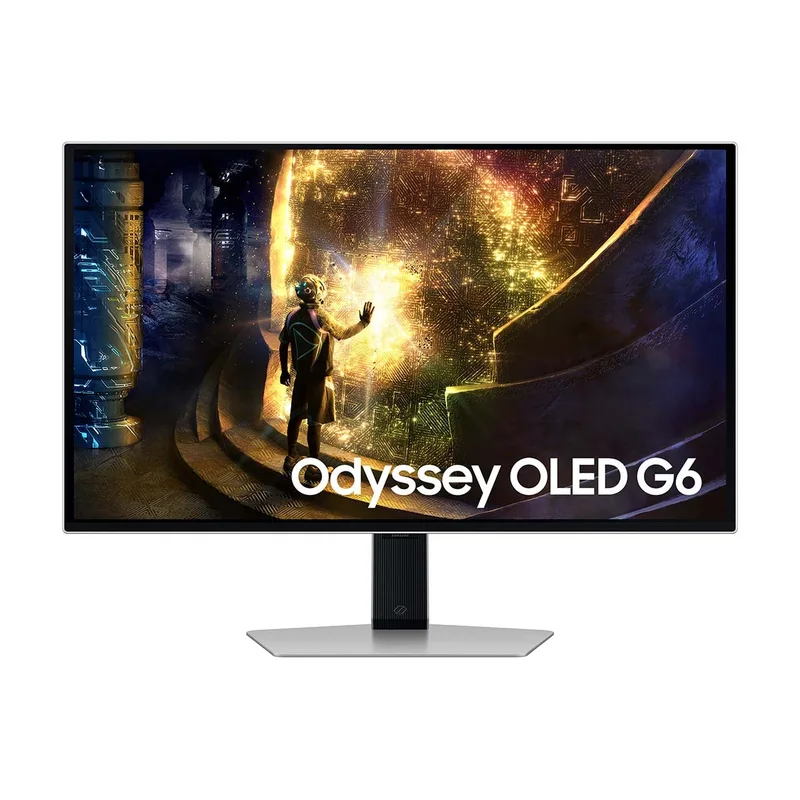
Samsung Odyssey OLED G6 (G61SD)
Pros
- QD-OLED panel produces true per-pixel black levels — contrast is effectively infinite, meaning dark office themes, video call backgrounds, and photography work display with a depth that no LCD technology can match regardless of price
- 99% DCI-P3 color volume combined with quantum dot phosphors produces saturated, accurate color simultaneously — this is not the washed-out saturation of older OLED; color accuracy and color pop coexist in a way that is useful for design review and photo work
- 240Hz refresh rate at 0.03ms response time provides the cleanest motion on any work-sized monitor — cursor movement and scrolling appear smoother than any IPS or VA alternative, a difference that is perceptible in normal productivity use even before reaching gaming scenarios
- 3-year burn-in warranty from Samsung covers the period where static element retention would most likely appear — this is meaningful coverage for office use and removes the financial risk that made early OLED monitors a poor choice for work
- Anti-glare coating on the G61SD reduces the reflectivity that plagued earlier QD-OLED panels — owner reports consistently confirm the coating handles typical home office lighting conditions without the mirror-like reflections that distracted users on the G60SD variant
Cons
- 1440p resolution at 27 inches (109 PPI) is noticeably less sharp than 4K at the same size — text rendering at 100% scaling is acceptable but not as crisp as the Dell U2723QE or LG 27UP850K-W; some owners apply 125% scaling to compensate, which reduces effective screen area
- Burn-in risk remains real for static-heavy workflows — auto-hiding the taskbar, using dark mode, and setting the display to sleep after 10 minutes are required maintenance steps; casual users who leave a static desktop all day without these habits will accumulate retention faster than the warranty period
- No USB-C connectivity requires a dedicated cable run for video — USB-C laptop users need a dock or a DisplayPort/HDMI cable, adding cost and clutter compared to single-cable IPS options
- At $499-$549, the OLED premium over a comparable IPS monitor is $150-$200 — the image quality difference is genuine, but for users who spend most of their day in spreadsheets and documents, the premium buys visual quality that the content does not fully utilize
The Samsung Odyssey OLED G6 G61SD (LS27DG610SNXZA) is the 2025-generation 27-inch QD-OLED monitor that addresses the primary complaints about earlier OLED work monitors. The anti-glare coating on the G61SD reduces reflectivity meaningfully compared to the G60SD predecessor — home office lighting conditions produce a managed reflection rather than a mirror image. Owner reports on this specific variant consistently call out the coating as a genuine improvement.
At 240Hz and 0.03ms, the motion performance is the cleanest available at the 27-inch size. This matters more for after-hours gaming than for spreadsheet navigation, but the low response time eliminates the slight softness that VA panels introduce during document scrolling.
The 3-year Samsung burn-in warranty removes the financial risk that made early OLED monitors impractical for office purchase. Current pricing at $519.99 — down from $599.99 — makes this price-competitive with the Dell U2723QE, though the OLED trades the IPS hub and KVM functionality for superior image quality.
Panel Comparison at a Glance
| Spec | LG 27UP850K-W | Dell UltraSharp U2723QE | Samsung Odyssey G55C 32" | Samsung Odyssey OLED G6 (G61SD) |
|---|---|---|---|---|
| Rating | 8.8/10 | 9.0/10 | 8.7/10 | 9.3/10 |
| Price | $267.80-$349.99as of Oct 18, 2026 | $512.34-$689.00as of Oct 18, 2026 | Unavailable | $394.50-$760.00as of Oct 18, 2026 |
| Panel | IPS (4K) | IPS Black (4K) | VA (Curved 1000R) | QD-OLED |
| Resolution | 3840×2160 (4K UHD) | 3840×2160 (4K UHD) | 2560×1440 (QHD) | 2560×1440 (QHD) |
| Refresh Rate | 60Hz | 60Hz | 165Hz | 240Hz |
| USB-C PD | 90W | 90W | None | None |
| Best For | Color accuracy, everyday work | Pro color work, KVM, docking | High contrast, dark-room work | Image quality, dual work-gaming use |
| Check Price → | Check Price → | Check Price → | Check Price → |
Prices change daily — tap Check Price for the current Amazon price.
Buying Guide: How to Choose
Choose IPS if:
- You share your screen with others nearby and need consistent off-axis color
- You work in a bright room with overhead lighting or windows
- You need USB-C single-cable docking (especially for Mac users)
- Your budget is under $400
Choose VA if:
- You work in a dim or dark home office and dark backgrounds matter
- You want the largest screen for your money (32” at under $250)
- You use the same monitor for gaming after work
- You do not require USB-C connectivity
Choose OLED if:
- You work with photos, video, or design and want the highest image quality
- You game after work and want one monitor for both
- You are prepared to manage display settings to minimize static retention
- You can budget $499+ and want the best image available at the 27-inch size
IPS Black (Dell U2723QE) is the bridge: If you want IPS reliability with deeper contrast than standard IPS, the IPS Black category sits between standard IPS and OLED on the image quality spectrum — without the burn-in considerations that OLED requires.
Frequently Asked Questions
Is IPS really better than VA for remote work?
For most remote work setups — bright rooms, video calls, mixed color and document work — yes. IPS holds consistent color at wide angles, which matters during shared viewing and video calls. VA has a native contrast advantage that becomes significant in dim environments and for content with large dark areas, but the viewing angle limitation and occasional smearing on text scrolling make IPS the lower-friction choice for general office work.
Does OLED burn-in actually happen on work monitors?
It can, but the conditions required for visible retention are more extreme than typical office use. A static taskbar, persistent chat notification badge, or fixed clock widget displayed at maximum brightness without sleep settings for thousands of hours is the scenario that causes retention. Users who enable display sleep after 15-30 minutes, use dark mode, and auto-hide the taskbar report no meaningful retention after a year or more of daily use. The three-year burn-in warranties on current Samsung and LG OLED monitors cover the practical risk window.
What resolution should I prioritize — 4K IPS or 1440p OLED?
For text-heavy work, 4K at 27 inches (163 PPI) renders crisper text than 1440p at 27 inches (109 PPI), which is a real and perceptible difference. The OLED G6’s infinite contrast partially compensates for lower pixel density by making text edges appear sharper on dark backgrounds. For photo or design work at a distance, OLED’s color and contrast advantage often outweighs the resolution difference. For primarily document and spreadsheet work, the 4K IPS panels win on text legibility.
Can I use a VA gaming monitor for daily office work?
Yes, with two caveats. The viewing angle limitation means that color accuracy degrades noticeably beyond 30-40 degrees off center — solo work positions are fine; shared viewing is not. The pixel smearing on VA panels at lower refresh rates is most noticeable during text scrolling, which is the primary activity in office work. At 165Hz (as on the Samsung G55C), the smearing is significantly reduced compared to older 60Hz VA panels. Most remote workers adapt without it becoming a daily irritation.
What about mini-LED monitors — are they worth considering?
Mini-LED backlights (used in monitors like the LG UltraFine Display Ergo and some ASUS ProArt panels) offer local dimming zones that improve contrast over standard IPS without OLED’s burn-in concerns. The best mini-LED panels reach contrast ratios of 10,000:1 or higher, which closes the gap with OLED meaningfully. The trade-off is blooming — a halo effect around bright objects on dark backgrounds. For 2026, mini-LED represents a legitimate middle path between standard IPS and OLED, though pricing for well-implemented mini-LED typically exceeds $600.
Conclusion
For most remote workers, the IPS panel at 4K remains the default recommendation. The LG 27UP850K-W at $329-$379 delivers 4K accuracy, 95% DCI-P3 color, and USB-C 90W docking in a well-built package that covers standard office work, photo review, and video calls without compromises. The Dell U2723QE at $499-$549 adds IPS Black contrast, a USB-C hub, KVM, and Ethernet — worth the premium if your desk runs multiple machines or you need built-in docking.
VA is the right choice for dim-room workers and dual-purpose setups where gaming matters. The Samsung Odyssey G55C at $199-$249 is the best value option in this category — 32 inches, 165Hz, and 3000:1 contrast for under $250.
OLED is no longer impractical for office work. The Samsung Odyssey OLED G6 G61SD at $499-$549 delivers image quality that no LCD panel matches and includes a three-year burn-in warranty that covers the risk. If you manage display settings responsibly, the OLED experience in a home office is genuinely superior — and 2026 pricing makes the premium defensible.
The panel type decision matters more than most headline specs. A 4K IPS panel and a 4K QD-OLED panel at the same price look dramatically different in use. Choose the technology that fits your working environment before comparing refresh rates and port counts.
Detailed Reviews
LG 27UP850K-W
Pros
- 95% DCI-P3 color coverage is exceptional for this price tier — professional color accuracy without paying professional monitor prices, making it a strong pick for anyone editing photos or reviewing design files alongside regular productivity work
- USB-C 90W power delivery charges a MacBook Pro or most Windows laptops at full speed over a single cable — eliminates the separate power brick from the desk and reduces cable clutter to one connection between laptop and monitor
- DisplayHDR 400 certification provides a meaningful bump in highlight brightness over non-HDR IPS panels — cloud detail in photography and bright sky tones in video calls look visibly more dimensional than they do on budget monitors
- Wide viewing angles (178°/178°) mean color accuracy holds at extreme positions — relevant for remote workers who share their screen over a shoulder or pivot the monitor for a colleague during hybrid office days
- Built-in speaker covers basic notification and video call audio — avoids the need for external speakers in setups where audio quality is not a priority
Cons
- 60Hz refresh rate is the standard for work monitors but will feel sluggish for anyone accustomed to 120Hz or higher — not a productivity concern, but a perceptible difference if you use the same machine for both work and gaming
- Contrast ratio of approximately 1000:1 is typical for IPS — blacks appear gray in dark environments compared to VA or OLED panels; dark-room users will notice this limitation more than those in well-lit offices
- No USB-A hub means every peripheral still requires a separate connection to the laptop or desktop — the single USB-C connection handles power and video only
Dell UltraSharp U2723QE
Pros
- IPS Black panel technology delivers contrast ratios near 2000:1 — roughly double standard IPS — which means dark backgrounds in code editors and presentation slides look genuinely dark rather than washed-out gray in a moderately dim office
- Built-in USB-C hub with KVM switch support allows one monitor to serve two computers with a single cable swap per machine — confirmed by multiple owners as a reliable solution for switching between a work laptop and personal desktop without touching keyboard or mouse
- 99% sRGB and 98% DCI-P3 coverage verified by third-party reviews — the factory calibration holds up; this is among the most color-accurate IPS panels available at the 27-inch size without stepping into dedicated professional display territory
- RJ-45 Ethernet port on the monitor passes a wired network connection through the USB-C cable — eliminates a separate Ethernet adapter for laptops and keeps the desk cable-free without sacrificing wired speeds
- ComfortView Plus always-on low-blue-light mode requires no software toggle — the display reduces blue light output at the hardware level across all content, not just specific apps or times of day
Cons
- At $499-$549, this is a significant investment over budget IPS alternatives — the premium buys IPS Black contrast, the KVM switch, and Ethernet passthrough, but remote workers who need only basic 4K accuracy can get most of the visual quality from the LG 27UP850K-W for $150-$200 less
- USB-C power delivery is 90W — sufficient for most laptops but may not deliver full-speed charging to 140W machines like the 16-inch MacBook Pro under heavy load
- 60Hz only — the IPS Black panel does not include a high-refresh option at this size, which limits the monitor's usefulness outside office hours for anyone who games
Samsung Odyssey G55C 32"
Pros
- 3000:1 native contrast ratio delivers blacks that read as genuinely dark on screen — document work with white text on dark backgrounds, dark-mode IDEs, and video conferencing backgrounds all benefit visibly compared to the gray-black appearance of standard IPS at the same brightness
- 32 inches at 1440p delivers a screen density (93 PPI) that reads comfortably without scaling — spreadsheets, browser windows, and terminal output all fit at 100% scale without the eye strain that 27-inch 1080p introduces at normal desk distances
- 165Hz refresh rate makes the monitor genuinely dual-purpose — remote workers who use the same machine for gaming after hours get a responsive display without buying a dedicated gaming monitor; the Odyssey G55C bridges both use cases at under $250
- 1000R curve matches the natural focal depth of human vision at typical desk distances — the curved surface reduces the perceived brightness difference between screen center and edges, which matters for long reading sessions and spreadsheet review
- AMD FreeSync Premium with HDR10 support covers the baseline feature set for variable refresh gaming without requiring an NVIDIA card
Cons
- VA pixel response at lower refresh rates produces visible smearing on fast-moving content — scrolling through long documents at standard speed looks slightly soft compared to IPS, a known trade-off that owners of VA monitors consistently report for text-heavy workflows
- No USB-C connectivity — connections are HDMI and DisplayPort only; USB-C laptop users need an adapter or dock to connect, which adds complexity and cost
- 1440p at 32 inches is sharper than 1080p but significantly less dense than 4K at 27 inches — fine for most productivity work, but users who switch between this monitor and a high-DPI laptop screen will notice the resolution gap
- Curved design divides opinion in office settings — the 1000R curve is pronounced and may look unusual in corporate video call backgrounds; a flat monitor reads as more professional in framing
Samsung Odyssey OLED G6 (G61SD)
Pros
- QD-OLED panel produces true per-pixel black levels — contrast is effectively infinite, meaning dark office themes, video call backgrounds, and photography work display with a depth that no LCD technology can match regardless of price
- 99% DCI-P3 color volume combined with quantum dot phosphors produces saturated, accurate color simultaneously — this is not the washed-out saturation of older OLED; color accuracy and color pop coexist in a way that is useful for design review and photo work
- 240Hz refresh rate at 0.03ms response time provides the cleanest motion on any work-sized monitor — cursor movement and scrolling appear smoother than any IPS or VA alternative, a difference that is perceptible in normal productivity use even before reaching gaming scenarios
- 3-year burn-in warranty from Samsung covers the period where static element retention would most likely appear — this is meaningful coverage for office use and removes the financial risk that made early OLED monitors a poor choice for work
- Anti-glare coating on the G61SD reduces the reflectivity that plagued earlier QD-OLED panels — owner reports consistently confirm the coating handles typical home office lighting conditions without the mirror-like reflections that distracted users on the G60SD variant
Cons
- 1440p resolution at 27 inches (109 PPI) is noticeably less sharp than 4K at the same size — text rendering at 100% scaling is acceptable but not as crisp as the Dell U2723QE or LG 27UP850K-W; some owners apply 125% scaling to compensate, which reduces effective screen area
- Burn-in risk remains real for static-heavy workflows — auto-hiding the taskbar, using dark mode, and setting the display to sleep after 10 minutes are required maintenance steps; casual users who leave a static desktop all day without these habits will accumulate retention faster than the warranty period
- No USB-C connectivity requires a dedicated cable run for video — USB-C laptop users need a dock or a DisplayPort/HDMI cable, adding cost and clutter compared to single-cable IPS options
- At $499-$549, the OLED premium over a comparable IPS monitor is $150-$200 — the image quality difference is genuine, but for users who spend most of their day in spreadsheets and documents, the premium buys visual quality that the content does not fully utilize