Affiliate disclosure: SetupRanked earns a commission on purchases made through links on this page, at no extra cost to you.
Most budget home office advice in 2026 still sends people in the wrong direction: $200 RGB keyboards before a proper monitor, standing desk converters before anyone has fixed their webcam situation, and cable management trays while the desk itself has no room to work on.
The real question isn’t how much to spend. It’s what to spend it on first.
Six specific products, totaling $293, cover every impactful home office upgrade available under $300. Each one solves a real problem. None of them are optional extras.
Short answer: A 24-inch monitor ($109) solves the single biggest bottleneck for laptop workers. A webcam ($65) fixes how you look on calls. A monitor light ($43) solves desk eye strain. A desk pad ($13), laptop stand ($33), and USB-C hub ($30) handle everything else. That’s $293 and a meaningfully better setup in one purchase session.
The $300 Build at a Glance
| Spec | Acer SB242Y Hbi 23.8" Monitor | Logitech C920S HD Pro Webcam | BenQ ScreenBar LED Monitor Light | KTRIO Large Desk Mat 31.5" | Nexstand K2 Laptop Stand | Anker 341 USB-C Hub (7-in-1) |
|---|---|---|---|---|---|---|
| Rating | 8.2/10 | 8.5/10 | 8.6/10 | 8.0/10 | 8.3/10 | 8.4/10 |
| Price | $109 | $65 | $43 | $13 | $33 | $30 |
| Size | 23.8 inches | — | — | 31.5 x 11.8 inches | — | — |
| Resolution | 1920x1080 (Full HD) | 1080p Full HD / 720p at 60fps | — | — | — | — |
| Panel | VA | — | — | — | — | — |
| Refresh Rate | 100Hz | — | — | — | — | — |
| Response Time | 1ms (VRB) | — | — | — | — | — |
| Connectivity | HDMI, VGA | — | — | — | — | — |
| Tilt | -5° to 20° | — | — | — | — | — |
| AMD FreeSync | Yes | — | — | — | — | — |
| Frame Rate | — | 30fps at 1080p | — | — | — | — |
| Field of View | — | 78° | — | — | — | — |
| Autofocus | — | Automatic | — | — | — | — |
| Privacy Shutter | — | Yes | — | — | — | — |
| Microphone | — | Dual stereo | — | — | — | — |
| Connection | — | USB-A | — | — | — | — |
| Platform Support | — | Zoom, Teams, Google Meet | — | — | — | — |
| Light Source | — | — | LED | — | — | — |
| Color Temperature | — | — | 2700K–6500K adjustable | — | — | — |
| Auto-Dimming | — | — | Yes (ambient light sensor) | — | — | — |
| Power Source | — | — | USB (5V/1A) | — | — | — |
| Mounting | — | — | Monitor top clamp (fits 1–3cm bezels) | — | — | — |
| Brightness | — | — | 500 lux at 50cm | — | — | — |
| Adjustable Arm | — | — | 45° rotation | — | — | — |
| Flicker-Free | — | — | Yes (DC dimming) | — | — | — |
| Material | — | — | — | Micro-weave cloth, rubber base | Aluminum alloy | — |
| Thickness | — | — | — | 4mm | — | — |
| Edge Treatment | — | — | — | Stitched | — | — |
| Water Resistance | — | — | — | Yes | — | — |
| Anti-Slip Base | — | — | — | Yes | — | — |
| Colors | — | — | — | Black (+ various patterns) | — | — |
| Height Range | — | — | — | — | 20–33cm (6 positions) | — |
| Laptop Compatibility | — | — | — | — | 11–17 inch laptops | — |
| Folded Size | — | — | — | — | 28 x 2.7 x 1.6 cm | — |
| Weight | — | — | — | — | 330g | — |
| Max Load | — | — | — | — | 20kg | — |
| Grip | — | — | — | — | Non-slip rubber feet | — |
| Total Ports | — | — | — | — | — | 7 |
| HDMI | — | — | — | — | — | 4K@30Hz / 1080p@60Hz |
| USB-A Ports | — | — | — | — | — | 3x USB 3.0 (5Gbps) |
| USB-C Data | — | — | — | — | — | 1x 5Gbps |
| Power Delivery | — | — | — | — | — | 85W pass-through |
| Card Readers | — | — | — | — | — | SD + microSD |
| Host Connection | — | — | — | — | — | USB-C |
| Dimensions | — | — | — | — | — | 11.4 x 3.5 x 1.2 cm |
Total: $293 — with $7 left for a 10-pack of velcro cable ties.
The Monitor: Why $109 Changes Everything
For anyone working primarily on a laptop, the monitor is the highest-impact purchase in this entire list. Working on a 13 or 15-inch laptop screen for 8 hours a day means constant scrolling, constant window switching, and a screen small enough that fine text requires squinting. An external monitor doesn’t just add screen space — it changes how you work.
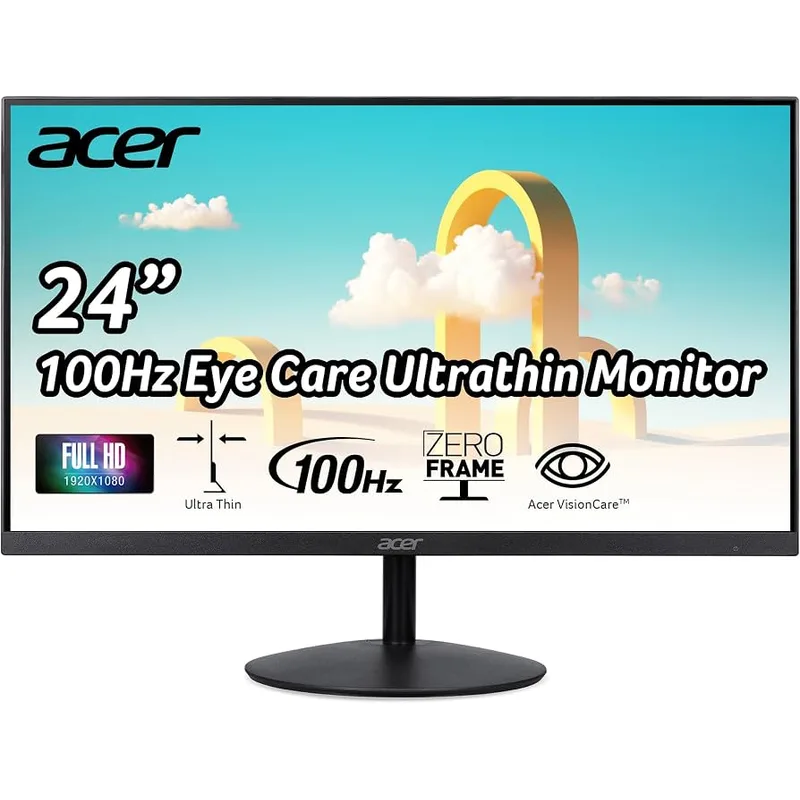
Acer SB242Y Hbi 23.8" Monitor
Pros
- 100Hz refresh rate makes scrolling and cursor movement noticeably smoother than standard 60Hz monitors
- Zero-Frame slim bezel sits cleanly beside a second screen in dual-monitor configurations
- VA panel delivers higher contrast than IPS at this price point — especially noticeable in dim office lighting
- AMD FreeSync reduces tearing during video playback and presentation slideshows
Cons
- No USB-C input — requires HDMI or the legacy VGA connection
- Tilt-only stand with no height adjustment, pivot, or VESA mount compatibility
- 1080p resolution looks noticeably soft on-screen when viewing text at small font sizes
The Acer SB242Y Hbi at around $109 is the right monitor at this price. The 23.8-inch 1080p VA panel covers a full-size desktop workspace with comfortable text at 100% scaling. The 100Hz refresh rate is a practical improvement over the 60Hz panels that dominate at this price — scrolling through documents, spreadsheets, and code is perceptibly smoother, which matters across a full workday.
The VA panel type is worth understanding here: VA offers better contrast than IPS (darker blacks, punchier images), but slightly slower pixel response in motion scenarios. For a remote work display — documents, video calls, browser use — VA contrast is a net positive. The sluggish pixel response only matters in fast-paced gaming.
The stand is the main limitation. It only tilts — no height adjustment, no pivot, and no VESA mount to replace it with an arm. The workaround is stacking the monitor on a short riser or book to reach proper eye level, then tilting the panel toward you. A monitor arm upgrade ($25–$40) can address this later, though it requires the monitor to be VESA-compatible — check before buying.
Who skips this: If you already have a decent external monitor (24” or larger, 1080p or better), the other five products in this guide are higher priorities than a monitor upgrade.
Connection note: The SB242Y uses HDMI and VGA. If your laptop only has USB-C ports, add the Anker hub below to this order — it adds HDMI output via a single USB-C connection.
The Webcam: Stop Looking Like You’re Calling From a Closet
Built-in laptop cameras have two fundamental problems. First, they’re positioned at the bottom or side of the bezel, angling the shot upward at your face. Second, they have tiny sensors with no exposure compensation — one bright window behind you and the image turns dark and noisy.
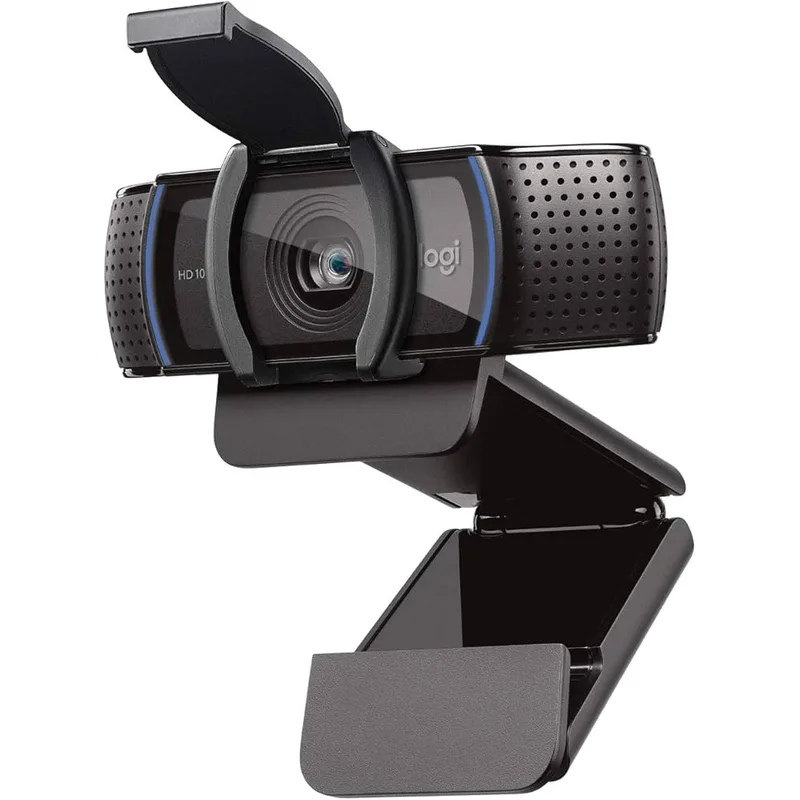
Logitech C920S HD Pro Webcam
Pros
- Glass lens produces sharper images than plastic-lens alternatives at the same price
- Privacy shutter physically closes over the lens — not a software toggle
- Automatic light correction adjusts exposure when a bright window is behind you
- Plug-and-play on Windows, macOS, and Linux without additional drivers
Cons
- 60fps only available at 720p — 1080p is capped at 30fps
- Clip-mount attaches to monitors but does not include a dedicated tripod thread
The Logitech C920S clips to the top of an external monitor, looks at you straight-on at eye level, and adds automatic exposure correction that handles most home office lighting conditions.
The glass lens is the hardware difference between the C920S and the no-name webcams in the $20–$40 range. Glass produces sharper edge detail and better low-light performance than the plastic lenses in cheaper models. At 1080p/30fps, the image quality is noticeably better than any laptop camera and is the standard ceiling for calls at this price point.
Privacy is handled with a physical plastic shutter that slides over the lens. Software privacy modes (like the “camera off” button in Zoom) still leave the hardware connected and powered. The physical shutter does not.
The C920S has been available since around 2019 and continues to ship because it is reliable and consistently priced. User reviews confirm stable performance across multiple firmware generations and operating system versions.
Microphone note: The built-in dual stereo mics in the C920S are adequate for occasional calls in quiet rooms. For people on calls more than two hours per day, or in rooms with background noise, a dedicated microphone is a worthwhile addition at around $60 (the Samson Q2U is the standard pick in that range).
The Monitor Light: The $43 Upgrade Nobody Talks About
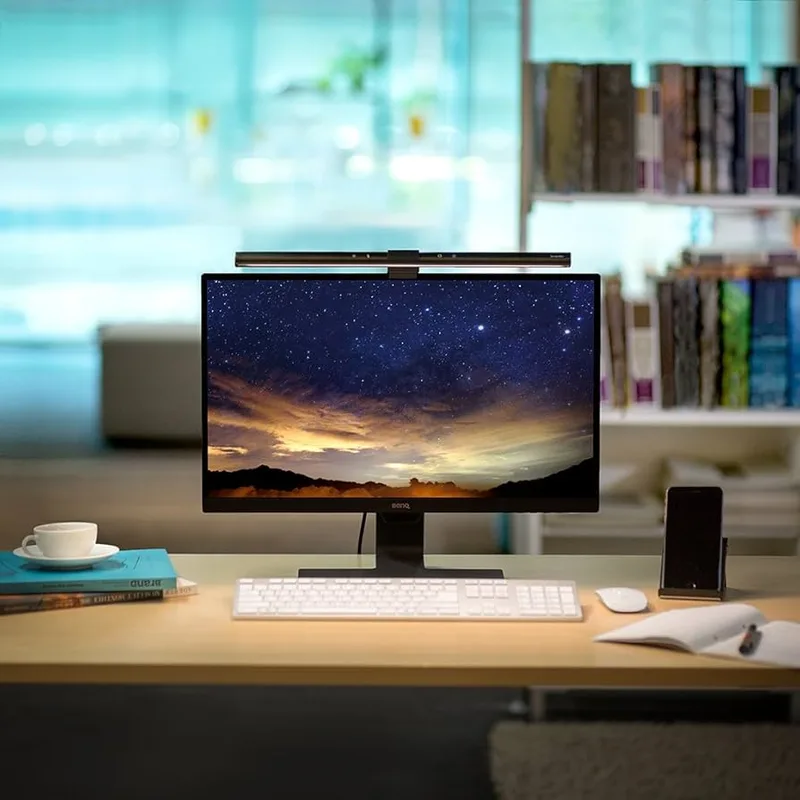
Desk lighting sounds like a comfort purchase. It isn’t — it’s an eye strain and video call quality fix.
Working with a bright monitor as the only light source in a dark or dim room creates high contrast between the screen and the surrounding environment. The eye constantly adjusts between the two, which produces fatigue over a long session. A monitor light that illuminates the desk surface at the same brightness level as the screen reduces that adjustment load.
BenQ ScreenBar LED Monitor Light
Pros
- Asymmetric optical design lights the desk surface without creating glare or reflections on the screen
- Ambient light sensor dims the bar automatically when room light increases
- Powered entirely by USB — no extra power brick or outlet needed
- Touch controls on the top bar adjust brightness and color temperature in under two seconds
Cons
- No physical dial for one-handed adjustment (that feature is on the pricier ScreenBar Plus)
- Clamp system requires at least 1cm of bezel depth — very thin-bezel monitors may not work
The BenQ ScreenBar uses an asymmetric optical design that directs light forward and downward onto the desk surface — not backward at the screen. This is the key technical difference from a standard desk lamp: a desk lamp scatters light in all directions, and some of it hits the screen and creates glare. The ScreenBar does not.
The ambient light sensor automatically dims the bar when room light increases (a cloud passes, a light turns on in the room) and brightens it when the room darkens. The result is a consistent desk surface brightness without manual adjustment.
Power comes from the USB port on the monitor itself. No wall outlet. No power brick. If the monitor is off, the light is off.
Setup note: The ScreenBar clamps to the top of the monitor with a counterweight that hangs behind the panel. Compatible with most monitors 1cm or thicker at the bezel — which covers the vast majority of current home office monitors, including the Acer above.
The Desk Pad: A $13 Upgrade That Pays Off Daily
A bare desk is a liability for mouse tracking and peripheral positioning. The mat surface underneath keyboards and mice determines how accurately the cursor responds at any DPI, and a smooth, unified surface keeps the keyboard from sliding mid-session.
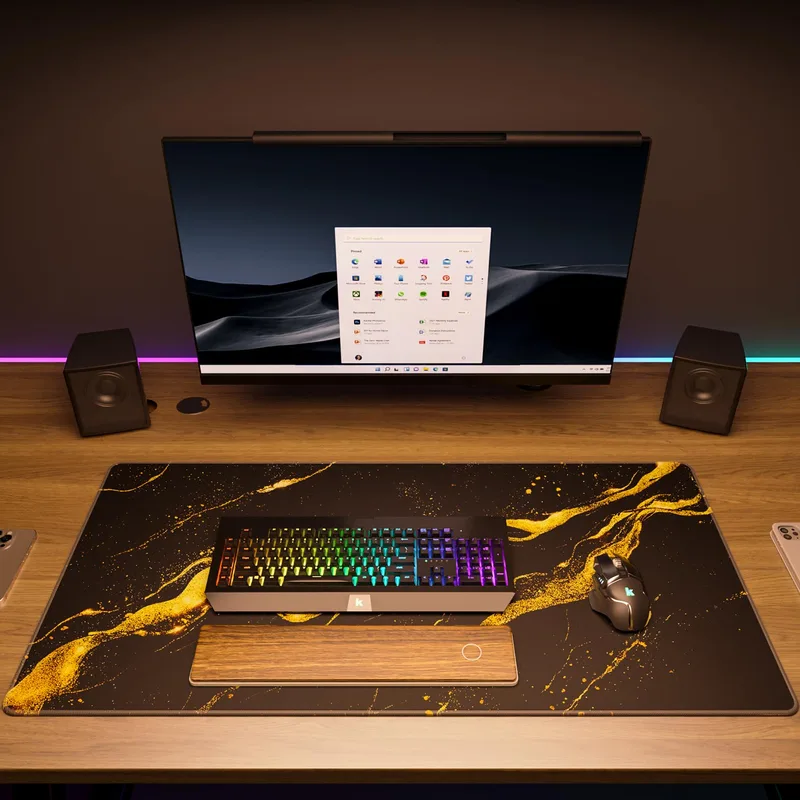
KTRIO Large Desk Mat 31.5"
Pros
- 31.5-inch surface covers keyboard, mouse, and desk accessories without gaps
- Micro-weave cloth surface provides smooth mouse glide and consistent control across DPI settings
- Stitched edges resist fraying after months of heavy daily use
- Water-resistant coating wipes clean from spills — no soak-through to the desk
Cons
- 4mm thickness provides no wrist cushioning for extended typing sessions
- Printed pattern versions cost slightly more than the plain black option
The KTRIO desk mat at $13 is the highest-rated desk pad at this price on Amazon for a simple reason: the micro-weave cloth surface is stitched at the edges. Cheaper mats at the same price aren’t stitched — the edges fray and curl within a few months of daily use.
At 31.5 x 11.8 inches, the mat covers a full keyboard, a large mouse pad area, and typically a water bottle or notebook alongside. The rubber base grips most desk surfaces without adhesive, and the water-resistant coating means a spilled coffee doesn’t seep through to the desk.
Camera background note: The mat is also visible in video calls when the camera angle is low. A clean black desk surface reads more professionally than a bare wooden desk or cluttered surface.
The Laptop Stand: Fix Posture Before It Fixes You
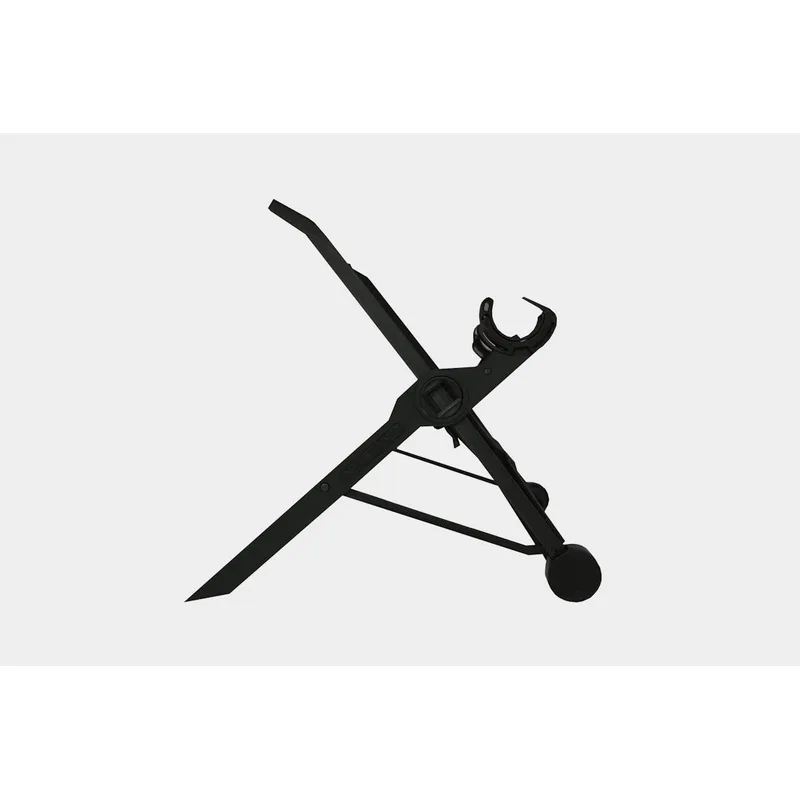
For laptop workers who don’t have an external monitor (or who use both the laptop screen and a secondary monitor), a laptop stand is an ergonomic essential that’s easy to skip and easy to regret.
Nexstand K2 Laptop Stand
Pros
- Folds down to under 2cm thin — fits inside any laptop sleeve without adding noticeable bulk
- Six height positions raise the screen between 7.8 and 13 inches above the desk surface
- Aluminum frame is rigid at all height settings with no flex under a heavy 17-inch laptop
- Compatible with every major laptop brand from 11 to 17 inches
Cons
- An external keyboard is required once the laptop is elevated to proper eye-level height
- No built-in cable routing — USB and power cables remain visible from the side
Working on a laptop sitting flat on a desk means bending the neck forward to look down at the screen all day. That’s 8 hours of the neck in a position it wasn’t designed to hold for extended periods. The cumulative result — neck tension, upper back strain — compounds over months and years.
The Nexstand K2 raises the laptop screen to approximately eye level in six height positions. The aluminum alloy frame holds without flex under heavy laptops. The folded profile is just under 2cm thick, which fits in any laptop sleeve or bag without additional volume.
The required pairing: once the laptop is elevated, you need an external keyboard and mouse to continue typing comfortably. A basic Bluetooth keyboard and mouse combo runs $25–$45 and is the natural companion purchase. Without it, raising the laptop defeats its own purpose.
Laptop-plus-monitor users: If you have both the Acer monitor and a laptop running alongside it, the stand keeps the laptop screen at a usable secondary angle without occupying monitor arm space.
The USB-C Hub: The Infrastructure Piece
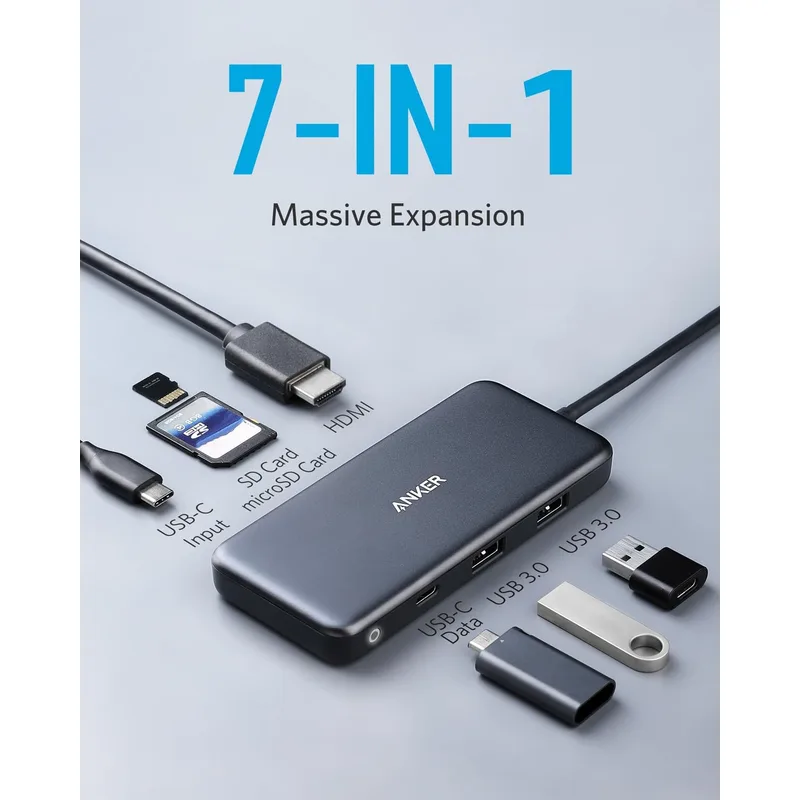
Modern laptops increasingly ship with one or two USB-C ports and nothing else. Running an external monitor, a webcam, a keyboard, a mouse, and anything else through one or two ports without a hub is a cable management problem that gets worse every time you add a peripheral.
Anker 341 USB-C Hub (7-in-1)
Pros
- Seven ports through a single USB-C cable — handles monitor, keyboard, mouse, webcam, and card readers simultaneously
- 85W pass-through charging powers most laptops at full speed while all ports are active
- Small enough to sit on the desk behind the monitor or mount underneath with double-sided tape
- Plug-and-play on Windows, macOS, and Chrome OS without driver installation
Cons
- HDMI tops out at 4K@30Hz — 4K@60Hz requires a step-up hub
- No Ethernet port — a USB-to-Ethernet adapter (around $12) is needed for wired internet
The Anker 341 7-in-1 hub adds seven ports through a single USB-C connection: HDMI video output (4K at 30Hz), three USB-A ports, one USB-C data port, an SD card reader, and a microSD reader. The 85W pass-through charging input keeps the laptop powered at normal speeds while all other ports are active.
The compact body — 11.4 x 3.5 x 1.2 cm — sits cleanly behind the monitor base or mounts under the desk with double-sided tape. The hub draws power from the laptop’s USB-C port, so no separate power adapter is required for hub operation (the 85W pass-through is for charging your laptop, not the hub itself).
Ethernet note: The 341 hub does not include an Ethernet port. For video calls and large file transfers, wired internet is significantly more reliable than Wi-Fi. If Ethernet matters, the Anker PowerExpand (ASIN B087QZVQJX, around $50) is the step-up pick with Ethernet included, or add a standalone USB-to-Ethernet adapter for $12.
Buying Guide: How to Prioritize Under $300
Not everyone needs all six of these products at once. The right starting point depends on your current setup.
Start with the monitor if: You work primarily on a laptop screen with nothing external. The monitor is the largest single productivity improvement available and the foundation for everything else in this list.
Start with the webcam if: You’re on video calls more than 90 minutes per day and using a built-in laptop camera. A bad camera visibly degrades professional presence, and the C920S addresses the most common failure modes (poor exposure, bad angle) directly.
Start with the stand if: You don’t have an external monitor and your neck or upper back has been bothering you. Raising the screen to eye level is the single most impactful postural change available without buying a second display.
The desk pad and hub are last: They’re both useful, but they don’t unlock the same daily impact as the screen, camera, and stand. The hub in particular is only necessary if your laptop has run out of ports.
What $300 Doesn’t Cover
Being clear about the gaps matters.
No ergonomic chair. A proper ergonomic chair costs $250–$500 and is arguably the most health-impactful piece of home office furniture. It isn’t in the $300 budget. If you’re choosing between this full setup and a good chair, the chair has longer-term health implications. Buy the chair on a separate budget.
No dedicated microphone. The C920S webcam includes built-in stereo mics that handle casual calls. For anyone on professional calls, video presentations, or recording regularly, a dedicated USB microphone (the Samson Q2U at around $60 is the standard recommendation) adds a noticeable step up in audio quality.
No headset. Open-office background noise on calls requires active noise cancellation in a headset. Budget options start around $30–$50 for adequate performance. If background noise is a problem during calls, this is a separate purchase.
FAQ
Do I need all six products, or can I start with fewer?
Start with what solves your biggest active problem. If your neck hurts, buy the laptop stand. If your calls look bad, buy the webcam. If you’re squinting at a small screen all day, buy the monitor. The desk pad and hub are supporting infrastructure — useful, but not urgent if the core setup already works.
Can I build a complete remote work setup for under $300?
Yes, but with caveats. The six products in this guide total $293 and cover the visual, ergonomic, and connectivity essentials. A monitor, stand, webcam, hub, desk pad, and monitor light is a complete functional setup. What isn’t included: an ergonomic chair (separate budget needed), a dedicated microphone (add $60 for the Samson Q2U), and a wireless keyboard/mouse combo (add $25–$45).
Is the Acer SB242Y good enough for remote work, or do I need 4K?
For remote work — documents, spreadsheets, video calls, browser use — 1080p on a 24-inch monitor is entirely adequate. Text is sharp, colors are accurate enough for office tasks, and 100Hz makes the display feel responsive. 4K matters more when the monitor size is 27 inches or larger (where 1080p begins to look noticeably soft) or when color accuracy for design work is required. At 24 inches and $109, the SB242Y is the right trade-off.
Does the BenQ ScreenBar work with the Acer SB242Y?
Yes. The ScreenBar clamps to any monitor bezel between 1 and 3cm thick. The Acer SB242Y’s bezel falls in that range. The USB power cable from the ScreenBar connects to any USB port — the monitor itself, the Anker hub, or a laptop. The combination is a natural pairing for this budget.
Why the Anker hub instead of a cheaper no-name hub?
No-name USB-C hubs frequently have power delivery instability issues — the laptop charges intermittently or the hub disconnects when multiple ports are loaded. Anker’s quality control at this price tier is significantly more consistent. The 341 hub has an established review track record across multiple operating system versions, which matters more than the $5–$10 savings on a generic alternative.
Conclusion
The six products in this guide total $293 and solve every common home office problem under $300: small screen, bad camera angle, poor desk lighting, cluttered surface, bent-neck ergonomics, and too few ports.
The priority order if you’re buying incrementally: monitor first, webcam second, laptop stand third. The desk pad, monitor light, and hub are meaningful upgrades but not urgent.
The Acer SB242Y is the anchor purchase — at $109, it’s the monitor that makes the rest of the setup functional. The Logitech C920S at $65 is the webcam the majority of remote workers should own. Everything else fills in around those two.
No single accessory on this list will change your work habits. The combination will.
Detailed Reviews
Acer SB242Y Hbi 23.8" Monitor
Pros
- 100Hz refresh rate makes scrolling and cursor movement noticeably smoother than standard 60Hz monitors
- Zero-Frame slim bezel sits cleanly beside a second screen in dual-monitor configurations
- VA panel delivers higher contrast than IPS at this price point — especially noticeable in dim office lighting
- AMD FreeSync reduces tearing during video playback and presentation slideshows
Cons
- No USB-C input — requires HDMI or the legacy VGA connection
- Tilt-only stand with no height adjustment, pivot, or VESA mount compatibility
- 1080p resolution looks noticeably soft on-screen when viewing text at small font sizes
Logitech C920S HD Pro Webcam
Pros
- Glass lens produces sharper images than plastic-lens alternatives at the same price
- Privacy shutter physically closes over the lens — not a software toggle
- Automatic light correction adjusts exposure when a bright window is behind you
- Plug-and-play on Windows, macOS, and Linux without additional drivers
Cons
- 60fps only available at 720p — 1080p is capped at 30fps
- Clip-mount attaches to monitors but does not include a dedicated tripod thread
BenQ ScreenBar LED Monitor Light
Pros
- Asymmetric optical design lights the desk surface without creating glare or reflections on the screen
- Ambient light sensor dims the bar automatically when room light increases
- Powered entirely by USB — no extra power brick or outlet needed
- Touch controls on the top bar adjust brightness and color temperature in under two seconds
Cons
- No physical dial for one-handed adjustment (that feature is on the pricier ScreenBar Plus)
- Clamp system requires at least 1cm of bezel depth — very thin-bezel monitors may not work
KTRIO Large Desk Mat 31.5"
Pros
- 31.5-inch surface covers keyboard, mouse, and desk accessories without gaps
- Micro-weave cloth surface provides smooth mouse glide and consistent control across DPI settings
- Stitched edges resist fraying after months of heavy daily use
- Water-resistant coating wipes clean from spills — no soak-through to the desk
Cons
- 4mm thickness provides no wrist cushioning for extended typing sessions
- Printed pattern versions cost slightly more than the plain black option
Nexstand K2 Laptop Stand
Pros
- Folds down to under 2cm thin — fits inside any laptop sleeve without adding noticeable bulk
- Six height positions raise the screen between 7.8 and 13 inches above the desk surface
- Aluminum frame is rigid at all height settings with no flex under a heavy 17-inch laptop
- Compatible with every major laptop brand from 11 to 17 inches
Cons
- An external keyboard is required once the laptop is elevated to proper eye-level height
- No built-in cable routing — USB and power cables remain visible from the side
Anker 341 USB-C Hub (7-in-1)
Pros
- Seven ports through a single USB-C cable — handles monitor, keyboard, mouse, webcam, and card readers simultaneously
- 85W pass-through charging powers most laptops at full speed while all ports are active
- Small enough to sit on the desk behind the monitor or mount underneath with double-sided tape
- Plug-and-play on Windows, macOS, and Chrome OS without driver installation
Cons
- HDMI tops out at 4K@30Hz — 4K@60Hz requires a step-up hub
- No Ethernet port — a USB-to-Ethernet adapter (around $12) is needed for wired internet