Disclosure: SetupRanked earns a commission on purchases made through links in this article at no extra cost to you.
A standard flat mouse keeps your forearm in full pronation — palm forced downward, tendons rotated, carpal tunnel under constant compression. Do that for six to eight hours a day, five days a week, and the cumulative load adds up fast. Discussions on r/ergonomics and occupational health forums in 2026 consistently show vertical mice as the first hardware recommendation for remote workers dealing with wrist aching, forearm tightness, or early-stage RSI symptoms. The format works because holding your hand in a handshake position — roughly 57° from horizontal — is close to your forearm’s natural neutral, significantly reducing the pronation load.
Quick picks: For most remote workers, the Logitech MX Vertical is the right choice — rechargeable, multi-device, well-built. Need to spend less while getting the same ergonomic angle? The Logitech Lift delivers nearly identical benefits at $50–$70 and comes in left-hand versions. Have diagnosed RSI or carpal tunnel and need maximum relief? The Evoluent VerticalMouse 4 is the specialist pick, often recommended by occupational therapists. Testing vertical mice on a budget? Start with the Anker at $25 — it’s functional and honest about what it is.
Comparison
| Spec | Logitech MX Vertical | Logitech Lift Vertical | Evoluent VerticalMouse 4 | Anker 2.4G Wireless Vertical | Perixx PERIMICE-713 |
|---|---|---|---|---|---|
| Rating | 9.2/10 | 8.5/10 | 8.0/10 | 7.5/10 | 7.8/10 |
| Price | $59.39as of Oct 18, 2026 | $45.49-$64.99as of Oct 18, 2026 | $39.00-$89.95as of Oct 18, 2026 | $19.98as of Oct 18, 2026 | $17.99as of Oct 18, 2026 |
| Angle | 57° vertical | 57° vertical | ~90° vertical (fully upright) | ~57° vertical | ~57° vertical |
| DPI | 4000 max | 400–4000 (4 levels) | 4 adjustable speeds | 800 / 1200 / 1600 | 800 / 1200 / 1600 (3 levels) |
| Connection | Logi Bolt USB or Bluetooth (3 devices) | Logi Bolt USB or Bluetooth (3 devices) | USB wired | 2.4G wireless (USB nano receiver) | 2.4G wireless (USB receiver) |
| Battery | Rechargeable via USB-C, ~4 months | 1× AA, ~24 months | — | AA batteries | AA battery |
| Compatibility | Windows, macOS, Linux | Windows, macOS, iPadOS, Linux | Windows, macOS | Windows, macOS | Windows, macOS |
| Weight | 135g | 125g | — | 3.36 oz | — |
| Dimensions | 2.5" W × 4.8" D × 3.1" H | — | — | 3.98" × 3.23" × 3.15" | — |
| Buttons | 6 | 4 (quiet clicks) | 6 customizable | 5 | 6 |
| Colors | — | Graphite, Off White, Rose | — | — | — |
| Hand | — | — | Right hand, medium to large | — | Right-handed |
| Indicator | — | — | Pointer speed LED lights | — | — |
| Driver | — | — | Evoluent Mouse Manager (Windows) | — | — |
| DPI Indicator | — | — | — | — | LED light |
| Check Price → | Check Price → | Check Price → | Check Price → | Check Price → |
Prices change daily — tap Check Price for the current Amazon price.
What to Look For in a Vertical Mouse
The angle matters, but not as much as the fit. Most vertical mice land between 57° and 90° of vertical angle. The 57° designs (Logitech MX Vertical, Logitech Lift, Anker, Perixx) are generally easier to adapt to — they feel more like an elevated standard mouse than a fully upright grip. The Evoluent’s near-90° design provides more complete pronation relief but has a steeper adjustment curve. Neither is inherently better; it depends on your hand anatomy and how severe your existing symptoms are.
Hand size is underrated as a selection factor. Vertical mice that feel great in a large hand can force uncomfortable thumb stretches in a medium hand. Most reviews are written by users with average-to-large hands. If you have small hands, the Logitech Lift and Perixx PERIMICE-713 consistently get better fit reviews than the larger MX Vertical or Evoluent. The left-hand Logitech Lift is one of the few quality wireless options for left-handed users.
Wireless vs wired for a fixed desk setup. If you primarily use this at one computer at a fixed desk and don’t travel with it, wired (Evoluent VM4R) eliminates battery management and any latency concerns. For everyone else, 2.4G wireless is effectively lag-free for office tasks — you won’t notice a difference. Bluetooth adds multi-device flexibility but can have occasional reconnect delays that 2.4G avoids.
Budget vs premium: the ergonomic benefit is largely the same. The core benefit — reducing forearm pronation — is delivered by the geometry of the grip, not by premium materials or sensor specs. A $25 Anker and a $100 MX Vertical will both reduce your wrist strain. The difference is build durability, sensor precision (important for 4K screens), battery convenience, and multi-device support. If you’re testing the concept, start with the budget option. If you’re committed to vertical mice as your long-term solution, invest in the Logitech options.
DPI ceiling matters at 4K. If you use a 4K or high-DPI display, mice capped at 1600 DPI (Anker, Perixx) can feel sluggish without excessive cursor acceleration in your OS settings. The Logitech MX Vertical at 4000 DPI and the Logitech Lift (also 4000 max) are better matched for high-resolution workflows.
Best Vertical Mice for Wrist Pain in 2026
1. Logitech MX Vertical — Best Overall
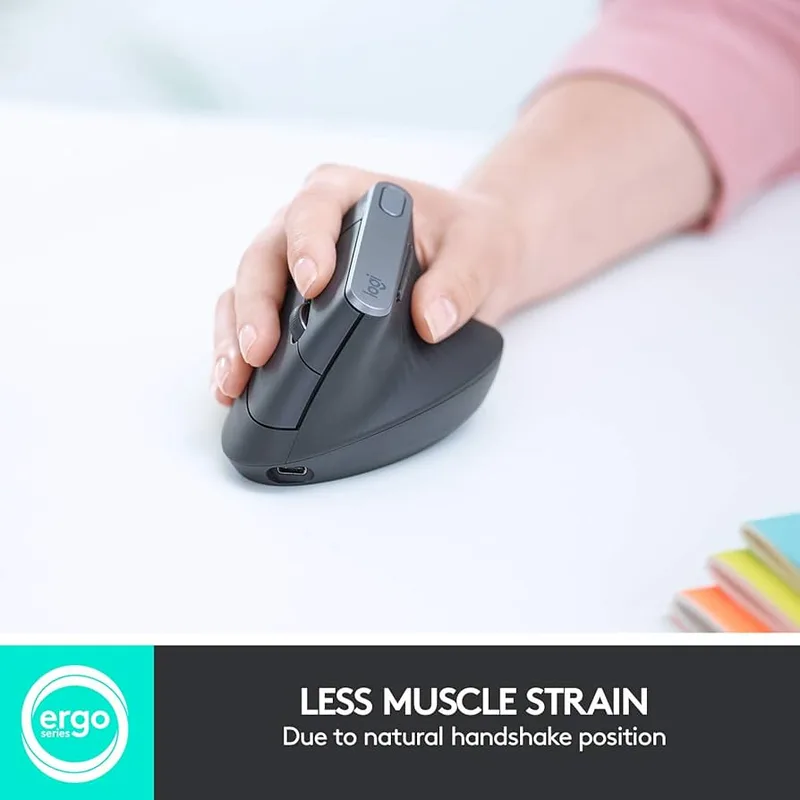
Logitech MX Vertical
Pros
- 57° angle puts the wrist in a near-neutral handshake position — biomechanics data cited by Logitech shows 4× less hand movement required vs standard mice due to the higher-precision 4000 DPI sensor, which directly reduces repetitive strain
- Rechargeable via USB-C with roughly four months of battery life on a single charge — no hunting for AA batteries or buying replacements, and a two-minute charge gets you enough power to finish a meeting if you forget to top off overnight
- Multi-device Easy Switch button lets you alternate between up to three computers — useful for remote workers who switch between a work laptop and personal machine at the same desk without unplugging anything
- Build quality is noticeably more premium than budget vertical options: rubberized grip surface, solid scroll wheel with horizontal tilt, and buttons that feel deliberate rather than loose — this mouse is built for 8+ hour daily use
- Logitech Options+ software enables per-app button customization, gesture controls, and smooth scrolling speed adjustment — more useful for power users who want the mouse to behave differently in Figma vs a terminal vs a browser
Cons
- At $70–$100, it costs significantly more than budget vertical mice that deliver 80% of the ergonomic benefit — if you're just testing whether vertical mice help your wrist, start with the Anker or Logitech Lift first
- Designed only for medium-to-large right hands — no left-handed version exists, and users with smaller hands often find the grip forces the thumb into an awkward stretch
- Fairly large footprint on the desk; if you have limited desk space or use a compact keyboard setup, the size may feel intrusive compared to a standard mouse
The MX Vertical is the benchmark against which other vertical mice are measured, and it earns that status through execution rather than just marketing. The 57° angle positions the wrist consistently throughout use — not just at rest but through the full range of mouse movement — and the 4000 DPI sensor means you’re moving the mouse less than you would with a budget option, which compounds the strain reduction.
The rechargeable battery via USB-C is a genuine quality-of-life advantage over AA-powered options. Four months of use between charges means you rarely think about it — top it off for a few minutes when you notice the LED warning, and you’re covered. The multi-device switching button makes this mouse particularly useful for the common remote work setup of one work laptop and one personal machine on the same desk.
Where the MX Vertical falls short: there’s no left-hand version (Logitech makes the MX Vertical for right-hand use only), and users with smaller hands consistently report that the grip shape forces an awkward thumb extension. If you have small hands or work left-handed, the Logitech Lift is the better choice.
Who should buy this: Remote workers with medium-to-large right hands who want a long-term ergonomic mouse investment, especially those already using Logi Bolt peripherals or Logitech Options+ software for multi-device workflows.
2. Logitech Lift Vertical — Best Value
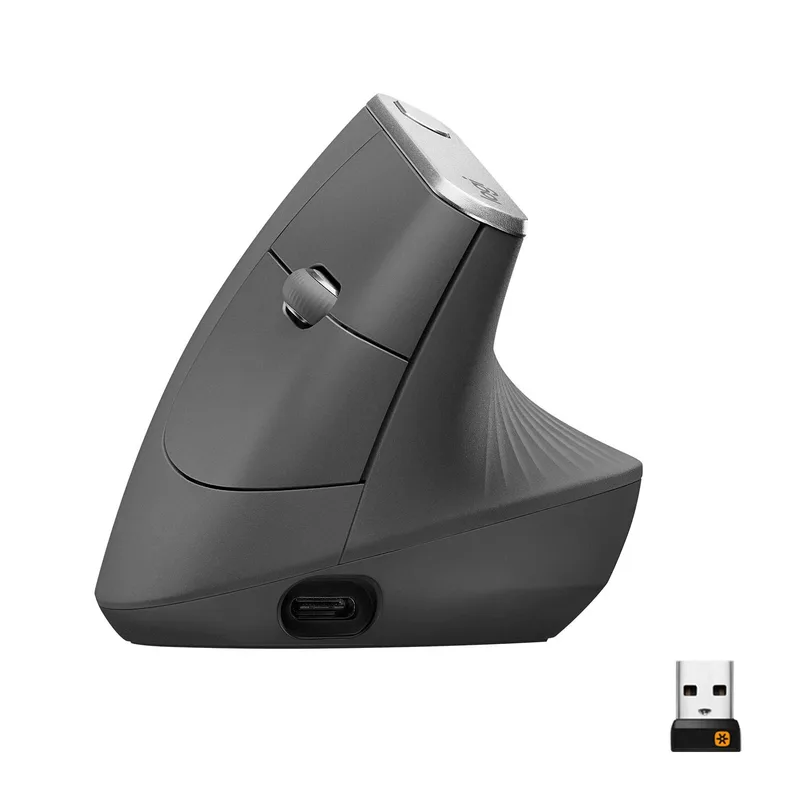
Logitech Lift Vertical
Pros
- Same 57° ergonomic angle as the flagship MX Vertical but at $20–$30 less — if you're not sure whether vertical mice will help your wrist, this is the right starting price for a real-brand option, not a no-name gamble
- Available in both right-hand and left-hand versions — the left-hand Lift is one of the few quality left-handed vertical mice at a reasonable price
- Quiet-click buttons are noticeably quieter than standard mechanical mouse buttons — meaningful for remote workers in open households or shared spaces, or anyone on frequent video calls where loud clicking gets picked up by the mic
- Multiple color options (Graphite, Off White, Rose) let it blend into home office aesthetics rather than looking like IT equipment — small thing but owners consistently mention it in reviews
- AA battery lasting up to two years means essentially zero maintenance — no USB cable, no charging anxiety, just replace the battery once every couple years
Cons
- Four-button design omits the dedicated DPI shift button and horizontal scroll tilt of the MX Vertical — if you use scroll-heavy workflows (long spreadsheets, code review), the absence of horizontal tilt is a real step down
- Smaller hand size range than the MX Vertical — users with large hands report a tighter grip that reduces the comfort advantage over time
- No USB-C charging (runs on AA, not rechargeable built-in) — requires keeping spare batteries on hand, even if the replacement interval is very infrequent
The Lift Vertical uses the same 57° angle as the MX Vertical but costs $20–$30 less and comes in color options that don’t look like IT equipment. For most remote workers, the ergonomic outcome is identical to the more expensive model — the geometry doing the actual work is the same.
The key differentiators from the MX Vertical: the Lift runs on an AA battery (not rechargeable built-in), has four buttons instead of six, and lacks the horizontal scroll wheel tilt. For the majority of remote workers — email, browser, video calls, documents — none of those omissions matter. For power users doing heavy spreadsheet navigation or multi-app workflows, they might.
The left-hand version makes this the default recommendation for left-handed remote workers. The MX Vertical has no equivalent. The Off White and Rose color options also make it one of the few vertical mice that doesn’t look out of place in a clean, modern home office setup.
Quiet clicks are standard on the Lift — a meaningful feature for anyone on frequent video calls or sharing workspace with family.
Who should buy this: Remote workers comparing this to the MX Vertical who don’t need horizontal scroll tilt or the extra buttons, anyone with small-to-medium hands, and left-handed users who want a quality wireless vertical mouse.
3. Evoluent VerticalMouse 4 — Best for RSI Recovery
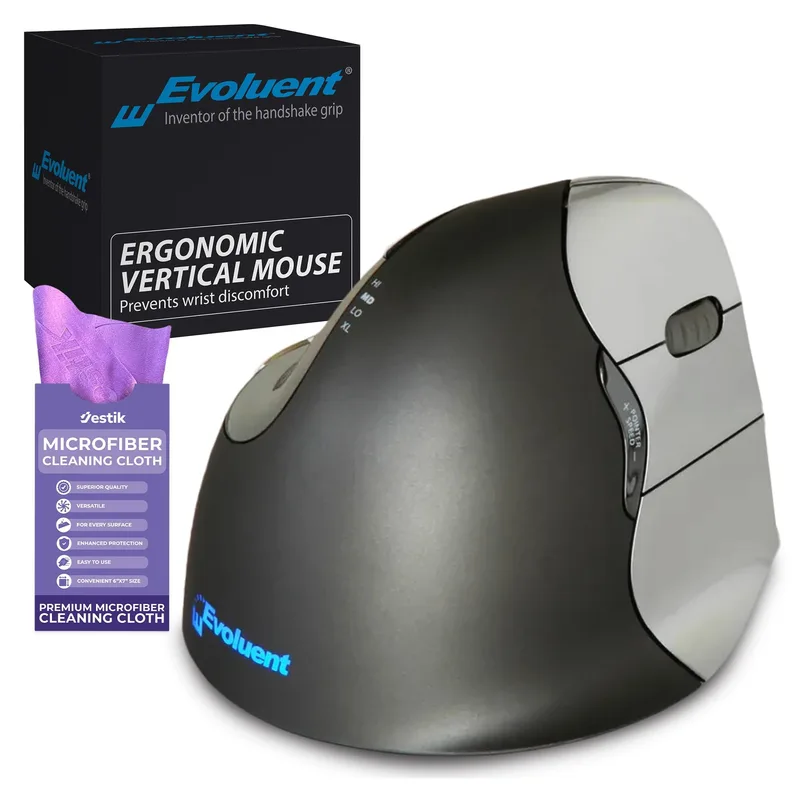
Evoluent VerticalMouse 4
Pros
- The original vertical mouse — Evoluent holds the foundational patents on this design and has been refining it since 2002, which shows in how well-shaped the hand rest is vs newer competitors
- Six fully customizable buttons via the Evoluent Mouse Manager driver, including programmable thumb button and pointer speed adjust — more button configurability than the Logitech options at this price
- The steeper angle (closer to 90° vs 57° on Logitech options) gives more complete pronation relief for users with diagnosed RSI, carpal tunnel, or recovering from wrist surgery — occupational therapists and ergonomists frequently recommend this specific model
- Pointer speed indicator lights on top show your active DPI level at a glance — useful when switching between precision tasks (photo editing) and fast navigation without opening software
- Wired connection ensures zero input lag and no battery concerns — for users who primarily use this at a fixed desk, the cable is not a drawback and eliminates any wireless reliability variables
Cons
- Wired USB only — no wireless option in the VM4R model (the wireless VM4RW exists but costs more and has fewer Amazon reviews). The cable length is adequate but not ideal for flexible desk configurations
- Driver software (Evoluent Mouse Manager) is Windows-only for full button customization — Mac users can use the mouse plug-and-play but lose the per-button programming features
- Design is unchanged from earlier versions — no USB-C, no Bluetooth option, no modern ergonomics refinements — this is a mature product, not a cutting-edge one
The Evoluent VerticalMouse 4 holds a different position in this category than the Logitech options. Logitech made ergonomic mice that appeal broadly. Evoluent made a specialist tool for users who take wrist health seriously.
The steeper grip angle — closer to fully vertical than the 57° of the Logitech models — delivers more complete elimination of forearm pronation. Occupational therapists, ergonomists, and physical therapists routinely recommend the Evoluent specifically for clients recovering from RSI, carpal tunnel surgery, or managing chronic wrist conditions. The sustained therapeutic angle is the reason.
The six customizable buttons with the Evoluent Mouse Manager driver (Windows) allow precise programming of each button. The pointer speed LED indicator on top shows active DPI at a glance without needing to open any software — a small touch that shows Evoluent thought about actual workflow rather than spec sheets.
The tradeoffs are real: wired USB only in the VM4R, Windows-only driver for full customization, and a design that hasn’t changed substantially in years. The wireless version (VM4RW) exists but costs more. Accept those limitations, and this remains one of the most effective purpose-built tools for wrist pain that owner research consistently supports.
Who should buy this: Anyone with diagnosed RSI, carpal tunnel, or recovering from wrist injury who wants maximum pronation reduction, and anyone specifically recommended to this product by a healthcare provider.
4. Anker 2.4G Wireless Vertical — Best Budget
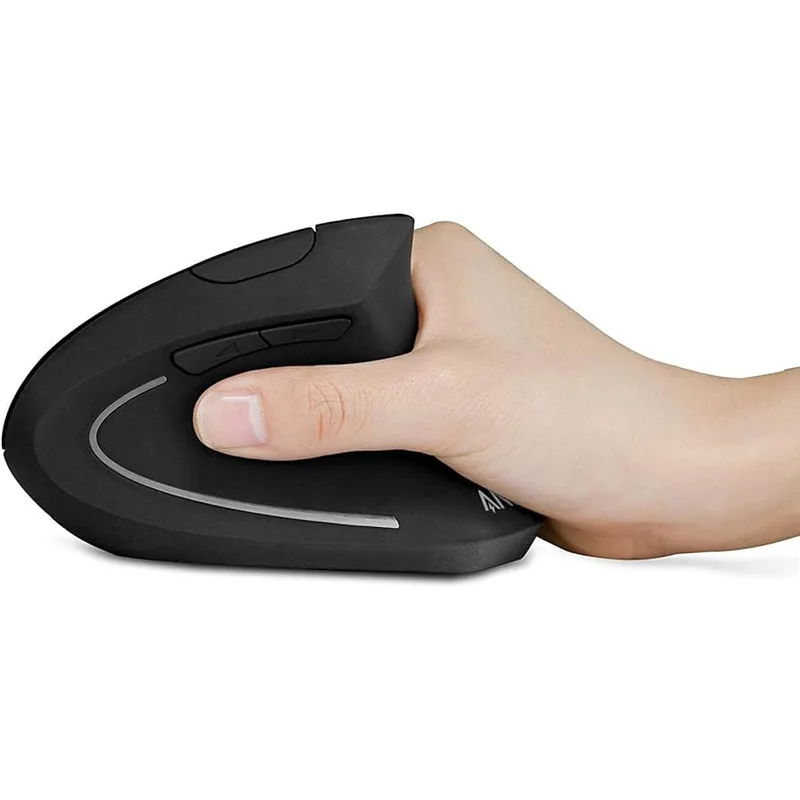
Anker 2.4G Wireless Vertical
Pros
- At $25–$35, this is the most affordable way to genuinely test whether vertical mice reduce your wrist pain — the ergonomic angle is real and functional, not a budget compromise on the core benefit
- Over 50,000 Amazon reviews with consistent feedback that the ergonomic benefit is real — the sample size is large enough to trust the pattern: most users who switch from a flat mouse report less wrist aching after a week of use
- Plug-and-play 2.4G wireless with no software required — connect the nano receiver, it works, no drivers or app installation needed. Good for corporate-managed machines where you can't install third-party software
- Reliable wireless with no reported lag for standard office tasks — clicking links, scrolling documents, navigating spreadsheets all work without hesitation at typical desk distances
Cons
- 1600 DPI ceiling is noticeably lower than premium options — fine for standard 1080p or 1440p monitors, but on a 4K display you'll feel the sensor limits when trying to do precise work
- Plastic construction feels lightweight in a hollow way rather than a refined way — functional but doesn't give the premium confidence of the Logitech MX Vertical
- No Bluetooth option and no multi-device switching — paired to one computer at a time, and requires physically moving the USB receiver to switch machines
At $25–$35, the Anker 2.4G Wireless Vertical is the most practical way to answer the question: “Will a vertical mouse actually help my wrist?” The ergonomic principle at work here — neutral handshake grip reducing pronation — doesn’t require premium materials to deliver. The Anker geometry provides it.
The 50,000+ Amazon reviews make this one of the most data-rich mice in any category, and the pattern is consistent: users switching from flat mice report reduced wrist aching, easier symptom management, and no regret about the switch. The main complaints center on build quality (plastic feel, lighter scroll wheel) and the 1600 DPI ceiling.
For standard 1080p or 1440p monitors, 1600 DPI is adequate. On a 4K display, you may need to increase cursor speed in system settings to compensate for the lower sensor resolution. It’s manageable but noticeable. If you’re on 4K, spend up to the Logitech Lift.
Plug-and-play 2.4G with no software is genuinely useful for corporate-managed machines where installing third-party applications requires IT approval.
Who should buy this: Remote workers who want to try vertical mice without committing premium budget, anyone on a tight desk hardware budget, and corporate laptop users who can’t install driver software.
5. Perixx PERIMICE-713 — Best Under $40
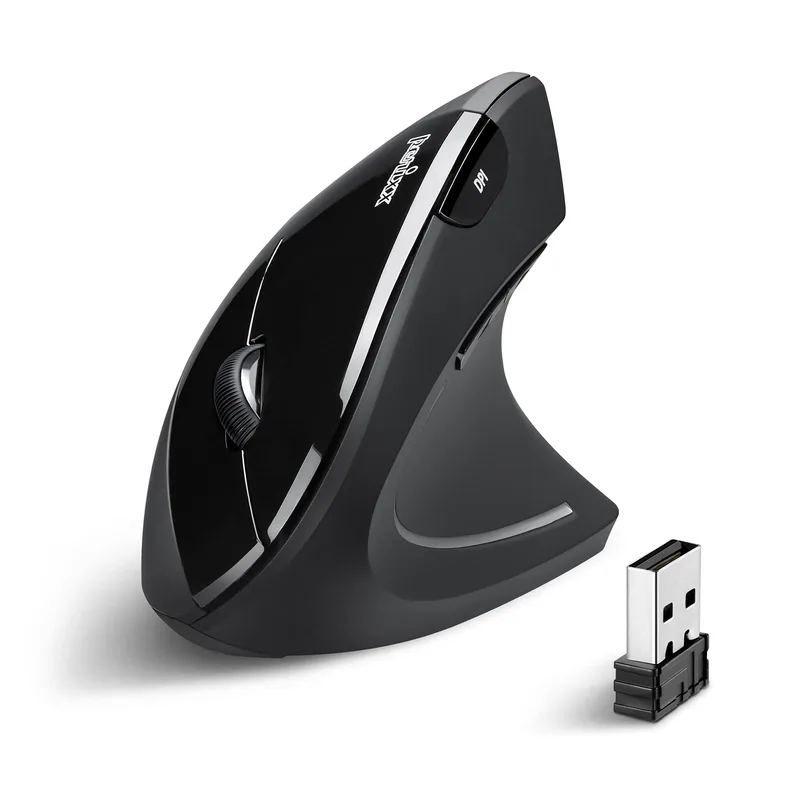
Perixx PERIMICE-713
Pros
- Six-button layout at a sub-$40 price point — the Anker at a similar price only has five buttons; the extra thumb button here gives you forward/back browser navigation plus one programmable button without spending up for a premium model
- DPI indicator light lets you know your active sensitivity level at a glance, which the Anker lacks — small quality-of-life improvement for users who switch between DPI levels regularly
- Well-reviewed for fit with medium-sized hands — the grip contour is described by owners as better-matched to average hand size than the bulkier MX Vertical, making the adaptation period shorter
- Perixx has focused on ergonomic peripherals for over a decade — the PERIMICE line has a long track record of functional designs at accessible price points
Cons
- No Bluetooth connectivity — 2.4G wireless only, which means one USB port taken up by the receiver permanently
- Software support is limited — basic plug-and-play works well, but there's no equivalent to Logitech Options+ for per-app customization or advanced button remapping
- Build quality step-down from the Logitech Lift at a similar price — slightly looser scroll wheel and lighter click feedback, though this is consistent with the price difference
The Perixx PERIMICE-713 occupies the gap between the no-frills Anker and the premium Logitech options. At $30–$40, you get a sixth button (useful for browser forward/back navigation), a DPI indicator light, and a slightly more refined grip shape — without paying Logitech prices.
Owner feedback consistently notes that the PERIMICE-713 fits medium-sized hands better than the larger MX Vertical, making it a strong choice for users who found the MX Vertical’s grip slightly too wide. The adaptation period is shorter because the size is better matched to the average hand.
The limitations mirror the Anker: 2.4G only (no Bluetooth), basic software support, and no equivalent to Logitech’s multi-device ecosystem. But for a single-computer setup, those limitations don’t matter.
Perixx has been a dedicated ergonomic peripheral brand for over a decade. The PERIMICE-713 isn’t a rebranded generic — it’s an iteratively refined design from a company focused specifically on ergonomic input devices. That shows in the fit and button placement.
Who should buy this: Remote workers who want more than the basic Anker but don’t want to pay Logitech prices, especially those with medium hands who found the MX Vertical too large.
FAQ
Are vertical mice actually better for wrist pain?
For most people who experience pain from standard flat mice, yes. The mechanism is well-established: a flat mouse keeps the forearm in pronation (palm down), which twists tendons and compresses the carpal tunnel under sustained use. A vertical mouse holds the hand closer to a neutral, handshake position, significantly reducing that rotational load. This doesn’t eliminate all mousing-related strain — shoulder and arm position still matter — but it removes the single largest contributor for most users. Owner feedback across thousands of reviews consistently supports the switch for wrist-specific pain.
Is a vertical mouse the same as an ergonomic mouse?
Not exactly. “Ergonomic mouse” is a broader category that includes vertical mice, trackball mice, pen mice, angled mice, and even some horizontal designs with wrist support. Vertical mice specifically address forearm pronation by orienting the grip at roughly 57–90° from horizontal. Other ergonomic designs target different issues — trackballs, for example, eliminate arm movement entirely. If your pain is specifically in the wrist and forearm from pronation, vertical is the right category. If your pain is more in the shoulder from large arm movements, a trackball or high-DPI mouse (which requires less movement) might be more appropriate.
How long does it take to adjust to a vertical mouse?
Most users report full adaptation within one to three weeks of daily use. The first few days often feel awkward — precision tasks like click-and-drag or hitting small UI elements are harder until your hand recalibrates. Within a week, most users reach functional proficiency. Two to three weeks in, the vertical grip typically feels natural and the original flat mouse position starts to feel uncomfortable by comparison. Don’t judge the product based on day one experience.
Can I use a vertical mouse if I’m left-handed?
Options are more limited but exist. The Logitech Lift has a dedicated left-hand version that’s genuinely mirror-designed, not just a reshaped right-hand model. The Evoluent VerticalMouse 4 also has a left-hand version (VM4L). The Anker and Perixx options listed here are right-hand designs without left-hand equivalents. If you’re left-handed, prioritize the Logitech Lift Left or the Evoluent VM4L.
Should I use a vertical mouse all day, or switch between it and a flat mouse?
Ergonomics research suggests that variety is valuable — no single position is ideal for hours on end. Many users keep a vertical mouse as their primary and use a standard mouse occasionally when doing precision work (graphic design, precise photo editing) that benefits from a lower angle. Others go full-time vertical within a few weeks and never go back. Your specific needs, existing symptoms, and workflow will determine the right approach. Start with a vertical mouse as your primary, keep your old one available, and adjust based on what reduces your symptoms.
Conclusion
For most remote workers dealing with wrist pain, the Logitech MX Vertical is the right long-term investment — rechargeable, multi-device, well-built, and proven over years of real-world use. If $70–$100 is more than you want to spend to test the concept, start with the Logitech Lift or the Anker — both deliver the same core ergonomic benefit at lower cost.
If you have diagnosed RSI or carpal tunnel and your symptoms are specifically from pronation, the Evoluent VerticalMouse 4 is the specialist pick backed by occupational therapist recommendations, even though it’s more limited in wireless connectivity and modern features.
The most important thing: make the switch sooner rather than later. Wrist problems that start as occasional aching can become chronic if the underlying position isn’t corrected. A vertical mouse costs less than one visit to a hand therapist and prevents the kind of repetitive strain that becomes a real productivity problem over time.
Detailed Reviews
Logitech MX Vertical
Pros
- 57° angle puts the wrist in a near-neutral handshake position — biomechanics data cited by Logitech shows 4× less hand movement required vs standard mice due to the higher-precision 4000 DPI sensor, which directly reduces repetitive strain
- Rechargeable via USB-C with roughly four months of battery life on a single charge — no hunting for AA batteries or buying replacements, and a two-minute charge gets you enough power to finish a meeting if you forget to top off overnight
- Multi-device Easy Switch button lets you alternate between up to three computers — useful for remote workers who switch between a work laptop and personal machine at the same desk without unplugging anything
- Build quality is noticeably more premium than budget vertical options: rubberized grip surface, solid scroll wheel with horizontal tilt, and buttons that feel deliberate rather than loose — this mouse is built for 8+ hour daily use
- Logitech Options+ software enables per-app button customization, gesture controls, and smooth scrolling speed adjustment — more useful for power users who want the mouse to behave differently in Figma vs a terminal vs a browser
Cons
- At $70–$100, it costs significantly more than budget vertical mice that deliver 80% of the ergonomic benefit — if you're just testing whether vertical mice help your wrist, start with the Anker or Logitech Lift first
- Designed only for medium-to-large right hands — no left-handed version exists, and users with smaller hands often find the grip forces the thumb into an awkward stretch
- Fairly large footprint on the desk; if you have limited desk space or use a compact keyboard setup, the size may feel intrusive compared to a standard mouse
Logitech Lift Vertical
Pros
- Same 57° ergonomic angle as the flagship MX Vertical but at $20–$30 less — if you're not sure whether vertical mice will help your wrist, this is the right starting price for a real-brand option, not a no-name gamble
- Available in both right-hand and left-hand versions — the left-hand Lift is one of the few quality left-handed vertical mice at a reasonable price
- Quiet-click buttons are noticeably quieter than standard mechanical mouse buttons — meaningful for remote workers in open households or shared spaces, or anyone on frequent video calls where loud clicking gets picked up by the mic
- Multiple color options (Graphite, Off White, Rose) let it blend into home office aesthetics rather than looking like IT equipment — small thing but owners consistently mention it in reviews
- AA battery lasting up to two years means essentially zero maintenance — no USB cable, no charging anxiety, just replace the battery once every couple years
Cons
- Four-button design omits the dedicated DPI shift button and horizontal scroll tilt of the MX Vertical — if you use scroll-heavy workflows (long spreadsheets, code review), the absence of horizontal tilt is a real step down
- Smaller hand size range than the MX Vertical — users with large hands report a tighter grip that reduces the comfort advantage over time
- No USB-C charging (runs on AA, not rechargeable built-in) — requires keeping spare batteries on hand, even if the replacement interval is very infrequent
Evoluent VerticalMouse 4
Pros
- The original vertical mouse — Evoluent holds the foundational patents on this design and has been refining it since 2002, which shows in how well-shaped the hand rest is vs newer competitors
- Six fully customizable buttons via the Evoluent Mouse Manager driver, including programmable thumb button and pointer speed adjust — more button configurability than the Logitech options at this price
- The steeper angle (closer to 90° vs 57° on Logitech options) gives more complete pronation relief for users with diagnosed RSI, carpal tunnel, or recovering from wrist surgery — occupational therapists and ergonomists frequently recommend this specific model
- Pointer speed indicator lights on top show your active DPI level at a glance — useful when switching between precision tasks (photo editing) and fast navigation without opening software
- Wired connection ensures zero input lag and no battery concerns — for users who primarily use this at a fixed desk, the cable is not a drawback and eliminates any wireless reliability variables
Cons
- Wired USB only — no wireless option in the VM4R model (the wireless VM4RW exists but costs more and has fewer Amazon reviews). The cable length is adequate but not ideal for flexible desk configurations
- Driver software (Evoluent Mouse Manager) is Windows-only for full button customization — Mac users can use the mouse plug-and-play but lose the per-button programming features
- Design is unchanged from earlier versions — no USB-C, no Bluetooth option, no modern ergonomics refinements — this is a mature product, not a cutting-edge one
Anker 2.4G Wireless Vertical
Pros
- At $25–$35, this is the most affordable way to genuinely test whether vertical mice reduce your wrist pain — the ergonomic angle is real and functional, not a budget compromise on the core benefit
- Over 50,000 Amazon reviews with consistent feedback that the ergonomic benefit is real — the sample size is large enough to trust the pattern: most users who switch from a flat mouse report less wrist aching after a week of use
- Plug-and-play 2.4G wireless with no software required — connect the nano receiver, it works, no drivers or app installation needed. Good for corporate-managed machines where you can't install third-party software
- Reliable wireless with no reported lag for standard office tasks — clicking links, scrolling documents, navigating spreadsheets all work without hesitation at typical desk distances
Cons
- 1600 DPI ceiling is noticeably lower than premium options — fine for standard 1080p or 1440p monitors, but on a 4K display you'll feel the sensor limits when trying to do precise work
- Plastic construction feels lightweight in a hollow way rather than a refined way — functional but doesn't give the premium confidence of the Logitech MX Vertical
- No Bluetooth option and no multi-device switching — paired to one computer at a time, and requires physically moving the USB receiver to switch machines
Perixx PERIMICE-713
Pros
- Six-button layout at a sub-$40 price point — the Anker at a similar price only has five buttons; the extra thumb button here gives you forward/back browser navigation plus one programmable button without spending up for a premium model
- DPI indicator light lets you know your active sensitivity level at a glance, which the Anker lacks — small quality-of-life improvement for users who switch between DPI levels regularly
- Well-reviewed for fit with medium-sized hands — the grip contour is described by owners as better-matched to average hand size than the bulkier MX Vertical, making the adaptation period shorter
- Perixx has focused on ergonomic peripherals for over a decade — the PERIMICE line has a long track record of functional designs at accessible price points
Cons
- No Bluetooth connectivity — 2.4G wireless only, which means one USB port taken up by the receiver permanently
- Software support is limited — basic plug-and-play works well, but there's no equivalent to Logitech Options+ for per-app customization or advanced button remapping
- Build quality step-down from the Logitech Lift at a similar price — slightly looser scroll wheel and lighter click feedback, though this is consistent with the price difference