Disclosure: SetupRanked earns a commission on purchases made through links on this page at no extra cost to you.
Your laptop shipped with two USB-C ports and approximately seven peripherals that need to connect to it. That math problem is what drives the USB hub market.
For remote workers, the calculation is even worse. A full desk setup — external monitor, wired Ethernet, keyboard, mouse, webcam, microphone, and occasional storage device — requires six to ten connections. On a MacBook Air or a Windows ultrabook with two USB-C ports, you’re already at a deficit before you plug in your first peripheral.
The fast answer: Most remote workers should buy the Anker 555 USB-C Hub at $55. It adds eight ports including Gigabit Ethernet and 100W Power Delivery from a single USB-C connection, and nothing else in this category competes at that price. If you need to drive three monitors, step up to the Plugable UD-3900PDZ at $149.
The category splits into two distinct product types that serve different needs. A USB-C hub is a compact bus-powered device that travels with the laptop and plugs into a single port. A USB-C dock is a larger, wall-powered unit that stays on the desk and can drive multiple displays and charge multiple devices simultaneously. Understanding which one you need is the most important purchasing decision in this category.
This guide covers five picks across the full range — from a $10 port expander for simple needs to a multi-display dock for remote workers who run three monitors from a single laptop.
What Remote Workers Actually Need From a Hub
Ethernet matters more than most people expect. Wi-Fi is convenient, but it introduces variability in latency and packet loss that wired connections avoid entirely. For remote workers on regular video calls, a wired Ethernet connection from the hub to the router eliminates the most common source of audio and video dropouts. Most USB-C hubs now include Gigabit Ethernet as a standard feature; prioritize this over additional USB-A ports if you’re choosing between two otherwise similar options.
Power Delivery wattage determines whether the hub charges your laptop. USB-C hubs with Power Delivery passthrough receive power from a USB-C charger, pass most of it to the laptop, and draw the remainder for hub functions. A hub rated for 100W PD can accept your existing 96W MacBook charger and pass through roughly 85W to the laptop — enough to charge or at least maintain battery level while working. A hub rated for only 60W PD may not charge a MacBook Pro 14-inch under sustained CPU load. Check the wattage before buying.
Bus-powered vs wall-powered is a design tradeoff. Bus-powered hubs draw all power from the laptop’s USB port. They’re compact and require no separate power adapter, but total current available to connected devices is limited. Devices that draw significant power — external hard drives, charging phones, some webcams — may cause instability in a fully-loaded bus-powered hub. Wall-powered docks bring their own power supply and can reliably run every port simultaneously, but add a power brick to the desk.
USB-C hubs are not all Mac-compatible. Some hubs use display output methods that are incompatible with certain Macs. Specifically, hubs that use DisplayLink chip technology for additional video outputs require driver installation on macOS and have occasional compatibility issues with macOS updates. Native Alt Mode HDMI outputs (which don’t require drivers) work reliably but typically support only one external display. Check compatibility notes before buying if you’re connecting to a Mac.
The 5 Best USB Hubs for Remote Workers in 2026
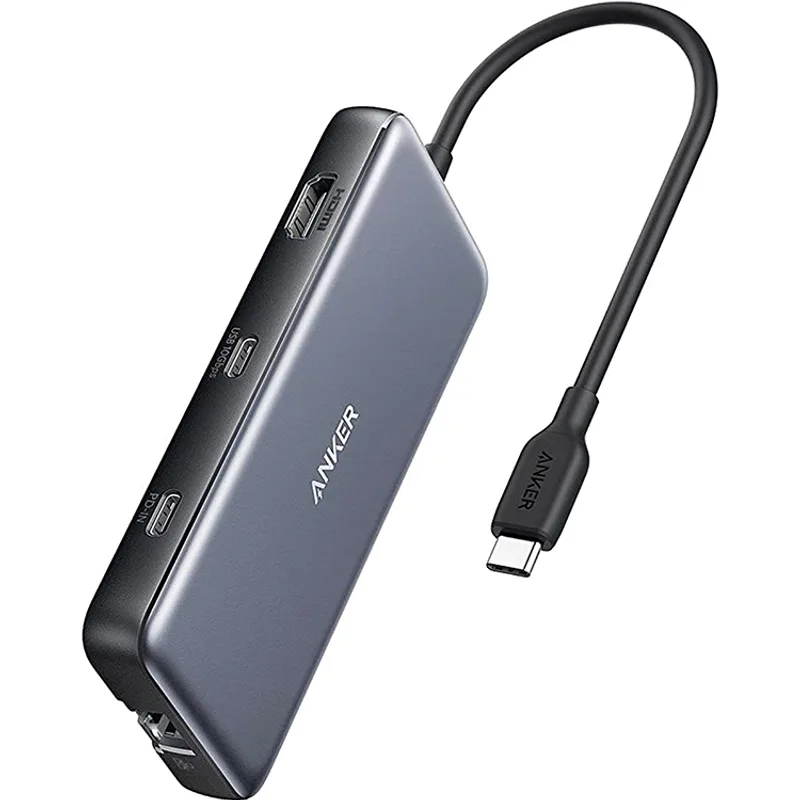
1. Anker 555 USB-C Hub (8-in-1) — Best All-Around for Remote Work
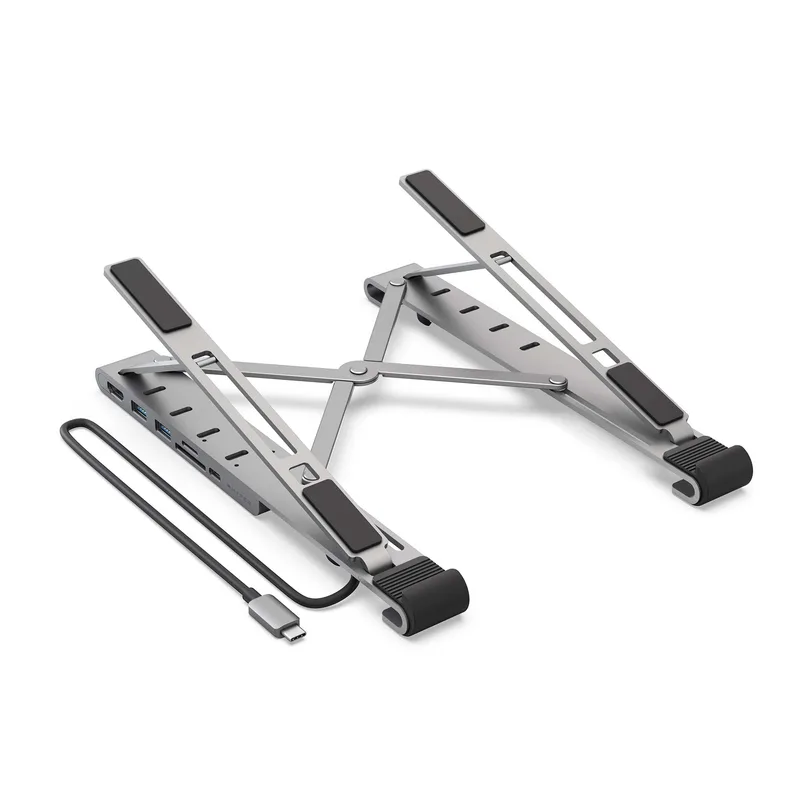
The Anker 555 is the most practical single-cable hub for the majority of remote workers. Eight ports covers the typical home office peripheral set: monitor via HDMI, wired Ethernet, keyboard and mouse via USB-A, webcam via USB-A, SD card reader, and laptop charging via USB-C PD — all from one device plugged into one laptop port.
The 100W Power Delivery passthrough is the key spec for MacBook users. Plug your existing 96W or 140W MacBook charger into the hub, and the hub passes through enough power to maintain or charge the battery while running all connected peripherals. This eliminates the need to carry and manage a separate laptop charger at your desk — one cable from hub to laptop handles everything.
The Gigabit Ethernet port is the feature that makes the Anker 555 worth prioritizing over cheaper alternatives. For remote workers on Teams or Zoom calls, moving from Wi-Fi to a wired Ethernet connection removes the most common source of call dropouts and audio glitches. The 10Gbps USB-C and USB-A data ports handle large file transfers — video files, project archives, backup copies — at maximum speed.
At $55, the Anker 555 sits at a price point where the features-per-dollar ratio is difficult to beat. It’s bus-powered, which means it doesn’t need a separate power adapter, but also means it’s subject to the power limits of bus-powered hubs when all ports are simultaneously loaded with high-draw devices. For a typical home office setup with standard peripherals, this limitation doesn’t matter in practice.
Who should buy this: Anyone who wants a single-cable home office solution with Ethernet, 100W laptop charging, and enough ports for a standard peripheral setup.
Who should skip this: Remote workers who need two or more external monitors — a bus-powered single-HDMI hub can’t do that.
2. Satechi Slim Multiport Adapter V2 — Best for MacBook Aesthetics and Travel
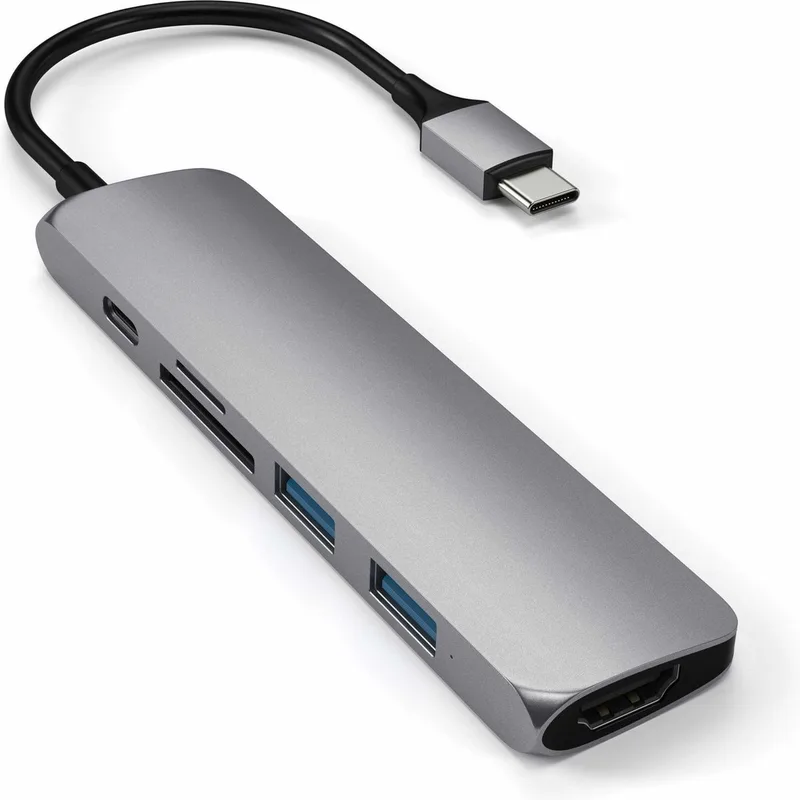
The Satechi Slim Multiport Adapter V2 solves a problem the Anker 555 doesn’t address: the MacBook user who wants a hub that looks like it belongs with the laptop, not just something functional plugged into it.
The Space Gray aluminum enclosure matches Apple’s finish on MacBook Pro and MacBook Air with precision that plastic hubs can’t replicate. The attached USB-C cable design positions the hub flat against the side of the laptop rather than hanging on a dangling cable — it sits flush with the desk, and the profile stays tidy in a way that makes a difference if aesthetics matter to your home office setup.
The 60W Power Delivery passthrough covers MacBook Air (which charges at 30–45W) and MacBook Pro 13-inch comfortably. MacBook Pro 14-inch and 16-inch users who run heavy workloads may find the laptop draws down slowly under load — functional, but not ideal for sustained heavy use. At $42, it’s significantly cheaper than the HyperDrive SOLO at $69, and the choice between them still comes down to whether you need an audio jack (HyperDrive) or prefer a flush-mounted design at lower cost (Satechi).
The absence of Ethernet is the functional limitation. Remote workers who need wired network reliability will need either a separate USB-C to Ethernet adapter (roughly $20) or a different hub. For remote workers on reliable Wi-Fi in a well-configured home network, this may not matter. For anyone who has experienced video call drops from Wi-Fi congestion, the Anker 555’s built-in Ethernet port is worth the aesthetic compromise.
Who should buy this: MacBook users who prioritize a clean, flush-mount design and work primarily on Wi-Fi.
Who should skip this: Skip it if you need wired Ethernet, run a MacBook Pro 16-inch under heavy load, or want faster than 5Gbps USB-A data transfer speeds.
3. Plugable USB-C Triple Display Dock (UD-3900PDZ) — Best for Multi-Monitor Setups
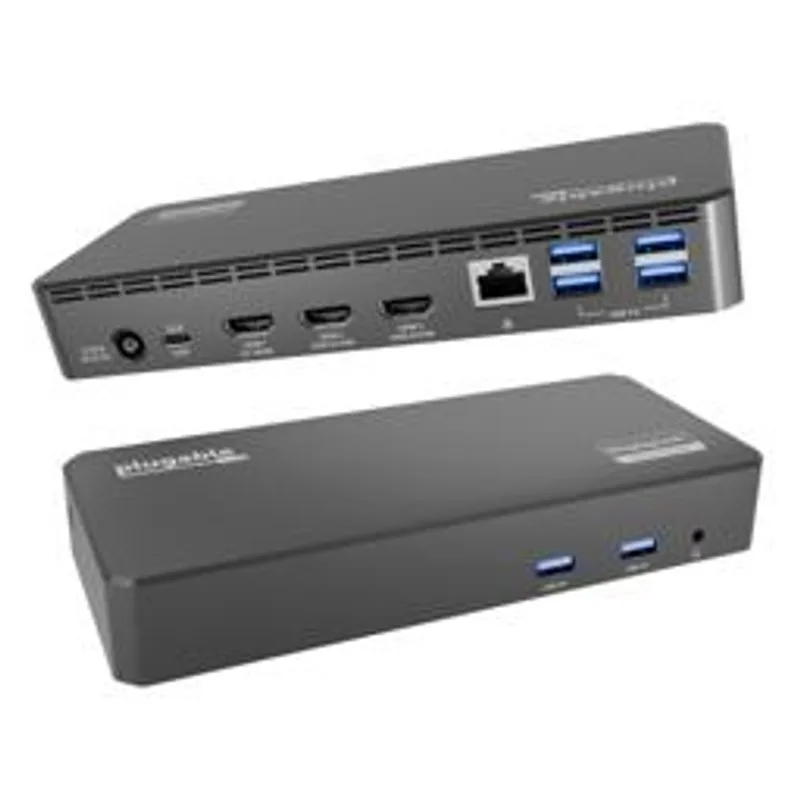
The Plugable UD-3900PDZ is a different category of product from the other four picks — it’s a wall-powered dock rather than a bus-powered hub, designed to stay on a desk rather than travel in a bag. It’s the right choice for remote workers whose primary productivity driver is screen real estate.
Three HDMI outputs support three simultaneous external displays. The primary HDMI runs at 4K 30Hz; the secondary two run at 1080p 60Hz. A common setup is a primary 4K monitor for focused work and two 1080p monitors in portrait orientation for reference materials, documentation, and communication windows. This triple-display arrangement, which would require multiple docks or adapter chains in a hub-based setup, runs from a single laptop USB-C connection through the Plugable.
The wall-powered design means all six USB-A ports, all three HDMI outputs, and the 100W USB-C PD passthrough can operate simultaneously without power constraints. External hard drives, webcams, and charging devices all get the current they need without competition.
The macOS caveat is significant: the second and third displays on macOS require Plugable’s DisplayLink driver installation, and this driver has historically had compatibility issues with macOS major version updates. The primary display works natively on Mac. For Windows users, all three displays work without drivers. For Mac users who need three monitors, the setup works but requires managing a third-party driver.
At $149, the Plugable costs nearly three times the Anker 555. The premium buys triple-display output and wall-powered reliability. If you don’t need more than one monitor, the extra cost and desk footprint aren’t justified.
Who should buy this: Remote workers running two or three external displays from a single laptop — especially on Windows.
Who should skip this: Anyone who only needs one display, or Mac users unwilling to manage DisplayLink drivers.
4. Sabrent 4-Port USB 3.0 Hub (HB-UM43) — Best Budget Port Expander
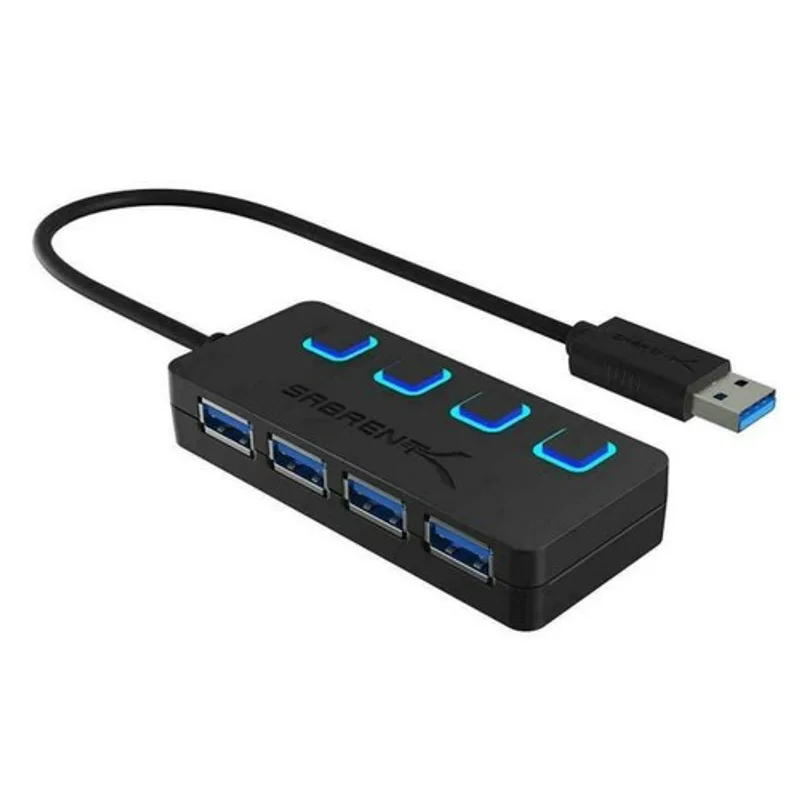
The Sabrent HB-UM43 is not a USB-C hub and it doesn’t pretend to be one. It’s a USB 3.0 port expander — plug it into an existing USB-A port (or into a USB-C hub via adapter), and you get four additional USB-A 5Gbps ports with individual on/off switches and indicator lights.
This addresses a specific remote work problem: you have a USB-C hub with limited USB-A ports, and you need more connections for a keyboard, mouse, webcam, external drive, and USB audio interface simultaneously. The Sabrent solves that without replacing the hub — daisy-chain it off an existing USB-A port and expand your peripheral connections at negligible cost.
The individual per-port on/off switches are a genuine practical feature. If a connected device is misbehaving or you want to quickly reset a peripheral, switching the port off and back on without physically unplugging is faster and less disruptive than reaching around a monitor to pull a cable.
At $17, the calculus is simple. Buy one for the desk and one for the bag. Use the desk unit to expand your hub’s USB-A capacity. Use the bag unit to expand hotel or coworking space ports. No setup, no drivers, no configuration.
Who should buy this: Anyone who already has a USB-C hub but is running out of USB-A ports, or travelers who want a cheap port expander for the road.
Who should skip this: Not appropriate as a primary hub — no video output, no Power Delivery, no Ethernet. Pure USB-A port expansion only.
5. HyperDrive SOLO USB-C Hub (7-in-1) — Best with Headphone Jack
The HyperDrive SOLO is the only hub in this roundup with a 3.5mm audio jack — a feature that sounds minor until your home office setup relies on a wired headset and your USB-C hub has no room for a USB audio adapter.
The scenario: you’re plugged into the Anker 555 for Ethernet, HDMI, and keyboard. Your wired headset connects via USB audio adapter, burning your last USB-A port. The HyperDrive SOLO solves that problem — plug your headset directly into the 3.5mm jack and keep your USB-A ports free for peripherals.
Specs are honest and mid-tier. The 60W Power Delivery covers MacBook Air and MacBook Pro 13-inch at full charging speed. MacBook Pro 14-inch or 16-inch users running heavy workloads will see the laptop slowly discharge — the 60W ceiling doesn’t keep pace with peak power draw on those machines. HDMI output tops out at 4K 30Hz rather than 60Hz, which is noticeable when moving windows quickly but fine for static work. No Ethernet — the HyperDrive SOLO is a Wi-Fi-and-hub setup.
The precision-milled aluminum enclosure handles heat better than plastic and matches MacBook finish. At $69 — compared to the Satechi at $42 — the direct comparison is useful: Satechi has a flush-mount attached cable and is slightly more elegant aesthetically; HyperDrive has an audio jack but costs $27 more. If you use wired headsets, HyperDrive is worth the premium. If you care about desk aesthetics and value, Satechi wins.
Who should buy this: Remote workers using wired headsets who want a compact, all-aluminum hub with a built-in headphone jack.
Who should skip this: Not the right choice if Ethernet, 100W laptop charging, or 4K 60Hz video output is on your requirements list.
Comparison Table
| Hub | Ports | USB-C PD | Ethernet | Video Out | Power | Price | Rating |
|---|---|---|---|---|---|---|---|
| Anker 555 USB-C Hub | 8 | 100W | Gigabit | 4K 60Hz HDMI | Bus | Unavailable | 9.1 |
| Satechi Slim Multiport V2 | 6 | 60W | No | 4K 60Hz HDMI | Bus | Unavailable | 8.8 |
| Plugable UD-3900PDZ | 12+ | 100W | Gigabit | 3x HDMI | Wall | $132.00-$169.99 as of Oct 18, 2026 | 8.7 |
| HyperDrive SOLO 7-in-1 | 7 | 60W | No | 4K 30Hz HDMI + Audio | Bus | $29.98-$74.41 as of Oct 18, 2026 | 8.0 |
| Sabrent HB-UM43 | 4 USB-A | None | No | None | Bus | $14.95 as of Oct 18, 2026 | 7.9 |
Buying Guide: Choosing the Right USB Hub for Your Remote Work Setup
How many displays do you need? Single-display setups are served well by any hub in this guide with an HDMI port. Two or three external displays require either a wall-powered dock (Plugable) or a laptop with Thunderbolt 4 that supports daisy-chaining. Check your laptop’s display output specifications before assuming a hub will drive multiple monitors.
What is your MacBook model? MacBook Air (M-series) supports one external display. MacBook Pro (M3 Pro and later) supports two or more. Buying a triple-display dock for a MacBook Air M2 will result in one active display regardless. Apple Silicon MacBook models have specific display limitations that no hub can override without DisplayLink drivers.
Do you need wired internet? If you have experienced video call quality issues that correlate with Wi-Fi signal or congestion, wired Ethernet will solve the problem. Three of the five picks here include Ethernet: the Anker 555, the Plugable UD-3900PDZ, and the Sabrent (as a port expander off a hub). The Satechi Slim and HyperDrive SOLO do not. If Ethernet matters, prioritize it over aesthetic advantages.
Will this hub travel with you? Bus-powered hubs are significantly more portable than wall-powered docks. The Anker 555, Satechi Slim, and HyperDrive SOLO all work purely from the laptop’s USB-C port without a separate power adapter. If the hub will stay at a fixed desk, a wall-powered dock is more reliable. If it travels, bus-powered is the practical choice.
Do you use a wired headset? If your audio workflow requires a 3.5mm headset, the HyperDrive SOLO is the only pick in this guide with a built-in headphone/mic jack. On Macs that rely on USB-C for everything, this can save a USB-A port that would otherwise go to a USB audio adapter.
FAQ
Why doesn’t my USB-C hub charge my MacBook at full speed?
Power Delivery passthrough has overhead losses — a hub rated for 100W PD will typically deliver 85–87W to the laptop after the hub draws power for its own operation. Additionally, some hubs only support a lower PD wattage under simultaneous heavy load. Check that your hub’s rated PD wattage meets or exceeds your laptop’s charger wattage. For MacBook Pro 16-inch, you need at minimum a 100W PD hub plus a 100W or higher wall charger connected to the hub.
Can I daisy-chain USB hubs to get more ports?
Yes, but with limitations. USB bandwidth is shared across a hub chain — connecting two hubs in series splits the available bandwidth between all connected devices. For keyboards and mice (low bandwidth), this is imperceptible. For external hard drives or webcams (high bandwidth), daisy-chaining reduces throughput. Attach high-bandwidth devices directly to the laptop or to the first hub in the chain, not to a secondary hub.
Why does my second monitor not work through the USB hub?
If your hub uses Alt Mode HDMI (no DisplayLink chip), it’s limited to one external display on Apple Silicon Macs. Apple’s M1 and M2 chips natively support only one external display via USB-C without a DisplayLink workaround. The Plugable dock with DisplayLink drivers is one solution. Another is connecting one display via the hub’s HDMI and a second via USB-C to HDMI adapter directly to the laptop’s second port if available.
Does a USB hub affect video call quality?
The hub itself does not degrade video call quality — the webcam signal passes through USB at the same quality regardless of whether it’s connected directly or through a hub. What a hub can improve is network stability: adding wired Ethernet via the hub’s Ethernet port typically reduces call dropouts compared to Wi-Fi. What can occasionally cause issues is a low-quality or overloaded bus-powered hub that can’t supply enough current to all devices simultaneously, causing the webcam to drop frames. Use a wall-powered dock if you’re running many high-draw devices.
Are USB hubs compatible with corporate-managed laptops?
Generally yes. USB hubs enumerate as standard USB devices and require no drivers for basic port expansion and data functions. The Ethernet adapter within the hub does install a driver (typically a generic ASIX or Realtek Ethernet driver), which most corporate IT policies allow. DisplayLink-based video outputs require a driver download that IT may need to approve in advance. If you’re on a heavily locked-down machine, verify with IT before buying a hub with DisplayLink video outputs.
What’s the difference between a USB hub and a docking station?
A hub is compact, bus-powered, travels with the laptop, and typically offers one video output. A dock is larger, wall-powered, stays on a desk, and can drive multiple monitors simultaneously. The Anker 555 and HyperDrive SOLO are hubs. The Plugable UD-3900PDZ is a dock. If you work from a fixed desk setup and need maximum expansion, a dock is the better foundation. If portability matters, a hub.
The Bottom Line
For the majority of remote workers who need a reliable single-cable desk setup with Ethernet and 100W laptop charging, the Anker 555 USB-C Hub at $55 is the straightforward recommendation. Eight ports, Gigabit Ethernet, 100W PD — one cable handles everything.
MacBook users who prioritize aesthetics and work on reliable Wi-Fi should consider the Satechi Slim Multiport Adapter V2 at $42 — it blends into a MacBook setup better than any other hub here, with the flush-mount cable design keeping things tidy.
Remote workers using wired headsets who want an audio jack in the hub itself should look at the HyperDrive SOLO at $69 — it’s the only pick in this roundup that eliminates the need for a separate USB audio adapter.
Remote workers who need three monitors or stable power delivery to multiple high-draw devices simultaneously should budget for the Plugable UD-3900PDZ at $149. The wall-powered design and triple-display capability justify the higher price and desk footprint.
Detailed Reviews
Anker 555 USB-C Hub (8-in-1)
Pros
- 100W USB-C Power Delivery passthrough charges MacBook Pro 14-inch at full speed
- Built-in Gigabit Ethernet port provides wired connection for reliable video call stability
- 10Gbps USB-C and USB-A ports transfer large files significantly faster than USB 3.0
- 8 ports covers most home office peripheral setups without additional adapters
- Bus-powered design means no separate power brick needed
Cons
- Bus-powered limits total current available — powering multiple high-draw devices simultaneously may cause instability
- Single HDMI output only supports one external display at 4K 60Hz
- No DisplayPort output for monitors without HDMI
Satechi Slim Multiport Adapter V2
Pros
- Space Gray aluminum matches MacBook Pro and MacBook Air finish exactly
- Slim attached-cable design sits flush against the laptop edge rather than dangling on a cable
- 60W Power Delivery covers MacBook Air and MacBook Pro 13-inch at full speed
- SD and microSD card readers serve photographers and camera users who pull footage regularly
- Lightweight enough to stay in the laptop bag without adding noticeable weight
Cons
- No Ethernet — remote workers who need wired internet reliability will need a separate adapter
- 60W PD is not sufficient for MacBook Pro 16-inch under sustained load
- USB-A ports are 5Gbps rather than 10Gbps — slower for large file transfers
Plugable USB-C Triple Display Dock (UD-3900PDZ)
Pros
- Three HDMI outputs support up to three external displays for multi-monitor remote work setups
- Wall-powered design provides stable power to all connected devices simultaneously
- Gigabit Ethernet ensures video call reliability regardless of Wi-Fi congestion
- 100W USB-C passthrough covers all MacBook and Windows laptop models
- Six USB-A ports accommodate a full peripheral set plus storage devices
Cons
- macOS users require DisplayLink driver installation for second and third displays to function
- External power adapter adds a cable and a power brick to the desk setup
- Primary display limited to 4K at 30Hz rather than 60Hz — may be noticeable during cursor movement
Sabrent 4-Port USB 3.0 Hub (HB-UM43)
Pros
- Per-port on/off switches let you disable individual devices without unplugging them
- Individual indicator LEDs show which ports are active at a glance
- Extremely affordable — practical to buy two and place one at each location you work
- Compatible with every OS and every USB-A or USB-C host (with adapter) without drivers
- Compact and light — adds essentially nothing to a travel setup
Cons
- No USB-C, no video output, no Ethernet, no Power Delivery — purely a port expander
- Bus-powered from a single USB port, so total current is limited to 900mA across all four ports
- Not suitable as the primary hub for a full home office setup
HyperDrive SOLO USB-C Hub (7-in-1)
Pros
- 3.5mm audio jack lets you plug in a wired headset directly — no separate USB audio adapter needed
- Precision-milled aluminum enclosure matches MacBook finish and dissipates heat better than plastic
- 60W Power Delivery covers MacBook Air and MacBook Pro 13-inch at full charging speed
- Compact enough to live permanently in a laptop bag
- Both SD and microSD card slots available in a hub this small is genuinely useful for content creators
Cons
- No Ethernet — remote workers who need wired network reliability will need a separate adapter
- 60W PD is not sufficient for MacBook Pro 14-inch or 16-inch under load
- HDMI output tops out at 4K 30Hz rather than 60Hz