Disclosure: SetupRanked earns a commission on qualifying purchases made through links on this page, at no extra cost to you.
The MacBook Neo’s March 2026 launch surfaced a hub compatibility issue that caught a lot of buyers off guard: the Neo’s two USB-C ports are not equal. The rear port runs at 10Gbps and supports external displays; the front port is USB 2.0 at 480Mbps and does not support video. Macworld reported that dual-connector hubs — those that clamp onto both USB-C ports simultaneously — do not work with the Neo at all. This also clarified something that applies to every MacBook: the port you plug a hub into determines its maximum performance. Single-cable hubs always win on compatibility.
This roundup covers five USB-C multiport adapters for MacBook in the $39-$99 range. These are portable adapters meant for desk use and travel — not desktop Thunderbolt docks with external power supplies. The distinction matters: a multiport adapter draws power from the MacBook, stays slim, and goes in a bag. A dock stays on the desk, needs a wall outlet, and costs three times as much.
All five picks below use a single USB-C connection and work correctly with MacBook Air, MacBook Pro, and MacBook Neo (rear port only for the Neo).
Quick Comparison
| Adapter | Ports | HDMI | Max PD | Ethernet | SD Reader | MacBook Neo | Price |
|---|---|---|---|---|---|---|---|
| UGREEN Revodok Pro 109 | 9 | 4K@60Hz | 90W | Yes | UHS-I | Yes | $32.99-$54.99 as of Oct 18, 2026 |
| Anker 555 8-in-1 | 8 | 4K@60Hz | 85W | Yes | UHS-I | Yes | $35.99 as of Oct 18, 2026 |
| HyperDrive Next 10 Port | 10 | 4K@60Hz | 125W | Yes | SD 4.0 | Yes | Unavailable |
| Satechi Slim Multiport V2 | 5 | 4K@60Hz | 60W | No | UHS-I | Yes | $59.99 as of Oct 18, 2026 |
| CalDigit SOHO Dock | 7 | 4K@60Hz HDR | 90W | No | UHS-II | Yes | Unavailable |
1. UGREEN Revodok Pro 109 — Editor’s Pick
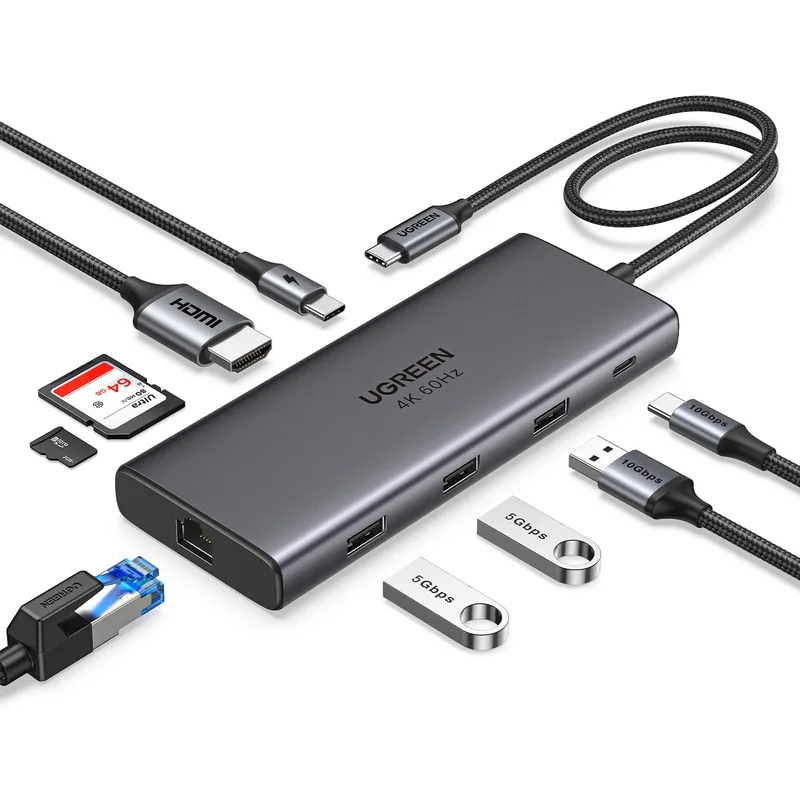
UGREEN Revodok Pro 109
Pros
- Nine ports covers every remote work need from a single cable: HDMI, Gigabit Ethernet, three USB-A ports for peripherals, USB-C data, SD and microSD for camera cards, and 100W power delivery that passes 90W to the MacBook — enough to sustain a 14-inch MacBook Pro under load
- All three USB-A ports run at 10Gbps (USB 3.2 Gen 2) rather than the 5Gbps or USB 2.0 that cheaper hubs include on 'data' ports — this matters when transferring large files from an external drive or USB-C SSD
- XDA Developers reviewed it as 'perfect port selection for work and home use,' noting that the 10Gbps USB-C data port, 90W host charging, and Gigabit Ethernet hit the right balance between connectivity and compact size
- Single-cable connection works correctly with the MacBook Neo's rear 10Gbps port — no dual-connector compatibility issues that affect some MacBook-specific hubs in 2026
- UGREEN's official price sits at ~$54.99, and Amazon frequently matches or comes close — strong value compared to Anker and Belkin hubs with similar port counts at $60-$75
Cons
- Only one USB-C data port downstream (the others are USB-A) — users who need multiple USB-C outputs for newer peripherals should consider the CalDigit SOHO Dock
- Gets warm under sustained load (charging a MacBook while transferring over Ethernet and using all USB ports simultaneously) — not unusual for hub form factors, but worth noting in a warm room
- No DisplayPort output — only HDMI, which limits options for monitors that use DP input only
The Revodok Pro 109 is the hub to buy if you want one cable that handles everything. Nine ports cover every remote work scenario: HDMI for a monitor, Gigabit Ethernet for a stable connection, three USB-A ports for keyboard/mouse/external drive, USB-C data, and SD/microSD for cameras. The 100W input passes 90W to the MacBook, which sustains the 14-inch MacBook Pro under typical multi-app workloads.
What sets it apart from the Anker 555 at a similar price is the third USB-A port. Most full-time remote desks have a keyboard, a mouse, and at least one other USB-A device (a Logitech receiver, a USB hub for a monitor, a DAC). Three ports covers that without hunting for a separate hub.
XDA Developers reviewed the Revodok Pro 109 as having “perfect port selection for work and home use,” specifically noting that the 10Gbps USB-C data port and 90W host charging hit the right balance for a hub that isn’t a full dock.
The one gap is Ethernet-speed card transfers: UHS-I SD readers top out around 104MB/s. If you regularly offload high-resolution video from a mirrorless camera, the HyperDrive Next 10 Port’s SD 4.0 reader at 312MB/s is worth the $30 premium.
Best for: Remote workers with a standard desk setup — monitor, keyboard, mouse, external drive — who want a single hub that handles all of it.
2. Anker 555 USB-C Hub (8-in-1) — Best Value
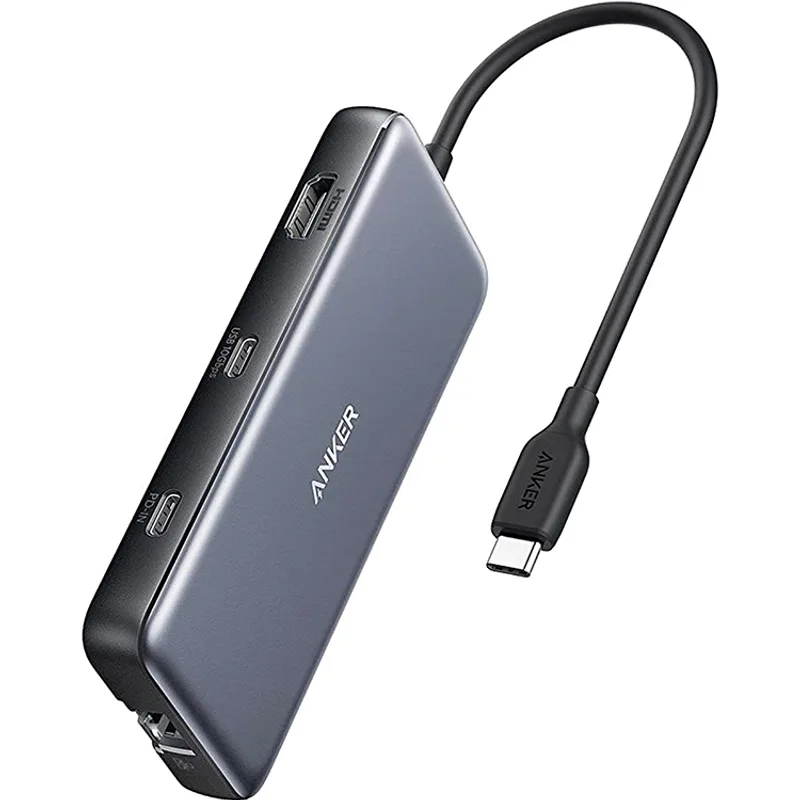
Anker 555 USB-C Hub (8-in-1)
Pros
- At $39-$49 — with the hub dropping to record-low prices in 2026 according to Android Authority — it's the most capable hub per dollar in this roundup: HDMI 4K@60Hz, Gigabit Ethernet, SD/microSD, USB-C data, and 85W passthrough all under $50
- Macworld named it their long-time USB-C hub champion for MacBook users, and with thousands of Amazon reviews averaging 4.3+ stars, the track record supports that recommendation
- Single-cable connection and MacBook Neo compatibility confirmed — connect it to the rear 10Gbps port and all eight ports operate at full speed; plugging into the front USB 2.0 port drops everything to 480Mbps, so rear port only
- 18-month warranty is longer than most hubs in this price range — Anker's customer service is responsive and the hub has proven reliability over 12+ months of full-time use in owner reports
Cons
- 85W power delivery is sufficient for 13-inch MacBook Air and MacBook Pro M4 but may feel underpowered during heavy GPU tasks on the 16-inch MacBook Pro, which consumes up to 96W under sustained load
- The 7.5-inch built-in cable is shorter than the UGREEN Revodok Pro 109 and HyperDrive Next — positioning the hub on a crowded desk near the MacBook port is less flexible
- No 3.5mm audio port — headset users will need to plug audio directly into the MacBook
The Anker 555 is the hub most MacBook Air users should buy. At $39-$49 (Android Authority documented a record-low price in 2026), it includes HDMI 4K@60Hz, Gigabit Ethernet, SD/microSD, two USB-A ports at 10Gbps, a USB-C data port, and 85W passthrough charging — every port that matters for a standard work setup.
Macworld has recommended it as their MacBook hub benchmark for years. The consistency is the point: this hub doesn’t have unusual compatibility issues, doesn’t require drivers, and works immediately on every MacBook model. The 18-month warranty backs it up if something goes wrong.
The 85W power delivery is the main limitation to know. It’s enough for MacBook Air (all M-series models) and the 13-inch MacBook Pro. For the 14-inch or 16-inch MacBook Pro, 85W sustains light workloads but may not fully charge the battery during sustained CPU-intensive tasks. If you’re on a 16-inch, the HyperDrive Next 10 Port’s 125W delivery is the upgrade worth considering.
MacBook Neo users: connect to the rear 10Gbps port only. All eight ports on this hub perform at full rated speed from that single connection.
Best for: MacBook Air users who want a proven, no-fuss hub with the full port set for under $50.
3. HyperDrive Next 10 Port — Best for Power Users
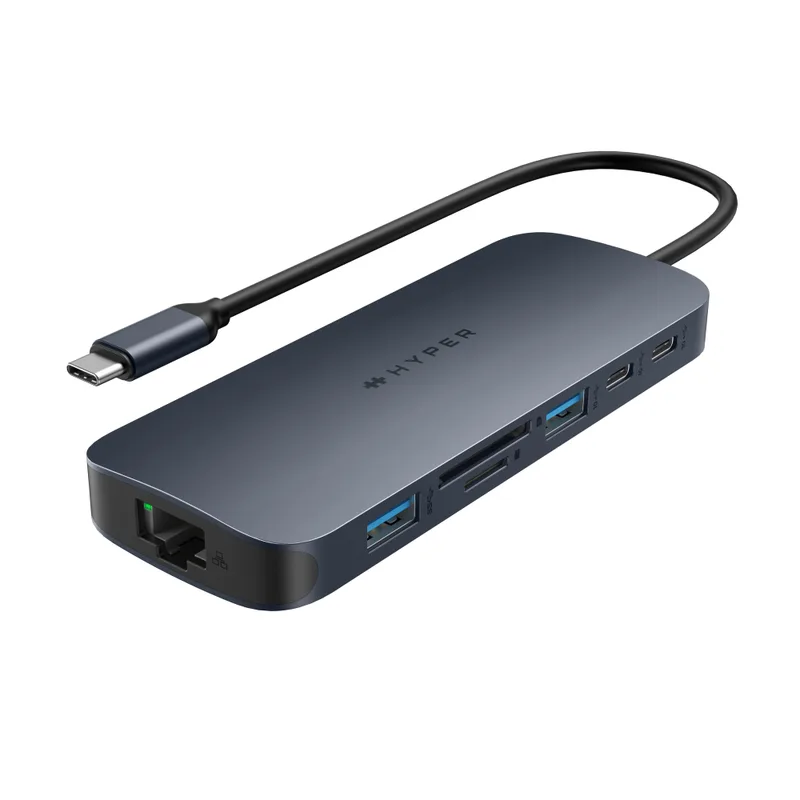
HyperDrive Next 10 Port
Pros
- SD 4.0 card readers at 312MB/s are the standout feature — every other hub in this roundup tops out at UHS-I or UHS-II speeds; the Next 10 Port's SD 4.0 reader can offload a full mirrorless camera card significantly faster, which matters for photographers and video editors who dump cards regularly
- 140W PD 3.1 input passes 125W to the host — the only hub here that can comfortably sustain the 16-inch MacBook Pro M4 under sustained CPU and GPU load without any power throttling concerns
- Includes a 3.5mm audio port for headsets — the only hub in this roundup to include audio output, eliminating the need for a separate USB-C audio adapter
- 13-inch cable provides the most flexible placement on a desk — the hub can sit at the edge of the desk or behind a monitor without straining the MacBook's port
- Built from 100% recycled aluminum shell and 85% recycled plastic — relevant for buyers with sustainability purchasing criteria
Cons
- At $89-$99, it costs roughly double the Anker 555 — the premium is justified only if you use SD 4.0 speeds, need 125W charging, or rely on the 3.5mm audio port; otherwise the Anker or UGREEN deliver 90% of the functionality for less
- Two USB-A ports (one at 10Gbps, one at 5Gbps) is fewer than the UGREEN Revodok Pro 109's three USB-A ports — users with multiple USB-A peripherals may run short
- No DisplayPort output, HDMI only
The HyperDrive Next 10 Port costs more than the other hubs here, and it earns the premium in two specific ways: the SD 4.0 card reader and the 125W power delivery.
SD 4.0 at 312MB/s is roughly three times faster than the UHS-I readers on the Anker and UGREEN. For photographers and video editors who offload camera cards at the desk, that speed difference is measurable in time. A 128GB SD card filled with RAW files that takes 20 minutes to offload via UHS-I takes about 7 minutes via SD 4.0. If you shoot video or RAW on a mirrorless camera and sync cards at the desk daily, this hub pays for itself in recovered time.
The 140W PD 3.1 input passes 125W to the host MacBook — the only hub in this roundup confirmed to handle the 16-inch MacBook Pro M4 Pro under sustained load without throttling. The 13-inch built-in cable also provides the most flexible desk placement.
One spec note: the two USB-A ports run at different speeds (one at 10Gbps, one at 5Gbps). Standard peripherals like keyboards and mice won’t notice the difference, but external drives connected to the 5Gbps port will be bottlenecked compared to the UGREEN’s three 10Gbps USB-A ports.
Best for: Photographers, video editors, and 16-inch MacBook Pro users who need fast card offload and sustained power delivery.
4. Satechi Slim Multiport Adapter V2 — Most Portable
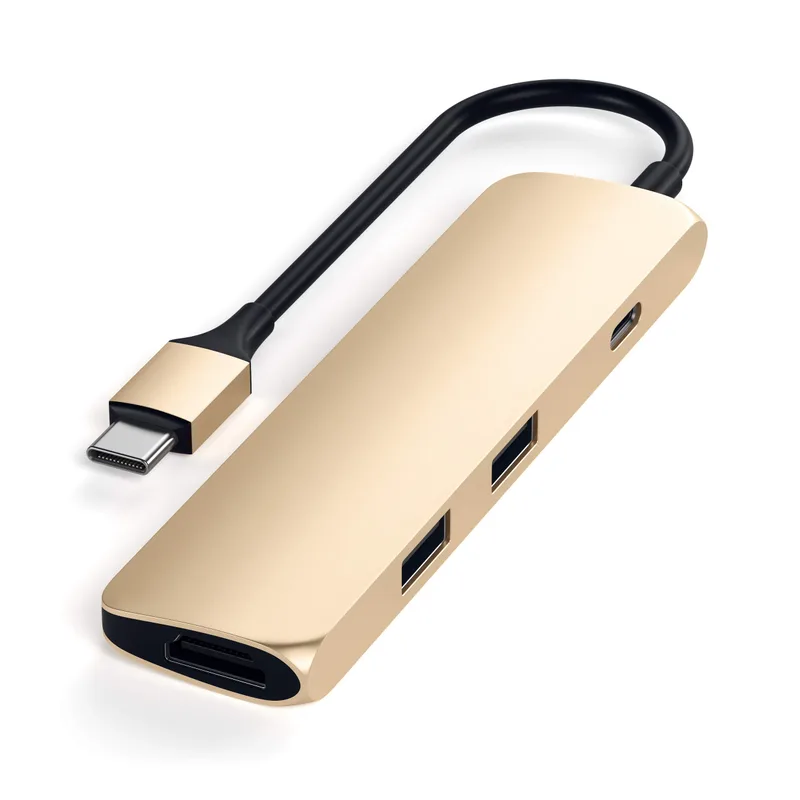
Satechi Slim Multiport Adapter V2
Pros
- No dangling cable — the adapter plugs directly into the MacBook's USB-C port and sits flush against the side, making it the most compact and pack-friendly option here; fits in a shirt pocket and adds negligible weight to a bag
- Aluminum shell in Space Gray or Silver matches MacBook finish exactly — significantly more polished-looking than rubber-clad hubs during video calls or in-person meetings
- 60W USB-C PD is adequate for the 13-inch MacBook Air and 13-inch MacBook Pro — covers 90% of MacBook Air users who are this adapter's target audience
- Compatible with MacBook Air M4/M5 and MacBook Pro M4/M5 — Satechi updates compatibility listings to include current Apple silicon generations
Cons
- No Ethernet port — coffee shops and hotels with wired connections require a separate Ethernet adapter; if Ethernet matters, the UGREEN or Anker are better choices
- USB 3.0 at 5Gbps is slower than the 10Gbps ports on the UGREEN Revodok Pro 109 and Anker 555 — visible when transferring large files from an external SSD
- 60W power delivery is insufficient for the 14-inch or 16-inch MacBook Pro under load — those models need 96W+ to sustain performance; the Satechi works for light tasks but will throttle during sustained rendering or compilation
- Side-mounted design blocks the adjacent USB-C port on MacBook Air — only one USB-C port remains accessible when the adapter is connected
The Satechi Slim Multiport V2 is the right adapter for MacBook Air users who want the minimum footprint. It plugs directly into the USB-C port without a cable — the adapter sits flush against the side of the MacBook, adds five ports, and disappears into a pocket when you’re done.
The five ports cover most travel scenarios: HDMI for a hotel TV or conference room display, 60W USB-C PD to keep the MacBook Air charged from the room’s USB-C power brick, one USB-A for a mouse or flash drive, and SD/microSD for cameras. No Ethernet, which means coffee shops with only wired connections are a gap — but most travel use cases are WiFi anyway.
The aluminum finish in Space Gray or Silver is designed to match MacBook aesthetics. In a client meeting, it looks like part of the laptop rather than an afterthought. That matters less for a home desk, but significantly for anyone who presents or meets in person.
The 60W PD ceiling is a real limitation for 14-inch and 16-inch MacBook Pro users. Those models need more power under load. The Satechi is specifically sized and priced for MacBook Air users, and for that audience it’s exactly right.
Best for: MacBook Air users who want the most compact, pocket-sized adapter for travel and occasional desk use.
5. CalDigit SOHO Dock — Best Build Quality
CalDigit SOHO Dock
Pros
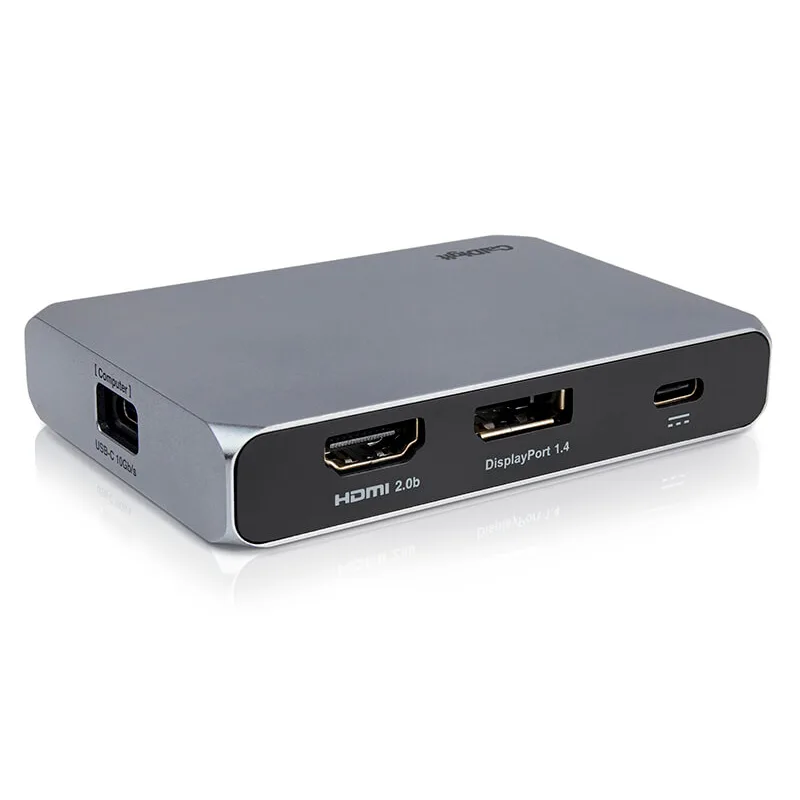
- DisplayPort 1.4 output is unique in this roundup — the only adapter here with DP output alongside HDMI, making it the right choice for monitors that use DP input (common on professional displays like the Dell UltraSharp line)
- HDMI 2.0b with HDR support means connected monitors receive proper HDR metadata — relevant for 4K HDR monitors or color-accurate displays used for photo and video work
- UHS-II card readers (both SD and microSD) deliver faster transfer speeds than the UHS-I readers on the Satechi and Anker — meaningful for mirrorless camera cards that support UHS-II
- CalDigit's build quality is the best in this price segment — the SOHO Dock uses premium materials and construction that matches CalDigit's full TS4 Thunderbolt dock line, just in a portable form factor
- Weighs only 0.19 lbs — lighter than it looks and barely noticeable in a laptop bag
Cons
- No Gigabit Ethernet port — for a $79-$99 adapter, the absence of wired networking is a meaningful gap that the UGREEN and Anker fill at lower prices
- Seven ports versus the UGREEN Revodok Pro 109's nine ports at a lower price — the CalDigit's advantage is DisplayPort and UHS-II card readers, not port count
- The inclusion of both HDMI and DisplayPort means you can drive two displays simultaneously only if the MacBook supports it — the MacBook Air M4 supports one external display, so the second output is redundant for Air users
The CalDigit SOHO Dock earns its spot with two features no other hub here provides: DisplayPort 1.4 output and UHS-II card readers. If your monitor uses DisplayPort input — common on Dell UltraSharp, LG UltraFine, and BenQ PD monitors — this is the only adapter in the roundup that connects without an HDMI-to-DP adapter.
HDMI 2.0b with HDR support is a meaningful upgrade over standard HDMI 2.0 for users with 4K HDR displays. The HDR metadata passes correctly, which matters for photo and video color work or any setup where the monitor’s HDR mode is actively used.
UHS-II card readers on both SD and microSD slots are faster than the UHS-I readers on the Anker and Satechi. Camera users with UHS-II rated cards will see faster transfers, though not as fast as the HyperDrive Next 10 Port’s SD 4.0 reader.
The absence of Ethernet is the main trade-off. CalDigit prioritized display and card reader quality over network connectivity. If wired Ethernet is essential, the UGREEN or Anker are better fits. But for display-focused use — connecting a color-accurate monitor, maintaining HDR accuracy, and using better card readers — the SOHO Dock is the strongest pick in this category.
Best for: MacBook users with DisplayPort monitors or HDR displays, and photographers who need UHS-II card reader speed without paying for the HyperDrive’s SD 4.0 tier.
Buying Guide: USB-C Multiport Adapters for MacBook
MacBook Neo Owners: Read This First
The MacBook Neo has two USB-C ports, but they are fundamentally different. The rear port is 10Gbps and supports external displays. The front port is USB 2.0 at 480Mbps with no display support. Always connect a hub to the rear port. Plugging a hub into the front port makes every port on that hub run at USB 2.0 speeds — eliminating HDMI output and capping data transfer at 480Mbps.
Dual-connector hubs (like the Anker 547) that attach to both USB-C ports simultaneously do not work with the MacBook Neo. All five hubs in this roundup are single-cable and Neo compatible.
How Many Ports Do You Actually Need?
The honest answer for most remote workers: HDMI, Ethernet, two USB-A ports, and 85W+ PD charging. That’s four functional ports, and both the Anker 555 and UGREEN Revodok Pro 109 cover it with money to spare.
Add SD/microSD to the list if you use a camera. Add a 3.5mm audio port if you use a wired headset at the desk. Add a second USB-A if you run keyboard + mouse + one other USB-A device. Only add DisplayPort if your monitor requires it.
The HyperDrive Next 10 Port’s ten ports are compelling on paper, but the practical upgrade over an 8-port hub is specifically the SD 4.0 reader and 125W PD — not the port count itself.
Power Delivery: What the Numbers Mean
- 60W PD: MacBook Air only (13-inch M-series). Sufficient for light use; may drain slowly under sustained load.
- 85W PD: MacBook Air + 13-inch MacBook Pro. Maintains charge under normal workloads.
- 90W PD: 14-inch MacBook Pro at moderate load. Charges comfortably during most tasks.
- 125W PD: 16-inch MacBook Pro under full CPU/GPU load. The only tier that guarantees no power throttling on the highest-end MacBook.
Single Port vs. Multiple Display Support
Every hub in this roundup drives one external display via HDMI. None of them drive two independent displays from a MacBook Air M4 — that’s a hardware limitation of the M4 MacBook Air, not a hub limitation. The MacBook Pro M4 Pro and M4 Max support multiple external displays, but require a Thunderbolt 4 dock (like the CalDigit TS4 or OWC Thunderbolt Go Dock) rather than a multiport adapter.
FAQ
Do USB-C hubs cause MacBook overheating? Hubs themselves don’t cause overheating, but they add thermal load by drawing from the MacBook’s USB-C power bus simultaneously across multiple ports. Running a monitor, an external SSD, and charging from the same hub increases the MacBook’s overall power draw. Most MacBook models manage this without throttling during normal workloads. If a hub runs warm to the touch during heavy use, that’s normal — it’s dissipating the heat so the MacBook doesn’t have to.
Can I use a USB-C hub for dual monitors on a MacBook Air M4? No. The MacBook Air M4 supports one external display regardless of the hub or adapter used. This is a hardware limitation of the M4 chip’s display engine, not a hub issue. To run dual external monitors from a MacBook Air M4, you need a DisplayLink adapter or dock, which uses software rendering — effective but adds CPU overhead. The MacBook Pro M4 Pro and M4 Max support two external displays natively.
Why does my USB-C hub lose connection randomly? Random disconnections usually have one of three causes: insufficient power delivery (the hub isn’t getting enough power from the MacBook), a faulty USB-C cable (cheap cables lose signal under sustained data + video + power load), or a USB controller conflict when too many high-bandwidth devices are active simultaneously. Start by ensuring the hub is plugged into a high-power USB-C port — the rear port on MacBook Neo, the Thunderbolt ports on MacBook Pro.
Are USB-C hubs safe to leave plugged in all day? Yes. All five hubs in this roundup use standard USB PD charging protocols and do not damage the MacBook’s battery with sustained connection. The MacBook’s power management system handles charge cycles correctly regardless of whether power comes through a hub or directly from a wall adapter. The only concern is heat in enclosed spaces — don’t cover a hub with papers or cloth during extended use.
Does the hub work when the MacBook lid is closed? Yes, with caveats. MacBook clamshell mode (lid closed, external display connected) works with all five hubs here, but requires: a connected external display, a connected USB mouse or keyboard, and the hub’s power delivery connected to an active USB-C charger. The MacBook won’t wake from clamshell mode on USB data alone — it needs all three conditions.
Conclusion
For the majority of MacBook remote workers, the UGREEN Revodok Pro 109 is the best hub to buy. Nine ports, 10Gbps across all data connections, 90W host charging, and Gigabit Ethernet cover a complete desk setup from a single cable at $55-$70.
If budget is the priority, the Anker 555 8-in-1 at $39-$49 delivers all the essential ports — HDMI, Ethernet, SD, two USB-A ports, and 85W PD — with a proven reliability record and strong warranty. It’s the right call for MacBook Air users who don’t need a third USB-A port.
For photographers or 16-inch MacBook Pro users who need more, the HyperDrive Next 10 Port at $89-$99 justifies its price with SD 4.0 card readers and 125W power delivery. For MacBook Air users who want the most compact travel adapter, the Satechi Slim Multiport V2 is the pick. And if your monitor uses DisplayPort input, the CalDigit SOHO Dock is the only adapter here that connects directly without an HDMI-to-DP converter.
All five work with MacBook Air, MacBook Pro, and MacBook Neo. Plug into the rear USB-C port, and you’re connected.
Detailed Reviews
UGREEN Revodok Pro 109
Pros
- Nine ports covers every remote work need from a single cable: HDMI, Gigabit Ethernet, three USB-A ports for peripherals, USB-C data, SD and microSD for camera cards, and 100W power delivery that passes 90W to the MacBook — enough to sustain a 14-inch MacBook Pro under load
- All three USB-A ports run at 10Gbps (USB 3.2 Gen 2) rather than the 5Gbps or USB 2.0 that cheaper hubs include on 'data' ports — this matters when transferring large files from an external drive or USB-C SSD
- XDA Developers reviewed it as 'perfect port selection for work and home use,' noting that the 10Gbps USB-C data port, 90W host charging, and Gigabit Ethernet hit the right balance between connectivity and compact size
- Single-cable connection works correctly with the MacBook Neo's rear 10Gbps port — no dual-connector compatibility issues that affect some MacBook-specific hubs in 2026
- UGREEN's official price sits at ~$54.99, and Amazon frequently matches or comes close — strong value compared to Anker and Belkin hubs with similar port counts at $60-$75
Cons
- Only one USB-C data port downstream (the others are USB-A) — users who need multiple USB-C outputs for newer peripherals should consider the CalDigit SOHO Dock
- Gets warm under sustained load (charging a MacBook while transferring over Ethernet and using all USB ports simultaneously) — not unusual for hub form factors, but worth noting in a warm room
- No DisplayPort output — only HDMI, which limits options for monitors that use DP input only
Anker 555 USB-C Hub (8-in-1)
Pros
- At $39-$49 — with the hub dropping to record-low prices in 2026 according to Android Authority — it's the most capable hub per dollar in this roundup: HDMI 4K@60Hz, Gigabit Ethernet, SD/microSD, USB-C data, and 85W passthrough all under $50
- Macworld named it their long-time USB-C hub champion for MacBook users, and with thousands of Amazon reviews averaging 4.3+ stars, the track record supports that recommendation
- Single-cable connection and MacBook Neo compatibility confirmed — connect it to the rear 10Gbps port and all eight ports operate at full speed; plugging into the front USB 2.0 port drops everything to 480Mbps, so rear port only
- 18-month warranty is longer than most hubs in this price range — Anker's customer service is responsive and the hub has proven reliability over 12+ months of full-time use in owner reports
Cons
- 85W power delivery is sufficient for 13-inch MacBook Air and MacBook Pro M4 but may feel underpowered during heavy GPU tasks on the 16-inch MacBook Pro, which consumes up to 96W under sustained load
- The 7.5-inch built-in cable is shorter than the UGREEN Revodok Pro 109 and HyperDrive Next — positioning the hub on a crowded desk near the MacBook port is less flexible
- No 3.5mm audio port — headset users will need to plug audio directly into the MacBook
HyperDrive Next 10 Port
Pros
- SD 4.0 card readers at 312MB/s are the standout feature — every other hub in this roundup tops out at UHS-I or UHS-II speeds; the Next 10 Port's SD 4.0 reader can offload a full mirrorless camera card significantly faster, which matters for photographers and video editors who dump cards regularly
- 140W PD 3.1 input passes 125W to the host — the only hub here that can comfortably sustain the 16-inch MacBook Pro M4 under sustained CPU and GPU load without any power throttling concerns
- Includes a 3.5mm audio port for headsets — the only hub in this roundup to include audio output, eliminating the need for a separate USB-C audio adapter
- 13-inch cable provides the most flexible placement on a desk — the hub can sit at the edge of the desk or behind a monitor without straining the MacBook's port
- Built from 100% recycled aluminum shell and 85% recycled plastic — relevant for buyers with sustainability purchasing criteria
Cons
- At $89-$99, it costs roughly double the Anker 555 — the premium is justified only if you use SD 4.0 speeds, need 125W charging, or rely on the 3.5mm audio port; otherwise the Anker or UGREEN deliver 90% of the functionality for less
- Two USB-A ports (one at 10Gbps, one at 5Gbps) is fewer than the UGREEN Revodok Pro 109's three USB-A ports — users with multiple USB-A peripherals may run short
- No DisplayPort output, HDMI only
Satechi Slim Multiport Adapter V2
Pros
- No dangling cable — the adapter plugs directly into the MacBook's USB-C port and sits flush against the side, making it the most compact and pack-friendly option here; fits in a shirt pocket and adds negligible weight to a bag
- Aluminum shell in Space Gray or Silver matches MacBook finish exactly — significantly more polished-looking than rubber-clad hubs during video calls or in-person meetings
- 60W USB-C PD is adequate for the 13-inch MacBook Air and 13-inch MacBook Pro — covers 90% of MacBook Air users who are this adapter's target audience
- Compatible with MacBook Air M4/M5 and MacBook Pro M4/M5 — Satechi updates compatibility listings to include current Apple silicon generations
Cons
- No Ethernet port — coffee shops and hotels with wired connections require a separate Ethernet adapter; if Ethernet matters, the UGREEN or Anker are better choices
- USB 3.0 at 5Gbps is slower than the 10Gbps ports on the UGREEN Revodok Pro 109 and Anker 555 — visible when transferring large files from an external SSD
- 60W power delivery is insufficient for the 14-inch or 16-inch MacBook Pro under load — those models need 96W+ to sustain performance; the Satechi works for light tasks but will throttle during sustained rendering or compilation
- Side-mounted design blocks the adjacent USB-C port on MacBook Air — only one USB-C port remains accessible when the adapter is connected
CalDigit SOHO Dock
Pros
- DisplayPort 1.4 output is unique in this roundup — the only adapter here with DP output alongside HDMI, making it the right choice for monitors that use DP input (common on professional displays like the Dell UltraSharp line)
- HDMI 2.0b with HDR support means connected monitors receive proper HDR metadata — relevant for 4K HDR monitors or color-accurate displays used for photo and video work
- UHS-II card readers (both SD and microSD) deliver faster transfer speeds than the UHS-I readers on the Satechi and Anker — meaningful for mirrorless camera cards that support UHS-II
- CalDigit's build quality is the best in this price segment — the SOHO Dock uses premium materials and construction that matches CalDigit's full TS4 Thunderbolt dock line, just in a portable form factor
- Weighs only 0.19 lbs — lighter than it looks and barely noticeable in a laptop bag
Cons
- No Gigabit Ethernet port — for a $79-$99 adapter, the absence of wired networking is a meaningful gap that the UGREEN and Anker fill at lower prices
- Seven ports versus the UGREEN Revodok Pro 109's nine ports at a lower price — the CalDigit's advantage is DisplayPort and UHS-II card readers, not port count
- The inclusion of both HDMI and DisplayPort means you can drive two displays simultaneously only if the MacBook supports it — the MacBook Air M4 supports one external display, so the second output is redundant for Air users