USB-C monitor power delivery hit 90W as a standard feature in 2026 rather than a premium differentiator. LG’s latest 4K UltraFine models now ship with 90W USB-C at prices well under $350 — a threshold that previously required either a lower-wattage connection or a significantly higher spend. Meanwhile, the Dell U2725QE, which debuted at CES 2025 with a Thunderbolt 4 hub and IPS Black panel, has settled into a clear position as the definitive high-end USB-C monitor for professional home office use.
The practical result: laptop users who want a desk that charges and connects everything over one cable have more options in more price brackets than at any point before. The decision is no longer just about display quality — it is about how much connectivity you need baked into the monitor itself versus handled by a separate dock.
Quick pick: The Dell UltraSharp U2725QE is the best all-in-one USB-C desk hub if budget allows — five Thunderbolt 4 ports, 96W PD, and IPS Black in a single panel. For 4K at strong value, the LG 27UP850K-W at $260–$329 delivers 90W USB-C that covers more laptops than most competitors at this price. If color accuracy for design work is the priority, the BenQ PD2705UA and ASUS ProArt PA278CV are the two options worth comparing.
Comparison
| Spec | Dell UltraSharp U2725QE | BenQ PD2705UA | LG 27UP850K-W | ASUS ProArt PA278CV | BenQ GW2786TC |
|---|---|---|---|---|---|
| Rating | 9.3/10 | 8.8/10 | 8.6/10 | 8.4/10 | 8.0/10 |
| Price | $634.99as of Oct 18, 2026 | Unavailable | $267.80-$349.99as of Oct 18, 2026 | $190.00-$269.64as of Oct 18, 2026 | $169.99as of Oct 18, 2026 |
| Size | 27 inches | 27 inches | 27 inches | 27 inches | 27 inches |
| Resolution | 3840x2160 (4K UHD) | 3840x2160 (4K UHD) | 3840x2160 (4K UHD) | 2560x1440 (QHD) | 1920x1080 (FHD) |
| Panel | IPS Black | IPS | IPS | IPS | IPS |
| Refresh Rate | 120Hz | 60Hz | 60Hz | 75Hz | 100Hz |
| Contrast Ratio | 3,000:1 | — | — | — | — |
| Color Gamut | 99% sRGB | 99% sRGB, 99% Rec. 709 | DCI-P3 95% | 100% sRGB, 100% Rec. 709 | 99% sRGB |
| USB-C Connection | Thunderbolt 4 (96W PD) | — | — | — | — |
| USB Hub | 5x USB-C, 1x USB-A, RJ-45 | 2x USB-A, 1x USB-C, USB-B | — | 2x USB-A, 1x USB-C downstream | 2x USB-A, 1x USB-C |
| Dimensions | 24.0 x 14.9 x 7.2 inches | — | — | — | — |
| Color Accuracy | — | ΔE ≤ 3 (factory calibrated) | — | ΔE < 2 (Calman Verified) | — |
| USB-C Power Delivery | — | 65W | 90W | 65W | 65W |
| HotKey Puck | — | Yes (included) | — | — | — |
| HDR | — | — | VESA DisplayHDR 400 | — | — |
| Connectivity | — | — | 2x HDMI, 1x DisplayPort, 1x USB-C 90W | — | — |
| Stand | — | — | Tilt/Height/Pivot adjustable | — | — |
| DisplayPort Daisy Chain | — | — | — | Yes | — |
| Built-in Mic | — | — | — | — | Yes (noise-cancelling) |
| Daisy Chain | — | — | — | — | Yes |
| Check Price → | Check Price → | Check Price → | Check Price → | Check Price → |
Prices change daily — tap Check Price for the current Amazon price.
The Picks
1. Dell UltraSharp U2725QE — Editor’s Pick
Dell UltraSharp U2725QE
Pros
- Thunderbolt 4 hub with five USB-C ports — connect monitors, drives, and peripherals from one port on your laptop
- IPS Black panel delivers 3,000:1 contrast ratio, which is exceptional for an IPS monitor
- 120Hz refresh rate makes scrolling and window management noticeably smoother than standard 60Hz office displays
- 96W Power Delivery charges MacBook Pro and high-power Windows laptops over a single cable
- Built-in RJ-45 port provides wired network access directly from the monitor without a separate adapter
Cons
- Thunderbolt 4 only works at full bandwidth with Thunderbolt-equipped laptops — USB-C-only laptops get USB 3.2 speeds instead
- $700+ price range puts it significantly above every other option in this roundup
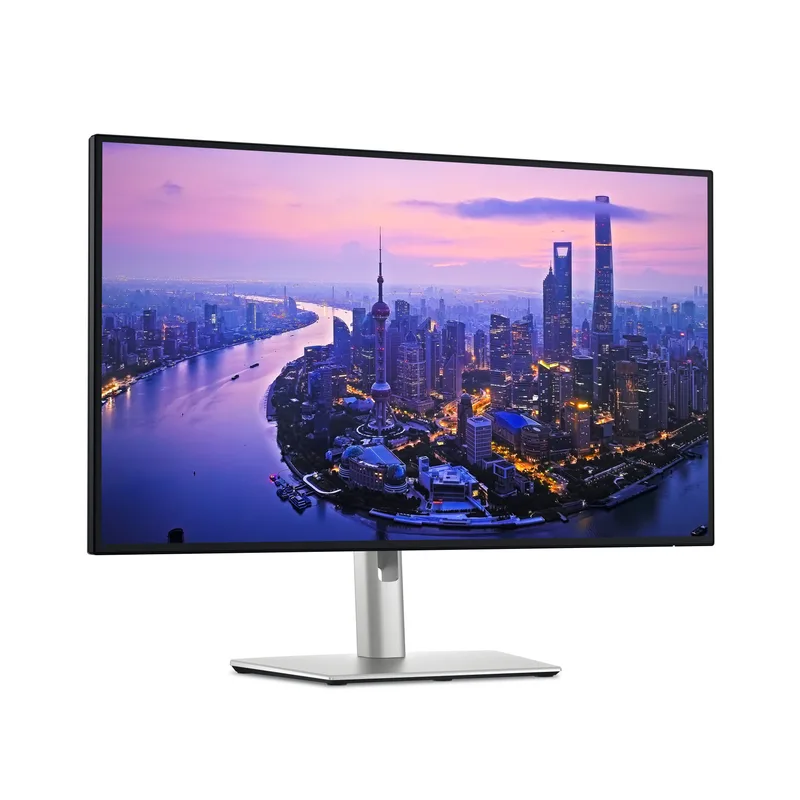
The U2725QE is the first monitor on this list to fully eliminate the need for a separate dock. Its Thunderbolt 4 hub includes five USB-C ports — most users connect their laptop to one port, a second monitor to another, external storage to a third, and still have two ports remaining for peripherals. The built-in RJ-45 port provides wired Ethernet directly from the display, which means a clean desk requires zero dongles, zero docks, and one cable running to the laptop.
The IPS Black panel is the hardware upgrade that separates this from typical IPS monitors. Standard IPS panels achieve 1,000:1 contrast ratios; the U2725QE’s IPS Black delivers 3,000:1. The practical difference appears most clearly in dark UI themes, video content with shadow detail, and dashboards with mixed bright-and-dark regions — the blacks are significantly closer to OLED territory than conventional IPS. For remote workers in design, video editing, or content review, this matters beyond a specification number.
120Hz at 4K is a meaningful quality-of-life upgrade for daily computer use. Scrolling through long documents, snapping windows between positions, and working in dense browser environments all feel more fluid than the 60Hz panels that most office monitors deliver. This is not a gaming feature — it is a usability improvement that is noticeable during ordinary productivity work.
The 96W Thunderbolt 4 Power Delivery covers essentially every laptop. MacBook Pro 14-inch and 16-inch, Dell XPS, Lenovo ThinkPad — all charge fully from this single cable. The one caveat: Thunderbolt 4 operates at full bandwidth (40Gbps) only with Thunderbolt-equipped host machines. Laptops with USB-C but not Thunderbolt still get video and 96W charging, but USB hub bandwidth drops to USB 3.2 speeds (10Gbps).
Who should buy this: Remote workers who want to eliminate every dock, adapter, and peripheral cable. Also the best choice for anyone who frequently moves between locations and wants a single cable drop-in and drop-out at their desk.
Who should skip this: Anyone whose laptop lacks Thunderbolt — you will pay the premium for Thunderbolt bandwidth you cannot fully use. The LG 27UP850K-W delivers 90W USB-C at a fraction of the cost if hub functionality is not the priority.
2. BenQ PD2705UA — Best for Creatives
BenQ PD2705UA
Pros
- Factory calibrated to ΔE ≤ 3 with Pantone and Pantone SkinTone validation — color accuracy is reliable out of the box
- HotKey Puck G3 remote included — switch input sources, display modes, and color presets without diving into OSD menus
- Ergo arm stand provides tilt, swivel, height adjustment, and pivot for portrait orientation
- ICC Sync automatically applies color profiles when switching between connected computers
- 65W Power Delivery covers most 13–14 inch laptops over a single cable
Cons
- 65W is the PD ceiling — high-performance 16-inch laptops draw more power under load
- 60Hz only — no high refresh rate option for after-hours gaming or motion-heavy video
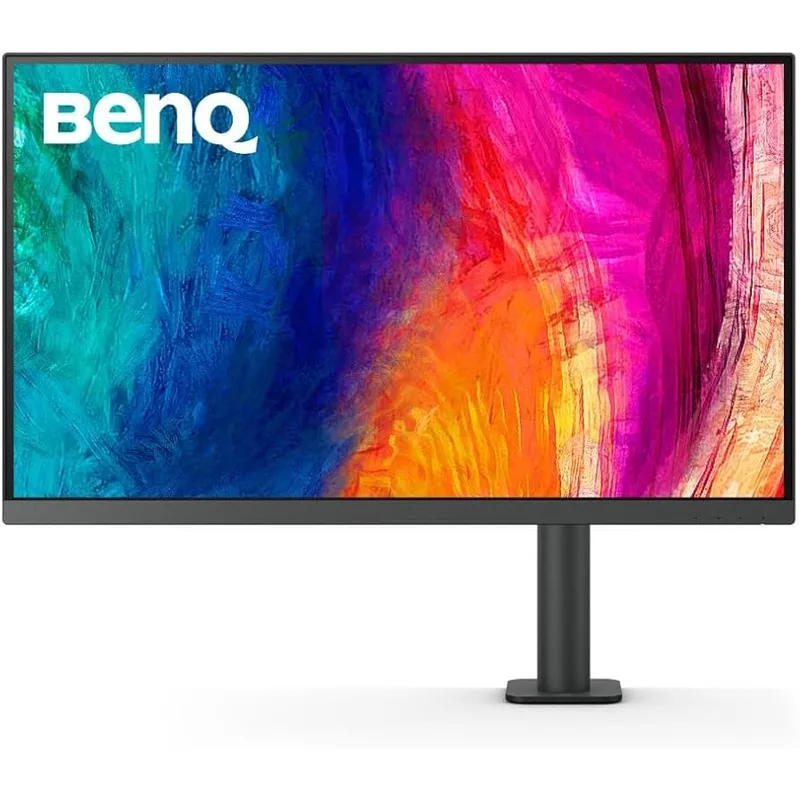
The PD2705UA is built specifically for design and creative workflows, and the hardware reflects that. Factory calibration to ΔE ≤ 3 with Pantone and Pantone SkinTone validation means color accuracy is reliable from first use without manual adjustment. The ICC Sync feature automatically applies the correct color profile when switching between connected computers — relevant for remote workers who have a personal machine and a work machine sharing the same desk.
The HotKey Puck G3 is a small external dial included with the monitor. It replaces OSD button navigation with direct shortcuts for input switching, color mode changes, brightness adjustment, and preset activation. For anyone who regularly switches between USB-C and HDMI inputs — or between sRGB, Rec. 709, and other color modes — this cuts a 5-step OSD process down to a single button press. It sounds minor until you use one.
65W Power Delivery covers 13–14 inch MacBook Air, MacBook Pro, and most business-class Windows laptops during normal workloads. Under sustained heavy CPU/GPU load, high-power 16-inch laptops may draw more than 65W, in which case the battery will drain slowly while the display charges — this is a known limitation of 65W PD, not a defect. Users with demanding workloads on larger laptops should consider the Dell U2725QE (96W) or LG 27UP850K-W (90W) instead.
The ergo arm stand handles full tilt, swivel, height adjustment, and pivot rotation. Portrait orientation is directly useful for code review, document reading, and long-form writing — the portrait pivot is a genuine workflow feature rather than an occasional novelty.
Who should buy this: Remote workers in design, photography, video production, or any color-sensitive workflow who want verified color accuracy without buying a separate hardware calibrator. Also ideal for dual-computer desks where input switching and color profile management are frequent tasks.
Who should skip this: Pure productivity users who do not care about color accuracy — the LG 27UP850K-W delivers 90W USB-C and 4K at $200–$250 less.
3. LG 27UP850K-W — Best Value
LG 27UP850K-W
Pros
- 90W USB-C Power Delivery is the highest in this roundup at this price — covers MacBook Pro 14-inch and most business laptops at full power
- 4K IPS display at $260–$329 is exceptional value; PCWorld recently flagged a price drop to the $260 range for this model
- DCI-P3 95% coverage makes colors accurate and vibrant for content creation and video review work
- Full ergonomic stand includes height, tilt, pivot, and swivel — uncommon at this price point
- Built-in speakers eliminate the need for a separate audio solution on a clean desk build
Cons
- Only one downstream USB port — not a hub replacement; a separate USB hub is needed for multi-peripheral setups
- 60Hz is the refresh ceiling — no upgrade path to higher refresh rates
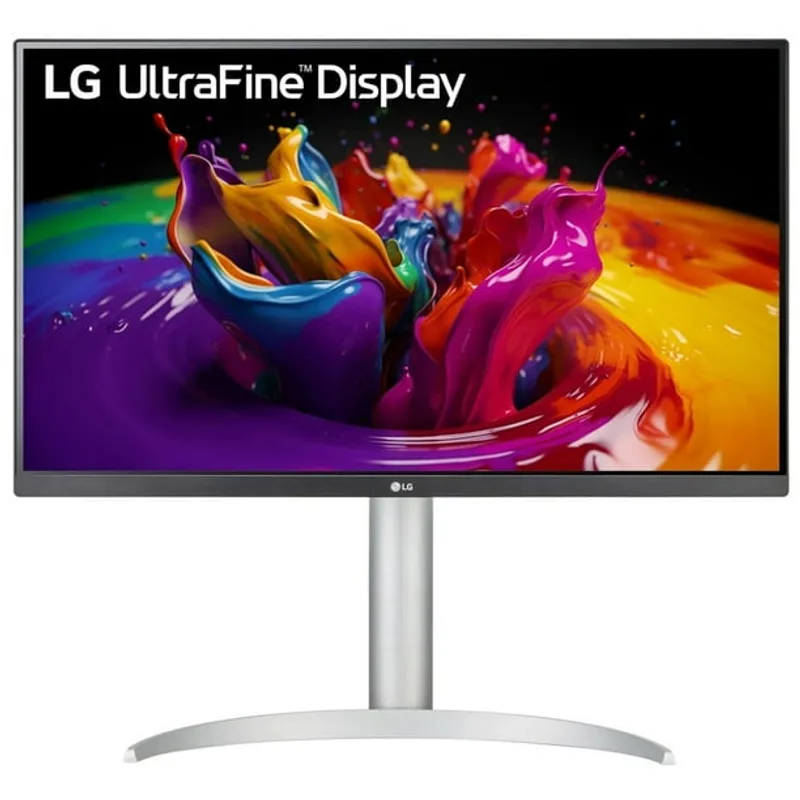
The 27UP850K-W’s strongest argument is straightforward: 4K IPS with 90W USB-C for under $330. PCWorld recently flagged a price drop on this model into the $260 range — at that price, the value proposition over alternatives with lower PD or lower resolution is significant.
The 90W Power Delivery ceiling matters more in practice than the 65W found on most competitors in this price range. Most MacBook Pro 14-inch models require 67W for comfortable charging under load; the 16-inch models recommend 96W. At 90W, the LG covers everything except the most power-hungry 16-inch configurations, whereas 65W monitors will slowly drain those laptops during sustained workloads.
DCI-P3 95% coverage makes this a capable display for content consumption and casual creative work. It is not factory calibrated to the tolerance that the BenQ PD2705UA achieves, but for most remote work — video calls, document editing, design reference work, and general productivity — the color output is accurate and vibrant.
The ergonomic stand is the feature that distinguishes this from other budget monitors. Tilt, height adjustment, pivot, and swivel are all included. A monitor that can be positioned precisely for ergonomics is a better long-term purchase than a fixed-stand monitor at the same price. Pivot rotation enables portrait orientation, which is useful for code review and document reading.
The one practical limitation: there is a single downstream USB port on this monitor. Multi-peripheral users — those connecting keyboard, mouse, audio interface, external drive, and webcam — will need a separate USB hub. The Dell U2725QE and BenQ options in this roundup handle this scenario better at the monitor level.
Who should buy this: MacBook users who want the cleanest single-cable connection point without paying for Thunderbolt 4 hub functionality. Also the best entry point for 4K USB-C connectivity at the lowest cost in this roundup.
Who should skip this: Users who need the monitor to double as a USB hub for multiple peripherals — a separate hub will be needed with this display.
4. ASUS ProArt PA278CV — Best QHD Pick
ASUS ProArt PA278CV
Pros
- 100% sRGB and Rec. 709 coverage with Calman Verified accuracy makes this suitable for photo editing and design work at a budget price
- DisplayPort daisy-chaining lets you connect a second monitor from the first without using an additional display output on your laptop
- 65W USB-C charges most business-class laptops during a normal workday without needing a separate charger
- 4-port USB hub built in (2x USB-A + 1x USB-C + USB-B upstream) — connects keyboard, mouse, and accessories from the monitor
- Includes 3-month Adobe Creative Cloud subscription with purchase (valid through 2026)
Cons
- QHD 1440p resolution looks noticeably less sharp than 4K on a 27-inch panel for dense spreadsheets and small-text interfaces
- 75Hz refresh rate, while slightly above baseline, still shows the difference from 120Hz in fast-moving content
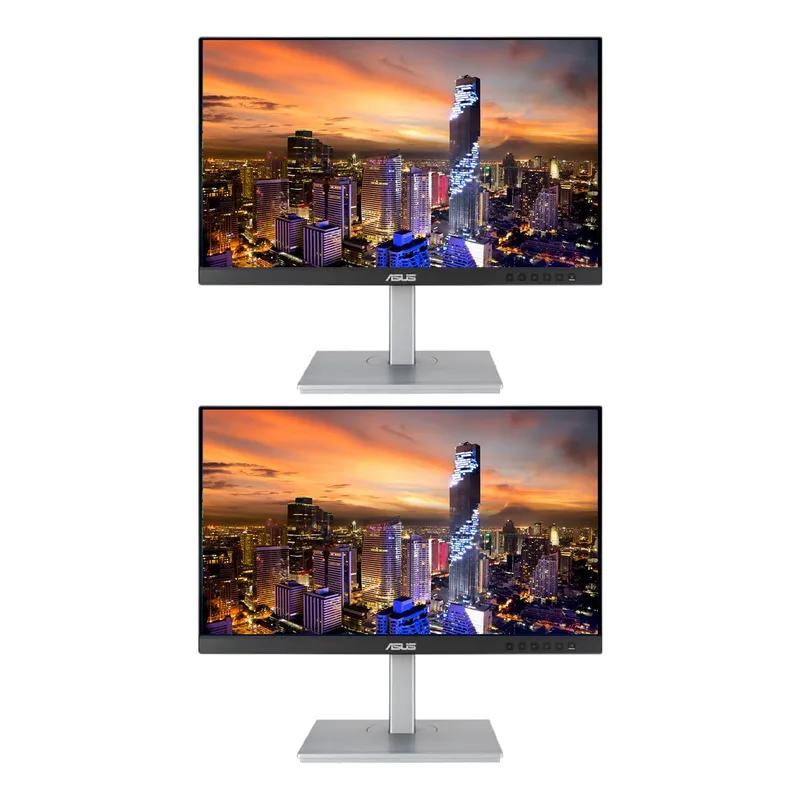
The PA278CV occupies a specific niche: color-accurate display for creative work at under $280, with USB-C connectivity and daisy-chain support that keeps the cable count low. The 100% sRGB and 100% Rec. 709 coverage with Calman Verified accuracy is the defining spec — most monitors at this price range claim sRGB coverage without calibration verification, while the PA278CV ships with verified accuracy.
DisplayPort daisy-chaining is a feature that rarely appears in this price bracket. With daisy-chaining, you can connect a second monitor to the first using a DisplayPort cable rather than routing both displays back to the laptop. For dual-monitor setups where the laptop sits off to one side, this eliminates cable routing across the desk and reduces the port count required from the host machine.
The 65W USB-C handles most 13–14 inch laptops through a workday without issues. The 4-port USB hub (2x USB-A, 1x USB-C, USB-B upstream) covers keyboard, mouse, audio, and one more device directly from the monitor — sufficient for a standard productivity setup.
The 1440p resolution is the real trade-off versus the 4K options. At 27 inches, 1440p is sharp enough for most reading and document work, but side-by-side comparisons with 4K panels reveal a visible difference in text sharpness and fine detail. If dense spreadsheets, small-font interfaces, or 4K video preview are part of your regular workflow, step up to the LG 27UP850K-W or BenQ PD2705UA.
Who should buy this: Remote workers who want color-accurate displays for design and photo work on a tight budget, particularly those planning a dual-monitor build where daisy-chain support reduces cable complexity.
Who should skip this: Users who work in detail-heavy visual environments where 4K sharpness is noticeable — the LG 27UP850K-W is only slightly more expensive and delivers 4K with 90W PD.
5. BenQ GW2786TC — Best Budget

BenQ GW2786TC
Pros
- 65W USB-C Power Delivery at under $220 — the most affordable single-cable setup entry point in this roundup
- Built-in noise-cancelling microphone eliminates the need for a separate mic for calls, unique at this price
- 100Hz refresh rate makes scrolling and animation noticeably smoother than the 60Hz baseline
- Daisy-chaining support allows two-monitor setups from a single USB-C laptop output
- BenQ Eye-Care tech (low blue light, flicker-free) is useful for long work sessions
Cons
- 1080p resolution on a 27-inch panel is visibly soft — text lacks sharpness compared to 1440p or 4K options
- No pivot stand — cannot rotate to portrait orientation
The GW2786TC makes a USB-C single-cable desk setup accessible under $220. At 1080p, it is not a resolution showcase, but the 65W Power Delivery, built-in noise-cancelling mic, 100Hz refresh rate, and daisy-chain support deliver a set of features that previously required spending twice as much.
The built-in noise-cancelling microphone is the differentiator no other monitor in this roundup includes. For remote workers whose calls are the primary daily activity, a functional monitor-mounted microphone simplifies the desk considerably. Owner reviews note it performs acceptably well for video calls — not a replacement for a dedicated microphone for podcasting or voice recording, but more than adequate for Zoom and Teams meetings.
100Hz makes daily scrolling and window management feel meaningfully better than 60Hz. Combined with the IPS panel and BenQ’s flicker-free, low-blue-light Eye-Care technology, this is a comfortable all-day display for reading-heavy work.
The main limitation is resolution. A 1080p image on a 27-inch screen has a noticeably lower pixel density than 1440p or 4K — text is softer, fine detail in spreadsheets requires more zooming, and the overall crispness gap versus the ASUS PA278CV (1440p, similarly priced) is visible. The trade-off is the built-in mic and 100Hz, which the PA278CV does not offer.
Who should buy this: Budget-focused remote workers whose primary desk activity is video calls, and who want USB-C charging simplicity and a cleaner desk without separate microphone purchases.
Who should skip this: Anyone who spends significant time in dense spreadsheets, reads large amounts of fine text, or uses their display for design reference work. The resolution step up to 1440p (ASUS PA278CV) or 4K (LG 27UP850K-W) is noticeable and worth the cost difference.
USB-C Monitor Connectivity: What the Labels Actually Mean
Not all USB-C monitor connections are the same. Three different standards use the same physical port, and the difference determines how useful a “USB-C monitor” actually is for a single-cable setup.
USB-C with DisplayPort Alt Mode only — Carries video signal only. No charging, no data. The laptop still needs a separate power brick. This is the least useful configuration for single-cable desk goals and is worth checking before purchasing any monitor marketed simply as “USB-C.”
USB-C with DisplayPort Alt Mode + Power Delivery — Carries video and charges the connected laptop simultaneously. The wattage determines which laptops benefit: 45W covers smaller ultrabooks, 65W covers most 13–14 inch business laptops at full charging speed, and 90W+ covers larger laptops and MacBook Pro under sustained workloads. All five monitors in this roundup include PD at 65W or 90W.
USB-C with Thunderbolt 3 or Thunderbolt 4 — The full-bandwidth version: 40Gbps, supports multiple displays, external GPU enclosures, high-speed NVMe storage, and up to 100W charging depending on the implementation. Thunderbolt 4 also adds mandatory requirements for minimum hub port counts. The Dell U2725QE uses Thunderbolt 4 and is the only monitor in this roundup with true Thunderbolt bandwidth.
USB-C Hub in the monitor — Some monitors pass USB data back to the laptop from connected peripherals. The monitor acts like a dock — keyboard, mouse, storage, and other USB devices plug into the monitor’s hub ports and appear on the laptop via the single USB-C cable. The Dell U2725QE, BenQ PD2705UA, ASUS PA278CV, and BenQ GW2786TC all include USB hub functionality. The LG 27UP850K-W provides only one downstream USB port.
What to check before buying: Confirm the wattage of your laptop’s USB-C charging requirement (listed in the laptop specs or power adapter rating), then match it to the monitor’s PD spec. Also confirm whether your laptop supports Thunderbolt if you are buying the Dell — Thunderbolt connectivity requires a Thunderbolt-enabled host port.
How to Choose
Need a full hub replacement and premium panel → Dell U2725QE. Thunderbolt 4 hub, IPS Black, 120Hz, 96W PD. Eliminates dock requirement entirely.
Need color accuracy for design work → BenQ PD2705UA. Factory calibrated, Pantone verified, ICC Sync for multi-computer desks. HotKey Puck included.
Need the best 4K value with high PD wattage → LG 27UP850K-W. 90W USB-C at the best price in this list. Strong ergonomic stand included.
Need color accuracy at a lower price with dual-monitor support → ASUS ProArt PA278CV. Calman Verified 1440p, daisy chain, USB hub, under $280.
Need USB-C charging and a built-in mic on a tight budget → BenQ GW2786TC. Under $220, 65W PD, 100Hz, noise-cancelling mic built in.
FAQ
Q: Does USB-C monitors work with all laptops? Any laptop with a USB-C port that supports DisplayPort Alt Mode can connect to a USB-C monitor for video output. Not all USB-C ports support video — some are data-only. Check your laptop specifications for “DisplayPort over USB-C” or “Alt Mode” support. Thunderbolt ports universally support Alt Mode. MacBook Pro, Dell XPS, Lenovo ThinkPad, and HP EliteBook lines all include USB-C with Alt Mode support on current models.
Q: How much power delivery wattage do I need for my laptop? MacBook Air 13/15-inch: 30–45W adequate for light use, 65W+ recommended for sustained performance. MacBook Pro 14-inch: 67W spec, 65W covers most workloads. MacBook Pro 16-inch: 96W spec, 65W will charge slowly under load. Most business Windows laptops (Dell XPS 13, ThinkPad X1 Carbon): 45–65W spec. Gaming laptops typically require 100–180W and cannot be meaningfully charged via monitor USB-C.
Q: What is the difference between Thunderbolt 4 and USB-C for monitors? USB-C is the physical connector standard. Thunderbolt 4 is an Intel protocol that runs over USB-C and provides 40Gbps bandwidth, mandatory hub port minimums, daisy-chaining of up to two 4K displays, and compatibility with Thunderbolt storage and eGPU enclosures. Standard USB-C (USB 3.2 Gen 2) tops out at 10Gbps. For monitor connectivity at typical resolutions, both work. The difference matters when connecting Thunderbolt storage devices, running multiple 4K monitors from one cable, or using Thunderbolt-specific peripherals. If your laptop does not have Thunderbolt, you get no benefit from a Thunderbolt monitor connection — USB-C PD and video pass through normally, but at USB 3.2 bandwidth.
Q: Can a USB-C monitor replace a docking station? For most remote workers with a MacBook or thin-and-light Windows laptop, yes — if the monitor includes a USB hub with enough ports. The Dell U2725QE comes closest to a full dock replacement: five Thunderbolt 4 ports, RJ-45 Ethernet, and 96W PD. The BenQ PD2705UA and ASUS PA278CV cover the basics — 2–4 USB ports plus a charger. Users with more than four USB peripherals, multiple external drives, or very high-bandwidth storage needs may still want a dedicated Thunderbolt dock alongside a USB-C monitor.
Q: Will a USB-C monitor work with an iPad Pro or Android tablet? Yes. USB-C tablets that support DisplayPort Alt Mode — including iPad Pro, iPad Air (USB-C models), Samsung Galaxy Tab S-series, and Pixel Tablet — can output video to USB-C monitors. The monitor may also charge the tablet over the same connection, depending on the PD wattage and the tablet’s charging requirements.
Conclusion
The best USB-C monitor in 2026 depends on what you are asking it to replace. The Dell UltraSharp U2725QE is the correct answer if the goal is eliminating a dedicated dock entirely — Thunderbolt 4 hub, IPS Black, 120Hz, and 96W PD in one panel justify the $700+ price for full-time laptop users who want one cable on their desk.
For 4K quality at the best price, the LG 27UP850K-W is the standout. Its recent drop to the $260–$329 range combined with 90W USB-C and a proper ergonomic stand makes it the most competitive value in this category right now.
Color-critical remote workers in design, photo, or video should choose between the BenQ PD2705UA (factory calibrated 4K, HotKey Puck, ICC Sync) and the ASUS ProArt PA278CV (Calman Verified 1440p, daisy chain, sub-$280 price). The resolution step between them is the central trade-off — 4K for precision versus 1440p for budget.
And for a sub-$220 entry point with USB-C charging and a built-in microphone, the BenQ GW2786TC covers the fundamentals of a clean single-cable desk setup without requiring a significant investment.
Detailed Reviews
Dell UltraSharp U2725QE
Pros
- Thunderbolt 4 hub with five USB-C ports — connect monitors, drives, and peripherals from one port on your laptop
- IPS Black panel delivers 3,000:1 contrast ratio, which is exceptional for an IPS monitor
- 120Hz refresh rate makes scrolling and window management noticeably smoother than standard 60Hz office displays
- 96W Power Delivery charges MacBook Pro and high-power Windows laptops over a single cable
- Built-in RJ-45 port provides wired network access directly from the monitor without a separate adapter
Cons
- Thunderbolt 4 only works at full bandwidth with Thunderbolt-equipped laptops — USB-C-only laptops get USB 3.2 speeds instead
- $700+ price range puts it significantly above every other option in this roundup
BenQ PD2705UA
Pros
- Factory calibrated to ΔE ≤ 3 with Pantone and Pantone SkinTone validation — color accuracy is reliable out of the box
- HotKey Puck G3 remote included — switch input sources, display modes, and color presets without diving into OSD menus
- Ergo arm stand provides tilt, swivel, height adjustment, and pivot for portrait orientation
- ICC Sync automatically applies color profiles when switching between connected computers
- 65W Power Delivery covers most 13–14 inch laptops over a single cable
Cons
- 65W is the PD ceiling — high-performance 16-inch laptops draw more power under load
- 60Hz only — no high refresh rate option for after-hours gaming or motion-heavy video
LG 27UP850K-W
Pros
- 90W USB-C Power Delivery is the highest in this roundup at this price — covers MacBook Pro 14-inch and most business laptops at full power
- 4K IPS display at $260–$329 is exceptional value; PCWorld recently flagged a price drop to the $260 range for this model
- DCI-P3 95% coverage makes colors accurate and vibrant for content creation and video review work
- Full ergonomic stand includes height, tilt, pivot, and swivel — uncommon at this price point
- Built-in speakers eliminate the need for a separate audio solution on a clean desk build
Cons
- Only one downstream USB port — not a hub replacement; a separate USB hub is needed for multi-peripheral setups
- 60Hz is the refresh ceiling — no upgrade path to higher refresh rates
ASUS ProArt PA278CV
Pros
- 100% sRGB and Rec. 709 coverage with Calman Verified accuracy makes this suitable for photo editing and design work at a budget price
- DisplayPort daisy-chaining lets you connect a second monitor from the first without using an additional display output on your laptop
- 65W USB-C charges most business-class laptops during a normal workday without needing a separate charger
- 4-port USB hub built in (2x USB-A + 1x USB-C + USB-B upstream) — connects keyboard, mouse, and accessories from the monitor
- Includes 3-month Adobe Creative Cloud subscription with purchase (valid through 2026)
Cons
- QHD 1440p resolution looks noticeably less sharp than 4K on a 27-inch panel for dense spreadsheets and small-text interfaces
- 75Hz refresh rate, while slightly above baseline, still shows the difference from 120Hz in fast-moving content
BenQ GW2786TC
Pros
- 65W USB-C Power Delivery at under $220 — the most affordable single-cable setup entry point in this roundup
- Built-in noise-cancelling microphone eliminates the need for a separate mic for calls, unique at this price
- 100Hz refresh rate makes scrolling and animation noticeably smoother than the 60Hz baseline
- Daisy-chaining support allows two-monitor setups from a single USB-C laptop output
- BenQ Eye-Care tech (low blue light, flicker-free) is useful for long work sessions
Cons
- 1080p resolution on a 27-inch panel is visibly soft — text lacks sharpness compared to 1440p or 4K options
- No pivot stand — cannot rotate to portrait orientation