Samsung unveiled a major refresh of its monitor lineup at CES 2026, including the world’s first 6K 3D gaming display and a 1,040Hz Odyssey G6 built for esports. Those headline models are extreme hardware designed for competitive gamers. For the home office, Samsung’s real story in 2026 is the continued refinement of its ViewFinity and Smart Monitor lines — monitors built specifically for the productivity, connectivity, and ergonomic needs of remote workers.
This roundup covers the five best Samsung monitors for home office use across price brackets from $160 to $450. Each model was selected based on verified specifications, Amazon availability, and owner feedback patterns from hundreds of real-world reviews. No paid placements — these are the models that hold up against competing brands in their respective price ranges.
Quick Comparison
| Monitor | Size | Resolution | USB-C PD | Refresh | Price |
|---|---|---|---|---|---|
| ViewFinity S8 32” (S80UD) | 32” | 4K | 90W | 60Hz | $329-$399 |
| ViewFinity S8 27” (S80UD) | 27” | 4K | 90W | 60Hz | $249-$329 |
| Smart Monitor M8 32” (M80F) | 32” | 4K | 65W | 60Hz | Unavailable |
| ViewFinity S6 27” (S60UD) | 27” | QHD | 90W | 100Hz | $369.99 as of Oct 18, 2026 |
| Odyssey G5 27” (G53F) | 27” | QHD | None | 200Hz | $167.50-$179.99 as of Oct 18, 2026 |
The Picks
1. Samsung ViewFinity S8 32” — Best Overall
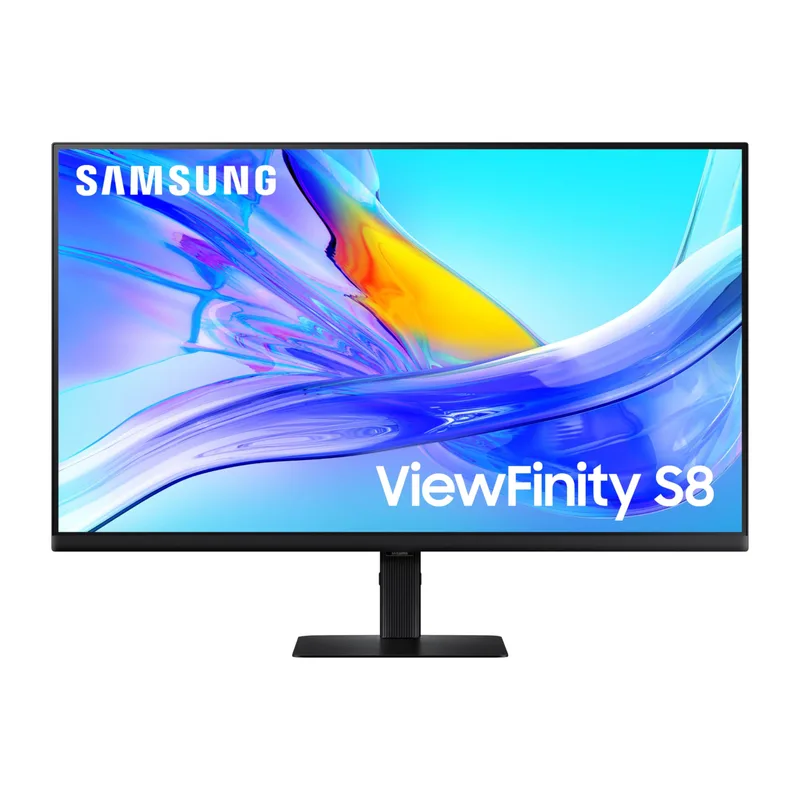
Samsung ViewFinity S8 32" (S80UD)
Pros
- Built-in KVM switch lets you control two computers with one keyboard and mouse — plug a laptop and desktop into the same monitor and switch between them without reaching behind to swap cables, a genuine productivity win for remote workers who use both a company laptop and personal machine
- 90W USB-C power delivery charges most laptops at full speed through a single cable, eliminating the laptop charger from your desk entirely — owner reports across hundreds of reviews confirm reliable laptop charging with MacBook Pro, Dell XPS, and Lenovo ThinkPad models
- 32-inch 4K IPS panel at typical desk distance renders text so sharply that eye strain during long document and code sessions is significantly reduced compared to 1080p or even 1440p equivalents — the pixel density (138 PPI) delivers retina-class clarity without needing Apple hardware
- Ergonomic stand fully adjusts for height, tilt, swivel, and portrait rotation, meaning you can dial in the exact head-neutral position recommended by occupational therapists rather than propping the monitor on books
- TÜV Rheinland certified for Ergonomic Workspace Display with Smart Eye Care technology that automatically adjusts brightness based on ambient light and dims blue light frequencies most associated with evening alertness disruption
Cons
- 60Hz refresh rate is the main limitation — fine for documents, spreadsheets, and video calls, but noticeably less smooth than 144Hz+ monitors during video scrubbing, fast-moving content, or casual gaming after hours
- OSD joystick is positioned behind the lower-center of the display, making menu adjustments awkward when a keyboard sits in front of the monitor — a common complaint across the ViewFinity S8 product line
- Color accuracy out of the box trends slightly warm on some units; users doing color-sensitive work like photo editing typically need a manual white point adjustment to reach D65
The ViewFinity S8 32-inch is the monitor Samsung built for the remote worker who wants to clean up their desk. One USB-C cable handles video, data transfer, and 90W laptop charging simultaneously. The KVM switch lets a single keyboard and mouse control two computers — the kind of feature that previously required a dedicated $80-$150 KVM switch sitting on your desk. Here it’s built into the monitor itself.
At 32 inches, 4K resolution produces 138 pixels per inch — sufficient density that text renders with no visible aliasing at normal viewing distances. The IPS panel maintains accurate color from wide viewing angles, which matters in open-plan home offices where you’re not always sitting directly center.
The ergonomic stand is genuinely good. Full height, tilt, swivel, and pivot adjustment means you can position the panel for sitting and standing desk use without additional hardware. TÜV Rheinland ergonomic certification isn’t marketing — it reflects a measurable standard for brightness uniformity, reflectance, and eye care features that the S8 meets.
The 60Hz ceiling is the honest limitation. For productivity work — documents, spreadsheets, code, video calls — 60Hz is invisible as a constraint. For video scrubbing in Premiere, smooth browser scrolling on a 144Hz-capable system, or casual gaming, you’ll feel the ceiling. If any of those matter to you, the Odyssey G5 addresses refresh rate at the cost of productivity connectivity features.
Who should buy this: Remote workers running a laptop plus desk setup who want KVM, 90W USB-C charging, and 4K on a single display without a separate dock.
2. Samsung ViewFinity S8 27” — Best 27-inch 4K
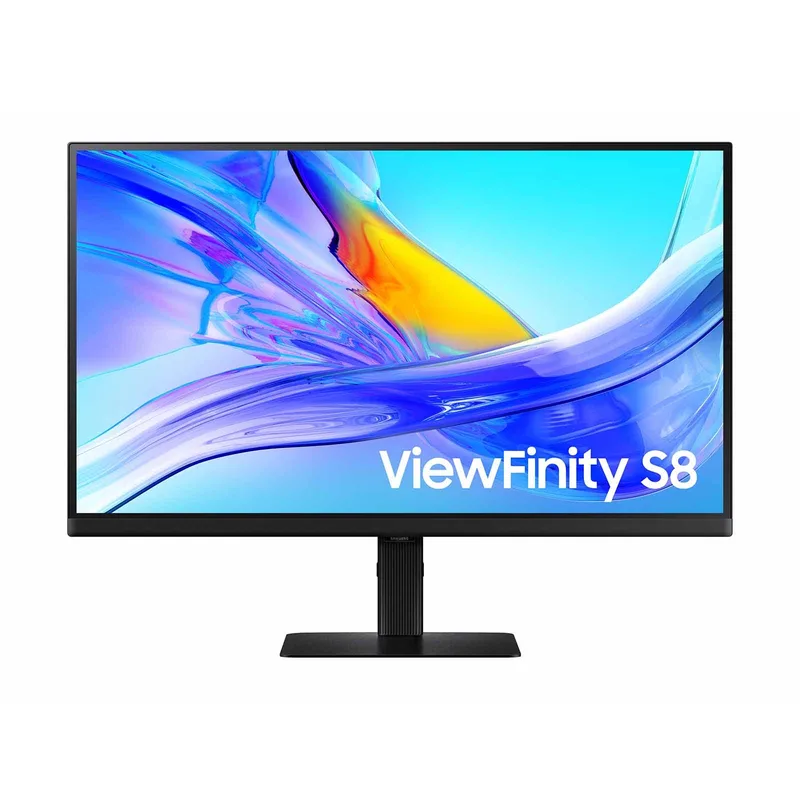
Samsung ViewFinity S8 27" (S80UD)
Pros
- Same KVM switch and 90W USB-C connectivity as the 32-inch model but in a 27-inch footprint — ideal for smaller desks or home offices where a 32-inch feels overwhelming, without sacrificing any of the productivity features
- 4K at 27 inches produces a higher pixel density (163 PPI) than the 32-inch model, so text rendering is even sharper — particularly noticeable in coding environments where font antialiasing matters, or in spreadsheets with small grid text
- Full ergonomic stand (height/tilt/swivel/pivot) included at this price point; competing 4K monitors at similar prices often ship with tilt-only stands and charge separately for ergonomic adjustment
- Frequently available at significant discounts below MSRP — has sold for as low as $200 during promotional periods, making it one of the best-value 4K office monitors available when deals appear
Cons
- 27-inch 4K at 60Hz means you're paying a premium for resolution over refresh rate — if you use the monitor for any gaming or fast video work, the resolution advantage doesn't offset the 60Hz smoothness ceiling
- No built-in Ethernet port unlike the S6 S60UD — requires a separate USB-A to Ethernet adapter or relying on WiFi if the laptop doesn't have a wired port, which matters for anyone doing large file transfers or on unreliable wireless
- OSD joystick accessibility issue affects both S8 sizes equally — small annoyance during initial setup but not a daily concern once calibration is done
The 27-inch S80UD is the same product as the 32-inch with one panel size smaller and no Ethernet port. Everything else — KVM, 90W USB-C, ergonomic stand, IPS panel, 4K resolution — carries over.
The case for 27 over 32 is desk space. A 32-inch monitor at arm’s length requires side-to-side head movement to read content at screen edges; a 27-inch fits within natural eye movement range without neck rotation. If your desk depth is under 30 inches, the 27-inch is the more comfortable choice regardless of resolution.
At 27 inches, 4K produces 163 PPI — genuinely retina-class pixel density. Characters in terminals, code editors, and document applications appear identical to a high-DPI laptop display. There’s no visual difference from scaling modes that typically introduce blurriness on lower-density 27-inch panels.
This monitor has been available for as low as $200 during promotions. The MSRP of $449.99 is the starting point, but prices fluctuate regularly — if you see it at $249-$279, that’s exceptional value for a 4K IPS monitor with KVM and 90W USB-C.
Who should buy this: Remote workers with smaller desks or those upgrading from a 1080p 24-inch who want the sharpness of 4K without a 32-inch footprint.
3. Samsung Smart Monitor M8 32” — Best All-In-One
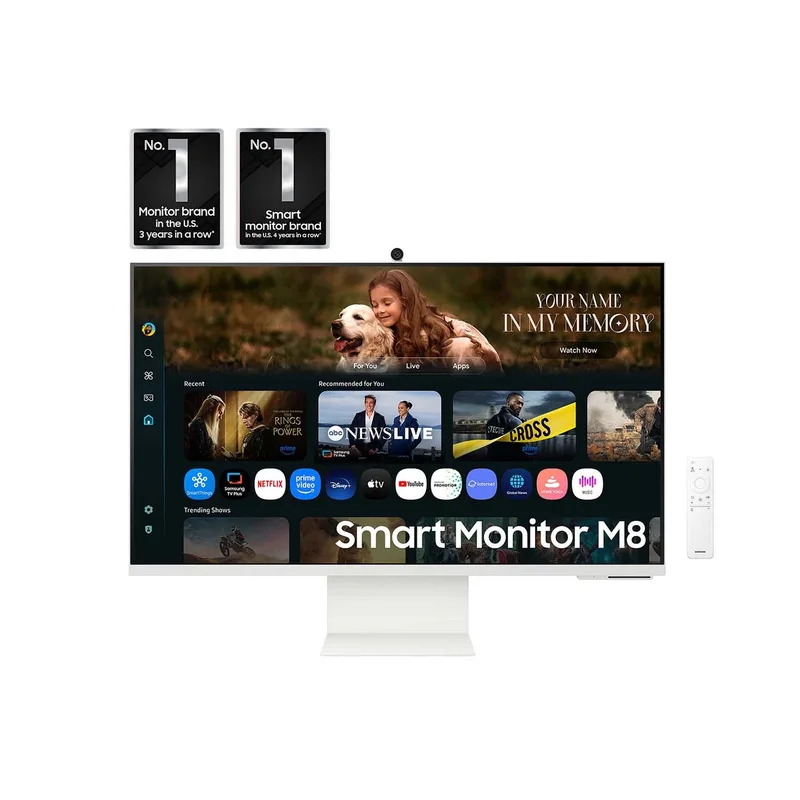
Samsung Smart Monitor M8 32" (M80F)
Pros
- Operates as a standalone smart display — Netflix, Prime Video, Disney+, YouTube, and other streaming apps run directly without a PC connected, which means one less device powered on during casual use and a cleaner desk when you close the laptop
- Included SlimFit Camera snaps onto the top bezel magnetically for video calls — covers the most common home office webcam need without a separate purchase, and the camera delivers acceptable 1080p quality for daily meetings based on owner reports
- Samsung Vision AI upscales lower-resolution content and optimizes image settings per content type in real time — useful when the source signal is compressed streaming or 1080p content on a 4K panel, where upscaling quality is normally a visible weak point
- Gaming Hub provides access to cloud gaming services (Xbox Game Pass, NVIDIA GeForce NOW) without any local hardware — extends the monitor's use case to evening gaming without a separate console or gaming PC
- Slim, clean design with cable management built into the stand; available in Warm White that fits better in non-traditional home office aesthetics than the matte black of most productivity monitors
Cons
- VA panel has lower peak brightness and narrower viewing angles than IPS — side-by-side with the ViewFinity S8's IPS panel, the contrast advantage of VA is visible in dark scenes, but color shifts when viewed from off-center are more pronounced
- 65W USB-C power delivery is below the 90W standard on the ViewFinity S8 — adequate for lightweight laptops (MacBook Air, thin ultrabooks), but may not fully charge larger laptops (MacBook Pro 14/16, Dell XPS 15/16) at full CPU load
- Smart TV and AI features add software overhead; some owner reports note occasional sluggishness in the Tizen OS menus during initial setup and after firmware updates compared to standard monitor OSD interfaces
- No KVM switch — if you run two computers, you cannot share keyboard and mouse through this monitor the way you can with the ViewFinity S8
The M8 is a genuinely different product from the ViewFinity line. Where the S8 is a traditional monitor with excellent connectivity features, the M8 adds a Tizen-based operating system that turns it into a standalone smart display.
The practical upside: you can use the M8 as a television, a streaming device, and a productivity monitor without switching inputs. Netflix, Prime Video, and streaming apps run natively at 4K HDR without any PC. For home offices that double as living rooms, or for anyone who wants fewer devices plugged in, this reduces hardware overhead meaningfully.
The included SlimFit Camera attaches magnetically to the top bezel. Based on owner reports, it delivers adequate 1080p video quality for daily Teams, Zoom, and Google Meet calls — not broadcast quality, but functional. The value proposition: you get webcam, smart display, and monitor in one unit that costs less than buying those separately.
The tradeoffs versus the ViewFinity S8 are real. The VA panel shows more contrast than IPS in dark content but exhibits more visible color shift at off-angle viewing. USB-C power delivery is 65W rather than 90W, which is adequate for most laptops but won’t charge a MacBook Pro or Dell XPS 15 at full rate. No KVM switch, so two-computer control requires a separate peripheral.
Who should buy this: Remote workers who want to eliminate a TV/streaming device from their setup, or those who frequently use the monitor without a PC and value standalone functionality over KVM and maximum USB-C wattage.
4. Samsung ViewFinity S6 27” (S60UD) — Best Value
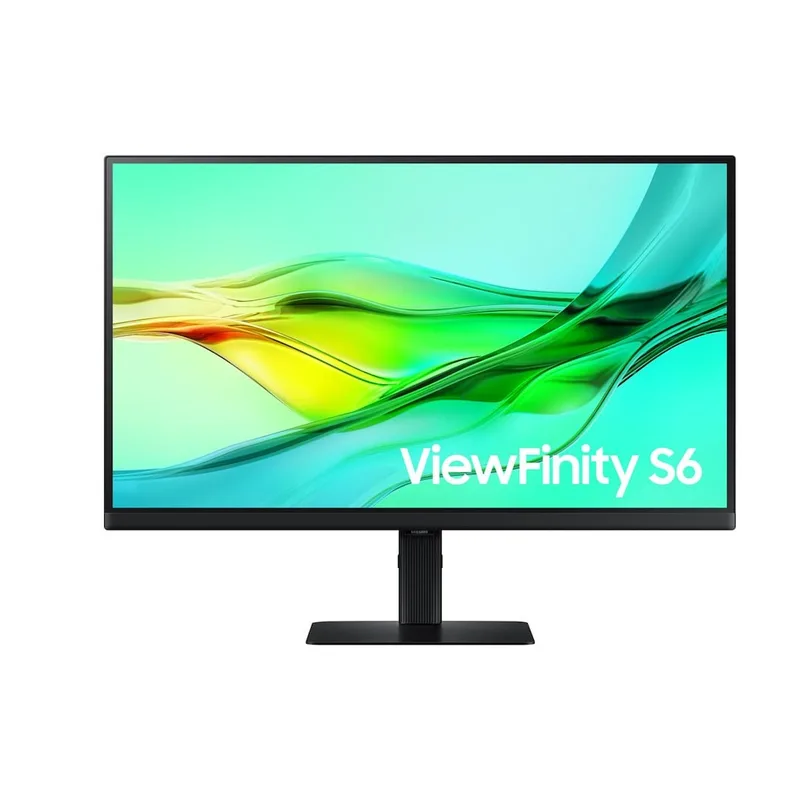
Samsung ViewFinity S6 27" (S60UD)
Pros
- Built-in Ethernet port on the monitor itself — plug a single USB-C cable into your laptop and get video, data, 90W charging, and wired internet through one cable connection, eliminating the need for a separate dock for most home office workflows
- Daisy chain support via USB-C means you can run two S6 monitors off a single laptop USB-C port — for users who want dual QHD without buying a docking station, this is a significant cost advantage over comparable setups
- 100Hz refresh rate noticeably smoother than the 60Hz ViewFinity S8 for document scrolling, browser use, and video calls — not gaming-class, but enough that the difference is perceptible in daily use, especially on large displays
- QHD at 27 inches (109 PPI) is the established sweet spot for text clarity and screen real estate — sharp enough for all productivity work without requiring display scaling adjustments on Windows or macOS
- Full ergonomic stand included at a sub-$250 price point — significantly better value than competing QHD monitors that charge extra for height adjustment
Cons
- QHD resolution versus the 4K of the ViewFinity S8 is a real tradeoff — at 27 inches both look good, but users coming from 4K or doing detailed image/video work will notice the resolution gap in fine texture rendering and small text legibility
- Glossy panel finish on some S6 variants (check the model number) creates reflections in bright rooms with overhead or window lighting — particularly problematic in home offices that don't have controlled lighting, where reflections appear over the screen constantly
- No gaming-grade adaptive sync — AMD FreeSync is not available on this model, so fast content shows minor tearing above 60Hz without VSync
The S60UD makes a compelling case at under $250. The critical differentiator from other QHD monitors in this range: built-in Ethernet. A single USB-C cable into the laptop provides 2560 × 1440 video, 90W laptop charging, USB hub access, and wired internet — that’s the core function of a $100-$150 docking station baked directly into the display.
For remote workers who travel with a laptop and need full desk functionality at home, the S60UD eliminates the dock. Arrive, plug in one cable, get a full workstation. No adapter pouch to forget, no compatibility questions about dock firmware.
The daisy chain capability extends this further. Two S60UD monitors can run off a single laptop USB-C port — for dual-monitor productivity without a dock or dedicated GPU output, this is one of very few sub-$300 monitors that supports it.
QHD at 27 inches is the established sweet spot for text density and screen real estate. At 109 PPI, text is sharp without requiring Windows display scaling. The 100Hz refresh rate is a real upgrade over 60Hz in daily use — scrolling through documents and web pages feels noticeably more fluid, which reduces the subtle visual friction that accumulates over eight hours.
Who should buy this: Remote workers who want dock-like connectivity (USB-C video + charging + Ethernet) from the monitor itself, and those building a dual-monitor setup without a separate dock.
5. Samsung Odyssey G5 27” (G53F) — Best Dual-Purpose
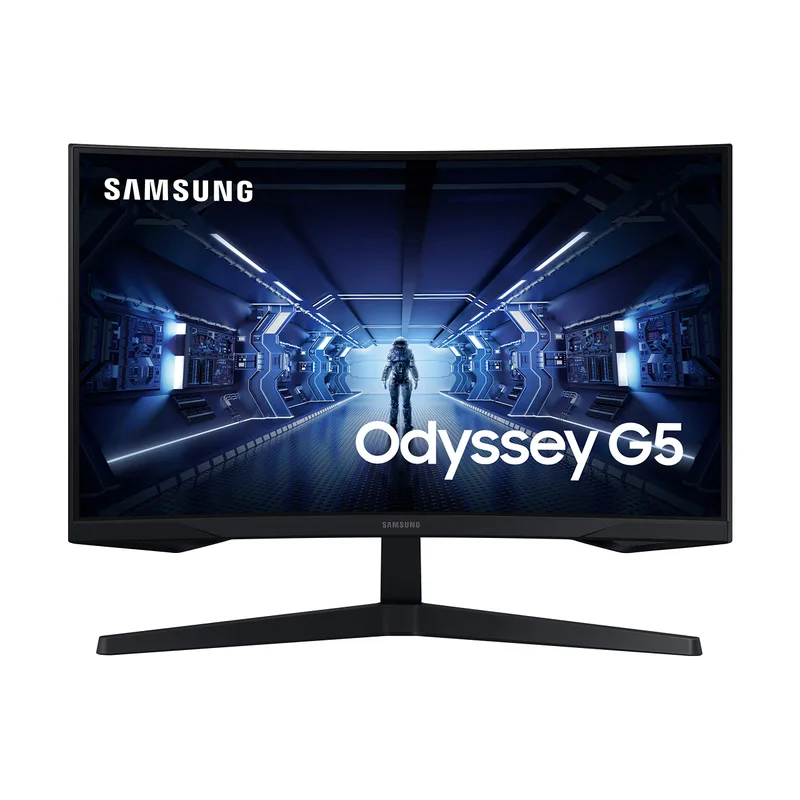
Samsung Odyssey G5 27" (G53F)
Pros
- 200Hz IPS panel at this price is exceptional — for remote workers who use the same monitor for work during the day and gaming in the evening, the G53F eliminates the need for a separate gaming display, delivering both adequate text clarity and smooth high-refresh gaming from one screen
- 1ms MPRT response time eliminates ghosting during fast content, and AMD FreeSync Premium ensures tear-free adaptive refresh — the combination produces visibly cleaner motion than any 60Hz productivity monitor at any price
- IPS panel (unlike curved VA panels on older Odyssey G5 models) offers wide viewing angles and accurate color that works for spreadsheets, documents, and color-sensitive design work without the viewing-angle restrictions of VA
- Has been available for $154-$179 during promotions, making this the lowest-cost entry into Samsung's QHD lineup — strong value for users who prioritize refresh rate over connectivity features
Cons
- Tilt-only stand with no height adjustment — for ergonomically correct monitor positioning, you will need a monitor arm or stand riser; budget $20-$40 for that addition if you care about head-neutral viewing angle
- No USB-C, no Ethernet, no KVM — this is a pure display with minimal connectivity, targeted at direct HDMI/DisplayPort connections; if you need cable simplicity with a modern laptop, the ViewFinity S6 is the better fit
- Designed primarily as a gaming monitor; some software-side features like Black Equalizer are gaming-specific and add no value in work contexts, while missing the productivity-oriented features (KVM, LAN, higher power delivery) that the ViewFinity line includes
The G53F is a gaming monitor that happens to work well for home office use. The IPS panel (an upgrade from the curved VA panels on older Odyssey G5 models) provides wide viewing angles and accurate color reproduction for productivity work, while the 200Hz refresh rate and 1ms MPRT response time handle gaming performance that no other monitor in this roundup approaches.
For remote workers who game in the evening — particularly competitive titles where high refresh rate is meaningful — the G53F eliminates the need for a second display. One 27-inch QHD screen covers day calls and spreadsheets, then shifts to smooth 200Hz gaming without any configuration changes.
The stand is where Samsung cut costs. Tilt only, no height adjustment. For an ergonomically correct setup, you’ll need to add a monitor arm (VESA 100×100 compatible) or a stand riser. Budget $20-$40 for one of those if you plan on this as your primary workstation display. Without that addition, you may find yourself tilting your neck up or slumping to avoid neck strain.
No USB-C, no Ethernet, no KVM. The G53F connects via HDMI 2.0 or DisplayPort 1.2 and nothing else. If cable management simplicity or laptop charging through the monitor matters, this isn’t the pick — the ViewFinity S6 is.
Who should buy this: Remote workers who want a single monitor for daytime productivity and evening gaming without spending for two separate displays.
Buying Guide: How to Choose a Samsung Home Office Monitor
4K vs QHD
At 27 inches, both 4K and QHD look good for office work. 4K (163 PPI at 27”) renders text with more visible sharpness — particularly noticeable in code editors, spreadsheets with small text, and fine web typography. QHD (109 PPI at 27”) remains sharp without requiring display scaling on Windows, and runs at lower GPU load which matters on integrated graphics laptops.
At 32 inches, the PPI difference compresses — 4K at 32” is 138 PPI versus QHD’s 91 PPI. At 32 inches, QHD starts to look noticeably softer, especially for text. The ViewFinity S8 32-inch 4K makes more sense at this size than QHD would.
USB-C Power Delivery: 90W vs 65W
90W USB-C PD covers the full charging rate for most productivity laptops: MacBook Pro 14-inch (96W max), Dell XPS 13/14, Lenovo ThinkPad X1 Carbon. 65W covers MacBook Air (M3), thin ultrabooks, and most Chromebooks. Check your laptop’s charger wattage. If your factory charger is over 65W, you want 90W to ensure the monitor charges the battery at the same rate as the wall adapter.
KVM Switch Value
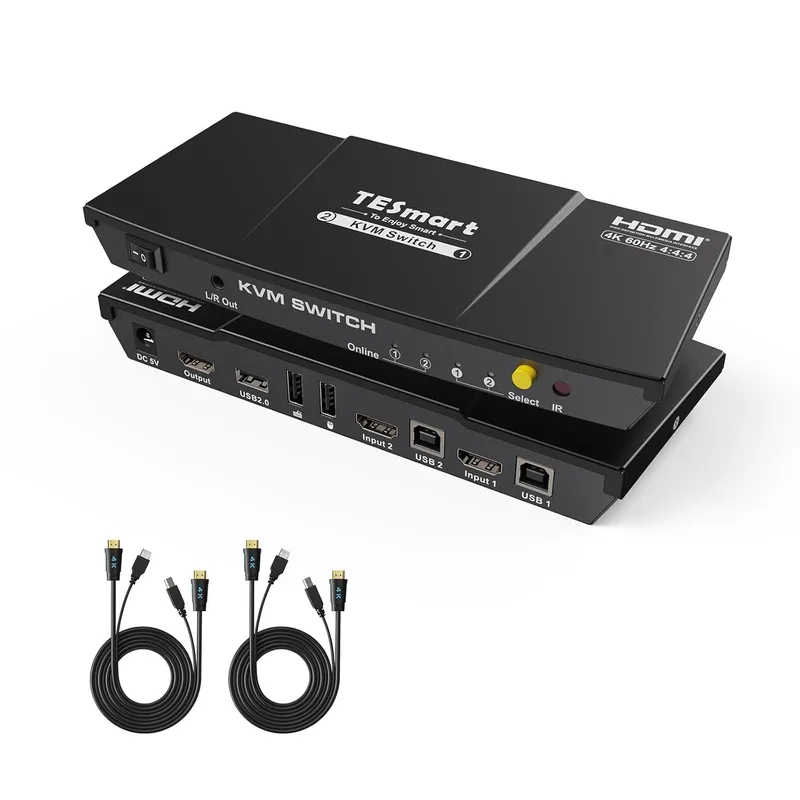
The KVM switch on the S8 models is specifically useful for two-computer setups: a work laptop and a personal machine, or a desktop and laptop. Without KVM, switching between computers requires unplugging and reconnecting a keyboard and mouse. With KVM, a button press (or automatic input detection) switches peripheral control between machines. For anyone running two computers at the same desk, this feature alone justifies the S8 premium over the S6.
Ergonomic Stand vs Monitor Arm
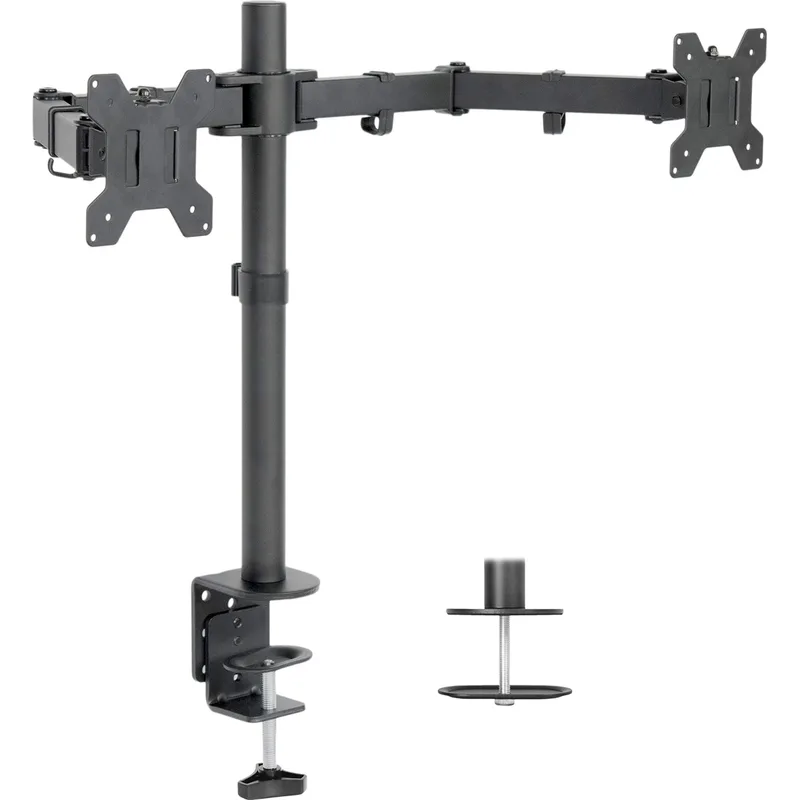
Samsung’s ViewFinity S6 and S8 include full-adjustment stands (height, tilt, swivel, pivot). The Odyssey G5 includes tilt only. If you’re buying the G53F for a standing desk or ergonomic workstation, add a VESA-compatible monitor arm. Virtually all stands that ship with monitors — including Samsung’s — have narrower adjustment ranges and less precise positioning than a quality arm. For permanent installations, an arm is the better long-term ergonomic investment regardless of what stand ships in the box.
FAQ
Does Samsung make good monitors for home office use compared to Dell or LG?
Samsung competes directly with Dell and LG in the productivity monitor space. The ViewFinity S8’s combination of KVM switch, 90W USB-C, and ergonomic stand at its price point is not matched by equivalent Dell UltraSharps without going up in price. LG’s 27UN880 Ergo offers a similar feature set with an arm-integrated stand, but at a higher price. For value versus features, Samsung’s ViewFinity line holds up well in direct comparison.
Do Samsung monitors work well with Mac?
The ViewFinity S8 and S6 models work reliably with Mac via USB-C. The USB-C connection carries DisplayPort signal natively, so no adapter is needed for M1/M2/M3/M4 MacBooks. The KVM switch functions correctly across Mac and Windows machines. The Smart Monitor M8 supports Apple AirPlay for wireless mirroring from iPhone and iPad, which adds integration beyond what a standard monitor offers.
Is the Samsung Smart Monitor M8 worth it for work-only use?
If you only use the monitor for productivity work and don’t need standalone streaming apps or webcam, the ViewFinity S8 delivers better connectivity (90W vs 65W, KVM switch) for similar money. The M8’s value proposition rests on the combination of smart TV functionality, included webcam, and clean design. For pure work use, the S8 wins on features. For a multi-use household display where someone also streams content directly from the monitor, the M8 makes more sense.
Why is the Odyssey G5 in a home office roundup?
The G53F has a QHD IPS panel that works well for office tasks — accurate color, wide viewing angles, adequate contrast. At $159-$199, it’s the lowest-cost entry into Samsung’s QHD IPS lineup. The reason it belongs in this roundup: many remote workers use the same monitor for both work and gaming. The G53F handles both without compromise on either side. The lack of USB-C and ergonomic stand are genuine limitations for a pure productivity workstation, but for a dual-use monitor on a budget, the value is real.
Which Samsung monitor should I get for video calls specifically?
The Smart Monitor M8 includes a webcam, which simplifies video call setup — one less device on your desk. For video call audio, all ViewFinity and Smart Monitor models include built-in speakers, though owner feedback describes them as adequate for calls rather than music listening. The ViewFinity S8 and S6 do not include webcams, so pair either with a dedicated webcam (Logitech C920x or Brio series) for video calls.
Conclusion
The Samsung ViewFinity S8 32-inch is the top pick for most remote workers upgrading to a serious home office display. The combination of 4K IPS, KVM switch, and 90W USB-C in one unit genuinely simplifies a desk setup — you replace a monitor, a dock, and a KVM switch with a single purchase.
For a smaller footprint with identical features, the ViewFinity S8 27-inch delivers the same productivity features at lower cost and fits better on compact desks.
For budget-focused buyers who want dock-like connectivity, the ViewFinity S6 27-inch at $199-$249 is the best value in Samsung’s lineup — built-in Ethernet plus 90W USB-C means you can skip the docking station entirely.
The Smart Monitor M8 makes sense for dual-purpose home office setups where the monitor also serves as a smart TV, and the Odyssey G5 G53F fills the niche for remote workers who game in the evenings and want one display to handle both.
Samsung unveiled a compelling 2026 monitor roadmap at CES — but for home office use today, these five existing models represent the best combination of specifications, pricing, and available stock.
Detailed Reviews
Samsung ViewFinity S8 32" (S80UD)
Pros
- Built-in KVM switch lets you control two computers with one keyboard and mouse — plug a laptop and desktop into the same monitor and switch between them without reaching behind to swap cables, a genuine productivity win for remote workers who use both a company laptop and personal machine
- 90W USB-C power delivery charges most laptops at full speed through a single cable, eliminating the laptop charger from your desk entirely — owner reports across hundreds of reviews confirm reliable laptop charging with MacBook Pro, Dell XPS, and Lenovo ThinkPad models
- 32-inch 4K IPS panel at typical desk distance renders text so sharply that eye strain during long document and code sessions is significantly reduced compared to 1080p or even 1440p equivalents — the pixel density (138 PPI) delivers retina-class clarity without needing Apple hardware
- Ergonomic stand fully adjusts for height, tilt, swivel, and portrait rotation, meaning you can dial in the exact head-neutral position recommended by occupational therapists rather than propping the monitor on books
- TÜV Rheinland certified for Ergonomic Workspace Display with Smart Eye Care technology that automatically adjusts brightness based on ambient light and dims blue light frequencies most associated with evening alertness disruption
Cons
- 60Hz refresh rate is the main limitation — fine for documents, spreadsheets, and video calls, but noticeably less smooth than 144Hz+ monitors during video scrubbing, fast-moving content, or casual gaming after hours
- OSD joystick is positioned behind the lower-center of the display, making menu adjustments awkward when a keyboard sits in front of the monitor — a common complaint across the ViewFinity S8 product line
- Color accuracy out of the box trends slightly warm on some units; users doing color-sensitive work like photo editing typically need a manual white point adjustment to reach D65
Samsung ViewFinity S8 27" (S80UD)
Pros
- Same KVM switch and 90W USB-C connectivity as the 32-inch model but in a 27-inch footprint — ideal for smaller desks or home offices where a 32-inch feels overwhelming, without sacrificing any of the productivity features
- 4K at 27 inches produces a higher pixel density (163 PPI) than the 32-inch model, so text rendering is even sharper — particularly noticeable in coding environments where font antialiasing matters, or in spreadsheets with small grid text
- Full ergonomic stand (height/tilt/swivel/pivot) included at this price point; competing 4K monitors at similar prices often ship with tilt-only stands and charge separately for ergonomic adjustment
- Frequently available at significant discounts below MSRP — has sold for as low as $200 during promotional periods, making it one of the best-value 4K office monitors available when deals appear
Cons
- 27-inch 4K at 60Hz means you're paying a premium for resolution over refresh rate — if you use the monitor for any gaming or fast video work, the resolution advantage doesn't offset the 60Hz smoothness ceiling
- No built-in Ethernet port unlike the S6 S60UD — requires a separate USB-A to Ethernet adapter or relying on WiFi if the laptop doesn't have a wired port, which matters for anyone doing large file transfers or on unreliable wireless
- OSD joystick accessibility issue affects both S8 sizes equally — small annoyance during initial setup but not a daily concern once calibration is done
Samsung Smart Monitor M8 32" (M80F)
Pros
- Operates as a standalone smart display — Netflix, Prime Video, Disney+, YouTube, and other streaming apps run directly without a PC connected, which means one less device powered on during casual use and a cleaner desk when you close the laptop
- Included SlimFit Camera snaps onto the top bezel magnetically for video calls — covers the most common home office webcam need without a separate purchase, and the camera delivers acceptable 1080p quality for daily meetings based on owner reports
- Samsung Vision AI upscales lower-resolution content and optimizes image settings per content type in real time — useful when the source signal is compressed streaming or 1080p content on a 4K panel, where upscaling quality is normally a visible weak point
- Gaming Hub provides access to cloud gaming services (Xbox Game Pass, NVIDIA GeForce NOW) without any local hardware — extends the monitor's use case to evening gaming without a separate console or gaming PC
- Slim, clean design with cable management built into the stand; available in Warm White that fits better in non-traditional home office aesthetics than the matte black of most productivity monitors
Cons
- VA panel has lower peak brightness and narrower viewing angles than IPS — side-by-side with the ViewFinity S8's IPS panel, the contrast advantage of VA is visible in dark scenes, but color shifts when viewed from off-center are more pronounced
- 65W USB-C power delivery is below the 90W standard on the ViewFinity S8 — adequate for lightweight laptops (MacBook Air, thin ultrabooks), but may not fully charge larger laptops (MacBook Pro 14/16, Dell XPS 15/16) at full CPU load
- Smart TV and AI features add software overhead; some owner reports note occasional sluggishness in the Tizen OS menus during initial setup and after firmware updates compared to standard monitor OSD interfaces
- No KVM switch — if you run two computers, you cannot share keyboard and mouse through this monitor the way you can with the ViewFinity S8
Samsung ViewFinity S6 27" (S60UD)
Pros
- Built-in Ethernet port on the monitor itself — plug a single USB-C cable into your laptop and get video, data, 90W charging, and wired internet through one cable connection, eliminating the need for a separate dock for most home office workflows
- Daisy chain support via USB-C means you can run two S6 monitors off a single laptop USB-C port — for users who want dual QHD without buying a docking station, this is a significant cost advantage over comparable setups
- 100Hz refresh rate noticeably smoother than the 60Hz ViewFinity S8 for document scrolling, browser use, and video calls — not gaming-class, but enough that the difference is perceptible in daily use, especially on large displays
- QHD at 27 inches (109 PPI) is the established sweet spot for text clarity and screen real estate — sharp enough for all productivity work without requiring display scaling adjustments on Windows or macOS
- Full ergonomic stand included at a sub-$250 price point — significantly better value than competing QHD monitors that charge extra for height adjustment
Cons
- QHD resolution versus the 4K of the ViewFinity S8 is a real tradeoff — at 27 inches both look good, but users coming from 4K or doing detailed image/video work will notice the resolution gap in fine texture rendering and small text legibility
- Glossy panel finish on some S6 variants (check the model number) creates reflections in bright rooms with overhead or window lighting — particularly problematic in home offices that don't have controlled lighting, where reflections appear over the screen constantly
- No gaming-grade adaptive sync — AMD FreeSync is not available on this model, so fast content shows minor tearing above 60Hz without VSync
Samsung Odyssey G5 27" (G53F)
Pros
- 200Hz IPS panel at this price is exceptional — for remote workers who use the same monitor for work during the day and gaming in the evening, the G53F eliminates the need for a separate gaming display, delivering both adequate text clarity and smooth high-refresh gaming from one screen
- 1ms MPRT response time eliminates ghosting during fast content, and AMD FreeSync Premium ensures tear-free adaptive refresh — the combination produces visibly cleaner motion than any 60Hz productivity monitor at any price
- IPS panel (unlike curved VA panels on older Odyssey G5 models) offers wide viewing angles and accurate color that works for spreadsheets, documents, and color-sensitive design work without the viewing-angle restrictions of VA
- Has been available for $154-$179 during promotions, making this the lowest-cost entry into Samsung's QHD lineup — strong value for users who prioritize refresh rate over connectivity features
Cons
- Tilt-only stand with no height adjustment — for ergonomically correct monitor positioning, you will need a monitor arm or stand riser; budget $20-$40 for that addition if you care about head-neutral viewing angle
- No USB-C, no Ethernet, no KVM — this is a pure display with minimal connectivity, targeted at direct HDMI/DisplayPort connections; if you need cable simplicity with a modern laptop, the ViewFinity S6 is the better fit
- Designed primarily as a gaming monitor; some software-side features like Black Equalizer are gaming-specific and add no value in work contexts, while missing the productivity-oriented features (KVM, LAN, higher power delivery) that the ViewFinity line includes