OLED monitors crossed two important thresholds in 2026. Entry-level Tandem OLED panels dropped below $500, and Samsung deployed its new QuantumBlack anti-glare coating across all 2026 QD-OLED products — reducing reflections by 20% compared to the previous generation. For remote workers who previously ruled out OLED due to glare in bright home offices, that coating change matters more than any spec upgrade.
The result: OLED is now a realistic daily driver for office work at multiple price points, not just a premium option for creative professionals. The questions worth asking before buying have shifted from “is OLED viable for office use?” to “which OLED is right for my specific work setup?”
Quick pick: The ASUS ProArt PA27DCE-K is the best overall choice for remote workers who care about color accuracy — it ships with a hardware calibrator in the box, costs less than buying the calibrator separately, and covers every professional color requirement. For a 32-inch QD-OLED that handles both office work and gaming, the Samsung Odyssey OLED G8 at $729–$849 is the strongest 32-inch value in this comparison. If your budget starts at $500, the Gigabyte MO27Q28G brings Tandem OLED technology down to a price that was reserved for IPS panels last year.
Comparison
| Spec | ASUS ProArt PA27DCE-K | Samsung Odyssey OLED G8 (G80SD) | MSI MPG 272URX QD-OLED | Gigabyte MO27Q28G |
|---|---|---|---|---|
| Rating | 9.2/10 | 8.8/10 | 8.7/10 | 8.4/10 |
| Price | $1049.99-$1429.99as of Oct 18, 2026 | Unavailable | Unavailable | Unavailable |
| Size | 27 inches | 32 inches | 27 inches | 27 inches |
| Resolution | 3840x2160 (4K UHD) | 3840x2160 (4K UHD) | 3840x2160 (4K UHD) | 2560x1440 (QHD) |
| Panel | OLED (RGB stripe) | QD-OLED | QD-OLED (Gen 3) | Tandem W-OLED (4th Gen) |
| Refresh Rate | 60Hz | 240Hz | 240Hz | 280Hz |
| Color Gamut | 99% DCI-P3 | 99% DCI-P3 | 99% DCI-P3, 97.5% Adobe RGB | — |
| Color Accuracy | ΔE < 1 (factory calibrated) | — | ΔE ≤ 2 | — |
| USB-C Power Delivery | 80W | — | 98W | — |
| Connectivity | 3x HDMI 2.0, DP 1.4, USB-C | — | — | 2x HDMI, DP, USB-C |
| Included Calibrator | X-rite i1 Display Pro | — | — | — |
| Response Time | — | 0.03ms | — | 0.03ms |
| Burn-in Protection | — | Static Detection, Pixel Refresh, OLED Care | — | — |
| Warranty | — | 3 years (includes burn-in) | — | — |
| KVM Switch | — | — | Yes | — |
| Peak Brightness | — | — | — | 1500 nits |
| USB-C | — | — | — | Yes (KVM) |
| Check Price → | Check Price → | Check Price → | Check Price → |
Prices change daily — tap Check Price for the current Amazon price.
The Picks
1. ASUS ProArt PA27DCE-K — Editor’s Pick
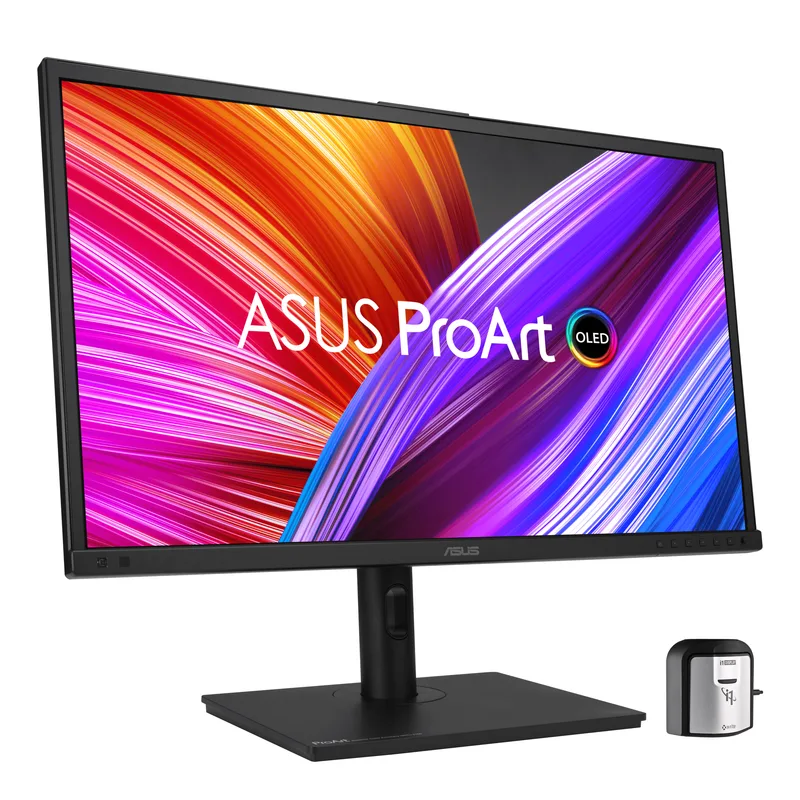
ASUS ProArt PA27DCE-K
Pros
- Factory calibrated to ΔE < 1 — accurate color from the first boot without adjustment
- Includes X-rite i1 Display Pro hardware calibrator (a $250 accessory) in the box
- Calman Ready and ColourSpace integration for professional color workflows
- USB-C with 80W Power Delivery for single-cable laptop connections
- 99% DCI-P3 coverage covers every color requirement from photo editing to video review
Cons
- 60Hz only — no high refresh rate for after-hours gaming
- At $1,699+, requires serious color-accurate work to justify
- No variable refresh rate or gaming features for dual-use setups
The ProArt PA27DCE-K’s strongest selling point is not on the spec sheet — it is what comes in the box. ASUS includes an X-rite i1 Display Pro hardware colorimeter, a calibration tool that normally costs around $250 separately. For remote workers in design, photo editing, video review, or anything color-sensitive, this means the monitor ships fully calibrated and you have the tools to recalibrate it yourself over time as the panel ages.
Factory calibration to ΔE under 1 is exceptional. Most monitors advertise ΔE under 2 and measure closer to 2.5–3.5 in practice. A ΔE under 1 means color differences between the monitor’s output and the target are effectively invisible to the human eye. For proof work, client reviews, and any output that needs to match print or other screens, this is the standard that matters.
The OLED panel uses RGB stripe pixel layout — distinct from the WRGB layout used in older LG OLED panels — which means text rendering is significantly sharper. Reading long documents, reviewing code, or working in dense spreadsheet environments benefits from this directly. Small text does not show the haloing or fringing that older WOLED panels sometimes exhibited.
Connectivity is solid: three HDMI 2.0 ports, DisplayPort 1.4, and a USB-C input with 80W Power Delivery. For MacBook users, 80W is sufficient to charge most models while driving the display over a single cable. The USB hub includes two USB-A and one USB-C downstream port.
Who should buy this: Designers, photographers, video editors, and remote workers whose output requires accurate color representation. Also the right choice for anyone whose work includes proof review or screen-to-print matching.
Who should skip this: Workers who game after hours — 60Hz is the hard ceiling here. If refresh rate flexibility matters, the Samsung G8 handles both workloads better.
2. Samsung Odyssey OLED G8 (G80SD) — Best Value
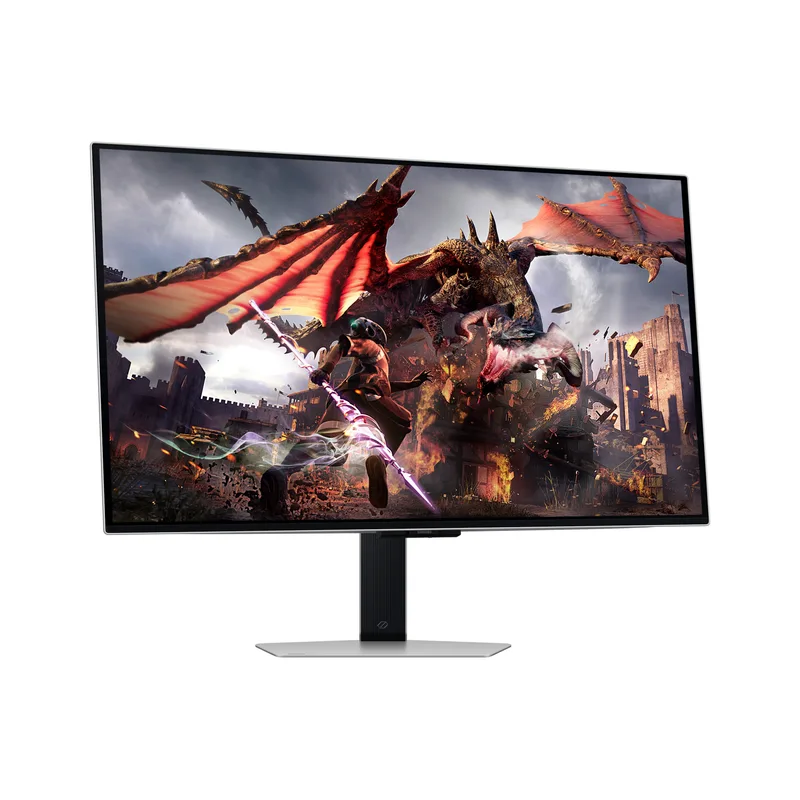
Samsung Odyssey OLED G8 (G80SD)
Pros
- 32-inch 4K QD-OLED — dropped to $729–$849, the strongest value in OLED right now
- 240Hz covers both productive work and gaming after hours
- QuantumBlack anti-glare coating reduces reflections in bright home offices
- 3-year warranty explicitly covers burn-in
- Samsung Gaming Hub for streaming without a PC
Cons
- No USB-C with Power Delivery — laptop users need a separate dock
- Static logo and taskbar brightness reduction can cause visible dimming on certain UI elements
- No hardware calibration support for professional color workflows
The Odyssey G8 G80SD has dropped to $729–$849 from its original $999+ launch price — and the 32-inch 4K QD-OLED size-to-panel combination has no direct competition at this price. A 32-inch 4K display gives remote workers meaningfully more screen real estate than the 27-inch options in this roundup — side-by-side windows never feel cramped, video calls stay in their own corner without obscuring other content, and reference documents are readable without zooming.
QD-OLED differs from W-OLED in one key way for office work: the Quantum Dot layer increases peak brightness and color saturation over standard OLED, which is particularly useful in rooms where overhead lighting cannot be fully controlled. Samsung’s 2026 glare-free coating reduces reflections further, addressing the most common complaint about using high-contrast OLED panels in bright work environments.
Burn-in protection is handled through several layers: static element detection reduces brightness of persistent elements like taskbars and menu bars, a screen saver activates during inactivity, and a pixel refresh cycle runs periodically. Crucially, Samsung backs this with a 3-year warranty that explicitly includes burn-in. That coverage eliminates the biggest psychological barrier to using OLED as a primary work monitor.
At 240Hz, this monitor handles gaming, video, and motion-heavy content after work hours without any compromise. The 0.03ms response time eliminates any ghosting that older LCD monitors showed during fast-paced content.
Who should buy this: Remote workers who want 32 inches of 4K OLED at the best available price, particularly those who also game or watch video content. The Samsung G8 is the most versatile option here.
Who should skip this: Laptop users who need single-cable charging — there is no USB-C Power Delivery on the G8. A separate dock is required.
3. MSI MPG 272URX QD-OLED — Best for Laptop Users

MSI MPG 272URX QD-OLED
Pros
- 98W USB-C Power Delivery charges MacBook Pro 14-inch and most high-performance laptops at full speed over a single cable
- 99% DCI-P3 and 97.5% Adobe RGB coverage handles professional color work and photo review
- ΔE ≤ 2 out-of-box color accuracy without manual calibration tools
- KVM switch enables clean dual-computer setups without a separate switch
- 240Hz covers gaming and motion-heavy content after work hours without compromise
Cons
- Gaming-oriented branding; lacks the calibration software integration of the ASUS ProArt
- No Calman or ColourSpace support for professional color management
- No factory-included hardware calibrator
The MSI MPG 272URX covers the same single-cable laptop need as the discontinued LG 27EQ850-B it replaces — and adds 240Hz. The 98W USB-C Power Delivery is the highest in this roundup, and 98W charges MacBook Pro 14-inch models and high-performance Windows laptops at full speed under load. One cable covers 4K video output, laptop charging, and USB hub access simultaneously.
The QD-OLED Gen 3 panel covers 99% DCI-P3 and 97.5% Adobe RGB with ΔE ≤ 2 accuracy out of the box — no manual calibration tools required. For remote workers reviewing photos, video footage, or design files on calls, the color is consistent and professional.
The built-in KVM switch handles clean dual-computer setups: connect a work laptop and personal machine, switch keyboard and mouse between them at the monitor. The USB-C port carries both display signal and 98W charging, so the switch also toggles laptop charging.
At 240Hz and 0.03ms response time, this monitor handles gaming and motion-heavy content after work hours without compromise. The Gen 3 QD-OLED subpixel layout improves text rendering at normal reading distances, resolving the fringing issue that affected earlier OLED panels at document scales.
Who should buy this: MacBook users and laptop-primary remote workers who want OLED quality with single-cable desk simplicity. Also remote workers who want one panel for professional color work and gaming without buying two monitors.
Who should skip this: Professional colorists who need hardware calibration and Calman/ColourSpace integration — the ASUS ProArt PA27DCE-K ships with the X-rite calibrator and provides the verified color management workflow this monitor does not.
4. Gigabyte MO27Q28G — Best Budget
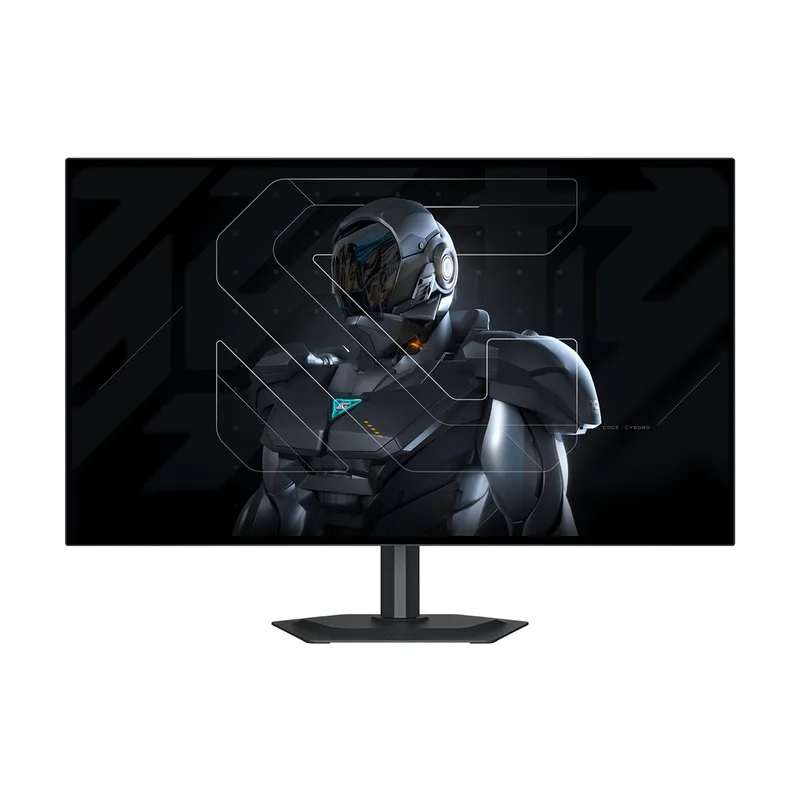
Gigabyte MO27Q28G
Pros
- Entry-level price for Tandem OLED technology — 1500 nits peak brightness beats older OLED panels significantly
- 280Hz makes this genuinely useful for gaming and fast-paced work without compromise
- USB-C with KVM simplifies multi-device switching for users with multiple computers
- 4th-generation W-OLED reduces power consumption by 20% versus older OLED panels
- Height and tilt adjustable stand included
Cons
- 1440p resolution lower than 4K competitors — visible on dense layouts and fine text
- No hardware calibration — not suitable for professional color grading
- Gaming OLED branding may not suit minimal desk aesthetics
The Gigabyte MO27Q28G represents where the OLED market landed in 2026: a Tandem W-OLED panel with 1,500 nits peak brightness and 280Hz refresh, priced between $499 and $599. A year earlier, that combination of panel technology and price point simply did not exist.
Tandem W-OLED (4th generation) stacks two OLED layers to increase brightness without requiring more power per pixel. The practical outcome for office work is a panel that stays visually comfortable under normal office overhead lighting — something earlier-generation OLED monitors struggled with. The 1,500-nit peak handles HDR content and bright work environments significantly better than first-generation OLED panels could.
The 1440p resolution is the meaningful trade-off versus the 4K panels in this roundup. At 27 inches, 1440p is acceptable for most text and productivity work, but dense spreadsheets, document layouts with fine detail, and small-text interfaces will look noticeably sharper on the 4K options. For remote workers who spend most of their day in video calls, browsers, and document applications, 1440p at this price makes practical sense.
The USB-C with KVM function enables clean desk setups with two computers — one USB-C cable switches both the display input and USB peripherals between machines. For remote workers using a personal laptop and a work-issued laptop on the same desk, this eliminates a second KVM switch.
Who should buy this: Budget-conscious remote workers who want OLED quality for the first time, or setup builders adding a secondary OLED display without spending full price on a second panel. Also ideal for hybrid gaming and work use, given the 280Hz ceiling.
Who should skip this: Workers doing color-critical creative work — the lack of hardware calibration and 1440p resolution make this unsuitable for professional color workflows.
Is OLED Worth It for Remote Work?
The short answer is: it depends on what you actually do at your desk for eight hours.
Where OLED clearly wins: Dark mode interfaces, terminal environments, dark-themed code editors, and anything with high contrast. The perfect black level of OLED makes dark interfaces look visually distinct from any LCD, and the effect reduces eye fatigue on long sessions. OLED also renders gradients, photos, and video with a natural smoothness that IPS panels approximate but do not fully match.
Where the concern is legitimate: Static UI elements — taskbars, menu bars, persistent sidebars, application chrome that never moves — carry some risk of uneven pixel aging over years of continuous use. Modern panels have mitigation (brightness limiting, periodic refresh), but the physics have not changed. Office workers who run the same layout for 10+ hours every day should enable the anti-burn-in features that every OLED monitor now ships with, and should not leave static content on a paused screen overnight.
The burn-in risk in practice: Real-world reports from long-term OLED monitor users — including professional workstations and design studios — suggest that burn-in at measurable levels generally takes years of continuous static use, not months. The Samsung G8’s 3-year burn-in warranty reflects the manufacturer’s actual confidence in the panel. Enable pixel refresh, use a screensaver, and the risk for a typical remote work setup is low.
QD-OLED vs W-OLED for office work: QD-OLED (Samsung G8, MSI MPG 272URX) offers higher peak brightness and richer color saturation. W-OLED (Gigabyte MO27Q28G) offers wider color space coverage and is preferred by professional colorists. For general remote work, QD-OLED’s brightness advantage is more practically useful. For color-critical creative work, W-OLED and the ASUS ProArt’s RGB-stripe OLED are the professional choice.
Buying Guide
Primary concern: single-cable laptop connectivity → MSI MPG 272URX. The 98W USB-C is the highest in this roundup and covers every laptop at full charge speed — $1,000–$1,200 less than the ASUS ProArt.
Primary concern: screen size and value → Samsung Odyssey OLED G8. Thirty-two inches of 4K QD-OLED at $729–$849 is the most screen real estate per dollar in OLED at this writing.
Primary concern: professional color accuracy → ASUS ProArt PA27DCE-K. The included X-rite calibrator and ΔE < 1 factory calibration are not matched by any other option here at any price.
Primary concern: entry cost → Gigabyte MO27Q28G. The first credible OLED option under $600, with Tandem panel technology that justifies the step up from IPS.
FAQ
Does OLED cause burn-in on a work computer?
The risk is real but not inevitable. Static elements — system taskbars, persistent app sidebars, notification areas — are the main concern because the same pixels stay lit in the same pattern for long periods. All four monitors here include burn-in mitigation: automatic brightness limiting on static regions, pixel refresh cycles, and screensaver activation. Enable these features, avoid leaving a static image on the panel overnight, and the practical risk for most remote work setups is low over a three-to-five-year ownership period. Samsung specifically backs this with a 3-year burn-in warranty on the G8.
Is OLED better than IPS for reading documents all day?
OLED’s perfect black level and infinite contrast ratio produce sharper perceived text on dark-mode applications. On white-background documents, the difference versus a well-calibrated IPS is less dramatic. OLED’s advantage is most visible in mixed-content environments — documents with images, dark-mode IDEs with colored syntax highlighting, dashboards with strong visual contrast. If you work exclusively in white-background Google Docs or Excel in light mode, a quality IPS at this budget buys meaningful features OLED cannot match.
Can an OLED monitor replace an IPS for professional photo and video work?
Yes — the ASUS ProArt PA27DCE-K and MSI MPG 272URX are the right choices here. The ASUS ships with the X-rite i1 Display Pro calibrator included and achieves ΔE < 1 factory calibration. The MSI covers 99% DCI-P3 and 97.5% Adobe RGB at ΔE ≤ 2 without a separate calibration tool. OLED’s advantage in this context is gradient rendering, shadow detail, and HDR preview accuracy — areas where the infinite contrast ratio produces a more accurate picture of how a final output will actually look.
What size OLED monitor should I get for remote work — 27 inch or 32 inch?
For a primary monitor used 8+ hours per day, 32 inches gives more comfortable document and spreadsheet reading at standard desk distances without requiring manual zoom. At 4K resolution, 32 inches maintains high pixel density — text remains sharp and individual pixels are not visible at normal viewing distances. The 27-inch options in this roundup are better when desk depth is limited or when the monitor will be used at closer range than typical.
How much has the Samsung G8 dropped in price?
Significantly. The G80SD launched at $999–$1,249 and is now available at $729–$849 at Amazon and major retailers. This makes it one of the larger price drops in the 32-inch 4K OLED category and explains why it earns the Best Value badge here. Check current prices directly — deals can push the street price below $729 during sales events.
Conclusion
For most remote workers, the ASUS ProArt PA27DCE-K is the best OLED monitor to own long-term. The included hardware calibrator pays for itself versus buying calibration tools separately, the factory accuracy is the best available at this price, and the 27-inch 4K OLED panel handles every category of professional work. It is expensive — but it replaces a monitor purchase plus a calibrator purchase in one transaction.
For the most versatile desk-plus-evening-use setup, the Samsung Odyssey OLED G8 at $729–$849 is the best 32-inch value here. 4K QD-OLED with Samsung’s anti-glare coating, a 3-year burn-in warranty, and 240Hz for gaming makes it the hardest to argue against if color-critical work is not your primary concern.
Laptop users who want to simplify their desk to one cable should look first at the MSI MPG 272URX — 98W USB-C drives the display and charges the laptop at full speed simultaneously, and the QD-OLED panel delivers professional color accuracy at a fraction of the ProArt’s price.
And if your budget starts at $500, the Gigabyte MO27Q28G is the first credible OLED entry point. Tandem panel technology at this price point did not exist until 2025–2026, and it shows: 1,500 nits and 280Hz at under $600 is a genuine step-change from anything IPS at the same price.
Detailed Reviews
ASUS ProArt PA27DCE-K
Pros
- Factory calibrated to ΔE < 1 — accurate color from the first boot without adjustment
- Includes X-rite i1 Display Pro hardware calibrator (a $250 accessory) in the box
- Calman Ready and ColourSpace integration for professional color workflows
- USB-C with 80W Power Delivery for single-cable laptop connections
- 99% DCI-P3 coverage covers every color requirement from photo editing to video review
Cons
- 60Hz only — no high refresh rate for after-hours gaming
- At $1,699+, requires serious color-accurate work to justify
- No variable refresh rate or gaming features for dual-use setups
Samsung Odyssey OLED G8 (G80SD)
Pros
- 32-inch 4K QD-OLED — dropped to $729–$849, the strongest value in OLED right now
- 240Hz covers both productive work and gaming after hours
- QuantumBlack anti-glare coating reduces reflections in bright home offices
- 3-year warranty explicitly covers burn-in
- Samsung Gaming Hub for streaming without a PC
Cons
- No USB-C with Power Delivery — laptop users need a separate dock
- Static logo and taskbar brightness reduction can cause visible dimming on certain UI elements
- No hardware calibration support for professional color workflows
MSI MPG 272URX QD-OLED
Pros
- 98W USB-C Power Delivery charges MacBook Pro 14-inch and most high-performance laptops at full speed over a single cable
- 99% DCI-P3 and 97.5% Adobe RGB coverage handles professional color work and photo review
- ΔE ≤ 2 out-of-box color accuracy without manual calibration tools
- KVM switch enables clean dual-computer setups without a separate switch
- 240Hz covers gaming and motion-heavy content after work hours without compromise
Cons
- Gaming-oriented branding; lacks the calibration software integration of the ASUS ProArt
- No Calman or ColourSpace support for professional color management
- No factory-included hardware calibrator
Gigabyte MO27Q28G
Pros
- Entry-level price for Tandem OLED technology — 1500 nits peak brightness beats older OLED panels significantly
- 280Hz makes this genuinely useful for gaming and fast-paced work without compromise
- USB-C with KVM simplifies multi-device switching for users with multiple computers
- 4th-generation W-OLED reduces power consumption by 20% versus older OLED panels
- Height and tilt adjustable stand included
Cons
- 1440p resolution lower than 4K competitors — visible on dense layouts and fine text
- No hardware calibration — not suitable for professional color grading
- Gaming OLED branding may not suit minimal desk aesthetics