Disclosure: SetupRanked earns a commission on purchases made through links on this page at no extra cost to you.
Your MacBook’s built-in display is excellent. The external monitor question is whether you can find something that doesn’t look like a step down the moment you plug in. Most monitors built for Windows users fail that test — macOS renders UI at double-pixel density on HiDPI-compatible displays, and text looks either crisp or wrong, with not much in between.
This guide covers five monitors selected for Mac remote workers spending eight or more hours daily on calls, documents, code, and occasional design work. Every pick has been evaluated for macOS compatibility, Thunderbolt or USB-C power delivery, pixel density at normal desk distances, and features that matter in a home office. Quick pick: the Apple Studio Display (2026) for the best overall experience; the Dell UltraSharp U2723QE at $549 for the strongest value.
What Mac Remote Workers Actually Need in a Monitor
HiDPI sharpness matters more on Mac than Windows. macOS renders UI at double-pixel density when connected to a supported display. At 27 inches, 4K is the minimum for genuinely crisp text — text that looks soft on 1080p looks newspaper-sharp on a properly configured 4K or 5K screen. The difference is most noticeable in document work, code editors, and on video calls where faces and UI elements render with proper weight.
Thunderbolt 3 or 4 is the gold standard for MacBooks. A Thunderbolt connection carries video signal, USB data, and laptop charging over a single cable — eliminating the need for a dock entirely. USB-C monitors without full Thunderbolt bandwidth cost less and work fine, but typically can’t charge MacBook Pro 16-inch at full speed and don’t support daisy-chaining.
Color accuracy affects every video call. Skin tones on calls look natural or washed out depending on your monitor’s color calibration. For remote workers on camera regularly, a factory-calibrated display with proper sRGB or P3 coverage makes a genuine difference in how professional your feed appears on the other end.
Power delivery wattage determines whether you need a separate charger. MacBook Air needs 30–45W minimum. MacBook Pro 14-inch needs 67W under sustained load. MacBook Pro 16-inch needs 96W to charge while running at full performance. A monitor delivering less than your laptop’s wattage will still charge — the battery just drains slowly under heavy use.
The 5 Best Monitors for Mac Remote Work in 2026
1. Apple Studio Display (2026) — The Native Mac Experience
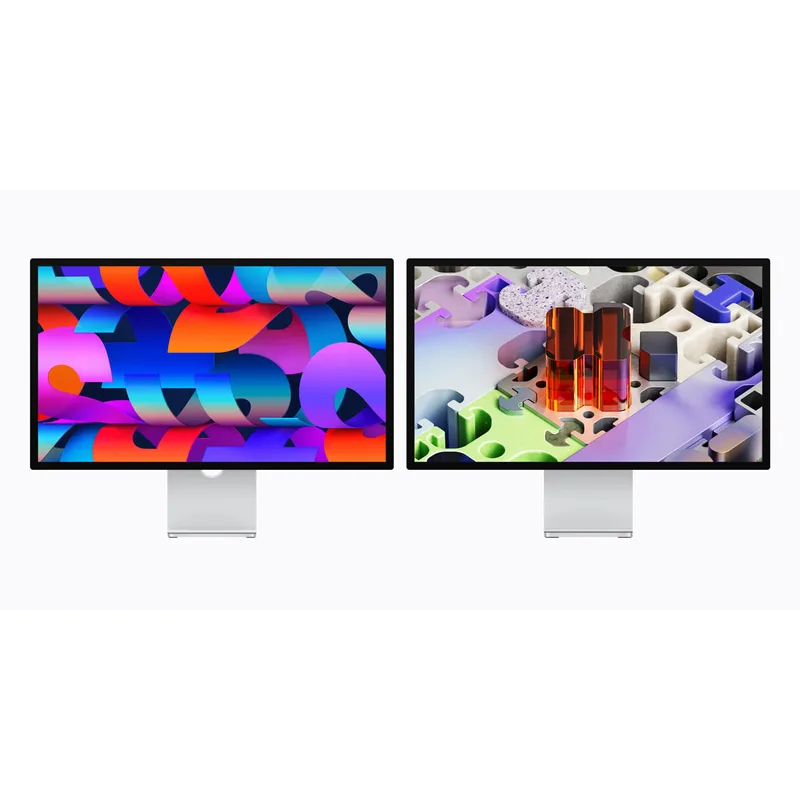
Apple refreshed the Studio Display in March 2026 with the most significant connectivity upgrade in its history. The move to Thunderbolt 5 substantially increases downstream bandwidth — useful for daisy-chaining high-speed storage or Thunderbolt hubs, and future-proofing the setup for faster accessories. Everything still runs over one cable from the MacBook.
The 5K Retina panel at 27 inches matches the pixel density of a MacBook Pro display exactly. Text at any size looks identical to what you see on the laptop screen. That pixel-perfect match eliminates the visual adjustment that happens when shifting focus between displays. For remote workers reading and writing for most of the day, the 5K advantage over 4K is noticeable after a week and hard to give up after a month.
The hardware built into the display handles three separate desk problems. The 12MP Center Stage camera now includes Desk View — it tracks your face during video calls and simultaneously shows a top-down perspective of your desk surface, useful for demonstrating documents, products, or handwriting without a second camera. The three-mic beamforming array handles calls without a standalone USB mic in most home office environments. The six-speaker system improved this generation with 30% deeper bass — audio quality that genuinely replaces a separate desk speaker.
The standard stand tilts but doesn’t adjust height. Adding a height-adjustable stand costs $400 more. For remote workers spending a full day at a fixed-height desk, the ergonomic limitation is real. The 60Hz refresh rate is unchanged from the original model — Apple’s new Studio Display XDR at $3,299 gets you 120Hz and mini-LED HDR, but that’s a different product at a very different price.
Who should buy this: Mac users who want a single-cable setup with native 5K sharpness, a built-in camera that handles video calls, and audio that replaces a separate speaker. The price is high but the accessory savings are real.
Who should skip this: Anyone on a budget, anyone needing HDR or high refresh rate, or MacBook Pro 16-inch users who find fixed-tilt stands ergonomically limiting.
2. BenQ MA270S — Best 5K Value for Mac

The BenQ MA270S launched in early 2026 as the effective replacement for the discontinued LG UltraFine 27MD5KL-B. Same 27-inch 5K resolution, Thunderbolt connectivity for Mac, but at $999 — $600 less than the Studio Display — and with a faster refresh rate.
The 70Hz Nano Gloss IPS panel is notable. The Studio Display runs at 60Hz; the MA270S runs at 70Hz. That 10Hz difference is subtle during normal office work but slightly reduces the visual fatigue from scrolling through long documents or dense spreadsheets. The Nano Gloss finish produces richer blacks and more vivid colors than a matte panel, at the cost of more reflection in bright rooms.
BenQ built Mac-specific controls into the USB connection — brightness and volume adjust from the Mac keyboard without touching the monitor. This sounds minor until you’ve spent time navigating OSD menus. Dual Thunderbolt 4 ports let the first connect to your MacBook at 96W while the second connects to another Thunderbolt device or daisy-chains to a second monitor. A built-in KVM switch handles switching between two computers with a single button press.
The MA270S has no webcam, no microphone, and no speakers — remote workers need to budget for those separately. The Nano Gloss panel picks up more reflections in window-facing or brightly-lit setups; check your ambient lighting before committing.
Who should buy this: Mac users who want 5K sharpness without paying for built-in camera and audio hardware, or those running two computers on one desk.
Who should skip this: Anyone who wants integrated video call hardware, or whose room has significant ambient light that would cause glare on a glossy panel.
3. Dell UltraSharp U2723QE — Best Value for Mac Remote Work
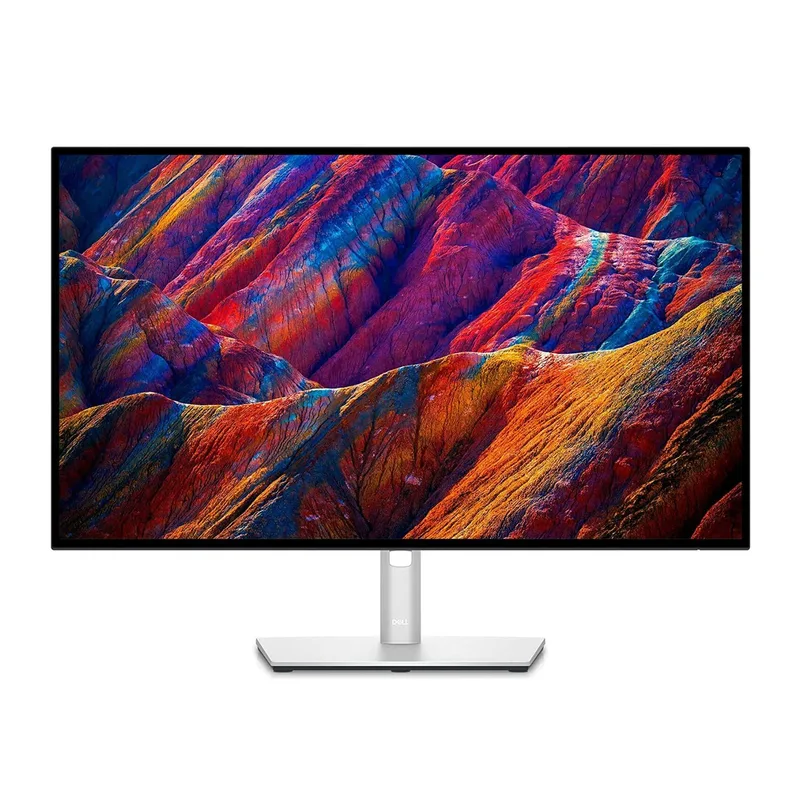
The Dell UltraSharp U2723QE is the most practical all-around pick for Mac remote workers who don’t need 5K sharpness. At 4K on a 27-inch IPS Black panel, text is sharp for all-day reading. IPS Black technology produces deeper blacks than standard IPS — useful for video calls where your background shows on screen, and helpful for video or photo review.
The factory calibration (Delta E under 2) means accurate colors out of the box for photo review, design approval, or any work where on-screen color needs to match what clients see. The 90W USB-C power delivery handles MacBook Pro 14-inch at full load.
The built-in Ethernet port is what sets this monitor apart from most competitors. Plug the Dell’s single USB-C cable into your MacBook and you get 4K display, 90W charging, USB hub access, and wired Ethernet simultaneously. For remote workers who’ve had Wi-Fi interruptions during calls, switching to wired via this monitor solves the reliability problem without buying a separate dock. At $519, the U2723QE delivers factory-calibrated 4K, full USB-C docking, and IPS Black quality for a fraction of the 5K options.
Who should buy this: Remote workers who want the most capable all-in-one USB-C dock and display without spending over $600. The wired Ethernet integration alone justifies it over competitors at this price.
Who should skip this: Anyone doing color-critical print or photography work where 5K sharpness at close distances genuinely matters.
4. BenQ PD2725U — Best for Dual-Computer Mac Setups
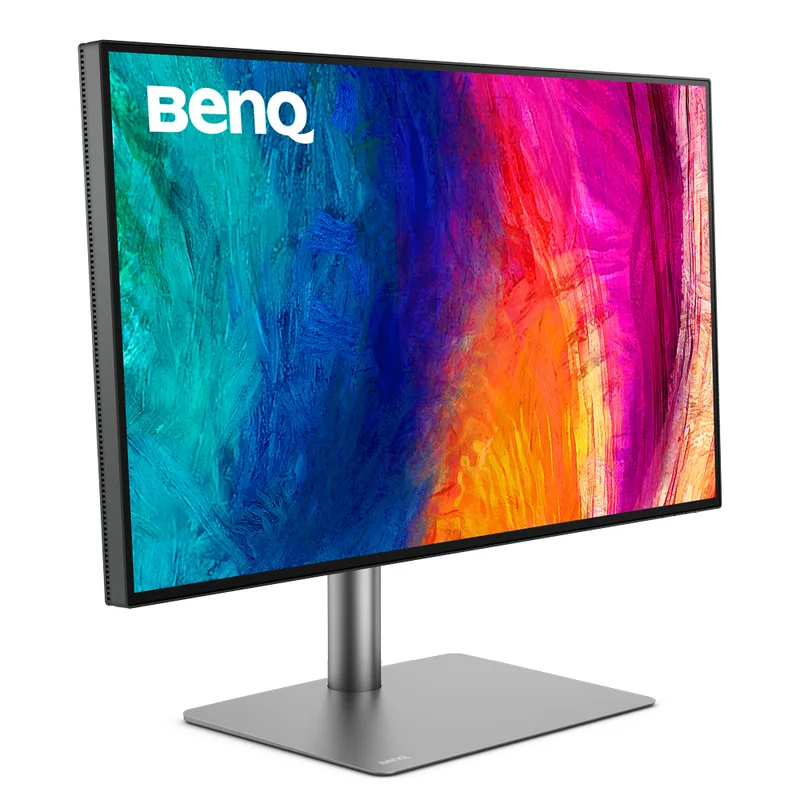
The BenQ PD2725U targets a specific scenario: running a company Mac alongside a personal machine, or managing Mac and Windows computers simultaneously at the same desk. The built-in KVM switch connects two computers to one monitor and switches between them with a button press, using one keyboard and one mouse. For remote workers maintaining two systems, this removes a second display, second keyboard, and second mouse from the desk entirely.
Thunderbolt 3 daisy-chaining is the other Mac-specific advantage. Two PD2725U monitors connect to a single MacBook Thunderbolt port — the first passes signal through to the second, both receiving power through the chain. Standard USB-C can’t do this.
The 65W charging limit is a real constraint for MacBook Pro 16-inch users. It’s enough to prevent battery drain under normal office workloads but not enough to charge a depleted battery during intensive computing. MacBook Air and MacBook Pro 14-inch users won’t hit this ceiling. The PD2725U costs more than the Dell U2723QE for fewer docking features — unless the KVM workflow is something you’d actually use.
Who should buy this: Remote workers who regularly switch between two computers at the same desk.
Who should skip this: Single-computer setups, or MacBook Pro 16-inch users who need full 96W charging.
5. Samsung ViewFinity S60UA 27” — Best Budget USB-C Mac Monitor
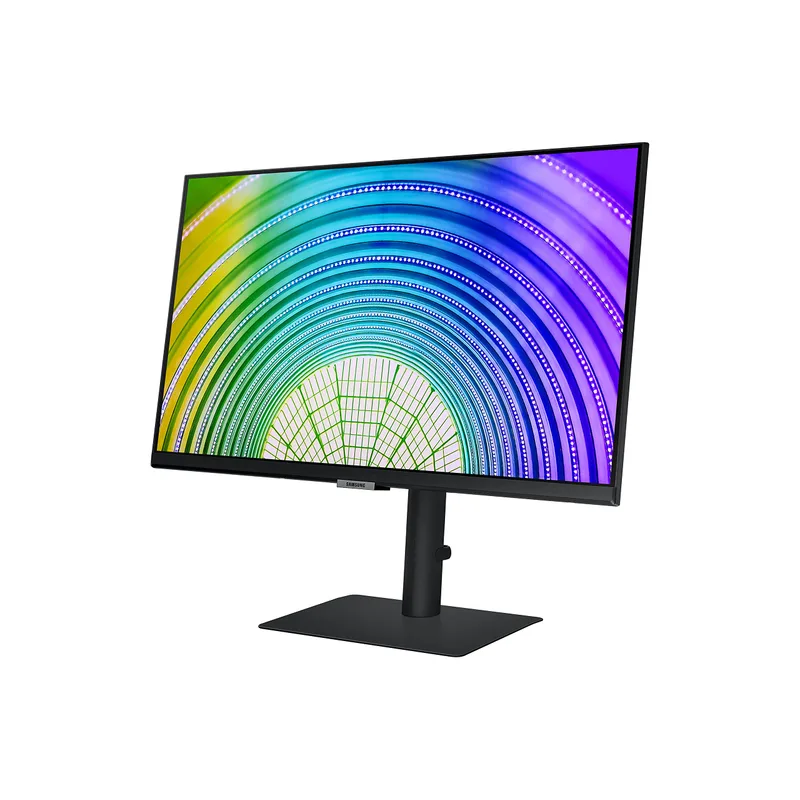
The Samsung ViewFinity S60UA is the entry point for Mac remote workers who want USB-C single-cable connectivity without spending $500 or more. At $349-$379, it delivers a real step up from a 1080p display with a setup that stays simple.
QHD (2560x1440) at 27 inches is not HiDPI — text is noticeably less sharp than 4K or 5K at close viewing distances. For remote workers who spend most of their time on video calls and browser tabs rather than dense text or detailed graphics, the trade-off is acceptable. Anyone whose job involves extended fine-text reading should spend more on a 4K panel.
The 65W USB-C power delivery runs MacBook Air and MacBook Pro 14-inch comfortably on a single cable. The 75Hz refresh is a small but real improvement over 60Hz for anyone who notices screen motion while scrolling.
Who should buy this: Budget-focused remote workers who want a clean single-cable setup and aren’t doing design or extended text review.
Who should skip this: Anyone doing color work, prolonged document review, or who has the budget for a 4K panel.
Comparison Table
| Monitor | Resolution | Panel | USB-C PD | Thunderbolt | Calibrated | Price | Rating |
|---|---|---|---|---|---|---|---|
| Apple Studio Display (2026) | 5K (5120x2880) | IPS | 96W (TB5) | Yes | Yes | Unavailable | 9.3 |
| BenQ MA270S | 5K (5120x2880) | Nano Gloss IPS | 96W (TB4) | Yes | Yes | Unavailable | 9.0 |
| Dell UltraSharp U2723QE | 4K (3840x2160) | IPS Black | 90W | No | Yes (ΔE < 2) | $512.34-$689.00 as of Oct 18, 2026 | 9.0 |
| BenQ PD2725U | 4K (3840x2160) | IPS | 65W (TB3) | Yes | Yes (ΔE ≤ 3) | $479.99-$599.99 as of Oct 18, 2026 | 8.8 |
| Samsung ViewFinity S60UA | QHD (2560x1440) | IPS | 65W | No | No | $329.99 as of Oct 18, 2026 | 8.3 |
Buying Guide: What to Prioritize for Mac Remote Work
Start with your MacBook model. MacBook Air (M1 and newer) supports one external display via USB-C. MacBook Pro 14-inch (M3 and newer) supports two external displays. MacBook Pro 16-inch supports three. Know your port count before buying two monitors expecting them both to work.
Check power delivery wattage against your laptop. MacBook Air M3 ships with a 35W charger. MacBook Pro 14-inch ships with a 70W charger. MacBook Pro 16-inch ships with a 140W charger. A monitor delivering less than your rated wattage will still charge — it just may not keep up under sustained load. MacBook Pro 16-inch users should prioritize monitors with 90W or higher USB-C PD.
5K vs 4K: decide based on your primary work. The visual difference at 27 inches is real but most noticeable in text rendering at small sizes. Email, video calls, documents, and browser apps are fully served by quality 4K. Text-heavy work — reading legal documents, reviewing dense code, editing long-form writing — rewards 5K sharpness. That’s the split.
Consider what the monitor replaces. The Apple Studio Display replaces a webcam, microphone, and speaker. Add those separately and the price gap shrinks considerably. The Dell U2723QE replaces a dock — built-in Ethernet and USB hub mean no separate $150–$250 Thunderbolt dock.
Glossy vs matte. The BenQ MA270S uses a Nano Gloss panel that produces richer colors but picks up reflections. If your desk faces a window or sits under bright overhead lighting, a matte panel on the Dell or Samsung will be more comfortable over long sessions.
FAQ
Can I use a non-Apple monitor with my MacBook Air or MacBook Pro?
Yes. MacBooks work with any monitor that has USB-C or Thunderbolt, and with HDMI monitors using a USB-C to HDMI adapter. Non-Thunderbolt monitors won’t support daisy-chaining, and some won’t deliver enough power to charge the laptop simultaneously. Every monitor in this guide has confirmed Mac compatibility.
Will 4K look blurry on a Mac compared to the built-in Retina display?
At 27 inches and 4K (3840x2160), macOS runs in HiDPI mode — text looks sharp and comparable to the MacBook’s own screen. At 24 inches, 4K hits the density threshold where HiDPI renders perfectly. At 27 inches, the difference from 5K is smaller than most people expect in practice. You’ll notice stepping down from 5K if you compare them side by side, but most remote workers adjust in a couple of days.
What’s the difference between USB-C and Thunderbolt for Mac monitors?
USB-C is a connector standard. Thunderbolt 3 and 4 use the same physical USB-C connector but carry more bandwidth — enough to run 5K displays and support daisy-chaining. A Thunderbolt monitor connected to a USB-C-only Mac works at reduced bandwidth (typically 4K at 60Hz, not 5K). A USB-C monitor connected to a Mac’s Thunderbolt port works fine. The constraint is one-directional.
My video calls look washed out. Will a better monitor fix that?
Partially. A factory-calibrated monitor with accurate sRGB or P3 coverage improves how you see your own video feed on your end. But what other people see of you depends on your webcam’s color processing — not your monitor. Upgrading the monitor improves how you see content; upgrading the webcam improves how others see you.
Should I buy a monitor arm, or is the included stand good enough?
Most monitors in this guide include adjustable stands with height, tilt, and sometimes pivot. The Apple Studio Display is the exception — the standard stand only tilts; height adjustment costs $400 more. If you spend eight or more hours at a desk, proper monitor height matters for neck and eye strain. A good monitor arm costs $30–$80 and provides full adjustability regardless of which display you buy.
Is the LG UltraFine 27MD5KL-B still worth buying?
No. The LG UltraFine 27MD5KL-B has been discontinued and new units are scarce or heavily overpriced on the secondary market. The BenQ MA270S is the direct replacement — same 5K resolution and 27-inch size, Thunderbolt 4, 70Hz refresh, and available new at $999.
The Bottom Line
For Mac remote workers who want the best all-day experience, the Apple Studio Display (2026) delivers native 5K sharpness, Thunderbolt 5, Center Stage with Desk View, and a microphone array that replaces a standalone USB mic — all over one cable.
For value, the Dell UltraSharp U2723QE at $519 covers every practical need: factory-calibrated 4K, 90W USB-C charging, wired Ethernet, and a USB hub. For most remote workers, it handles everything that matters at less than a third of the Studio Display’s price.
The BenQ MA270S sits between them — 5K at $999 with a faster refresh rate than the Studio Display, for those who want Retina-quality sharpness without paying for integrated camera and audio.
For a shared desk with two machines, the BenQ PD2725U KVM setup eliminates redundant hardware. For a clean budget entry into USB-C docking, the Samsung ViewFinity S60UA at $349-$379 gets the job done. The display upgrade from laptop screen to dedicated external monitor is one of the highest-return investments in any Mac remote work setup — the question is which tier matches how you actually work.
Detailed Reviews
Apple Studio Display (2026)
Pros
- True 5K Retina resolution at 27 inches matches MacBook display sharpness exactly
- Thunderbolt 5 upgrade delivers faster downstream bandwidth for daisy-chaining and high-speed accessories
- 12MP Center Stage with Desk View — tracks your face and shows a top-down desk view without a second camera
- Three-mic beamforming handles calls without a separate USB mic
- Single cable handles video, audio, data, and 96W charging
Cons
- Steep price; 60Hz panel with no HDR at this price tier
- Height-adjustable stand costs $400 extra; standard stand only tilts
- No ProMotion or HDR — Studio Display XDR ($3,299) has both, at a much higher price
BenQ MA270S
Pros
- 5K at 70Hz — sharper and faster refresh than Studio Display at $600 less
- Dual Thunderbolt 4 ports: 96W charges MacBook Pro 16-inch, second port connects hub or second display
- Mac-native brightness and volume control via USB — adjust from keyboard without OSD menus
- Built-in KVM switch manages two computers on one monitor
- Height and tilt adjustable stand included at this price
Cons
- No built-in webcam, microphone, or speakers — budget for those separately
- Nano Gloss panel picks up reflections in bright or window-facing rooms
- Newer model with a shorter track record than competitors
Dell UltraSharp U2723QE
Pros
- Factory-calibrated color accuracy (Delta E under 2) rivals monitors costing twice as much
- 90W USB-C charges MacBook Pro 14-inch at full load on one cable
- Built-in Ethernet combines display, charging, and wired networking into a single USB-C connection to the MacBook
- IPS Black panel delivers noticeably deeper blacks than standard IPS — better for video and design review
- Works with any Mac via USB-C, including older models without Thunderbolt 4
Cons
- 4K at 27 inches is not as sharp as 5K — noticeable at close viewing distances
- No built-in webcam
- Heavier and bulkier stand than some competitors
BenQ PD2725U
Pros
- Thunderbolt 3 daisy-chaining connects two monitors to a single MacBook port
- Built-in KVM switch for remote workers running a work Mac and a personal machine at the same desk
- Hotkey Puck G2 switches color modes and inputs without navigating OSD menus
- Factory-calibrated with individual calibration report included
- DualView mode shows two color profiles side-by-side on one screen
Cons
- 65W charging may not keep MacBook Pro 16-inch charged under sustained heavy workloads
- Premium price for 4K — partly paying for pro color tools
- Hotkey Puck adds desk clutter not everyone will use
Samsung ViewFinity S60UA 27"
Pros
- USB-C with 65W charging runs MacBook Air and MacBook Pro 14-inch on one cable
- QHD is a real step up from 1080p for documents and code
- Daisy-chain DisplayPort lets you add a second monitor later
- 75Hz refresh reduces eye strain compared to 60Hz during long sessions
- Most affordable USB-C single-cable Mac setup in this roundup
Cons
- QHD at 27 inches is not HiDPI — text is noticeably less sharp than 4K or 5K at close viewing distances
- sRGB-only color coverage; not suitable for color-accurate design work
- No built-in webcam or microphone