Color accuracy matters more on a design monitor than almost any other spec. A monitor running 10% outside sRGB makes client presentations inaccurate. One without factory calibration forces you to buy an external calibrator or accept drift. In 2026, the ASUS ProArt lineup and BenQ’s PhotoVue series have pushed factory-calibrated, wide-gamut panels into genuinely affordable territory — you no longer need to spend $1,000+ to get a monitor that shows colors accurately.
This roundup focuses on five monitors that cover the range from $249 budget-friendly creative tools to $799 professional photographer displays. All five are IPS panels with documented color accuracy, active Amazon availability, and actual calibration certifications — not just marketing claims.
How They Compare
| Spec | ASUS ProArt PA279CRV | BenQ SW272Q | LG 27UP850K-W | BenQ PD2725U | ASUS ProArt PA278CV |
|---|---|---|---|---|---|
| Rating | 9.0/10 | 8.9/10 | 8.6/10 | 8.7/10 | 8.4/10 |
| Price | $348.10-$399.00as of Oct 18, 2026 | $659.99as of Oct 18, 2026 | $267.80-$349.99as of Oct 18, 2026 | $479.99-$599.99as of Oct 18, 2026 | $190.00-$269.64as of Oct 18, 2026 |
| Size | 27 inches | 27 inches | 27 inches | 27 inches | 27 inches |
| Resolution | 3840×2160 (4K UHD) | 2560×1440 (QHD) | 3840×2160 (4K) | 3840×2160 (4K UHD) | 2560×1440 (QHD) |
| Panel | IPS | IPS (Nano Matte) | IPS | IPS | IPS |
| Color Gamut | 99% DCI-P3, 99% Adobe RGB, 100% sRGB | 99% Adobe RGB, 98% DCI-P3/Display P3, 100% sRGB | 95% DCI-P3, 99% sRGB | 95% DCI-P3, 100% sRGB, 100% Rec.709 | 100% sRGB, 100% Rec. 709 |
| Delta E | < 2 (Calman Verified) | — | — | ≤ 3 (Pantone Validated, Calman Verified) | < 2 (Calman Verified) |
| Refresh Rate | 60Hz | — | 60Hz | — | 75Hz |
| USB-C PD | 96W | 90W | 90W | — | 65W |
| Connectivity | USB-C, DisplayPort, 2× HDMI, 4× USB-A, DP out | — | — | 2× HDMI, 1× DisplayPort, 3× USB-A hub | USB-C, DisplayPort, HDMI, 4× USB-A hub, DP out |
| Warranty | 3 years | — | — | — | 3 years |
| Bit Depth | — | 10-bit (1.07 billion colors) | — | — | — |
| 3D LUT | — | 16-bit hardware LUT | — | — | — |
| Anti-Glare | — | TUV Nano Matte certified | — | — | — |
| Extras | — | SD/CFexpress card reader, Hotkey Puck G3 | — | Hotkey Puck, DualView mode | — |
| HDR | — | — | VESA DisplayHDR 400 | — | — |
| Stand | — | — | Height/tilt/pivot adjustable | — | — |
| Speakers | — | — | Built-in 7W stereo | — | — |
| Thunderbolt | — | — | — | 2× Thunderbolt 3 (65W PD, 40 Gb/s) | — |
| KVM | — | — | — | Built-in 2-system switch | — |
| Check Price → | Check Price → | Check Price → | Check Price → | Check Price → |
Prices change daily — tap Check Price for the current Amazon price.
The Best Monitors for Graphic Design in 2026
1. ASUS ProArt PA279CRV — Best Overall
ASUS ProArt PA279CRV
Pros
- Factory pre-calibrated with Calman Verified certification — each unit ships with a Delta E < 2 accuracy report, which means color consistency you'd otherwise pay for hardware calibration to achieve
- 99% DCI-P3 and 99% Adobe RGB coverage on a single monitor handles web, video, and print prep workflows without switching profiles; most designers can stop at this panel regardless of output medium
- 96W USB-C power delivery charges a 16-inch MacBook Pro or a Dell XPS 15 at full speed while handling display signal in a single cable — the most capable USB-C PD implementation in this price range
- DisplayPort daisy-chain output lets you drive a second monitor from the same desktop GPU port, saving a DisplayPort slot when expanding your setup
- 4K at 27 inches hits the practical sweet spot for graphic work — UI elements stay crisp at native resolution without needing display scaling on most design applications
- 3-year warranty with no-fuss coverage from ASUS — longer than the 1-year standard from most monitor brands at this price
Cons
- 60Hz refresh rate is fine for design and video work but will frustrate users who also game or want fluid cursor movement — the monitor is not built for gaming responsiveness
- No built-in speakers — you'll need external audio or headphones, which may be a constraint for minimal desk setups
- At 4K/60Hz, the panel can produce a slightly soft cursor feel compared to high-refresh IPS options; most designers don't notice this, but multi-purpose users may
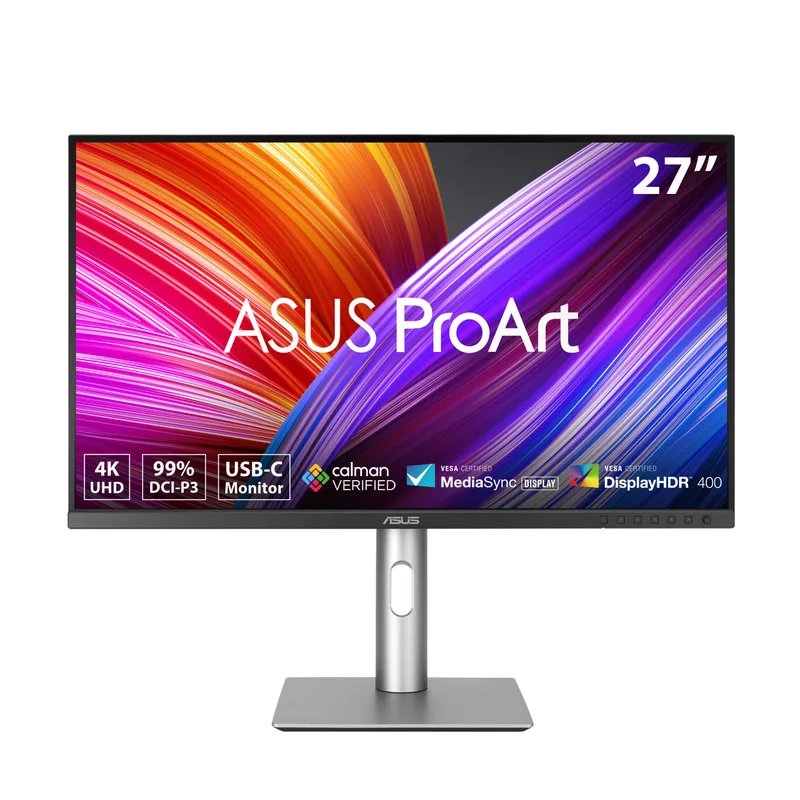
The PA279CRV is the strongest all-around choice for designers working in both digital and print contexts. It covers 99% DCI-P3, 99% Adobe RGB, and 100% sRGB simultaneously — which means you can work accurately in any color space without switching monitor profiles mid-project. At 4K resolution on a 27-inch panel, text rendering is sharp enough that most designers don’t need to scale their UI.
The Calman Verified factory calibration is the core differentiator. ASUS sends each PA279CRV unit with a calibration report showing actual Delta E measurements — not just a blanket “Delta E < 2” spec. Owner reports consistently confirm the calibration holds accurately from the box. Hardware calibrator tools can also be used to push individual unit accuracy further if your workflow requires it.
The 96W USB-C port handles full-speed charging for almost any creative laptop while running display output. The daisy-chain DisplayPort output means dual-monitor setups use a single GPU port. Three-year warranty is the longest in this lineup. At current street prices of $349-$419, the PA279CRV delivers more value per dollar than any other monitor in this category.
Best for: Graphic designers, brand designers, and illustrators who need verified color accuracy for both print and digital work. The correct first upgrade from a budget monitor for anyone serious about color.
2. BenQ SW272Q — Best for Photographers and Print Work
BenQ SW272Q
Pros
- Nano Matte anti-glare coating certified by TUV reduces glare and reflections without the grainy haze of standard matte panels — owner reports on photographer forums describe a noticeably cleaner image quality compared to conventional anti-glare surfaces
- 16-bit 3D LUT hardware calibration capability means external calibration tools (X-Rite i1Display Pro, Calibrite ColorChecker) can load correction profiles directly to the monitor hardware — the calibration lives in the monitor, not the OS profile
- Built-in SD card reader and CFexpress slot lets photographers import files directly to the workstation without a separate hub — this is a meaningful workflow benefit for photographers who shoot on location and edit at their desk
- 99% Adobe RGB coverage at this price is the key differentiator for print-bound work — if your output goes to press, to fine art prints, or to professional photo labs, Adobe RGB matters more than DCI-P3
- Hotkey Puck G3 wireless remote switches color modes (sRGB, Adobe RGB, Display P3, DCI-P3) without touching the OSD — practical when moving between client deliverable formats
Cons
- QHD (1440p) instead of 4K — at 27 inches and 109 PPI, text rendering is visibly softer than 4K alternatives; designers who work at small type sizes will notice the pixel density difference
- At $699-$799, it carries a significant premium over the ASUS ProArt PA279CRV, which achieves comparable color gamut coverage at 4K for $349-$419
- No Thunderbolt — USB-C at 90W handles power and display, but Mac users who want daisy-chaining or high-bandwidth peripherals through the monitor need the BenQ PD2725U instead
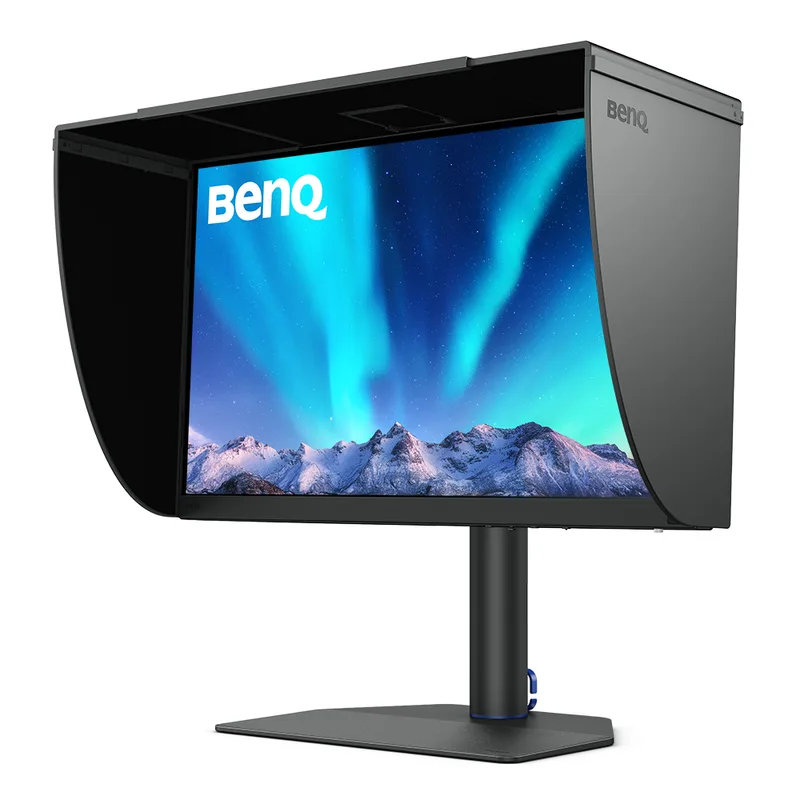
The SW272Q exists for one audience: professionals whose work ultimately lands on paper. 99% Adobe RGB coverage is the spec that separates print-grade monitors from video-optimized displays. If you’re preparing files for press, fine art prints, or professional photo labs, Adobe RGB matters — and the SW272Q covers it along with 98% DCI-P3 for video deliverables.
The nano-matte panel coating is the feature that earns its premium over the PA279CRV. Standard anti-glare coatings introduce grain into the image — a fine texture visible especially in shadow detail. The SW272Q’s TUV-certified nano-matte surface cuts reflections without that grain. Photographers working on shadow recovery and color grading under mixed room lighting report a noticeably cleaner working surface compared to typical office-grade anti-glare.
The 16-bit 3D LUT enables hardware calibration at a depth that standard 8-bit LUT monitors can’t match. The built-in SD and CFexpress card slots handle file import directly, and the wireless Hotkey Puck G3 puts color profile switching on a physical button. The BenQ SW272Q was reviewed in depth by Imaging Resource and Fstoppers as the most practical photographer monitor below $1,000.
The tradeoff: 1440p resolution. At 109 PPI on 27 inches, text is slightly softer than 4K. For photographers focused on image work rather than text-heavy design, this matters less — but graphic designers who work at small type sizes will notice the difference compared to the PA279CRV.
Best for: Photographers, photo editors, and designers who output to print. The nano-matte panel and 99% Adobe RGB coverage justify the premium over 4K alternatives if your workflow is print-critical.
3. LG 27UP850K-W — Best Value for Digital Designers
LG 27UP850K-W
Pros
- 4K IPS with 95% DCI-P3 coverage at $329-$379 represents the clearest price-to-color-accuracy ratio in this roundup — adequate gamut for digital design, web graphics, and social media work without paying for professional Adobe RGB coverage you may not need
- 90W USB-C power delivery in a single cable setup handles MacBook Pro charging and display signal simultaneously — owner reports consistently note it works cleanly with both M-series Macs and Windows laptops with USB-C DisplayPort Alt Mode
- Pivot rotation to portrait orientation works well for long-document review, UI design mockups, and code review — the stand articulates smoothly and the monitor holds its position reliably at any angle
- Built-in 7W stereo speakers handle video calls and casual media without requiring a separate speaker on the desk — practical for minimal setups
- Current street pricing (~$358 as of April 2026) represents a meaningful drop from the original MSRP, making 4K IPS design quality genuinely accessible without compromise
Cons
- 95% DCI-P3 is good but not print-grade — if your work requires precise Adobe RGB accuracy for press-ready files or professional photo prints, step up to the ASUS PA279CRV or BenQ SW272Q
- No factory calibration report included — the panel is accurate enough for most digital design workflows, but print-critical users should hardware-calibrate after purchase
- Built-in speakers are adequate for calls but lack bass response — serious listening requires external speakers or headphones
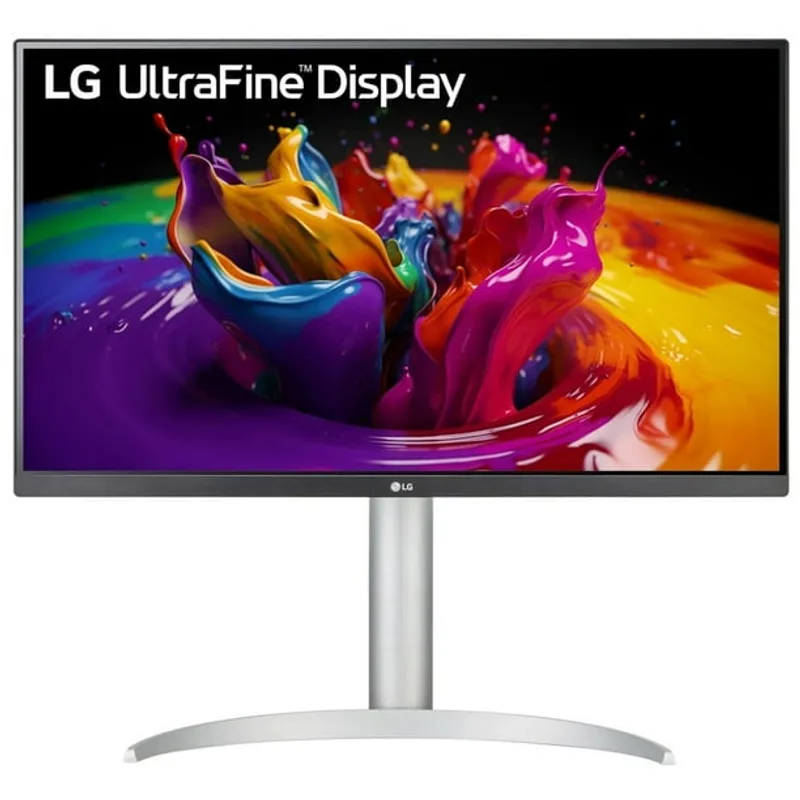
Most web designers, UI/UX designers, and social media creatives don’t need 99% Adobe RGB. They need accurate sRGB and solid DCI-P3 coverage for video and broader digital content — and the LG 27UP850K-W delivers that at $329-$379.
The 95% DCI-P3 coverage handles the full range of digital output work accurately. Combined with 4K resolution and VESA DisplayHDR 400, the monitor renders video content and high-contrast graphics with visible depth compared to non-HDR panels. The 90W USB-C connection runs cleanly with M-series MacBooks and most current Windows laptops.
Street pricing around $358 as of April 2026 represents a meaningful drop from launch price. Built-in 7W speakers reduce the required desk footprint for users who want basic audio without a separate speaker. The pivot-capable stand makes portrait rotation easy for long-document review.
If your work doesn’t cross into print or photo editing, the LG 27UP850K-W covers the color space you actually need. Designers who do occasionally need wider gamut can profile-switch in their OS display settings when working with Adobe RGB source files.
Best for: Web designers, UI/UX, social media, and digital illustrators whose output stays on screens. The best price-to-quality ratio in this roundup for digital-only workflows.
4. BenQ PD2725U — Best for Mac-First Workflows
BenQ PD2725U
Pros
- Dual Thunderbolt 3 ports with daisy-chain support lets Mac users connect one cable to their MacBook and then run a second 4K Thunderbolt monitor from the back of this unit — a clean two-monitor setup from one laptop port
- Built-in KVM switch toggles keyboard, mouse, and display between two computers with a hotkey — practically useful for designers who use a personal Mac alongside a work-issued machine without buying a separate KVM box
- Pantone Validated certification means the color output was tested against Pantone's standard — this matters for brand designers who work with Pantone color matching as part of client deliverables
- DualView mode displays two color profiles side-by-side on the same panel (sRGB and P3 simultaneously, for example) — useful for checking how digital assets appear across different output contexts without switching applications
- Hotkey Puck provides one-button access to color modes, KVM switching, and volume — the hardware shortcut reduces OSD navigation compared to monitor brands that bury these controls
Cons
- Delta E ≤ 3 spec is less precise than the PA279CRV's < 2 factory calibration — acceptable for most digital design, but a step below the factory accuracy of ASUS's offering
- Primarily optimized for Mac/Thunderbolt workflows — Windows users who don't need TB3 are paying for connectivity they won't fully use; the ASUS ProArt PA279CRV is the better value in that case
- Limited Amazon availability — typically sourced from third-party sellers at the listed price range; direct Amazon warehouse stock varies
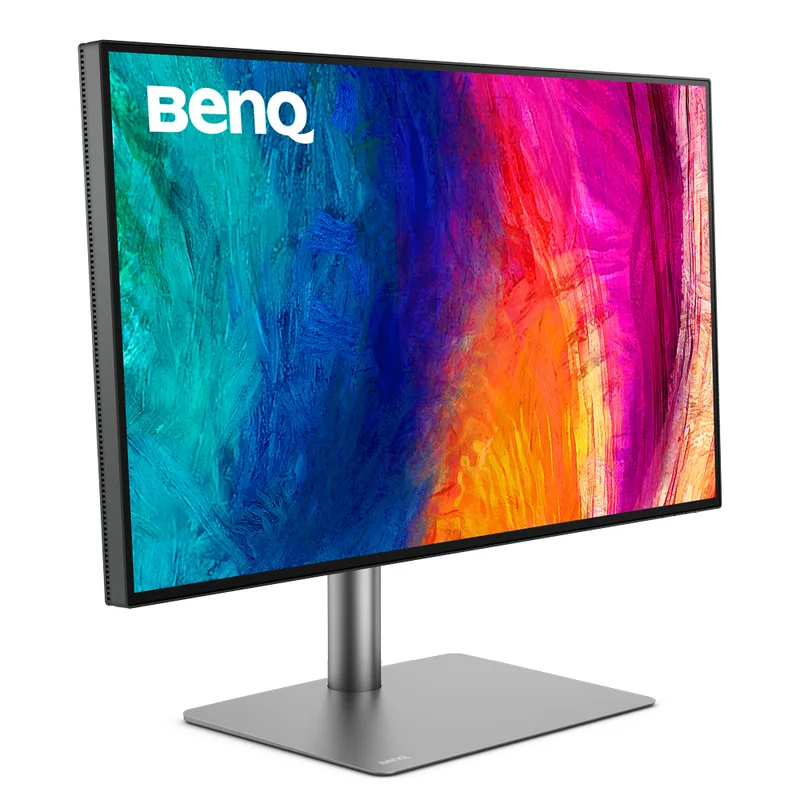
The PD2725U is a Mac-first design monitor. Dual Thunderbolt 3 ports at 40 Gb/s mean a single cable connects your MacBook Pro for both 65W charging and 4K display — and you can daisy-chain a second 4K display from the monitor’s second TB3 port. This eliminates the dongles and adapter clutter that plague USB-C-only setups.
The built-in KVM switch is a genuine workflow benefit for designers who use a work laptop alongside a personal machine. One keyboard and mouse drives both, with a Hotkey Puck button toggling input between them. The DualView mode, which renders two color profiles simultaneously on the same panel, gives designers a direct comparison view when checking how deliverables will look across different output contexts.
Pantone Validated and Calman Verified certifications document color accuracy for client deliverables. The 95% DCI-P3 coverage handles professional video and digital design accurately. The BenQ Hotkey Puck reduces OSD navigation for color mode switching.
The Delta E ≤ 3 spec is less precise than the PA279CRV’s < 2. For design work where exact color matching matters, that gap is noticeable. Windows users without Thunderbolt peripherals are paying for connectivity they won’t use — in that case, the PA279CRV offers better value.
Best for: Mac-primary designers who want Thunderbolt daisy-chain and KVM switching, particularly those working between a personal and work machine at the same desk.
5. ASUS ProArt PA278CV — Best Budget Color-Accurate Monitor
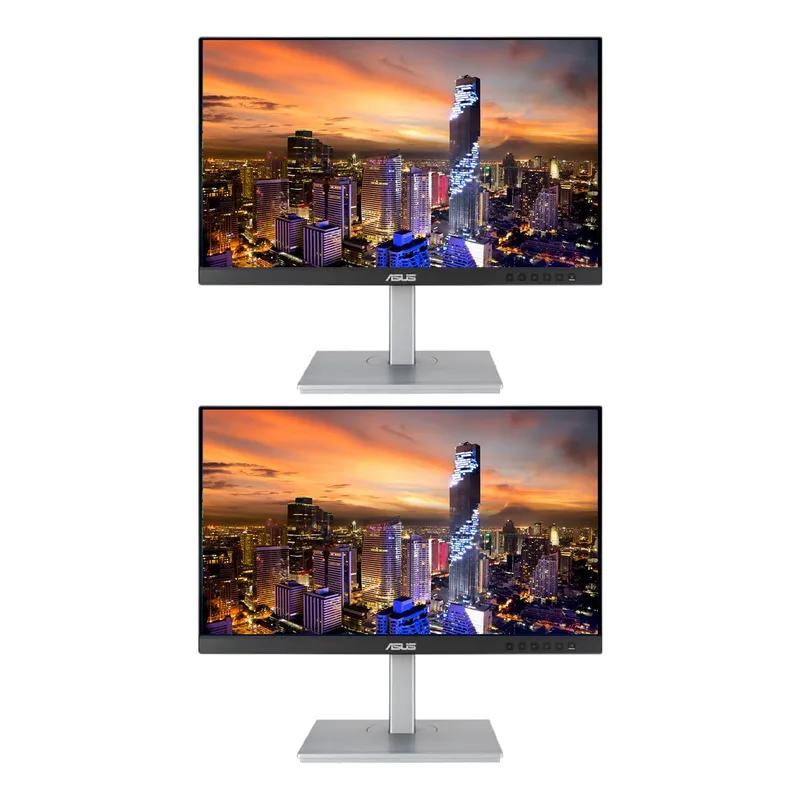
ASUS ProArt PA278CV
Pros
- Factory pre-calibrated with Delta E < 2 at $249-$279 is the strongest color accuracy value in this price range — you're getting professional-grade consistency without paying the $349+ premium of 4K ProArt models
- 100% sRGB and 100% Rec.709 coverage handles web design, UI/UX work, social media graphics, and video deliverables accurately — the gamut limitation only matters if your workflow requires print-accurate Adobe RGB
- DisplayPort daisy-chain output connects a second monitor to the first, simplifying cable management in dual-display setups without using an additional GPU output
- 75Hz panel refresh feels noticeably smoother than 60Hz for cursor movement and window animations — a practical quality-of-life improvement over most professional monitors at this price
- USB-C with 65W power delivery handles most 13-15 inch laptop charging without a separate power brick — functional for MacBook Air M-series and similarly-powered Windows laptops
Cons
- 100% sRGB only — this monitor covers the web/digital color space accurately, but it does not cover Adobe RGB or DCI-P3 for print and video work; if your output requires wide gamut, this is not the right tool
- QHD (1440p) at 27 inches produces 109 PPI — sharp enough for most users but noticeably less crisp than 4K options at the same size
- 65W USB-C power delivery won't charge power-hungry 16-inch laptops at full speed — adequate for MacBook Air but may result in slow charging while running a demanding workload on a MacBook Pro 16
The PA278CV is the entry point for designers who need documented color accuracy without paying $350+. Factory-calibrated to Delta E < 2 with Calman Verified status at $249-$279, it delivers the color consistency of the more expensive ProArt models within the sRGB/Rec.709 color space.
The limitation is clear: 100% sRGB and 100% Rec.709 covers web design, UI work, social graphics, and video deliverables accurately. It does not cover Adobe RGB for print-critical work or DCI-P3 for cinema-standard video. If those workflows are part of your practice, this monitor isn’t the right tool — step up to the PA279CRV.
For designers whose output is entirely digital — websites, apps, social media, digital advertising — the PA278CV covers the actual color space in use without paying for wide-gamut coverage that doesn’t improve the output. The 75Hz refresh rate feels slightly smoother than typical 60Hz professional monitors. DisplayPort daisy-chain keeps dual-display setups clean.
At current sale pricing as low as $209 and a typical street price of $249-$279, the PA278CV is the most accessible professional-grade color accuracy currently available.
Best for: Web designers, UI/UX, and digital creatives starting a color-accurate setup on a budget. The correct choice if your work lives entirely on digital screens and you don’t need wide gamut.
What Makes a Monitor Suitable for Graphic Design?
Color Gamut Coverage
The color gamut spec answers: “What range of colors can this monitor actually display?”
- sRGB (100%): The standard for web, social media, and digital screens. Every monitor in this roundup covers 100%.
- DCI-P3 (95-99%): The standard for streaming video, digital cinema, and increasingly for high-quality digital design. Needed if you produce video content or use P3-enabled design tools.
- Adobe RGB (99%): Covers a wider range than sRGB, particularly in the green spectrum. Required for press-ready print work and professional photography. Only the BenQ SW272Q and ASUS PA279CRV hit 99% in this roundup.
Factory Calibration vs. Field Calibration
“Factory calibrated” means each unit was tested against color standards before shipping. A Calman Verified or Delta E < 2 certification with a unit-specific report (as included with ASUS ProArt monitors) is more meaningful than a blanket spec claim. The certification means the display you receive was individually tested — not just the product line average.
Hardware calibration tools (X-Rite, Calibrite) can push accuracy further and correct for panel drift over time. The BenQ SW272Q’s 16-bit 3D LUT supports deeper hardware calibration than the 8-bit LUT standard on most monitors.
Resolution and Panel Size
4K at 27 inches (163 PPI) renders type, icons, and fine details sharply without display scaling. QHD at 27 inches (109 PPI) is acceptable for most work but is noticeably softer side-by-side with 4K. If you work with small text, fine linework, or detailed UI elements, 4K is the practical choice.
Larger panels (32 inches) provide more canvas but require higher GPU throughput for 4K. Most design workflows run fine at 27 inches.
USB-C and Connectivity
USB-C with high wattage PD (65W-96W) enables a one-cable desk setup for laptop users. Check the PD wattage matches your laptop’s requirements: 65W is adequate for most 13-15 inch machines, 90W+ handles 15-16 inch power users. Thunderbolt 3/4 adds bandwidth for external storage and daisy-chain displays.
Frequently Asked Questions
Do I need a monitor with 99% Adobe RGB for graphic design?
Only if your final output goes to print, professional photo labs, or film production. For web design, UI/UX, digital illustration, and social media, 100% sRGB and solid DCI-P3 coverage (95%+) is sufficient. The ASUS ProArt PA278CV covers 100% sRGB for $249-$279. If any part of your workflow involves press-ready files or photo prints, step up to the PA279CRV or BenQ SW272Q for full Adobe RGB.
What does “Delta E < 2” actually mean?
Delta E measures the perceptible color difference between what the display shows and the target color value. A Delta E of 1.0 is considered imperceptible to the human eye. Delta E < 2 means the error is at most barely noticeable — this is the professional standard for color-critical work. Most consumer monitors ship with Delta E of 3-5, which produces visible color bias in professional workflows. Factory-calibrated ProArt and BenQ PhotoVue monitors hit Delta E < 2 with unit-specific calibration reports.
Can I use a gaming monitor for graphic design?
Gaming monitors prioritize fast refresh rates and low input lag over color accuracy. They typically cover 100% sRGB and some reach 95% DCI-P3, but most skip factory calibration and don’t include calibration reports. For occasional design work, a gaming monitor is workable. For professional deliverables where color accuracy matters, the calibration gap between a gaming panel and a design-focused monitor is real and noticeable.
Is 4K necessary for design work, or is 1440p enough?
At 27 inches, 4K (163 PPI) is noticeably sharper than QHD (109 PPI) for text-heavy design work, UI elements, and fine linework. If you primarily work with photos and large elements, 1440p is acceptable. If you work with typography, detailed UI components, or small-scale illustrations, the pixel density difference will affect your accuracy — logos and type that look sharp at 4K may show aliasing issues at 1440p that affect how you judge final output.
Should I hardware-calibrate my design monitor?
Yes, if color precision matters to your workflow. All monitors drift slightly over time as the panel ages. Factory calibration is accurate when new, but professional color labs recommend hardware recalibration every 3-6 months for critical work. The BenQ SW272Q’s 16-bit LUT makes hardware calibration more precise. The ASUS ProArt models work well with Calman, X-Rite, and Calibrite calibrators. Tools like the X-Rite i1Display Pro or Calibrite ColorChecker Display ($150-$200) are standard in professional design environments.
Which Monitor Should You Buy?
Most designers → ASUS ProArt PA279CRV. 4K, 99% DCI-P3, 99% Adobe RGB, factory-calibrated to Delta E < 2, with 96W USB-C. It handles every design workflow accurately without overpaying for specialized features. At $349-$419, it’s the strongest value-to-performance ratio in the category.
Photographers and print designers → BenQ SW272Q. The nano-matte panel, 99% Adobe RGB, and 16-bit 3D LUT are the right tools for print-critical and photo work. The QHD resolution is the only tradeoff worth considering.
Budget-limited digital designers → ASUS ProArt PA278CV. Factory-calibrated to Delta E < 2 at $249-$279. Covers sRGB and Rec.709 precisely. The right starting point for web and digital work.
Mac users with Thunderbolt needs → BenQ PD2725U. Dual TB3 with daisy-chain and KVM switching built in. The Mac workflow option.
Digital-only designers on a tighter budget → LG 27UP850K-W. 4K, 95% DCI-P3, 90W USB-C, $329-$379. Best value for designers who don’t need full Adobe RGB.
Detailed Reviews
ASUS ProArt PA279CRV
Pros
- Factory pre-calibrated with Calman Verified certification — each unit ships with a Delta E < 2 accuracy report, which means color consistency you'd otherwise pay for hardware calibration to achieve
- 99% DCI-P3 and 99% Adobe RGB coverage on a single monitor handles web, video, and print prep workflows without switching profiles; most designers can stop at this panel regardless of output medium
- 96W USB-C power delivery charges a 16-inch MacBook Pro or a Dell XPS 15 at full speed while handling display signal in a single cable — the most capable USB-C PD implementation in this price range
- DisplayPort daisy-chain output lets you drive a second monitor from the same desktop GPU port, saving a DisplayPort slot when expanding your setup
- 4K at 27 inches hits the practical sweet spot for graphic work — UI elements stay crisp at native resolution without needing display scaling on most design applications
- 3-year warranty with no-fuss coverage from ASUS — longer than the 1-year standard from most monitor brands at this price
Cons
- 60Hz refresh rate is fine for design and video work but will frustrate users who also game or want fluid cursor movement — the monitor is not built for gaming responsiveness
- No built-in speakers — you'll need external audio or headphones, which may be a constraint for minimal desk setups
- At 4K/60Hz, the panel can produce a slightly soft cursor feel compared to high-refresh IPS options; most designers don't notice this, but multi-purpose users may
BenQ SW272Q
Pros
- Nano Matte anti-glare coating certified by TUV reduces glare and reflections without the grainy haze of standard matte panels — owner reports on photographer forums describe a noticeably cleaner image quality compared to conventional anti-glare surfaces
- 16-bit 3D LUT hardware calibration capability means external calibration tools (X-Rite i1Display Pro, Calibrite ColorChecker) can load correction profiles directly to the monitor hardware — the calibration lives in the monitor, not the OS profile
- Built-in SD card reader and CFexpress slot lets photographers import files directly to the workstation without a separate hub — this is a meaningful workflow benefit for photographers who shoot on location and edit at their desk
- 99% Adobe RGB coverage at this price is the key differentiator for print-bound work — if your output goes to press, to fine art prints, or to professional photo labs, Adobe RGB matters more than DCI-P3
- Hotkey Puck G3 wireless remote switches color modes (sRGB, Adobe RGB, Display P3, DCI-P3) without touching the OSD — practical when moving between client deliverable formats
Cons
- QHD (1440p) instead of 4K — at 27 inches and 109 PPI, text rendering is visibly softer than 4K alternatives; designers who work at small type sizes will notice the pixel density difference
- At $699-$799, it carries a significant premium over the ASUS ProArt PA279CRV, which achieves comparable color gamut coverage at 4K for $349-$419
- No Thunderbolt — USB-C at 90W handles power and display, but Mac users who want daisy-chaining or high-bandwidth peripherals through the monitor need the BenQ PD2725U instead
LG 27UP850K-W
Pros
- 4K IPS with 95% DCI-P3 coverage at $329-$379 represents the clearest price-to-color-accuracy ratio in this roundup — adequate gamut for digital design, web graphics, and social media work without paying for professional Adobe RGB coverage you may not need
- 90W USB-C power delivery in a single cable setup handles MacBook Pro charging and display signal simultaneously — owner reports consistently note it works cleanly with both M-series Macs and Windows laptops with USB-C DisplayPort Alt Mode
- Pivot rotation to portrait orientation works well for long-document review, UI design mockups, and code review — the stand articulates smoothly and the monitor holds its position reliably at any angle
- Built-in 7W stereo speakers handle video calls and casual media without requiring a separate speaker on the desk — practical for minimal setups
- Current street pricing (~$358 as of April 2026) represents a meaningful drop from the original MSRP, making 4K IPS design quality genuinely accessible without compromise
Cons
- 95% DCI-P3 is good but not print-grade — if your work requires precise Adobe RGB accuracy for press-ready files or professional photo prints, step up to the ASUS PA279CRV or BenQ SW272Q
- No factory calibration report included — the panel is accurate enough for most digital design workflows, but print-critical users should hardware-calibrate after purchase
- Built-in speakers are adequate for calls but lack bass response — serious listening requires external speakers or headphones
BenQ PD2725U
Pros
- Dual Thunderbolt 3 ports with daisy-chain support lets Mac users connect one cable to their MacBook and then run a second 4K Thunderbolt monitor from the back of this unit — a clean two-monitor setup from one laptop port
- Built-in KVM switch toggles keyboard, mouse, and display between two computers with a hotkey — practically useful for designers who use a personal Mac alongside a work-issued machine without buying a separate KVM box
- Pantone Validated certification means the color output was tested against Pantone's standard — this matters for brand designers who work with Pantone color matching as part of client deliverables
- DualView mode displays two color profiles side-by-side on the same panel (sRGB and P3 simultaneously, for example) — useful for checking how digital assets appear across different output contexts without switching applications
- Hotkey Puck provides one-button access to color modes, KVM switching, and volume — the hardware shortcut reduces OSD navigation compared to monitor brands that bury these controls
Cons
- Delta E ≤ 3 spec is less precise than the PA279CRV's < 2 factory calibration — acceptable for most digital design, but a step below the factory accuracy of ASUS's offering
- Primarily optimized for Mac/Thunderbolt workflows — Windows users who don't need TB3 are paying for connectivity they won't fully use; the ASUS ProArt PA279CRV is the better value in that case
- Limited Amazon availability — typically sourced from third-party sellers at the listed price range; direct Amazon warehouse stock varies
ASUS ProArt PA278CV
Pros
- Factory pre-calibrated with Delta E < 2 at $249-$279 is the strongest color accuracy value in this price range — you're getting professional-grade consistency without paying the $349+ premium of 4K ProArt models
- 100% sRGB and 100% Rec.709 coverage handles web design, UI/UX work, social media graphics, and video deliverables accurately — the gamut limitation only matters if your workflow requires print-accurate Adobe RGB
- DisplayPort daisy-chain output connects a second monitor to the first, simplifying cable management in dual-display setups without using an additional GPU output
- 75Hz panel refresh feels noticeably smoother than 60Hz for cursor movement and window animations — a practical quality-of-life improvement over most professional monitors at this price
- USB-C with 65W power delivery handles most 13-15 inch laptop charging without a separate power brick — functional for MacBook Air M-series and similarly-powered Windows laptops
Cons
- 100% sRGB only — this monitor covers the web/digital color space accurately, but it does not cover Adobe RGB or DCI-P3 for print and video work; if your output requires wide gamut, this is not the right tool
- QHD (1440p) at 27 inches produces 109 PPI — sharp enough for most users but noticeably less crisp than 4K options at the same size
- 65W USB-C power delivery won't charge power-hungry 16-inch laptops at full speed — adequate for MacBook Air but may result in slow charging while running a demanding workload on a MacBook Pro 16