Disclosure: SetupRanked earns a commission on purchases made through links on this page at no extra cost to you.
Two computers, one desk. A company-issued Windows laptop locked to a corporate VPN, and a personal Mac for everything else. Or a work machine and a side-project machine you switch between constantly. Whatever the specific combination, the result is the same: two keyboards, two mice, either two monitors or constant cable-swapping, and the low-grade friction that comes from it.
A KVM switch fixes this with one box. Plug both computers in, connect your monitor and peripherals to the KVM, and hotkey between them in under a second. Monitor switches inputs, keyboard and mouse reconnect — done. No unplugging, no reaching behind the desk, no broken workflow.
Quick pick: For most remote workers, the UGREEN HDMI KVM Switch at $40 is the right call. Fast hotkeys, four USB 3.0 ports, 4K 60Hz. If you need audio switching and EDID stability, step up to the TESmart 4-port KVM at $79.
This guide covers five KVM switches chosen specifically for the remote work scenario — two modern computers, 4K monitors, USB-C or HDMI connectivity, and the need for fast, reliable daily switching.
What to Look For in a KVM Switch for Remote Work
Hotkey switching is everything. Physical button switching means reaching across the desk every time. Hotkey switching means double-tapping a key — the whole peripheral set transfers to the other machine without your hands moving. For anyone switching computers more than a few times per day, this is non-negotiable.
EDID emulation stops windows from moving. Without it, every switch forces the monitor to re-negotiate its connection with the new computer — which causes windows to rearrange and app layouts to reset. KVMs with EDID emulation store the monitor’s profile and present it persistently to both computers, so nothing moves during switching.
USB version matters for webcams and drives. USB 2.0 ports cap out at 480 Mbps — fine for keyboards and mice, limiting for a 4K webcam or an external SSD. USB 3.0 (5Gbps) provides ten times the bandwidth. If anything high-bandwidth runs through your KVM, look for USB 3.0 ports specifically.
Video signal quality at 4K. Cheap KVM switches advertise 4K but drop to 4K 30Hz in practice. At 4K 30Hz, cursor movement looks noticeably choppy compared to 60Hz. Quality KVMs use active signal repeaters and support HDCP 2.2 for a clean 4K 60Hz signal through.
Audio switching simplifies the daily setup. A KVM that switches audio simultaneously with video means your speakers or headset follow the active computer automatically. A KVM without audio switching requires manually plugging headphones into different jacks — a small hassle that compounds when you switch multiple times per day.
The 5 Best KVM Switches for Remote Workers in 2026
1. UGREEN HDMI KVM Switch — Best All-Around for Remote Work
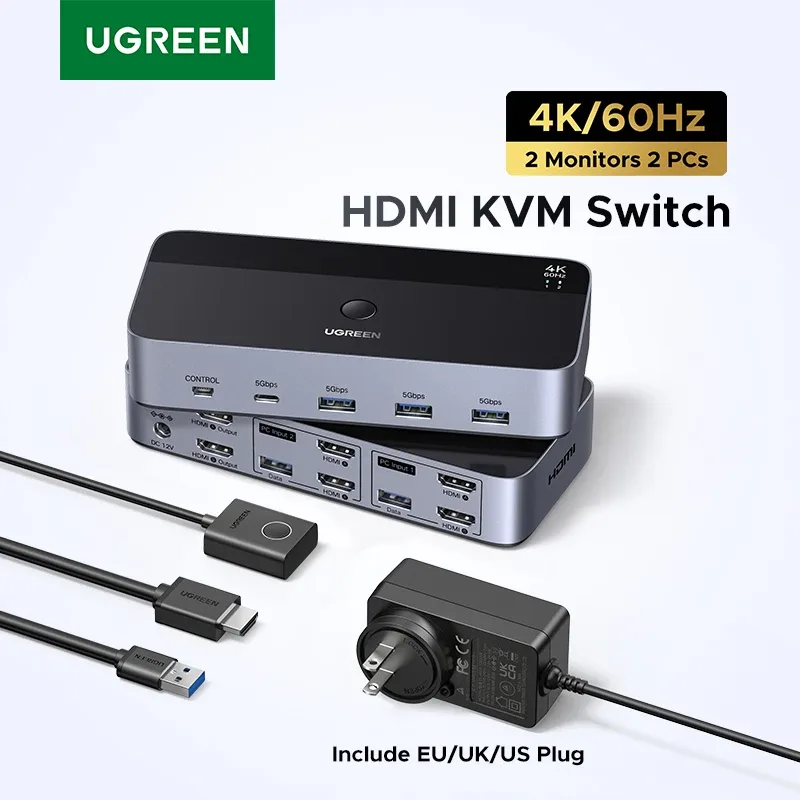
The UGREEN HDMI KVM Switch is the cleanest solution for the most common two-computer remote work setup: one monitor, one keyboard, one mouse, one webcam, shared between two machines. At $40, it competes on features with KVM switches from legacy enterprise brands that still charge $100+ for comparable hardware.
Hotkey switching runs via double-tap Scroll Lock — the monitor switches inputs and USB devices reconnect in approximately 0.8 seconds. Fast enough that experienced users switch between machines mid-sentence, muting one computer’s microphone and unmuting the other before continuing to speak.
Four USB 3.0 ports handle the full standard peripheral set: keyboard, mouse, webcam, and one additional device (audio interface, external drive, or USB speakerphone). The included desktop controller — a small wired button — provides a physical switching option for situations where Scroll Lock is unavailable. Some keyboards omit that key; some applications intercept it.
One caveat worth noting: the base UGREEN HDMI model doesn’t include active EDID emulation, so the monitor may briefly lose signal and recalibrate during switching. For most users this is a minor flash that disappears in one second. If you’ve had windows rearranging during switching and it bothers you, the TESmart model below addresses it.
Who should buy this: Remote workers with a standard two-computer, single-monitor desk who want fast hotkey switching and clean USB 3.0 connectivity without overcomplicating the setup.
Who should skip this: Anyone who needs EDID stability, audio switching, or dual-monitor support.
2. TESmart HDMI KVM Switch — Best for Signal Stability and Audio
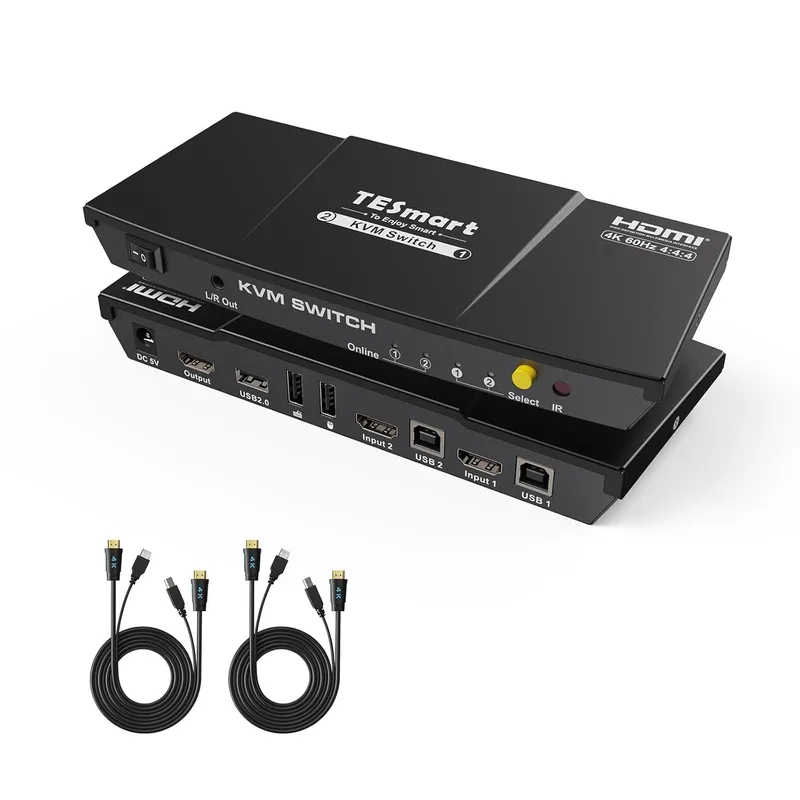
The TESmart is the pick for remote workers who’ve experienced resolution resets or window rearrangement during switching, or who want audio to follow the active computer automatically. It’s a 4-port HDMI KVM — you can connect up to four computers to one monitor, though it’s equally effective as a two-machine switcher for a typical remote work desk.
EDID emulation is the headline differentiator. The TESmart stores the monitor’s profile and presents it persistently to all connected computers, so no machine ever loses the display connection. Windows stay in position. Calibration settings don’t reset. It’s the kind of feature you don’t think about until a non-EDID KVM forces you to.
The stereo audio output (L/R 3.5mm) switches simultaneously with video and USB. Connect your speakers or headset to the TESmart’s audio output rather than directly to the computer, and they follow whichever machine is active. For remote workers who use a wired headset for calls and switch computers multiple times daily, this eliminates a repetitive plug-swap.
The IR remote solves a specific placement problem: if the KVM sits behind a monitor or inside a desk drawer, physical button access is awkward. The remote switches the active computer with standard line-of-sight range.
USB 2.0 rather than USB 3.0 is the notable limitation. For keyboards and mice, it doesn’t matter. For a 4K webcam or an external drive connected through the KVM, USB 2.0’s 480 Mbps ceiling is constraining. If high-bandwidth devices run through your KVM, the Cable Matters model below is a better fit.
Who should buy this: Remote workers who need EDID-stable switching and automatic audio switching, or anyone running more than two computers from one desk.
Who should skip this: Users who connect a 4K webcam or external SSD through the KVM — USB 2.0 will bottleneck them.
3. Cable Matters USB 3.0 KVM Switch — Best Value with USB 3.0
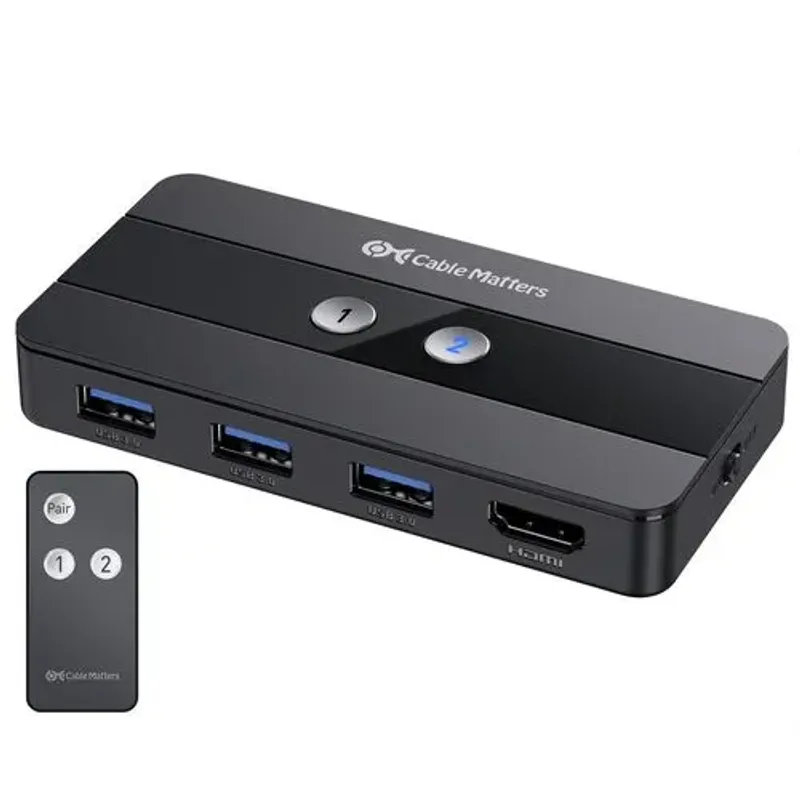
The Cable Matters KVM is the strongest value for remote workers who connect high-bandwidth peripherals through the switch — a 4K webcam, an external SSD for shared file access, or a USB audio interface. Three USB 3.0 (5Gbps) ports provide ten times USB 2.0’s bandwidth, at $29 more than the UGREEN base model.
The RF remote is a practical differentiator over IR-only switches. Radio frequency remotes work through walls, monitor stands, and desk surfaces — no line of sight required. If the KVM lives under the desk or tucked behind a monitor in a cable-managed setup, the RF remote means you never need to dig it out to press a button.
EDID emulation is included here too, preventing the resolution reset behavior from the base UGREEN model. Combined with USB 3.0 throughout, this makes the Cable Matters unit the most complete mid-range KVM in the roundup.
The absence of audio switching is the only meaningful omission. If you use a wired headset for calls and want it to follow the active machine, the TESmart is a better fit. If you use Bluetooth headphones that pair separately to each computer — or a monitor with built-in speakers — audio switching is irrelevant and the Cable Matters wins.
Who should buy this: Remote workers who connect a 4K webcam, external drive, or USB audio interface through the KVM, or who want their KVM hidden away with RF switching.
Who should skip this: Anyone who needs audio switching, or who wants more than three USB ports.
4. UGREEN USB-C + HDMI KVM Switch — Best for MacBook Users
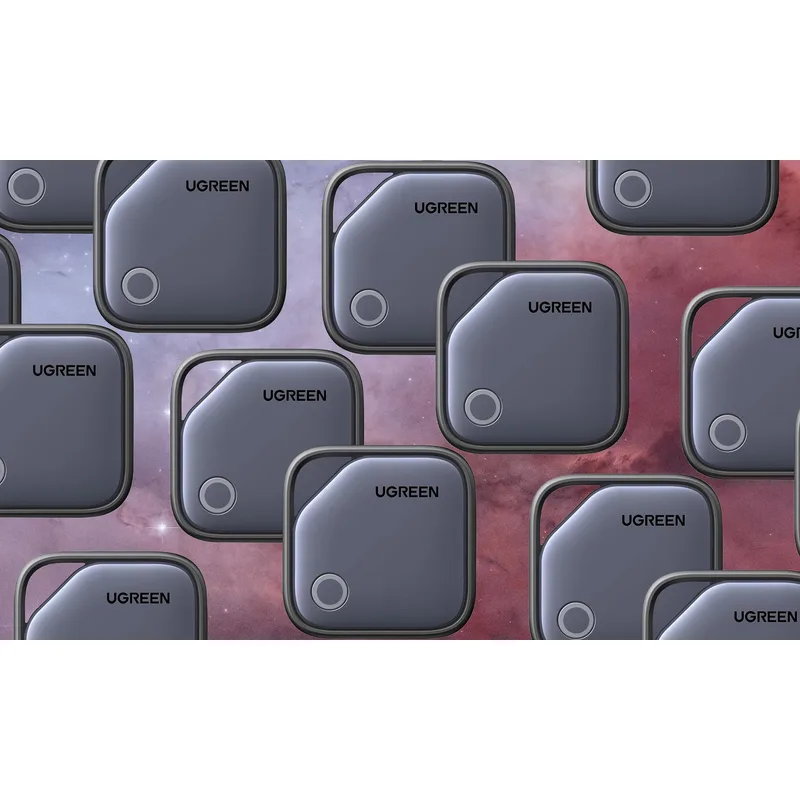
The UGREEN USB-C + HDMI KVM addresses the connection-standard mismatch that most modern laptop users actually face: a MacBook or USB-C laptop on one side, a desktop or older HDMI machine on the other.
The USB-C input side connects to a MacBook Pro or Air with a single cable that carries both video and USB data simultaneously. No separate HDMI adapter, no USB-A hub — one USB-C cable from the Mac to the KVM, and the monitor, keyboard, mouse, and webcam all connect through the box. The other side connects a desktop or Windows machine via standard HDMI and USB-B.
This mixed-standard design is a practical win over HDMI-only KVMs for MacBook users. Requiring a USB-C to HDMI adapter adds a point of failure that always disappears at the wrong moment. The UGREEN USB-C KVM removes that adapter from the equation entirely.
Hotkey switching behaves identically to the standard UGREEN model — double-tap Scroll Lock, sub-second switch. All four USB 3.0 ports handle the full standard peripheral set.
The constraints: this unit doesn’t support two USB-C computers simultaneously. One side is USB-C, the other is HDMI. For two MacBooks, the Cable Matters 14-in-1 KVM Dock is the right call.
Who should buy this: MacBook users who pair their laptop with a Windows desktop or HDMI-only secondary machine and want native USB-C connectivity without adapters.
Who should skip this: Anyone running two USB-C laptops, or who needs two of them to be MacBooks.
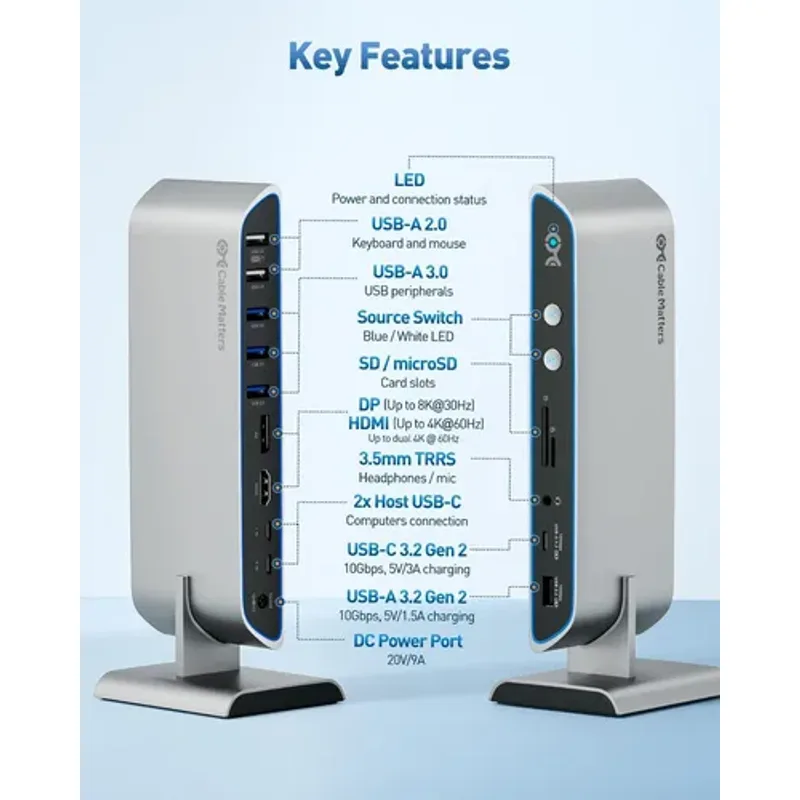
5. Cable Matters 14-in-1 USB-C KVM Switch Dock — Best for Dual-Monitor Setups
The Cable Matters 14-in-1 is a different category of product from the other four picks. It’s a KVM switch and a full docking station combined — supporting dual 4K 60Hz monitors from either connected laptop, 100W charging, 2.5 Gigabit Ethernet, and a 14-port peripheral hub. The switching happens between two complete docked workstations, not just two peripherals.
For remote workers who’ve moved to a dual-monitor setup and want to share both screens between two computers, this is the only realistic option at this price point. Connect two USB-C or Thunderbolt 4 laptops, and either machine can drive two 4K monitors simultaneously, charge from the dock, access gigabit-plus Ethernet, and use every connected peripheral. Switch computers, and everything transfers — monitors, charging, keyboard, mouse, webcam, drives.
The 2.5 Gigabit Ethernet port is worth calling out specifically. Standard KVM switches include Gigabit Ethernet at best. As home networks push toward 2.5GbE routers and switches, the additional bandwidth provides headroom for large file transfers that don’t interfere with active video call quality.
The non-negotiable requirement: both connected computers need USB-C ports capable of video output. This covers MacBooks (M1 and later), most premium Windows ultrabooks, and Chromebooks — but excludes desktop computers and older laptops with only HDMI outputs.
Who should buy this: Remote workers with two modern USB-C laptops and a dual-monitor setup who want zero cabling changes when switching between machines.
Who should skip this: Anyone with a desktop computer on either side, or who doesn’t need dual-monitor switching — the $219 price is only justified by the full docking and dual-monitor capability.
Comparison Table
| KVM | Computers | Max Resolution | Switching | USB Ports | Audio | Price | Rating |
|---|---|---|---|---|---|---|---|
| UGREEN HDMI KVM | 2 | 4K@60Hz | Hotkey, button, controller | 4x USB 3.0 | No | $39.99-$59.99 as of Oct 18, 2026 | 9.0 |
| Cable Matters 14-in-1 | 2 | Dual 4K@60Hz | Button, RF remote | 4x USB 3.0 | No | Unavailable | 9.1 |
| UGREEN USB-C+HDMI KVM | 2 | 4K@60Hz | Hotkey, button | 4x USB 3.0 | No | $64.99-$99.99 as of Oct 18, 2026 | 8.7 |
| TESmart 4-Port KVM | 2-4 | 4K@60Hz | Hotkey, button, IR remote | 4x USB 2.0 | Yes (3.5mm) | Check price | 8.8 |
| Cable Matters USB 3.0 KVM | 2 | 4K@60Hz | Hotkey, button, RF remote | 3x USB 3.0 | No | Unavailable | 8.6 |
Buying Guide: Choosing the Right KVM Switch for Remote Work
How many monitors do you need to share? Single-monitor setups work with any of the first four picks. Dual-monitor setups require the Cable Matters 14-in-1 — it’s the only unit here that switches two monitors simultaneously, though it requires USB-C on both computers.
What connections do your computers use? Two HDMI machines: any standard HDMI KVM works. A MacBook (USB-C) paired with a Windows desktop (HDMI): the UGREEN USB-C + HDMI KVM is the clean solution. Two USB-C laptops: the Cable Matters 14-in-1. A desktop with only VGA: none of these — VGA KVMs are a legacy category outside this guide’s scope.
Do you need audio switching? If you use wired speakers or a 3.5mm headset and want them to follow the active computer, only the TESmart includes this. Bluetooth headphones that pair independently to each machine don’t need KVM audio switching at all.
Do you need more than two computers? The TESmart supports up to four computers from one monitor. The other picks in this roundup handle two.
Does your company IT allow KVM switches? Most corporate policies don’t restrict them. KVM switches are transparent to connected computers — each machine sees a standard keyboard, mouse, and monitor, same as a direct connection. Heavily managed environments that block all external USB devices may prevent keyboard or mouse function through the KVM. Check with IT if you’re on a tightly locked-down corporate laptop.
Will a KVM switch work for gaming? Measurable input latency exists at the millisecond level in all KVM switches. For office work, it’s imperceptible. For competitive gaming where milliseconds matter, a KVM switch is not the right tool.
FAQ
Will a KVM switch affect video call quality?
The video signal to the monitor passes through as a relay — no processing, same quality as a direct connection. The webcam passes through the USB hub, adding negligible latency (microseconds) with no effect on video call quality. The one consideration: a 4K webcam requires USB 3.0 ports to transmit at full resolution. On a USB 2.0 KVM, a 4K webcam may drop to 1080p output.
Why does my monitor briefly go black when switching?
This is the EDID handshake — the monitor disconnects from one computer and negotiates a new connection with the other, which requires re-reading display capabilities. KVMs with EDID emulation store the monitor profile and eliminate this behavior entirely. The TESmart and Cable Matters models include EDID emulation; the base UGREEN HDMI does not. Without EDID, the black screen typically lasts one to three seconds.
Can I switch computers during an active video call?
Technically yes. Practically, switching disconnects the webcam and microphone from the active computer — call software will see a frozen frame and silence for two to five seconds while peripherals reconnect. Switching between separate calls on different computers (ending a call on computer A, switching, joining another on computer B) works cleanly. Switching in the middle of an active call is not recommended.
Does a KVM switch introduce input lag?
Measurable latency at the millisecond level exists, but it’s imperceptible for typing, clicking, and navigating applications. There’s no lag difference a remote worker would notice for office productivity use. Competitive gaming is the one scenario where KVM latency becomes relevant.
Can I use a KVM switch with a MacBook?
Yes. The UGREEN HDMI KVM works with a MacBook using a USB-C to HDMI adapter for video. The UGREEN USB-C + HDMI KVM connects natively to the MacBook’s USB-C port without any adapter — it’s designed specifically for this scenario. The Cable Matters 14-in-1 provides the highest bandwidth connection from a MacBook Pro via Thunderbolt 4, plus 100W charging. Standard KVM switches don’t charge the MacBook — you’ll need a separate charger unless using the Cable Matters 14-in-1.
What’s the difference between a KVM switch and a USB switch?
A KVM switch handles keyboard, video, and mouse — it switches both the display signal and USB peripherals together. A USB switch only switches USB devices (keyboard, mouse, drives) between computers; your monitor stays connected to one machine. USB switches cost less but require switching the monitor separately, which usually means physically changing the monitor’s input. For a home office with a monitor you want to share, a KVM is the complete solution.
The Bottom Line
For the majority of remote workers — two computers, single monitor, standard USB-A peripherals — the UGREEN HDMI KVM Switch at $40 is the correct buy. Fast hotkey switching, four USB 3.0 ports, 4K 60Hz, and nothing unnecessary.
Remote workers who’ve experienced resolution resets or window rearrangement during switching, or who use a wired headset for calls, should step up to the TESmart 4-Port HDMI KVM at $79. The EDID emulation keeps the monitor stable; the audio switching keeps the headset connected to the right machine.
MacBook users pairing with a HDMI desktop should pick the UGREEN USB-C + HDMI KVM at $59 — native USB-C connection, no adapters, same fast hotkey switching.
Remote workers with two USB-C laptops and a dual-monitor setup should look at the Cable Matters 14-in-1 USB-C KVM Dock at $219. The high price is only justified by the full docking and dual-4K-monitor capability — but for that specific use case, nothing else comes close.
Detailed Reviews
UGREEN HDMI KVM Switch (2 Computers, 1 Monitor)
Pros
- Hotkey switching (double-tap Scroll Lock) changes computers in under one second without reaching for the box
- 4K 60Hz HDMI output covers every current monitor standard for remote workers
- Four USB 3.0 ports share keyboard, mouse, webcam, and one additional device between both computers
- Desktop controller provides a physical button for switching when hotkeys are unavailable
- Cables included in the box — ready to use immediately without additional purchases
Cons
- Single HDMI output only — dual-monitor setups require two separate KVM units
- USB 3.0 ports do not support USB-C devices directly — USB-C keyboards or mice need an adapter
- No audio switching — speakers and headsets need to be manually plugged between computers or use separate audio switch
TESmart HDMI KVM Switch (4 Port, 4K@60Hz)
Pros
- EDID emulation maintains monitor resolution and refresh rate settings when switching computers
- IR remote control allows switching from across the room without reaching the desk
- Stereo audio output switches simultaneously with video — speakers and headsets switch automatically
- 4K 60Hz HDMI handles all current remote work monitor setups
- Supports up to 4 computers — room to expand beyond a two-machine setup
Cons
- USB 2.0 ports rather than USB 3.0 — high-speed storage devices connected through the KVM will be speed-limited
- Higher price than UGREEN for single-monitor functionality
- IR remote requires line of sight — not useful if the KVM is behind a monitor or in a drawer
Cable Matters USB 3.0 KVM Switch (HDMI, 4K@60Hz)
Pros
- RF remote control works through walls and without line of sight — switch computers from across the room
- USB 3.0 on all three device ports — external SSDs, webcams, and high-speed peripherals run at full speed
- EDID emulation prevents the monitor from resetting resolution when switching between computers
- Works with any OS combination — switch between a Windows work laptop and a Mac personal machine
- Compact form factor fits under a monitor stand without cluttering the desk
Cons
- No audio switching — audio output stays on the last selected computer
- Three USB ports is one fewer than the UGREEN and TESmart models
- RF remote adds a small remote control to manage and store on the desk
UGREEN USB-C + HDMI KVM Switch
Pros
- USB-C input side connects to a MacBook or USB-C laptop with one cable for video and USB simultaneously
- Mixed connectivity handles the common setup of a USB-C laptop and a traditional desktop with HDMI
- Shares one keyboard, one mouse, one monitor, and one webcam between both machines
- Four USB 3.0 ports accommodate the full standard home office peripheral set
- Hotkey switching maintains the one-second switch speed of the standard UGREEN model
Cons
- Does not support two USB-C computers simultaneously — one side is HDMI only
- USB-C side limited to 4K@60Hz rather than the higher resolutions Thunderbolt 4 can carry
- No audio switching
Cable Matters 14-in-1 USB-C KVM Switch Dock
Pros
- Dual 4K@60Hz outputs support a two-monitor remote work setup shared between two computers
- 100W USB-C charging per connected laptop eliminates separate laptop chargers
- 2.5 Gigabit Ethernet provides faster-than-Gigabit wired network for video call reliability
- Functions as a full 14-port dock when one computer is connected — not just a switcher
- Thunderbolt 4 compatible for the highest bandwidth connection from MacBook Pro or Dell XPS
Cons
- Only works with laptops that have USB-C — does not support traditional HDMI-only desktops
- High price point — justified by dual-monitor docking capability, but significant investment
- Requires both laptops to be actively managed; wake-from-sleep performance varies by laptop