Disclosure: SetupRanked earns a commission on purchases made through links on this page, at no extra cost to you.
CES 2026 confirmed what home office workers have been noticing for two years: desktop PCs are back as a serious remote work option. Intel’s Core Ultra Series 3 and AMD’s Ryzen AI 300 series brought AI-accelerated processing to compact form factors, with HP’s EliteBoard demo — a full Ryzen PC compressed into a 1.7-pound keyboard — showing how far the category has evolved. For remote workers who commute zero days a week, the case for a dedicated desktop over a laptop has never been stronger.
The four desktops below cover the realistic range for home office use: from the $449 budget business machine that handles every core remote work task, to the $599 Mac Mini M4 that remains the quietest, most capable single-machine option for macOS users. All four support triple-display setups (the Dell supports four) and all include Wi-Fi 6E for wireless flexibility.
Quick picks: The Apple Mac Mini M4 (now $799 with 512GB) is the best overall desktop for remote work — silent, compact, and unmatched in performance-per-watt for macOS users. The Dell OptiPlex 7020 is the best business Windows desktop for teams that need IT management and four-monitor support. The Lenovo ThinkCentre M70q Gen 4 at $449-$529 is the best value by a significant margin.
Why Choose a Desktop Over a Laptop for Remote Work
The argument has shifted. In 2026, with 16GB now the minimum recommended RAM for video conferencing alongside browser and productivity apps, desktops offer a meaningful advantage in performance-per-dollar and upgradability.
Performance headroom. Desktops don’t throttle. A laptop that lists the same i5-14500 performs differently than a desktop — laptop chips run at lower sustained power limits due to thermal constraints. The desktop versions run at full TDP continuously. For three-hour calls with screen sharing and local file processing running simultaneously, this difference is real.
Fan noise and calls. Laptop fans accelerate noticeably during video encoding, which happens continuously on every call. Desktop form factors with larger heatsinks and slower fans manage thermals more quietly, keeping fan noise out of microphone pickup range.
Upgradability. Three of the four Windows desktops here allow RAM and SSD upgrades after purchase. A laptop’s RAM is almost always soldered. Buying a desktop today at 16GB and expanding to 32GB in two years is a $60 upgrade. On a laptop, that requires buying a new machine.
Cost at equivalent specs. A Windows desktop delivering 16GB DDR5, 512GB SSD, and Wi-Fi 6E costs $449-$649 here. A laptop with comparable specs typically costs $800-$1,200 and includes a display, keyboard, and battery you may not need if you’re working from a permanent desk.
Quick Comparison
| Desktop | Price | Processor | RAM | Monitor Support | Best For |
|---|---|---|---|---|---|
| Apple Mac Mini M4 | $919.00-$991.24 as of Oct 18, 2026 | Apple M4 (10-core) | 16GB Unified | Up to 3 | macOS users, silent operation |
| Dell OptiPlex 7020 SFF | Unavailable | Intel i5-14500 (14-core) | 16GB DDR5 | Up to 4 | Business, IT-managed teams |
| HP Elite Mini 800 G9 | Unavailable | Intel i5-14500T (14-core) | 16GB DDR5 | Up to 3 | Upgradability, quiet operation |
| Lenovo ThinkCentre M70q Gen 4 | $828.00 as of Oct 18, 2026 | Intel i5-13400T (10-core) | 16GB DDR5 | Up to 3 | Budget-focused buyers |
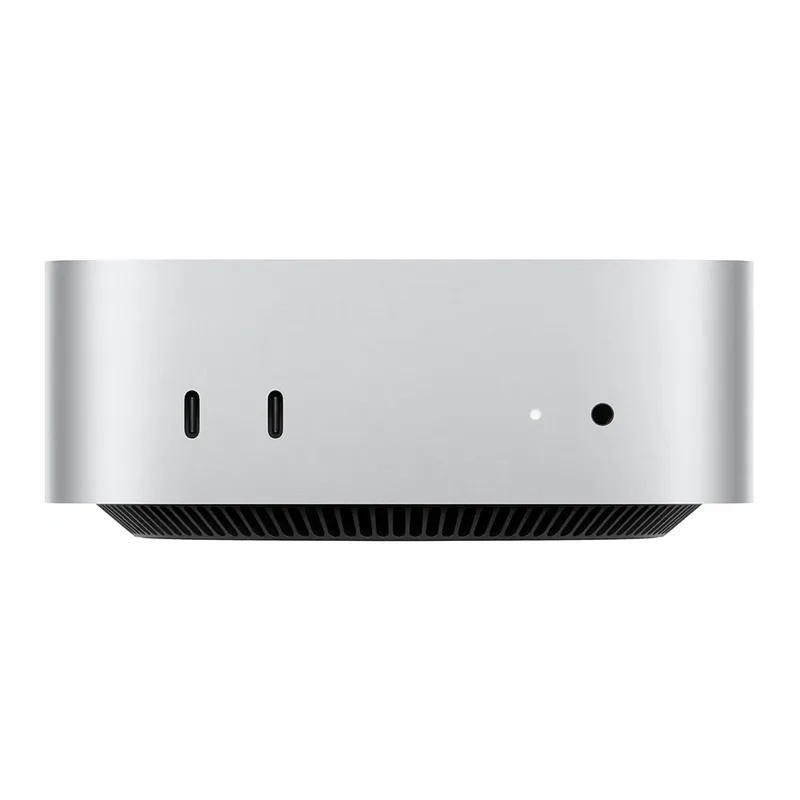
Apple Mac Mini (M4, 2024)
Pros
- Apple M4 sustains peak performance through multi-hour calls, screen sharing, and background tasks without thermal throttling — the performance ceiling for home office work never materializes in practice
- Near-silent operation during all standard office workloads — no fan noise audible to microphones during calls, which is a common problem with Windows mini PCs under CPU spikes
- Three Thunderbolt 4 ports support a single high-bandwidth dock plus two external 4K monitors simultaneously, or up to three independent displays across all video outputs
- Dramatically compact 5x5-inch footprint disappears on any desk — VESA-mounts cleanly to the back of a monitor arm
- macOS, iPhone/iPad AirDrop, Handoff, and Universal Clipboard integration make this the obvious pick for anyone already in the Apple ecosystem — these features genuinely change how you move files and copy between devices
Cons
- RAM and SSD are soldered — no upgrade path after purchase; heavy users generating large project files or video should configure 1TB or 2TB SSD at the time of purchase, though this pushes cost well above Windows alternatives
- At $799, the Mac Mini now costs $250-$350 more than comparable Windows mini PCs; macOS-agnostic workers will find better hardware-per-dollar in the Windows options below
- macOS limits compatibility with Windows-only enterprise software and some IT management platforms
The Mac Mini M4 is the correct answer for any remote worker building or upgrading a macOS home office. Apple’s M4 chip delivers performance that no desktop in this price range can match on single-threaded tasks — and sustains that performance continuously without throttling under the kind of parallel workloads that characterize a full remote work day.
The practical advantage shows in two places: silence and sustained speed. Under typical home office loads — Zoom with screen share, Slack, browser with 20 tabs, and a PDF open — the Mac Mini’s fan runs inaudibly. Windows mini PCs and desktops in this price bracket have fans that cycle up when the CPU spikes during video encoding (which happens every few seconds on every call). The Mac Mini never does this.
Three Thunderbolt 4 ports unlock the right dock setup. One port connects a Thunderbolt dock that handles keyboard, mouse, USB-A peripherals, Ethernet, and one display. The second Thunderbolt port connects a second 4K display. The HDMI 2.1 port adds a third display if needed. All from a machine the size of a hardcover book.
The constraint is non-upgradeable storage. Apple discontinued the 256GB model in May 2026 — the M4 Mac Mini now ships exclusively with 512GB at $799. That’s enough room for macOS, apps, and typical work files, but developers, video editors, or anyone accumulating years of project data should configure 1TB or 2TB at purchase. Upgrading storage later isn’t possible; adding an external SSD is the only workaround.
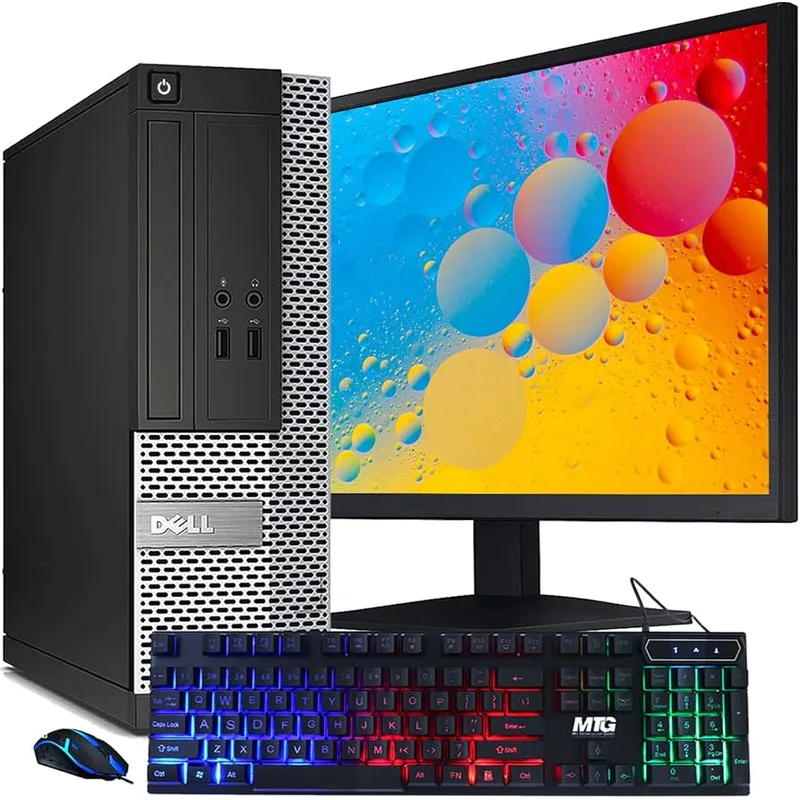
Dell OptiPlex 7020 SFF
Pros
- 14-core Intel Core i5-14500 handles intensive parallel workloads — Zoom with screen sharing, multiple browser sessions, Slack, and file operations run simultaneously without perceptible slowdown
- Supports up to four simultaneous independent displays across HDMI, dual DisplayPort, and USB-C — the most display outputs in this roundup
- Intel vPro security features enable hardware-level remote management and out-of-band access — essential for IT-managed corporate deployments
- Wi-Fi 6E and Bluetooth 5.3 provide modern wireless connectivity alongside a wired Ethernet port
- Windows 11 Pro included — no additional licensing cost for business or home-office use
- SFF chassis fits vertically or horizontally beside or beneath a monitor with a minimal footprint
Cons
- No Thunderbolt connectivity — high-bandwidth docks and external Thunderbolt storage require an alternative connection
- Fan spins audibly under sustained CPU load; louder than the Mac Mini or HP Elite Mini during extended encoding tasks
- No discrete GPU — not suited for GPU-accelerated rendering, video processing at high resolutions, or machine learning workloads
The Dell OptiPlex 7020 is the business standard for a reason. It runs the Intel Core i5-14500 at full desktop TDP — 14 cores, 20 threads, boosting to 5.0GHz — in a small form factor chassis that fits beside a monitor without taking over the desk. Four simultaneous display outputs (HDMI + dual DisplayPort + USB-C) is the highest count in this roundup and the right specification for multi-monitor power users.
Intel vPro makes this the only machine here suited for IT-managed corporate deployments. Remote management, hardware-level encryption, and out-of-band access for IT support are built into the platform — features that matter when a company controls dozens or hundreds of home office machines. For individual remote workers, these features are invisible in daily use but reassure corporate IT departments who need management visibility.
The Wi-Fi 6E radio is a recent addition to the OptiPlex line and handles interference-heavy home networks better than Wi-Fi 6. Wired Ethernet is standard for video calls when the network adapter needs to be reliable.
The fan is the OptiPlex’s practical limitation for shared spaces. Under sustained CPU load, it ramps up noticeably — louder than the HP Elite Mini and significantly louder than the Mac Mini. During typical office tasks, it stays quiet. The noise only becomes relevant during extended media encoding, large file transfers, or compilation jobs.
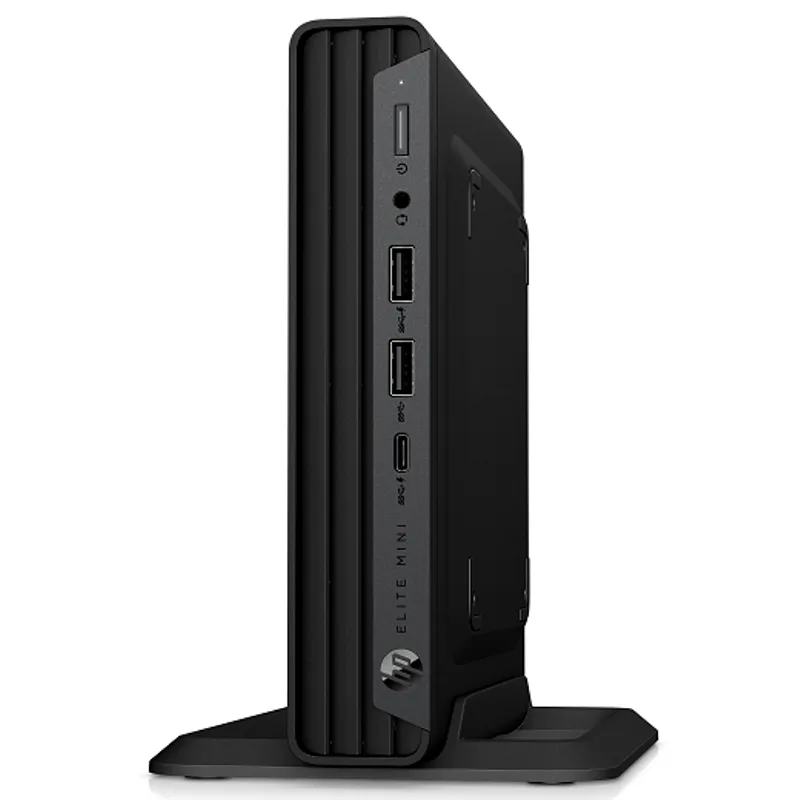
HP Elite Mini 800 G9
Pros
- Two SODIMM slots upgradeable to 64GB DDR5 — the only machine in this roundup where RAM can be expanded after purchase without voiding warranty
- Modular expansion slot accepts additional port modules (USB-C, RJ45, DisplayPort) to customize connectivity for specific desk setups
- Quiet thermal management — the 14500T TDP-configurable chip keeps fan noise low during most office workloads, making it suitable for shared or quiet workspaces
- Standard M.2 2280 slot allows SSD replacement or upgrade — a 2TB NVMe drive costs around $80 and takes under 10 minutes to install
- HP business warranty support and optional 3-year coverage provide enterprise-grade reliability assurance
Cons
- HP Wolf Pro Security software causes significant boot and performance delays on first setup — most users disable or uninstall it immediately
- Power button is small and recessed, making it difficult to press when the unit is desk-mounted
- Base models ship with 256GB storage, which fills faster than expected — verify storage configuration before ordering
- No Thunderbolt support; USB-C port is limited to USB 3.2 Gen 2 speeds
The HP Elite Mini 800 G9 addresses the one thing the Mac Mini and OptiPlex don’t: RAM upgradability. Two SODIMM slots accept up to 64GB of DDR5 after purchase. For remote workers whose memory needs grow with their workflow — data analysts, developers running multiple local services, or anyone who routinely runs VMs — this is a meaningful long-term advantage.
The modular expansion slot accepts HP-made port modules that snap onto the rear panel. If you need a second Ethernet port for network segmentation, or an additional USB-C for a specific peripheral, HP sells these modules without requiring a new machine or a dock.
Thermal management is better than most business mini PCs in this category. The 14500T’s lower TDP (35W configurable down to 15W) allows HP’s cooling system to keep fan noise low during the document editing, video calling, and browser sessions that compose most remote work days. Sustained workloads like video transcoding do spin the fan up, but less aggressively than the Dell or Lenovo.
The HP Wolf Pro Security software is the first thing to address after setup. It causes perceptible slowdowns during boot and background scanning — disabling or uninstalling it is the single highest-impact performance action for this machine.
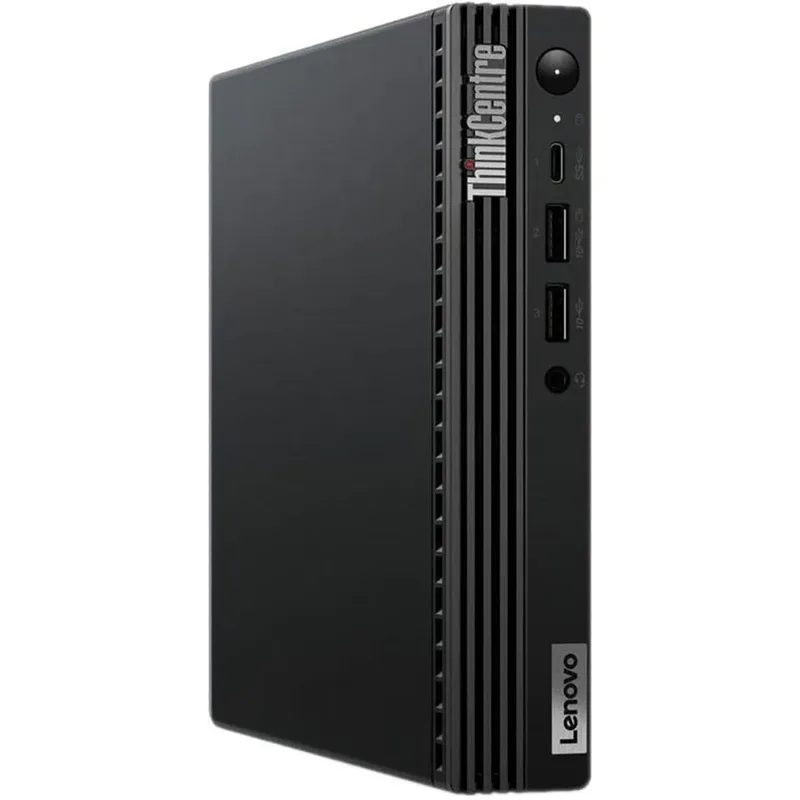
Lenovo ThinkCentre M70q Gen 4
Pros
- At $449-$529, the M70q Gen 4 delivers 13th-gen Intel performance, Wi-Fi 6E, and triple-display support at the lowest price in this roundup by a wide margin
- MIL-STD-810H certification covers vibration, temperature extremes, and humidity — useful for desks near windows, HVAC vents, or in high-traffic home environments
- Exceptional internal storage expandability for a 1-liter PC: one 3.5-inch HDD bay plus two M.2 2280 slots support up to several terabytes without external drives
- One-screw access panel makes RAM and SSD upgrades straightforward — no special tools required
- Intel AX211 is a premium Wi-Fi 6E module with stronger signal reliability than the baseline AX210 found in competing budget units
Cons
- Fan cycles audibly under sustained CPU loads — comparable to the Dell OptiPlex but louder than the HP Elite Mini during extended tasks
- USB-C port is data-only at USB 3.2 Gen 2 speeds — no video output or DisplayPort alt mode via USB-C
- Intel UHD Graphics 730 is a step below the UHD 770 in the Dell and HP options; GPU-accelerated tasks like hardware-decoded 4K video show the difference
- No memory card reader despite the ample port count
The Lenovo ThinkCentre M70q Gen 4 is the value anchor of this roundup. At $449-$529, it delivers a 10-core Intel CPU, Wi-Fi 6E, triple-display support, and a 1-liter form factor at a price that undercuts every Windows competitor here by $100-$300.
The internal storage configuration is a standout for the form factor: a 3.5-inch HDD bay plus dual M.2 2280 slots means you can build toward several terabytes of local storage without any external drives. For remote workers who store large project files, media archives, or local backups, this expandability has real daily value.
MIL-STD-810H certification covers the practical hazards of a home office: temperature fluctuations near windows, vibration from building HVAC, and the occasional knocked-off desk. Not features that come up often, but the certification signals a build quality that consumer mini PCs from Beelink or MINISFORUM don’t undergo.
The USB-C port is data-only at USB 3.2 Gen 2 speeds — no video output. If your monitor setup relies on USB-C video, pair this with a DisplayPort or HDMI cable instead, or run through a USB-C hub with DisplayPort alt-mode.
Buying Guide: Matching a Desktop to Your Setup
For macOS users: The Mac Mini M4 is the only option. At $799 with 512GB, it’s priced higher than it was at launch, but still competitive against equivalent MacBook Air configurations. You get a silent, high-performance desktop that runs cooler and more consistently than a laptop under sustained load — and the M4 chip still outperforms anything Intel in this price range on macOS tasks.
For business or IT-managed teams: The Dell OptiPlex 7020. vPro management, Windows 11 Pro, Wi-Fi 6E, and four-display support make this the right pick for standardized corporate home office deployments where IT needs remote management capability.
For long-term ownership: The HP Elite Mini 800 G9. If you plan to keep this machine for four or five years, the ability to upgrade RAM from 16GB to 64GB as workloads grow justifies the premium over the Lenovo. The modular port expansion also extends useful life as connectivity needs change.
For the best value: The Lenovo ThinkCentre M70q Gen 4 at $449-$529. Performance is sufficient for every standard remote work task, the internal expandability is exceptional for the price, and the MIL-STD-810H durability is a genuine differentiator at this cost tier.
16GB or 32GB RAM? For standard remote work — Zoom or Teams, Slack, browser with 10-15 tabs, email, and documents — 16GB is sufficient on all four machines listed here. If you regularly run local development environments, virtual machines, or data processing alongside calls, target 32GB at configuration or choose the HP Elite Mini for its post-purchase upgrade path.
Desktop vs laptop? If you work from a fixed desk five days a week and occasionally visit the office, a desktop plus a basic travel laptop is a better value split than a premium laptop trying to do both. If you’re fully mobile, this comparison doesn’t apply.
Frequently Asked Questions
Can I use a home desktop for corporate VPN and remote work software?
Yes. All four Windows desktops run Windows 11 Pro, which supports all major VPN clients, corporate MDM platforms, and remote access tools. The Dell OptiPlex’s vPro platform additionally supports hardware-level management tools like Intel AMT, which some IT departments require. The Mac Mini runs macOS Sequoia with full support for VPN clients, Jamf, and most enterprise security tools.
Do I still need a monitor, keyboard, and mouse with a desktop PC?
Yes — desktops ship without peripherals. You need a monitor (or monitors), keyboard, and mouse at minimum. A USB-C or Thunderbolt dock simplifies connecting multiple peripherals through a single cable. Budget $200-$400 for a basic monitor, keyboard, and mouse if you’re starting from scratch.
How do I connect multiple monitors to a desktop PC?
Match your monitors’ input ports to the desktop’s video outputs. HDMI and DisplayPort cables are standard. For the Mac Mini, a Thunderbolt 4 dock handles one monitor while the HDMI port covers a second — or use two separate Thunderbolt cables for dual displays. For the Windows desktops, connect monitors directly to the HDMI and DisplayPort outputs on the back panel.
Are these desktops upgradeable?
Partially. The Mac Mini has soldered RAM and SSD — no upgrades possible. The Dell OptiPlex, HP Elite Mini, and Lenovo ThinkCentre all allow SSD replacement. The HP Elite Mini additionally allows RAM upgrades up to 64GB (two SODIMM slots). The Lenovo ThinkCentre also supports RAM upgrades and has an internal HDD bay for additional spinning-drive storage.
Is a desktop PC noticeably faster than a laptop for remote work?
For sustained workloads, yes. Desktop processors run at higher sustained power limits than laptop equivalents, meaning performance stays consistent during long video calls, parallel application use, and background file operations. For light tasks — email, documents, browser — the difference is negligible. The gap is most noticeable during video conferencing with screen sharing while other applications are running in the background.
The Bottom Line
The Apple Mac Mini M4 is the best overall desktop for remote work — silent operation, M4 chip performance that nothing in this price range matches on macOS, and a compact form factor that disappears on any desk. Apple now ships the M4 Mac Mini exclusively with 512GB at $799; the old 256GB model is discontinued.
For Windows, the Dell OptiPlex 7020 is the business standard with four-display support and Intel vPro management. The HP Elite Mini 800 G9 is the right long-term investment for workers who will upgrade RAM over time. The Lenovo ThinkCentre M70q Gen 4 at $449-$529 is the best value in the roundup — strong performance, MIL-STD-810H durability, and exceptional internal storage expandability for the price.
Detailed Reviews
Apple Mac Mini (M4, 2024)
Pros
- Apple M4 sustains peak performance through multi-hour calls, screen sharing, and background tasks without thermal throttling — the performance ceiling for home office work never materializes in practice
- Near-silent operation during all standard office workloads — no fan noise audible to microphones during calls, which is a common problem with Windows mini PCs under CPU spikes
- Three Thunderbolt 4 ports support a single high-bandwidth dock plus two external 4K monitors simultaneously, or up to three independent displays across all video outputs
- Dramatically compact 5x5-inch footprint disappears on any desk — VESA-mounts cleanly to the back of a monitor arm
- macOS, iPhone/iPad AirDrop, Handoff, and Universal Clipboard integration make this the obvious pick for anyone already in the Apple ecosystem — these features genuinely change how you move files and copy between devices
Cons
- RAM and SSD are soldered — no upgrade path after purchase; heavy users generating large project files or video should configure 1TB or 2TB SSD at the time of purchase, though this pushes cost well above Windows alternatives
- At $799, the Mac Mini now costs $250-$350 more than comparable Windows mini PCs; macOS-agnostic workers will find better hardware-per-dollar in the Windows options below
- macOS limits compatibility with Windows-only enterprise software and some IT management platforms
Dell OptiPlex 7020 SFF
Pros
- 14-core Intel Core i5-14500 handles intensive parallel workloads — Zoom with screen sharing, multiple browser sessions, Slack, and file operations run simultaneously without perceptible slowdown
- Supports up to four simultaneous independent displays across HDMI, dual DisplayPort, and USB-C — the most display outputs in this roundup
- Intel vPro security features enable hardware-level remote management and out-of-band access — essential for IT-managed corporate deployments
- Wi-Fi 6E and Bluetooth 5.3 provide modern wireless connectivity alongside a wired Ethernet port
- Windows 11 Pro included — no additional licensing cost for business or home-office use
- SFF chassis fits vertically or horizontally beside or beneath a monitor with a minimal footprint
Cons
- No Thunderbolt connectivity — high-bandwidth docks and external Thunderbolt storage require an alternative connection
- Fan spins audibly under sustained CPU load; louder than the Mac Mini or HP Elite Mini during extended encoding tasks
- No discrete GPU — not suited for GPU-accelerated rendering, video processing at high resolutions, or machine learning workloads
HP Elite Mini 800 G9
Pros
- Two SODIMM slots upgradeable to 64GB DDR5 — the only machine in this roundup where RAM can be expanded after purchase without voiding warranty
- Modular expansion slot accepts additional port modules (USB-C, RJ45, DisplayPort) to customize connectivity for specific desk setups
- Quiet thermal management — the 14500T TDP-configurable chip keeps fan noise low during most office workloads, making it suitable for shared or quiet workspaces
- Standard M.2 2280 slot allows SSD replacement or upgrade — a 2TB NVMe drive costs around $80 and takes under 10 minutes to install
- HP business warranty support and optional 3-year coverage provide enterprise-grade reliability assurance
Cons
- HP Wolf Pro Security software causes significant boot and performance delays on first setup — most users disable or uninstall it immediately
- Power button is small and recessed, making it difficult to press when the unit is desk-mounted
- Base models ship with 256GB storage, which fills faster than expected — verify storage configuration before ordering
- No Thunderbolt support; USB-C port is limited to USB 3.2 Gen 2 speeds
Lenovo ThinkCentre M70q Gen 4
Pros
- At $449-$529, the M70q Gen 4 delivers 13th-gen Intel performance, Wi-Fi 6E, and triple-display support at the lowest price in this roundup by a wide margin
- MIL-STD-810H certification covers vibration, temperature extremes, and humidity — useful for desks near windows, HVAC vents, or in high-traffic home environments
- Exceptional internal storage expandability for a 1-liter PC: one 3.5-inch HDD bay plus two M.2 2280 slots support up to several terabytes without external drives
- One-screw access panel makes RAM and SSD upgrades straightforward — no special tools required
- Intel AX211 is a premium Wi-Fi 6E module with stronger signal reliability than the baseline AX210 found in competing budget units
Cons
- Fan cycles audibly under sustained CPU loads — comparable to the Dell OptiPlex but louder than the HP Elite Mini during extended tasks
- USB-C port is data-only at USB 3.2 Gen 2 speeds — no video output or DisplayPort alt mode via USB-C
- Intel UHD Graphics 730 is a step below the UHD 770 in the Dell and HP options; GPU-accelerated tasks like hardware-decoded 4K video show the difference
- No memory card reader despite the ample port count