Affiliate disclosure: SetupRanked earns a commission from qualifying Amazon purchases at no extra cost to you.
Your 9 AM Zoom looks fine to you. On the other end, your coworkers are watching a silhouette because the window behind you is brighter than your face. That’s the problem a conference camera solves — not just higher resolution, but smarter exposure, wider framing, and AI that keeps you centered when you lean back or reach for your coffee.
This roundup covers five cameras suited to individual desks and small home office setups. Prices range from under $120 (Anker PowerConf C300) to $299–$329 (Jabra PanaCast 20). Two of the five — the OBSBOT Tiny 3 Lite and Jabra PanaCast 20 — are the picks with physical or wide-angle tracking for workers who move during calls.
Quick picks: The Jabra PanaCast 20 ($299–$329) leads for individual remote workers who want the widest AI-enhanced FOV without software configuration. For raw 4K image quality at a lower price, the Logitech MX Brio 705 ($185–$199) is the right call. If you want physical AI tracking that follows you across your desk, the OBSBOT Tiny 3 Lite ($199, launched January 2026) is the only camera here with a motorized gimbal.
Comparison
| Spec | Jabra PanaCast 20 | Logitech MX Brio 705 for Business | Anker PowerConf C300 | OBSBOT Tiny 3 Lite | Poly Studio P15 |
|---|---|---|---|---|---|
| Rating | 9.2/10 | 8.9/10 | 8.4/10 | 8.7/10 | 8.7/10 |
| Price | $93.59-$192.00as of Oct 18, 2026 | $199.99as of Oct 18, 2026 | Unavailable | $169.00as of Oct 18, 2026 | $119.99-$279.99as of Oct 18, 2026 |
| Resolution | 4K Ultra-HD (13MP sensor) | 4K UHD (8.5MP, 4096×2160) | 1080p Full HD | 4K@30fps / 1080p@120fps | 4K |
| Field of View | 120° diagonal | 90° diagonal | 65°/78°/90° adjustable | — | 120° (auto-crops to 80° in use) |
| AI Features | Intelligent Zoom, Virtual Director | Auto-framing, RightLight 5 | AI auto-framing, AI noise-cancelling mics | AI Tracking 2.0, Voice and Gesture Control | — |
| Connection | USB-C | USB-C | USB-C | USB-C | USB-C |
| Certifications | Teams, Zoom, Google Meet | Teams, Zoom, Google Meet | Zoom Certified | — | Teams Certified, Zoom Certified |
| HDR | Yes | — | — | — | — |
| OS Compatibility | Windows, macOS, ChromeOS | — | — | — | — |
| Sensor | — | Sony STARVIS BSI back-illuminated | — | 1/2" CMOS | — |
| Special Modes | — | Show Mode (desk/whiteboard view) | — | — | — |
| Frame Rate | — | — | 60fps | — | — |
| Mics | — | — | Dual noise-cancelling microphones | Triple-mic spatial audio array | — |
| PTZ | — | — | — | Physical motorized pan-tilt (150° pan, 90° tilt) | — |
| Tracking Modes | — | — | — | Upper Body, Close-Up, Hand | — |
| Audio | — | — | — | — | Built-in speaker + microphone array |
| AI Audio | — | — | — | — | NoiseBlockAI, Acoustic Fence |
| Dimensions | — | — | — | — | 265 × 55 × 55mm |
| Check Price → | Check Price → | Check Price → | Check Price → | Check Price → |
Prices change daily — tap Check Price for the current Amazon price.
The Picks
Jabra PanaCast 20
Pros
- 120° diagonal FOV captures a full upper-body frame with room to move
- Intelligent Zoom AI crops within the wide frame to keep you centered
- Virtual Director tracks your position so shifting left or right stays in frame
- 13MP sensor holds up in dim home office lighting without requiring a ring light
- Plug-and-play USB-C — no software needed for basic use
Cons
- $299–$329 is the highest price for a personal camera in this roundup
- No built-in speaker — pair with a headset or external speakerphone
- Box ships with monitor clip only; no desk tripod mount included
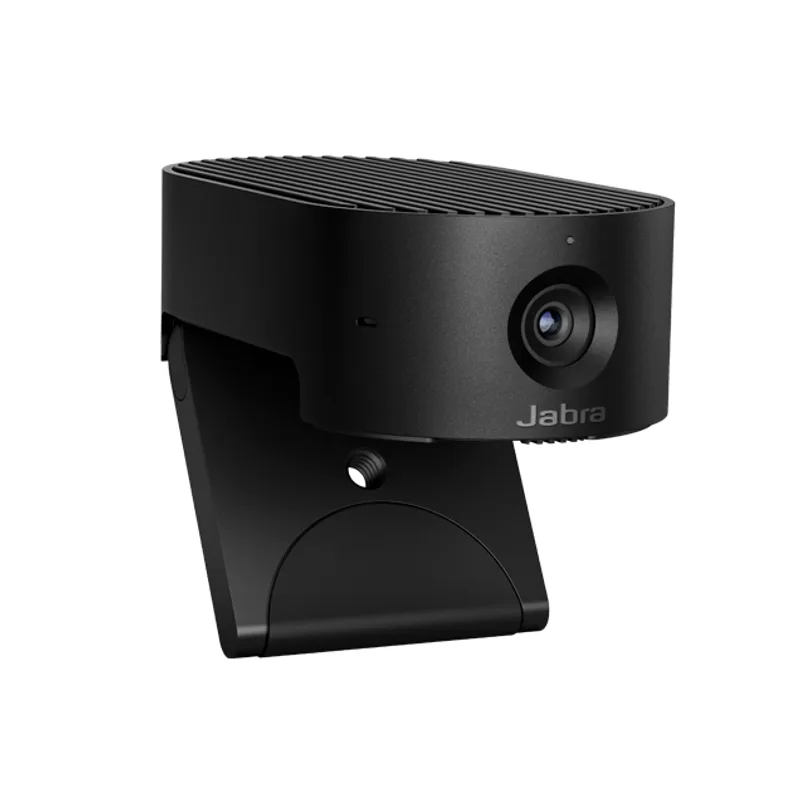
The Jabra PanaCast 20 was built for individual hybrid professionals, not conference rooms. The 120° diagonal field of view is the defining feature: at a typical desk, it captures a full upper-body frame with space to spare, so slight position changes don’t push you out of frame. Most personal webcams ship with 70°–90° FOV. That 30° difference is immediately visible on calls.
The on-device AI processes the 120° capture two ways. Intelligent Zoom identifies how many people are in frame and adjusts the crop to show you clearly without revealing the entire room behind you. Virtual Director tracks your position within the wide frame and pans the virtual crop — so if you lean left or right, the camera follows rather than showing you partially cut off.
The 13MP sensor handles dim home office lighting better than most cameras at this price. Based on owner reports, the PanaCast 20 produces usable image quality without a ring light, though a desk lamp makes a visible difference. Plug-and-play via USB-C — no software required for basic use, though the Jabra Direct app adds admin controls for managed deployments.
No built-in speaker means pairing this with a headset or the Jabra Speak 2 55 speakerphone. For remote workers who already have a headset, that’s a feature: you’re not paying for audio hardware you won’t use.
Buy this if: You want the widest FOV available in a personal conference camera with on-device AI that works without setup.
Skip this if: Budget is tight. The Anker PowerConf C300 delivers capable AI framing at less than half the price, and the gap in day-to-day call quality is smaller than the price difference suggests.
Logitech MX Brio 705 for Business
Pros
- Sony STARVIS back-illuminated sensor produces cleaner image in low-light home offices
- RightLight 5 AI adjusts exposure in real time across mixed lighting conditions
- Show Mode flips the camera angle down to display your desk, whiteboard, or documents
- Auto-framing keeps you centered as you shift position during calls
- Metal build with a smooth privacy shutter that won't snag after months of use
Cons
- 90° FOV is narrower than the Jabra — less forgiving if you move around a lot
- No built-in microphone — requires headset or laptop mic for call audio
- $185–$199 is mid-range for buyers who just need a solid 1080p camera
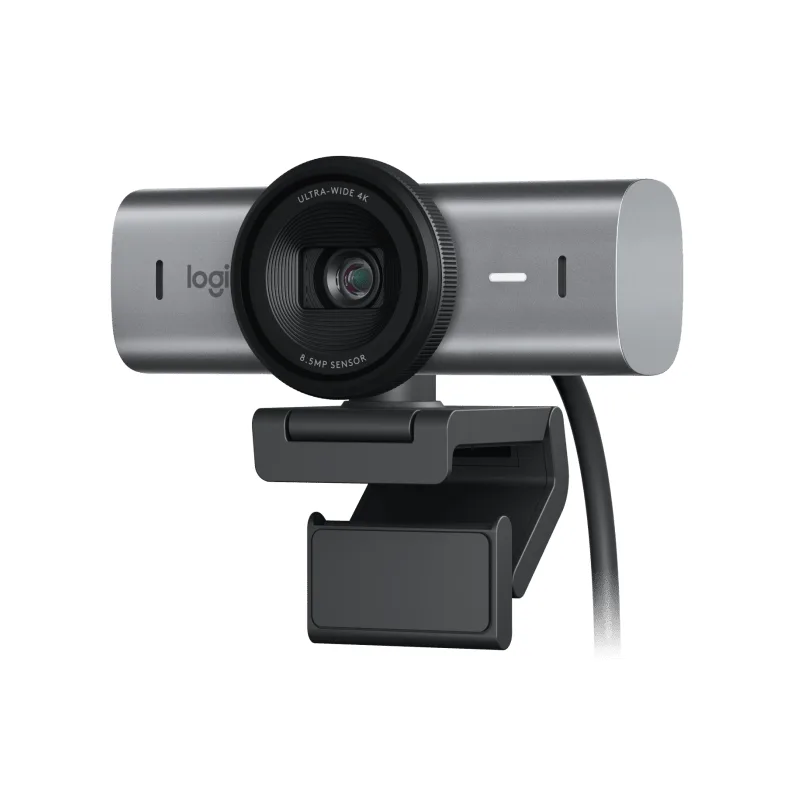
The Logitech MX Brio 705 for Business is the premium individual webcam in this roundup. The Sony STARVIS back-illuminated sensor is the key differentiator: BSI sensor architecture allows more light to hit the photodiodes, producing cleaner output in the dim and mixed-lighting conditions common in home offices. This is the camera that handles the backlit-window problem without requiring you to reposition your desk.
RightLight 5 is Logitech’s AI-based exposure correction system. It analyzes the scene in real time and adjusts exposure, white balance, and contrast per-frame — not as a static setting applied once when you join the call. Reviews and owner feedback consistently identify the MX Brio 705’s low-light output as the best available in a personal USB webcam at this price.
Show Mode is a practical feature absent from competing cameras: rotating the camera 90° flips it to a downward-facing angle that shows your desk surface, whiteboard, or physical documents during calls. For remote workers who occasionally need to share physical materials without a document scanner, this eliminates one extra tool.
Auto-framing dynamically adjusts the crop as you move. The 90° FOV is narrower than the Jabra PanaCast 20, but at $185–$199, the per-dollar sensor quality is hard to beat. The metal privacy shutter operates smoothly — a detail that matters on a camera you’ll use dozens of times per week.
Buy this if: Low-light image quality is the priority and you want a Sony STARVIS sensor in a business-grade package without crossing $200.
Skip this if: You move frequently during calls or need a wider frame for a shared workspace. The Jabra PanaCast 20’s 120° view handles that better.
Anker PowerConf C300
Pros
- Adjustable FOV (65°, 78°, 90°) adapts to different desk setups without repositioning
- AI auto-framing crops to keep one or two people centered throughout the call
- Dual noise-cancelling mics handle quiet home offices well enough to skip a separate mic
- Zoom Certified with verified compatibility — hardware controls work natively
- Under $120 makes this the strongest value in the roundup
Cons
- 1080p maximum — noticeable quality gap vs. 4K cameras on large displays
- AI framing occasionally overcorrects with fast movement per owner reports
- Zoom Certified only; Teams and Google Meet work but lack official certification
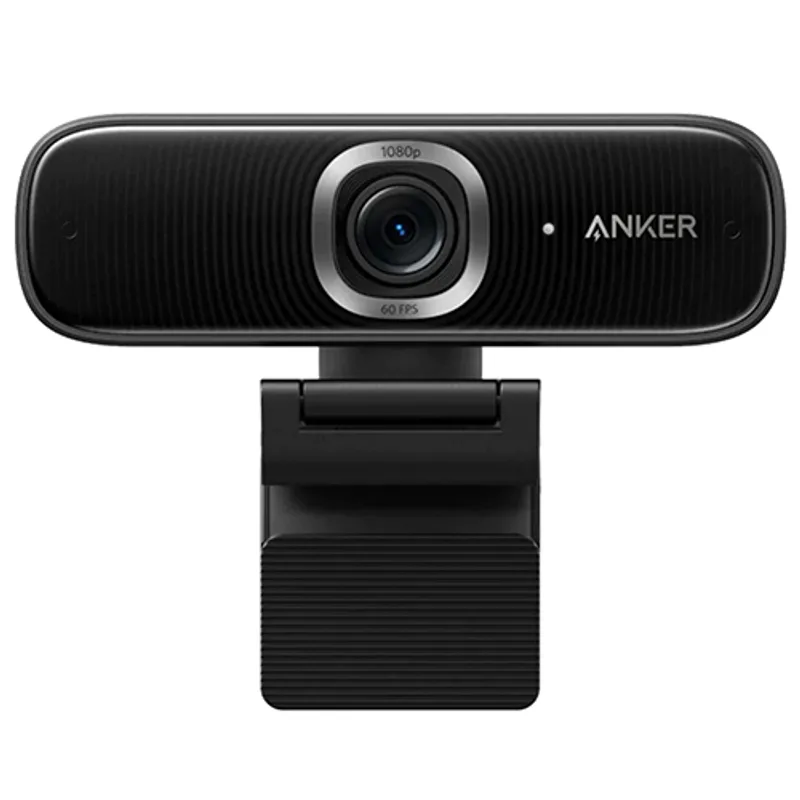
The Anker PowerConf C300 is the strongest-value camera in this roundup at $99–$120. No 4K output. But the combination of adjustable FOV, AI auto-framing, dual noise-cancelling mics, and Zoom Certification at this price point makes it the right choice for most home office workers who need capable conference camera performance without premium pricing.
The adjustable field of view — switchable between 65°, 78°, and 90° — is a practical feature most personal webcams lack. Narrow at 65° for a tight portrait frame, wide at 90° for coverage when you move around. The switch happens in software via the AnkerWork app rather than physical camera repositioning.
AI auto-framing dynamically crops the 90° capture to keep the subject centered. The algorithm handles single-person framing well. Based on owner reports, fast movement causes a brief lag as framing catches up — not a problem during standard desk calls, but noticeable if you stand up suddenly.
The dual noise-cancelling mics are adequate for a quiet home office. In louder environments — HVAC noise, shared apartments, open-plan coworking — a dedicated headset mic delivers better results. For Zoom users specifically, the hardware call controls work natively without any additional mapping.
Buy this if: You want AI auto-framing and adjustable FOV at the lowest price point in this roundup. The C300 covers the fundamentals for standard video calls.
Skip this if: 4K output matters for recording or streaming, or if Microsoft Teams certification is required for a managed deployment.
OBSBOT Tiny 3 Lite
Pros
- Physical PTZ motor rotates the camera body to track you across a wide desk
- AI Tracking 2.0 (launched January 2026) responds faster than the previous generation
- Triple-mic spatial audio array is a step above most personal webcam mics
- 1080p@120fps delivers noticeably smoother motion during calls than 4K@30fps
- Voice and gesture control trigger zoom or framing without touching the camera
Cons
- Physical tracking motor adds a brief lag when you shift position sharply
- Smaller 1/2" sensor limits low-light performance — a desk light helps significantly
- $199 puts it above the Anker C300 without the 120° FOV of the Jabra
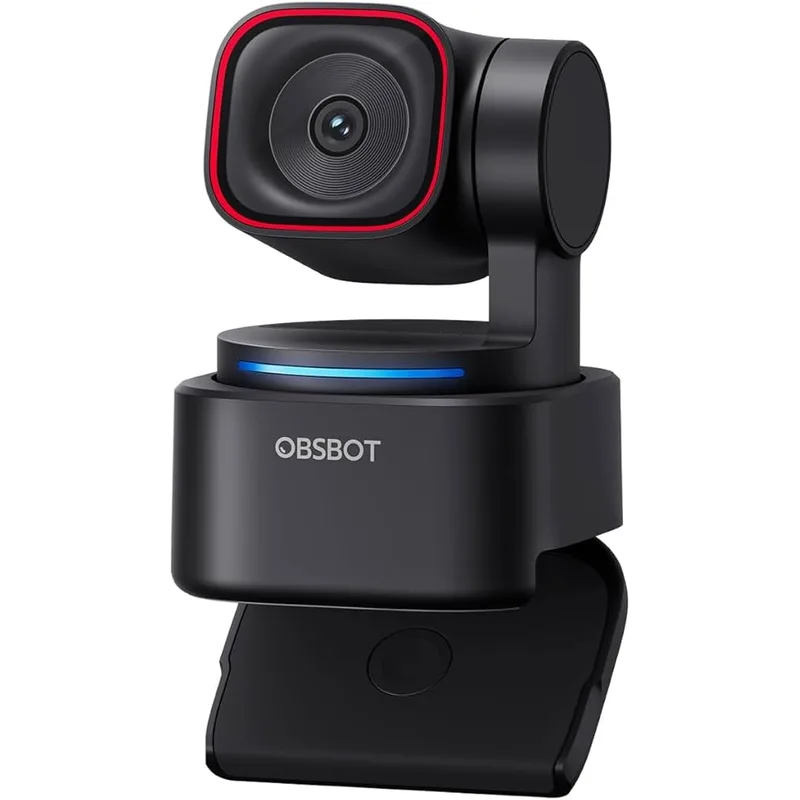
The OBSBOT Tiny 3 Lite, launched January 2026, offers something no other camera in this roundup provides: a physical PTZ mechanism. The camera body itself rotates and tilts via a motorized gimbal to track your position. The tracking isn’t a digital crop of a wider image — the actual lens points at you. On a large desk where you move between standing and sitting, or between multiple screen positions throughout the day, physical tracking keeps you framed consistently without degrading image quality.
AI Tracking 2.0 is the generational upgrade from the Tiny 2 series: faster response, better handling of quick movements, and improved subject re-acquisition when you step out of frame and return. The motorized pan range is 150°, the tilt range is 90°. Tracking modes adapt to different call contexts — Upper Body for standard calls, Close-Up for a tighter portrait, Hand tracking for demonstrations. Gesture control triggers zoom in/out or toggles tracking on/off without opening an app.
The triple-mic spatial audio array is meaningfully better than the single or dual mics on competing cameras. For workers who skip a headset and rely on the camera’s built-in audio, the Tiny 3 Lite’s mic pickup is cleaner across a wider angle than the Anker C300’s dual mics.
The 1/2” CMOS sensor outputs 1080p@120fps in addition to 4K@30fps. For video calls, 120fps produces noticeably smoother motion during head movement — the frame rate difference is more visible than the resolution difference between 1080p and 4K on a standard monitor-side call. Low-light is the tradeoff: below about 200 lux, image noise is visible. A desk lamp or ring light resolves this.
Buy this if: You move around your desk during calls and want a camera that physically follows you rather than relying on a digital crop. The PTZ mechanism is the right tool for that use case.
Skip this if: You sit in a fixed position during calls. The Logitech MX Brio 705 or Jabra PanaCast 20 deliver better static image quality at comparable or higher prices.
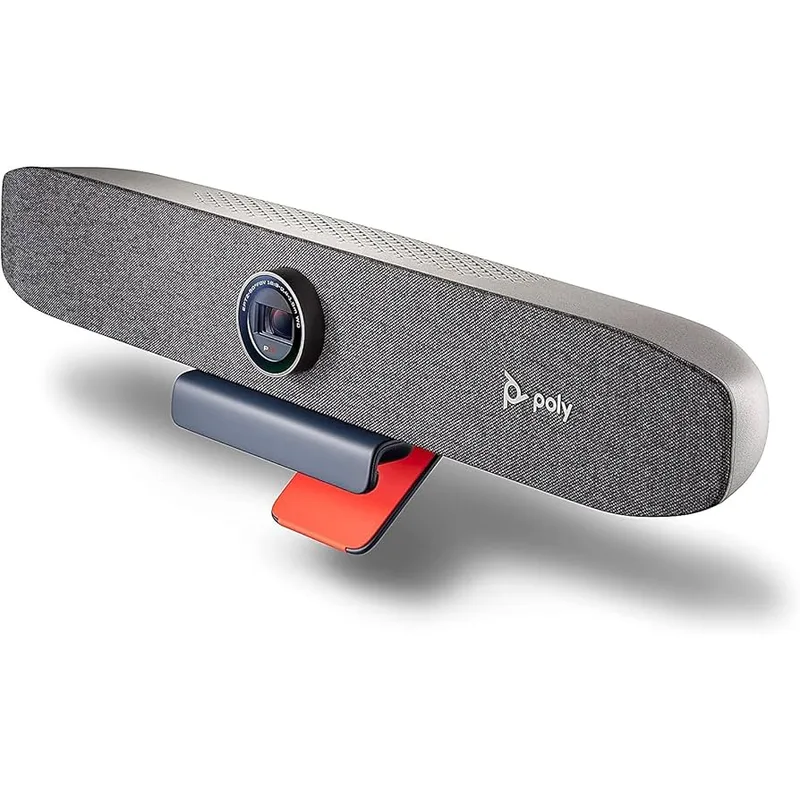
Poly Studio P15
Pros
- Built-in speaker and mic array — one USB-C cable replaces camera, mic, and speaker
- NoiseBlockAI filters background noise from outgoing audio in real time
- Acoustic Fence restricts mic pickup to the space directly in front of the bar
- Both Teams and Zoom certified with native hardware call controls
- 120° FOV covers a shared desk or small two-person home office
Cons
- $249–$279 makes this the most expensive option in the roundup
- Speaker output is fine for calls but not great for media or music
- Larger footprint than personal webcams — needs dedicated monitor or shelf mounting
The Poly Studio P15 is the only all-in-one video bar in this roundup: a single USB-C device that replaces a separate camera, microphone, and speaker. For remote workers who want to simplify desk cable management or who move between locations, consolidating three devices into one is a genuine workflow improvement.
NoiseBlockAI applies AI-based filtering to the outgoing mic signal to suppress background noise — keyboard clicks, HVAC, traffic — in real time before the signal reaches the call platform. Acoustic Fence restricts mic pickup to the space directly in front of the bar, reducing bleed from adjacent rooms. Both run on the P15’s onboard processor, not in the cloud.
The 120° field of view is the widest in this roundup alongside the Jabra PanaCast 20. The auto-crop brings the active call view to approximately 80° to keep you well-framed — the 120° capture provides a buffer for movement without showing unnecessary background. Dual Teams and Zoom certification means hardware controls work natively in both platforms.
At $249–$279 (down from original MSRP), the P15 is more accessible than at launch but still priced for shared setups over individual use. The value case is strongest for workers setting up a spare room or hybrid hub that occasional in-person guests join on calls.
Buy this if: You want a single USB-C device that handles camera, mic, and speaker for a clean desk with minimal cables. Or for a small room two people occasionally share.
Skip this if: You already have a quality headset. You’ll pay for a built-in audio system you won’t use, and the standalone cameras here deliver better per-dollar camera quality for individual use.
What to Look for in a Remote Work Conference Camera
Resolution vs. sensor size. 4K resolution matters less than sensor size for typical video calls. A camera with a 1/2” sensor at 4K outperforms a camera with a 1/4” sensor at 4K in low light — consistently. The Jabra PanaCast 20 (13MP), Logitech MX Brio 705 (Sony STARVIS BSI), and OBSBOT Tiny 3 Lite (1/2” CMOS) all have sensors that justify the 4K spec. Cameras with small sensors produce noise in 4K that negates the resolution benefit.
Field of view for your desk setup. 70° FOV requires precise camera positioning with no margin for movement. 90° is standard for individual use. 120° creates tolerance for repositioning and accommodates shared desks. Match FOV to how static or mobile you are during calls.
AI framing types. Digital framing (crop-and-zoom within a wide capture) and physical PTZ tracking serve different needs. Digital framing degrades image quality when it crops aggressively. Physical PTZ tracking moves the lens and maintains full resolution — but adds mechanical delay. Most remote workers at a fixed desk are better served by wide-FOV digital framing than by narrow-FOV physical tracking.
Built-in mic vs. separate audio. The Anker C300, OBSBOT Tiny 3 Lite, and Poly P15 include built-in mics adequate for quiet home office calls. The Tiny 3 Lite’s triple-mic array is the strongest built-in audio in this roundup. The Jabra PanaCast 20 and Logitech MX Brio 705 require a headset or speakerphone. If you already have a quality headset, camera-only options deliver better per-dollar image quality.
Platform certification. Teams Certified and Zoom Certified means hardware call controls work natively without remapping. Uncertified cameras function as video devices but require in-app controls. For enterprise Teams deployments, certification matters. For general remote work across multiple platforms, it’s a secondary consideration.
Connection and compatibility. USB-C is the standard across this roundup. All cameras work via USB-C to USB-A adapters with no function loss. 4K output requires USB 3.0 or higher — verify your laptop or dock has a free USB 3.0 port before purchasing.
Conference Camera vs. Standard Webcam for Remote Work
The practical difference between a “conference camera” and a “webcam” in the personal use category comes down to field of view and audio integration. Conference cameras like the Jabra PanaCast 20 and Poly Studio P15 are designed to capture more of a room with less precise positioning. Standard webcams like the Logitech MX Brio 705 optimize for individual portrait quality.
For solo remote workers on 1:1 or small group calls, a quality personal webcam delivers better image quality per dollar than a wide-FOV conference camera at the same price. Conference cameras become the right choice when:
- You share a desk with another person who occasionally joins calls
- You host hybrid meetings where a physical room view is useful
- You move frequently during calls and need wide-frame tolerance
For most remote workers on dedicated personal desks, the Logitech MX Brio 705 or Anker PowerConf C300 covers the real-world use case. The Jabra PanaCast 20 and Poly Studio P15 are justified for the minority with shared spaces or frequent physical movement.
FAQ
What camera resolution is needed for professional video calls?
1080p is sufficient for standard video calls on Zoom, Teams, and Google Meet — all three platforms compress video streams regardless of camera resolution. 4K cameras are beneficial in two specific cases: screen recording at full quality, or using 4K capture for AI digital framing without visible quality loss when cropped. If you’re not recording or streaming, the Anker PowerConf C300 at 1080p delivers call quality most callers can’t distinguish from 4K.
Do I need a separate microphone with a conference camera?
It depends on the camera. The Anker PowerConf C300, OBSBOT Tiny 3 Lite, and Poly Studio P15 include built-in mics that perform adequately for home office calls in quiet environments. The Jabra PanaCast 20 and Logitech MX Brio 705 have no built-in mic — they require a headset, speakerphone, or laptop mic. For call-heavy roles, a dedicated headset consistently delivers better call audio than any built-in camera mic.
What’s the difference between AI framing and PTZ tracking?
AI framing (Jabra, Logitech, Anker) crops a wide camera capture digitally to keep you centered. The camera body doesn’t move — software adjusts which portion of the captured image to transmit. PTZ tracking (OBSBOT Tiny 3 Lite) physically rotates the camera on a motorized mount to point at you. PTZ maintains full resolution since there’s no digital crop, but adds mechanical delay and moving parts. For a fixed desk, AI framing is simpler and more reliable. For a large desk where you move between positions during the day, physical PTZ is more effective.
Which conference camera works best with Microsoft Teams?
The Poly Studio P15 has the deepest Teams integration — Teams Certified status, hardware call controls, and NoiseBlockAI built for enterprise call environments. For individual remote workers in a managed Teams deployment, the Jabra PanaCast 20 is also Teams-certified and integrates with Jabra Direct for administrator control. The Logitech MX Brio 705 works well with Teams without official certification — all features function, but hardware call controls require in-app setup.
How should I mount a conference camera for the best angle?
Eye-level camera positioning is the standard for professional calls — a camera placed below your eye line creates an unflattering upward angle. Mount the camera on top of your monitor so the lens is at eye level when you’re seated upright. If you use an ultrawide or curved monitor where top-mount placement is difficult, a small monitor arm clip that extends the camera to eye height is the straightforward fix. All cameras in this roundup include monitor clip mounts in the box.
Is the OBSBOT Tiny 3 Lite worth upgrading to from the Tiny 2 Lite?
Yes, if you use physical PTZ tracking regularly. AI Tracking 2.0 responds noticeably faster, the triple-mic array is a significant audio upgrade, and the 1080p@120fps mode is new to the Tiny 3 series. If you’re buying new in 2026, the Tiny 3 Lite at $199 is the right choice — the premium over the discontinued Tiny 2 Lite is justified by the mic and tracking improvements alone.
Conclusion
The Jabra PanaCast 20 ($299–$329) is the top individual conference camera for remote workers in 2026. The 120° FOV with on-device AI framing is the widest and most capable personal camera in this roundup, and it works without software configuration for standard use.
For remote workers who prioritize raw image quality over FOV, the Logitech MX Brio 705 ($185–$199) delivers the best low-light output of any personal webcam at its price point, thanks to the Sony STARVIS BSI sensor.
Budget-conscious buyers who want AI auto-framing without premium pricing should look at the Anker PowerConf C300 ($99–$120). It covers the essentials — 1080p, AI framing, adjustable FOV, Zoom certification — at roughly half the price of the Jabra.
For workers who move during calls, the OBSBOT Tiny 3 Lite ($199) is the only camera here with a physical PTZ motor and AI Tracking 2.0 in 2026. The triple-mic spatial audio array makes it a meaningful upgrade over the previous generation.
The Poly Studio P15 ($249–$279) earns its place for shared setups: the all-in-one video bar with built-in speaker and NoiseBlockAI simplifies the desk for small teams or workers who host hybrid calls in a shared room.
Detailed Reviews
Jabra PanaCast 20
Pros
- 120° diagonal FOV captures a full upper-body frame with room to move
- Intelligent Zoom AI crops within the wide frame to keep you centered
- Virtual Director tracks your position so shifting left or right stays in frame
- 13MP sensor holds up in dim home office lighting without requiring a ring light
- Plug-and-play USB-C — no software needed for basic use
Cons
- $299–$329 is the highest price for a personal camera in this roundup
- No built-in speaker — pair with a headset or external speakerphone
- Box ships with monitor clip only; no desk tripod mount included
Logitech MX Brio 705 for Business
Pros
- Sony STARVIS back-illuminated sensor produces cleaner image in low-light home offices
- RightLight 5 AI adjusts exposure in real time across mixed lighting conditions
- Show Mode flips the camera angle down to display your desk, whiteboard, or documents
- Auto-framing keeps you centered as you shift position during calls
- Metal build with a smooth privacy shutter that won't snag after months of use
Cons
- 90° FOV is narrower than the Jabra — less forgiving if you move around a lot
- No built-in microphone — requires headset or laptop mic for call audio
- $185–$199 is mid-range for buyers who just need a solid 1080p camera
Anker PowerConf C300
Pros
- Adjustable FOV (65°, 78°, 90°) adapts to different desk setups without repositioning
- AI auto-framing crops to keep one or two people centered throughout the call
- Dual noise-cancelling mics handle quiet home offices well enough to skip a separate mic
- Zoom Certified with verified compatibility — hardware controls work natively
- Under $120 makes this the strongest value in the roundup
Cons
- 1080p maximum — noticeable quality gap vs. 4K cameras on large displays
- AI framing occasionally overcorrects with fast movement per owner reports
- Zoom Certified only; Teams and Google Meet work but lack official certification
OBSBOT Tiny 3 Lite
Pros
- Physical PTZ motor rotates the camera body to track you across a wide desk
- AI Tracking 2.0 (launched January 2026) responds faster than the previous generation
- Triple-mic spatial audio array is a step above most personal webcam mics
- 1080p@120fps delivers noticeably smoother motion during calls than 4K@30fps
- Voice and gesture control trigger zoom or framing without touching the camera
Cons
- Physical tracking motor adds a brief lag when you shift position sharply
- Smaller 1/2" sensor limits low-light performance — a desk light helps significantly
- $199 puts it above the Anker C300 without the 120° FOV of the Jabra
Poly Studio P15
Pros
- Built-in speaker and mic array — one USB-C cable replaces camera, mic, and speaker
- NoiseBlockAI filters background noise from outgoing audio in real time
- Acoustic Fence restricts mic pickup to the space directly in front of the bar
- Both Teams and Zoom certified with native hardware call controls
- 120° FOV covers a shared desk or small two-person home office
Cons
- $249–$279 makes this the most expensive option in the roundup
- Speaker output is fine for calls but not great for media or music
- Larger footprint than personal webcams — needs dedicated monitor or shelf mounting