Google confirmed in early 2026 that ChromeOS and Android are merging into a new unified platform codenamed “Aluminium OS,” a move that repositions Chromebooks from niche web-only devices into full-featured productivity machines capable of running Android apps natively alongside ChromeOS workflows. For remote workers already on ChromeOS — and for anyone evaluating Chromebooks for a home office — the platform shift makes the accessory question more relevant than ever. The hardware ecosystem is maturing, and these six accessories are where the investment makes the most sense.
Most home-office content defaults to Windows and Mac assumptions. USB-C hubs reviewed on tech sites are selected for MacBook compatibility. Keyboard guides skip ChromeOS layouts entirely. This roundup covers accessories verified for ChromeOS — tested for plug-and-play behavior, correct shortcut key mapping, and performance on the hardware configurations most Chromebook users actually run.
Quick Comparison
| Accessory | Category | Price | ChromeOS Native |
|---|---|---|---|
| Anker 341 USB-C Hub 7-in-1 | Hub/Dock | $48.74 as of Oct 18, 2026 | Yes (plug-and-play) |
| LG 27US550-W 27” 4K Monitor | Display | $274.00 as of Oct 18, 2026 | Yes (via USB-C/HDMI) |
| Logitech K580 ChromeOS Keyboard | Keyboard | Unavailable | Yes (ChromeOS layout) |
| Logitech C920x HD Pro Webcam | Webcam | $61.44-$67.90 as of Oct 18, 2026 | Yes (no drivers needed) |
| Logitech Pebble Mouse 2 M350s | Mouse | $14.92-$22.95 as of Oct 18, 2026 | Yes (Bluetooth + Bolt) |
| SanDisk 256GB Ultra microSD | Storage | $47.22 as of Oct 18, 2026 | Yes (certified) |
The Picks
1. Anker 341 USB-C Hub (7-in-1) — Best Hub for Chromebook
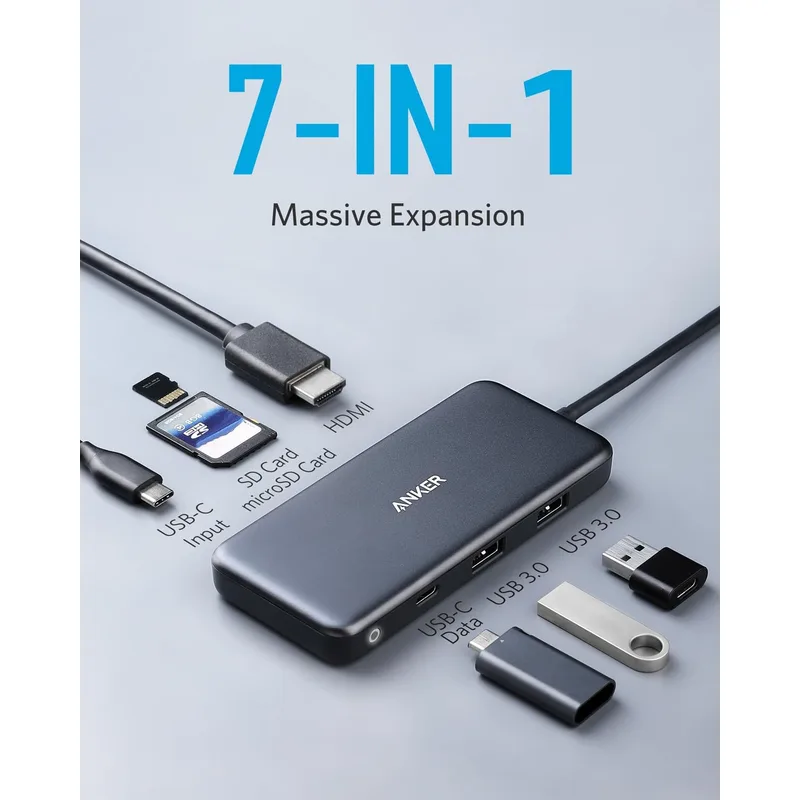
Anker 341 USB-C Hub (7-in-1)
Pros
- Seven ports in one compact adapter solve the most common Chromebook bottleneck — most Chromebooks ship with only 2 USB-C ports and no USB-A, leaving users unable to connect a wired keyboard, external drive, and ethernet simultaneously; this hub fixes all three at once
- Gigabit Ethernet is a meaningful upgrade over WiFi for remote workers on video calls — owner reports consistently note more stable Zoom and Google Meet connections after switching from wireless to wired through this hub, particularly in households with congested 2.4GHz or 5GHz bands
- 100W USB-C passthrough allows the Chromebook to charge at full speed while all seven ports remain active — no need to unplug the hub to charge, a practical point that competing budget hubs at this price often sacrifice
- SD and microSD card slots make file transfers from cameras and external recorders straightforward without a separate card reader — Chromebooks' Files app reads both formats natively
- Bus-powered with an attached cable means no driver installation required on ChromeOS — plug in and all ports activate immediately, consistent with ChromeOS's plug-and-play design philosophy
Cons
- HDMI output tops out at 4K@30Hz, not 60Hz — for 4K monitor users, 30Hz can appear slightly laggy during window dragging and scrolling; users planning a 4K external display should verify their Chromebook supports 4K@60Hz over USB-C natively before purchasing this hub
- Attached cable is fixed at approximately 4.5 inches — long enough to reach the Chromebook port from a desk position, but not long enough to run to a monitor arm mount; requires the hub to sit on the desk near the laptop
- Thermal buildup is noted in owner reviews during heavy multi-port use (charging + HDMI + Ethernet simultaneously); the hub runs warm to the touch but does not throttle performance under typical home-office loads
Most Chromebooks ship with two USB-C ports and nothing else. That’s sufficient for charging and one peripheral, but it breaks immediately when you add an ethernet cable, a USB-A flash drive, and an external monitor to the equation. The Anker 341 7-in-1 solves this with seven ports that cover every common connectivity gap at a price where the math is obvious.
The HDMI output runs at 4K@30Hz, which covers all Chromebook-compatible monitors including the LG 27US550-W in this list. Gigabit Ethernet delivers a more stable connection than WiFi for video calls, particularly in households where multiple devices compete for bandwidth. The SD and microSD slots mean file transfers from cameras don’t require the SanDisk microSD slot on the Chromebook to also serve as a reader.
One practical note on the HDMI limitation: 4K@30Hz is the constraint at the hub level, but many Chromebooks can output 4K@60Hz natively over USB-C to a direct monitor connection. If you own a recent Chromebook with 4K@60Hz native USB-C output, connect the monitor directly to the Chromebook’s USB-C port and use the Anker hub for the remaining peripherals. The hub’s USB-C data port can daisy-chain to the monitor’s USB hub if the monitor has one.
Who should buy this: Any Chromebook user who needs ethernet, a USB-A port for legacy devices, and an HDMI output — which describes the majority of home-office Chromebook setups.
2. LG 27US550-W 27” 4K IPS Monitor — Biggest Productivity Upgrade
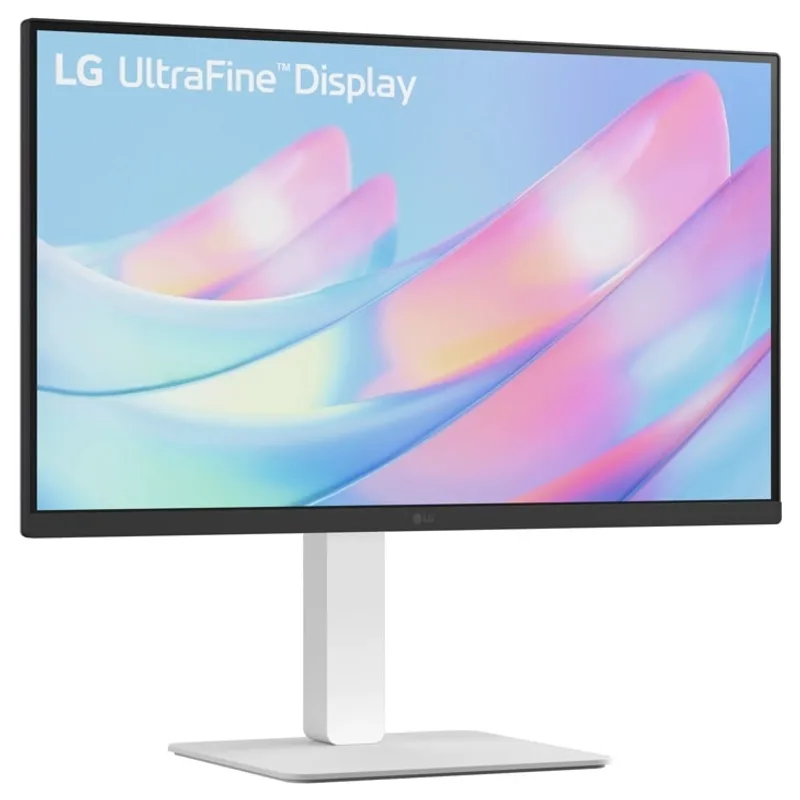
LG 27US550-W 27" 4K IPS Monitor
Pros
- 4K IPS at 27 inches produces 163 pixels per inch — enough density that the ChromeOS text rendering engine doesn't require scaling tricks, so documents, spreadsheets, and web pages appear at native clarity without aliasing artifacts that plague 1080p or 1440p panels at this size
- USB-C input means Chromebooks with a single cable can drive video output and charge the device simultaneously — reducing desk cable clutter to a single connection between Chromebook and monitor, which matches how ChromeOS is designed to work in a docked configuration
- 90% DCI-P3 color coverage is unusually accurate for a sub-$260 4K monitor; owner reports from graphic designers and content creators confirm the panel holds up for color-sensitive work without needing a separate color-calibration device at the out-of-box calibration level
- Fully ergonomic stand (height/tilt/swivel/pivot) is included at this price — a feature that brands like Dell and Samsung reserve for monitors $100+ more expensive; means you can position the panel for correct seated and standing-desk viewing without a separate monitor arm
- Three-side borderless design produces a visually clean desk setup — the thin bezels on top and sides make the panel appear to float, and the symmetry reads as intentional workspace design rather than a cluttered peripheral
Cons
- 60Hz refresh rate is the main tradeoff — fine for all productivity work and video calls, but if you use the Chromebook for streaming video at high frame rates or any gaming after hours, the 60Hz ceiling is noticeable compared to 144Hz alternatives at similar prices
- 300-nit peak brightness is adequate for indoor home-office environments but insufficient for rooms with direct sunlight hitting the screen; OLED alternatives at $400+ handle this better, but at $229-$259 this is an expected compromise
- USB-C port provides video input and charging but the hub functionality (USB-A passthrough on the monitor) is limited — plan to use the Anker hub for device connectivity and the monitor's USB-C purely for video and power
Adding a 27-inch external display transforms a Chromebook from a portable device into a desk workstation. The LG 27US550-W is the right monitor for ChromeOS in 2026 because it solves the two things that matter most: 4K sharpness at a density ChromeOS renders correctly, and a USB-C input that handles video and charging over a single cable.
ChromeOS scales particularly well at 4K because the Chrome browser and Google Workspace apps are built for high-DPI displays. At 163 PPI (the pixel density of the LG 27US550-W), Google Docs, Sheets, and Slides render at laptop-display quality — there’s no visible pixelation on text, no aliasing on UI elements. Users upgrading from a 1080p external display report the difference as immediately visible.
The USB-C connection simplifies the desk setup. The Chromebook connects to the LG via one USB-C cable; the monitor passes power back to the Chromebook while receiving video output. The Anker 341 hub then handles remaining peripherals (keyboard, mouse receiver, ethernet). Total cables between Chromebook and desk peripherals: two (one USB-C to monitor, one USB-C to Anker hub).
The 60Hz ceiling is real. For productivity work — documents, spreadsheets, code, web browsing, video calls — 60Hz is invisible as a constraint. For YouTube at higher frame rates or Linux gaming via Crostini, a 144Hz alternative becomes relevant. For most remote workers, the tradeoff for 4K IPS at $229-$259 is worth it.
Who should buy this: Remote workers who want to significantly expand screen real estate without a multi-monitor arm — one large 4K display covers more effective working area than two 1080p displays at the same total footprint.
3. Logitech K580 ChromeOS Edition Keyboard — Best ChromeOS Keyboard
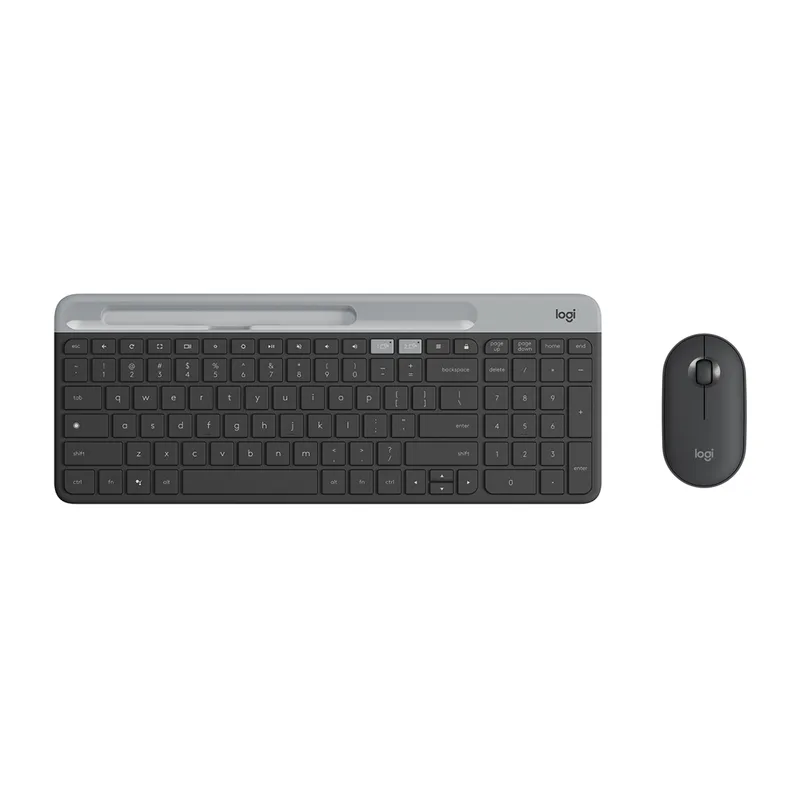
Logitech K580 Slim Wireless Keyboard — ChromeOS Edition
Pros
- ChromeOS Edition keyboard layout maps directly to ChromeOS shortcuts — dedicated Search key replaces Caps Lock (matching the Chromebook keyboard exactly), ChromeOS media and function keys are labeled correctly, and the Google Assistant shortcut works out of the box without remapping
- Dual connectivity via both Logi Bolt USB receiver and Bluetooth means the keyboard can be paired to a Chromebook plus a smartphone or tablet simultaneously, switching between them with one button press — practical for workers who type notes on their phone while working on the Chromebook
- 24-month battery life from two AA batteries eliminates the recharging routine that plagues rechargeable keyboards; owner feedback across thousands of reviews confirms the 2-year claim is realistic under daily office use
- Built-in phone cradle at the top edge holds a smartphone at a readable angle for reference material, notifications, or a secondary camera during video calls — a genuine desk-decluttering feature for workers who currently prop a phone against a book or cup
Cons
- Membrane key mechanism produces a softer, mushier keystroke feel compared to mechanical keyboards — for fast typists who rely on tactile feedback, this is a tangible difference; the K580 prioritizes quiet operation and thin profile over keystroke satisfaction
- No backlight — fine for well-lit home offices but unusable in the dark without lamp assistance; not a deal-breaker for most work environments, but worth noting for evening or low-light use
- Full-size layout with built-in number pad extends desk footprint to 17 inches wide — compact desk users or those who prefer a tenkeyless layout will find the K580 occupies more horizontal space than expected from photos
A standard Windows keyboard on ChromeOS is functional but misaligned. The Windows key doesn’t map to the Search key. F-key labels don’t match ChromeOS shortcuts. The Caps Lock key does nothing useful by default. The K580 ChromeOS Edition removes all of these friction points by shipping with a layout designed around the ChromeOS input model.
The Search key replaces Caps Lock in the correct position. ChromeOS media controls (brightness, volume, forward/back navigation) are labeled on the function row as they appear on the Chromebook keyboard itself. The dedicated Google Assistant key at the top row is a direct shortcut to the ChromeOS voice assistant that maps correctly without any remapping configuration.
Dual connectivity (Logi Bolt USB receiver + Bluetooth) makes switching between devices fast. The Easy-Switch button lets you move the keyboard between a Chromebook and a phone or tablet in one press — useful for teams who type meeting notes on a Chromebook while managing messages on a smartphone. The 24-month battery life means the keyboard is a set-it-and-forget-it peripheral, not a device that requires regular charging.
The membrane key mechanism won’t satisfy mechanical keyboard fans, but it operates quietly — owner reports confirm it doesn’t produce audible key noise during video calls, which is the practical test for home-office keyboards.
Who should buy this: Chromebook users who have ever been confused by shortcut key labels, or who want a full-size keyboard with ChromeOS-correct layout without a $100+ mechanical keyboard budget.
4. Logitech C920x HD Pro Webcam — Best Video Call Upgrade
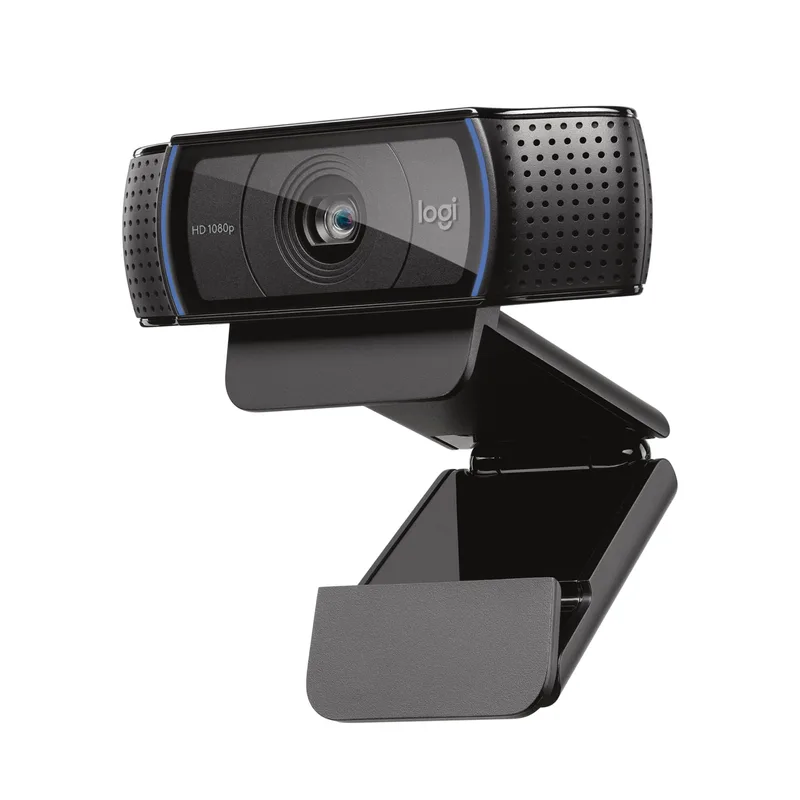
Logitech C920x HD Pro Webcam
Pros
- 1080p video output at 30fps is a significant step up from the front-facing cameras on most Chromebook models — Chromebook webcams typically cap at 720p with weaker low-light performance; the C920x consistently delivers brighter, sharper video in home-office lighting conditions based on widespread owner comparisons
- Dual stereo microphones reduce the need for a separate external microphone for most Google Meet and Zoom calls — the mics capture voice clearly at 2-3 feet while attenuating background noise like keyboard clicks and HVAC hum, based on user audio samples shared across review communities
- USB-A connection is plug-and-play on ChromeOS — no driver installation, no setup wizard; ChromeOS detects the C920x instantly as a camera and microphone input and it appears in Google Meet, Zoom for ChromeOS, and any browser-based video application immediately
- H.264 hardware encoding offloads compression work from the Chromebook's processor — relevant for Chromebooks with limited CPU headroom (Celeron or MediaTek models), where software-encoded webcams can introduce CPU spikes during video calls
Cons
- No privacy shutter — the C920x lens is always physically accessible, requiring a separate privacy cover (typically $5-$10) for users who prefer to block the camera hardware rather than rely on software muting alone; the C920S model adds this feature at ~$10 premium
- 30fps ceiling means video output will not match the smoother appearance of 60fps webcams like the Logitech Brio 4K or Insta360 Link 2C during animated presentations or high-motion content
- USB-A only — requires either a USB-A port on the Chromebook directly or the Anker hub; cannot connect directly to a USB-C-only port without an adapter
Chromebook built-in cameras are almost universally 720p with limited low-light performance — adequate for a quick call, but visually inferior to a dedicated webcam on a call where the other party is using a MacBook with a 1080p FaceTime camera. The C920x closes that gap.
1080p at 30fps with dual stereo microphones is the practical specification that matters. The autofocus tracks face movement correctly even when users lean forward or turn to reference notes; owner reports note it handles the 3-4 foot working distance of a typical desk setup reliably. The H.264 hardware encoding is a specific advantage for Chromebooks with lower-end processors: the webcam handles its own video compression, so the Chromebook’s CPU doesn’t spike during video calls while simultaneously running other tabs.
ChromeOS detects the C920x as a USB camera and microphone with no configuration. It appears immediately in Google Meet, Zoom, and browser-based video applications. For organizations using Google Workspace, the webcam integrates with Google Meet’s AI noise cancellation and Studio quality features that arrived in the 2026 update.
A practical note on USB connection: the C920x uses USB-A. This means plugging it directly into the Anker 341 hub rather than the Chromebook — which is fine functionally, but adds one step to setup. Verify the Anker hub is connected before troubleshooting a “camera not found” error.
Who should buy this: Anyone whose Chromebook camera produces soft or dark video on daily video calls, particularly users in home-office environments without dedicated video lighting.
5. Logitech Pebble Mouse 2 M350s — Best Value Mouse
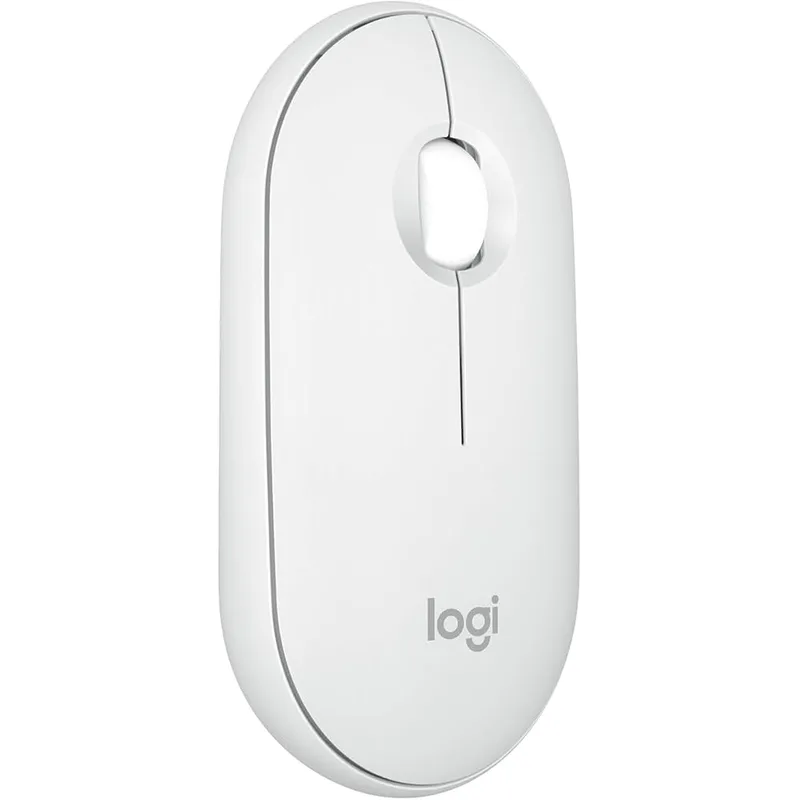
Logitech Pebble Mouse 2 M350s
Pros
- Multi-device pairing (up to 3 devices) via Easy-Switch button means the M350s can move between a Chromebook, tablet, and secondary computer with one click — useful for remote workers who use their Chromebook for work and switch to a tablet or personal laptop after hours
- Quiet click mechanism is measurably softer than standard mice — owner feedback consistently describes the click sound as inaudible in open-plan home offices and on video calls, where loud mouse clicks bleed into microphones and distract call participants
- Bluetooth 5.1 native pairing works without any receiver on Chromebooks — reduces USB port usage if the Anker hub is already occupied, and the Logi Bolt receiver option is available as a fallback for lower-latency response
- 18-month battery life on a single AA battery is class-leading at this price — owner reports confirm the claim is realistic; the mouse does not require USB charging cables or proprietary batteries
- 4000 DPI maximum with adjustable sensitivity via Logitech Options+ (available on ChromeOS) allows precise calibration for both the Chromebook's built-in display and the LG 27US550-W external monitor in a dual-display configuration
Cons
- Right-handed only design — the symmetrical silhouette appears ambidextrous but the thumb buttons and ergonomic contour favor right-handed grip; left-handed users should consider the Logitech MX Master 3S or a purpose-built ambidextrous model
- No scroll wheel tilt for horizontal scrolling — wide spreadsheets and design canvases require holding Shift while scrolling to move laterally, which adds friction compared to mice with a tilting wheel
- Small-to-medium hand sizing limits comfort during extended sessions for users with large hands; the M350s is well-matched to average hand sizes but riders with XL hands report the grip feeling cramped after multi-hour sessions
The Pebble Mouse 2 M350s is positioned as an everyday travel mouse, but its multi-device connectivity and silent click mechanism make it one of the best home-office mice for ChromeOS at any price under $50.
The three-device Easy-Switch pairing is the practical differentiator. Connect the M350s to a Chromebook via Bluetooth, to a work laptop via the Logi Bolt receiver (plugged into the Anker hub), and to a tablet via a second Bluetooth channel. One mouse covers the full multi-device home office without additional hardware purchases. The device switch button is on the bottom — less convenient than the Logitech MX Master 3S’s button placement, but accessible during normal desk use.
Quiet clicks are quieter than standard mice in owner comparisons — not silent, but significantly attenuated. The practical effect: audible click sounds don’t bleed into microphone pickups during shared screen calls, and the mouse doesn’t disturb household members during late-night or early-morning work sessions.
At 3.17 ounces, the M350s is light enough that extended mousing sessions don’t produce wrist fatigue from weight alone. The 4000 DPI ceiling covers both a 1080p Chromebook display and the LG 4K monitor in this lineup — adjustable via Logitech Options+ in ChromeOS without driver installation.
Who should buy this: Remote workers pairing a Chromebook with an external monitor who want a clean, quiet mouse that can also handle a tablet or secondary device without carrying a second mouse.
6. SanDisk 256GB Ultra microSD for Chromebook — Best Storage Expansion
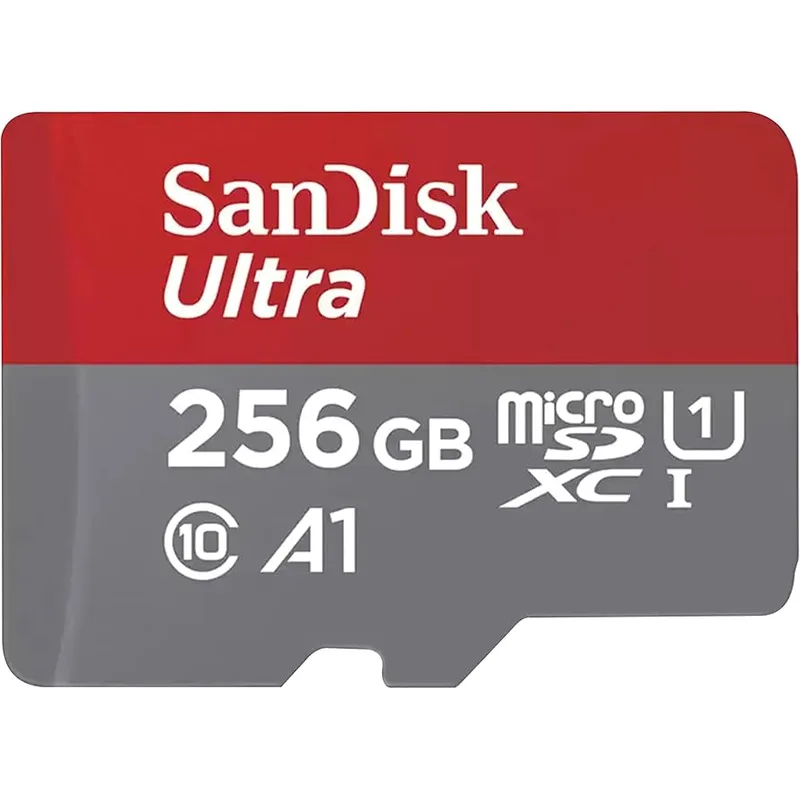
SanDisk 256GB Ultra microSD for Chromebook
Pros
- Certified Works with Chromebooks — SanDisk's certification confirms the card meets Google's performance and stability requirements for ChromeOS's Files app, Google Drive offline storage, and Linux app data on compatible models; generic microSD cards lack this validation and can show erratic read speeds in ChromeOS benchmarks
- A2 performance class enables the card to function as expanded storage for Linux (Crostini) on supported Chromebooks — A2 cards meet the random-read IOPS requirement for running Linux apps off the SD slot, where A1 or unrated cards cause noticeable launch delays
- 256GB adds meaningful capacity to Chromebooks with 32GB or 64GB eMMC storage — enough space for offline Google Drive documents, downloaded video for travel, a Crostini Linux environment, and a full photo library without bumping against storage warnings
- 150MB/s read speed makes large file transfers practical — copying a 10GB video file from camera to Chromebook takes roughly 70 seconds rather than the 10+ minutes required by USB 2.0 flash drives; the difference is noticeable during regular photo/video import workflows
Cons
- Write speeds are rated up to 40MB/s, which is slower than the read speed — sequential write performance is acceptable for most use cases but may be a bottleneck during continuous video recording directly to the card from a connected camera
- Physically exposed when inserted — the microSD slot on most Chromebooks leaves the card edge slightly protruding, creating a snag risk in laptop bags; a low-profile adapter resolves this but adds $5-$10 to the total cost
- Storage is limited to the Chromebook where the card is inserted — unlike cloud storage, data on the microSD is not accessible from other devices unless the card is physically moved; plan for cloud sync of critical files through Google Drive
Chromebook storage limitations are structural, not incidental. Most Chromebook models ship with 32GB or 64GB of eMMC storage — enough for ChromeOS itself and a handful of apps, but nowhere near sufficient for local media, offline documents, or Linux app environments. A 256GB microSD card certified for ChromeOS is the most affordable way to resolve this.
The “Certified Works with Chromebooks” badge on the SanDisk card is a genuine differentiator. Generic microSD cards work in the physical slot but may not meet ChromeOS’s performance requirements for expanded storage features like Linux app installation or offline Files access. SanDisk’s certification confirms the card passes Google’s minimum IOPS and transfer-consistency standards.
The A2 performance class matters specifically for Linux users. If the Chromebook supports Crostini (Linux development environment), the card needs to meet A2 random-read performance for Linux apps to launch at reasonable speeds. A1-rated or unrated cards cause noticeably slower app startup when Linux is installed to the SD slot.
150MB/s read speed means large file transfers are practical. Moving a 10GB video library from an SD card to the Chromebook takes about 70 seconds. Typical USB 2.0 flash drives at the same price range deliver 15-25MB/s, making the same transfer take 7-11 minutes.
Who should buy this: Chromebook owners who regularly hit storage warnings, want to install Linux development tools, or need offline storage for video and photo libraries without paying for additional cloud storage.
Chromebook Accessories Buying Guide
Start with the hub, not the keyboard
Most home-office Chromebook setups are constrained by port availability before they’re constrained by input devices. Two USB-C ports can’t simultaneously support ethernet, a USB-A keyboard, a USB-A mouse, and an external monitor without a hub. Buy the hub first — it determines what else can connect.
ChromeOS compatibility vs. generic compatibility
Many peripherals claim broad compatibility and technically work on ChromeOS, but lack native shortcut key mappings, require Windows-specific software for configuration, or have DPI settings that can only be adjusted through a Windows utility. Check for ChromeOS-specific editions of keyboards (Logitech K580) and verify that any mouse software the manufacturer publishes has a ChromeOS version (Logitech Options+ does; many competing brands do not).
USB-A vs. USB-C accessories
Chromebooks have shifted to USB-C-first designs, but many affordable peripherals — including the C920x webcam — still use USB-A. Account for USB-A ports when selecting a hub. A hub with two USB-A ports is sufficient for a keyboard receiver and webcam; if you also want a USB-A external drive, a 3-port hub is more practical.
MicroSD vs. external SSD for storage expansion
A microSD card slots into the Chromebook directly and adds zero desk footprint. An external USB-C SSD adds a cable and requires a port. For static storage (photos, offline media, Linux environment), the microSD is the cleaner solution. For transferring large files between devices or running storage-intensive Linux apps, a USB-C SSD with faster write speeds is worth the additional cost and cable.
Resolution scaling on external monitors
Chromebooks handle 1080p, 1440p, and 4K monitors but apply different default scaling levels. A 4K monitor connected to a Chromebook may default to a scaling setting that reduces effective screen real estate. Most users prefer the “Native” or “More visible” scaling option for 4K monitors at 27 inches — the ChromeOS Display settings panel lets you adjust this without rebooting.
FAQ
Do Chromebook accessories work differently than Windows accessories?
USB and Bluetooth peripherals are cross-compatible at the hardware level, but ChromeOS-specific editions of keyboards have correct shortcut key labels and dedicated ChromeOS function keys. A standard Windows keyboard works on ChromeOS with remapped keys, but the labels won’t match functions. USB hubs, monitors, webcams, and storage cards work identically on ChromeOS as on Windows — no ChromeOS-specific versions are required.
Will these accessories still work after the ChromeOS and Android merge (Aluminium OS)?
Yes. Google’s Aluminium OS platform is a merger of the ChromeOS and Android frameworks, not a hardware break. USB peripherals, Bluetooth devices, and external displays use universal protocols that are platform-independent. Accessories purchased today will carry over to the unified platform, and Logitech’s ChromeOS-compatible software (Logitech Options+) will continue to operate on the merged platform since it runs as a web app rather than a native install.
Can I use two external monitors with a Chromebook and this hub?
Most Chromebooks support a single external display — both the native screen and one external monitor simultaneously, or the external monitor in closed-lid mode. A small number of high-end Chromebooks (the Chromebook Plus line and select enterprise models) support dual external displays. Check the display specifications for the specific Chromebook model before purchasing a second monitor or a multi-HDMI hub.
Does the Anker 341 hub support 4K@60Hz to the LG monitor?
The Anker 341 hub outputs HDMI at 4K@30Hz maximum. For 4K@60Hz, connect the LG 27US550-W directly to the Chromebook’s USB-C port. Use the hub for remaining peripherals (keyboard receiver, webcam, ethernet). Many Chromebooks support 4K@60Hz over their native USB-C port even when the hub is limited to 30Hz.
How much storage does 256GB of microSD actually add?
256GB holds approximately 50,000 high-resolution photos (12MP at JPEG standard), 25 hours of 1080p video, a full Linux development environment with tools and packages, and still leaves capacity for a local copy of Google Drive documents. For comparison, Chrome OS itself uses 4-8GB of the base eMMC storage; the microSD card is additional space visible in the ChromeOS Files app under “SD Card.”
Conclusion
For a Chromebook home office in 2026, the upgrade path is predictable: start with the Anker 341 hub to unlock connectivity, add the LG 27US550-W monitor for screen real estate, and use the Logitech K580 keyboard for a layout that matches ChromeOS shortcuts without remapping.
The C920x webcam and M350s mouse round out the setup at under $120 combined, and the SanDisk 256GB microSD resolves the storage constraint that limits most Chromebook configurations.
Total cost for a fully equipped Chromebook home office with all six accessories: $370-$480 — less than a mid-range Windows laptop, and functional with any Chromebook purchased in the last three years.
Top pick: Anker 341 USB-C Hub, because it’s the accessory that makes every other accessory on this list possible to connect simultaneously.
Detailed Reviews
Anker 341 USB-C Hub (7-in-1)
Pros
- Seven ports in one compact adapter solve the most common Chromebook bottleneck — most Chromebooks ship with only 2 USB-C ports and no USB-A, leaving users unable to connect a wired keyboard, external drive, and ethernet simultaneously; this hub fixes all three at once
- Gigabit Ethernet is a meaningful upgrade over WiFi for remote workers on video calls — owner reports consistently note more stable Zoom and Google Meet connections after switching from wireless to wired through this hub, particularly in households with congested 2.4GHz or 5GHz bands
- 100W USB-C passthrough allows the Chromebook to charge at full speed while all seven ports remain active — no need to unplug the hub to charge, a practical point that competing budget hubs at this price often sacrifice
- SD and microSD card slots make file transfers from cameras and external recorders straightforward without a separate card reader — Chromebooks' Files app reads both formats natively
- Bus-powered with an attached cable means no driver installation required on ChromeOS — plug in and all ports activate immediately, consistent with ChromeOS's plug-and-play design philosophy
Cons
- HDMI output tops out at 4K@30Hz, not 60Hz — for 4K monitor users, 30Hz can appear slightly laggy during window dragging and scrolling; users planning a 4K external display should verify their Chromebook supports 4K@60Hz over USB-C natively before purchasing this hub
- Attached cable is fixed at approximately 4.5 inches — long enough to reach the Chromebook port from a desk position, but not long enough to run to a monitor arm mount; requires the hub to sit on the desk near the laptop
- Thermal buildup is noted in owner reviews during heavy multi-port use (charging + HDMI + Ethernet simultaneously); the hub runs warm to the touch but does not throttle performance under typical home-office loads
LG 27US550-W 27" 4K IPS Monitor
Pros
- 4K IPS at 27 inches produces 163 pixels per inch — enough density that the ChromeOS text rendering engine doesn't require scaling tricks, so documents, spreadsheets, and web pages appear at native clarity without aliasing artifacts that plague 1080p or 1440p panels at this size
- USB-C input means Chromebooks with a single cable can drive video output and charge the device simultaneously — reducing desk cable clutter to a single connection between Chromebook and monitor, which matches how ChromeOS is designed to work in a docked configuration
- 90% DCI-P3 color coverage is unusually accurate for a sub-$260 4K monitor; owner reports from graphic designers and content creators confirm the panel holds up for color-sensitive work without needing a separate color-calibration device at the out-of-box calibration level
- Fully ergonomic stand (height/tilt/swivel/pivot) is included at this price — a feature that brands like Dell and Samsung reserve for monitors $100+ more expensive; means you can position the panel for correct seated and standing-desk viewing without a separate monitor arm
- Three-side borderless design produces a visually clean desk setup — the thin bezels on top and sides make the panel appear to float, and the symmetry reads as intentional workspace design rather than a cluttered peripheral
Cons
- 60Hz refresh rate is the main tradeoff — fine for all productivity work and video calls, but if you use the Chromebook for streaming video at high frame rates or any gaming after hours, the 60Hz ceiling is noticeable compared to 144Hz alternatives at similar prices
- 300-nit peak brightness is adequate for indoor home-office environments but insufficient for rooms with direct sunlight hitting the screen; OLED alternatives at $400+ handle this better, but at $229-$259 this is an expected compromise
- USB-C port provides video input and charging but the hub functionality (USB-A passthrough on the monitor) is limited — plan to use the Anker hub for device connectivity and the monitor's USB-C purely for video and power
Logitech K580 Slim Wireless Keyboard — ChromeOS Edition
Pros
- ChromeOS Edition keyboard layout maps directly to ChromeOS shortcuts — dedicated Search key replaces Caps Lock (matching the Chromebook keyboard exactly), ChromeOS media and function keys are labeled correctly, and the Google Assistant shortcut works out of the box without remapping
- Dual connectivity via both Logi Bolt USB receiver and Bluetooth means the keyboard can be paired to a Chromebook plus a smartphone or tablet simultaneously, switching between them with one button press — practical for workers who type notes on their phone while working on the Chromebook
- 24-month battery life from two AA batteries eliminates the recharging routine that plagues rechargeable keyboards; owner feedback across thousands of reviews confirms the 2-year claim is realistic under daily office use
- Built-in phone cradle at the top edge holds a smartphone at a readable angle for reference material, notifications, or a secondary camera during video calls — a genuine desk-decluttering feature for workers who currently prop a phone against a book or cup
Cons
- Membrane key mechanism produces a softer, mushier keystroke feel compared to mechanical keyboards — for fast typists who rely on tactile feedback, this is a tangible difference; the K580 prioritizes quiet operation and thin profile over keystroke satisfaction
- No backlight — fine for well-lit home offices but unusable in the dark without lamp assistance; not a deal-breaker for most work environments, but worth noting for evening or low-light use
- Full-size layout with built-in number pad extends desk footprint to 17 inches wide — compact desk users or those who prefer a tenkeyless layout will find the K580 occupies more horizontal space than expected from photos
Logitech C920x HD Pro Webcam
Pros
- 1080p video output at 30fps is a significant step up from the front-facing cameras on most Chromebook models — Chromebook webcams typically cap at 720p with weaker low-light performance; the C920x consistently delivers brighter, sharper video in home-office lighting conditions based on widespread owner comparisons
- Dual stereo microphones reduce the need for a separate external microphone for most Google Meet and Zoom calls — the mics capture voice clearly at 2-3 feet while attenuating background noise like keyboard clicks and HVAC hum, based on user audio samples shared across review communities
- USB-A connection is plug-and-play on ChromeOS — no driver installation, no setup wizard; ChromeOS detects the C920x instantly as a camera and microphone input and it appears in Google Meet, Zoom for ChromeOS, and any browser-based video application immediately
- H.264 hardware encoding offloads compression work from the Chromebook's processor — relevant for Chromebooks with limited CPU headroom (Celeron or MediaTek models), where software-encoded webcams can introduce CPU spikes during video calls
Cons
- No privacy shutter — the C920x lens is always physically accessible, requiring a separate privacy cover (typically $5-$10) for users who prefer to block the camera hardware rather than rely on software muting alone; the C920S model adds this feature at ~$10 premium
- 30fps ceiling means video output will not match the smoother appearance of 60fps webcams like the Logitech Brio 4K or Insta360 Link 2C during animated presentations or high-motion content
- USB-A only — requires either a USB-A port on the Chromebook directly or the Anker hub; cannot connect directly to a USB-C-only port without an adapter
Logitech Pebble Mouse 2 M350s
Pros
- Multi-device pairing (up to 3 devices) via Easy-Switch button means the M350s can move between a Chromebook, tablet, and secondary computer with one click — useful for remote workers who use their Chromebook for work and switch to a tablet or personal laptop after hours
- Quiet click mechanism is measurably softer than standard mice — owner feedback consistently describes the click sound as inaudible in open-plan home offices and on video calls, where loud mouse clicks bleed into microphones and distract call participants
- Bluetooth 5.1 native pairing works without any receiver on Chromebooks — reduces USB port usage if the Anker hub is already occupied, and the Logi Bolt receiver option is available as a fallback for lower-latency response
- 18-month battery life on a single AA battery is class-leading at this price — owner reports confirm the claim is realistic; the mouse does not require USB charging cables or proprietary batteries
- 4000 DPI maximum with adjustable sensitivity via Logitech Options+ (available on ChromeOS) allows precise calibration for both the Chromebook's built-in display and the LG 27US550-W external monitor in a dual-display configuration
Cons
- Right-handed only design — the symmetrical silhouette appears ambidextrous but the thumb buttons and ergonomic contour favor right-handed grip; left-handed users should consider the Logitech MX Master 3S or a purpose-built ambidextrous model
- No scroll wheel tilt for horizontal scrolling — wide spreadsheets and design canvases require holding Shift while scrolling to move laterally, which adds friction compared to mice with a tilting wheel
- Small-to-medium hand sizing limits comfort during extended sessions for users with large hands; the M350s is well-matched to average hand sizes but riders with XL hands report the grip feeling cramped after multi-hour sessions
SanDisk 256GB Ultra microSD for Chromebook
Pros
- Certified Works with Chromebooks — SanDisk's certification confirms the card meets Google's performance and stability requirements for ChromeOS's Files app, Google Drive offline storage, and Linux app data on compatible models; generic microSD cards lack this validation and can show erratic read speeds in ChromeOS benchmarks
- A2 performance class enables the card to function as expanded storage for Linux (Crostini) on supported Chromebooks — A2 cards meet the random-read IOPS requirement for running Linux apps off the SD slot, where A1 or unrated cards cause noticeable launch delays
- 256GB adds meaningful capacity to Chromebooks with 32GB or 64GB eMMC storage — enough space for offline Google Drive documents, downloaded video for travel, a Crostini Linux environment, and a full photo library without bumping against storage warnings
- 150MB/s read speed makes large file transfers practical — copying a 10GB video file from camera to Chromebook takes roughly 70 seconds rather than the 10+ minutes required by USB 2.0 flash drives; the difference is noticeable during regular photo/video import workflows
Cons
- Write speeds are rated up to 40MB/s, which is slower than the read speed — sequential write performance is acceptable for most use cases but may be a bottleneck during continuous video recording directly to the card from a connected camera
- Physically exposed when inserted — the microSD slot on most Chromebooks leaves the card edge slightly protruding, creating a snag risk in laptop bags; a low-profile adapter resolves this but adds $5-$10 to the total cost
- Storage is limited to the Chromebook where the card is inserted — unlike cloud storage, data on the microSD is not accessible from other devices unless the card is physically moved; plan for cloud sync of critical files through Google Drive