Budget 4K monitors improved substantially in 2026. In April, an LG UltraFine 4K with 90W USB-C dropped to $259.99 on Amazon — a monitor that cost $380 a year earlier. The Dell S2725QC, which launched at $349 MSRP, settled into the $299–$312 range on Amazon. These aren’t fringe deals. The sub-$300 4K tier is where serious remote work value exists right now.
The tradeoff at this price is almost always the same: most panels cap at 60Hz, USB-C is uncommon, and ergonomic stands are rare. But for remote workers whose priority is resolution over refresh rate — reading dense documents, editing spreadsheets with many columns, or video calling with crisp screen sharing — 4K at $250–$300 delivers a meaningful upgrade from 1440p or 1080p without requiring a monitor budget over $500.
This roundup covers five 4K monitors priced from $219 to $319. One slightly exceeds $300 but is included because it’s the only panel in this range offering 120Hz and USB-C — features that meaningfully change the daily experience.
Quick Comparison
| Monitor | Size | Panel | Refresh Rate | USB-C | Price |
|---|---|---|---|---|---|
| Dell S2725QC | 27” | IPS | 120Hz | Yes (65W) | $310.60-$342.69 as of Oct 18, 2026 |
| LG 27UP600-W | 27” | IPS | 60Hz | No | $299.99 as of Oct 18, 2026 |
| ASUS TUF VG289Q1A | 28” | IPS | 60Hz | No | Unavailable |
| LG 32UN500-W | 32” | VA | 60Hz | No | $247.47-$364.99 as of Oct 18, 2026 |
| Samsung UR55 28” | 28” | VA | 60Hz | No | Unavailable |
1. Dell S2725QC — Editor’s Pick
Dell S2725QC
Pros
- 120Hz IPS at 4K is the standout feature at this price — document scrolling and multi-window navigation feel noticeably smoother than on every 60Hz 4K monitor in this roundup
- 65W USB-C power delivery handles a MacBook Air or iPad Pro on a single cable, eliminating the need for a separate dock for most laptop users
- 99% sRGB and 95% DCI-P3 produce accurate, punchy colors for creative work, color review, and everyday document editing
- Built-in 3W speakers handle video call audio and background music without a separate speaker purchase
- Full ergonomic stand with height, tilt, swivel, and pivot adjustment included — no monitor arm required for proper eye-level positioning
- VESA DisplayHDR 400 support delivers visible brightness headroom for high-contrast content like photography and video review
Cons
- At $299–$319, it sits at or just above the $300 threshold — worth the stretch, but budget-conscious buyers should wait for a sale to get it firmly under $300
- 4ms GTG response time is adequate for office work but falls short of what gaming-focused monitors offer; not the pick for competitive gaming
- USB-C is DisplayPort Alt Mode only — no Thunderbolt 3/4 passthrough for daisy-chaining displays
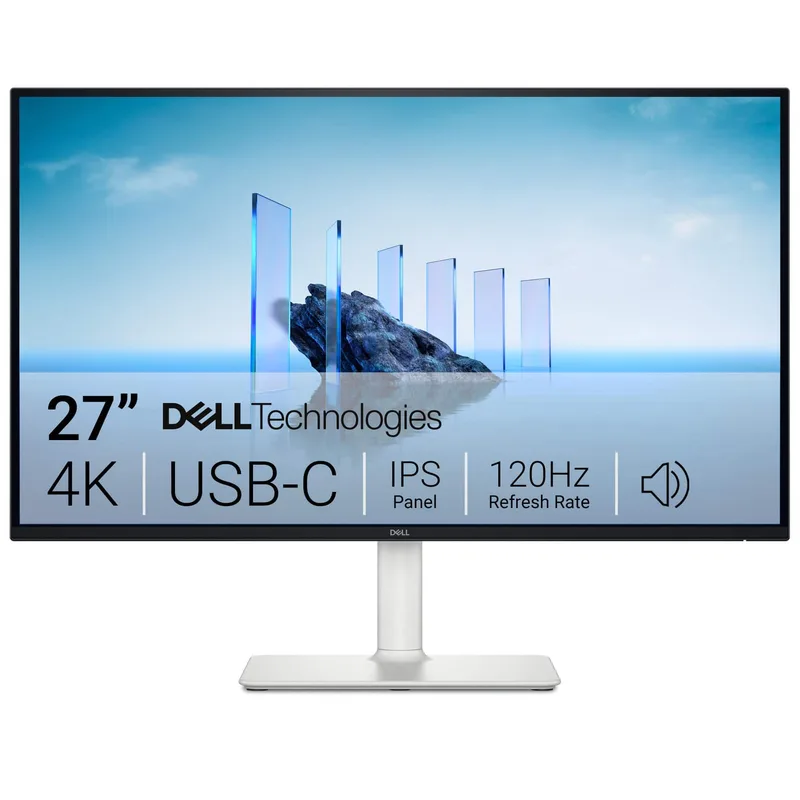
The Dell S2725QC earns the top spot by breaking two assumptions about sub-$300 4K monitors: it runs at 120Hz and includes 65W USB-C power delivery. Every other panel in this roundup caps at 60Hz and skips USB-C. For remote workers with a MacBook Air, MacBook Pro 14, or any USB-C laptop, this is the only monitor here that handles single-cable setup without a separate dock.
The 120Hz advantage over 60Hz is real for knowledge workers. Fast document scrolling, switching between virtual desktops, and dragging windows across the screen are all noticeably smoother. It’s not the visual leap from 60Hz to 144Hz at 1080p — at 4K, the GPU overhead is higher and most content still runs at 60fps — but the OS-level smoothness improvement is consistent and immediate.
Color accuracy at 99% sRGB and 95% DCI-P3 covers the vast majority of remote work color requirements. For photo review, design proofing, and video calls with color-accurate screen sharing, the S2725QC matches panels that cost significantly more. The built-in 3W speakers clear the bar for calls without a headset.
The one honest limitation: it lists at $299–$319, with $312 as a typical Amazon street price in April 2026. Budget buyers should watch for the occasional dip below $300 before committing. For the feature set, the value at $312 is still strong — no other monitor in this roundup offers both 120Hz and USB-C PD.
2. LG 27UP600-W — Best Color Accuracy
LG 27UP600-W
Pros
- 95% DCI-P3 coverage is exceptional at this price — colors in photo editing apps, video review, and web design tools are accurate without calibration hardware
- VESA DisplayHDR 400 delivers real HDR headroom, producing brighter highlights in high-contrast content versus non-HDR panels in the same price tier
- IPS panel maintains consistent color and brightness across wide viewing angles — side-on glances don't shift colors the way VA panels do
- AMD FreeSync reduces screen tearing during fast window transitions and video playback, adding smoothness to everyday OS navigation
- Reader Mode reduces blue light emission for all-day reading sessions on document-heavy workflows
- At $249–$279, it's the sharpest color value in the sub-$280 4K category
Cons
- 60Hz refresh rate is the main limitation — fast scrolling through long documents is noticeably less fluid than on the Dell S2725QC's 120Hz panel
- No USB-C — laptop users need a dock or USB-C to DisplayPort adapter for connection
- Tilt-only stand limits ergonomic positioning; a monitor arm adds $30–$60 to achieve proper eye level
- 75x75mm VESA pattern is less common — verify monitor arm compatibility before purchasing
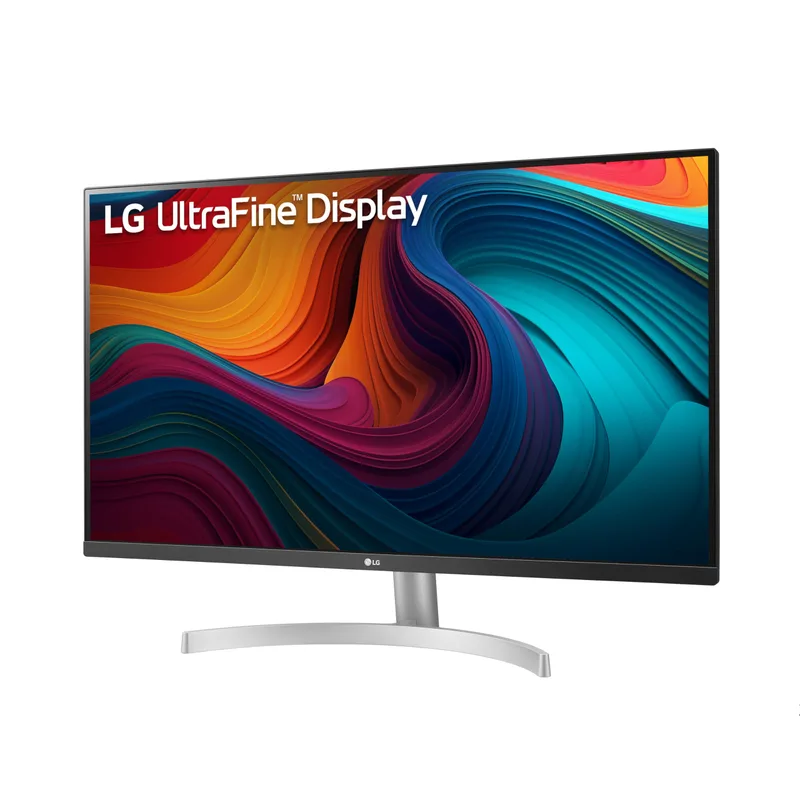
The LG 27UP600-W is the color accuracy leader at the sub-$280 tier. Its 95% DCI-P3 IPS panel consistently outperforms monitors at this price in color coverage — a specification usually reserved for monitors costing $350 or more.
For remote workers doing photo editing, graphic design, or any workflow where on-screen colors need to match print or digital output standards, the 27UP600-W is the correct pick in this roundup. The DCI-P3 95% coverage means the monitor can display the full color range of most professional photography and video content without the color shift or narrowing that cheaper IPS panels show in wide-gamut modes.
The VESA DisplayHDR 400 certification adds visible brightness headroom over monitors with HDR10 certification only. In high-contrast content — product photography on white backgrounds, presentations with bold visuals, reference images for color review — the 400-nit peak brightness produces more dynamic range than the competing panels at equivalent prices.
The 60Hz limitation is real. Scrolling through a long document on the 27UP600-W is noticeably less smooth than on the Dell S2725QC. For pure productivity focus — reading, writing, reviewing — that gap matters less. For a monitor that will also handle casual streaming or after-hours content, the refresh rate gap becomes apparent.
No USB-C is the second constraint. LG didn’t add USB-C to the 27UP600-W at this price point. MacBook users need either a USB-C to DisplayPort adapter or a dock to connect this panel. Buyers who need single-cable USB-C should look at the Dell S2725QC instead.
3. ASUS TUF Gaming VG289Q1A — Best for Mixed Use
ASUS TUF Gaming VG289Q1A
Pros
- 28-inch 4K panel hits a higher pixel density than 27-inch alternatives at the same resolution — text appears slightly sharper at the same physical viewing distance
- IPS panel with 90% DCI-P3 handles color-critical work like photo review and graphic design without the color shift issues of VA alternatives
- Adaptive-Sync and FreeSync support cover both NVIDIA and AMD GPU owners for tear-free video and window transitions
- Shadow Boost mode brightens dark areas in content without blowing out highlights — useful for video calls and dark-themed applications
- ASUS Eye Care with blue light filter and flicker-free backlight reduces strain during extended sessions
- 100x100mm VESA mount supports standard monitor arms for ergonomic positioning
Cons
- Tilt-only stand provides no height adjustment — a monitor arm is necessary for proper eye-level setup
- No built-in speakers — audio requires headphones, external speakers, or a monitor with audio pass-through
- HDR10 certification doesn't include a dedicated HDR backlight zone; HDR content looks better but doesn't compare to DisplayHDR 400 monitors at slightly higher prices
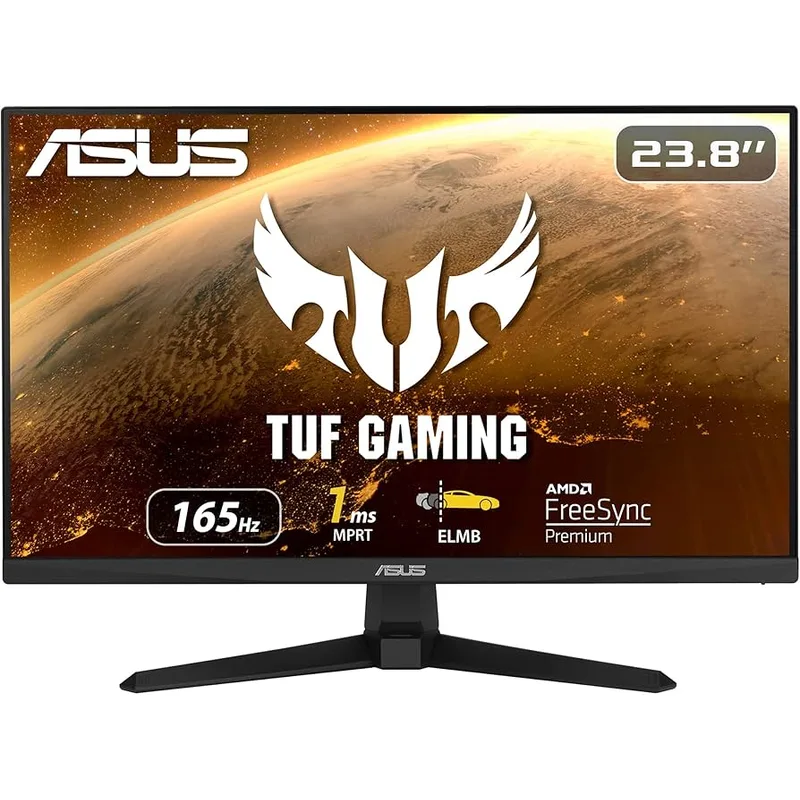
The ASUS TUF VG289Q1A approaches 4K from a gaming lineage but lands squarely in the work monitor category at its current price. The 28-inch panel at 4K resolution produces 157 PPI — higher density than the 27-inch alternatives in this roundup — making text and fine detail appear fractionally sharper at the same physical viewing distance.
The IPS panel with 90% DCI-P3 handles color accurately enough for design review, photo editing, and web design work. It’s not quite the LG 27UP600-W’s 95% DCI-P3 coverage, but the difference is minor at non-professional levels. The Adaptive-Sync and FreeSync support cover both NVIDIA and AMD GPU ecosystems, which reduces screen tearing in fast window transitions and video playback.
Shadow Boost is the gaming feature that crosses over into work utility. It adjusts gamma to reveal detail in dark image areas without washing out bright areas — useful for reviewing photos with dark shadows or working in video editing timelines with dark-theme interfaces.
Owner reports highlight the Eye Care implementation as practical: the combination of blue light filter and flicker-free backlight reduces visible fatigue during long sessions. The ASUS OSD is navigable via a joystick control rather than the confusing side buttons common on budget monitors.
The stand is the main frustration: tilt-only. Users working from home for 8+ hours need proper eye-level positioning. Budget $30–$60 for a basic monitor arm if purchasing the VG289Q1A.
4. LG 32UN500-W — Best 32-Inch Value
LG 32UN500-W
Pros
- 32 inches at 4K produces 138 PPI — sharp enough for crisp text and fine detail across the full panel, with no scaling required on Windows or macOS
- Built-in 5W MAXXAUDIO speakers handle video call audio and background music without a separate speaker purchase, a rare inclusion at this price
- VA panel's high native contrast ratio produces deeper blacks in dark-themed applications and low-light working environments versus IPS alternatives
- DCI-P3 90% coverage is sufficient for most photo editing and creative review tasks without additional calibration
- At $249–$279, the 32-inch screen provides more usable workspace than any 27-inch or 28-inch panel in this roundup
- AMD FreeSync reduces tearing during fast on-screen movement
Cons
- VA panel exhibits color shift at off-axis viewing angles — more noticeable than IPS panels when viewed from a steep angle
- 60Hz refresh rate shows the same scrolling limitation as other 60Hz monitors here; the screen size advantage does not compensate for the smoothness gap versus 120Hz panels
- Tilt-only stand; 75x75mm VESA requires arm compatibility check before purchasing
- Brightness at 300 nits typical is lower than IPS alternatives — rooms with significant ambient light can wash out the panel
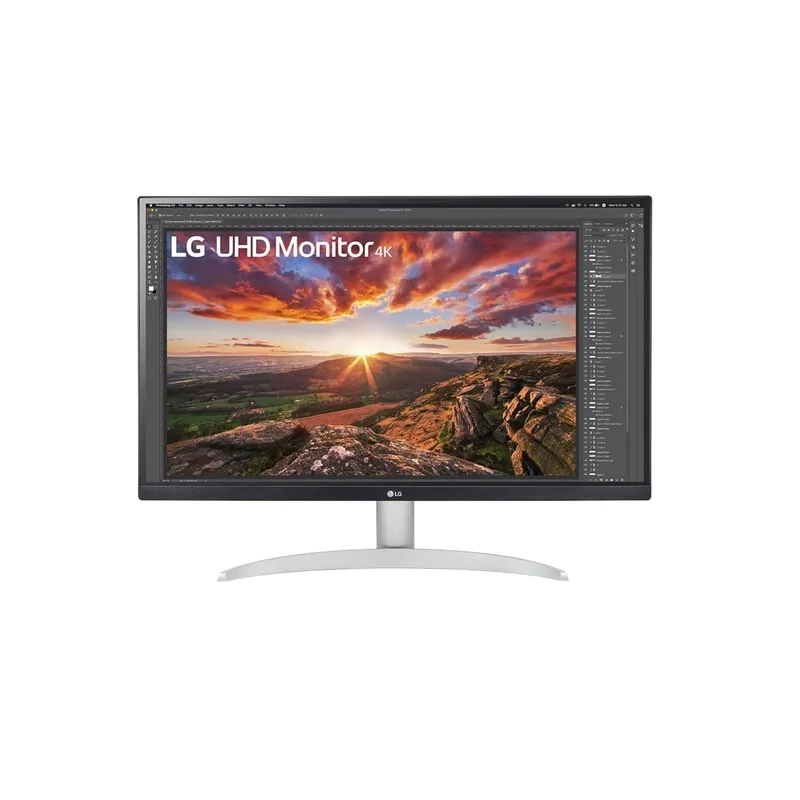
The LG 32UN500-W makes the argument for screen size over panel type at the sub-$280 price. A 32-inch 4K panel at 138 PPI is objectively sharper at 1:1 pixel density than anything at 27 or 28 inches — and the added screen area provides more usable workspace for multi-window productivity layouts.
The practical advantage is tangible for spreadsheet-heavy or research workflows. A 32-inch panel accommodates two full-width documents side by side at readable font sizes, or a browser and document editor without aggressive resizing. At 27 inches, that same layout requires zooming out or window-dragging more frequently.
The built-in MAXXAUDIO speakers are 5W each — stronger than the typical 2W to 3W speakers on monitors at this price. They handle video call audio and background music clearly enough to replace a basic desktop speaker in most home office environments.
The VA panel’s high contrast ratio is the performance highlight: dark-mode coding environments, terminal windows, and low-light reference images show visibly deeper blacks than the IPS alternatives in this roundup. The tradeoff is color shift at off-axis angles — viewing the 32UN500-W from a steep horizontal angle shows contrast and color accuracy degrading more quickly than IPS panels.
Brightness at 300 nits typical is the real constraint in bright home offices. In rooms with significant window light or overhead lighting, the 32UN500-W can look washed out compared to the LG 27UP600-W’s 400-nit DisplayHDR 400 certification.
5. Samsung ViewFinity UR55 28” — Best Budget
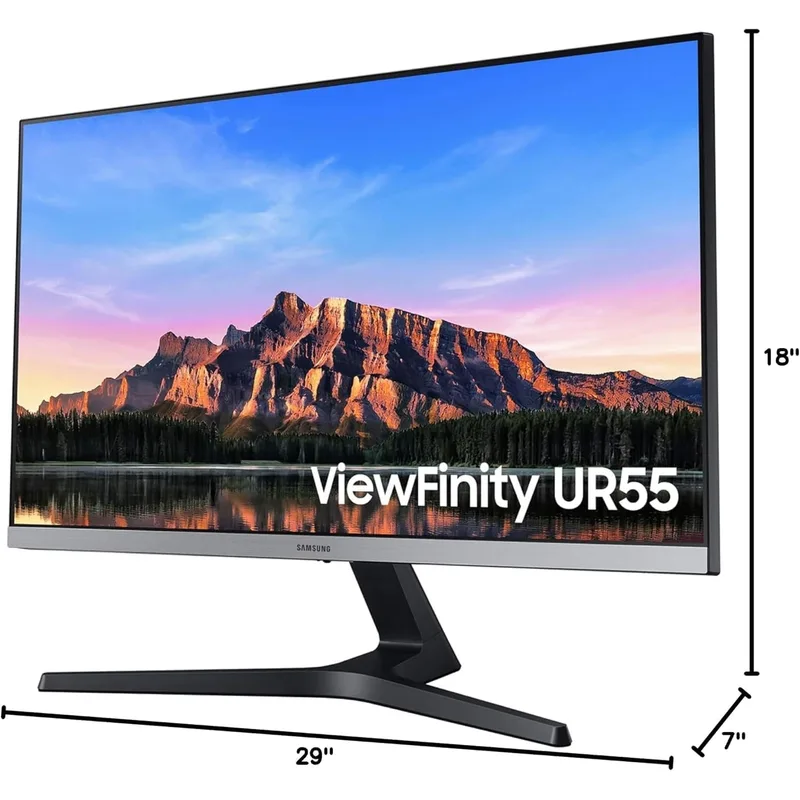
Samsung ViewFinity UR55 28"
Pros
- At $219–$249, it's the most affordable entry into 4K in this roundup — a straightforward way to add 4K resolution to any desk setup
- Bezel-less design on three sides makes it clean for dual-monitor setups — the visual break between panels is minimal
- AMD FreeSync reduces screen tearing during video playback and fast OS navigation
- Eye Saver Mode and flicker-free backlight reduce strain during extended sessions
- 28-inch panel size provides comfortable viewing without requiring the larger desk footprint of a 32-inch display
Cons
- VA panel with narrower color gamut than LG 27UP600-W or ASUS VG289Q1A — color accuracy is adequate for general use but not for color-critical work
- Tilt-only stand with no height adjustment; ergonomic positioning requires a separate monitor arm
- No built-in speakers — audio requires additional hardware
- Limited connectivity: no USB-C, no USB hub pass-through
The Samsung ViewFinity UR55 28” is the cleanest entry point into 4K in this roundup. At $219–$249, it’s the right choice for budget-constrained buyers who need 4K resolution and nothing else — no USB-C, no wide color gamut work, no premium stand.
The bezel-less three-sided design is the standout aesthetic feature. For dual-monitor setups, the visual gap between two UR55 panels is minimal — a consistent edge rather than the thick plastic border that detracts from immersion in multi-display configurations. If two affordable 4K panels side by side is the goal, the UR55’s design makes the pairing cleaner than most alternatives at this price.
The basic VA panel delivers adequate color for general computing, web browsing, document editing, and video calls. Color accuracy falls short of the IPS options in this roundup for tasks that demand DCI-P3 coverage, but for standard productivity workflows it’s sufficient.
Eye Saver Mode reduces blue light emission, and the flicker-free backlight reduces visible fatigue during extended sessions. AMD FreeSync is present and reduces screen tearing in casual use.
The UR55 doesn’t compete on features. It competes on price. For anyone whose primary requirement is 4K resolution on a limited budget — recent graduates setting up a first home office, users with tight space constraints choosing a second monitor, or remote workers replacing a worn-out 1080p panel — the Samsung UR55 28” is the most straightforward recommendation.
Buying Guide: 4K Under $300
Why 4K for remote work?
4K resolution at 27–32 inches produces significantly sharper text than 1080p or 1440p. At 27 inches, 4K delivers 163 PPI — individual pixels are invisible at normal viewing distances, producing text that reads more like paper. For extended reading, document review, and spreadsheet work, the sharpness reduction in eye strain is measurable over a full workday.
The secondary benefit is screen real estate. 4K panels display more content at 100% OS scaling than 1440p — more spreadsheet columns, more document lines, more code on screen without scrolling.
What you give up under $300
Refresh rate: The Dell S2725QC at 120Hz is the exception. Every other option in this roundup is 60Hz. For fast scrolling and OS-level animation smoothness, 60Hz shows its limitations compared to 144Hz panels. If smooth scrolling is the priority, budget more and look at 144Hz 4K panels starting around $350–$400.
USB-C: Only the Dell S2725QC includes USB-C PD. All other panels require a DisplayPort or HDMI connection and a separate dock for laptop users who want a clean desk setup.
Ergonomic stands: Tilt-only stands dominate at this price. Plan for a monitor arm ($30–$80) if proper eye-level positioning matters — and for 8-hour work days, it should.
Brightness: Most panels here peak at 300–400 nits. Monitors in bright sun-facing rooms benefit from panels above 400 nits; those start at $400+.
IPS vs. VA at this price
IPS: Better off-axis color accuracy, better color gamut (95% DCI-P3 in the LG 27UP600-W), more consistent brightness at viewing angles. Better for shared viewing or viewing from a non-center-front position.
VA: Higher native contrast ratio, deeper blacks, better performance in dark-mode environments. Better for dark rooms and single-user setups where the monitor is always viewed straight on.
For most remote workers who prioritize color accuracy: choose IPS (LG 27UP600-W or ASUS VG289Q1A). For most remote workers who prioritize screen size and deep blacks: choose VA (LG 32UN500-W).
When to stretch the budget
The Dell S2725QC at $299–$319 is worth considering over all other options in this roundup if:
- You have a MacBook or USB-C laptop and want a single-cable desk setup
- 60Hz scrolling feels noticeably rough in your current monitor
- You need both good color accuracy and smooth OS navigation
If the budget is firm at $249–$279, the LG 27UP600-W is the clear pick for color work, and the LG 32UN500-W is the pick for maximum screen real estate.
Frequently Asked Questions
Is 4K worth it at 27 inches for remote work?
Yes, for text-heavy work. At 27 inches, 4K (163 PPI) produces text that reads clearly at 100% OS scaling — individual characters are sharp, without the slight blurriness of 1080p panels at the same size. Owners report reduced eye strain in reviews of 4K monitors specifically because the increased sharpness means the brain works less to resolve character edges. The caveat is GPU load: 4K requires more GPU memory bandwidth than 1440p, which can slow down older integrated GPUs.
Can my laptop run a 4K external monitor?
Most modern laptops released after 2020 support 4K external displays via HDMI 2.0, DisplayPort 1.2, or USB-C with DisplayPort Alt Mode. Older HDMI 1.4 ports cap at 4K 30Hz — usable for work but noticeably choppy. Check your laptop’s output port spec before purchasing. All five monitors in this roundup include DisplayPort 1.2 or higher for 4K at 60Hz.
Do 4K monitors under $300 have good HDR?
HDR performance is limited at this price. The Dell S2725QC and LG 27UP600-W carry VESA DisplayHDR 400 certification, which provides genuine brightness headroom for HDR content. Other monitors here have HDR10 certification without a dedicated bright backlight — HDR content appears better than SDR but doesn’t produce the highlight brightness of true HDR monitors. For professional HDR content review, budget starts at $600+.
What’s the difference between the Dell S2725QC and S2725QS?
The S2725QC adds USB-C (65W PD) and DisplayPort 1.4; the S2725QS uses HDMI and DisplayPort without USB-C. The S2725QS typically sells for $20–$30 less. For MacBook users, the QC version eliminates the need for a dock. For Windows desktop users with dedicated GPU and DisplayPort, the QS version provides equivalent display performance at lower cost.
Should I buy two budget 4K monitors or one mid-range monitor?
Two Samsung UR55 28” monitors at $219–$249 each ($440–$498 total) provides more total screen area than most single ultrawide monitors and lets each display run 4K resolution independently. The tradeoff is desk space — two 28-inch panels require significant width — and cable management complexity. For users with desk space and a multi-monitor GPU setup, dual budget 4K panels are a strong value compared to a single $500 ultrawide.
Conclusion
The Dell S2725QC is the top pick if any stretch toward $300 is possible — the 120Hz panel and 65W USB-C combination is genuinely rare at this price, and April 2026 pricing shows it settling near $312 on Amazon, well below its $349 launch MSRP.
For buyers committed to staying under $280, the LG 27UP600-W is the best choice for color-critical work, and the LG 32UN500-W is the best choice for maximum screen real estate. Both deliver 4K resolution with sufficient image quality for all-day productivity without the premium pricing of mid-range monitors.
The Samsung ViewFinity UR55 28” remains the entry point recommendation: straightforward, affordable, and sufficient for any remote worker upgrading from 1080p who wants 4K without spending over $250.
Detailed Reviews
Dell S2725QC
Pros
- 120Hz IPS at 4K is the standout feature at this price — document scrolling and multi-window navigation feel noticeably smoother than on every 60Hz 4K monitor in this roundup
- 65W USB-C power delivery handles a MacBook Air or iPad Pro on a single cable, eliminating the need for a separate dock for most laptop users
- 99% sRGB and 95% DCI-P3 produce accurate, punchy colors for creative work, color review, and everyday document editing
- Built-in 3W speakers handle video call audio and background music without a separate speaker purchase
- Full ergonomic stand with height, tilt, swivel, and pivot adjustment included — no monitor arm required for proper eye-level positioning
- VESA DisplayHDR 400 support delivers visible brightness headroom for high-contrast content like photography and video review
Cons
- At $299–$319, it sits at or just above the $300 threshold — worth the stretch, but budget-conscious buyers should wait for a sale to get it firmly under $300
- 4ms GTG response time is adequate for office work but falls short of what gaming-focused monitors offer; not the pick for competitive gaming
- USB-C is DisplayPort Alt Mode only — no Thunderbolt 3/4 passthrough for daisy-chaining displays
LG 27UP600-W
Pros
- 95% DCI-P3 coverage is exceptional at this price — colors in photo editing apps, video review, and web design tools are accurate without calibration hardware
- VESA DisplayHDR 400 delivers real HDR headroom, producing brighter highlights in high-contrast content versus non-HDR panels in the same price tier
- IPS panel maintains consistent color and brightness across wide viewing angles — side-on glances don't shift colors the way VA panels do
- AMD FreeSync reduces screen tearing during fast window transitions and video playback, adding smoothness to everyday OS navigation
- Reader Mode reduces blue light emission for all-day reading sessions on document-heavy workflows
- At $249–$279, it's the sharpest color value in the sub-$280 4K category
Cons
- 60Hz refresh rate is the main limitation — fast scrolling through long documents is noticeably less fluid than on the Dell S2725QC's 120Hz panel
- No USB-C — laptop users need a dock or USB-C to DisplayPort adapter for connection
- Tilt-only stand limits ergonomic positioning; a monitor arm adds $30–$60 to achieve proper eye level
- 75x75mm VESA pattern is less common — verify monitor arm compatibility before purchasing
ASUS TUF Gaming VG289Q1A
Pros
- 28-inch 4K panel hits a higher pixel density than 27-inch alternatives at the same resolution — text appears slightly sharper at the same physical viewing distance
- IPS panel with 90% DCI-P3 handles color-critical work like photo review and graphic design without the color shift issues of VA alternatives
- Adaptive-Sync and FreeSync support cover both NVIDIA and AMD GPU owners for tear-free video and window transitions
- Shadow Boost mode brightens dark areas in content without blowing out highlights — useful for video calls and dark-themed applications
- ASUS Eye Care with blue light filter and flicker-free backlight reduces strain during extended sessions
- 100x100mm VESA mount supports standard monitor arms for ergonomic positioning
Cons
- Tilt-only stand provides no height adjustment — a monitor arm is necessary for proper eye-level setup
- No built-in speakers — audio requires headphones, external speakers, or a monitor with audio pass-through
- HDR10 certification doesn't include a dedicated HDR backlight zone; HDR content looks better but doesn't compare to DisplayHDR 400 monitors at slightly higher prices
LG 32UN500-W
Pros
- 32 inches at 4K produces 138 PPI — sharp enough for crisp text and fine detail across the full panel, with no scaling required on Windows or macOS
- Built-in 5W MAXXAUDIO speakers handle video call audio and background music without a separate speaker purchase, a rare inclusion at this price
- VA panel's high native contrast ratio produces deeper blacks in dark-themed applications and low-light working environments versus IPS alternatives
- DCI-P3 90% coverage is sufficient for most photo editing and creative review tasks without additional calibration
- At $249–$279, the 32-inch screen provides more usable workspace than any 27-inch or 28-inch panel in this roundup
- AMD FreeSync reduces tearing during fast on-screen movement
Cons
- VA panel exhibits color shift at off-axis viewing angles — more noticeable than IPS panels when viewed from a steep angle
- 60Hz refresh rate shows the same scrolling limitation as other 60Hz monitors here; the screen size advantage does not compensate for the smoothness gap versus 120Hz panels
- Tilt-only stand; 75x75mm VESA requires arm compatibility check before purchasing
- Brightness at 300 nits typical is lower than IPS alternatives — rooms with significant ambient light can wash out the panel
Samsung ViewFinity UR55 28"
Pros
- At $219–$249, it's the most affordable entry into 4K in this roundup — a straightforward way to add 4K resolution to any desk setup
- Bezel-less design on three sides makes it clean for dual-monitor setups — the visual break between panels is minimal
- AMD FreeSync reduces screen tearing during video playback and fast OS navigation
- Eye Saver Mode and flicker-free backlight reduce strain during extended sessions
- 28-inch panel size provides comfortable viewing without requiring the larger desk footprint of a 32-inch display
Cons
- VA panel with narrower color gamut than LG 27UP600-W or ASUS VG289Q1A — color accuracy is adequate for general use but not for color-critical work
- Tilt-only stand with no height adjustment; ergonomic positioning requires a separate monitor arm
- No built-in speakers — audio requires additional hardware
- Limited connectivity: no USB-C, no USB hub pass-through