Affiliate disclosure: SetupRanked earns a commission from qualifying Amazon purchases at no extra cost to you.
The 24-inch segment got noticeably better in 2026. 100Hz has become the baseline refresh rate even on sub-$100 panels — a threshold that required spending $150 or more just a couple of years ago. According to Newegg’s 2026 monitor trend analysis, the 24–26 inch category remains one of the most cost-effective ranges for home office deployments, particularly as 16:10 and ergonomic-stand options have pushed further down the price ladder. If you’re still running a 60Hz TN or VA monitor, the current 24-inch IPS lineup offers genuine improvements at prices that make the upgrade straightforward.
For most home office setups, 24 inches at 1080p hits a practical balance: large enough for document work and video calls, small enough to leave desk space for other equipment, and inexpensive enough that adding a second unit stays budget-realistic. This guide covers five monitors across the full range — from a sub-$100 IPS panel to a USB-C hub monitor that replaces a docking station.
Quick picks: For the best combination of ports, stand adjustability, and price, the Dell P2425H ($159–$179) is the top choice for most remote workers. On a tight budget, the LG 24MR400-B ($89–$99) delivers IPS color and 100Hz for under $100. For a single-cable laptop setup, the Dell P2425HE ($279–$309) adds 90W USB-C power delivery and built-in Ethernet.
Comparison
| Spec | Dell P2425H | LG 24MR400-B | BenQ GW2490T | ASUS ProArt PA248CRV | Dell P2425HE |
|---|---|---|---|---|---|
| Rating | 9.1/10 | 8.4/10 | 8.7/10 | 9.0/10 | 8.8/10 |
| Price | $110.41-$168.40as of Oct 18, 2026 | $80.00-$99.99as of Oct 18, 2026 | $129.99as of Oct 18, 2026 | $149.00-$199.00as of Oct 18, 2026 | $177.43-$251.06as of Oct 18, 2026 |
| Panel | IPS | IPS | IPS | IPS | IPS |
| Resolution | 1920x1080 FHD | 1920x1080 FHD | 1920x1080 FHD | 1920x1200 WUXGA (16:10) | 1920x1080 FHD |
| Refresh Rate | 100Hz | 100Hz | 100Hz | 75Hz | 100Hz |
| Response Time | 5ms GtG | 5ms GtG | 5ms GtG | — | — |
| Ports | HDMI, DisplayPort, VGA, USB 3.0 x4 | HDMI, D-Sub (VGA) | HDMI 1.4, DisplayPort 1.2 | USB-C 96W PD, DisplayPort 1.4, HDMI 2.0, USB 3.2 hub | USB-C 90W PD, HDMI 1.4, DisplayPort 1.4, RJ45 Ethernet, USB 3.2 x4 |
| Stand | Height, tilt, swivel, pivot | Tilt only | Height, tilt, swivel, pivot | Height, tilt, swivel, pivot | Height, tilt, swivel, pivot |
| Color Gamut | 99% sRGB | 99% sRGB | 99% sRGB | 97% DCI-P3, 100% sRGB | 99% sRGB |
| Warranty | 3 years | — | — | 3 years | — |
| Sync | — | AMD FreeSync | — | — | — |
| Eye Care | — | — | TÜV Rheinland Eye Comfort 4.0 | — | — |
| Color Accuracy | — | — | — | ΔE < 2, Calman Verified | — |
| Special | — | — | — | — | Built-in Ethernet passthrough via USB-C |
| Check Price → | Check Price → | Check Price → | Check Price → | Check Price → |
Prices change daily — tap Check Price for the current Amazon price.
The Picks
Dell P2425H
Pros
- Fully adjustable stand (height, tilt, swivel, pivot) covers all desk and ergonomic setups
- Built-in USB 3.0 hub with four ports reduces desktop cable clutter considerably
- ComfortView Plus low-blue-light certification is always-on — no mode switching required
- 100Hz refresh rate keeps window animations and scrolling smooth through long work sessions
- DisplayPort + HDMI + VGA handles both modern and legacy hardware without adapters
Cons
- No USB-C — MacBook and USB-C laptop users need an adapter or separate docking station
- No built-in speakers — requires headset or external audio for video calls
- 99% sRGB is solid for office work but lacks the DCI-P3 coverage of creative-grade panels
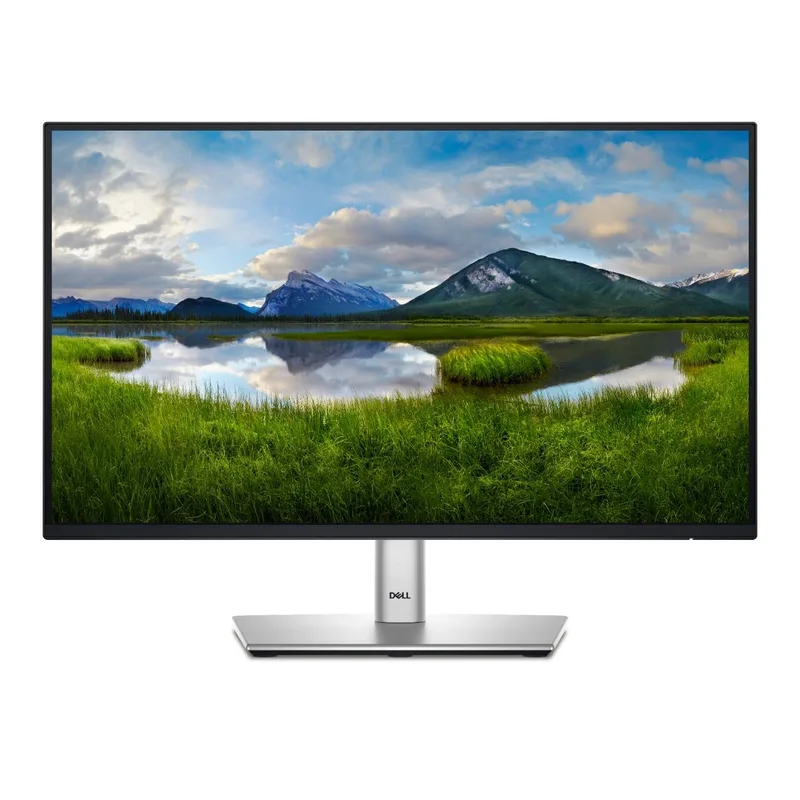
The Dell P2425H replaced the long-running P2422H in 2026 with a meaningful set of upgrades: 100Hz (up from 60Hz), a taller height adjustment range, and ComfortView Plus replacing older ComfortView technology. The result is Dell’s most capable 24-inch office panel to date.
The stand adjusts in four directions — height by 130mm, tilt from -5° to +21°, swivel 45° in both directions, and 90° portrait pivot. For remote workers who shift between landscape for general work and portrait for document review, that pivot capability alone distinguishes this from monitors with tilt-only stands. Portrait mode is genuinely useful for reading long documents and vertical code editors without scrolling.
The USB 3.0 hub adds four downstream ports. Keyboard, mouse, webcam, and a USB drive all connect at the monitor itself — the desktop or laptop only needs one cable running to the monitor to keep the desk tidy. This isn’t USB-C, but for desktop users or those with a separate dock, it simplifies cable runs considerably.
Color coverage hits 99% sRGB with ComfortView Plus — Dell’s always-on low-blue-light mode that requires no daily toggling. Based on owner reports across multiple review platforms, out-of-box color accuracy is solid for a business panel, with no obvious color cast issues for typical office content.
At $159–$179, the P2425H sits directly against the BenQ GW2490T. The BenQ wins on dedicated eye-care certification and built-in speakers. The Dell wins on connectivity — more ports, USB hub included, and VGA for legacy hardware.
Buy this if: You need a reliable, fully adjustable 24-inch panel with a USB hub and don’t require USB-C charging.
Skip this if: Your laptop charges via USB-C and you want a single-cable connection — look at the P2425HE or a USB-C dock instead.
LG 24MR400-B
Pros
- Sub-$100 IPS panel with 99% sRGB and 100Hz — a rare combination at this price point
- AMD FreeSync support for users who occasionally game after work hours
- 3-side borderless design keeps dual-monitor configurations visually clean
- Reader Mode reduces blue light output for extended document reading sessions
- Excellent energy efficiency with Smart Energy Saving and eco-certification
Cons
- Tilt-only stand with no height or swivel adjustment — a monitor arm is nearly essential
- No DisplayPort — only HDMI and D-Sub (VGA) connectivity options
- No USB hub of any kind and no built-in speakers
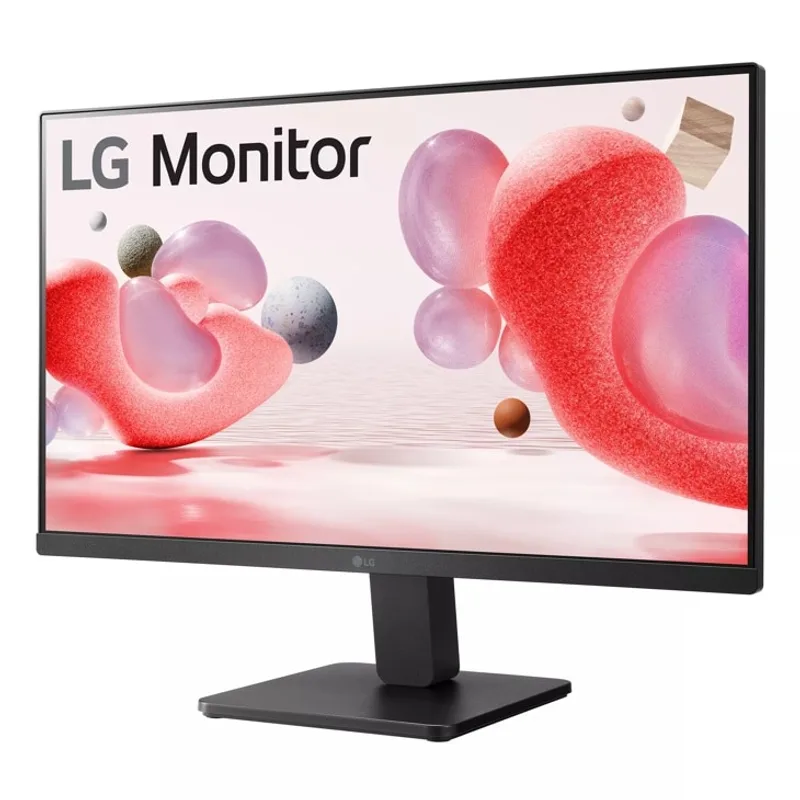
At $89–$99, the LG 24MR400-B is the most affordable IPS monitor currently available with 100Hz. The panel delivers 99% sRGB coverage and 5ms GtG response time — specs that are now standard for IPS, but that the LG delivers without forcing budget buyers into TN panels.
The 3-side borderless design makes it clean for dual-monitor configurations. Two LG 24MR400-B units for under $200 combined is a viable budget dual-monitor setup — the borderless edges minimize the visual gap between screens and keep the arrangement looking tidy.
The main limitation is the stand. Tilt-only adjustment with no height control means the display is fixed to one position relative to the desk surface. For ergonomic home office use, nearly everyone using this monitor will need a monitor arm — budget $20–$40 for a basic single-arm. VESA 100x100 mounting is supported.
The port selection is HDMI and D-Sub (VGA) only — no DisplayPort. For most desktop setups, HDMI is sufficient. Modern graphics cards all include HDMI outputs, and laptops with HDMI ports connect directly. For daisy-chaining or connecting via DisplayPort, this monitor can’t accommodate it.
What it delivers for the price is genuinely strong: IPS panel quality, 100Hz, 99% sRGB, Reader Mode, Smart Energy Saving, and AMD FreeSync for users who occasionally game. For a second monitor, a spare screen for a multi-desk setup, or a primary display paired with an ergonomic arm on a constrained budget, it holds its own against panels that cost twice as much two years ago.
Buy this if: Budget is the primary constraint and you’re comfortable adding a monitor arm.
Skip this if: You need DisplayPort, a USB hub, height adjustment from the included stand, or built-in speakers.
BenQ GW2490T
Pros
- TÜV Rheinland Eye Comfort 4.0 certification — the most stringent eye-safety rating in the category
- B.I. Smart ambient light sensor adjusts brightness automatically throughout the day
- ePaper Mode and Coding Mode offer purpose-built profiles for text-heavy and programming work
- Full ergonomic stand (height, tilt, swivel, 90° portrait pivot) with 150mm height range
- Built-in 2W × 2 speakers handle video call audio without requiring external hardware
Cons
- No USB hub — keyboard, mouse, and accessories connect directly to the computer
- No USB-C connectivity
- $149–$165 is a step up from budget options for a 1080p 24-inch panel
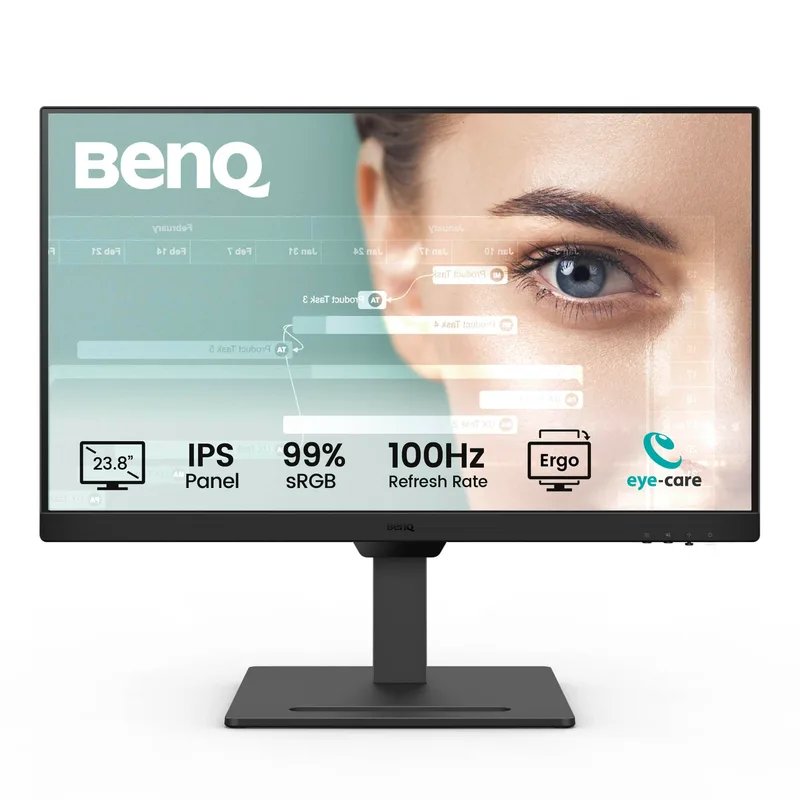
BenQ designed the GW2490T specifically for extended office use, and the specification list reflects that focus. TÜV Rheinland Eye Comfort 4.0 certification is the most stringent eye-safety standard currently applied to monitors — it evaluates flicker frequency, blue light output, color rendering accuracy, luminance range, and contrast together, not individual factors in isolation.
The B.I. Smart system uses a built-in ambient light sensor to continuously adjust display brightness based on room conditions. Unlike manual brightness adjustments that require attention, B.I. Smart updates throughout the day — useful for home offices with changing daylight from windows or shifting overhead lighting.
The stand covers full ergonomic adjustment: 150mm height range, tilt, swivel, and 90° portrait pivot. This matches or slightly exceeds the Dell P2425H on adjustability. Built-in 2W × 2 speakers handle video call audio without requiring external speakers or headphones for casual listening, which removes one item from an otherwise connected desk.
The key limitation versus the Dell is USB hub capability — the GW2490T has DisplayPort and HDMI inputs but no downstream USB ports. Keyboard, mouse, and accessories connect directly to the computer, not the monitor. For users who don’t rely on monitor-side USB, this isn’t a concern. For those who depend on it, the Dell P2425H is the better choice.
ePaper Mode and Coding Mode are purpose-specific color profiles worth using if you do text-heavy or programming work. ePaper shifts the display to a high-contrast, warmer rendering that reduces eye strain for long document sessions. Coding Mode reduces luminance and color temperature for extended programming. Both are accessible directly from the monitor OSD without software installation.
Buy this if: Eye strain is a concern, or your day is built around reading, writing, and text-heavy tasks. The BenQ’s eye-care certification stack is the deepest available in this size and price range.
Skip this if: You need USB hub ports on the monitor or USB-C connectivity.
ASUS ProArt PA248CRV
Pros
- 16:10 panel (1920x1200) adds 120 extra vertical pixels over 1080p — meaningful for documents and code
- USB-C with 96W power delivery charges most MacBooks and Windows laptops with one cable
- Calman Verified factory calibration with 97% DCI-P3 and ΔE < 2 for accurate color work
- Daisy-chain capability connects two monitors from a single DisplayPort output
- ProArt Calibration Technology maintains color accuracy over time without factory recalibration
Cons
- 75Hz refresh rate is noticeably less smooth than 100Hz alternatives for everyday scrolling
- More expensive than most 24-inch home office monitors at $199–$249
- 16:10 aspect ratio shows black bars with standard 16:9 video content
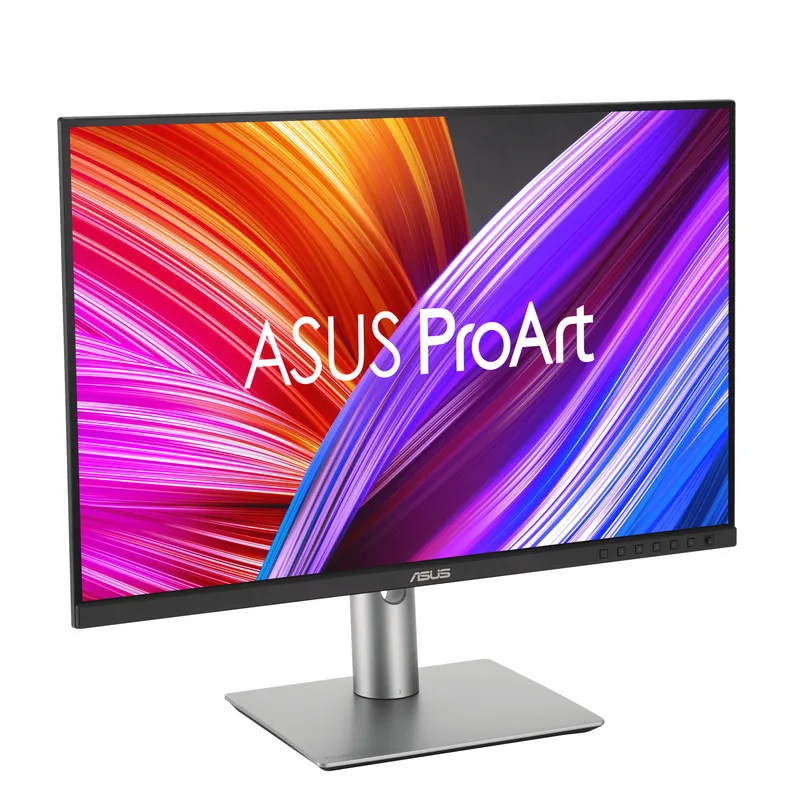
The ASUS ProArt PA248CRV is a different kind of 24-inch monitor. The 16:10 panel — 1920x1200 rather than the standard 1920x1080 — adds 120 extra pixels of vertical space. That difference is meaningful for document editing, code editors, and design applications where vertical screen real estate determines how much is visible without scrolling. Spreadsheet rows, code lines, and long-form document text all benefit from the extra height, and the effect accumulates across a full workday.
USB-C with 96W power delivery handles most MacBooks, Dell XPS units, and mainstream Windows USB-C laptops on a single cable. Connect the laptop to the monitor’s USB-C port and you get video output, a USB 3.2 hub, and 96W charging in one connection. The DisplayPort daisy-chain option lets you add a second monitor from the first monitor’s output, reducing cable runs further for dual-screen setups.
The color credentials are the strongest in this roundup. 97% DCI-P3 and 100% sRGB coverage with Calman Verified factory calibration and ΔE < 2 color accuracy represent quantified performance, not just marketing claims. For graphic designers, photo editors, and anyone working with color-sensitive files, this is the panel that delivers verified accuracy. ProArt Calibration Technology maintains that accuracy over time without needing periodic factory recalibration.
The trade-off is refresh rate. 75Hz is sufficient for all office tasks, but it is noticeably less smooth than the 100Hz panels in this roundup for everyday scrolling, window movement, and on-screen animations. If color accuracy is central to your work, the accuracy trade matters more than the refresh rate differential. For general productivity where color precision matters less than day-to-day smoothness, the 100Hz alternatives in this list will feel quicker.
Buy this if: Color-accurate work is part of your job — design, photography, video review, or presentations where color fidelity matters. Or you need USB-C 96W charging to reduce desk cable complexity.
Skip this if: General office productivity is the primary use and everyday scrolling smoothness is a priority. The 1080p 100Hz options here will feel noticeably snappier.
Dell P2425HE
Pros
- 90W USB-C power delivery handles most MacBooks and Windows laptops on a single cable
- Built-in RJ45 Ethernet passes a wired connection through USB-C — no separate dock needed
- Four USB 3.2 ports create a full hub for keyboard, mouse, webcam, and accessories
- Full ergonomic stand (height, tilt, swivel, pivot) with ComfortView Plus always-on eye care
- Eliminates the need for a separate USB-C docking station for single-monitor setups
Cons
- $279–$309 is steep for a 1080p 24-inch panel — the premium is entirely in connectivity
- Same 1080p resolution as options that cost $100 less
- USB-C cable not included in the box — budget for one if you don't already have a compatible cable
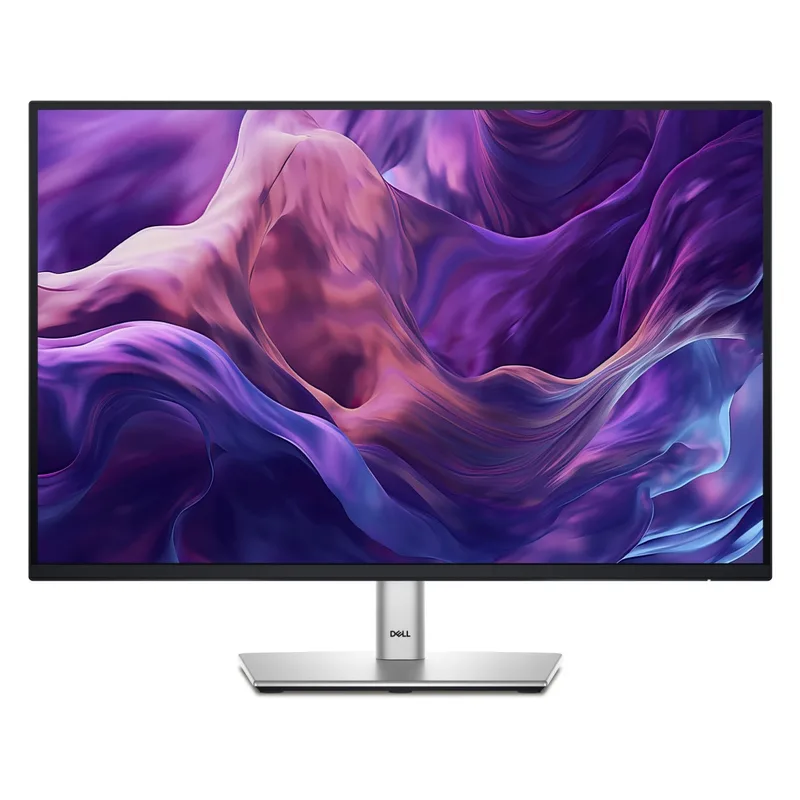
The Dell P2425HE justifies its $279–$309 price by combining USB-C 90W power delivery with built-in RJ45 Ethernet — a combination that effectively replaces a USB-C docking station for single-screen laptop users.
Connect a USB-C cable from a MacBook, Dell XPS, or ThinkPad to the P2425HE and you get: monitor video output, 90W laptop charging, wired Ethernet without a separate adapter, and a four-port USB 3.2 hub for keyboard, mouse, and accessories — all through one cable. That’s the core function of a $100–$150 docking station, integrated directly into the monitor.
The built-in Ethernet is the differentiating feature against the standard P2425H. Wired internet is faster and more consistent than Wi-Fi for video calls, large file transfers, and VPN connections that remote workers depend on. The P2425HE routes Ethernet through USB-C, so the laptop gets a wired connection without any additional hardware on the desk.
The display itself matches the standard P2425H: 23.8-inch IPS, 1920x1080, 100Hz, ComfortView Plus, and a fully adjustable ergonomic stand. The upgrade is entirely in the connectivity layer. If you don’t need USB-C PD or Ethernet passthrough — desktop users, those already running a dedicated dock — the standard P2425H at roughly $100 less is the better value. If those features eliminate a separate dock and Ethernet adapter from the desk, the premium is justified.
Buy this if: You have a USB-C laptop and want a single-cable connection that handles power, video, data, and wired Ethernet simultaneously. This monitor replaces a dock for most single-monitor setups.
Skip this if: You’re running a desktop, or your laptop already uses a dedicated docking station. The connectivity premium doesn’t add value in those configurations.
What to Look For in a 24-Inch Home Office Monitor
Panel type: IPS is the correct choice for office work
All five monitors in this roundup use IPS panels. For home office work, IPS delivers accurate colors and wide viewing angles that TN panels don’t. VA panels offer higher static contrast ratios but have slower response times and color shift at angles — a limitation that matters when a colleague or family member glances at your screen from the side.
100Hz is the new baseline
100Hz panels have replaced 60Hz across the 24-inch category at almost every price point. Smoother scrolling, window movement, and video call rendering make a real difference over an eight-hour workday. All five monitors in this roundup hit 100Hz except the ASUS ProArt PA248CRV, which trades refresh rate for factory-calibrated color accuracy.
Stand adjustability affects long-term health
Monitor position drives whether neck and shoulder strain accumulates over time. The ideal position places the top of the screen at or slightly below eye level. Four of the five monitors in this roundup have fully adjustable ergonomic stands. The LG 24MR400-B is the exception — its tilt-only stand requires a separate monitor arm for proper ergonomic setup. Budget $20–$40 for that arm if you choose the LG.
USB-C vs. traditional connectivity
For MacBook users and USB-C laptops, a monitor with USB-C PD simplifies desk cable management significantly. The ASUS ProArt PA248CRV offers 96W; the Dell P2425HE offers 90W plus Ethernet. If USB-C isn’t a requirement — desktop builds, dedicated dock users — the Dell P2425H and BenQ GW2490T provide better value per dollar.
1080p vs. 1200p at 24 inches
At 24 inches, 1080p (92 PPI) looks sharp and clear for text and general work — no scaling required. The ASUS ProArt’s 1920x1200 adds meaningful vertical space for document editors and code, but introduces black bars with standard 16:9 video content. Choose based on your primary task type.
FAQ
Is 24 inches too small for a home office monitor? Not for most setups. At a typical desk depth of 24–30 inches, a 24-inch display sits at a comfortable viewing distance. Larger monitors require more distance or a further-back desk position to avoid eye strain. 24 inches works well for focused single-screen setups; for dual monitors, two 24-inch units are easier to arrange within a standard desk width than two 27-inch units.
What resolution should a 24-inch home office monitor have? 1080p (1920x1080) is the practical choice for 24 inches. The 92 PPI density is sufficient for sharp text without requiring display scaling, which can cause blurriness in some applications. 1440p at 24 inches is sharper but costs significantly more and isn’t necessary for typical office tasks. The ASUS ProArt’s 1920x1200 (16:10) is worth considering if vertical screen space is a priority.
Do I need a monitor with built-in speakers? Only if you regularly use your monitor for calls or media playback without headphones. Built-in monitor speakers are typically 2W — audible in a quiet room, but not ideal for calls in a shared or noisy space. The BenQ GW2490T includes 2W × 2 speakers that work adequately for casual use. If a headset handles your calls, skip the speaker requirement and allocate budget elsewhere.
Can I use a 24-inch monitor with my MacBook? Yes. MacBooks connect to any monitor via HDMI or USB-C. For a clean single-cable connection that also charges the laptop, choose the ASUS ProArt PA248CRV (USB-C 96W) or Dell P2425HE (USB-C 90W + Ethernet). For a standard HDMI connection with a separate charger, any monitor in this list works with an appropriate cable.
How important is a height-adjustable stand? Significant for long-term comfort. The correct monitor position places the top of the screen at or slightly below eye level. Without height adjustment, most monitors sit too low for the average seated position and require books or risers to compensate. Four of the five monitors here have fully adjustable stands. The LG 24MR400-B is the exception — if you choose it, budget for a monitor arm.
Bottom Line
For most home office setups, the Dell P2425H ($159–$179) delivers the best overall balance: USB 3.0 hub, fully adjustable ergonomic stand, 99% sRGB color, and 100Hz at a practical price. It covers the core requirements without overspending.
The LG 24MR400-B ($89–$99) is the pick if budget is the deciding factor — IPS quality and 100Hz for under $100. Add a monitor arm to compensate for the fixed stand.
For eye-care focus, the BenQ GW2490T ($149–$165) carries the deepest certification stack in this size class. For single-cable laptop setups that need wired Ethernet, the Dell P2425HE ($279–$309) replaces a dock. For color-critical creative work with 16:10 vertical space, the ASUS ProArt PA248CRV ($199–$249) is the only panel here with factory-verified color accuracy.
Detailed Reviews
Dell P2425H
Pros
- Fully adjustable stand (height, tilt, swivel, pivot) covers all desk and ergonomic setups
- Built-in USB 3.0 hub with four ports reduces desktop cable clutter considerably
- ComfortView Plus low-blue-light certification is always-on — no mode switching required
- 100Hz refresh rate keeps window animations and scrolling smooth through long work sessions
- DisplayPort + HDMI + VGA handles both modern and legacy hardware without adapters
Cons
- No USB-C — MacBook and USB-C laptop users need an adapter or separate docking station
- No built-in speakers — requires headset or external audio for video calls
- 99% sRGB is solid for office work but lacks the DCI-P3 coverage of creative-grade panels
LG 24MR400-B
Pros
- Sub-$100 IPS panel with 99% sRGB and 100Hz — a rare combination at this price point
- AMD FreeSync support for users who occasionally game after work hours
- 3-side borderless design keeps dual-monitor configurations visually clean
- Reader Mode reduces blue light output for extended document reading sessions
- Excellent energy efficiency with Smart Energy Saving and eco-certification
Cons
- Tilt-only stand with no height or swivel adjustment — a monitor arm is nearly essential
- No DisplayPort — only HDMI and D-Sub (VGA) connectivity options
- No USB hub of any kind and no built-in speakers
BenQ GW2490T
Pros
- TÜV Rheinland Eye Comfort 4.0 certification — the most stringent eye-safety rating in the category
- B.I. Smart ambient light sensor adjusts brightness automatically throughout the day
- ePaper Mode and Coding Mode offer purpose-built profiles for text-heavy and programming work
- Full ergonomic stand (height, tilt, swivel, 90° portrait pivot) with 150mm height range
- Built-in 2W × 2 speakers handle video call audio without requiring external hardware
Cons
- No USB hub — keyboard, mouse, and accessories connect directly to the computer
- No USB-C connectivity
- $149–$165 is a step up from budget options for a 1080p 24-inch panel
ASUS ProArt PA248CRV
Pros
- 16:10 panel (1920x1200) adds 120 extra vertical pixels over 1080p — meaningful for documents and code
- USB-C with 96W power delivery charges most MacBooks and Windows laptops with one cable
- Calman Verified factory calibration with 97% DCI-P3 and ΔE < 2 for accurate color work
- Daisy-chain capability connects two monitors from a single DisplayPort output
- ProArt Calibration Technology maintains color accuracy over time without factory recalibration
Cons
- 75Hz refresh rate is noticeably less smooth than 100Hz alternatives for everyday scrolling
- More expensive than most 24-inch home office monitors at $199–$249
- 16:10 aspect ratio shows black bars with standard 16:9 video content
Dell P2425HE
Pros
- 90W USB-C power delivery handles most MacBooks and Windows laptops on a single cable
- Built-in RJ45 Ethernet passes a wired connection through USB-C — no separate dock needed
- Four USB 3.2 ports create a full hub for keyboard, mouse, webcam, and accessories
- Full ergonomic stand (height, tilt, swivel, pivot) with ComfortView Plus always-on eye care
- Eliminates the need for a separate USB-C docking station for single-monitor setups
Cons
- $279–$309 is steep for a 1080p 24-inch panel — the premium is entirely in connectivity
- Same 1080p resolution as options that cost $100 less
- USB-C cable not included in the box — budget for one if you don't already have a compatible cable